
When your iPhone 17 gets stuck trying to send a photo, it's usually a quick network or settings hiccup. The photo might hang with a "Not Delivered" tag, or the progress bar just won't move. Let's get that sorted.
I'd start by checking the most common culprit, which is almost always the internet connection. Whether you're on Wi-Fi or cellular, a weak signal is the number one reason photos fail to send.
Check Your iPhone 17's Connection
First, look at the top of your screen. If you see the Wi-Fi symbol, try turning Wi-Fi off and using your cellular data instead. Go to Settings > Wi-Fi and toggle it off.
If you're already on cellular, check your signal bars. Moving to a different spot in your home or near a window can sometimes make all the difference. For Wi-Fi, a quick router restart often helps.
Just unplug your router, wait about 30 seconds, and plug it back in. Give it a minute to fully reboot before trying to send the photo again.
Toggle iMessage Off and On
If the photo is trying to send as an iMessage (blue bubble), the service might need a refresh. This is a very common fix that takes about ten seconds.
Head to Settings > Apps > Messages. Tap the toggle next to iMessage to turn it off. Wait a few moments, then tap it again to turn it back on. This re-establishes the connection with Apple's servers.
After it reactivates, try sending your photo again. If it now sends as a green text message (SMS/MMS), that tells you the issue was specifically with iMessage.
Ensure MMS Messaging is Enabled
When iMessage isn't available, photos may send as RCS or MMS/SMS instead, depending on carrier support, the recipient, and your Messages settings. RCS and MMS/SMS use green bubbles and may require a text-messaging plan.
Stay in Settings > Apps > Messages. If MMS Messaging appears, make sure it is enabled. Also turn on Send as Text Message for SMS fallback. If full-size photo or video attachments still fail over SMS/MMS, enable Low Quality Image Mode, since carriers can set attachment size limits.
Force Restart Your iPhone 17
A simple force restart can clear out temporary software glitches that might be blocking the Messages app. The process for the iPhone 17 is specific.
Quickly press and release the Volume Up button. Then quickly press and release the Volume Down button. Finally, press and hold the Side button until you see the Apple logo appear, then let go.
This doesn't erase any data. Once it boots back up, open Messages and try sending the photo again.
Update Your Carrier Settings
Sometimes, your mobile carrier pushes small updates that improve network connectivity. These happen in the background, but it's good to check manually.
Make sure you're connected to the internet, then go to Settings > General > About. If a carrier settings update is available, a prompt will appear on this screen. Just follow the instructions to install it.
Check Date & Time Settings
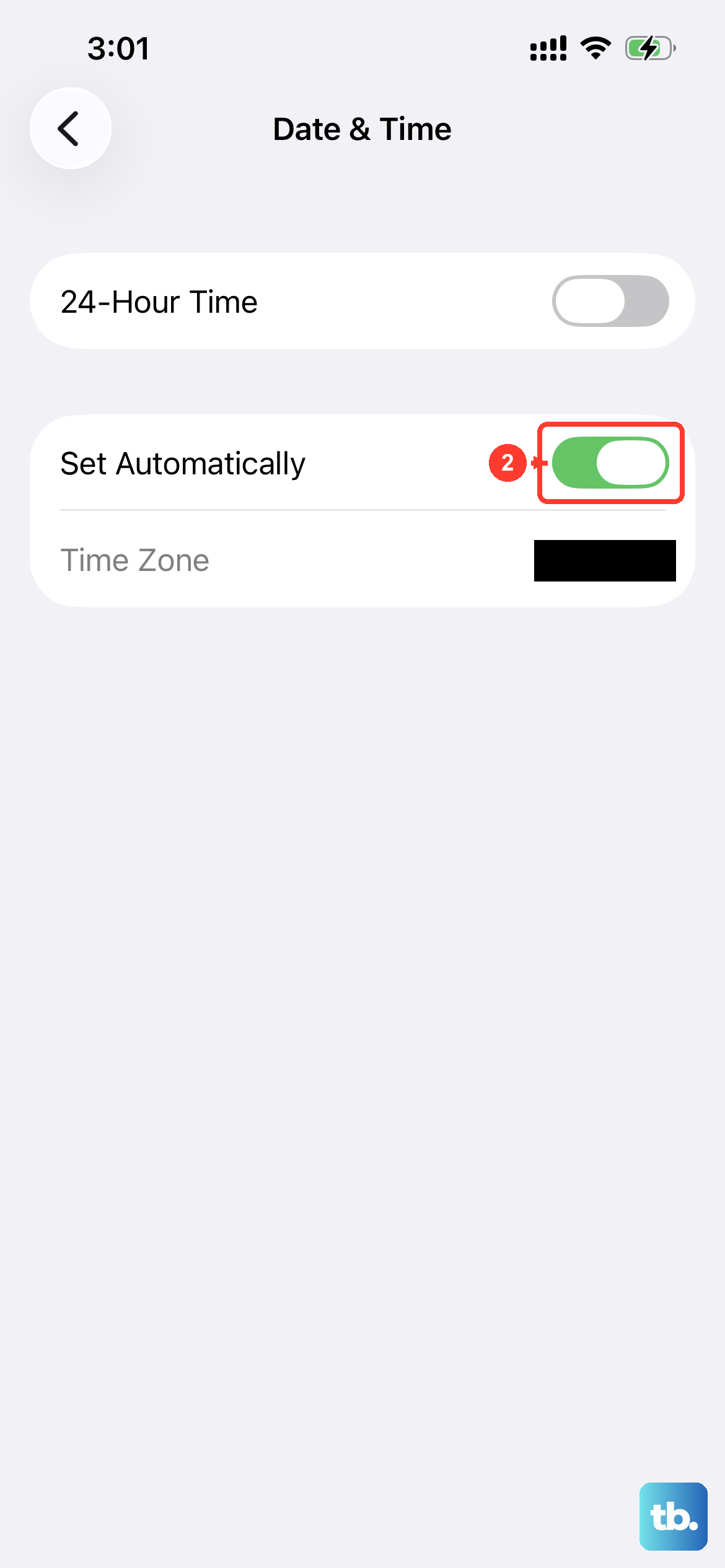
Incorrect date and time settings can surprisingly mess with message delivery. Your iPhone 17 needs to have this set correctly to communicate with networks properly.
Open Settings > General > Date & Time. Ensure that Set Automatically is switched on. If it's already on, try turning it off and then immediately back on again to refresh it.
Disable Low Data Mode
Low Data Mode restricts background network use and can pause services such as iCloud Photos updates. It is worth checking if photo-related syncing seems stalled.
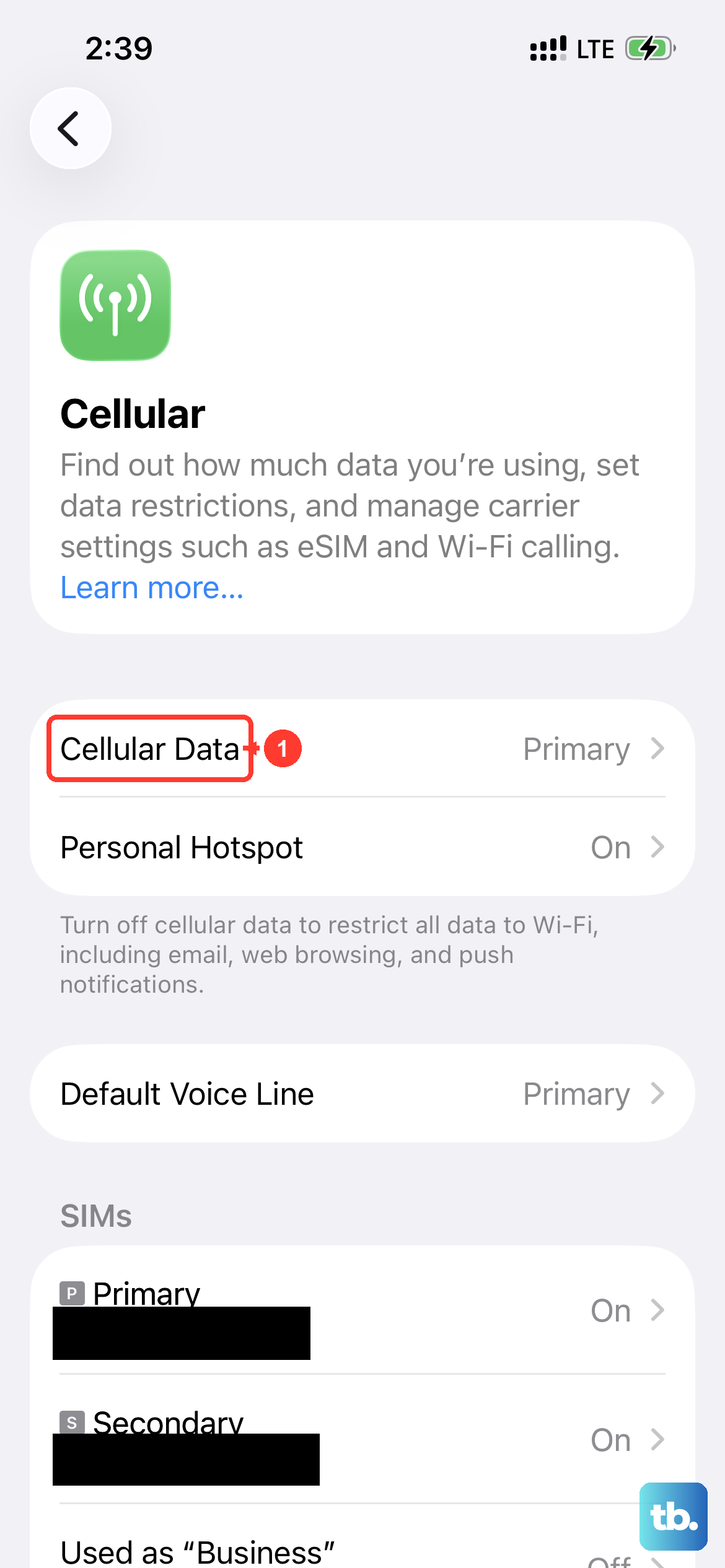
If you're on cellular, go to Settings > Cellular > Cellular Data Options. On 5G, tap Data Mode, then turn off Low Data Mode; on LTE/4G, the Low Data Mode toggle may appear directly under Cellular Data Options. For Wi-Fi, go to Settings > Wi-Fi, tap the "i" icon next to your network, and toggle off Low Data Mode there.
Sign Out and Back Into Your Apple ID
This refreshes your core account connection, which iMessage relies on. Go to the top of your Settings app and tap your name. Scroll all the way down and select Sign Out.
You'll need your Apple ID password to turn off Find My. After signing out, force restart your phone using the steps above. Then, go back to Settings, sign in with your Apple ID, and try iMessage again.
Reset Network Settings
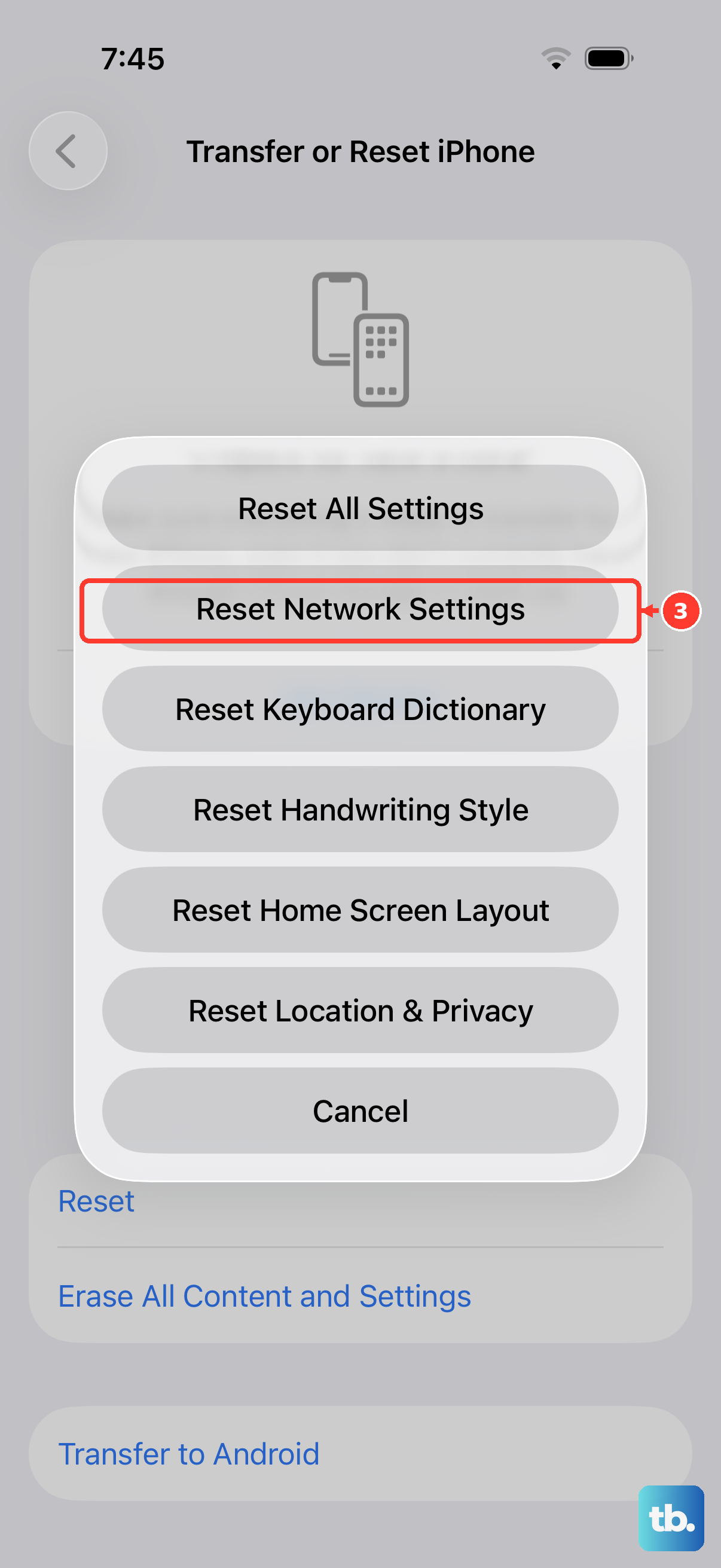
This is a more thorough step if connectivity seems to be the persistent issue. It removes saved Wi-Fi networks and passwords, cellular settings, and VPN/APN settings, so make sure you know your Wi-Fi password beforehand.
Navigate to Settings > General > Transfer or Reset iPhone. Tap Reset and then choose Reset Network Settings. Enter your passcode when prompted and confirm. Your iPhone 17 will reboot, and Wi-Fi turns off and back on as network settings are reset.
Update to the Latest iOS 26 Version
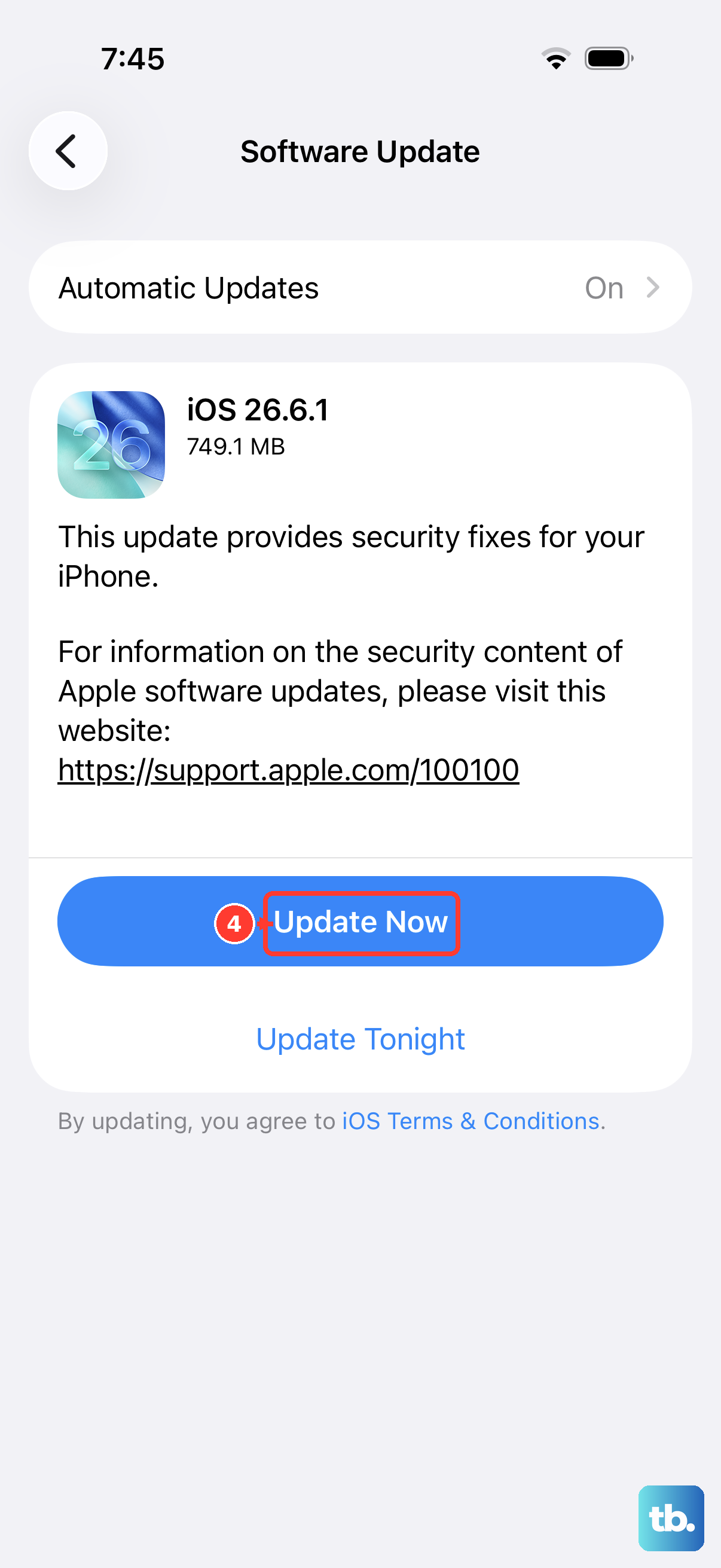
Software bugs can occasionally affect messaging. Apple releases updates to patch these issues. Connect your iPhone 17 to Wi-Fi and plug it into power.
Go to Settings > General > Software Update. If an update is available, tap Download and Install. I've seen minor point updates resolve messaging problems for many users.