
When your iPhone 17 suddenly goes quiet or the volume is way too low, it can throw you off completely. This can happen during calls, while watching videos, or when you're trying to listen to music. The good news is that most sound issues are caused by simple settings or minor software hiccups that you can fix yourself in just a few minutes.
If you are not sure whether it is the speakers or the software, run an online quick sound test first. Working test tones rule out a hardware fault in seconds.
Check the Physical Buttons and Switch
Start with the basics on the phone itself. The Action button on the left side (which replaces the old Ring/Silent switch) might have Silent mode turned on. Press and hold the Action button to toggle Silent mode, and you'll see a banner on screen confirming when Silent mode is on. Also, quickly press the volume up button on the left side a few times to make sure the volume isn't just turned all the way down.
Sometimes a case can interfere with these physical controls. I'd recommend taking your iPhone out of its case for a moment to make sure nothing is blocking the switch or buttons from moving properly.
Adjust Your Sound Settings in iOS 26
Open the Settings app and tap on Sounds & Haptics. Here, you can drag the sliders for Ringtone and Alerts, as well as the volume for media. Make sure the Change with Buttons toggle is enabled, which lets you control media volume with the side buttons.
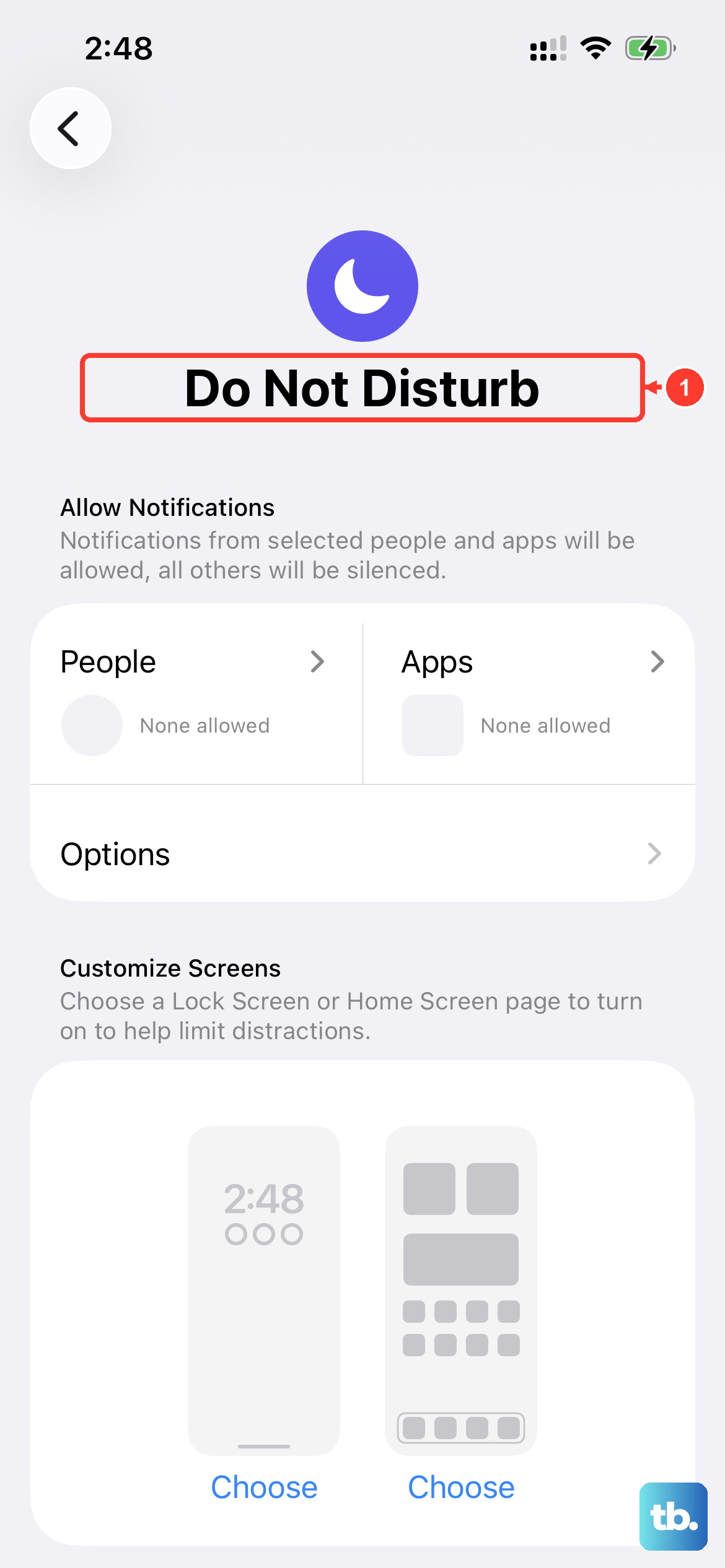
Also, check that the system isn't set to mute. Go to Settings > Focus and see if any Focus modes, like Do Not Disturb or Sleep, are active. These can silence calls and alerts. If one is on, tap it and make sure the Silence Notifications option is set to "Allow" or "Time Sensitive" instead of "Silence."
Disconnect Bluetooth and Audio Routes
Your iPhone 17 might be trying to send sound to a paired device instead of its own speakers. Swipe down from the top-right corner to open Control Center. Look at the audio card in the top-right, if it shows anything other than your iPhone's name, tap it and select iPhone from the list.
For a more thorough check, go to Settings > Bluetooth. If you see any devices connected, tap the info icon (i) next to them and choose Disconnect. You can also just toggle Bluetooth off here temporarily to see if your speaker sound returns.
Clean the Speaker Grilles
Dust and pocket lint can easily clog the speaker grille at the bottom of your iPhone 17. Take a close look with a flashlight. Use a soft, dry, clean-bristled brush, like a new toothbrush, to gently brush the grille.
You can also use a can of compressed air, but hold it upright and use very short bursts from a few inches away. Never insert anything sharp like a pin or paperclip into the holes, as this can permanently damage the speaker.
Force Restart Your iPhone 17
A force restart is different from a normal off-and-on reboot. It clears the device's memory without deleting any data and can fix temporary glitches affecting the audio. Here's how to do it on the iPhone 17: quickly press and release the Volume Up button, quickly press and release the Volume Down button, then press and hold the Side button.
Keep holding the Side button until you see the Apple logo appear on the screen, then let go. This usually takes about 10-15 seconds. Once it boots back up, test your sound again.
Check for Software Updates
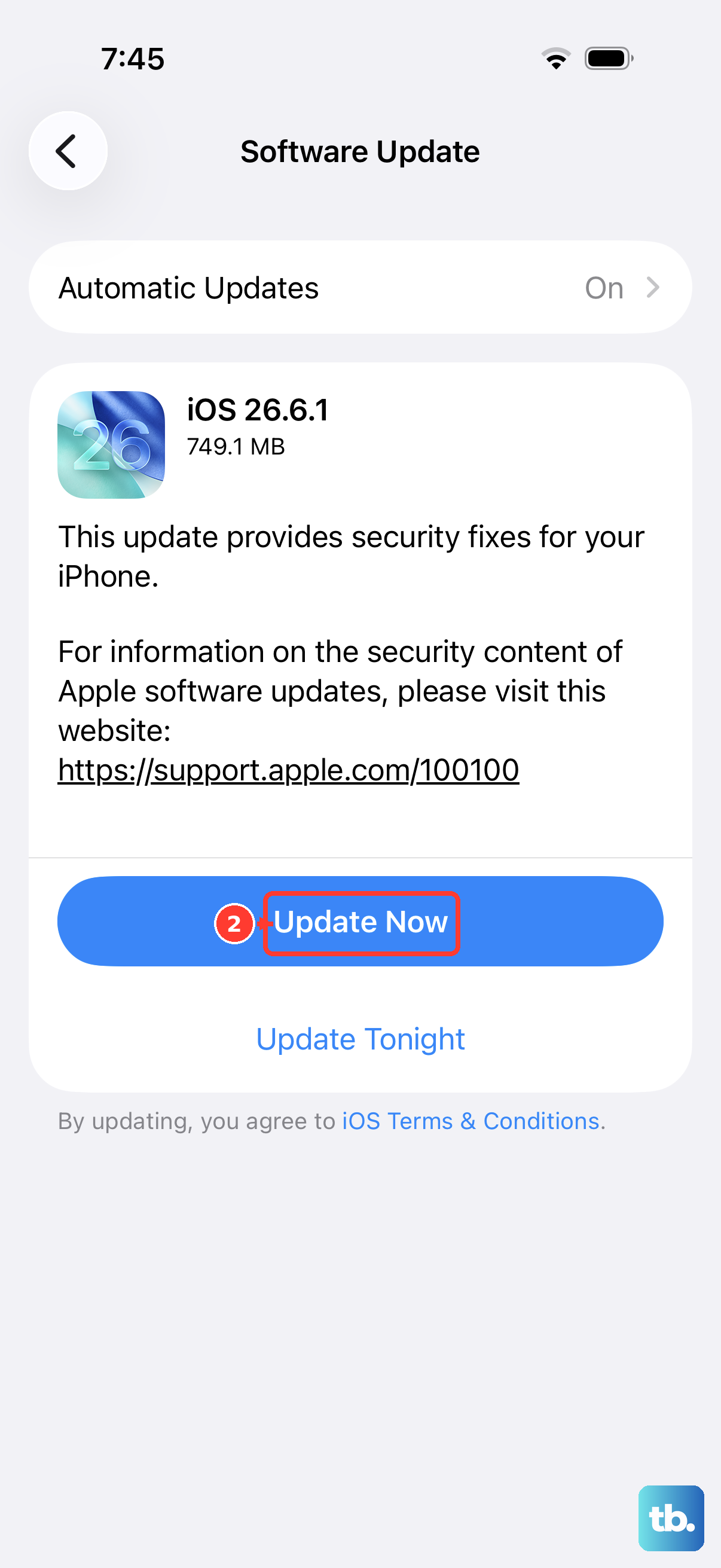
Apple frequently releases iOS updates that include bug fixes for audio and speaker issues. Since you're on iOS 26, it's worth checking if a newer version is available. Go to Settings > General > Software Update. Your phone will check for updates.
If an update is available, I'd recommend installing it. Make sure your iPhone is connected to Wi-Fi and has at least 50% battery or is plugged into power. Updates can sometimes temporarily affect system behavior, so getting the latest version can resolve underlying problems.
Review Accessibility and Sound Settings
Certain accessibility features are designed to adjust audio, which might be causing the low volume. Go to Settings > Accessibility > Audio/Visual. Look at the Balance slider, it should be centered. Also, check that the Mono Audio and Phone Noise Cancellation toggles are set to your preference.
Another setting to check is in Settings > Music. Tap on Volume Limit and make sure it's turned off, or that the maximum volume slider is set to high. This limit applies to the Music app and can make everything seem quieter than it should be.
Reset All Settings
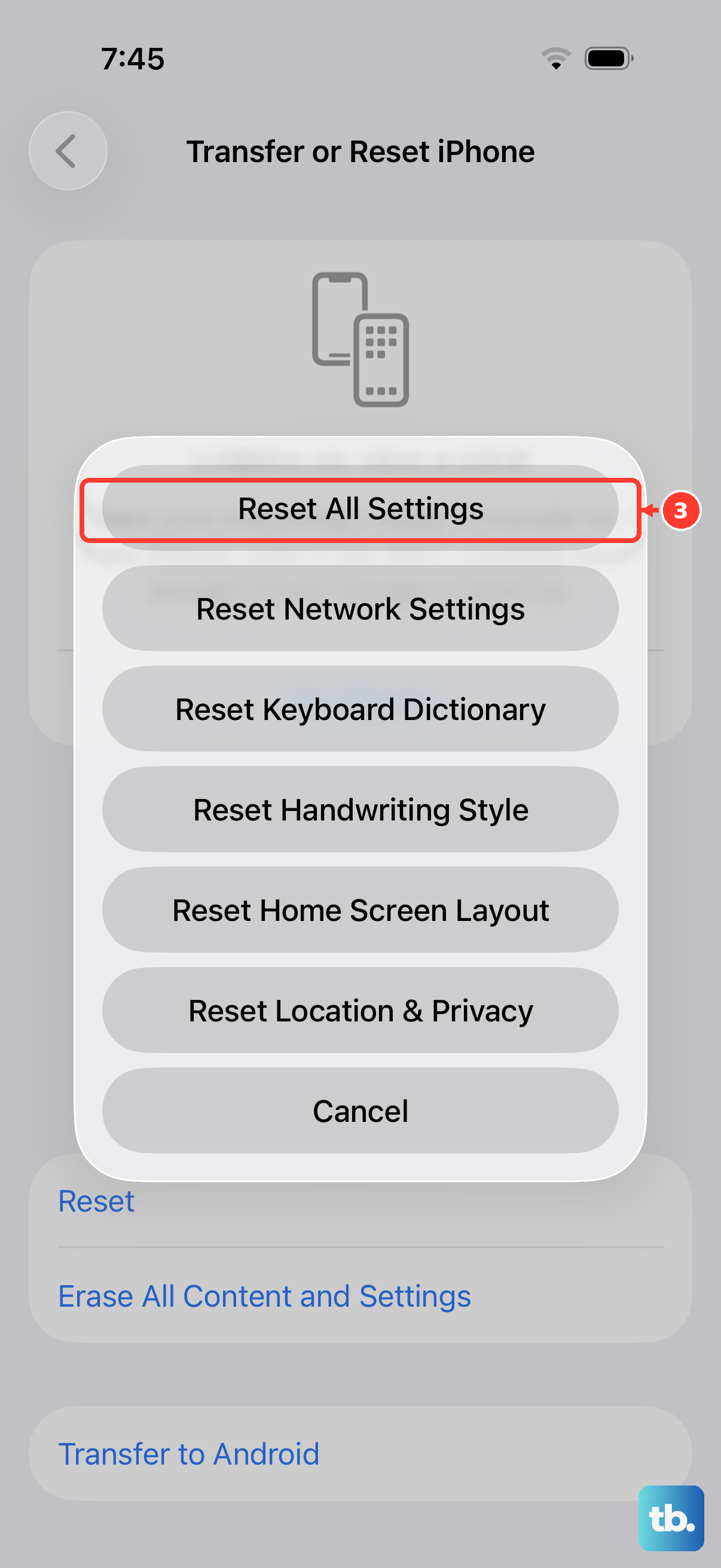
If you're still having trouble, resetting all settings can help. This will revert all your preferences, like Wi-Fi passwords, wallpaper, and privacy settings, back to factory defaults, but it won't delete any of your photos, messages, or apps.
To do this, go to Settings > General > Transfer or Reset iPhone. Tap Reset, then choose Reset All Settings. You'll need to enter your passcode and confirm. Your iPhone will restart. Afterward, you'll need to reconnect to Wi-Fi and adjust any custom settings again, but it often clears up persistent sound issues.
Test in Safe Mode (Diagnostic Boot)
While iOS doesn't have a traditional "Safe Mode," you can test if a third-party app is causing the problem. Try holding down the Volume Down button while your iPhone 17 is restarting. This can sometimes trigger a diagnostic state, though it's not guaranteed on all iOS versions.
A more reliable method is to think about what you installed or updated just before the sound problem started. You can try uninstalling recent apps one by one to see if the sound returns. If the speaker works fine during a phone call but not in a specific app like YouTube or Spotify, the issue is almost certainly with that particular app.











