
When your iPhone 17 Pro's voice assistant stops responding, it feels like you've lost a helpful sidekick. The feature that's supposed to make things quicker suddenly isn't listening. Let's get it working again.
I'd start by checking the most common setting that gets accidentally toggled off. Head to Settings > Siri & Search. Make sure both "Listen for 'Hey Siri'" and "Press Side Button for Siri" are enabled. If you've recently updated to iOS 26, sometimes these preferences can reset.
Check for Audio Feature Conflicts
Your iPhone 17 Pro has some powerful audio features that can sometimes interfere. The main one to look for is Sound Recognition in the Accessibility settings. This feature is designed to listen for specific sounds like alarms or doorbells, and when it's active, it automatically disables "Hey Siri" to prevent conflicts.
To check, go to Settings > Accessibility > Sound & Name Recognition > Sound Recognition. If it's on, try turning it off temporarily to see if Siri comes back. Also, if you're using a Focus mode like Do Not Disturb or Sleep, Siri's responses might be silenced. You can change this in the Siri Responses menu.
Retrain Siri to Your Voice
If Siri seems to hear you but doesn't activate, or if it's triggering for other people's voices, it might need a refresher on your specific voice pattern. This is a quick fix that often solves recognition problems.
Go back to Settings > Siri & Search and toggle "Listen for 'Hey Siri'" off. Wait a second, then toggle it back on. Your phone will walk you through the voice training setup again. Just speak the phrases it shows you clearly. This recalibrates the on-device machine learning model for your voice.
Inspect Your Microphones and Speakers
The iPhone 17 Pro has multiple microphones. If the primary ones at the bottom or near the front camera are blocked, Siri can't hear the wake word. Check for any debris in the small grilles. A soft, dry brush can gently clear out lint or dust.
Also, if you can't hear Siri's responses, make sure Silent mode isn't on — the iPhone 17 Pro has no Ring/Silent switch, so check the Action button or Control Center instead. Make sure it's not set to silent. You can also go to Settings > Siri & Search > Siri Responses and select "Always" to allow voice responses even in silent mode.
Review Connected Audio Devices
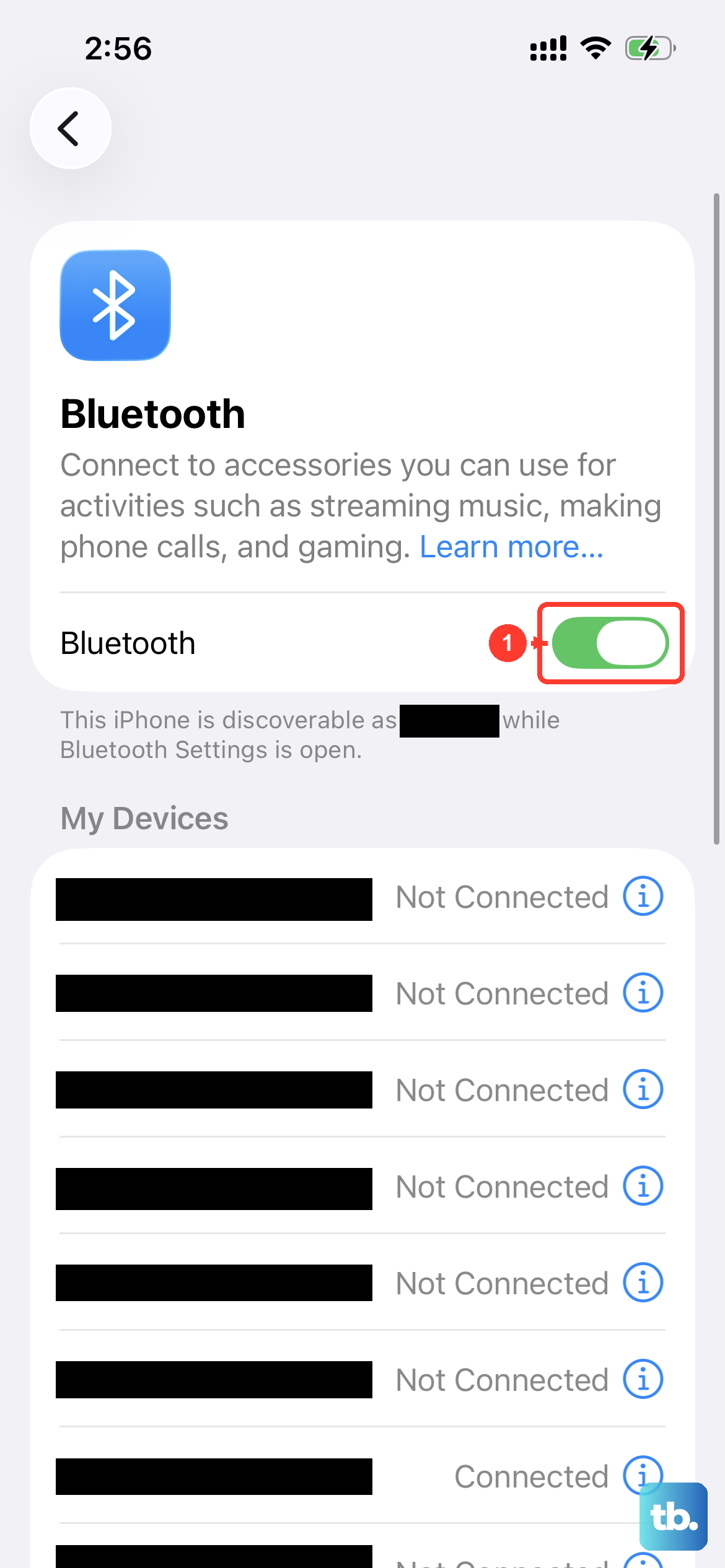
Siri is designed to work through connected Bluetooth devices like AirPods or CarPlay. However, if there's a glitch in that connection, it might be trying to listen through an accessory that's not functioning properly. This can cause it to seem completely unresponsive.
Go to Settings > Bluetooth and look at your connected devices. Try turning Bluetooth off entirely for a moment, then ask "Hey Siri." If it works, you know the issue is with a connected device. You can then reconnect your accessories one by one to find the culprit.
Perform a Force Restart
A simple restart clears out temporary software glitches that can affect system processes like the voice assistant. For the iPhone 17 Pro, the method is specific. Press and quickly release the Volume Up button, then quickly press and release the Volume Down button. Finally, press and hold the Side button until you see the Apple logo appear on the screen, then release.
This forces the device to reboot without deleting any of your data. It's a good step to try after checking your basic settings.
Update to the Latest iOS 26 Version
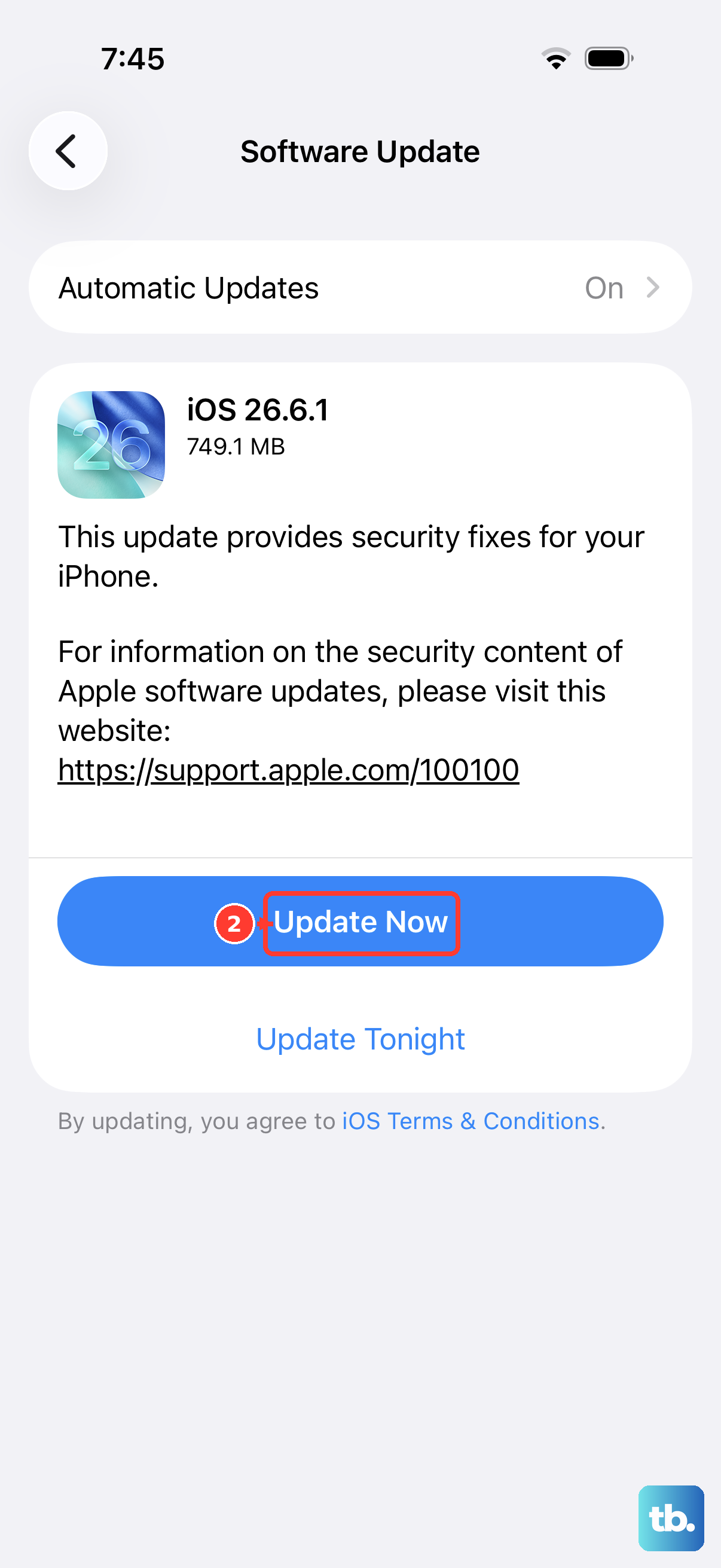
Apple frequently releases software updates that include fixes for voice recognition and Siri performance. A bug in your current version could be the root cause. It's always worth making sure you're on the latest build.
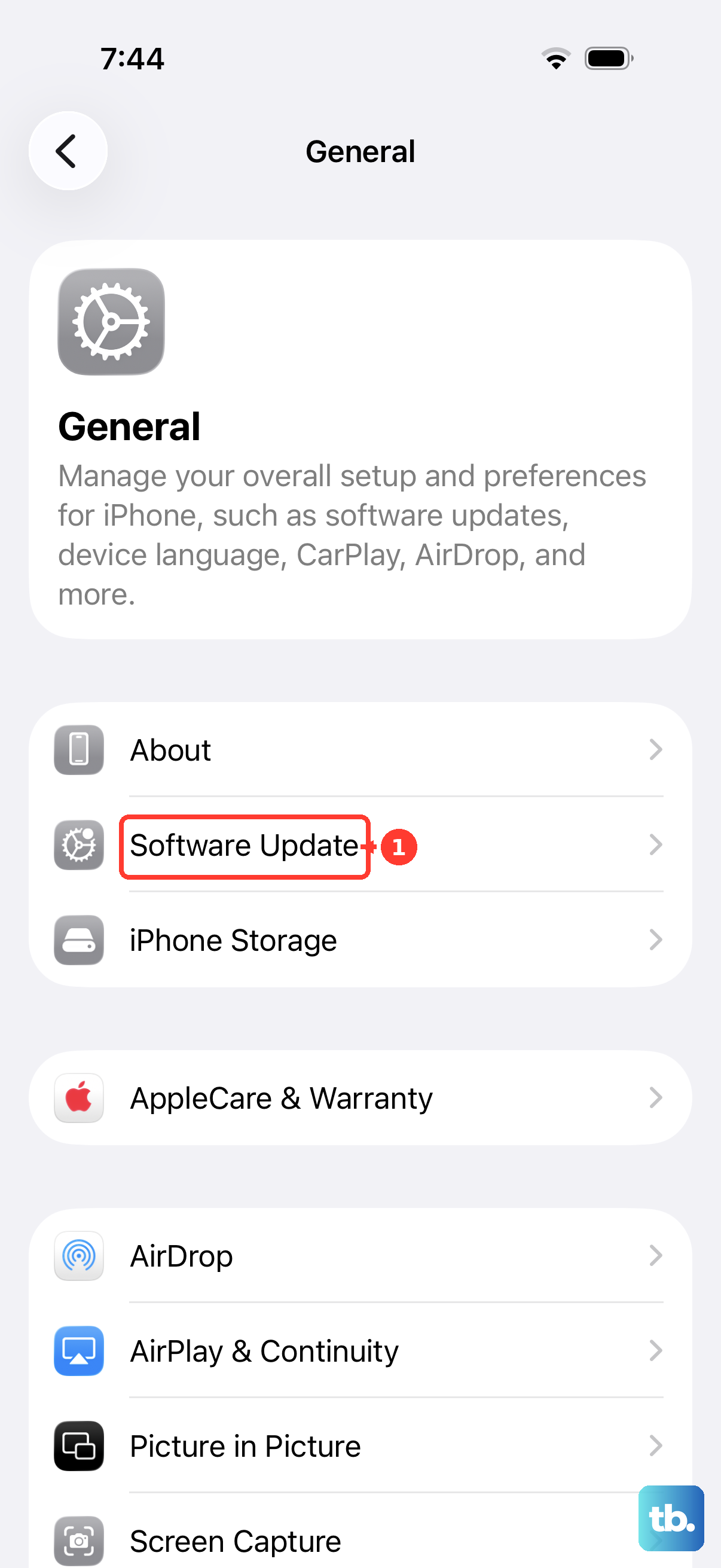
Open Settings, tap General, and then select Software Update. If an update is available, download and install it. Make sure your phone is connected to Wi-Fi and has sufficient battery, or plug it into your 40W Dynamic Power Adapter during the process.
Check Your Network Connection
While many Siri requests are processed directly on your iPhone 17 Pro for privacy and speed, some commands still require an internet connection. Things like asking for sports scores, looking up general web information, or getting traffic updates need data.
If you're only having issues with these types of queries, but "Hey Siri" activates, the problem is likely your cellular or Wi-Fi connection. Try toggling Airplane Mode on and off from the Control Center to reset your network radios.
Reset All Settings
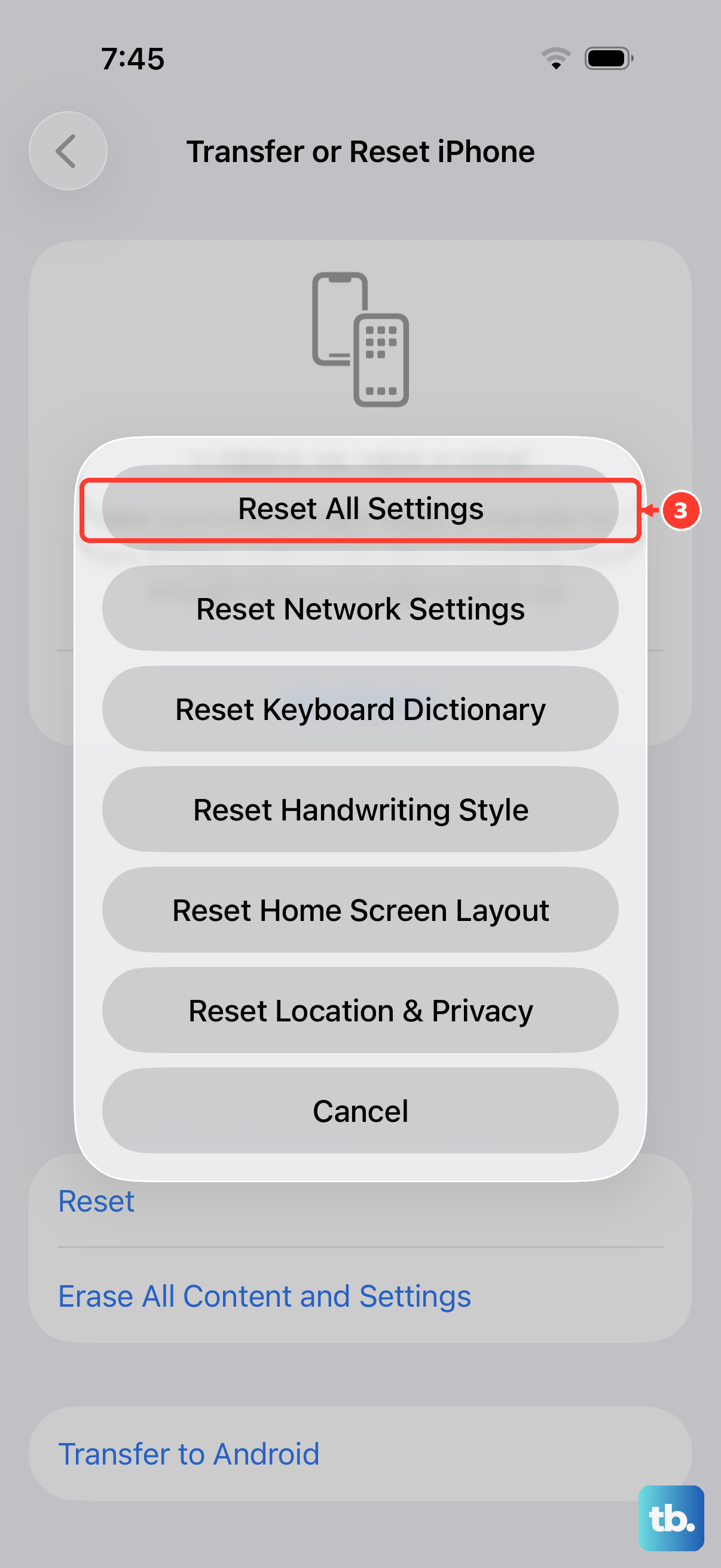
If you've tried everything else and Siri is still not cooperating, a deeper reset might be necessary. This will revert all your system settings, like Wi-Fi passwords, wallpaper, and privacy permissions, back to their defaults without touching your personal data, photos, or apps.
To do this, go to Settings > General > Transfer or Reset iPhone. Tap Reset and then choose Reset All Settings. You'll need to enter your passcode. After the phone restarts, you'll need to re-enable "Hey Siri" and reconnect to Wi-Fi networks, but it often resolves persistent software conflicts.
Ensure Siri Language and Region Match
This is a less common issue, but it can cause complete failure. If your iPhone's primary language is set to one thing, but your Siri language is set to another, the system can get confused. The voice assistant needs to know which language model to load.
Check this by going to Settings > Siri & Search > Language. Make sure it's set to the language you primarily speak. Also, verify your region under Settings > General > Language & Region, as this can affect available Siri features and data sources.