
If your iPhone 17 Pro videos are stuttering, freezing, or dropping frames, it can ruin the experience. This is a common hiccup, especially with the high-resolution video this phone can handle, but the good news is it's usually a quick software fix.
If motion feels less smooth than it should, an online Hz test settles the question in seconds by measuring the true refresh rate.
Quick Fix: Force Restart Your iPhone 17 Pro
This is the first thing I'd try. A force restart clears out temporary glitches in memory that can cause video apps to stutter. It's different from a normal restart and often solves playback issues instantly.
On your iPhone 17 Pro, press and quickly release the Volume Up button, then quickly press and release the Volume Down button. Finally, press and hold the Side button until you see the Apple logo appear, then let go.
Free Up Storage Space
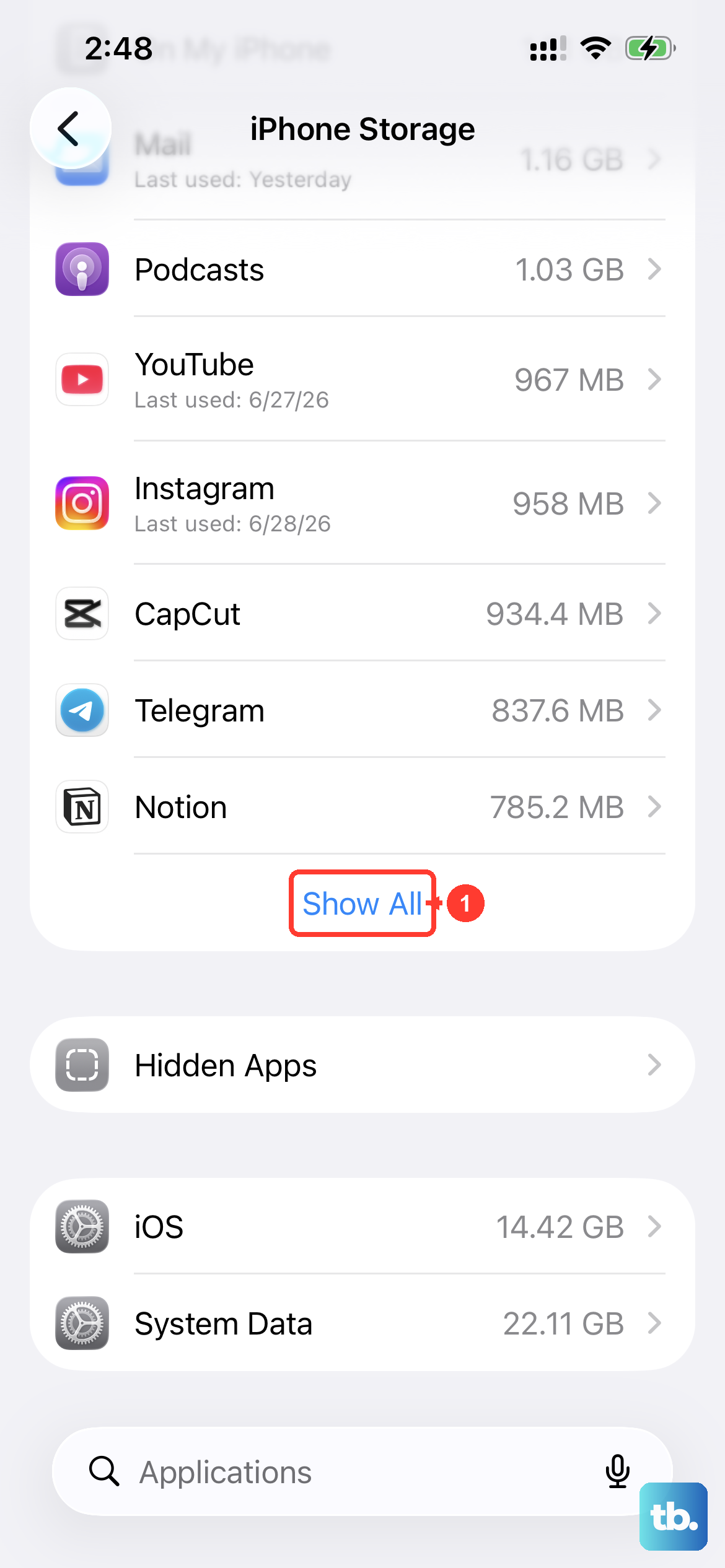
Your iPhone 17 Pro needs breathing room to smoothly process video files, especially 4K or ProRes clips. If your storage is nearly full, the system struggles, leading to choppy playback.
Head to Settings > General > iPhone Storage to see your available space. Aim to keep at least 10-15GB free. You can quickly offload unused apps or enable Optimize Photo Storage in your iCloud settings to clear space without deleting your pictures.
Check for a Software Update
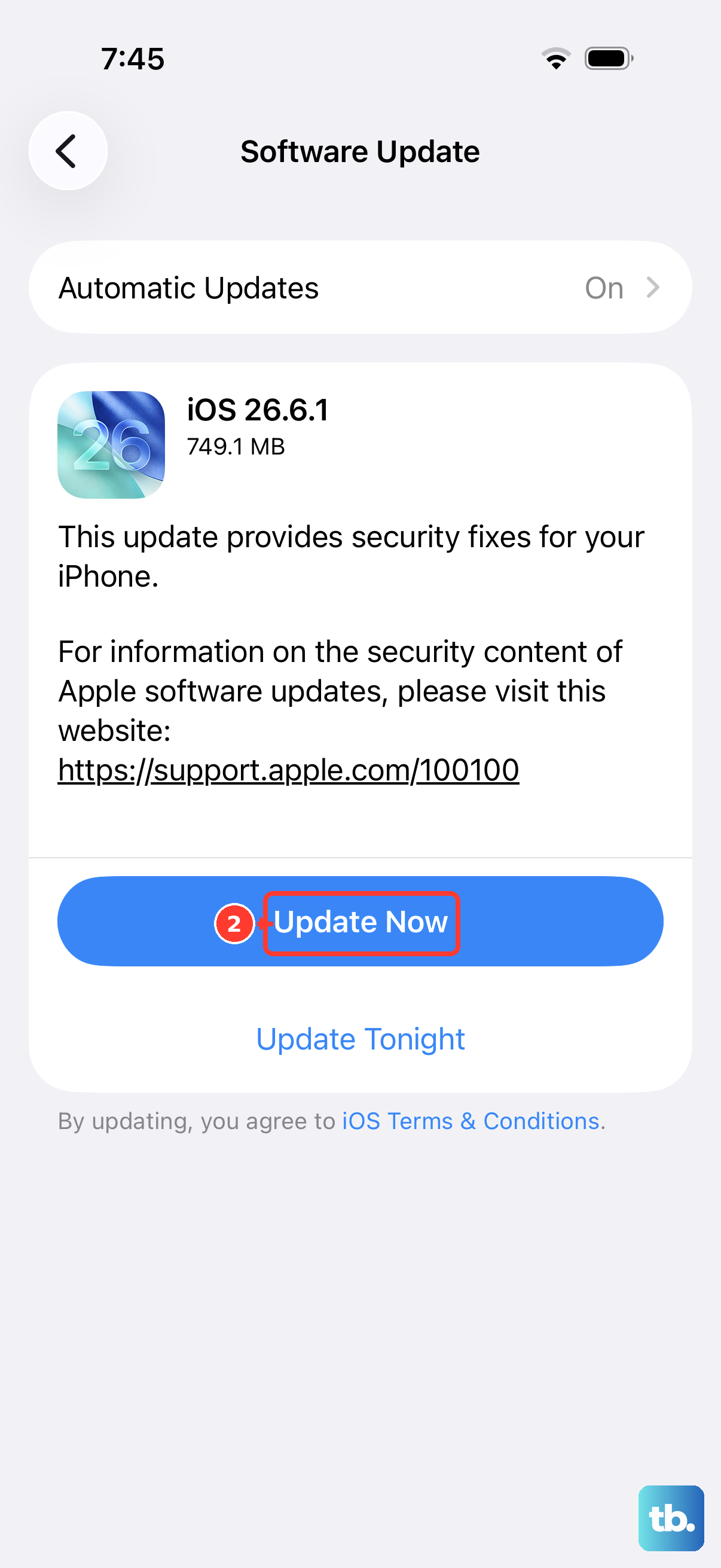
Apple is constantly refining iOS 26 with performance patches. An outdated version might have a bug affecting the video decoder or a specific app you're using.
Go to Settings > General > Software Update. If an update is available, install it. I've seen minor point updates (like iOS 26.1.1) specifically address media playback stuttering on new devices.
Test Your Internet Connection for Streaming
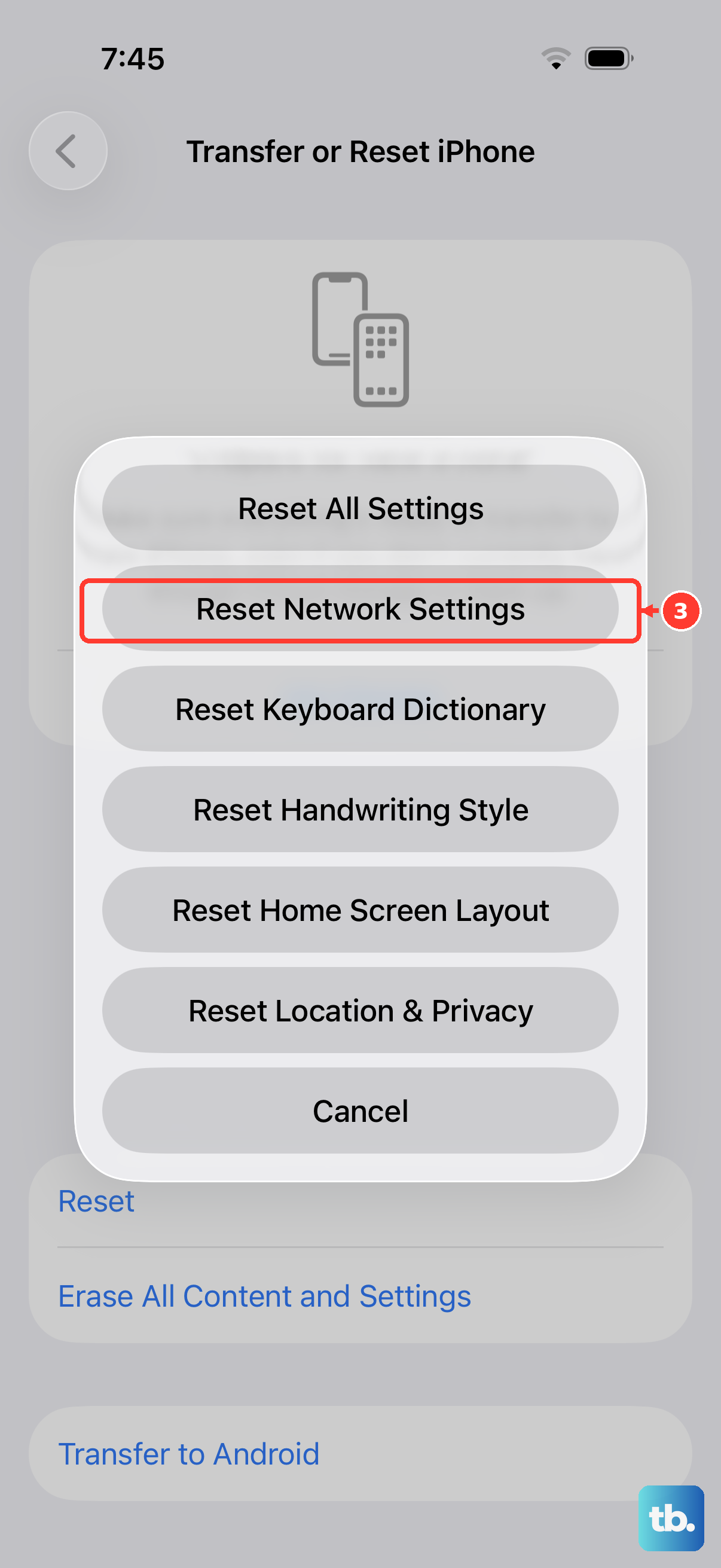
If the stuttering only happens with streaming services like YouTube or Netflix, your network is the likely culprit. Even with a strong signal, congestion or DNS issues can cause buffering that looks like stutter.
Try switching from Wi-Fi to 5G, or vice versa, to see if the problem follows. You can also try a quick network settings reset by going to Settings > General > Transfer or Reset iPhone > Reset > Reset Network Settings. You'll need to re-enter Wi-Fi passwords afterward.
Update or Reinstall the Problem App
The issue might be isolated to one app, like TikTok, Disney+, or your camera roll. App developers release updates to fix compatibility issues with new iOS versions and phone hardware.
Open the App Store, tap your profile icon, and see if any pending updates are listed. If the app is already updated, try deleting it and reinstalling it. This gives it a fresh start with all its cache and temporary files cleared out.
Disable Background App Refresh
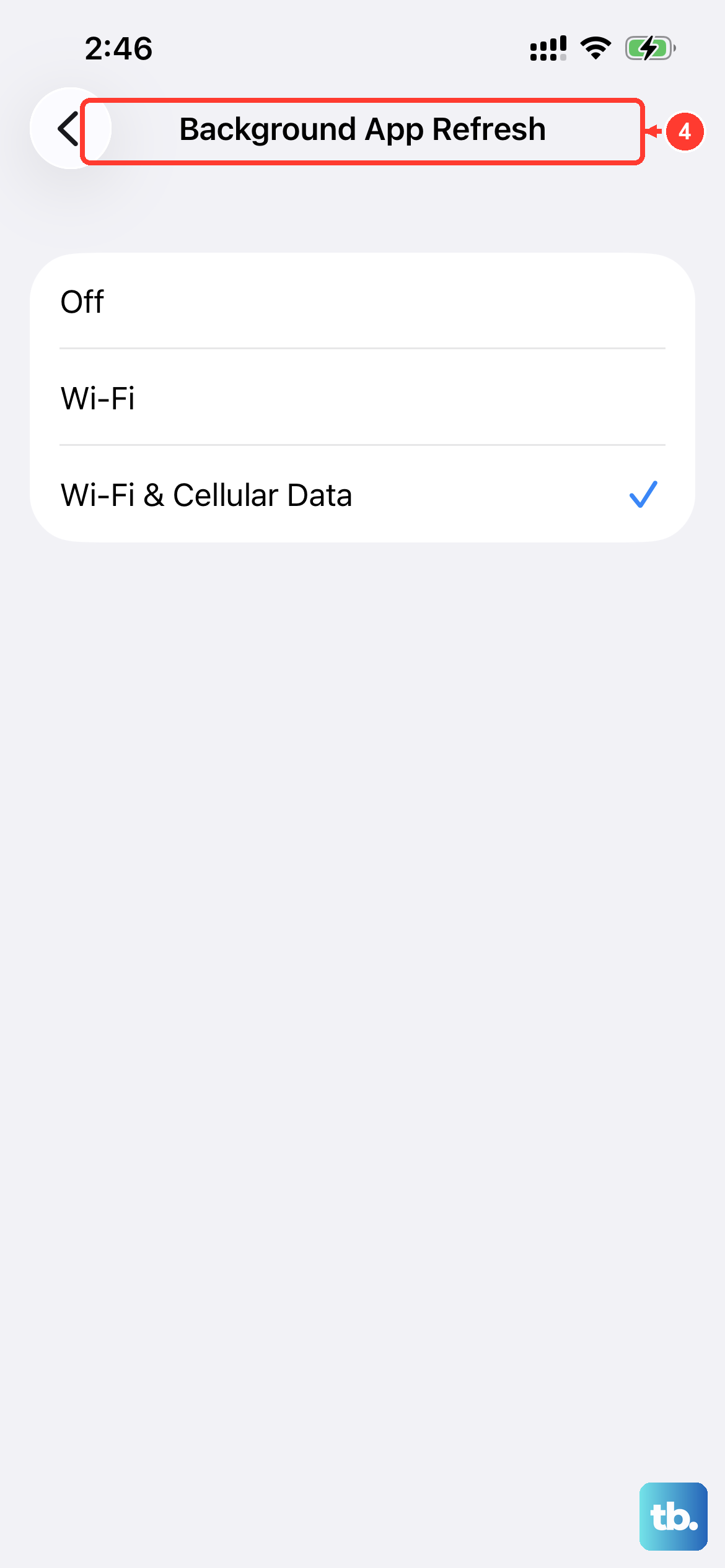
Too many apps refreshing content in the background can consume system resources, leaving less power for smooth video playback. This can cause subtle stutters, especially in more demanding games or high-frame-rate video.
You can turn this off globally in Settings > General > Background App Refresh and selecting 'Off'. Or, you can be selective and only disable it for apps you don't need updating in the background.
Check for Overheating
The iPhone 17 Pro's powerful chip can get warm during extended video recording or gaming sessions. If the device gets too hot, iOS will throttle performance to cool down, which can immediately cause video stutter and lag.
If your phone feels very warm to the touch, take it out of its case, move it out of direct sunlight, and pause what you're doing for a few minutes. Playing videos while fast charging with a 60W adapter can also generate extra heat.
Reset All Settings
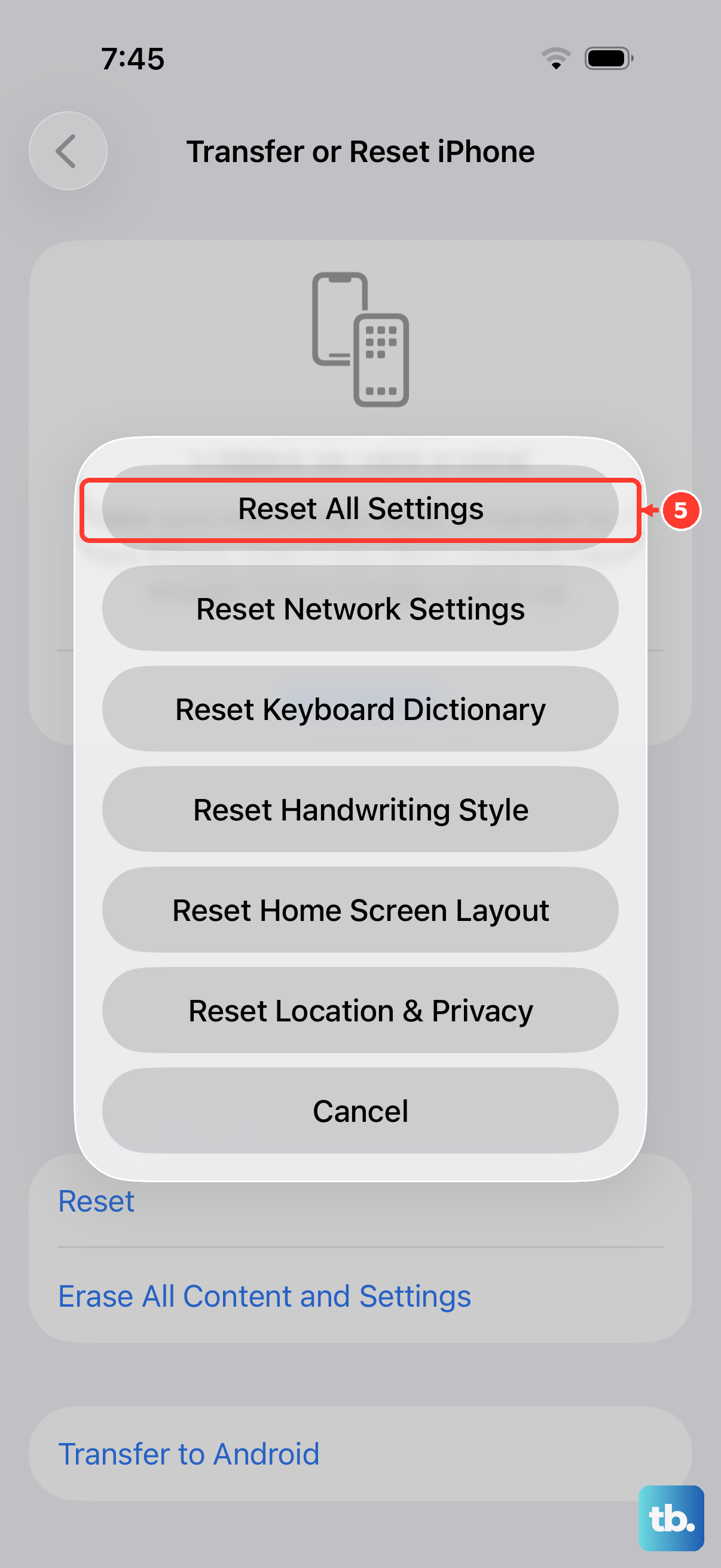
This is a more thorough step if the stuttering persists across every app. It resets all your preferences, like Wi-Fi passwords, wallpaper, and privacy settings, back to default without erasing your personal data, photos, or apps.
It can fix deeper software conflicts. Go to Settings > General > Transfer or Reset iPhone > Reset > Reset All Settings. You'll have to set up things like Face ID and Apple Pay again, but it often clears up persistent performance bugs.
Check the Video File Itself
If the stutter only happens with one specific video file you received or downloaded, the file might be corrupted or in an unusual format. Try playing the same video on a different device, like a computer or another phone.
If it stutters there too, the file is the problem. Videos recorded in very high bitrates or exotic codecs not fully supported by iOS can also cause playback issues on the device.
Review Accessibility and Display Settings
Certain accessibility features, while helpful, can interfere with smooth animation and video playback. Go to Settings > Accessibility and check if features like "Auto-Play Message Effects" or "Reduce Motion" are enabled.
Try turning them off temporarily to see if it makes a difference. Also, ensure your display isn't set to an unusual refresh rate in Settings > Display & Brightness.