
When your iPhone 17 Pro goes silent, it can feel like you're suddenly cut off from the world. Whether it's during a call, while watching a video, or when you get a notification, losing sound is a jarring experience. The good news is that some audio issues on the iPhone 17 Pro can be fixed by checking sound settings or troubleshooting software.
A browser based left and right speaker test helps narrow this down fast. If test tones play clearly, an app or setting may be the cause of the missing sound.
Check the Action Button and Volume
First, look at the left side of your phone. Make sure Silent Mode isn't turned on. The iPhone 17 Pro doesn't have a mute switch; if the Action button is set to Silent mode, press and hold it to turn Silent mode off. You can also swipe down from the top-right corner to open Control Center and make sure Silent mode is off. This turns the ringer back on.
Next, press the volume up button on the left side a few times while you're on the home screen or in an app.
Sometimes the volume can be turned down for a specific app or function. Try playing a video or song and then adjust the volume with the buttons. You should see the volume slider appear on screen to confirm it's going up.
Disconnect Bluetooth and Audio Outputs
Your iPhone might be trying to send sound to a device that isn't there. Swipe down from the top-right corner to open Control Center. Look at the audio card in the top-right corner. If it shows anything other than your iPhone's name, tap it and select iPhone from the list.
You can also go to Settings > Bluetooth and turn the toggle off temporarily. This disconnects Bluetooth audio devices so you can test your phone's speakers. Don't forget to check if you have any wired headphones plugged into the USB-C port.
Clean the Speaker Grilles
The speaker grilles on the bottom edge and the top earpiece can get clogged with pocket lint over time. Grab a soft, dry, clean-bristled toothbrush or a new, soft-bristled paintbrush. Gently brush across the grilles to dislodge any debris.
Remove any case, film, or screen protector that blocks the speaker or receiver opening, and keep moisture out of the openings. Never insert anything sharp like a paperclip or SIM tool into the holes, as you can easily damage the speakers.
Check Focus Modes and Accessibility Settings
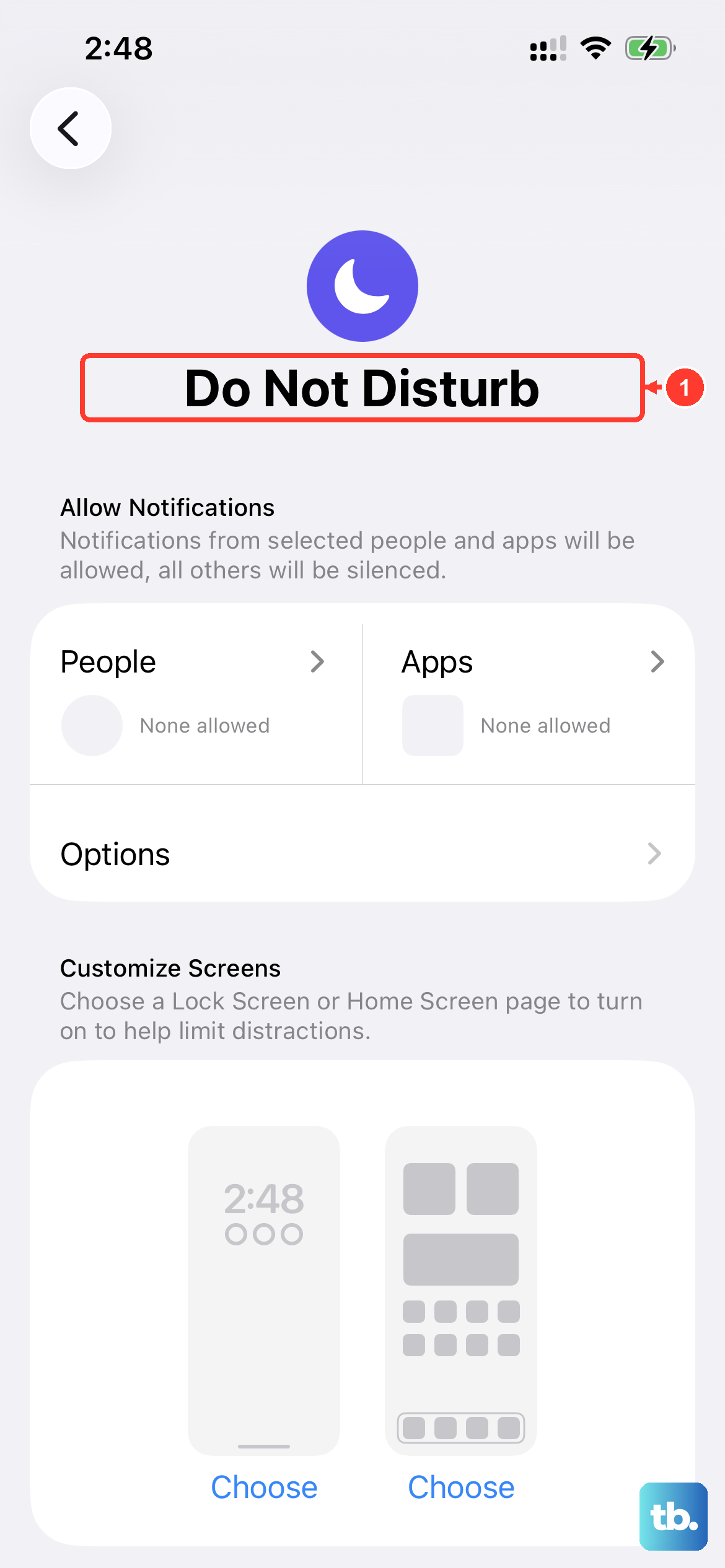
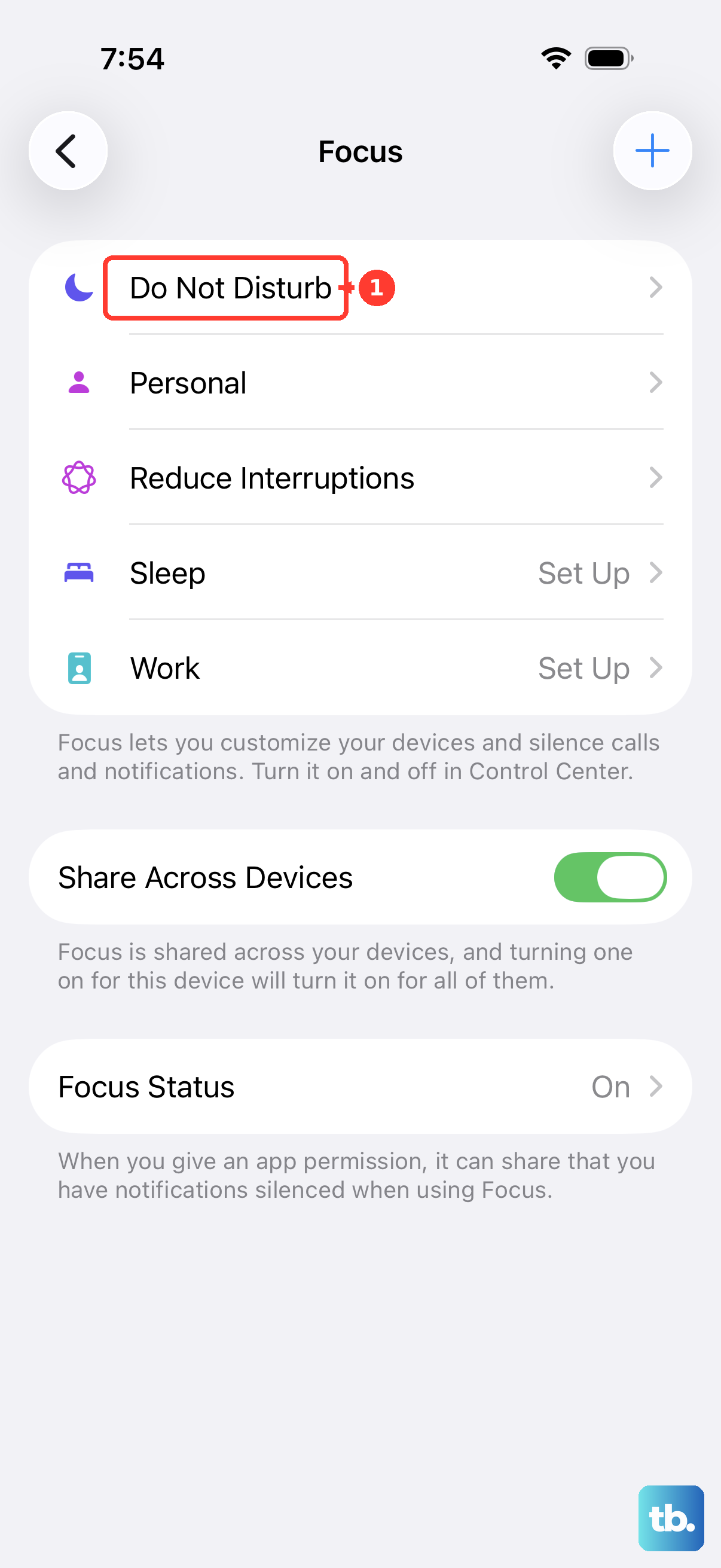
Focus modes like Do Not Disturb or Sleep can silence calls and alerts. Go to Settings > Focus > Do Not Disturb and make sure Do Not Disturb is off. Check any other active Focus in Settings > Focus as well. Or swipe down from the top-right corner to open Control Center, tap Focus, then tap the Focus that's on to turn it off.
Next, head to Settings > Accessibility > Audio/Visual. Make sure the balance slider in the middle is centered. Also, check Settings > Sounds & Haptics. Ensure the ringer and alert volume slider is up and that the switch next to "Change with Buttons" is on if you want the buttons to control it.
Force Restart Your iPhone 17 Pro
A force restart can help if your phone isn't responding normally. On the iPhone 17 Pro, you press and quickly release the Volume Up button, then press and quickly release the Volume Down button. Immediately after, press and hold the Side button.
Keep holding the Side button until you see the Apple logo appear, then let go. This doesn't erase any data. After it restarts, check whether sound has returned.
Update iOS to the Latest Version
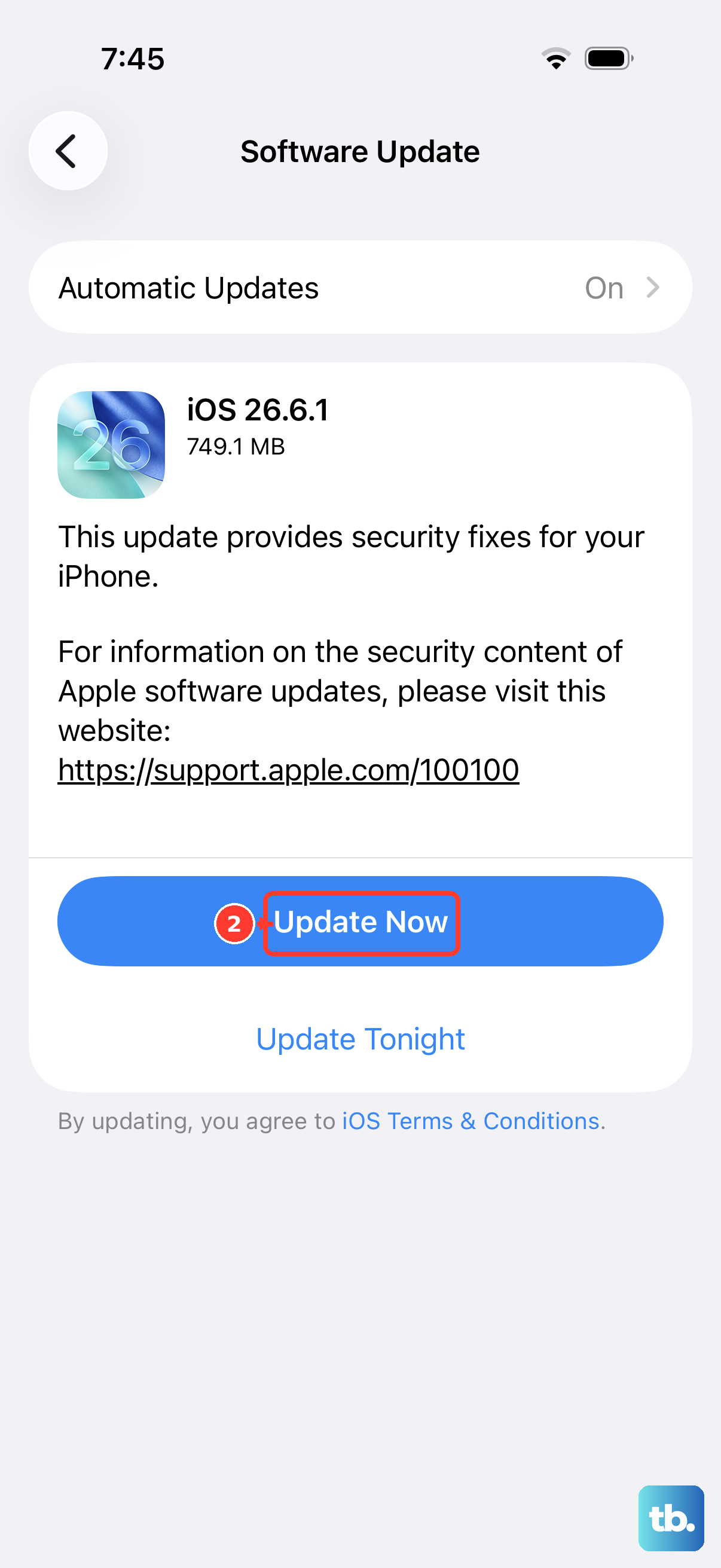
Apple frequently releases updates that fix bugs, including audio-related ones. Connect to Wi-Fi and go to Settings > General > Software Update. If an iOS update is available, tap "Download and Install."
It's a good idea to plug your phone into power using your USB-C cable and the 40W Dynamic Power Adapter during the update. This ensures it won't run out of battery mid-process.
Reset All Settings
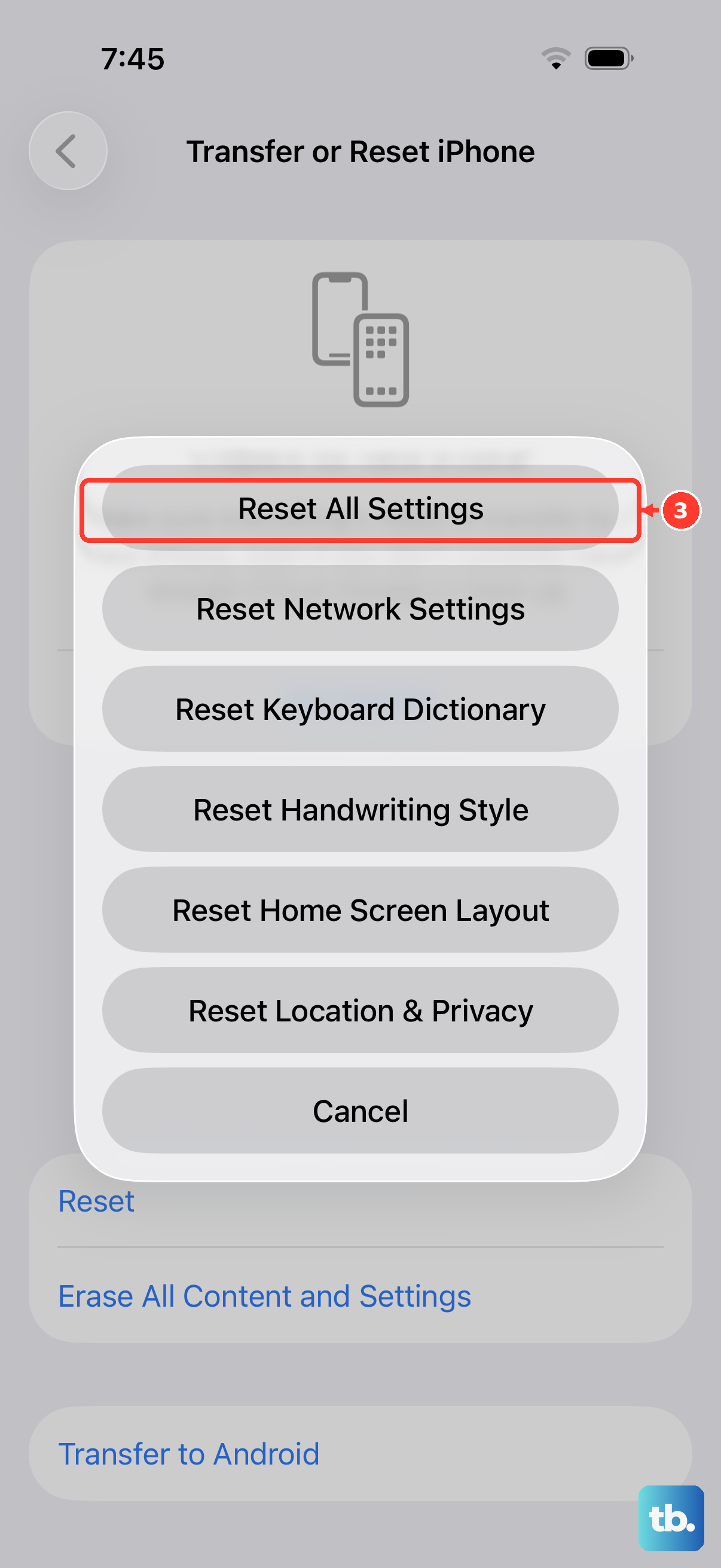
If a specific setting got corrupted, this can help. This will reset your network settings, wallpaper, privacy permissions, and system preferences back to default, but it won't touch your photos, messages, or apps. Go to Settings > General > Transfer or Reset iPhone.
Tap "Reset" and then choose "Reset All Settings." You'll need to enter your passcode. After the phone restarts, you'll have to reconnect to Wi-Fi, re-pair Bluetooth devices and your Apple Watch, and set up Face ID again. Your Apple Pay cards are also removed.
Check for App-Specific Sound Issues
If the sound is only missing in one app, like YouTube or Spotify, the problem is likely with that app. Try force-closing it. Swipe up from the bottom of the screen and pause in the middle to enter the app switcher. Find the app's preview and swipe it up off the top of the screen to close it.
Then, open the App Store, tap the My Account button (your photo) at the top, tap App Updates, and tap Update next to that app if an update is available. If the problem started right after you updated the app, you might need to wait for the developer to release a fix.
Restore Your iPhone via a Computer
This is the most comprehensive fix short of visiting a store, and it erases the phone, so back up first. Connect your iPhone 17 Pro to a Mac or PC with a USB-C cable. On a Mac with macOS Catalina or later, it should appear in the Finder. On a Windows PC, use the Apple Devices app or iTunes.
Put your phone into Recovery Mode. Quickly press and release the Volume Up button, then the Volume Down button, then press and hold the Side button until you see the "Connect to computer" screen. On your computer, choose Update first if you haven't tried it, since it reinstalls iOS and keeps your data. If that doesn't help, choose Restore. This erases your iPhone's content and settings and installs a fresh copy of the latest version of iOS. You can then restore your data from a recent iCloud or computer backup.