
Your iPhone 17 Pro keeps dropping cellular signal. Or it struggles to reconnect after a brief no-service window, or it shows instability when a VPN is active.
The usual causes fall into three groups: a VPN app or profile, a connection that doesn't recover after you lose coverage, and a problem with the eSIM. Each has its own fix.
Here is how to tell them apart and clear each one.
The Three Underlying Causes
The first is a VPN app or profile that interferes with your cellular or Wi-Fi connection.
If you set up your iPhone 17 Pro from an older iPhone's backup, any VPN app from that phone came across too.
The second is a connection that doesn't recover. The phone briefly loses signal (entering a tunnel, walking into a building with poor coverage) and doesn't reconnect once you're back in coverage.
The third is a problem with the eSIM itself, which can show up as dropped calls and data that comes and goes.
Each cause has a different fix.
Delete VPN Apps and Restart
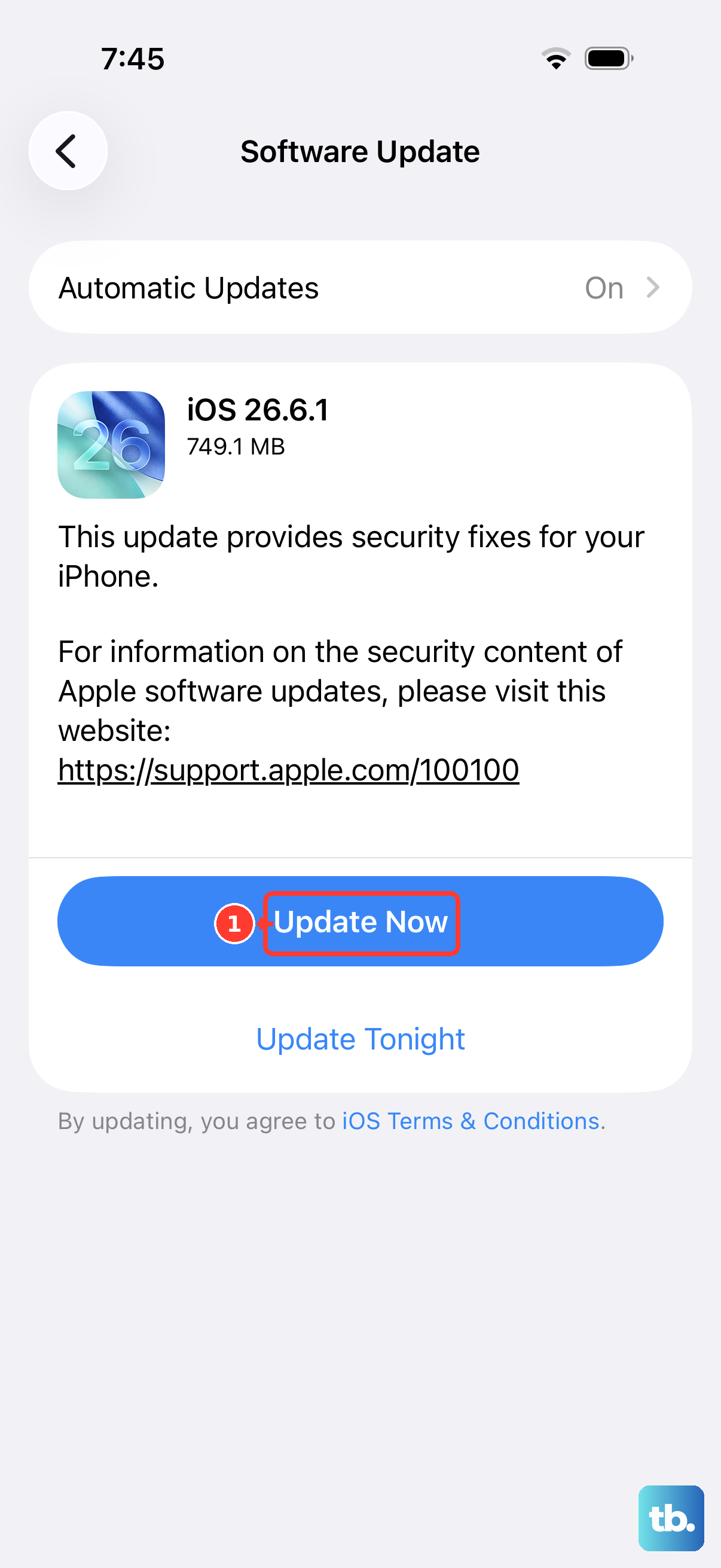
The fastest diagnostic is to remove every VPN app from the phone and see if connectivity returns.
Go to Settings > General > VPN & Device Management and remove any active VPN profiles. Then long-press each VPN app on your home screen and delete it. Restart the iPhone.
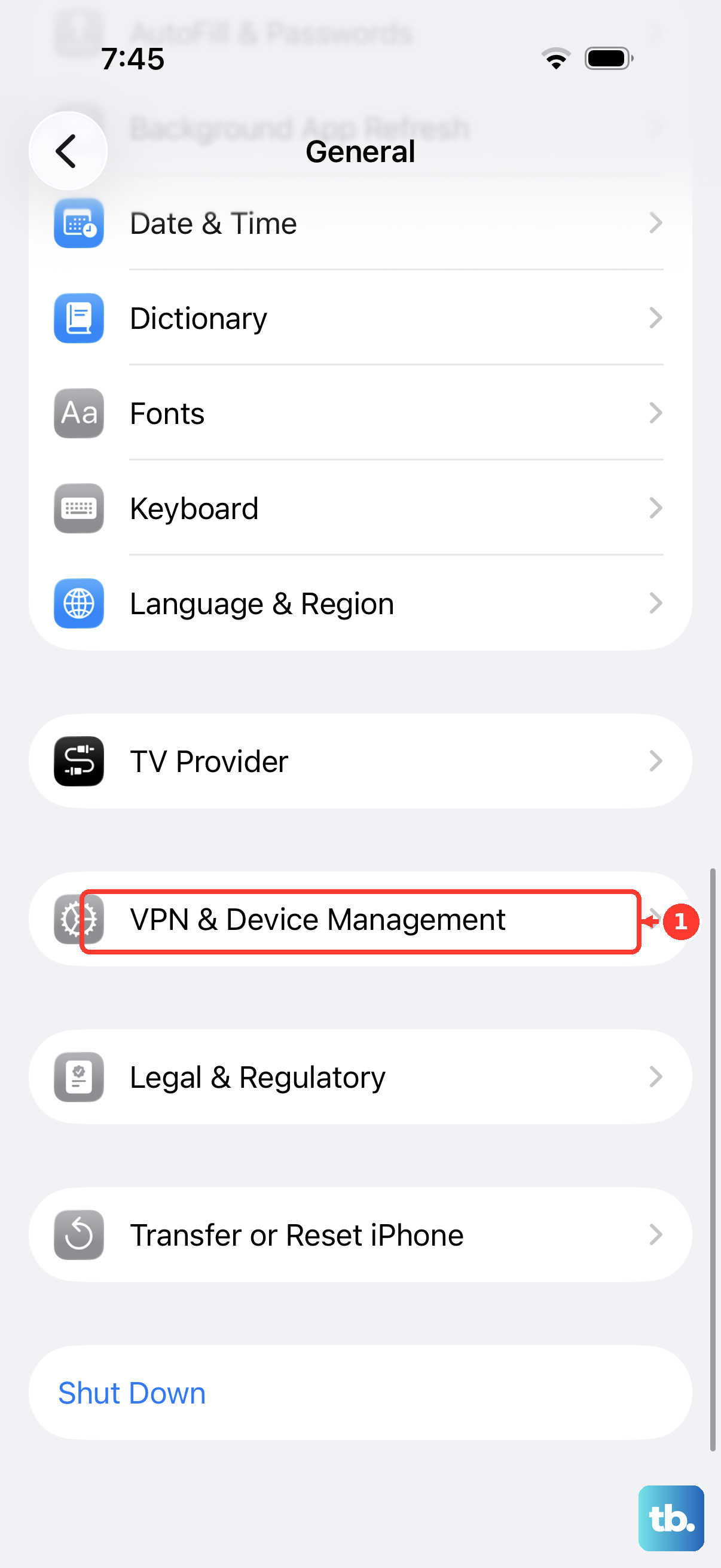
If the cellular and Wi-Fi connection becomes stable after the restart, the VPN was your problem. You can either go without it, or install the same VPN app fresh and see whether the new install behaves.
Toggle Airplane Mode to Recover Cellular
If signal returns to other phones in the same spot but yours stays at "No Service," swipe down from the top-right corner to open Control Center and tap the Airplane Mode icon.
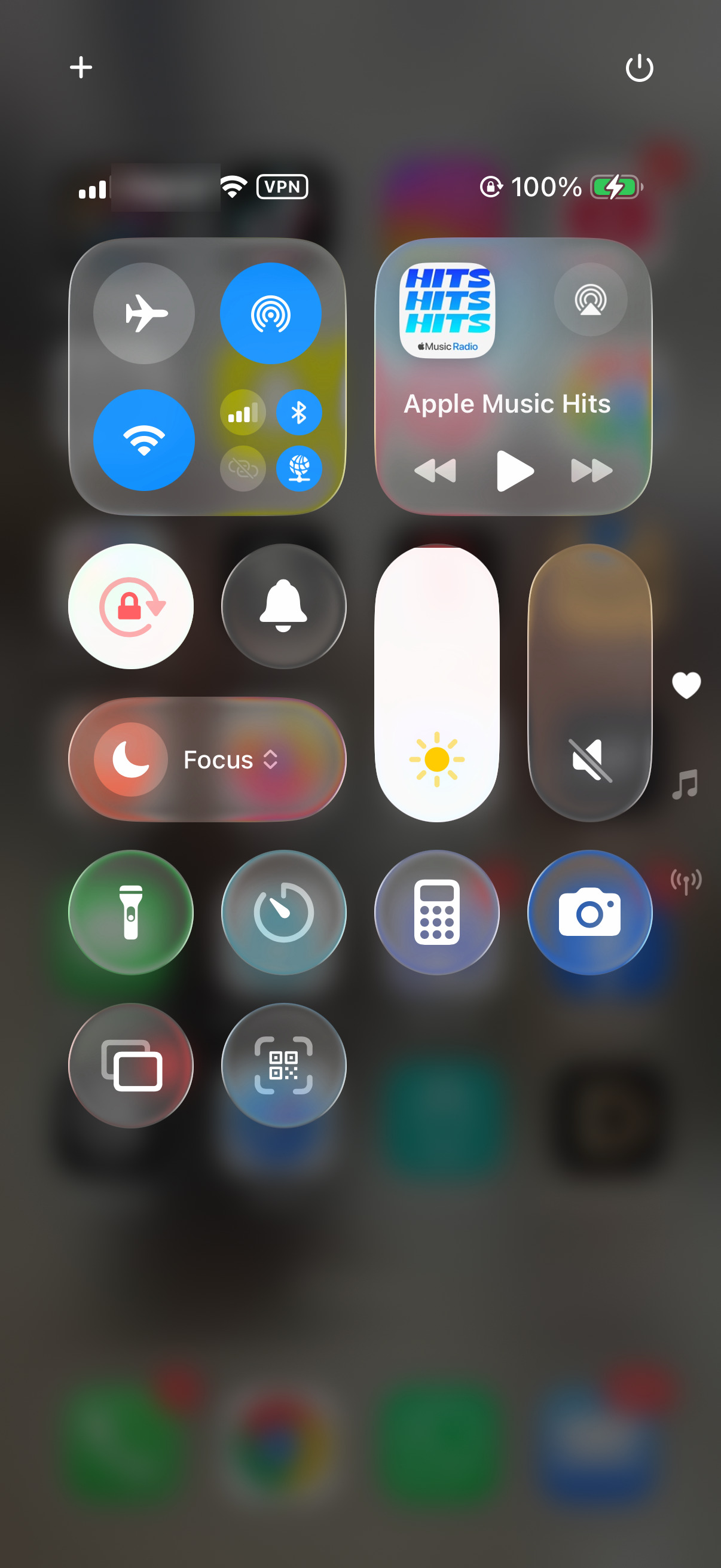
Wait three seconds, then tap it again to turn Airplane Mode off. This makes the phone reconnect to the cellular network from scratch.
Signal usually comes back shortly after the toggle.
If you have to toggle Airplane Mode regularly to get signal back, update to the latest version of iOS via Settings > General > Software Update, and check for a carrier settings update in Settings > General > About.
Re-Add Your eSIM From Scratch
If you're seeing intermittent cellular failures (calls connecting then dropping within minutes, data that comes and goes), the eSIM may be the problem, especially if it was transferred from an older iPhone.
The fix is a fresh eSIM from your carrier. Contact your carrier and ask them to issue a new eSIM for your line. They can typically send it as a QR code or push it directly to your phone. Only delete your current eSIM when your carrier tells you to.
Once you have the new profile, go to Settings > Cellular and tap Delete eSIM (if you have more than one plan, tap the plan, then tap Delete Plan). Then add the new one through Add eSIM.
If None of the Above Works
If you've removed VPN apps, your eSIM is fresh, and you're on the latest iOS but still seeing signal drops, try two quick checks first. Turn Cellular Data off and back on in Settings > Cellular, and ask your carrier whether there is an outage in your area or a problem with your account or plan.
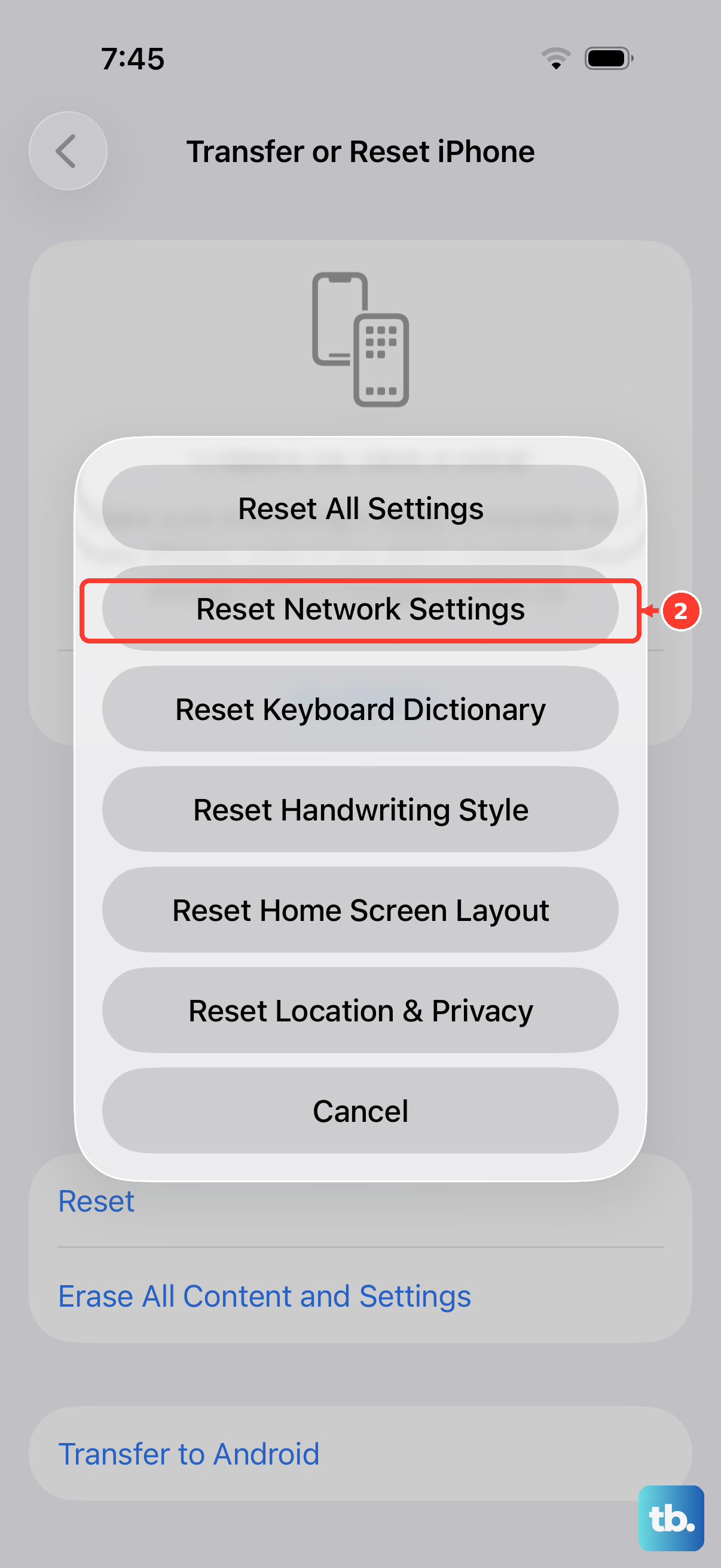
If the drops continue, the next path is to reset network settings.
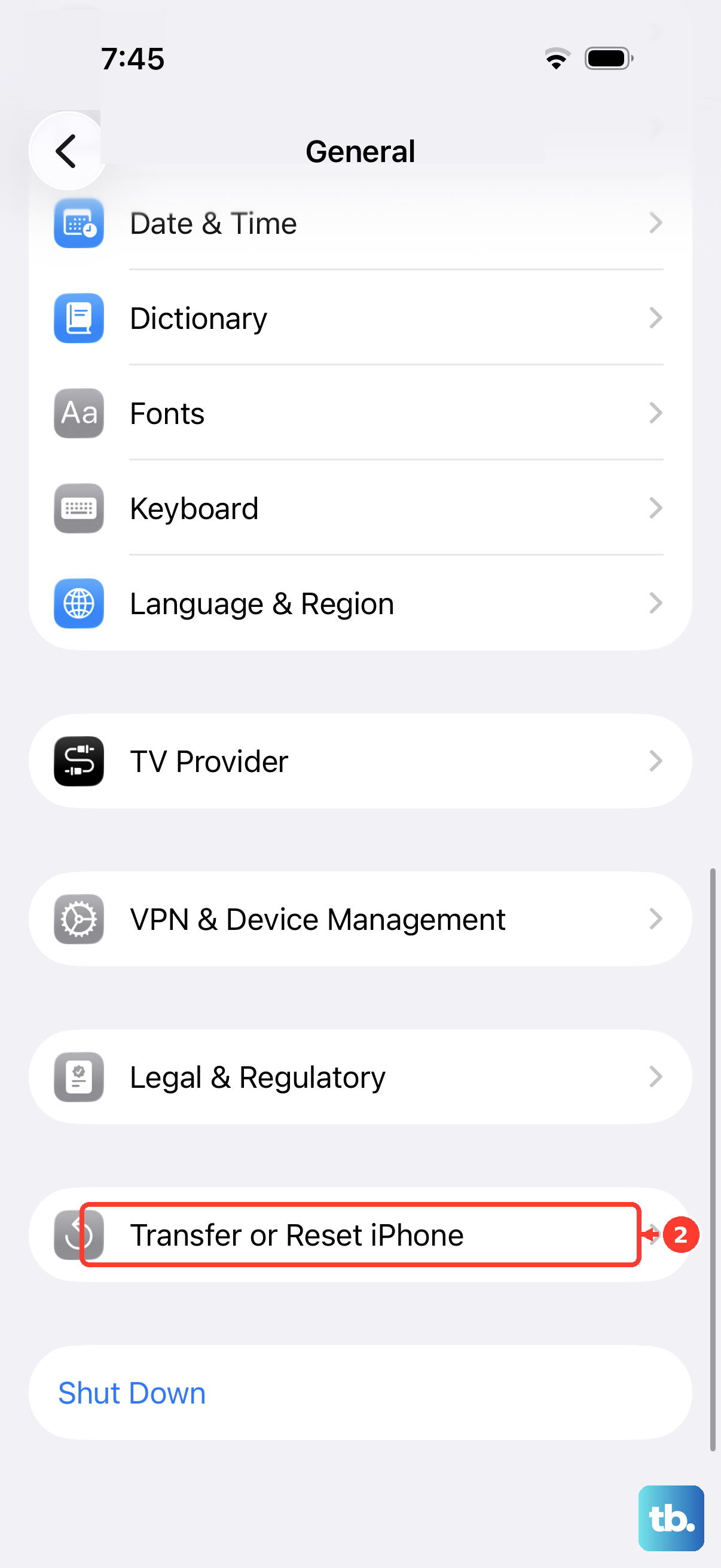
Go to Settings > General > Transfer or Reset iPhone > Reset > Reset Network Settings. This wipes saved Wi-Fi passwords, cellular settings, and VPN and APN settings. You'll need to rejoin Wi-Fi networks manually afterward.
If even that doesn't help, contact Apple Support. Apple can run a diagnostic to check whether the hardware is working correctly, and its warranty covers repairs for manufacturing defects.
What This Doesn't Mean
Signal drops usually don't mean the phone itself is broken.
It also helps to notice where the drops happen. If they happen only in one room or building, compare with another phone on the same carrier in the same spot. If that phone struggles too, the cause is coverage there, not your iPhone.
The causes above are software and configuration issues, and you can fix most of them yourself once you know which one you're dealing with.