
When your iPhone 17 Pro microphone stops picking up your voice, it can turn simple calls, voice notes, and commands to Siri into a frustrating experience. The first thing to do is figure out which microphone is acting up, as your phone uses several for different tasks.
If you are not sure whether the mic is dead or just misconfigured, open a quick mic test first. A moving level meter means the hardware is healthy, which rules out the worst case before you touch any settings.
Open the Voice Memos app and record a quick message. Speak normally, then play it back. If the audio is muffled or missing, the primary bottom microphone might be blocked. Next, try making a regular phone call.
If the person on the other end can't hear you, but Voice Memos worked, the issue could be with the call audio routing. For video calls, open the Camera app, switch to video mode, and record a clip while talking to test the rear microphones.
Finally, activate Siri by holding the Side button. If she doesn't respond to "Hey Siri" or misunderstands your commands, the beamforming microphones at the top of your display could be involved. Pinpointing where the problem occurs helps narrow down the fix.
Remove Any Case or Screen Protector
This is the easiest thing to check, especially with the iPhone 17 Pro's precise microphone ports. Some third-party cases, particularly thicker ones or those not designed for the 2025 model, can partially cover the microphone grilles.
Take the case off completely and test your microphone again in the app where you had trouble. Also, check if a tempered glass screen protector is creeping over the top edge of the frame near the front-facing camera and speaker grille.
Even a small overlap here can interfere with the microphone that handles "Hey Siri" and noise cancellation during calls. This is worth checking especially with new cases bought right after getting the phone.
Restart Your iPhone 17 Pro
A quick restart clears out temporary software glitches that can affect audio subsystems. On your iPhone 17 Pro, press and quickly release the Volume Up button, then quickly press and release the Volume Down button.
Immediately after, press and hold the Side button. Keep holding it until you see the Apple logo appear, then let go. Your phone will reboot. This force restart can help with quirky audio problems.
Disconnect All Bluetooth Audio Devices
If your AirPods, Beats headphones, or a car stereo are connected via Bluetooth, your iPhone 17 Pro will automatically route all microphone input to that device. This means the built-in mics won't be used.
Go to Settings > Bluetooth and tap the info icon (i) next to any connected audio device, then choose "Disconnect." For a quicker test, just swipe down from the top-right corner to open Control Center and tap the Bluetooth icon to disconnect your accessories. To turn Bluetooth off entirely, use the switch in Settings > Bluetooth.
Try your microphone again with your Bluetooth devices disconnected. If it works now, you know the issue was just audio routing. You can then reconnect your devices afterward.
Inspect and Clean the Microphone Ports
The iPhone 17 Pro has microphone openings in a few key spots. The main one is a tiny grille on the bottom edge, right next to the USB-C port. There's another set of pinholes at the top of the frame, and microphones are also located within the rear camera array.
Shine a light on these areas. Look for packed lint, dust, or debris. Don't use anything sharp like a paperclip. Instead, use a soft, clean, dry toothbrush to gently dislodge any particles.
You can also try lightly tapping the phone against your palm with the ports facing down. Be very gentle. Even a small amount of pocket lint in the bottom grille is a common culprit for muffled audio.
Check App-Specific Microphone Permissions
In iOS, apps must ask for your explicit permission to use the microphone. If you accidentally tapped "Don't Allow" or if an app update reset permissions, the microphone won't work in that specific app.
Open Settings > Privacy & Security > Microphone. You'll see a list of every app that has requested access. Make sure the toggle is switched on (green) for the app you're having trouble with, whether it's Zoom, WhatsApp, Instagram, or your camera.
If you see the app listed but the toggle is off, turn it on and then completely close and reopen the app. If the app isn't even on the list, it hasn't asked for permission yet. Open the app and try to use a feature that requires the mic, and it should prompt you.
Force Close and Reopen the Problem App
Sometimes, the app itself has a temporary bug. If the microphone works fine in Voice Memos and Phone but not in, say, Facebook Messenger, the app is likely the issue. To force close it, swipe up from the bottom of the screen and pause in the middle to enter the app switcher.
Find the app's preview card and swipe it all the way up and off the top of the screen. Wait a few seconds, then tap the app icon on your Home Screen to relaunch it fresh. This clears the app from memory and often resolves minor glitches with audio input.
Update to the Latest Version of iOS
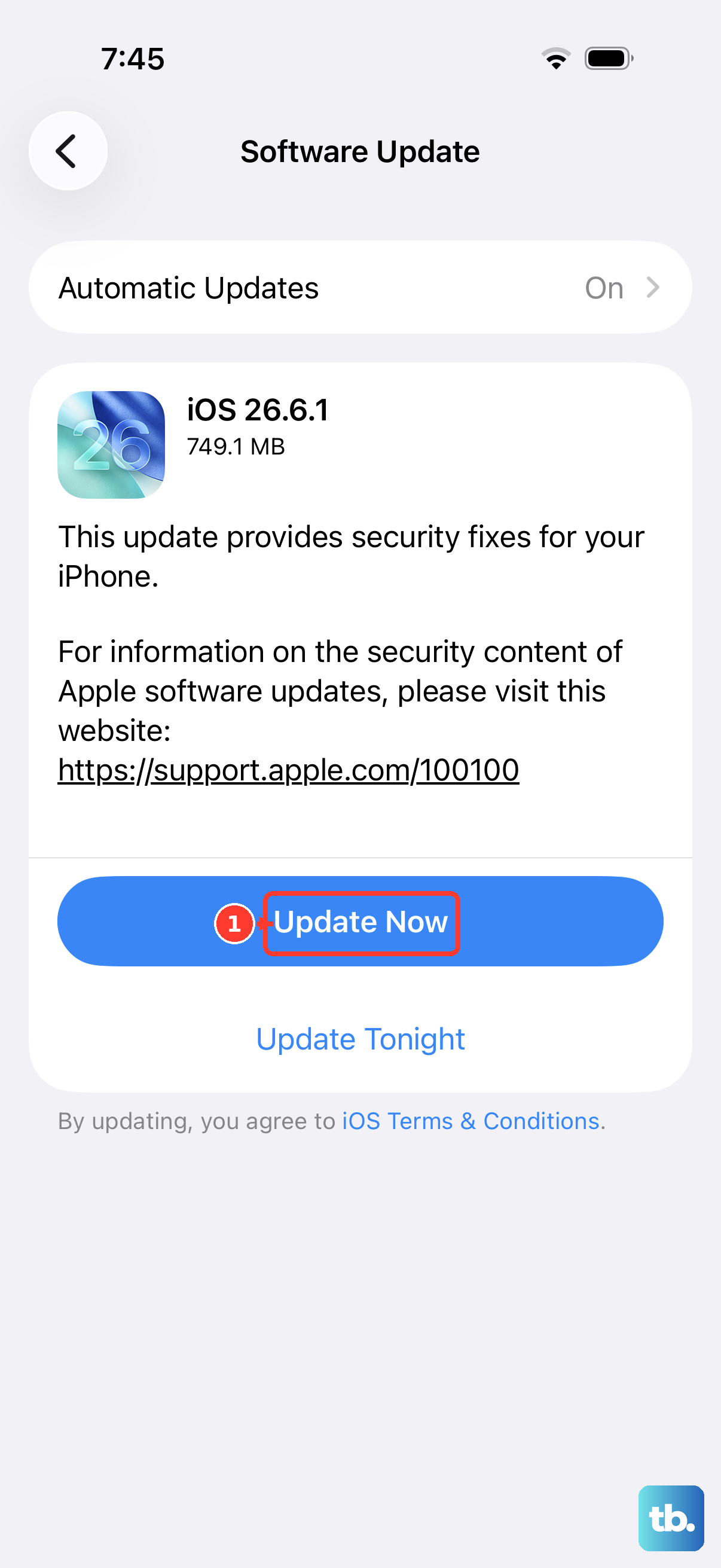
Apple regularly releases software updates that include bug fixes for hardware components like microphones.
Connect your iPhone 17 Pro to Wi-Fi and go to Settings > General > Software Update. If an update is available, tap "Download and Install." It's best to do this while your phone is connected to power via a USB-C power adapter.
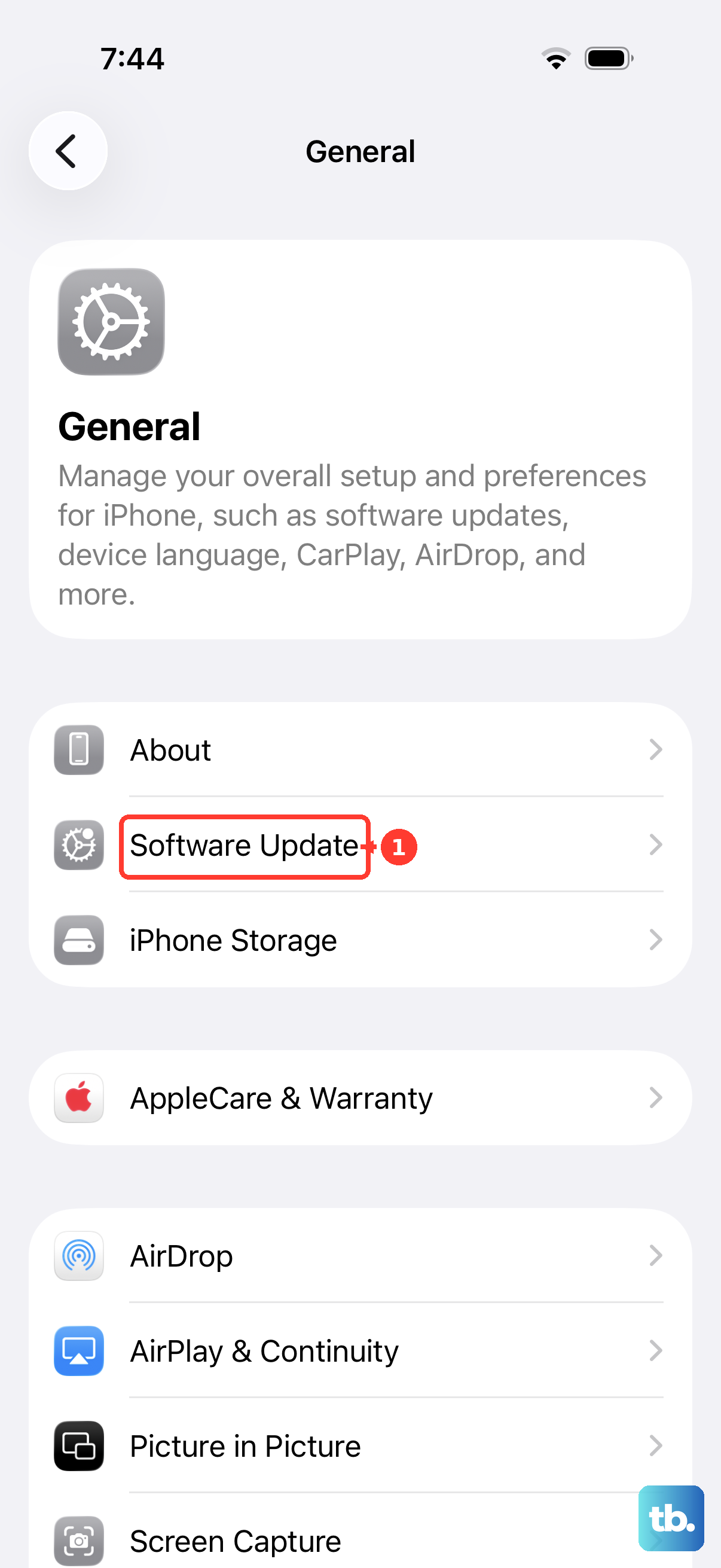
After the update installs and your phone restarts, test the microphone again. Software patches are a very common fix for widespread audio issues that appear after a major iOS release.
Disable Audio Enhancements for Calls
Your iPhone 17 Pro uses advanced audio processing to isolate your voice from background noise. In some rare acoustic environments, this software can mistakenly filter out your voice entirely. You can temporarily turn this feature off to test.
During a call, open Control Center, tap Phone Controls, and under Audio & Video set Mic Mode to Standard instead of Voice Isolation or Automatic. Now, make a test call. If your voice is suddenly clear, you've identified the cause.
You can leave this off, or try turning it back on later to see if the issue was a one-time glitch. The Mic Mode you choose applies only to the app you're using, so set it separately in FaceTime or other calling apps.
Reset All Settings on Your iPhone
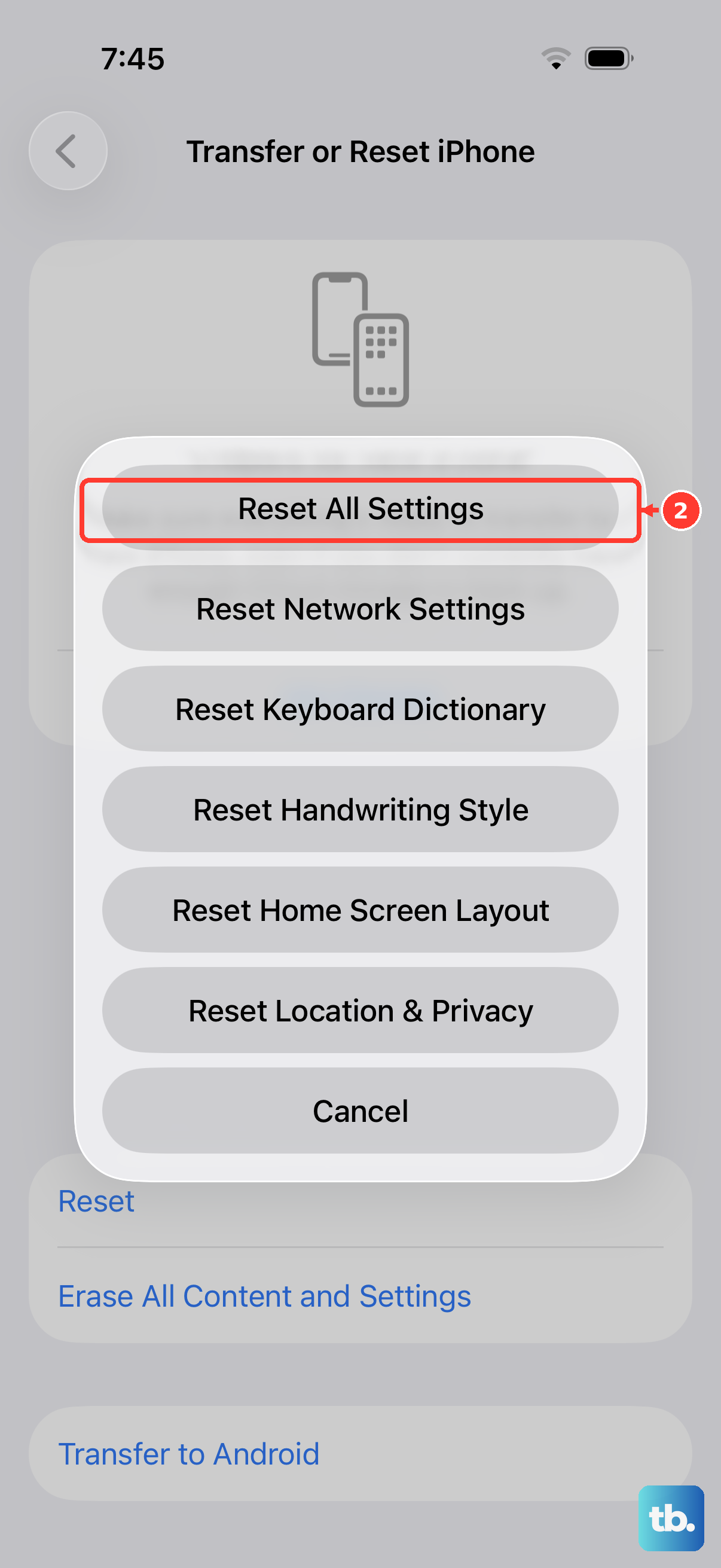
This is a more significant step, but it won't delete your photos, messages, or apps. It will, however, reset every system setting on your iPhone 17 Pro back to factory defaults. That includes network settings, privacy permissions, keyboard dictionaries, and home screen layout.
Go to Settings > General > Transfer or Reset iPhone. Tap "Reset" at the bottom, then choose "Reset All Settings." You'll need to enter your passcode. The phone will restart.
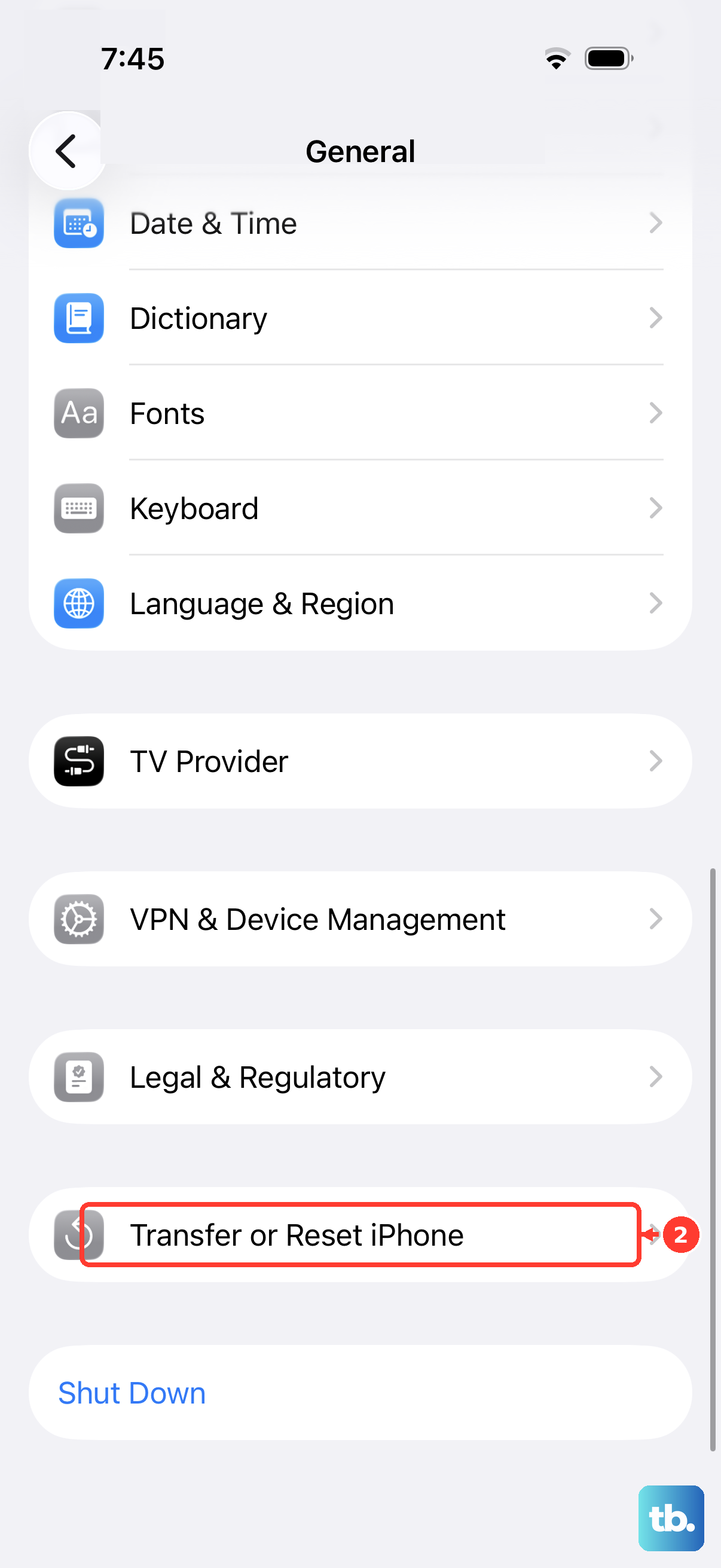
After it boots up, you'll need to reconnect to Wi-Fi and re-adjust settings like brightness and sounds, but it can clear out any corrupted configuration data affecting the microphone. Test the mic immediately after the reset is complete.
Restore Your iPhone Using a Computer
If you're still having problems, a full restore via a Mac or PC can address deeper software corruption. First, ensure you have a recent backup in iCloud or on your computer. Then, connect your iPhone 17 Pro to the computer using a USB-C cable.
On a Mac with macOS Catalina or later, open Finder. On a Windows PC, make sure you have the latest version of the Apple Devices app from the Microsoft Store. Select your iPhone, and in the "General" tab, you'll see an option to "Restore iPhone."
This will wipe the device completely and install a fresh, clean copy of the latest iOS. After the process finishes, you can set up the phone as new to test the microphone, or restore from your backup. A restore is the most thorough software fix available.