
You're staring at your iPhone 17 Pro Max, seeing that stubborn "No Internet Connection" message where your Wi-Fi bars should be. It's a frustrating spot, especially on a brand-new phone. The good news is this is almost always a software hiccup you can fix yourself in a few minutes.
Toggle Wi-Fi and Restart Your iPhone
Let's start with the simplest fix. Open Control Center by swiping down from the top-right corner of your screen. Tap the Wi-Fi icon to turn it off, wait a few seconds, then tap it again to turn it back on. This forces your phone to drop the connection and search for networks fresh.
If that doesn't work, restart your iPhone 17 Pro Max. Press and quickly release the Volume Up button, then quickly press and release the Volume Down button. Finally, press and hold the Side button until you see the Apple logo appear. A quick reboot clears out temporary glitches that can mess with connectivity.
Forget the Wi-Fi Network and Rejoin
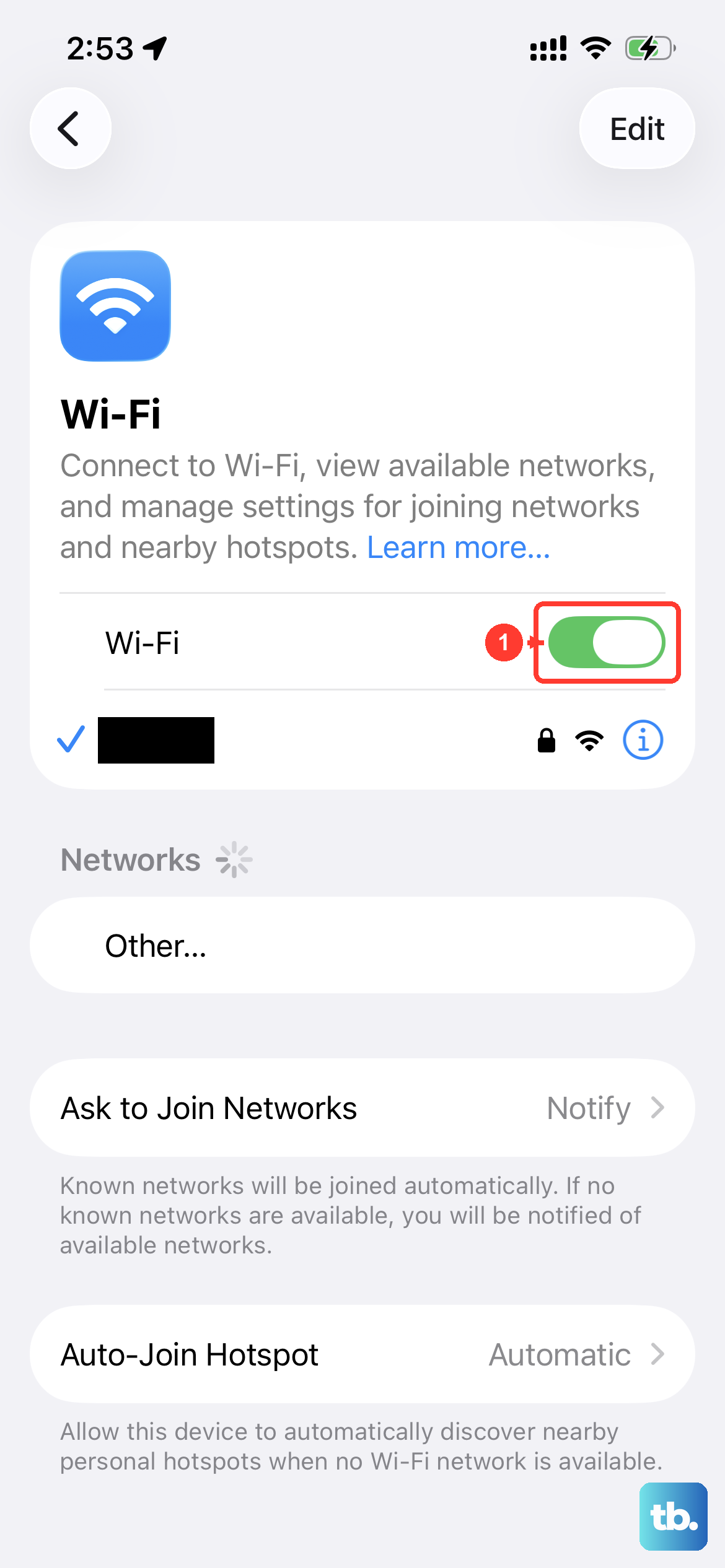
Your phone might be holding onto corrupted login details for your network. To clear them out, go to Settings > Wi-Fi. Tap the info icon (the "i" in a circle) next to your network's name. Then, tap Forget This Network and confirm.
After you forget it, go back to the main Wi-Fi list, select your network again, and re-enter the password. This is the fix I'd try next, as it solves the issue a huge percentage of the time, especially if you've recently changed your router or Wi-Fi password.
Check for a Router or Internet Outage
Before you spend more time on your phone, make sure the problem isn't on the other end. Check if other devices in your home, like a laptop or tablet, can connect to the same Wi-Fi network and access the internet. If they can't, the issue is with your router or your internet service.
In that case, unplug your router and modem from power. Wait a full 60 seconds before plugging them back in. This gives them time to clear their memory and re-establish a fresh connection with your internet provider.
Disable VPN or Privacy Relay Services
If you're using a VPN app or have iCloud Private Relay enabled, these services can sometimes interfere with your local network connection. Open the VPN app you're using and disconnect from it, or temporarily turn it off.
For iCloud Private Relay, go to Settings > tap your name at the top > iCloud > Private Relay and toggle it off. See if your Wi-Fi connects normally without it. You can always turn these services back on after you've re-established your connection.
Update iOS to the Latest Version
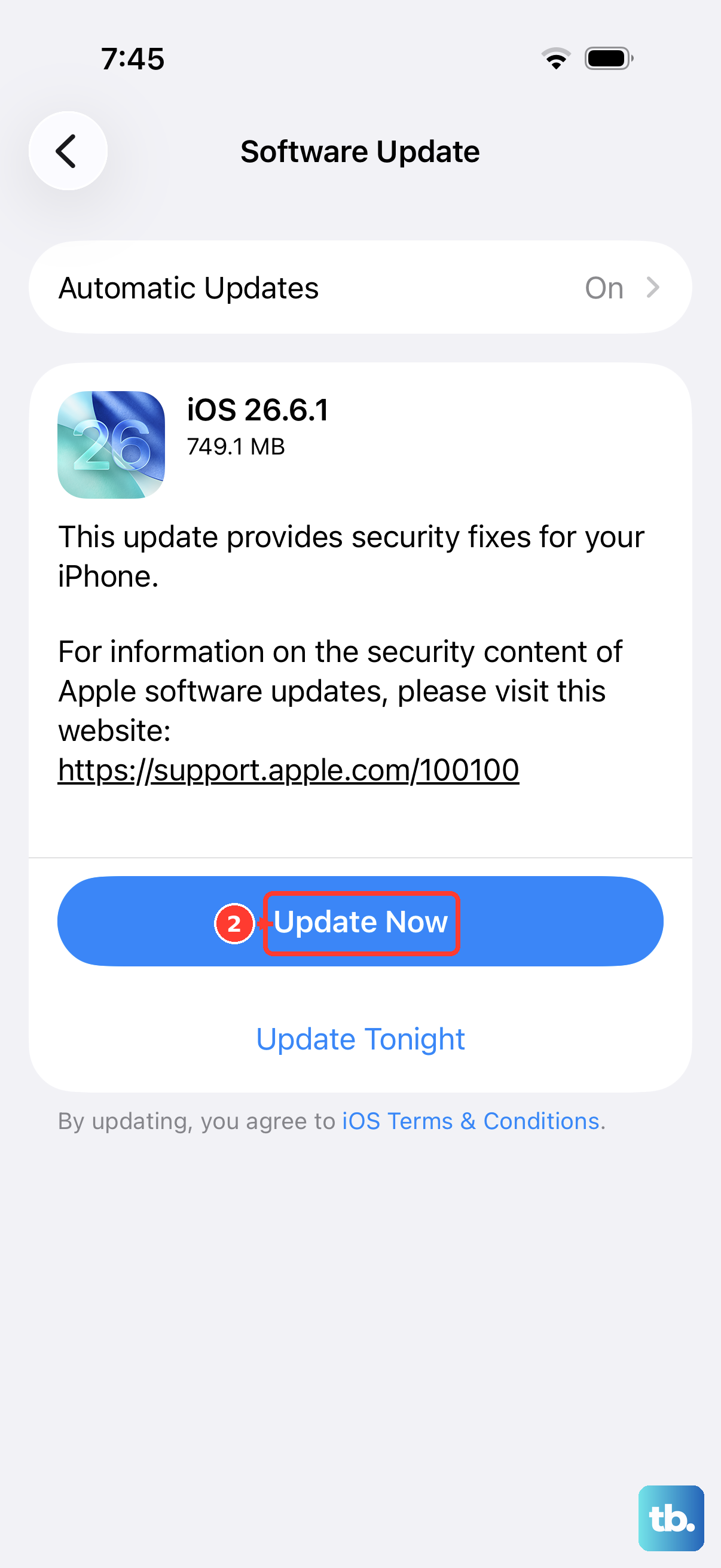
Apple regularly releases iOS updates that include bug fixes for connectivity issues. Running an old version of iOS 26 could be the root of your problem. Go to Settings > General > Software Update.
If an update is available, tap to download and install it. Make sure your iPhone 17 Pro Max is connected to power, as these updates can take a while, especially with its large battery. An update often patches the exact glitch causing your Wi-Fi to drop.
Reset Your iPhone's Network Settings
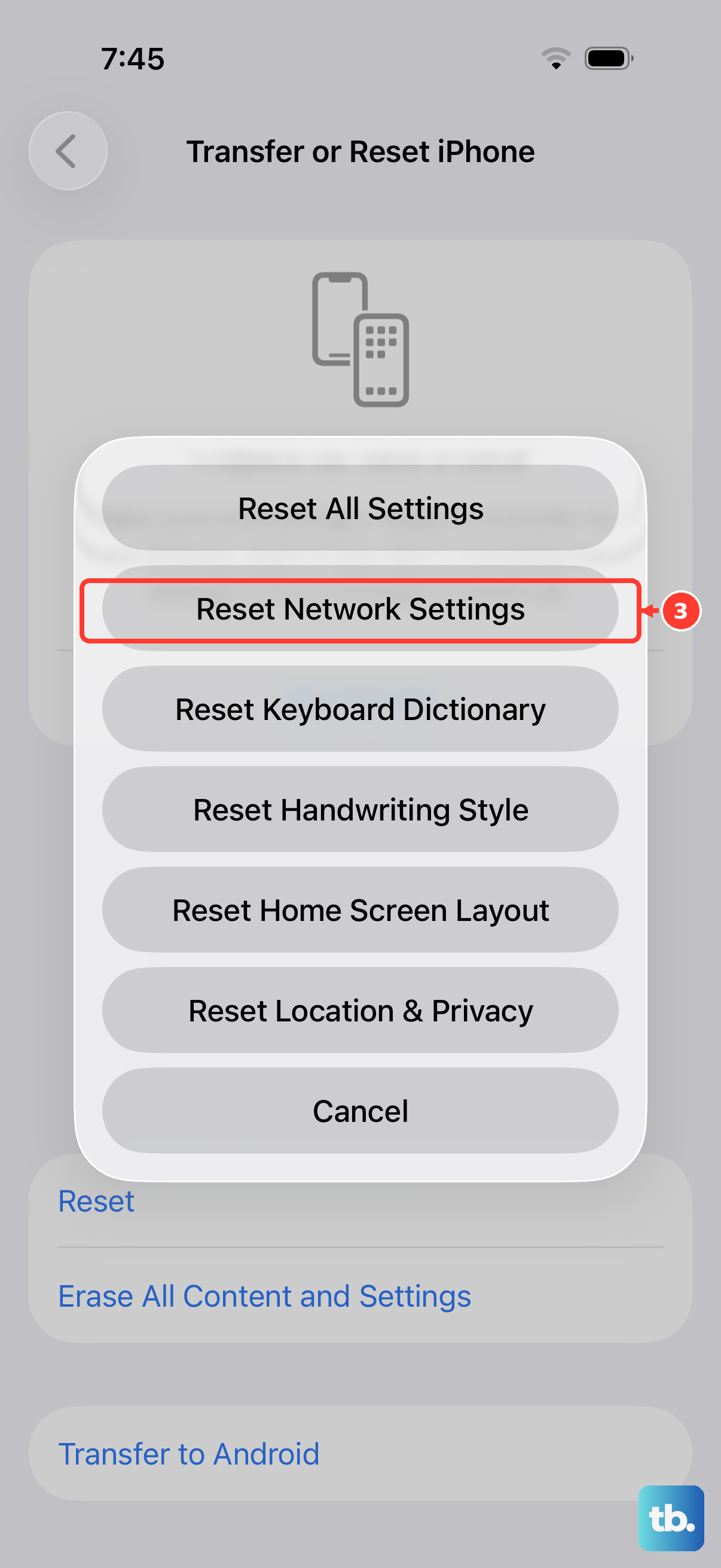
This step clears all network-related data from your phone without touching your personal content. It will erase saved Wi-Fi passwords, Bluetooth pairings, and cellular settings, so you'll need to reconnect to everything afterward.
To do it, go to Settings > General > Transfer or Reset iPhone. Tap Reset, then choose Reset Network Settings. Enter your passcode if prompted and confirm. Your phone will restart, and you can then try reconnecting to your Wi-Fi.
Check Your Date and Time Settings
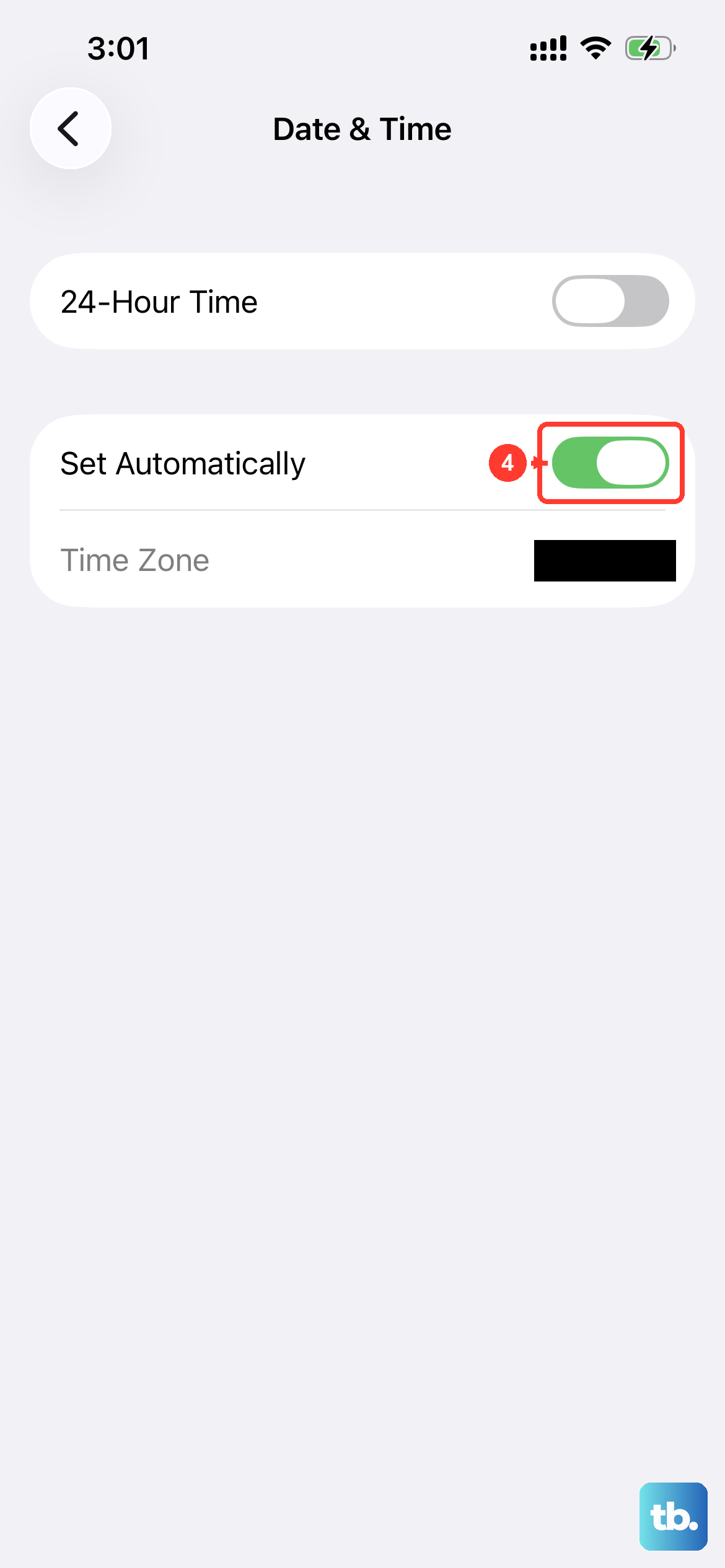
This seems unrelated, but it's critical for network security. If your phone's date and time are incorrect, it can fail to authenticate with secure Wi-Fi networks. Go to Settings > General > Date & Time.
Make sure the option for Set Automatically is turned on. This allows your iPhone to pull the correct time from the network. If it was off, turning it on can immediately resolve connection errors.
Try Connecting to a Different Network
To rule out a hardware problem with your iPhone's antenna, try connecting to a completely different Wi-Fi network. This could be a public hotspot, a friend's network, or even using your own phone as a personal hotspot for a moment.
If your iPhone 17 Pro Max connects to other networks without any issue, then the problem is specific to your home network setup. If it fails to connect to any network at all, it points more toward a setting or software issue on the phone itself.
Review Router Settings for Compatibility
Older routers or those with specific security settings can sometimes have trouble with newer devices. If you're comfortable accessing your router's admin page, check a couple of things. First, ensure your network isn't set to "Hidden" or broadcasting on an obscure channel.
You can also try temporarily changing your Wi-Fi security protocol. If you're using an older standard like WEP, switching it to WPA2 or WPA3 (which your iPhone 17 Pro Max supports) can resolve the connection problem. Remember to update the password on all your devices if you change this setting.
Perform a Full Restore via a Computer
If you've tried every other step and your Wi-Fi is still broken, a full restore is the final software step. This erases your phone completely and installs a fresh copy of iOS. It's crucial to have a recent backup in iCloud or on your computer before you start.
Connect your iPhone to a Mac or PC, open Finder or iTunes, select your device, and choose the option to restore it. This process can fix deep-seated software corruption that a simple reset can't touch. After the restore, you can set up your phone as new or from your backup to see if the issue is resolved.











