
If your iPhone 17 Pro Max videos are stuttering or freezing, it can really ruin the experience on that beautiful display. The good news is this is usually a software hiccup you can fix yourself. I'd start by checking your storage and doing a quick restart.
A browser based online refresh rate test shows the real Hz your display is delivering right now. Many stutter complaints turn out to be a monitor silently running at 60 Hz.
Free Up Storage Space on Your iPhone 17 Pro Max
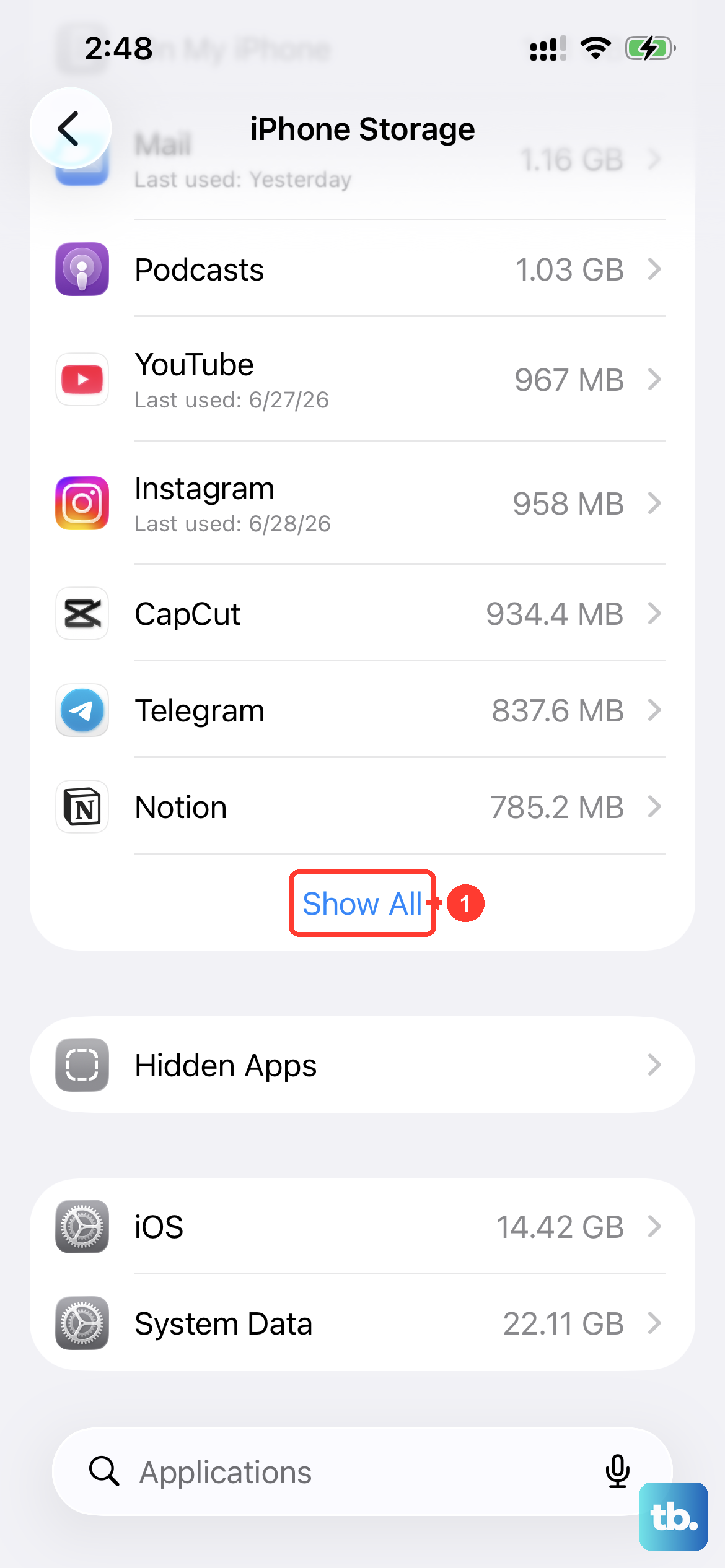
Your phone needs breathing room to play videos smoothly, especially high-resolution files. Head to Settings > General > iPhone Storage to see what's taking up space. If you're below a few gigabytes free, it's time for a cleanup.
You can offload unused apps, review large video files, or enable Optimize iPhone Storage for Photos. This keeps smaller versions on your device while the full-resolution photos and videos live in iCloud.
Restart Your iPhone 17 Pro Max
A simple restart clears out temporary glitches in iOS 26 that might be interfering with video playback. Just press and hold the Side button with either volume button, then slide to power off.
Wait about 30 seconds, then press the Side button again to turn it back on. This is often the fastest fix for random stuttering.
Check for a Software Update
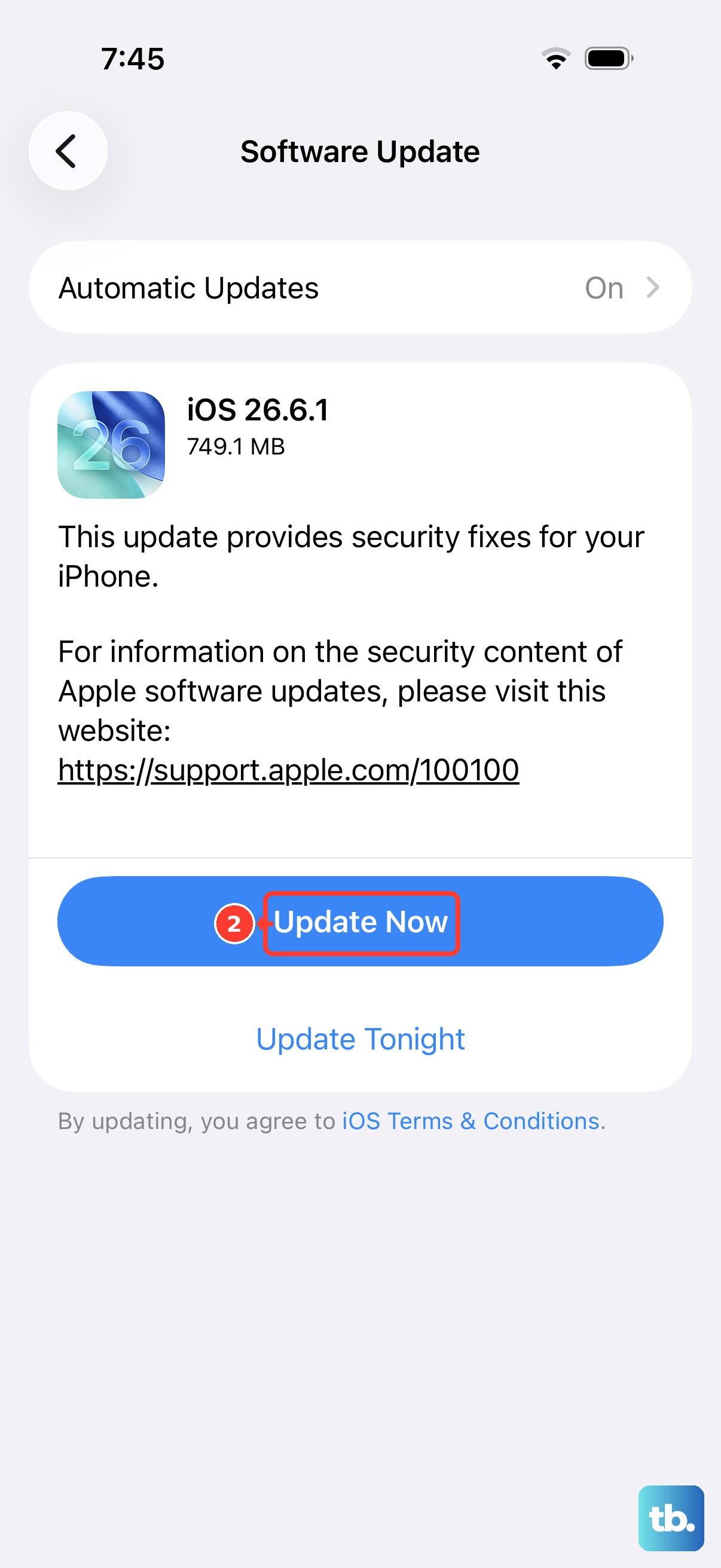
Apple frequently releases iOS updates that include bug fixes for media playback. An outdated version of iOS 26 could be the culprit.
Go to Settings > General > Software Update. If an update is available, I'd recommend installing it, preferably while your phone is connected to Wi-Fi and power.
Test Your Internet Connection for Streaming
If the stuttering only happens with streaming services like YouTube or Netflix, your network is the likely suspect. Try playing a video saved directly to your Photos app to rule this out.
For streaming issues, try toggling Airplane mode on and off to reset your connections, or switch between Wi-Fi and 5G to see if one is more stable. A weak signal will always cause buffering.
Close Background Apps and Restart the Video App
Sometimes, the problem is isolated to a single app. Fully close the app you're having trouble with by swiping it away from the App Switcher.
Then, reopen it and try playing the video again. Also, check if other video apps are working fine. This helps you figure out if it's a system-wide issue or just one misbehaving app.
Disable Low Power Mode
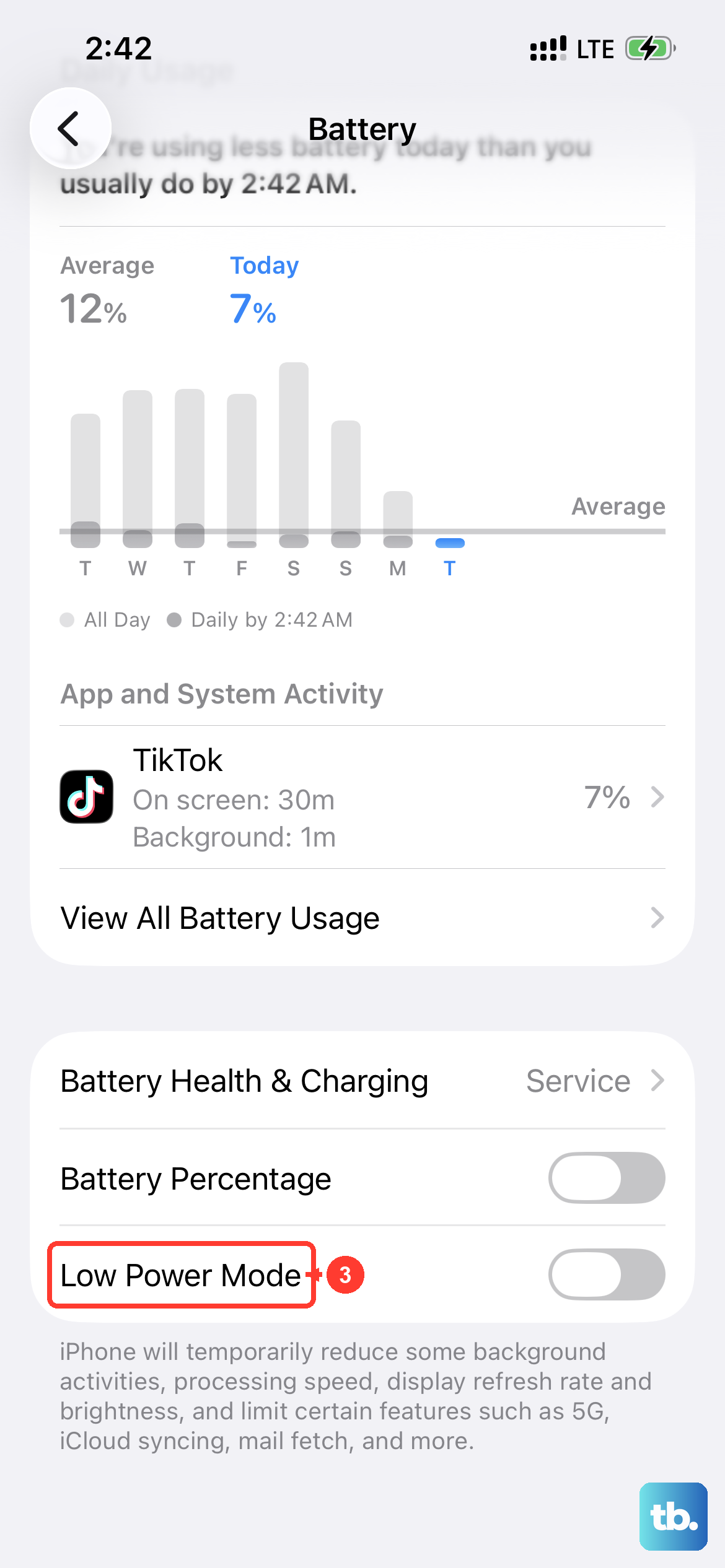
Low Power Mode intentionally reduces background activity and can affect performance, including video playback. If you have it enabled, your iPhone 17 Pro Max might be throttling to save battery.
You can check this in Control Center or under Settings > Battery. Turn it off and see if the video plays smoothly.
Check for Overheating
The powerful chip in the iPhone 17 Pro Max can get warm during intensive tasks. If the device gets too hot, iOS will throttle performance to cool it down, which can cause stuttering.
If your phone feels very warm, take it out of its case, move it out of direct sunlight, and pause any heavy tasks for a few minutes. Let it cool down before trying the video again.
Reset All Settings
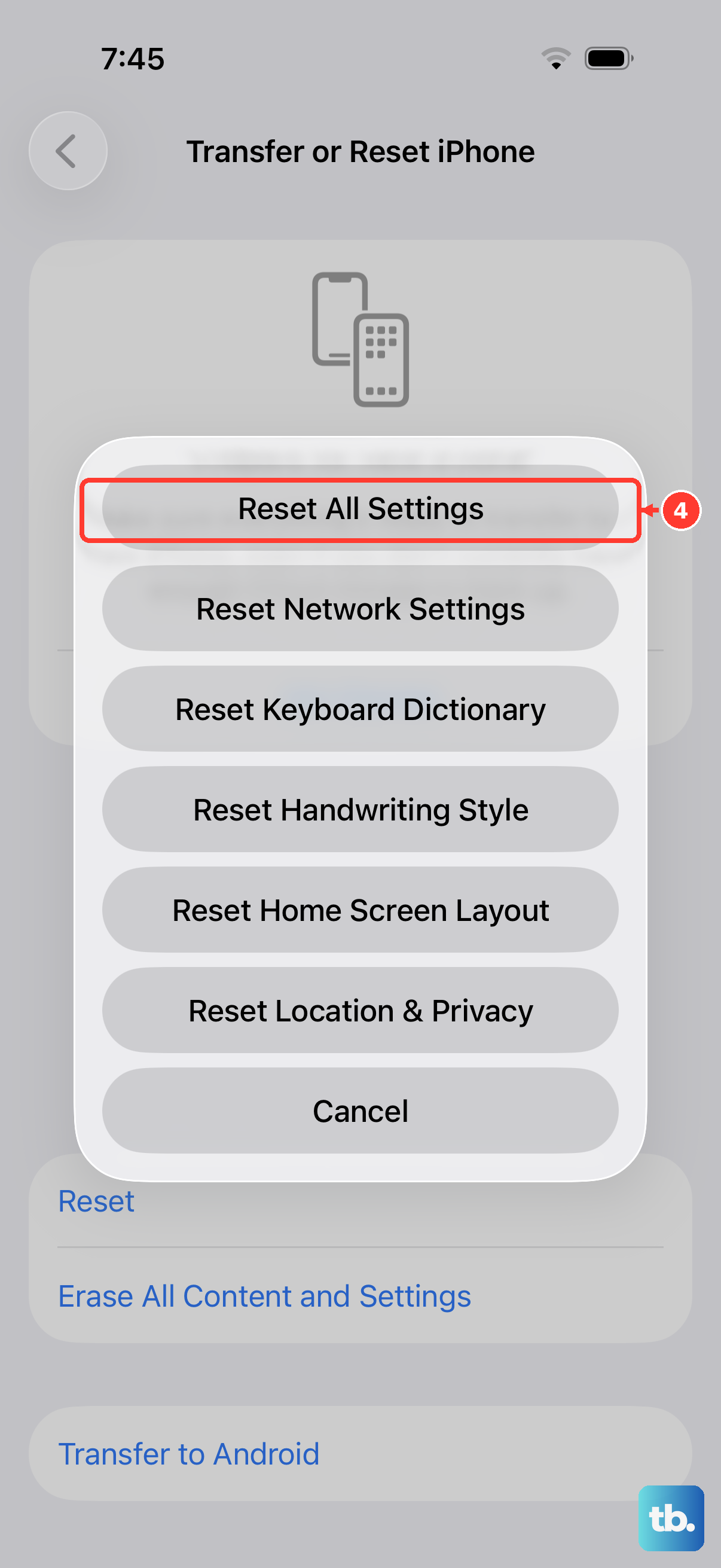
This is a stronger step that resets your network, display, and privacy settings back to default without erasing your personal data. It can fix deeper software conflicts.
Before you do this, just know you'll need to reconnect to Wi-Fi networks and re-enter some passwords. Go to Settings > General > Transfer or Reset iPhone > Reset > Reset All Settings.
Update or Reinstall the Problem App
If the issue is only in one app, like TikTok or Disney+, head to the App Store and see if there's an update available. Developers often patch playback bugs.
If an update doesn't help, try deleting the app and reinstalling it. This gives it a fresh start. Remember, deleting the app will also remove any data saved only within that app unless it's backed up to a cloud account.
Force Restart Your iPhone 17 Pro Max
If the screen is frozen or the stuttering is severe, a force restart can help. This is different from a normal shutdown and can clear more stubborn glitches.
On the iPhone 17 Pro Max, quickly press and release the Volume Up button, then quickly press and release the Volume Down button. Finally, press and hold the Side button until you see the Apple logo appear, then let go.