
When the satisfying tap and buzz from your iPhone 17 Pro Max goes silent, it can feel like you're missing half the experience. That haptic feedback is a core part of how you interact with the device, and when it stops, it's usually a software quirk you can fix yourself.
Force Restart Your iPhone
This is almost always my first move with any weird iOS behavior. A force restart clears out temporary glitches without touching your data. On the iPhone 17 Pro Max, you press and quickly release the Volume Up button, then quickly press and release the Volume Down button.
Finally, press and hold the Side button. Keep holding it until you see the Apple logo appear on the screen, then let go. This can take about 15 seconds. Once it boots back up, test the haptics by typing a bit or using the flashlight toggle in Control Center.
Check Silent Mode
The iPhone 17 Pro Max has an Action button, not a Ring/Silent switch with an orange stripe. By default, pressing and holding the Action button turns Silent Mode on or off; you can confirm or change that assignment in Settings > Action Button.
Press and hold the Action button once, then test a ringtone, alert, or keyboard haptic again. If the Action button has been assigned to something else, change it back to Silent Mode or check haptics directly in Sounds & Haptics.
Verify Haptic Settings in Sounds & Haptics
Head to Settings > Sounds & Haptics, then tap Haptics. Choose Always Play or Play in Silent Mode so ringtones and alerts can vibrate.
There is no iPhone Haptic Strength slider in this menu. The slider near the top is for Ringtone and Alerts volume, so use it for alert loudness, not haptic intensity.
Review Keyboard Haptic Feedback
If you're only missing vibrations when you type, that setting lives separately. Open Settings, then go to Sounds & Haptics > Keyboard Feedback.
Ensure the "Haptic" toggle is enabled. You can also try turning it off and on again. This setting is independent from the system haptics, so it's a common spot for issues to pop up after an update.
Test Haptics in Accessibility Settings
There's a setting deep in Accessibility that can override everything else. Go to Settings > Accessibility > Touch. Look for an option called "Vibration."
If this is turned off, it turns off all vibrations, including emergency alerts. Make sure Vibration is on, then test the keyboard or an alert again.
Check for a Software Update
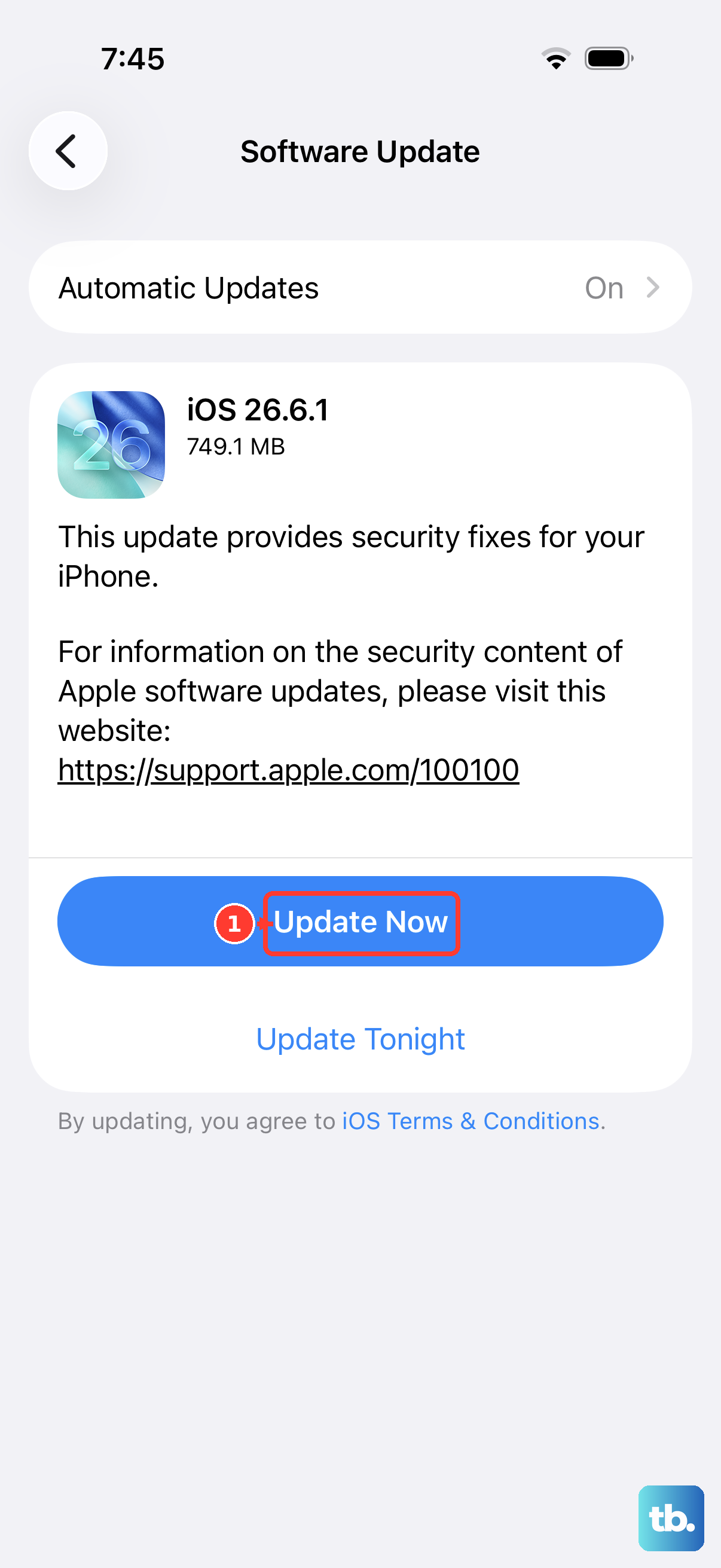
Since you're on iOS 26, Apple is constantly refining these systems. A bug in a point update could be the cause. Go to Settings > General > Software Update.
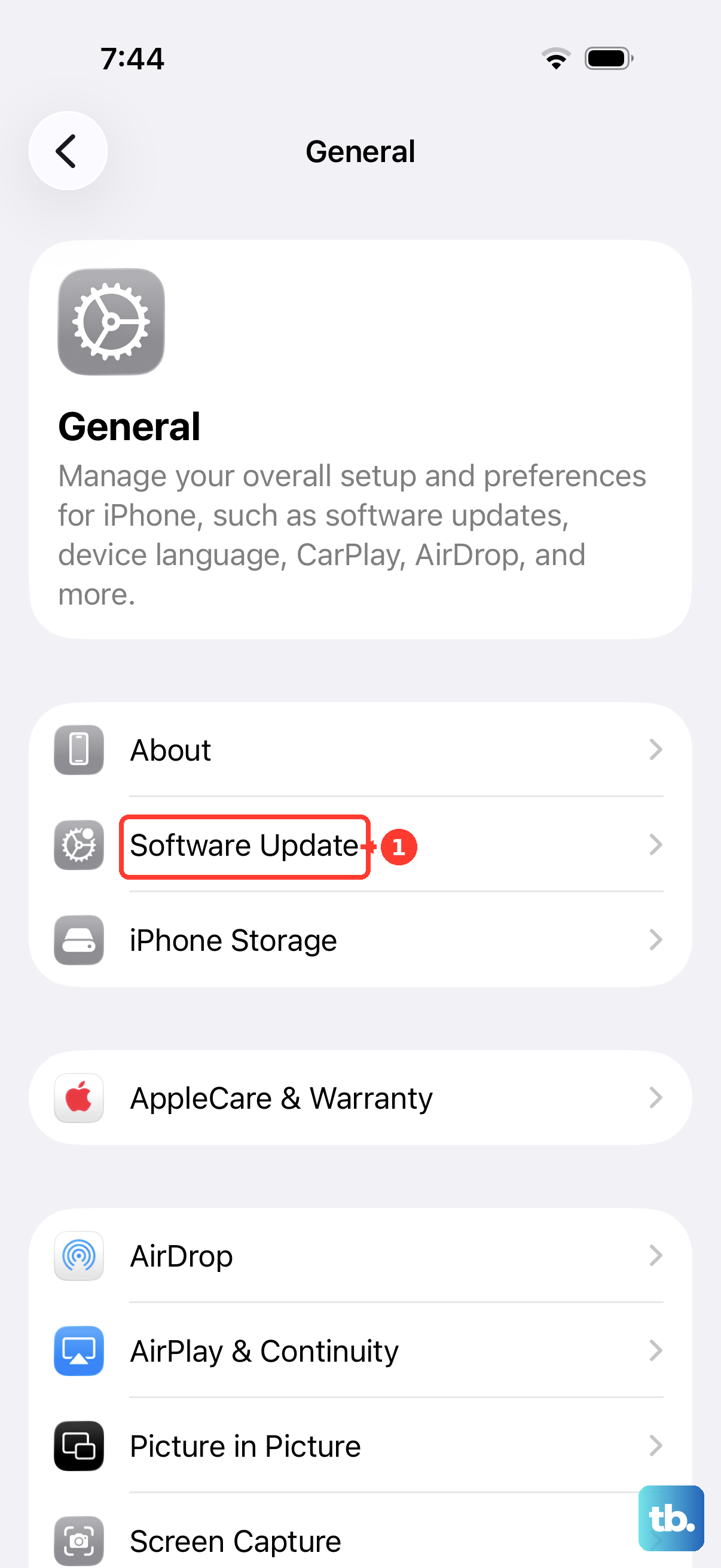
If an update is available, install it. Apple recommends backing up first, plugging the iPhone into power, and connecting to the internet with Wi-Fi before updating.
Reset All Settings
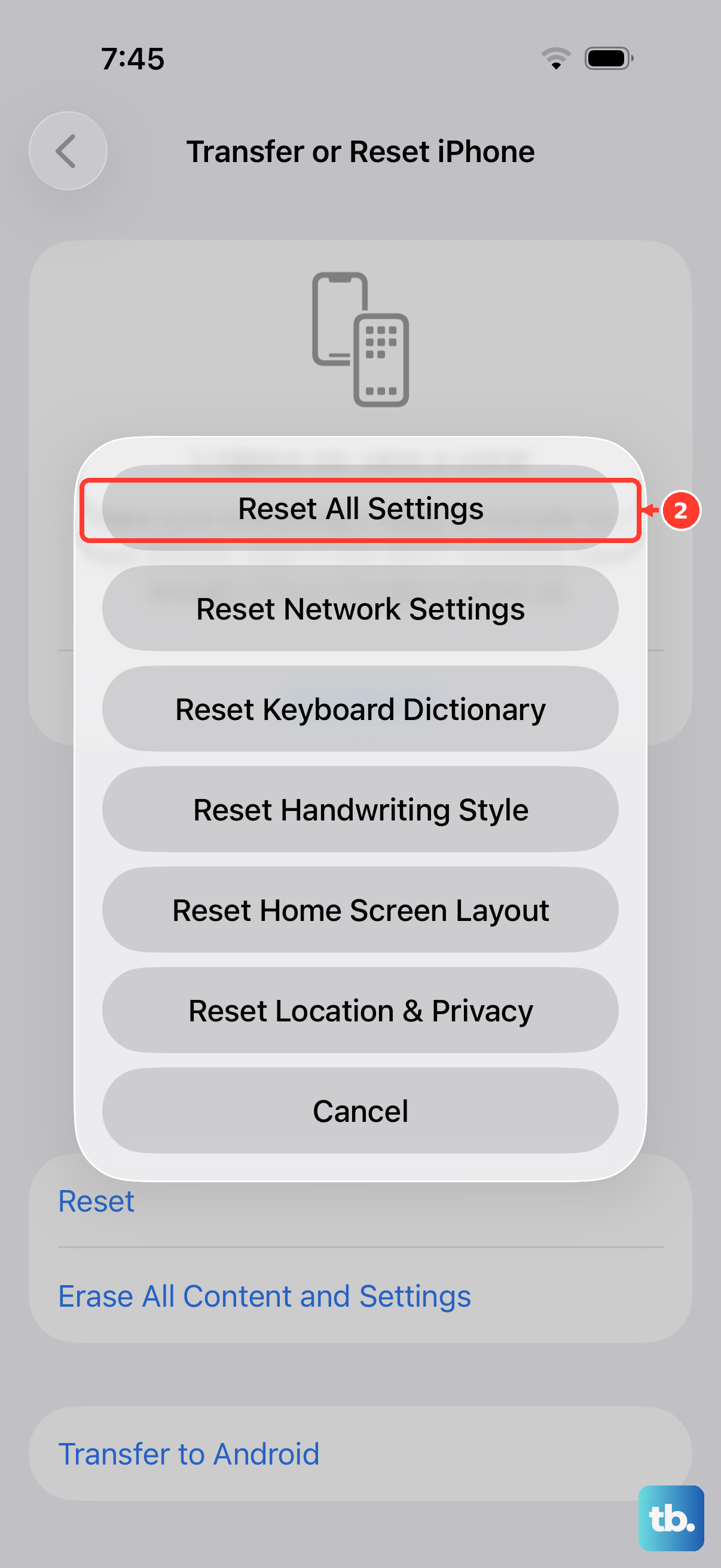
This is a stronger step that won't delete your photos, apps, media, or other content, but it will remove or reset settings such as network settings, the keyboard dictionary, location settings, privacy settings, and Apple Pay cards.
If the haptic issue persists, go to Settings > General > Transfer or Reset iPhone > Reset. Then, choose "Reset All Settings." Enter your passcode and confirm. After the phone restarts, you'll need to check your haptic settings again as they'll be back to defaults.
Use Recovery Mode Only for Update or Restore Problems
The Volume Up, Volume Down, then hold Side button sequence that continues to the Connect to computer screen is recovery mode, not a user-facing Safe Mode. Apple documents it for cases where an iPhone cannot update or restore normally.
Do not use recovery mode as a third-party app diagnostic. If you reach the Connect to computer screen by accident, restart the iPhone normally; save recovery mode for an update or restore through Finder, Apple Devices, or iTunes.
Check for Physical Damage or Case Interference
The Taptic Engine in the iPhone 17 Pro Max is robust, but it's still a physical component. Remove your case and see if haptics return. A very thick or poorly fitted case can sometimes dampen the motor to the point where you can't feel it.
Think about if the phone has had any recent drops or exposure to liquid. While the phone is water-resistant, significant impact or moisture can affect internal components. If it's only partially working or sounds rattly, that points to hardware.
Perform a Full Restore
As an absolute last resort before considering hardware service, create a fresh iCloud backup or a computer backup first. On a current Mac, use Finder; on Windows, use the Apple Devices app, with iTunes only as the fallback when Apple Devices is not installed.
Connect your iPhone to the computer with a USB cable and follow Apple's factory restore flow. A restore erases the iPhone and installs the latest iOS version, so use it only after backing up and trying less destructive steps.