
When your iPhone 17 Pro Max suddenly goes silent or the volume is way too low, it can throw off your whole day. Whether you're missing calls, can't hear videos, or the speakerphone just won't cooperate, the issue may be something simple. Start with the checks below to narrow down the sound problem.
Start with a free left and right speaker test that plays left and right channels one at a time. Hearing both sides helps you check channel playback before trying the remaining steps.
A force restart may help with a temporary software issue without changing any settings. For the iPhone 17 Pro Max, you press and quickly release the Volume Up button, then quickly press and release the Volume Down button. Finally, press and hold the Side button until you see the Apple logo appear, then let go.
Check the Physical Switches and Buttons
It sounds obvious, but check whether Silent mode is enabled. The iPhone 17 Pro Max has a programmable Action button on the left side in place of the old Ring/Silent switch, so there is no switch to flip. By default, press and hold the Action button to turn Silent mode off, or open Control Center and make sure Silent mode is off. Also, press the volume up button a few times while playing a song or video to make sure media volume is turned up, not just the ringer.
Some cases, especially rugged ones, can accidentally press the Action button or block the speaker grills. Try taking your case off for a moment and test the sound again. A case that fits too snugly can muffle audio if it covers a speaker opening.
Disconnect Bluetooth and Audio Routes
Your iPhone might be trying to send sound to a device you used earlier, like AirPods or a car stereo. Swipe down from the top-right corner to open Control Center. Look at the audio card in the top right. If it shows anything other than your iPhone's name, tap it and select iPhone from the list.
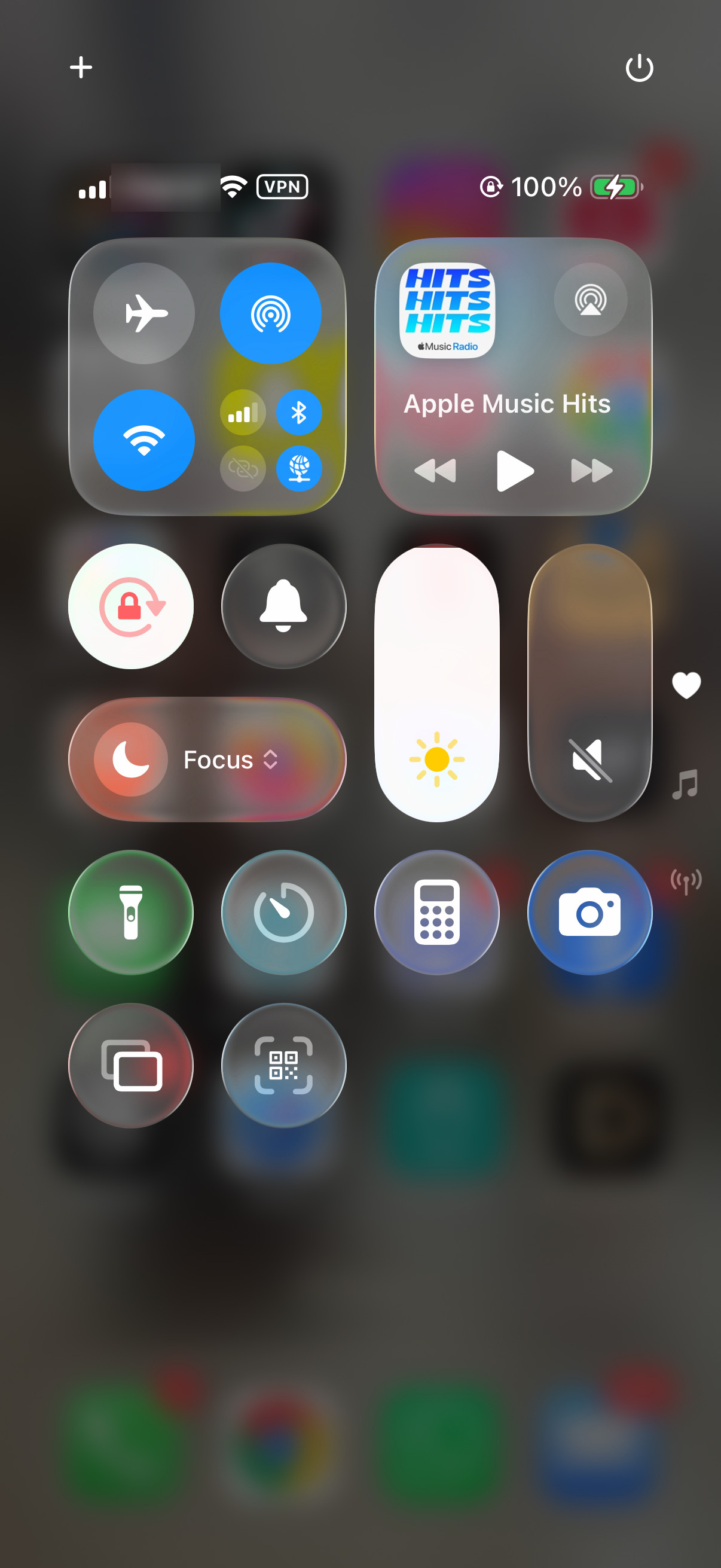
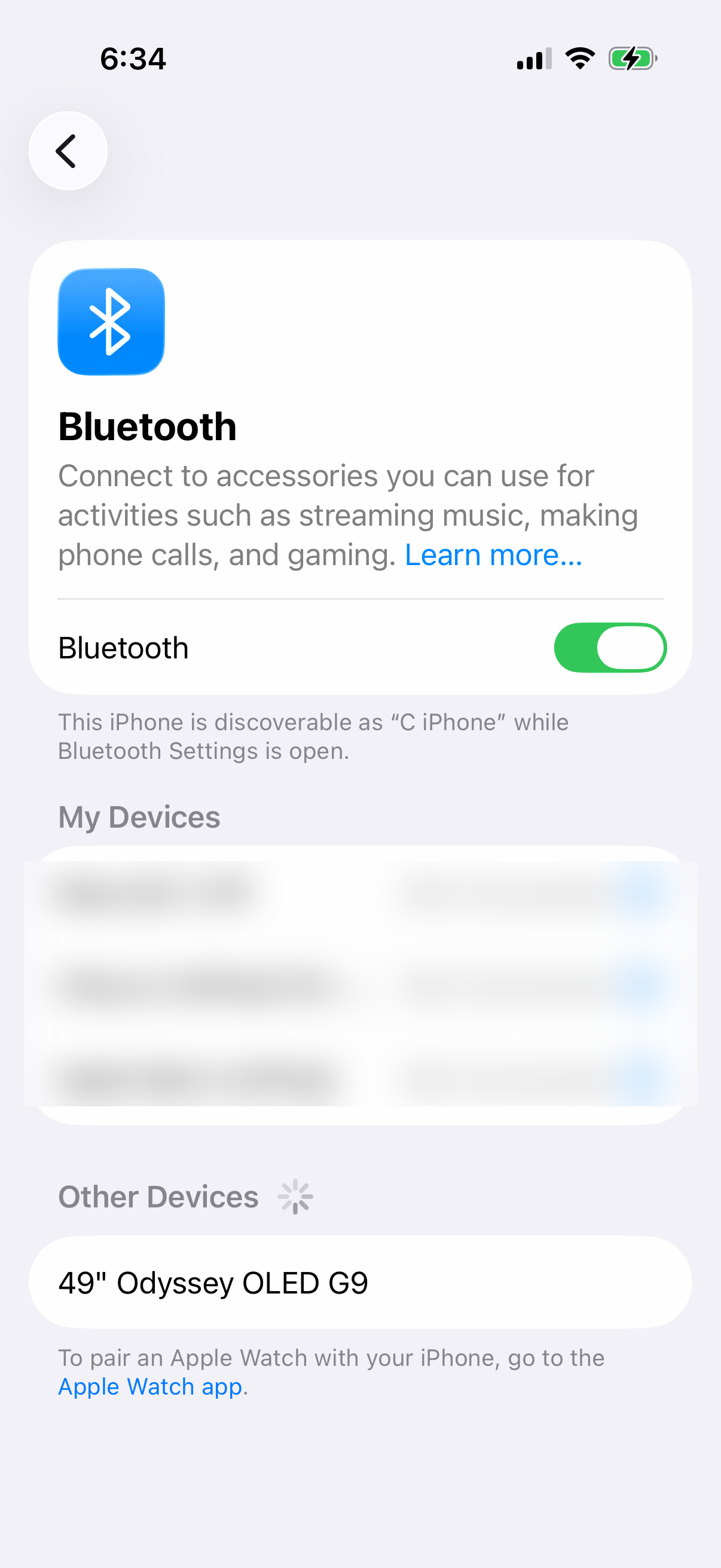
You can also turn Bluetooth off completely to rule it out. Go to Settings > Bluetooth and turn Bluetooth off, then test the sound again. The Bluetooth button in Control Center only disconnects devices; it doesn't turn Bluetooth off completely.
Clean the Speaker and Microphone Grills
The speaker grill at the bottom edge and the earpiece at the top can get clogged with lint from your pocket. This is a common cause of muffled or low volume. Power off your phone first. Then, use a soft, clean, dry toothbrush or a soft-bristled brush to gently scrub the grills.
Keep the brush clean and dry, and avoid getting moisture in the openings. Never use a paperclip or SIM eject tool, as you'll likely damage the internal components. A quick visual check with your phone's flashlight can show you if there's a visible blockage.
Review All Sound and Focus Settings
Go to Settings > Sounds & Haptics. Make sure the ringer volume slider below Ringtone is up. Also, check that Change with Buttons is toggled on if you want the volume buttons to control your ringer volume. Check these preferences if sound changed after an update.
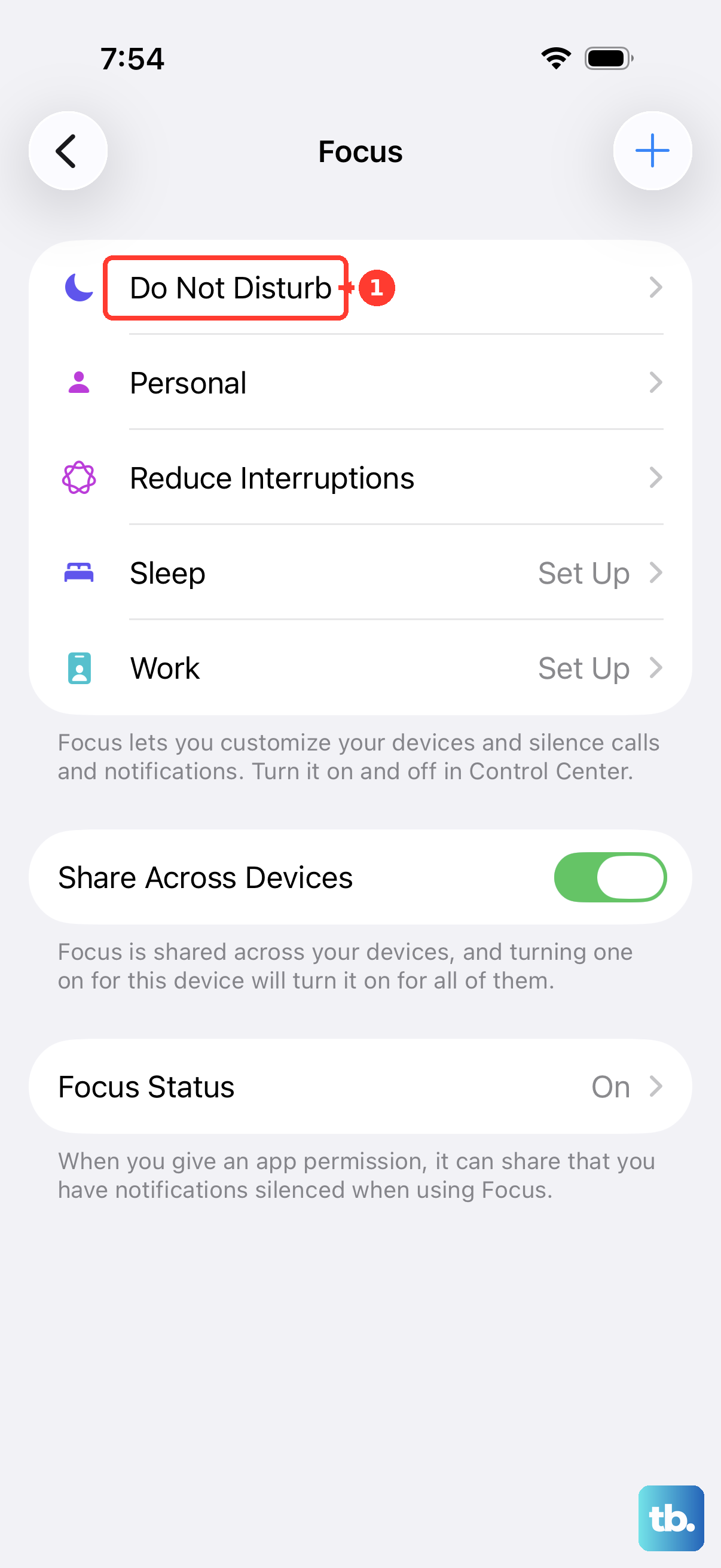
Next, check your Focus modes. Swipe down to open Control Center and press the Focus button. If any Focus is active, tap it to turn it off. Some Focus modes, especially Sleep, can silence calls and notifications. You can manage them in Settings > Focus.
Check for Software Updates
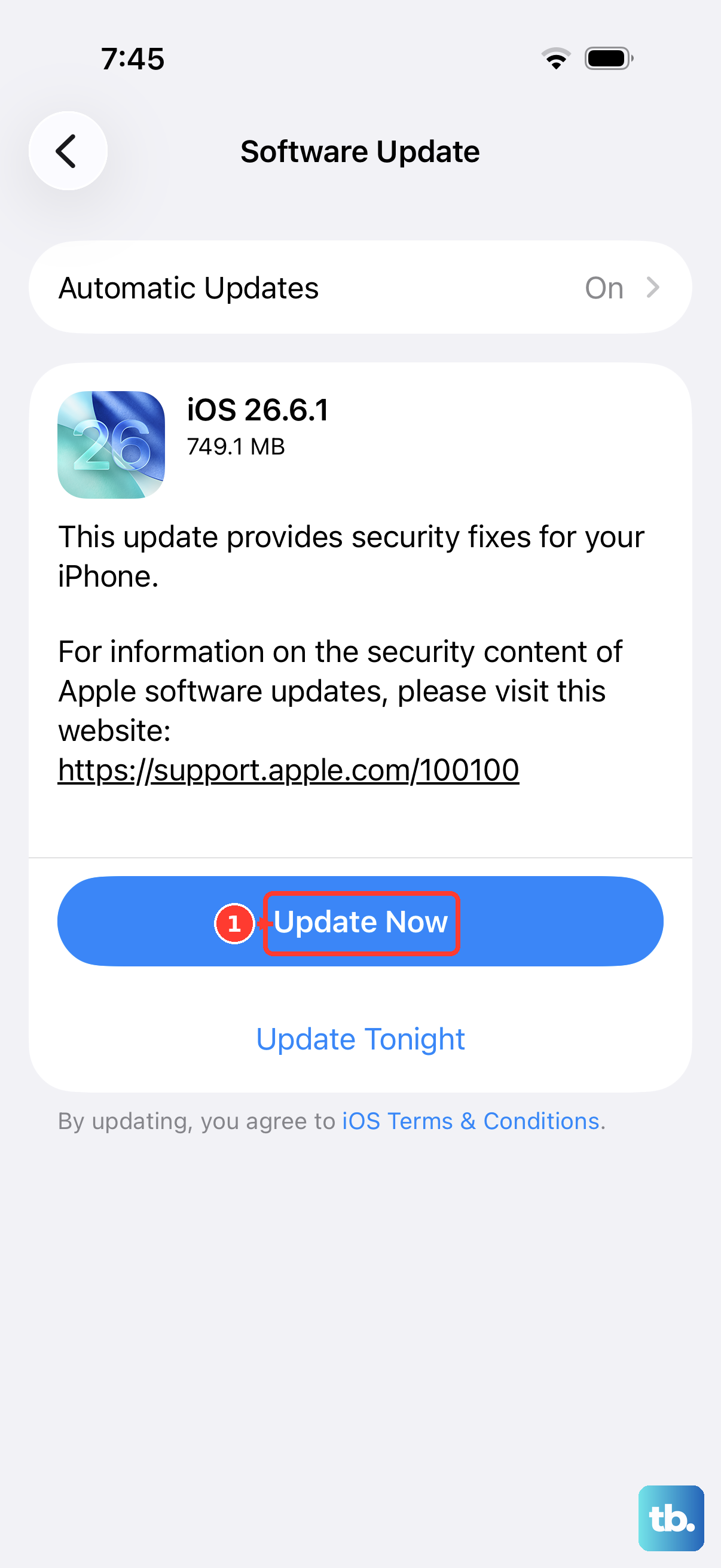
iOS updates can include bug fixes. Open Settings > General > Software Update. If an update is available, install it. Before installing, back up your iPhone 17 Pro Max and connect it to power and Wi-Fi.
While you're there, also check for app updates in the App Store, as a buggy app like a streaming service could be the culprit.
Reset All Settings
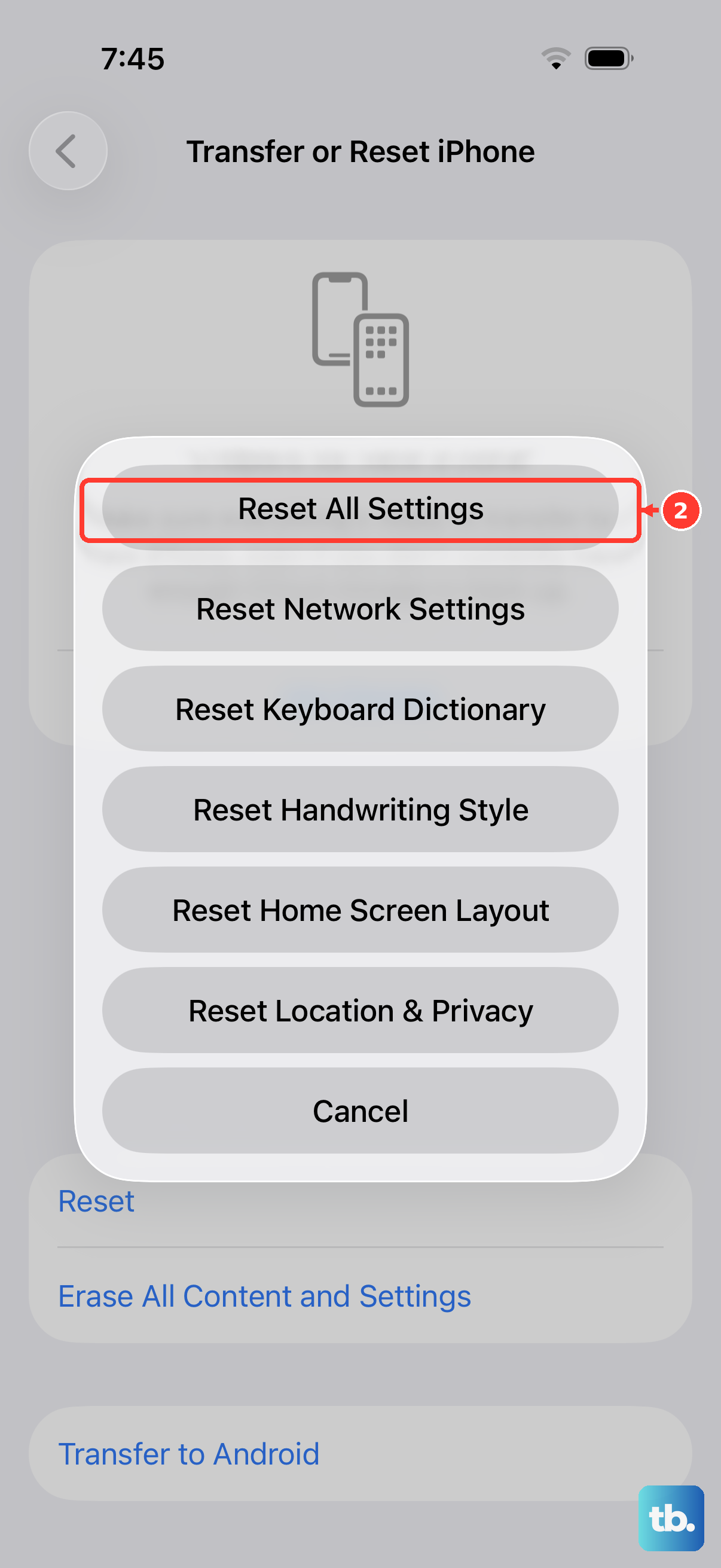
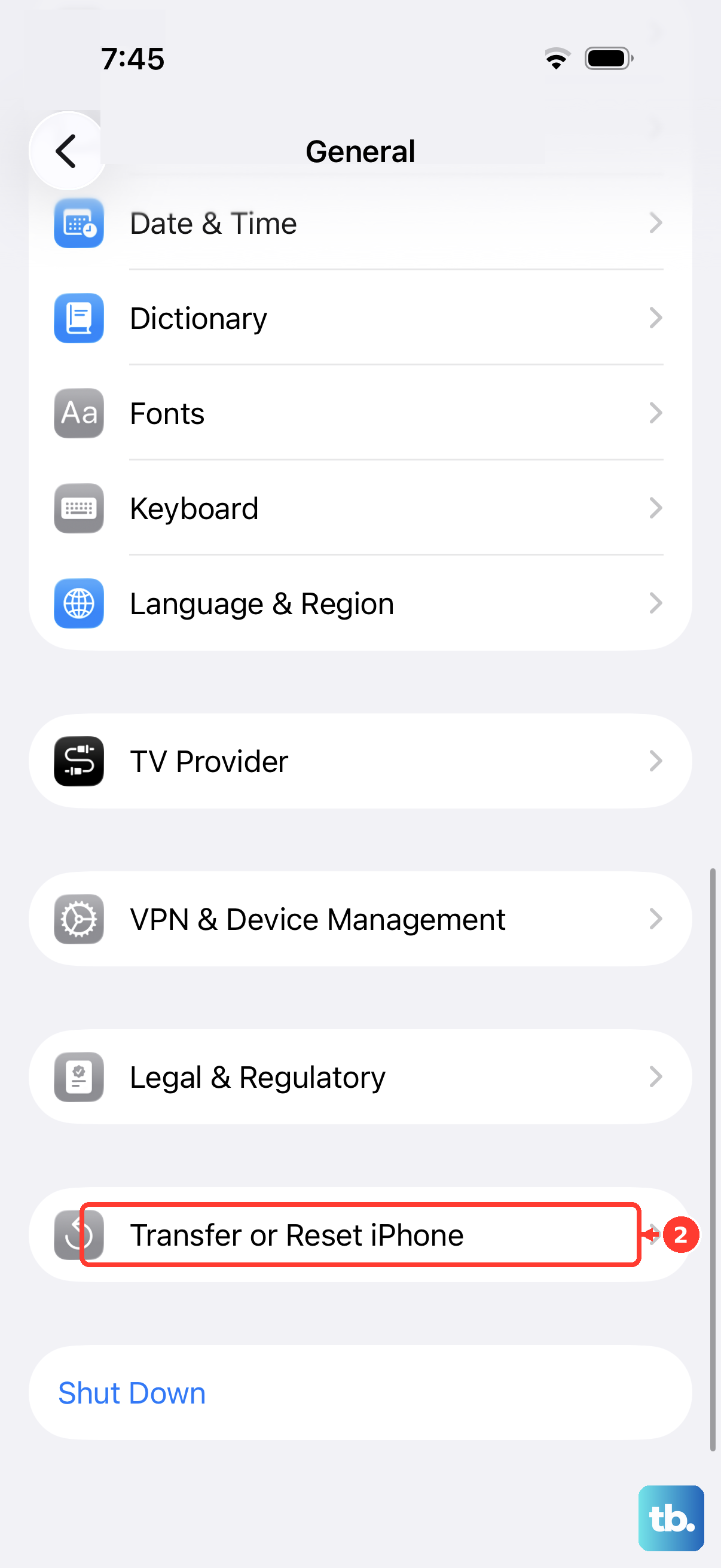
This is a more thorough step if the problem seems tied to your configuration. It will reset your network settings, wallpaper, privacy permissions, and sound settings back to default, but it won't delete any of your photos, messages, or apps. Go to Settings > General > Transfer or Reset iPhone.
Tap Reset and then choose Reset All Settings. You'll need to enter your passcode and confirm. Your phone will restart. Afterward, you'll need to reconnect to Wi-Fi, re-pair Bluetooth devices and Apple Watch, set up Face ID, and adjust any custom settings again. Then test the sound again.
Test Sound with Speakerphone
Open Settings > Sounds & Haptics and move the ringer volume slider back and forth a few times. Listen for sound as you move it. If there is no sound, or the speaker button on the slider is dimmed, your speaker might need service.
If you hear sound, make a call and turn on speakerphone. If you still can't hear clearly, or hear static or crackling, your network or reception may be the cause. Try calling again later or from a different location. If sound issues continue, arrange service for your iPhone.
Inspect Accessibility Audio Settings
Some accessibility features can alter audio balance or route sound unexpectedly. Go to Settings > Accessibility > Audio & Visual. Check that the Balance slider is centered in the middle.
On the same screen, Mono Audio makes the left and right speakers play the same content. Leave it off unless you need it.