You glance at your iPhone 17 Pro Max expecting the usual stream of texts, app alerts, and reminders, and instead you find a quiet screen that has missed messages you only discover hours later. Maybe the banners stopped appearing on your Lock Screen, maybe a specific app went silent, or maybe everything arrives in one delayed batch at odd times. Notification problems on a phone this capable are almost always a settings conflict rather than a hardware fault, and the iPhone 17 Pro Max fully supports notifications, Focus, Scheduled Summary, and per-app controls, so the fix is usually a toggle away.
The steps below are ordered from the easiest and safest to the most involved, ending with the official reset path and Apple Support. Work through them in order and test after each one, since most people solve the problem long before reaching the bottom of the list.
Start With the Action Button and Silent Mode
The iPhone 17 Pro Max has no physical Ring/Silent switch. Instead, the Action button controls Silent mode by default, and it is easy to flip without realizing it. When Silent mode is on, your iPhone does not ring or play alerts and other sound effects, though it may still vibrate, so notifications can arrive without ever making a sound.
Press and hold the Action button to turn Silent mode off.
After turning it off, send yourself a test notification or have someone message you to confirm the alert sound now plays.
Make Sure a Focus Is Not Silencing Everything
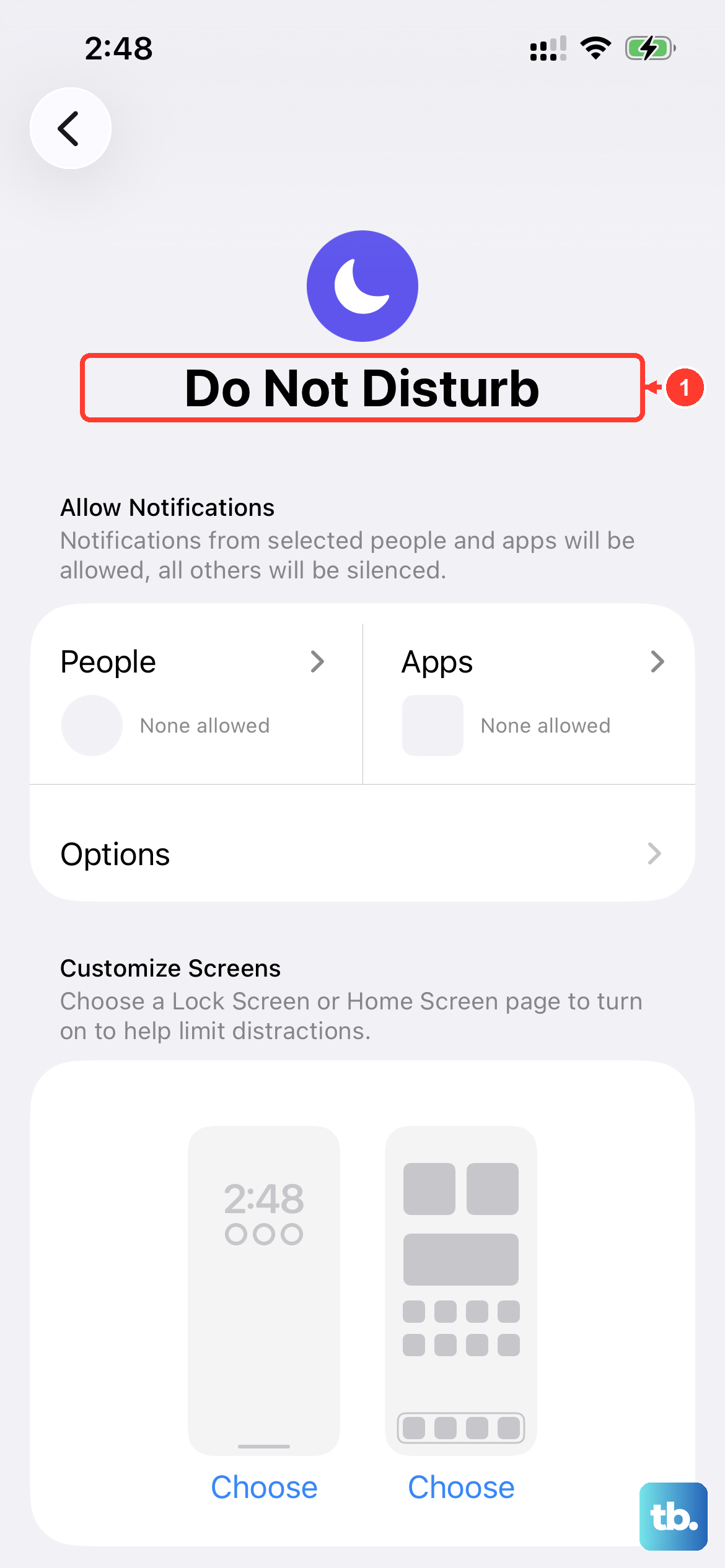
A Focus such as Do Not Disturb is designed to silence calls, alerts, and notifications, and it can stay active longer than you intended if it runs on a schedule. This is one of the most common reasons an otherwise healthy iPhone goes quiet.
Open Control Center and tap the Do Not Disturb or Focus button to turn it off. The button text changes to Focus when it is off.
To check for an automatic schedule, go to Settings, then General, then Focus, then Do Not Disturb.
Review Set a Schedule and Allow Notifications so the Focus is not turning itself back on or holding alerts from people and apps you want to hear from.
If you keep a specific Focus for work or sleep, touch and hold the Focus button in Control Center to pick the right one rather than leaving a stricter Focus running all day.
Confirm the App Is Allowed to Notify You
Each app has its own notification permissions, so a single misbehaving app can look like a system-wide failure when it is really just one setting. Check the app that is missing alerts first.
Go to Settings, then Notifications, and select the app.
Turn on Allow Notifications.
Choose Alerts to decide whether notifications appear on the Lock Screen, in Notification Center, or as a Banner.
Set Sounds so the app can play an alert tone.
Turn on Badges if you want the count on the Home Screen icon.
Remember that if your device is silenced, notifications will not alert you with a sound even when the app is fully allowed, which is why the Silent mode and Focus checks above come first.
Use Critical Alerts for Apps That Must Always Get Through
For certain apps, you can let important alerts come through even when other notifications are silenced. This is useful if a specific app, such as one for safety or health reminders, keeps getting suppressed by a Focus or by Silent mode.
Go to Settings, then Notifications, then the app, then Critical Alerts, available for supported apps, to allow those alerts through.
Not every app offers this option, so you will only see it where the app developer has added support for it.
Look at Scheduled Summary Before You Assume Alerts Are Broken
If your notifications are arriving, but only in bundles at certain times of day, Scheduled Summary is the likely cause. When it is on, an app's notifications are held and delivered at scheduled times instead of arriving immediately, which can feel like delayed or missing alerts.
Go to Settings, then Notifications, then Scheduled Summary to turn it off, or remove the affected app from the summary so its alerts come through right away.
Keep in mind that an app must have Allow Notifications turned on to appear in the summary list, so set the app's permissions first if you do not see it there.
Check Whether Your Apple Watch Is Catching the Alerts
If you wear an Apple Watch, the missing notifications may simply be going to your wrist. By default, notifications go to either your Apple Watch or your iPhone, not both, depending on whether your iPhone is locked or in use.
If alerts seem to be missing on the iPhone, check the paired Apple Watch to see if they landed there instead.
This behavior is normal, so understanding it can save you from chasing a problem that is not really a problem.
Force Restart to Clear a Temporary Glitch
If your settings all look correct but notifications are still inconsistent, a quick force restart can clear a temporary software hiccup without affecting your data. Use the exact button sequence below for the iPhone 17 Pro Max.
- 1.Press and quickly release the volume up button.
- 2.Press and quickly release the volume down button.
- 3.Then press and hold the side button until you see the Apple logo, which might take longer than 10 seconds.
Let the phone finish starting up, then test a notification again before moving on.
Install the Latest iOS Update
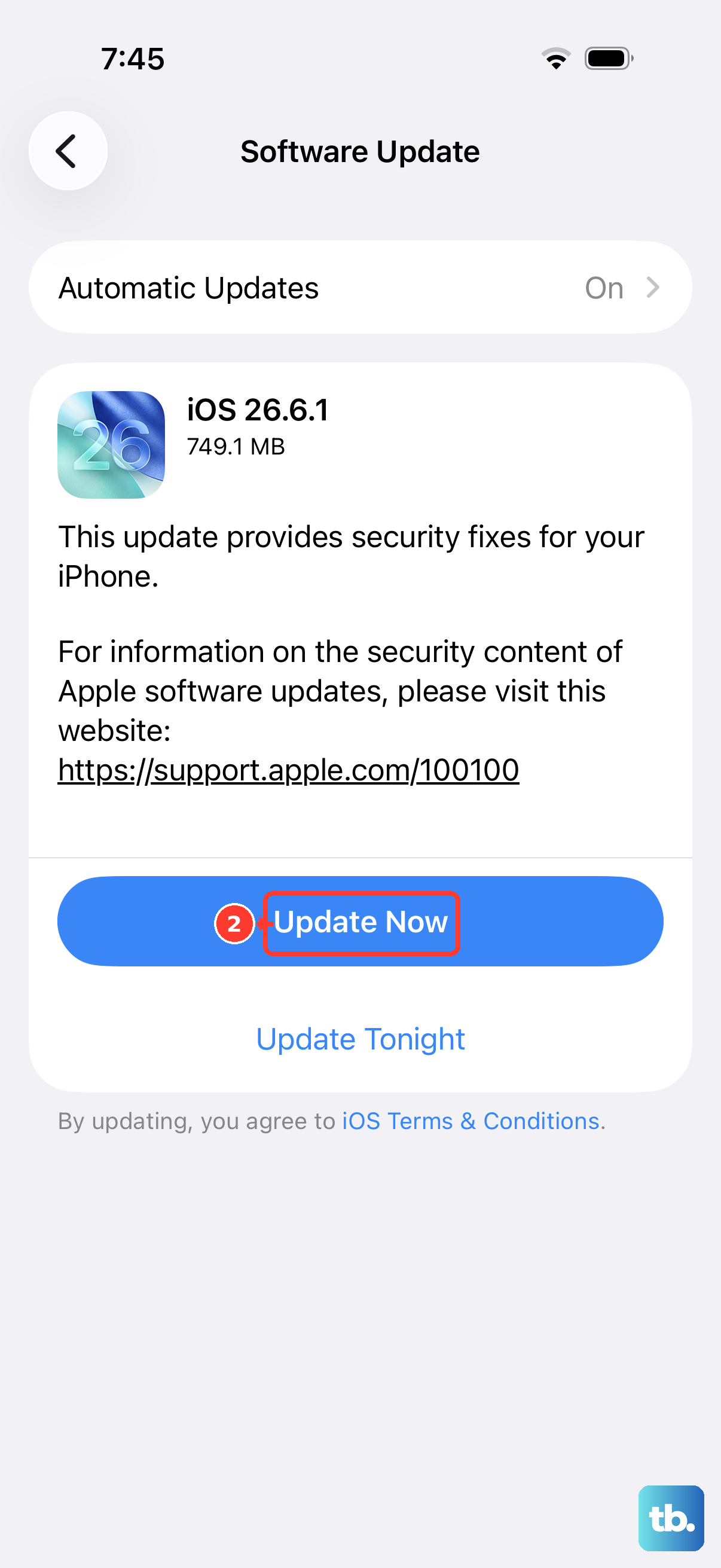
Notification bugs are sometimes resolved in software updates, so it is worth confirming your iPhone is current. Before you begin, plug in to power, connect to Wi-Fi, and back up first.
Go to Settings, then General, then Software Update. The currently installed version and any available update are shown here.
If an update is available, tap Download and Install.
Follow the onscreen instructions and let the iPhone restart when prompted.
Reset All Settings Without Losing Your Data
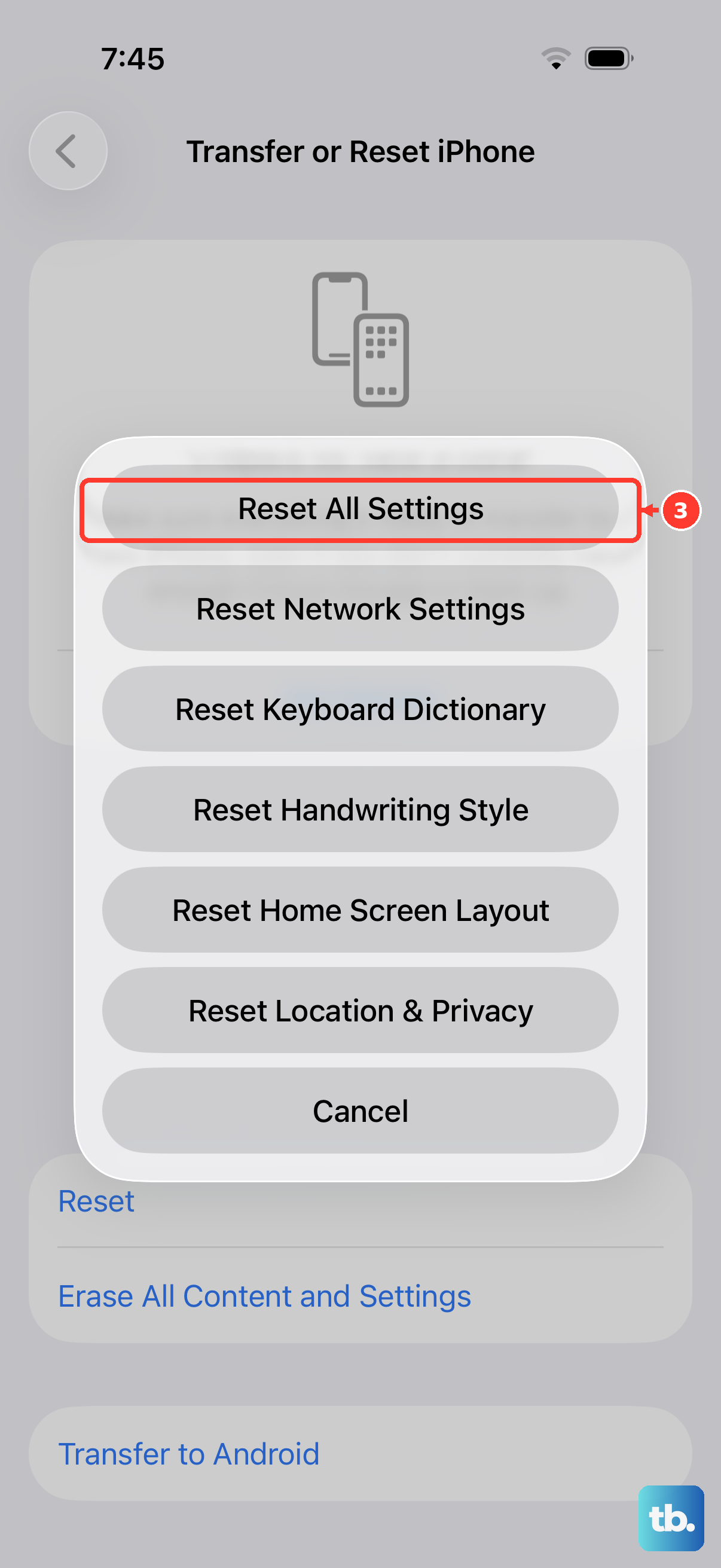
If notification behavior is still wrong after the steps above, you can return your settings to their defaults without deleting your content. This often clears a tangled combination of Focus, sound, and per-app settings that are hard to spot individually.
Go to Settings, then General, then Transfer or Reset iPhone, then Reset, then Reset All Settings.
This restores settings to their defaults without deleting your content or data, so your photos, messages, and apps stay in place while preferences such as notifications are rebuilt from a clean slate.
Erase All Content and Settings as a Last Resort
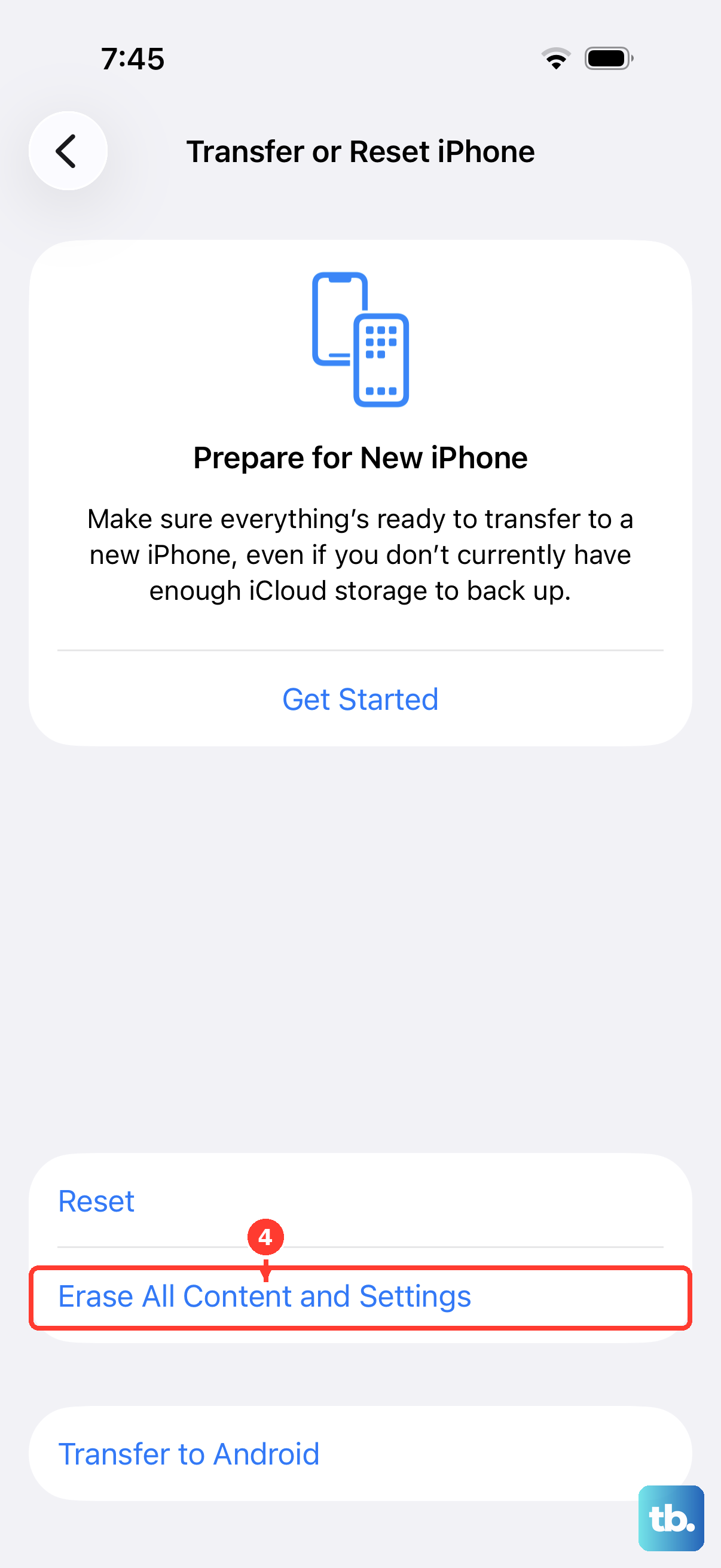
If nothing else has worked, a full factory reset is the final software step. This is a destructive action, so treat it as a last resort and prepare carefully.
Back up first, because erasing permanently removes all of your data and you can only restore your content, settings, and apps if you have a backup.
Then go to Settings, then General, then Transfer or Reset iPhone, then Erase All Content and Settings, then Continue.
This permanently removes all data from the iPhone, so do not skip the backup.
When to Contact Apple Support
If the problem persists even after erasing and restoring your iPhone, the cause may be beyond what these software steps can fix. At that point, contact Apple Support through the Apple Support app or support.apple.com, and if needed, book a Genius Bar appointment for hands-on help. Reaching out to official support is the right move once you have exhausted the steps above, since they can investigate hardware-level causes that settings alone cannot address.
Frequently Asked Questions
Why does my iPhone 17 Pro Max vibrate but not make a notification sound?
That is the signature of Silent mode being on. When Silent mode is on, the iPhone does not ring or play alerts and other sound effects, but it may still vibrate. Press and hold the Action button to turn Silent mode off so notification sounds can play.
My notifications only arrive at certain times of day. What is happening?
This usually means Scheduled Summary is turned on, which holds an app's notifications and delivers them at scheduled times instead of immediately. Go to Settings, then Notifications, then Scheduled Summary to turn it off, or remove the app so its alerts come through right away.
I am not getting alerts on my iPhone but I wear an Apple Watch. Why?
By default, notifications go to either your Apple Watch or your iPhone, not both, depending on whether your iPhone is locked or in use. If alerts seem to be missing on the iPhone, check the paired Apple Watch, because they may be arriving there instead.
Will Reset All Settings delete my photos and messages?
No. Settings, then General, then Transfer or Reset iPhone, then Reset, then Reset All Settings restores your settings to their defaults without deleting your content or data. It is a safe step to try before the more drastic Erase All Content and Settings option.
What should I do if none of these fixes work?
If notifications still fail after updating, resetting settings, and even erasing and restoring from a backup, contact Apple Support through the Apple Support app or support.apple.com. You can also book a Genius Bar appointment so a technician can check for a hardware cause.