
That grayed-out flashlight icon in your iPhone 17 Pro Max's Control Center is a real nuisance when you need some quick light. It's a common software hiccup, and you can almost always get it back with a few simple steps.
Close the Camera App
The camera and flashlight share the same LED hardware on the back. If the Camera app is running, even just in the background, the system reserves that LED for photos. Swipe up from the bottom to see your open apps and swipe the Camera app away to fully close it. The flashlight button should light up and become usable again right away.
Force Restart Your iPhone 17 Pro Max
A quick force restart clears the temporary software state that manages the LED. For your iPhone 17 Pro Max, press and quickly release the Volume Up button, then press and quickly release the Volume Down button. Finally, press and hold the Side button until you see the Apple logo appear on the screen.
Check for Overheating
iOS 26 will disable certain features, including the flashlight, if the phone gets too hot to protect its components. This can happen during long video calls, gaming, or even fast charging sessions. If your phone feels warm, set it down in a cooler spot for about ten minutes and try the flashlight again.
Adjust the Flashlight Brightness
You might think it's off when it's just set very dim. Instead of tapping the flashlight icon, press and hold it in Control Center. A vertical brightness slider will pop up. Slide it all the way to the top to ensure it's at maximum brightness.
Use Siri as a Workaround
Try asking Siri to control the light for you. Say "Hey Siri, turn on my flashlight." If Siri can activate it but the Control Center button remains unresponsive, it confirms a minor interface glitch. You can use Siri to toggle it off and on, which sometimes resets the button's state.
Update to the Latest iOS 26 Version
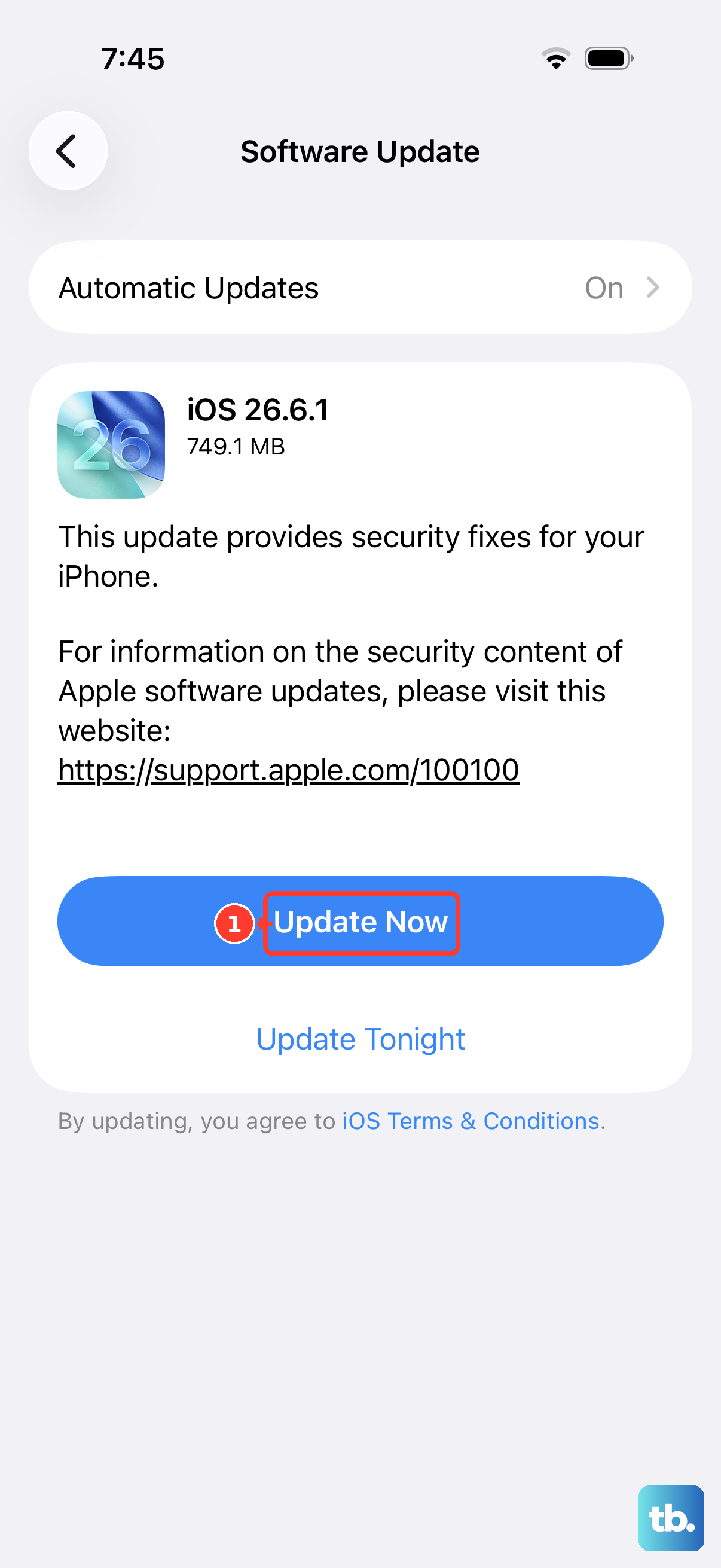
Head to Settings > General > Software Update. Apple regularly releases updates that squash bugs, including ones that can cause system controls like the flashlight to malfunction. Installing the latest version is a solid fix for persistent software issues.
Reset All Settings
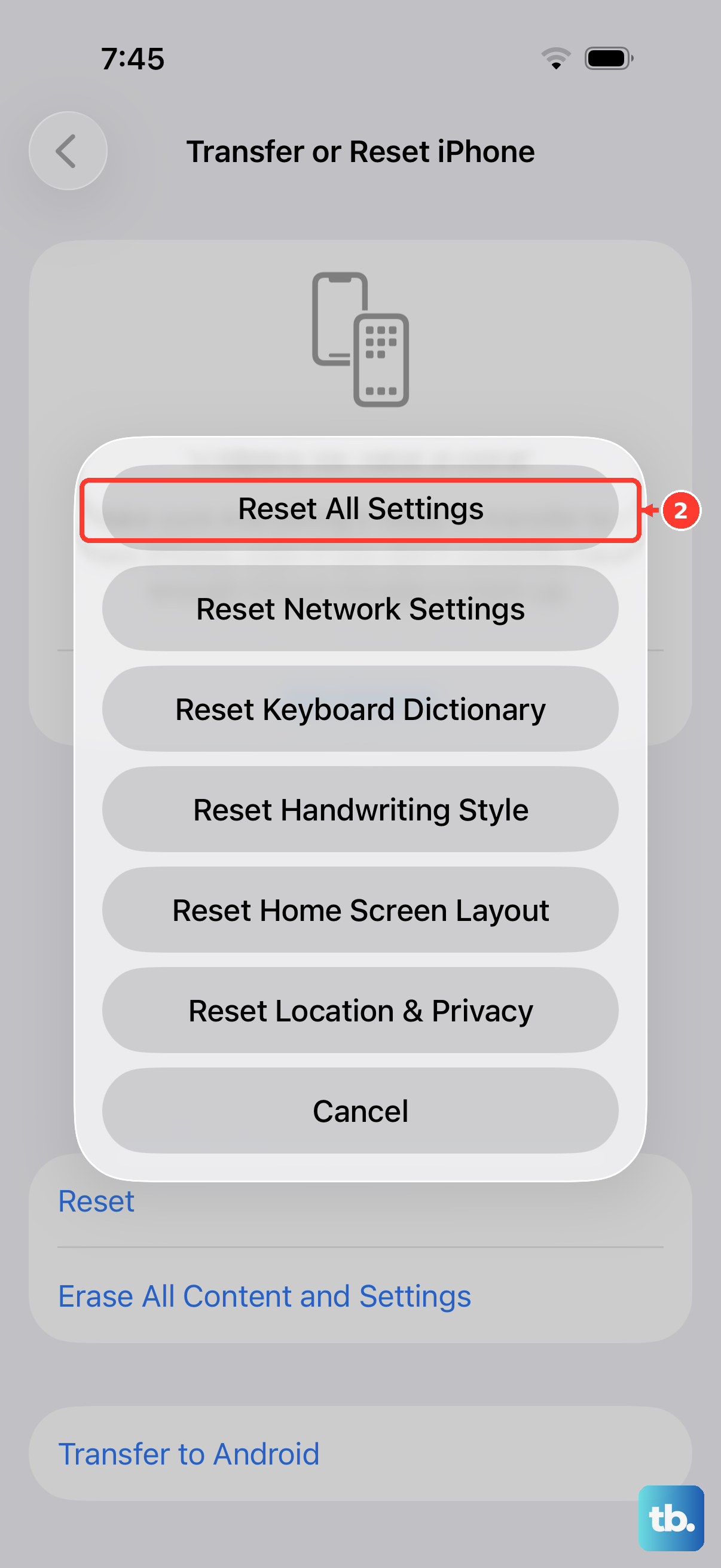
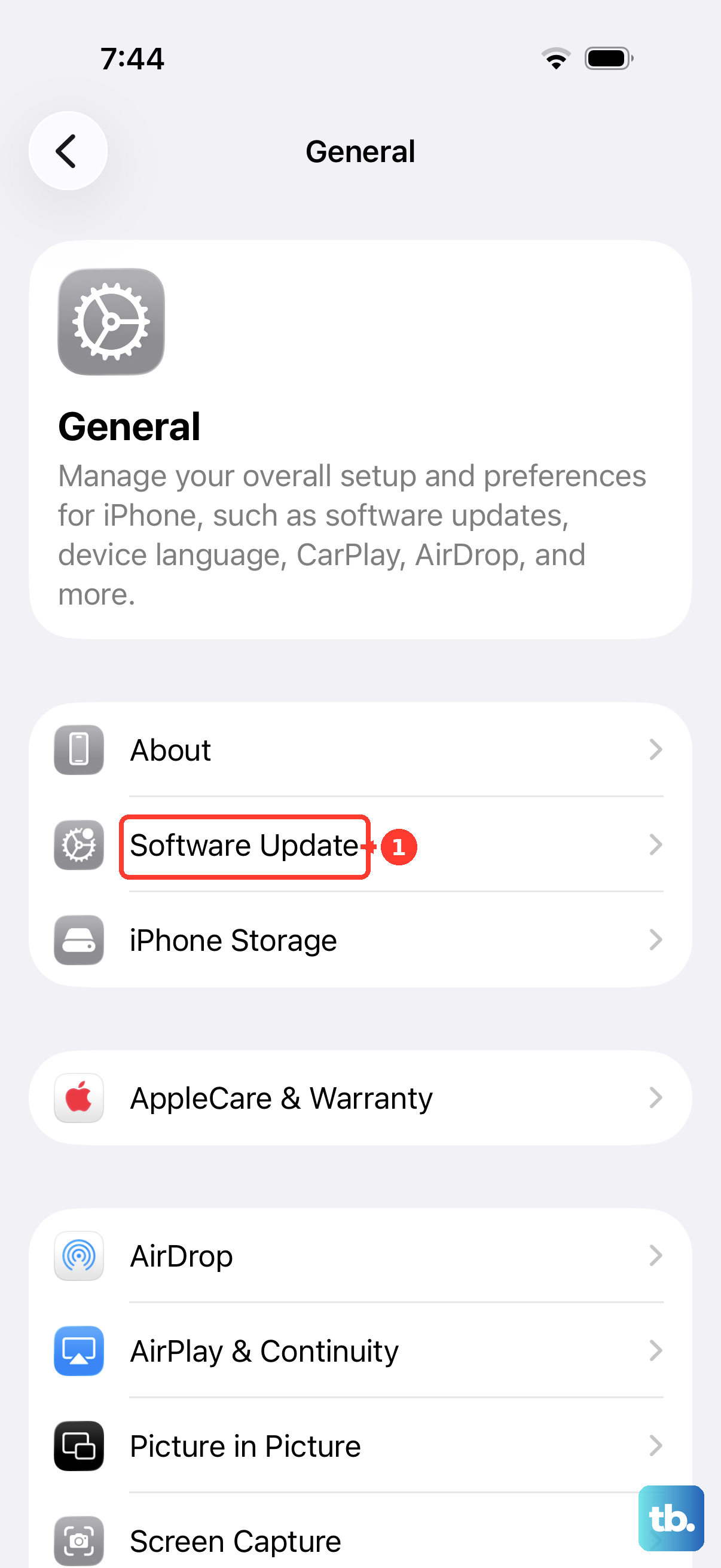
This is a deeper fix that won't erase your personal data. Go to Settings > General > Transfer or Reset iPhone > Reset and tap Reset All Settings. This will return all your preferences, like wallpaper and network settings, to default, which can resolve conflicts affecting Control Center functions.
Check Low Power Mode
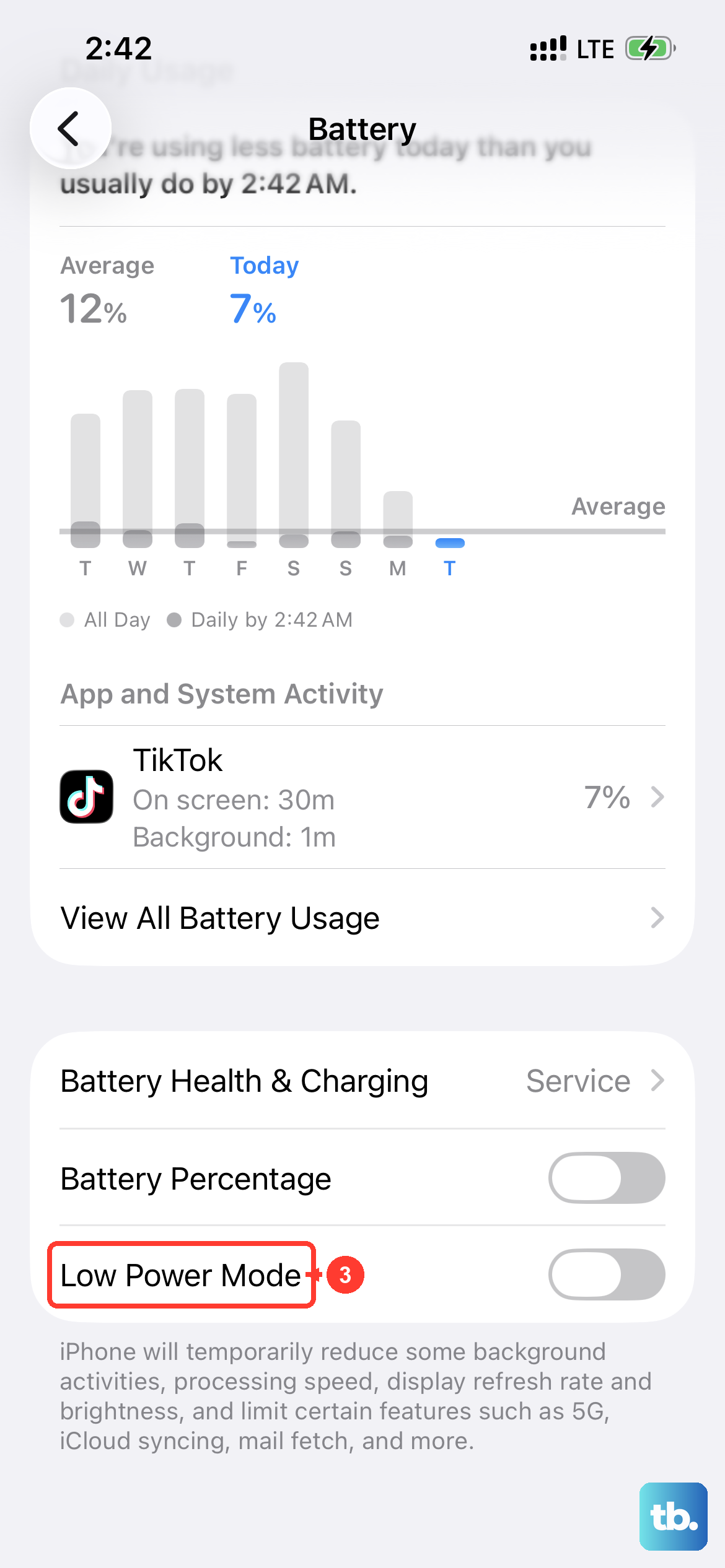
While Low Power Mode isn't supposed to disable the flashlight, I've seen it make the system a bit sluggish in responding to hardware controls. Go to Settings > Battery and make sure Low Power Mode is switched off, then test the flashlight button again.
Test the Camera Flash
If every software fix fails, it's time to check the hardware. Open the Camera app and take a photo with the flash forced on. If the flash doesn't fire during the photo, the LED module itself might be damaged. At that point, you'd need to have it looked at by an Apple Store or an authorized service provider.