
If your iPhone 17 Pro Max suddenly won't connect to your AirPods, car, or other accessories, it's a frustrating roadblock. Bluetooth issues on iOS 26 can pop up after an update or seemingly out of nowhere, but they're usually something you can fix yourself without a trip to the store.
Toggle Bluetooth and Restart
Start with the simplest fix. Swipe down from the top-right corner to open Control Center and tap the Bluetooth icon to turn it off. Wait about ten seconds, then tap it again to turn it back on. This quick refresh can clear up a temporary glitch.
If that doesn't work, give your phone a fresh start. The force restart for the iPhone 17 Pro Max is a bit different. Press and quickly release the Volume Up button, then press and quickly release the Volume Down button. Finally, press and hold the Side button until you see the Apple logo appear on the screen.
Don't forget to restart the Bluetooth device you're trying to connect to as well. Power it off completely, wait a moment, and turn it back on before trying to pair again.
Forget and Re-Pair the Device
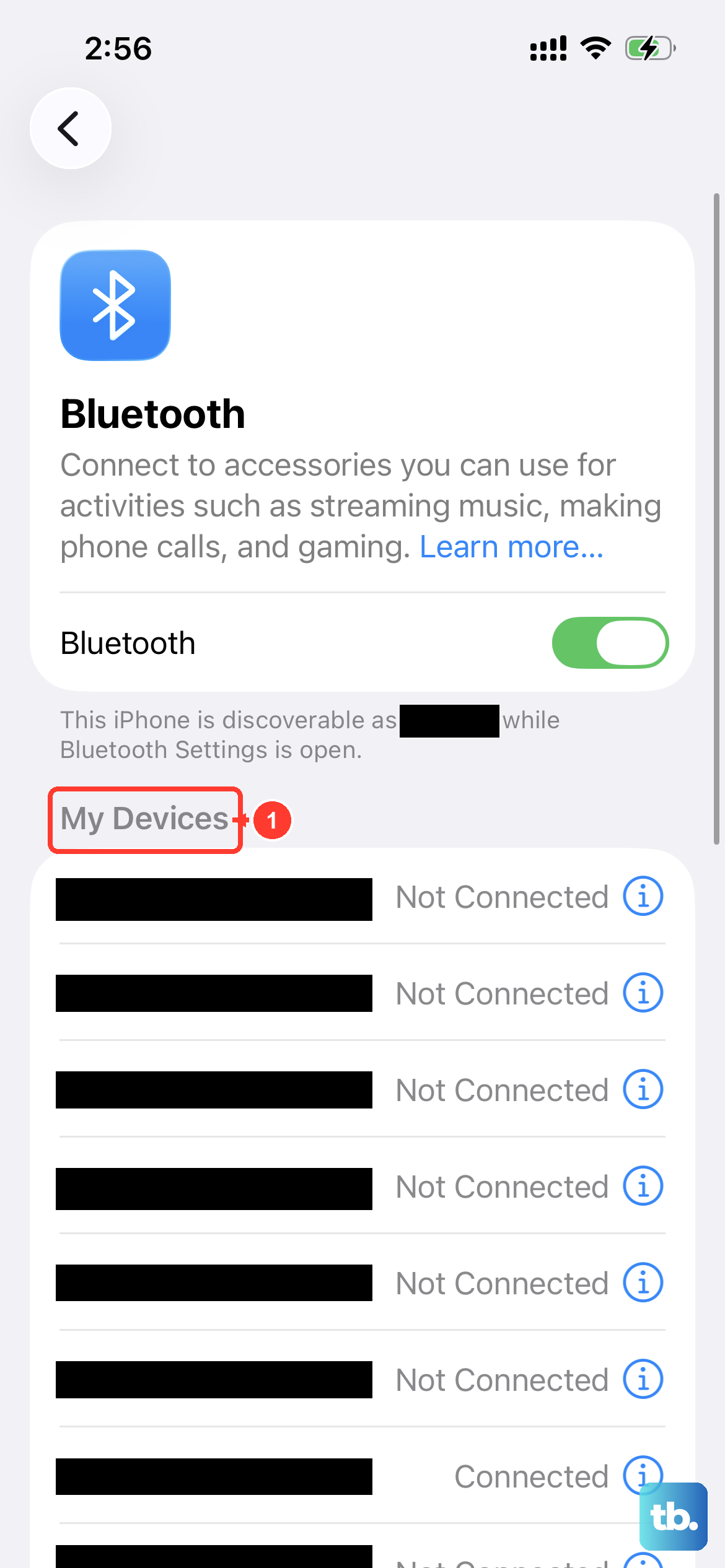
Sometimes the pairing information gets corrupted. The most reliable way to fix this is to remove the device from your phone's memory and start over. Open the Settings app and go to Bluetooth.
Find the problematic device in your list of "My Devices" and tap the blue info icon (i) next to it. On the next screen, tap Forget This Device and confirm. Once it's removed, put your accessory back into pairing mode and select it again from the list of available devices on your iPhone.
Check for Software Updates
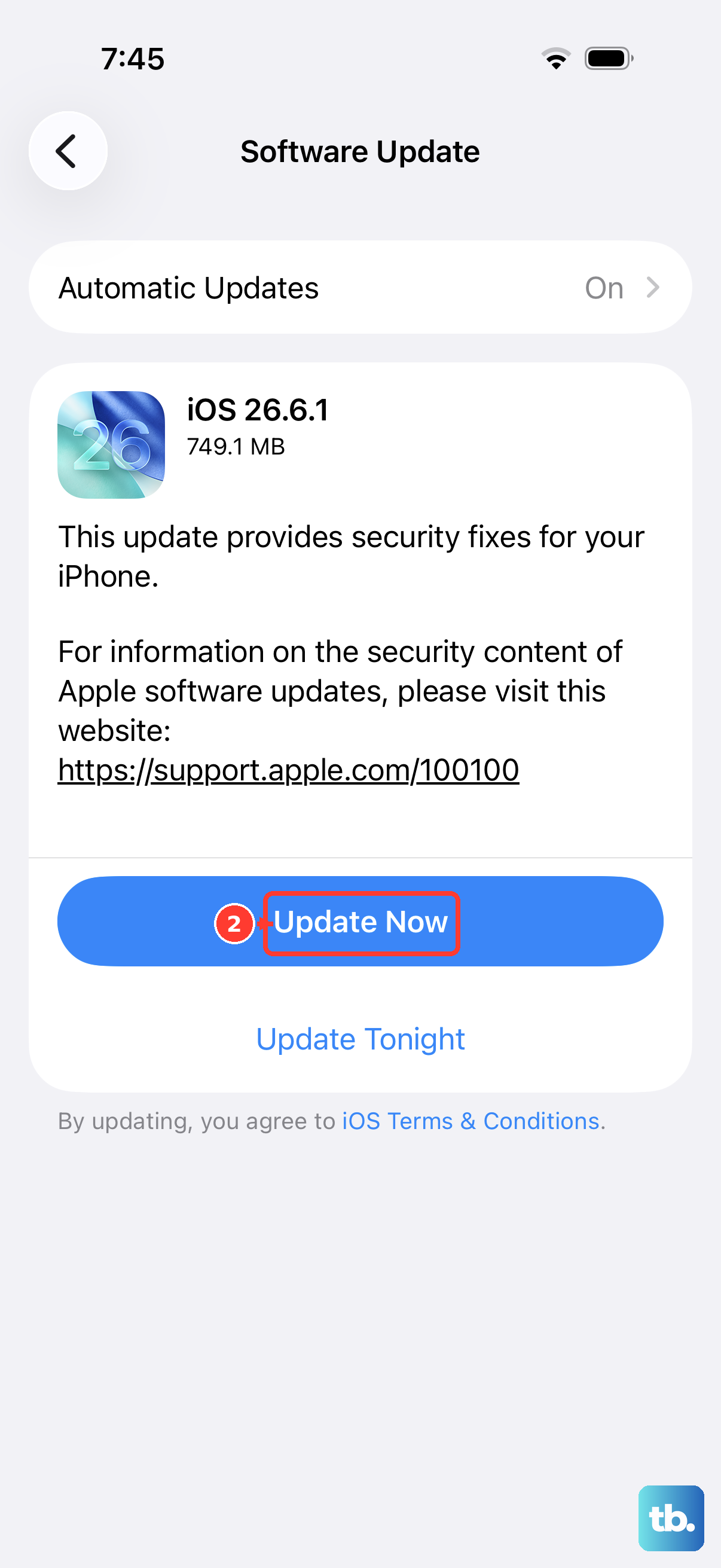
An outdated version of iOS can cause all sorts of connectivity problems, including Bluetooth. Apple frequently releases updates that include bug fixes for exactly these kinds of issues.
Go to Settings > General > Software Update. If an update is available, I'd recommend installing it while your phone is connected to Wi-Fi and has a good charge. Also, check if the accessory itself has a firmware update through its companion app, like the AirPods settings in Bluetooth.
Reset Your Network Settings
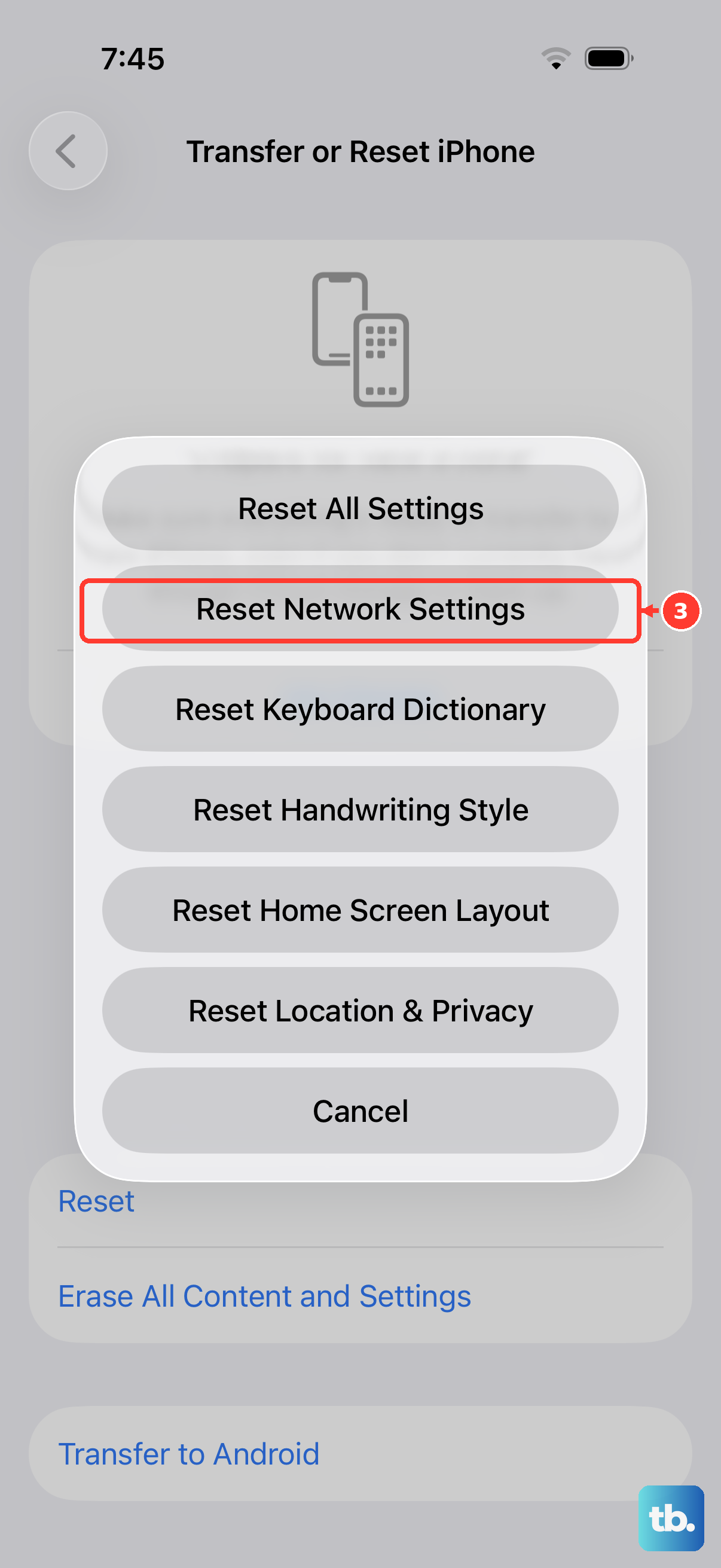
This is a more thorough step that resets all network-related configurations back to their defaults. It will erase your saved Wi-Fi networks, Bluetooth pairings, and cellular settings, so you'll need to re-enter Wi-Fi passwords and re-pair devices afterward.
To do this, navigate to Settings > General > Transfer or Reset iPhone. Tap Reset and then choose Reset Network Settings. Enter your passcode if prompted and confirm. Your phone will restart, and you can try setting up your Bluetooth connections from scratch.
Disable Bluetooth Device Switching
A feature designed for convenience can sometimes cause confusion. If you're part of the Apple ecosystem, your iPhone 17 Pro Max might be trying to automatically hand off audio to another one of your Apple devices, like a Mac or iPad, which can make it seem like Bluetooth isn't working.
You can temporarily disable this to test. Go to Settings > Bluetooth, tap the info icon next to your AirPods or Beats, and look for "Connect to This iPhone." Change the setting from "Automatically" to "When Last Connected to This iPhone." This gives you more direct control over the connection.
Check for Interference and Distance
Bluetooth uses the 2.4 GHz radio band, which is crowded. Other devices like Wi-Fi routers, microwaves, baby monitors, and even USB 3.0 cables can cause interference. Try moving away from other electronics or turning some off temporarily to see if the connection stabilizes.
Also, while Bluetooth has a theoretical range of about 30 feet, walls and obstacles reduce it significantly. Make sure the device you're connecting to is within clear, close range of your iPhone when you're trying to pair or use it.
Review App Permissions and Settings
A specific app might be causing a conflict. For example, if Bluetooth stops working when you open a particular game or music app, that app's permissions or internal settings could be the issue. Try using Bluetooth with different apps to see if the problem is universal or isolated.
You can also check general app permissions. Go to Settings > Privacy & Security > Bluetooth. Here you'll see a list of apps that have requested Bluetooth access. If you see an app you don't recognize or trust, you can toggle its access off.
Ensure Your Accessory is Compatible
While less common with the iPhone 17 Pro Max, it's worth verifying that your Bluetooth accessory is designed to work with modern iOS devices. Very old Bluetooth devices, especially those using older Bluetooth profiles, might not be fully compatible with iOS 26.
Check the manufacturer's website for compatibility information. If you have access to another phone or tablet, try pairing the accessory with that device to confirm it's functioning properly on its end.
Check for Physical Case Interference
The iPhone 17 Pro Max supports MagSafe and the newer, faster Qi2 standard for wireless charging and accessories. If you're using a very thick or metal case, it could potentially interfere with the Bluetooth antenna, which is located along the edges of the phone.
Try removing your case temporarily and see if your Bluetooth connection improves. If it does, you might need to look for a case that's certified not to interfere with wireless signals.
Consider a Broader Reset
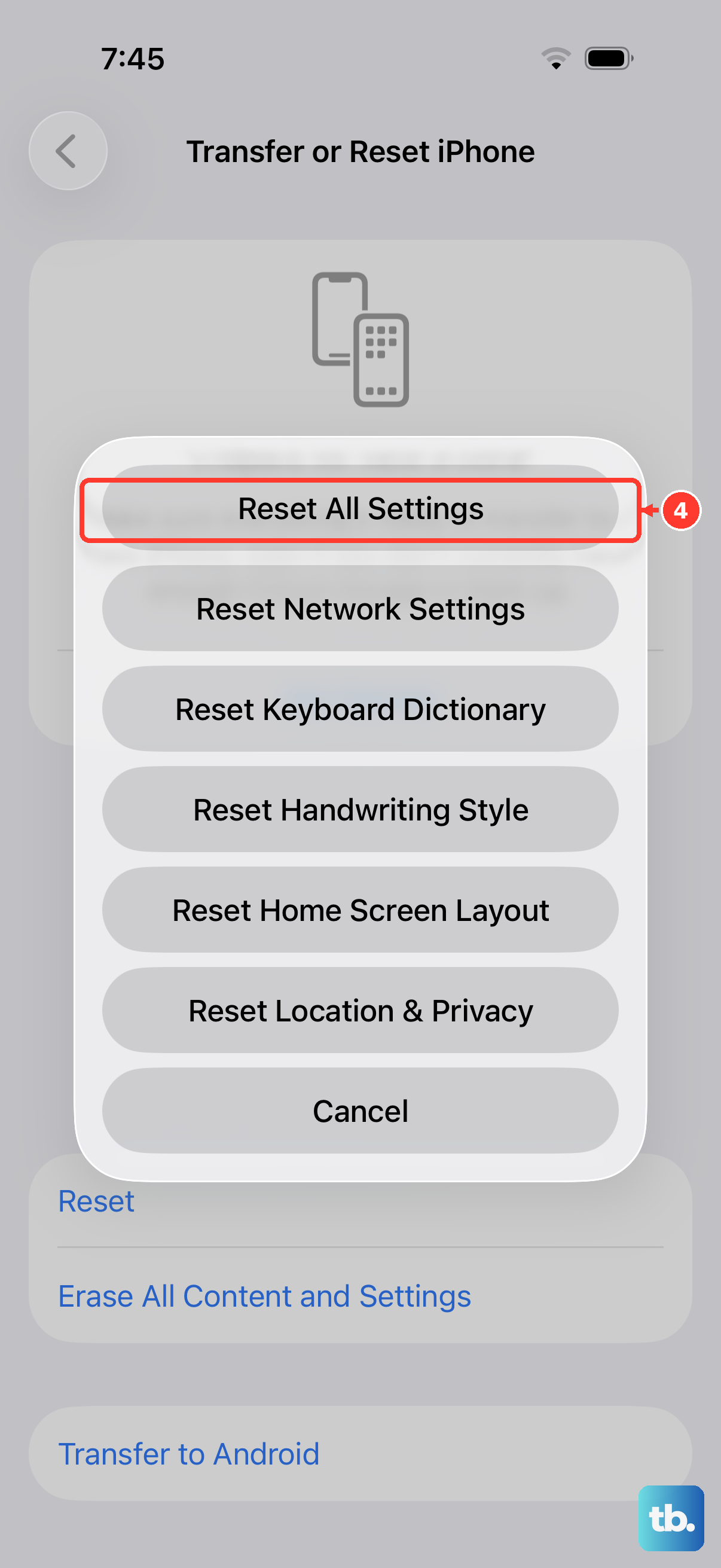
If you've tried everything else and your Bluetooth is completely unresponsive, a reset of all settings is the next step. This will not erase your personal data like photos or messages, but it will reset every system setting on your phone back to factory defaults.
You'll need to reconfigure your wallpaper, sounds, privacy settings, and network configurations afterward. Go to Settings > General > Transfer or Reset iPhone. Tap Reset and then select Reset All Settings. Enter your passcode and confirm. After the phone restarts, test Bluetooth before you restore from a backup, as a corrupted backup could reintroduce the problem.