You press the side button on your iPhone 17 Pro Max, expecting that big 6.9-inch Super Retina XDR OLED display to light up, and nothing happens. The screen stays completely black, even though the phone felt fine an hour ago. Before you assume the panel is dead, work through Apple's troubleshooting steps for an iPhone that will not turn on or shows a black screen. Many of these fixes cost you nothing but a little patience, and the early ones keep all your data.
Try the fixes below in order. The early steps are completely safe and keep your data; the later recovery and erase steps are last resorts, and we flag exactly which ones wipe the device. Because the iPhone 17 Pro Max is eSIM-only with no physical SIM tray, the erase flow will ask about your eSIM, and we cover that too.
Give It a Full Hour on the Charger
A black screen is very often just a dead battery, and a phone drained completely flat will not respond the instant you plug it in. Apple's guidance is direct here. If your iPhone does not turn on, charge it for one hour and then try again.
Use a cable and adapter you know are good, set the phone down somewhere you can leave it, and resist the urge to keep pressing the side button. Sometimes the only real fix is letting it sit and draw power for the full hour before you try again.
Watch for a Low Charge Battery Screen
If the screen does flicker on and shows a low-charge battery icon, that is a clue, not a failure. In that case Apple says to check your iPhone hardware first and then charge it for 30 minutes, or until it starts.
That low-battery image means power is reaching the phone but it needs more time before it can boot. Leave it connected and give it those extra minutes rather than unplugging early and assuming the display has failed.
Rule Out the Cable, Adapter, and Charging Port
If time on the charger gets you nowhere, the problem may be the power chain rather than the phone. A bad cable, a dirty port, or a weak outlet can mimic a dead, black-screen device, so it is worth a careful look before going further.
- 1.Check your charging cable and USB adapter for signs of damage, like breakage or bent prongs.
- 2.Remove any debris from the charging port on the bottom of your device, then firmly plug your charging cable into your device.
- 3.Use a wall power outlet rather than a low-power source, or try a different outlet, and make sure every connection is firm.
The iPhone 17 Pro Max supports wired fast charging up to 50% in around 20 minutes with a 40W adapter or higher, so if you are using something underpowered or flaky, swapping to a stronger, undamaged adapter can be the difference between a black screen and a booting phone.
Force Restart the iPhone 17 Pro Max
If the screen stays black or the phone seems frozen, a force restart is the single most useful trick, and it is safe. It does not erase any data. This is Apple's exact sequence for Face ID iPhones like the 17 Pro Max, so press the buttons in this order, one after another.
- 1.Press and quickly release the volume up button.
- 2.Press and quickly release the volume down button.
- 3.Press and hold the side button until you see the Apple logo (this might take longer than 10 seconds).
The timing matters. The first two presses are quick taps, and only the side button is held. If nothing happens on your first attempt, plug the phone into power and try the sequence again, since a frozen and nearly empty battery sometimes needs both at once.
Install Any Pending iOS Update
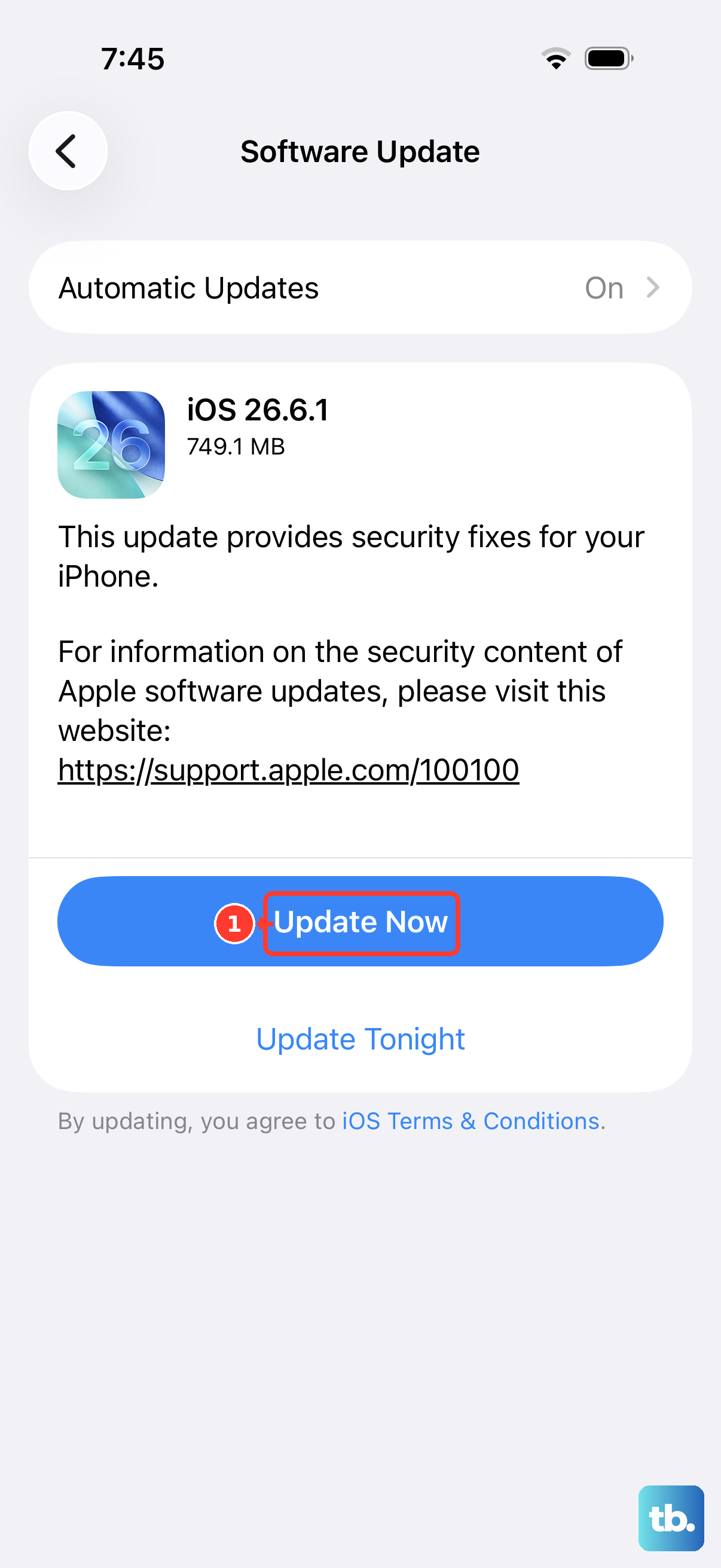
If a force restart brings the phone back but it had been crashing or going black on its own, a software issue may be involved, and those are often addressed in an iOS update. The iPhone 17 Pro Max runs iOS 26, and keeping it current is one of the simplest ways to clear unstable display behavior.
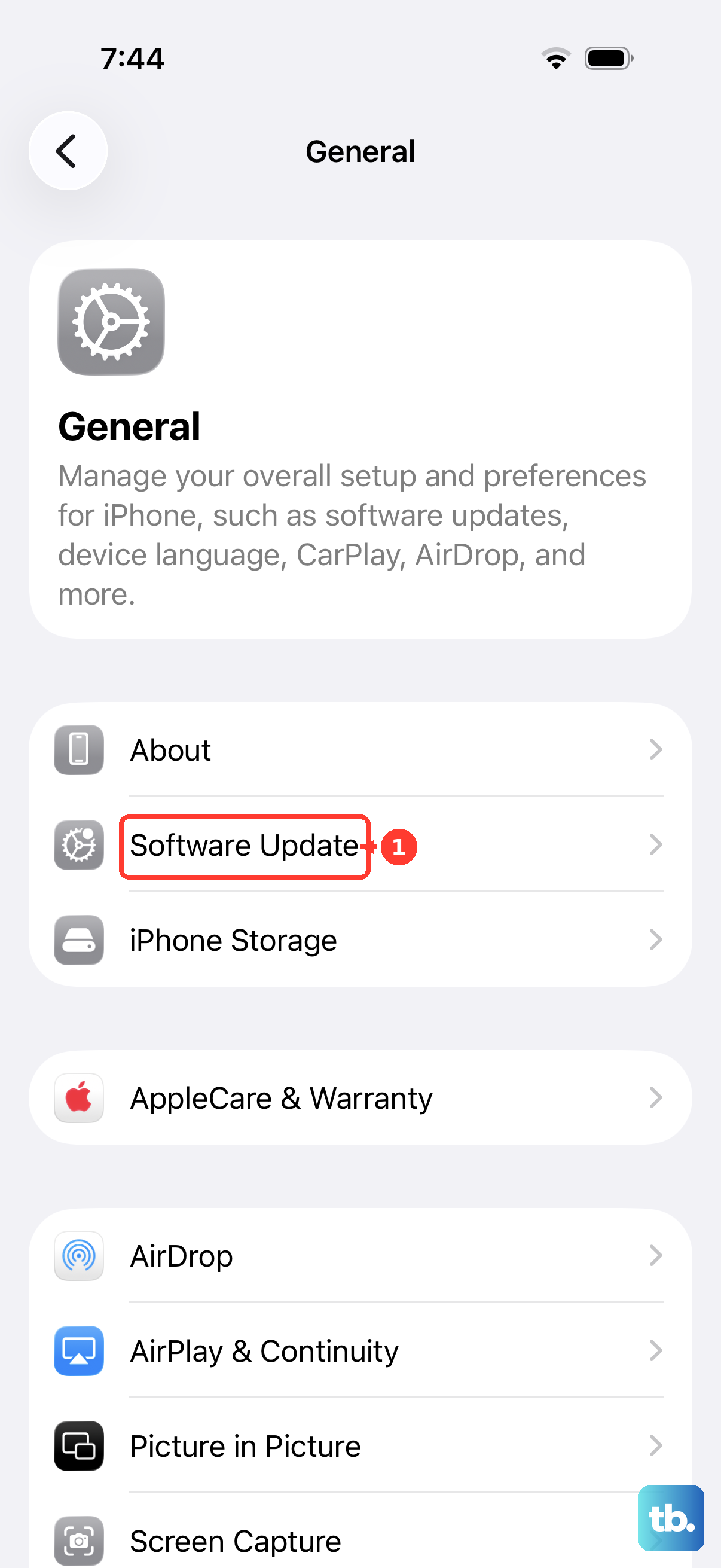
Go to Settings > General > Software Update. If an update is available, tap Download and Install, then follow the onscreen instructions, and let the phone finish on power if the battery is low.
Reinstall iOS From a Computer Without Losing Data
If the phone still will not start normally, you can reinstall iOS using a computer in recovery mode, and the Update option here keeps your data. On a Mac, open Finder. On a PC, open the Apple Devices app. Use iTunes if your system does not support the Apple Devices app, or if your Mac uses macOS Mojave or earlier.
Connect the iPhone to the computer with a USB cable, then put it into recovery mode with this sequence.
- 1.Press and quickly release the volume up button.
- 2.Press and quickly release the volume down button.
- 3.Press and hold the side button until you see the Connect to computer screen.
When the option appears on your computer, choose Update first. This reinstalls iOS without erasing your data, so it is the safest computer-based fix and worth trying before anything destructive.
Restore in Recovery Mode (This Erases Everything)
If the Update option in recovery mode does not bring the phone back, the next computer step is Restore, and this one is destructive. Restore reinstalls iOS and erases all your data, which is why it sits near the bottom of the list.
Back up first if you possibly can. Then, while the phone is connected and in recovery mode, choose Restore instead of Update and let the process run. Once it finishes, you can set the iPhone up again and restore your data from a backup, so a recent backup is the difference between a clean recovery and a real loss.
Erase All Content and Settings If the Screen Works
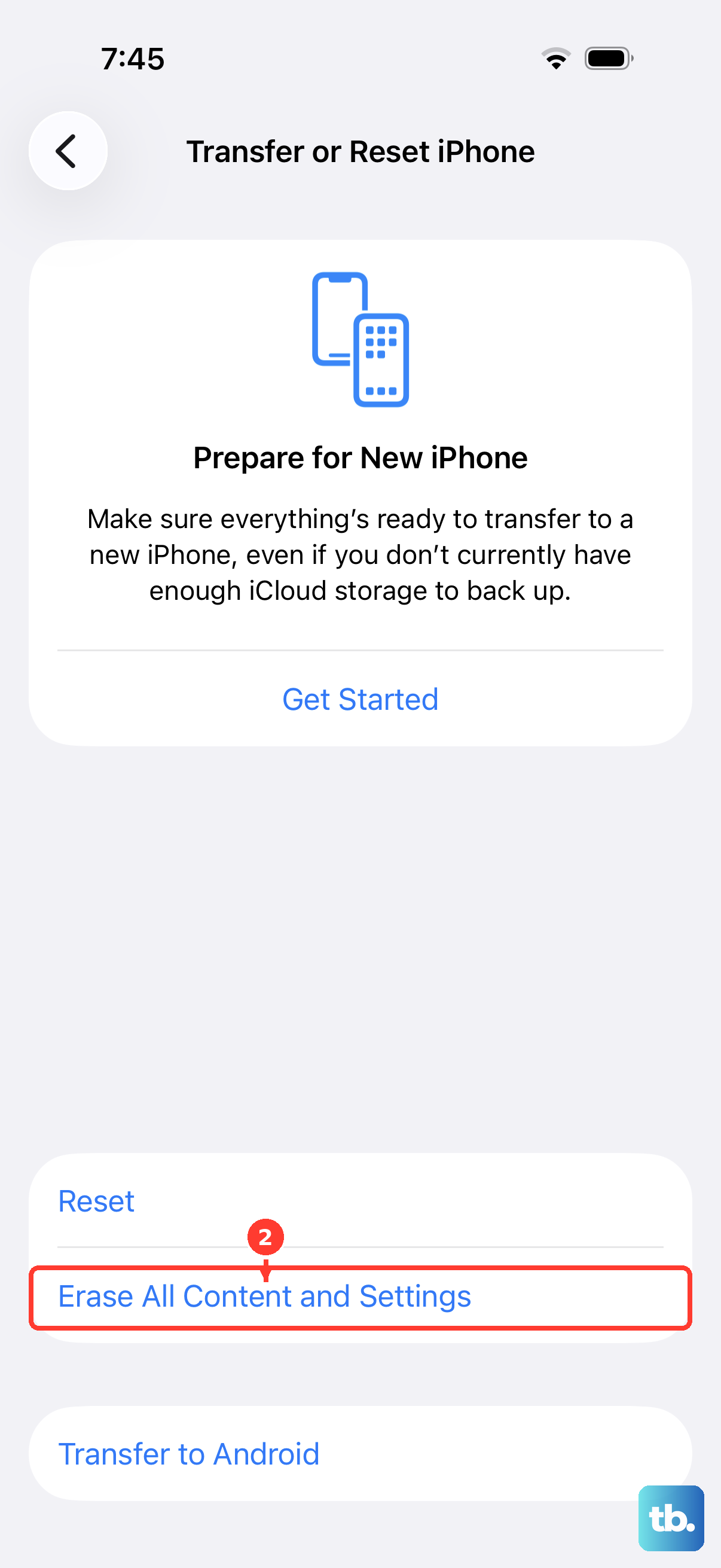
Sometimes the display comes back but the phone stays unstable, blacking out or freezing under normal use. If you can actually see and use the screen, a full reset from within Settings is an option, but it wipes the device, so treat it as a serious step.
Go to Settings > General > Transfer or Reset iPhone > Erase All Content and Settings, tap Continue, choose to keep or delete your eSIM, and enter your passcode and Apple Account password. Because the iPhone 17 Pro Max is eSIM-only, that eSIM prompt is your chance to preserve your mobile line during the wipe.
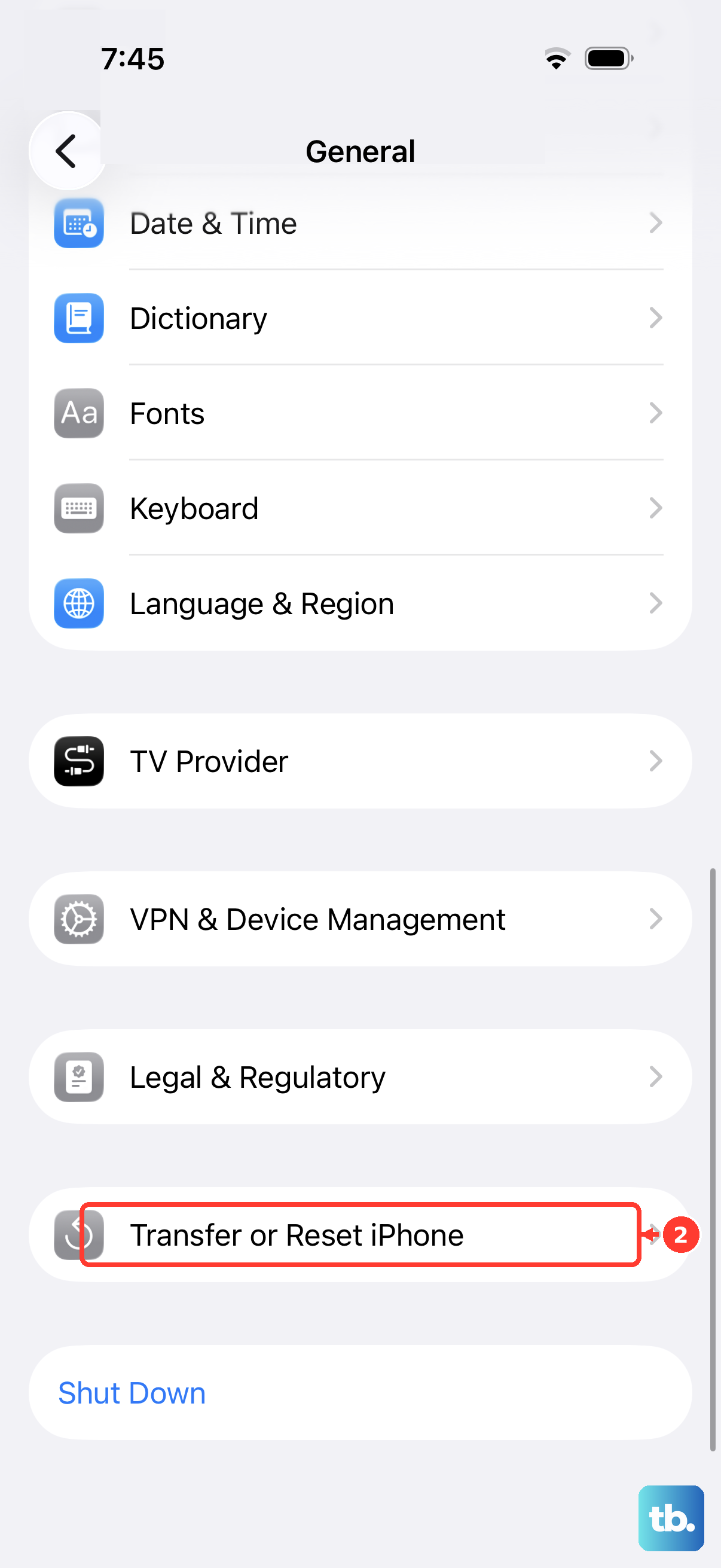
Apple warns that this completely erases the device, including Apple Pay cards, photos, contacts, music, and apps. Create a backup first so you can restore your data later, and only proceed once you have confirmed that backup exists.
Get Apple Support or Book a Repair
If your iPhone 17 Pro Max still will not turn on after charging, swapping accessories, force restarting, and trying the computer-based steps, Apple says you might need service. At that point the smartest move is to stop experimenting and get expert eyes on the hardware.
Start a request through Apple Support, or arrange a repair through a Genius Bar, an Apple Authorized Service Provider, or Apple's mail-in service. A persistent black screen that survives every software fix points toward a hardware issue, and that is exactly what these channels are for.
Frequently Asked Questions
Does force restarting my iPhone 17 Pro Max delete anything?
No. A force restart (quick press of volume up, quick press of volume down, then hold the side button until the Apple logo appears) is safe and does not erase your data. It simply forces the phone to reboot when it is frozen or showing a black screen.
How long should I charge it before deciding the screen is broken?
Apple recommends charging the phone for one hour and then trying again. If it shows a low-charge battery icon, check your iPhone hardware and then charge it for 30 minutes, or until it starts, before assuming the display itself has failed.
What is the difference between Update and Restore in recovery mode?
Update reinstalls iOS without erasing your data, so it is the option to try first. Restore reinstalls iOS and erases all your data, so it is a last software resort that you should only use after backing up if possible.
Will I lose my eSIM if I erase the iPhone 17 Pro Max?
You get a choice. When you go to Settings > General > Transfer or Reset iPhone > Erase All Content and Settings, the flow asks whether to keep or delete your eSIM. Since this model has no physical SIM tray, choosing to keep the eSIM preserves your mobile line through the wipe.
The screen works but the phone keeps going black, what should I do?
Start by installing any pending update at Settings > General > Software Update, since unstable behavior is often addressed in iOS updates. If it stays unstable, back up your data and consider Erase All Content and Settings, and if the problem continues, contact Apple Support or book a repair.