
Is your iPhone 17 Pro Max screen stuck in one orientation and refusing to flip when you turn it? A few simple checks can help you find the cause. Screen rotation depends on the orientation lock setting, the app you're using, and your phone detecting orientation changes.
Let's start with the most common and simplest solution, which often gets the screen rotating again in seconds.
Toggle Portrait Orientation Lock
The first thing to check is Portrait Orientation Lock, which controls screen rotation. When it's on, your screen stays locked in portrait mode no matter how you hold the phone. You can find this control in Control Center on your iPhone 17 Pro Max.
Open Control Center by swiping down from the top-right corner of the screen. Look for the icon that looks like a lock with a circular arrow around it. If the icon is highlighted or filled in, that means Portrait Orientation Lock is on. Just tap it to turn it off.
Close Control Center, then turn your iPhone sideways. If the screen still won't rotate, try an app that supports landscape mode, such as Calculator or Safari.
Restart Your iPhone
If the lock wasn't the issue, a simple restart is your next best step. Restarting can help when your phone isn't responding to orientation changes.
To restart your iPhone 17 Pro Max, press and hold the Side button and the Volume Down button until the power off slider appears. Drag the slider, wait for the phone to completely power down, then press and hold the Side button again until you see the Apple logo.
Force Restart Your Device
When a standard restart doesn't cut it, a force restart can tackle more stubborn software hiccups. It's a safe procedure that won't delete any of your data or settings.
The process for the iPhone 17 Pro Max is quick. Press and quickly release the Volume Up button, then press and quickly release the Volume Down button. Immediately after, press and hold the Side button. Keep holding it until you see the Apple logo appear, then you can let go.
Check for an iOS Update
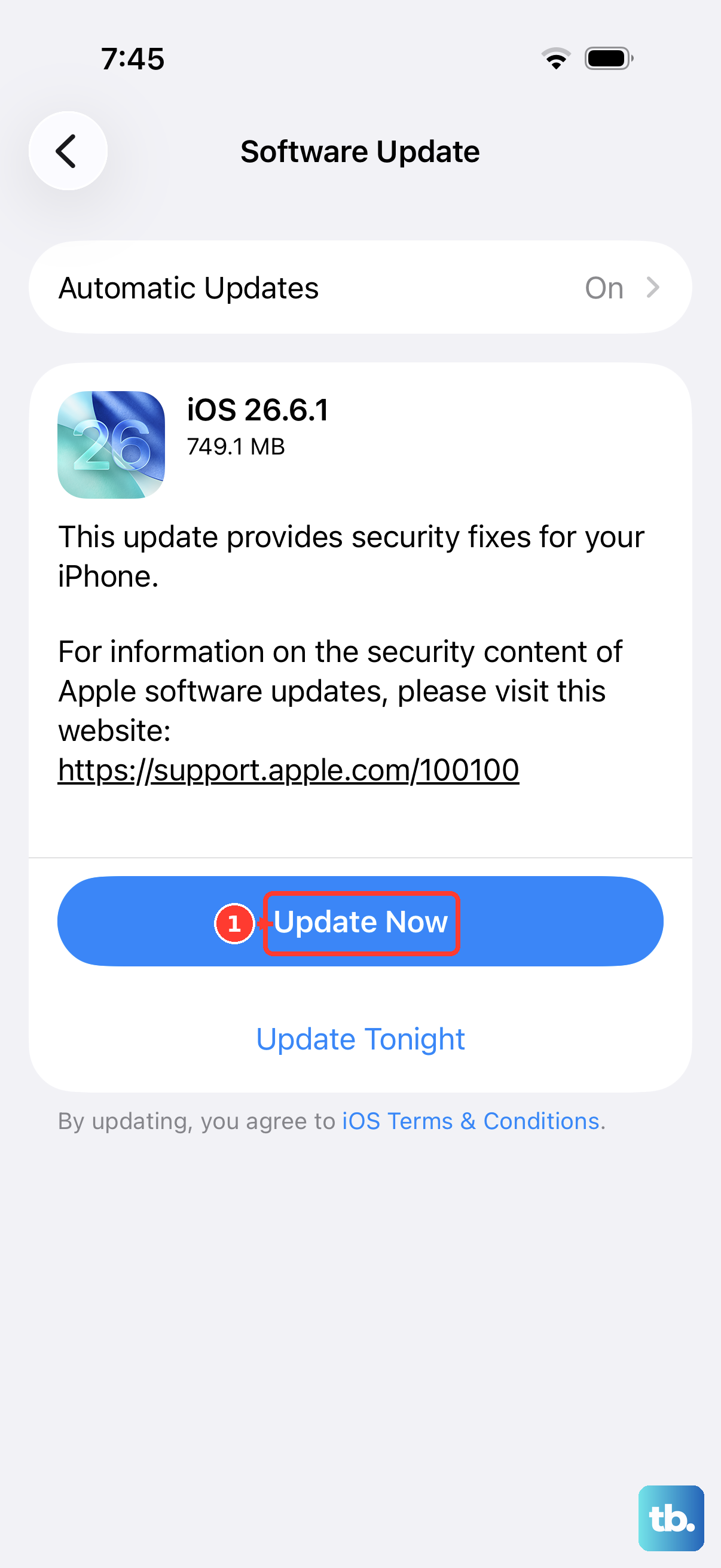
Occasionally, a bug in the operating system itself can cause sensor features like auto-rotate to act up. iOS updates include bug fixes and improvements.
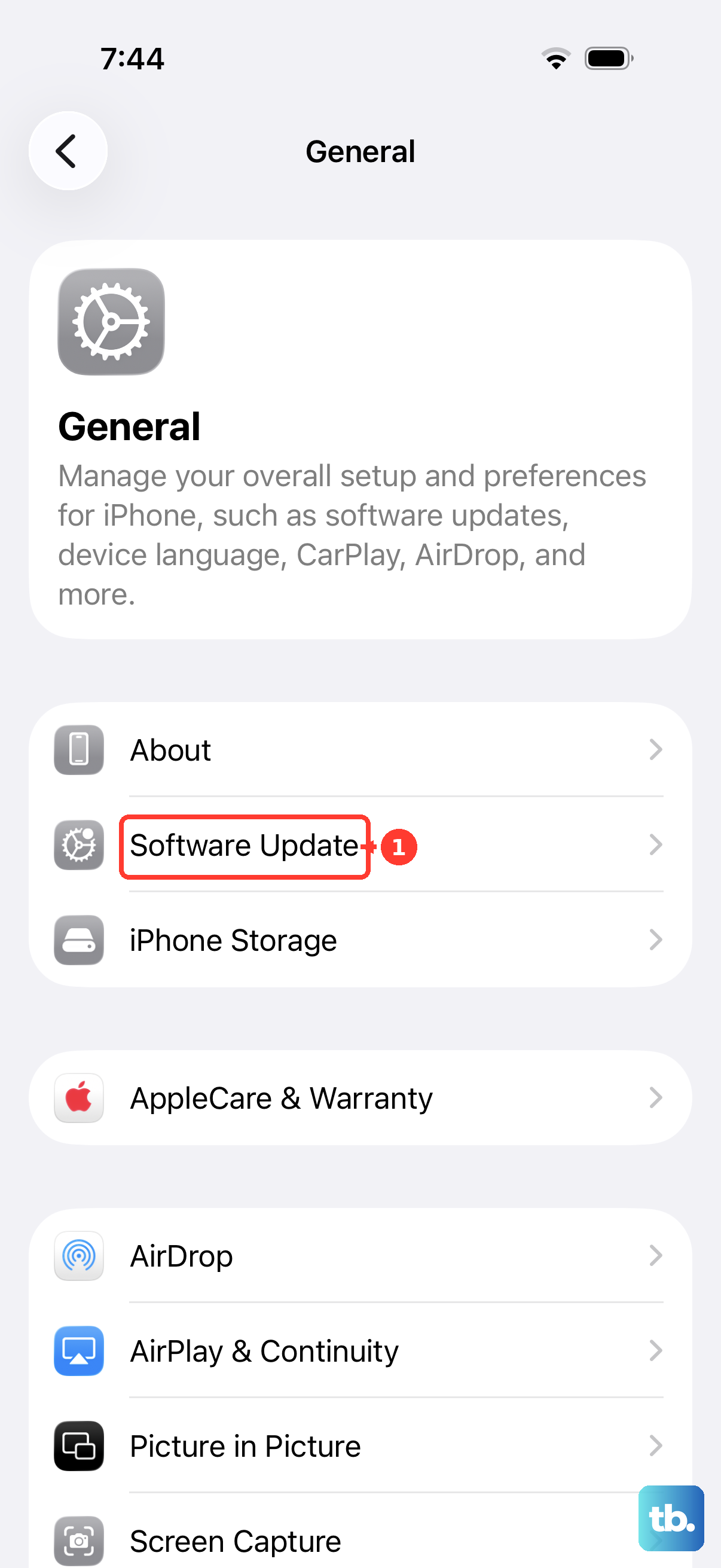
Go to Settings > General > Software Update. Your iPhone 17 Pro Max will check for any available updates. If one is listed, especially if it mentions bug fixes or improvements, tap "Download and Install." Make sure your phone is connected to Wi-Fi and has sufficient battery life before starting.
Test Rotation in Different Apps
It's worth figuring out if the problem is universal or confined to a specific app. Not all apps support landscape mode, and some have their own internal rotation locks.
Open a few different apps where rotation should work, like Calculator or Safari. Tilt your phone to see if it rotates in some apps but not others. If it works everywhere except one app, the issue is likely with that specific app and not your phone's system.
Check for a Problematic App
If you've noticed the rotation issue only happens in a newly installed app, check whether that app supports landscape mode. Some apps don't support rotation, so staying in portrait mode may be normal for that app.
Think back to what you installed around the time the problem began. Try uninstalling that app temporarily to see if it resolves the rotation issue. You can always reinstall it later if it wasn't the cause.
Reset All Settings
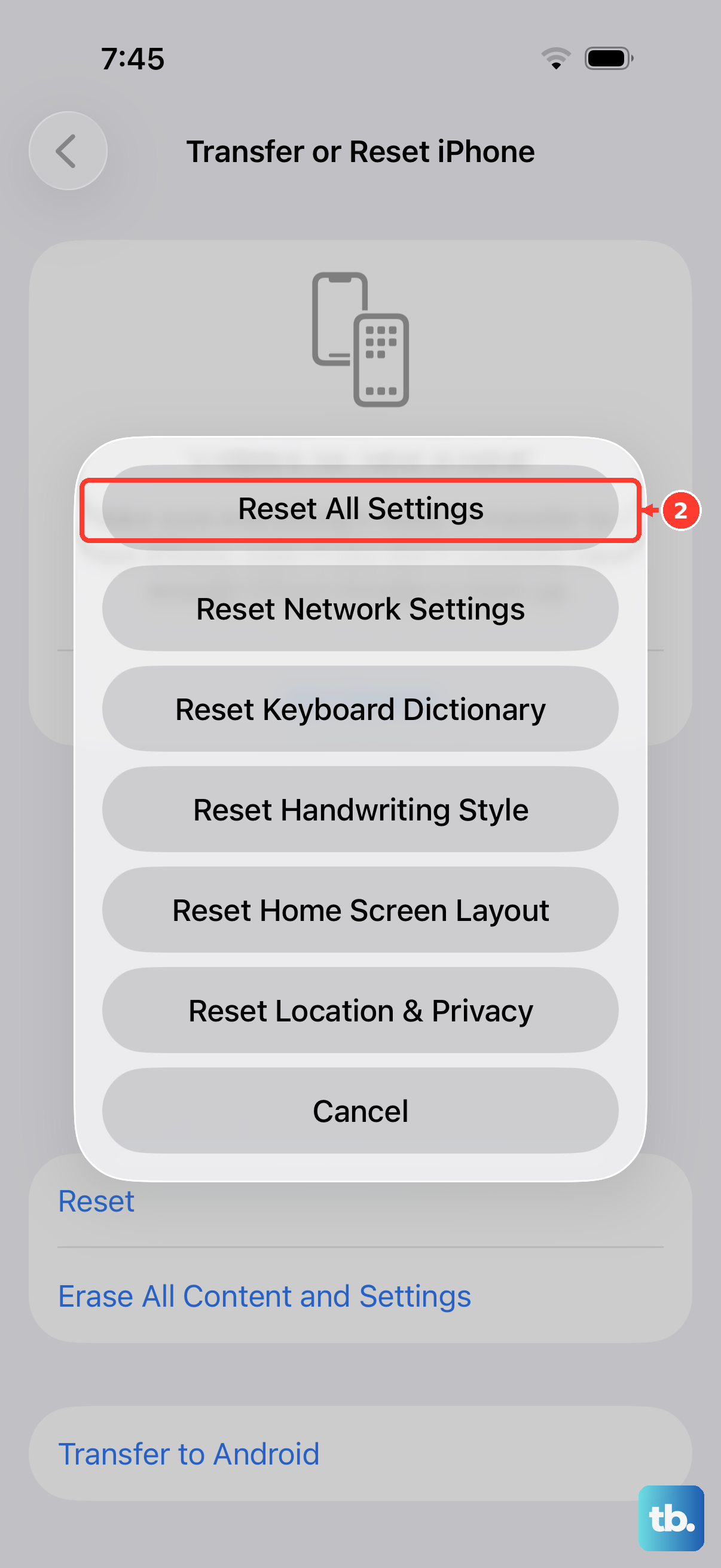
This is a more involved step, but it can resolve deeper configuration conflicts without erasing your personal data like photos, messages, or apps. It will reset all your system settings back to their defaults.
You'll need to go to Settings > General > Transfer or Reset iPhone > Reset. Then, tap "Reset All Settings." You'll have to re-enter your Wi-Fi passwords, re-pair Bluetooth devices and your Apple Watch, and set up Face ID again, along with reconfiguring display brightness and notification preferences.
Consider a Hardware Check
If you've tried every software fix and your iPhone 17 Pro Max still won't rotate, it's possible there's a physical issue with the internal sensors. Damage from a drop or exposure to moisture may be the cause.
Check whether your iPhone detects orientation changes by opening the Measure app and tapping Level. Hold the phone against an object, such as a picture frame, and rotate the phone and object until the level turns green. If the level is stuck, restart your iPhone and test again. If the problem persists, or if it started after a physical impact, contact Apple Support for a professional assessment.