
Is your iPhone 17 Pro feeling sluggish, with apps taking a moment to open or animations stuttering? It's a common experience, even with a powerful phone. The lag can have several causes, and these checks may help you fix it yourself.
Start with a force restart, which can help if your phone freezes or stops responding. On the iPhone 17 Pro, you do this by pressing and quickly releasing the Volume Up button, then quickly pressing and releasing the Volume Down button. Finally, press and hold the Side button until you see the Apple logo appear, which can take more than 10 seconds.
Check Your Available Storage
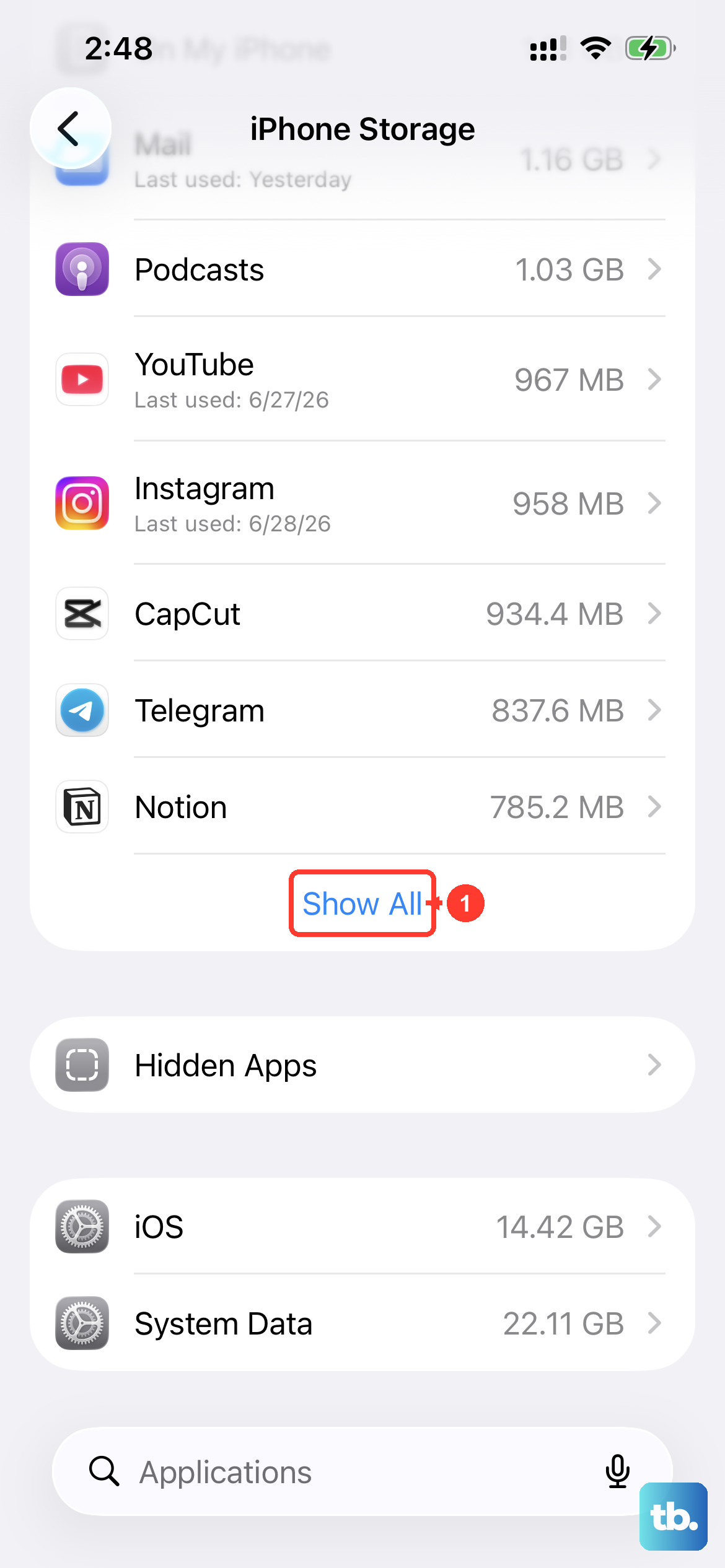
When your iPhone's storage is nearly full, the system has less room to operate efficiently, which can slow everything down. Head to Settings > General > iPhone Storage to see a breakdown.
Aim to keep at least 1GB of free space to avoid slowdowns. The storage menu will suggest offloading unused apps, which removes the app but keeps its documents and data. You can also review and delete large video files or message attachments you no longer need.
Update to the Latest iOS
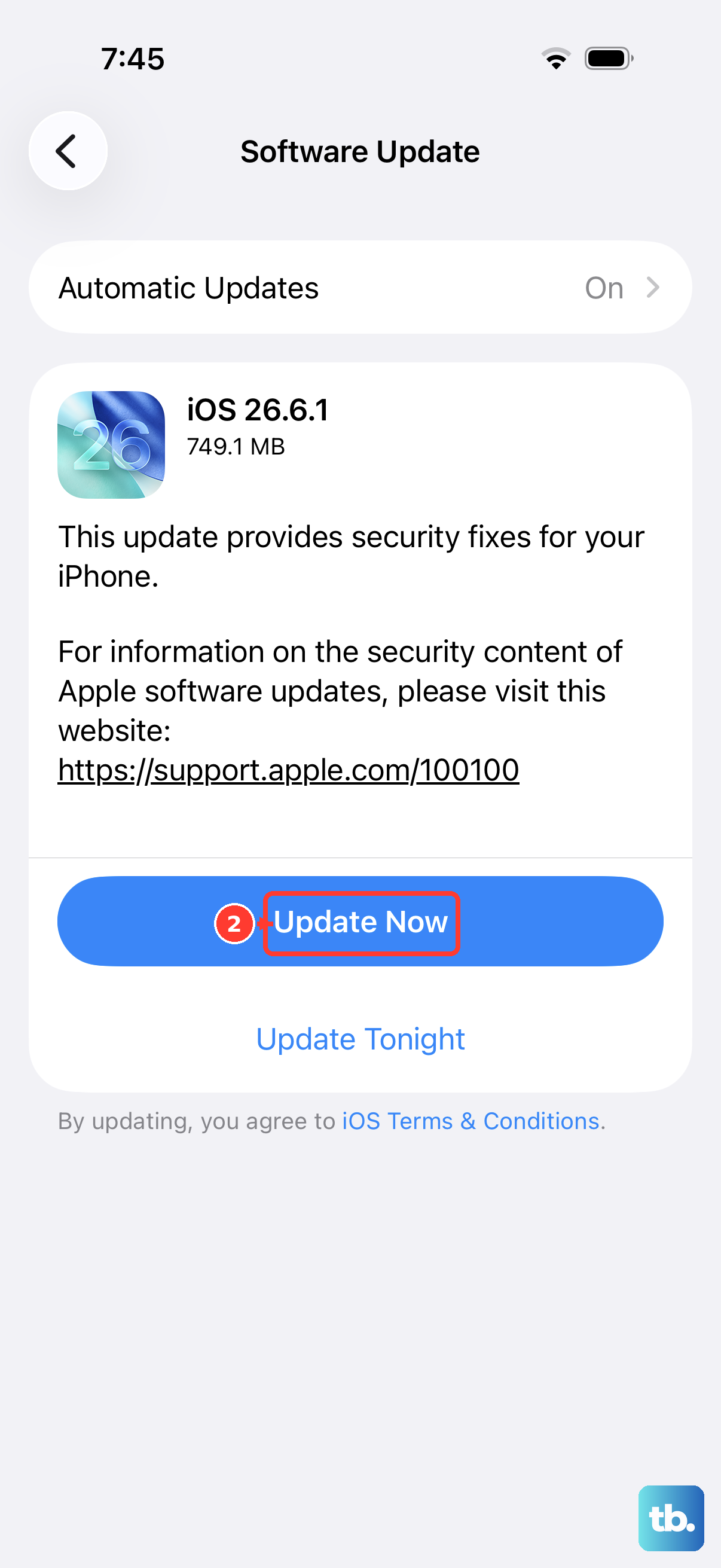
Apple frequently releases iOS updates that include performance improvements and bug fixes. An outdated version of iOS could be the source of your slowdown.
Go to Settings > General > Software Update. If an update is available, back up your iPhone, connect to power and Wi-Fi, then tap Download and Install.
Manage Background App Refresh
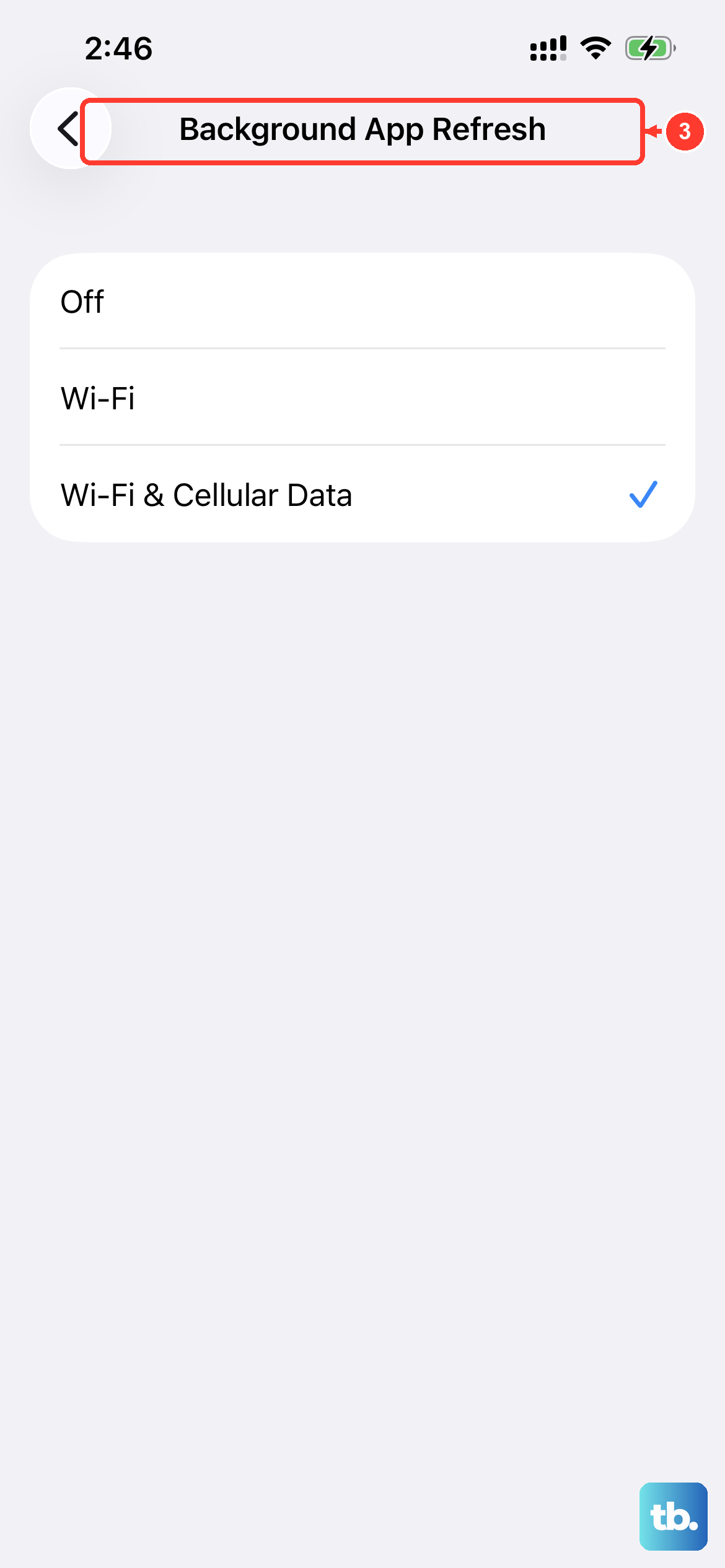
This feature allows apps to update their content in the background. While convenient, having dozens of apps constantly refreshing can drain battery and processor resources. You can control this on an app-by-app basis.
Navigate to Settings > General > Background App Refresh. Here, you can turn the feature off entirely or just for specific, non-essential apps. Social media and news apps are common culprits you might consider limiting.
Review Your Battery Health
While the iPhone 17 Pro's battery is robust, its health naturally declines over time. If the maximum capacity drops significantly, the phone may subtly reduce performance to prevent unexpected shutdowns under peak load.
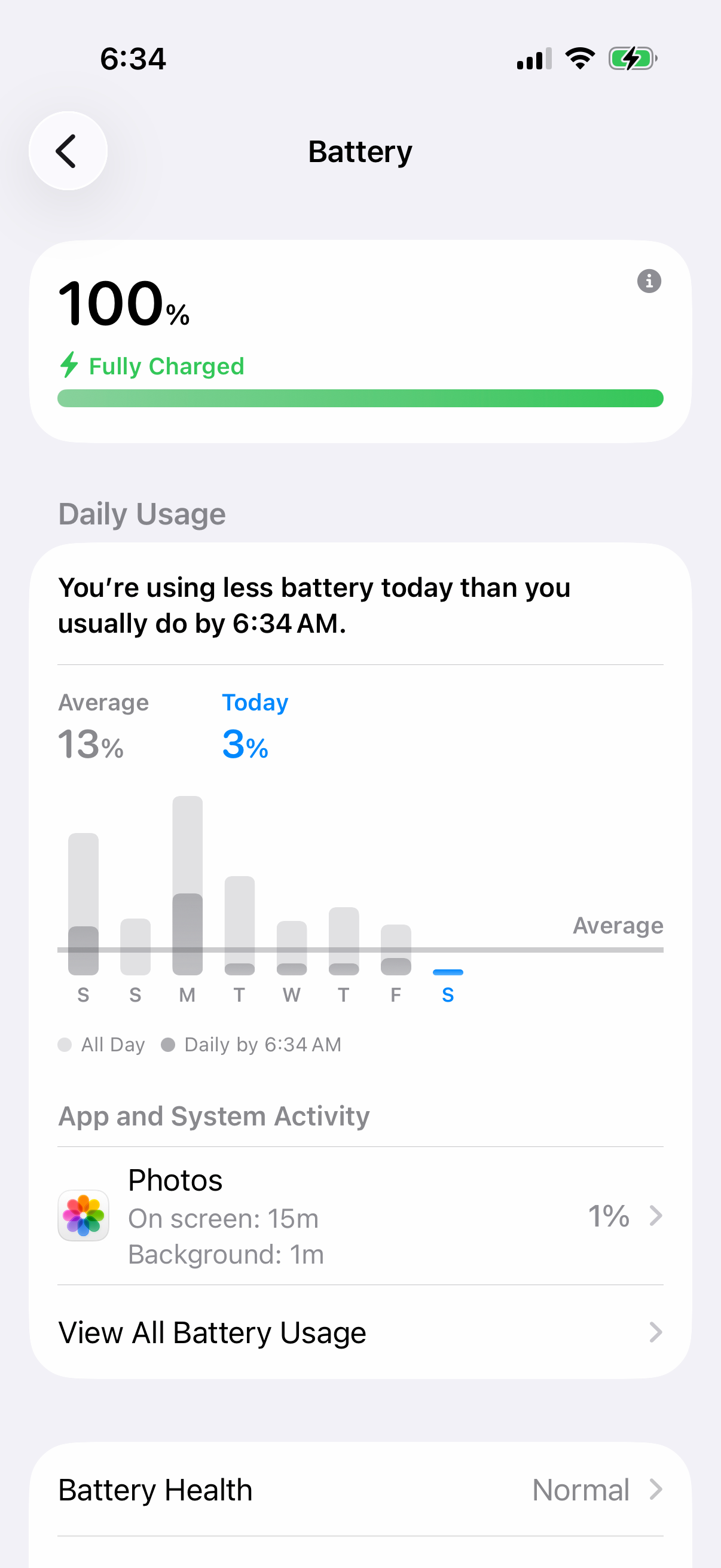
Check this by going to Settings > Battery > Battery Health. Look at the "Maximum Capacity" percentage. Check Peak Performance Capability and whether the screen recommends a battery replacement.
Also, check Settings > Battery > Charging. A charge limit below 100% can explain why your phone doesn't fully charge. "Optimized Battery Charging" is available only when the limit is set to 100%.
Close Apps That Aren't Responding
Close an app if it stops responding. Force-closing apps unnecessarily can slow down your phone, because reopening them takes longer while they reload their data. Leave apps alone when they're working normally.
On the iPhone 17 Pro, swipe up from the very bottom of the screen and pause in the middle to enter the app switcher. Swipe left or right to find the app that isn't responding, then swipe up on its preview to close it.
Reduce Motion and Visual Effects
The parallax and zoom animations on the home screen and within apps are smooth, but they use processing power. Turning them off can make navigation feel snappier, especially if you're noticing lag during transitions.
Go to Settings > Accessibility > Motion. Turn on the "Reduce Motion" switch. This replaces many zoom effects with simpler crossfades. You can also enable "Reduce Transparency" in Settings > Accessibility > Display & Text Size to turn some blur effects into solid colors.
Clear Safari's Website Data
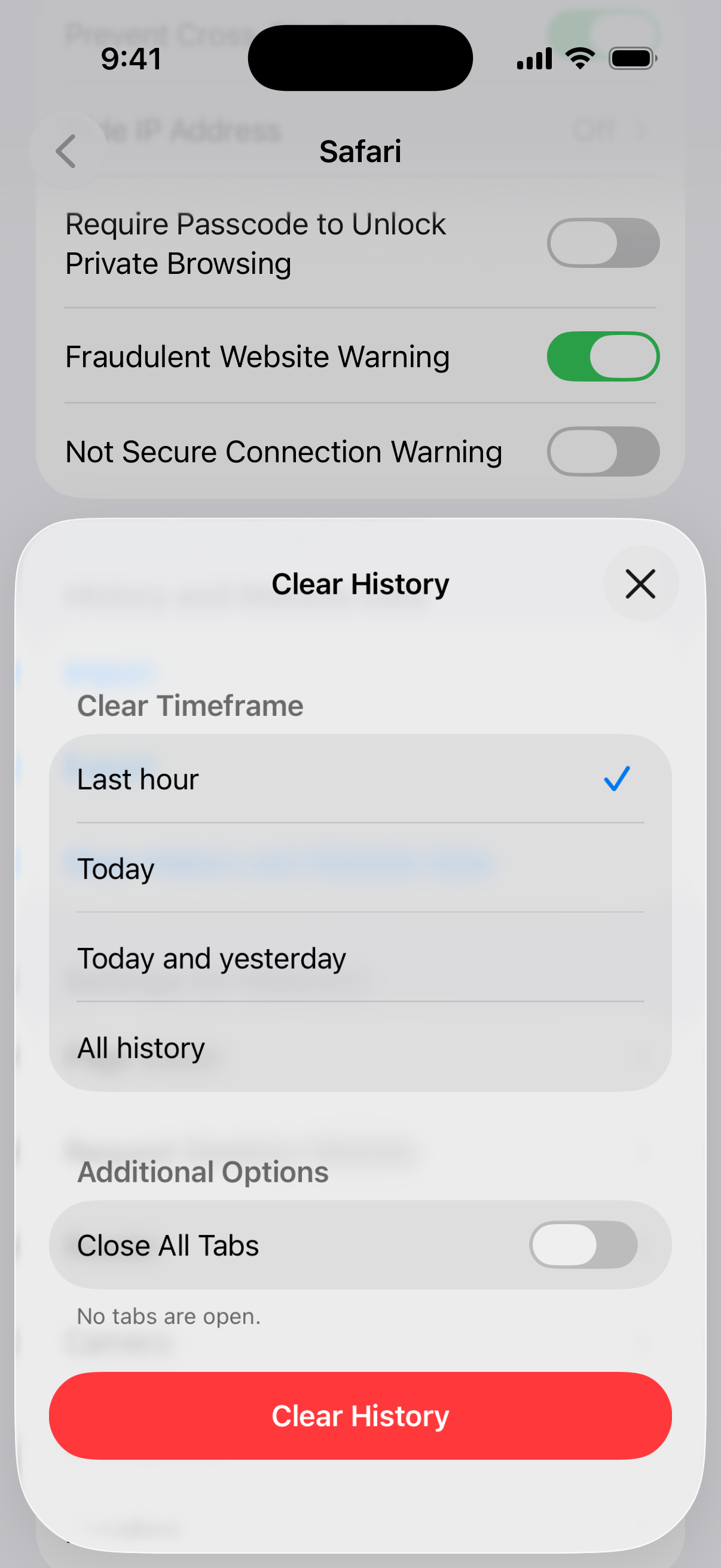
Over months of browsing, Safari accumulates a large cache of website data, scripts, and cookies. Clearing this out frees up storage and removes data that websites use to track you and keep you signed in.
Open Settings > Apps > Safari. Scroll down and tap "Clear History and Website Data." Choose a timeframe, then tap "Clear History." This can log you out of websites, so you may need to sign in again.
Check for Problematic Apps
Sometimes, a single misbehaving app can cause system-wide lag. You can review your battery usage stats for apps with unexpected background activity.
Go to Settings > Battery and review App and System Activity for today, or tap "View All Battery Usage" to see the last eight days. If you see an app with high background activity that you don't expect, check for an update in the App Store. Force-close it only if it isn't responding. If problems persist, consider deleting and reinstalling that specific app.
Reset All Settings
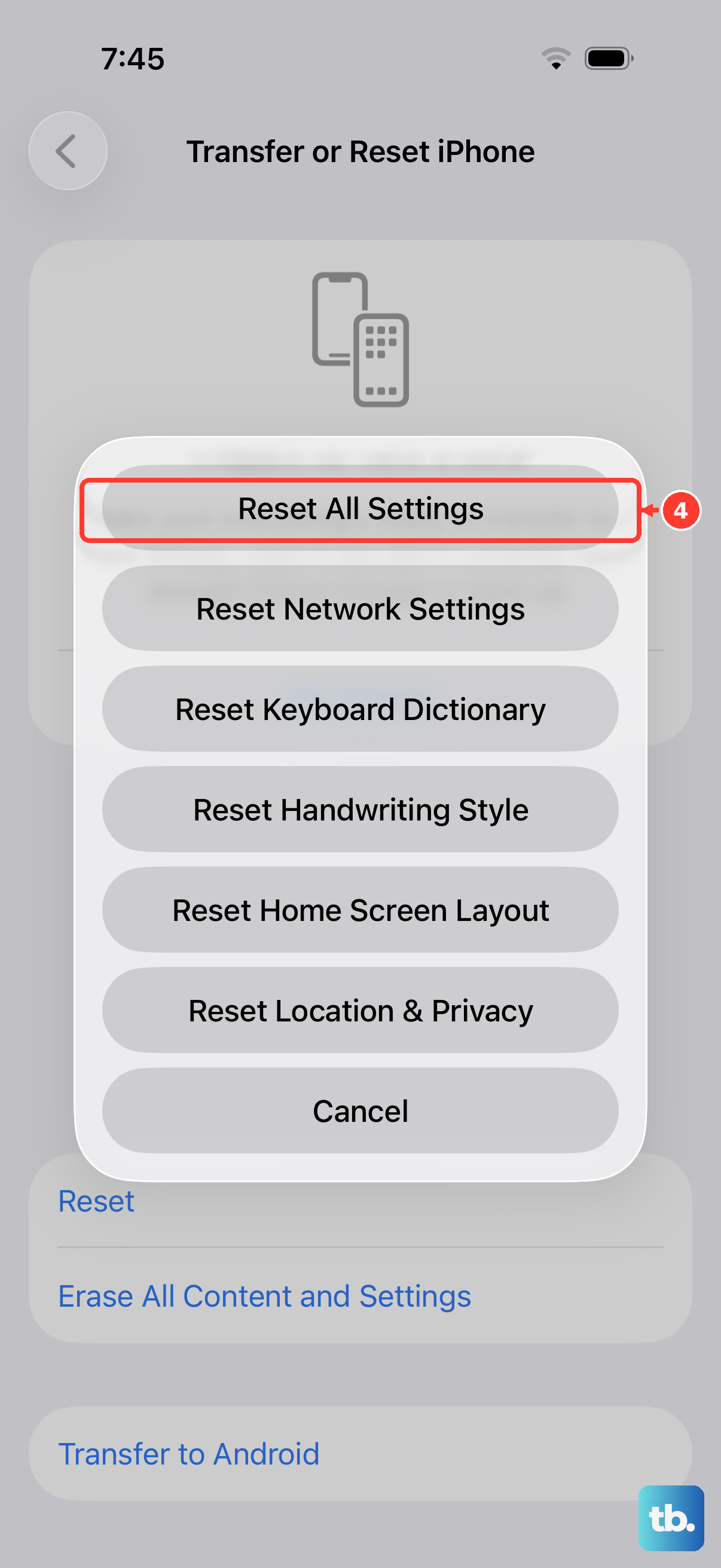
If you've tried everything else and your iPhone 17 Pro is still slow, this step can help. It resets all your system settings, like Wi-Fi passwords, wallpaper, and privacy permissions, back to factory defaults without deleting any of your personal data, photos, or apps.
Go to Settings > General > Transfer or Reset iPhone. Tap "Reset" at the bottom, then choose "Reset All Settings." You'll need to enter your passcode. After the phone restarts, you'll have to reconfigure your preferences, rejoin Wi-Fi, re-pair Bluetooth devices and your Apple Watch, and set up Face ID again.