
A blurry camera on your iPhone 17 Pro can turn a perfect shot into a disappointment. The issue might be constant, only happen in low light, or affect just one of the lenses. Before you worry about a hardware problem, there are several straightforward things you can check.
Clean the Camera Lenses
Start with the simplest solution. Gently wipe the entire camera array on the back of your iPhone 17 Pro with a clean, dry microfiber cloth. Smudges from your fingers can cause a hazy, soft look in photos. Avoid using your shirt or any rough material, as abrasive materials can scratch your iPhone.
Remove Your Case and Check for Obstructions
Take your case off completely. Some third-party cases, even well-reviewed ones, can have a camera cutout that's slightly misaligned or has a lip that casts a shadow. Also, double-check that you haven't accidentally left a plastic shipping film or a separate camera lens protector on the phone. These can dramatically reduce image clarity. Also remove any accessory that places a magnet near the camera. If you see motion blur in low light, take off a lens converter, metallic case, or magnetic lens mount and shoot again.
Use Tap to Focus and Lock It
Open the Camera app and tap directly on your subject on the screen. You'll see a yellow square confirming the focus point. If the camera is focusing on the background, your subject will be blurry. For a steady shot, press and hold on the focus point until you see "AE/AF Lock" appear, which keeps the focus locked until you tap again.
Switch Between the Lenses Manually
Your iPhone 17 Pro has multiple lenses. If your 1x main lens is blurry but the 0.5x ultrawide or the telephoto is sharp, the issue may affect just one camera. In the Camera app, compare photos at 0.5x, 1x, and 4x to check the ultrawide, main, and telephoto cameras. This helps you pinpoint whether one specific lens module has a smudge or a deeper problem.
Force Close and Reopen the Camera App
Swipe up from the bottom of the screen and pause to enter the app switcher. Find the Camera app and swipe it up and off the screen to close it. Then, reopen it from your Home Screen. Reopening the app may help with a temporary software problem.
Perform a Force Restart
If closing the app didn't help, a force restart is the next step. Quickly press and release the Volume Up button, then quickly press and release the Volume Down button. Immediately after, press and hold the Side button. Keep holding it until you see the Apple logo appear, then let go. After the restart, take another photo to check whether the blur remains.
Check for and Disable Automatic Macro Mode
The iPhone 17 Pro will automatically switch to the ultrawide lens for extreme close-ups, which can sometimes cause an unexpected blur if you're at a borderline distance. To get manual control, go to Settings > Camera > Macro Control and toggle it on. After this, a macro icon (a flower) will appear in the Camera app when you get close, letting you choose when to engage it.
Wipe Away Condensation
Moving from a cold environment to a warm, humid one can leave condensation on the camera lenses and make photos look foggy. Unplug all cables and turn off your iPhone, then gently wipe the exterior with a soft, lint-free cloth. Avoid getting moisture in openings, and leave the phone in a dry area with some airflow. Don't use a hairdryer or put it in rice. If the camera still takes blurry photos after cleaning and testing, it may need service.
Update to the Latest iOS Version
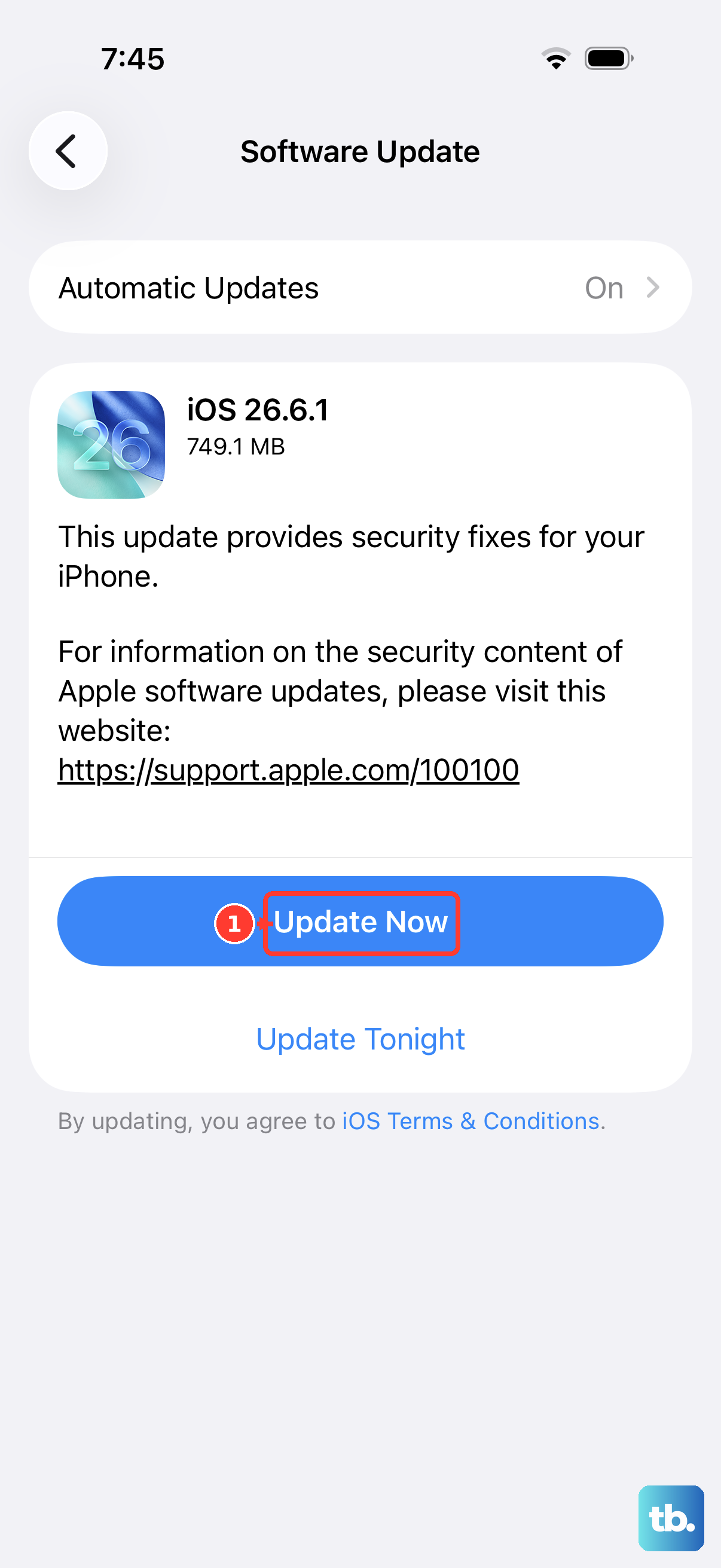
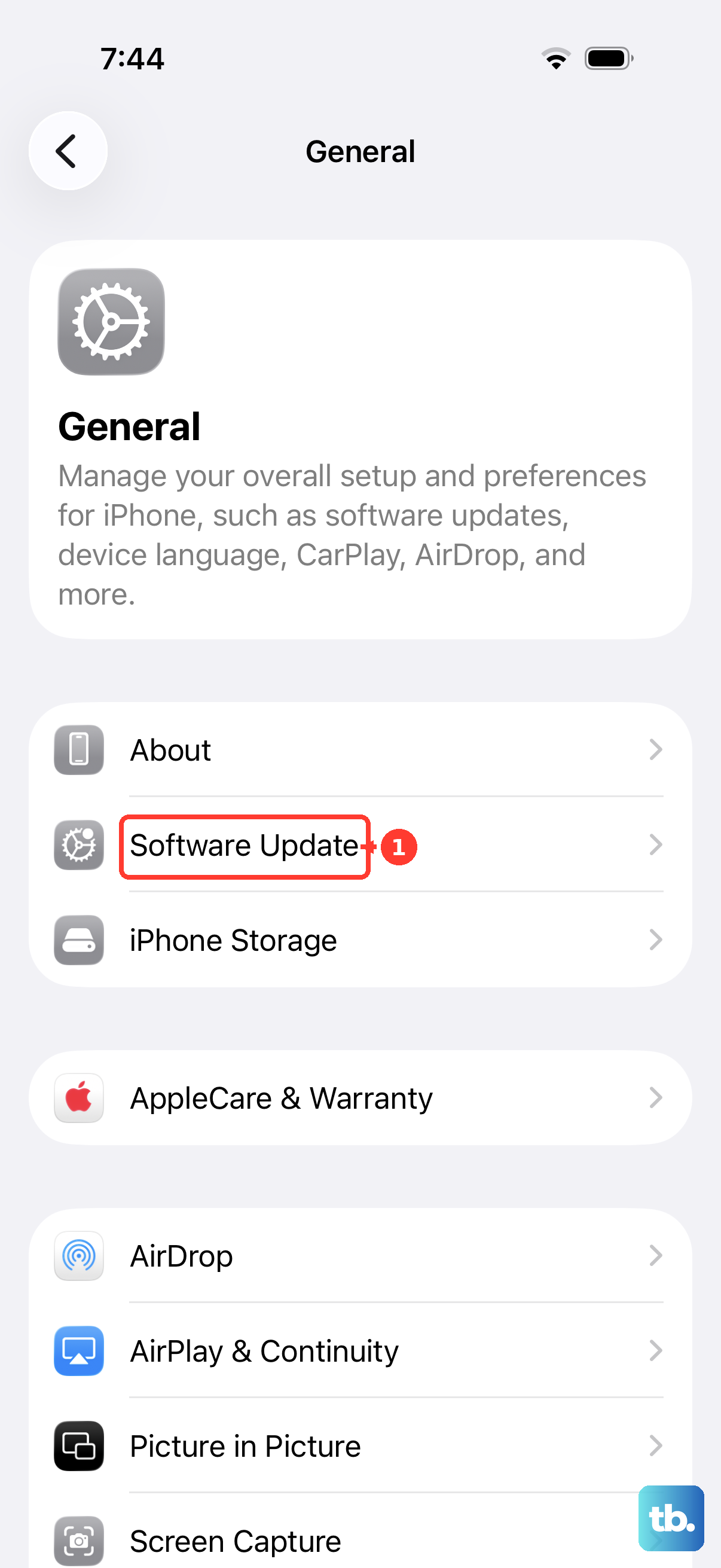
Updating to the latest version of iOS can help address software problems. Go to Settings > General > Software Update to see if an update is available. Installing it can resolve software-related focus or processing issues that cause blurriness.
Turn On Lens Cleaning Hints
Your iPhone 17 Pro can detect a smudged lens and suggest that you clean it for a clearer picture. Go to Settings > Camera and make sure Lens Cleaning Hints is turned on. When the hint appears, wipe the lenses with a clean, dry microfiber cloth before you take the shot.
Test Both Cameras and Get Service
After trying the steps above, open the Camera app and take another photo. Tap the rotate button to switch between the front and rear cameras, and check whether one or both still produce blurry pictures. If the camera still isn't working properly after cleaning, removing accessories, restarting, and updating, contact Apple for service.