
Seeing "No Service" or searching for signal on your iPhone 17 is a real headache. It cuts you off from calls, texts, and mobile data when you need them most. The good news is that there are several checks you can try yourself before contacting your carrier.
Try reconnecting to the cellular network by turning Airplane Mode on and off. Open Settings, turn on Airplane Mode for at least 15 seconds, then turn it off. If your cellular network is available, your iPhone may reconnect after this step.
Restart Your iPhone 17
If Airplane Mode did not do the trick, restart your iPhone. Press and hold the Side button and either volume button until the power-off slider appears, drag the slider, then wait 30 seconds for the device to turn off. Press and hold the Side button again until you see the Apple logo.
If your iPhone is not responding and you cannot turn it off and on normally, use a force restart. Press and quickly release the Volume Up button, press and quickly release the Volume Down button, then press and hold the Side button. Release the Side button when the Apple logo appears.
Check for a Carrier Settings Update
Carrier settings updates can improve cellular network connectivity and performance, and they are separate from iOS updates. Connect to Wi-Fi, then go to Settings > General > About.
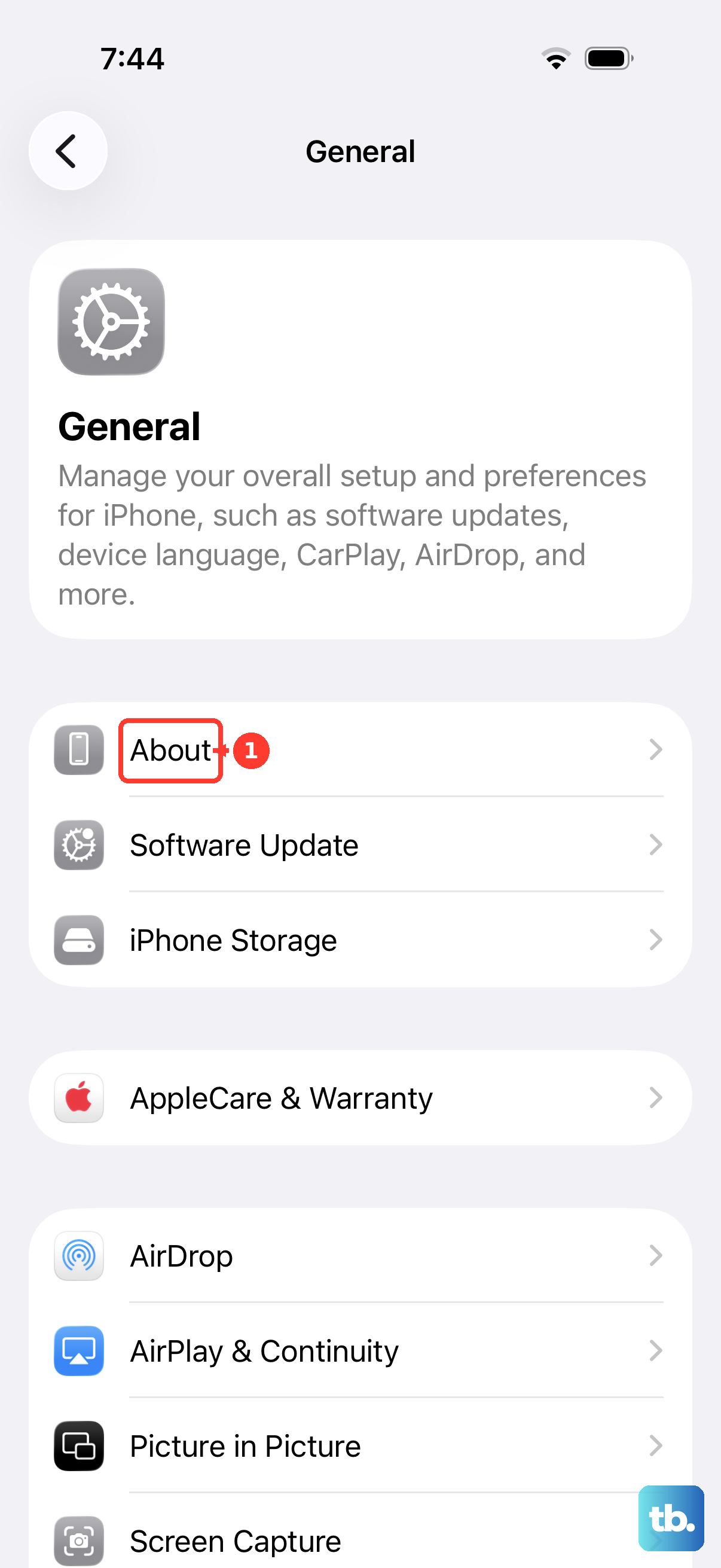
If an update is available, follow the onscreen instructions to install it. To check your carrier settings version, look next to Carrier under eSIM on the About screen. If you insert a new SIM card, you need to download the settings for your new carrier.
Check Your eSIM or SIM Setup
Do not assume your iPhone 17 has a removable SIM. The US iPhone 17 uses eSIM only, while the UK model supports nano-SIM and eSIM. SIM setup differs by country, so check the local Apple specifications for your model.
Open Settings > Cellular, tap your cellular line, and tap Turn On This Line if it is off. If the line is missing, contact your carrier to set up an eSIM or, on a model with a physical SIM tray, remove and reinsert the SIM. Ask your carrier for a replacement if the SIM is damaged, does not fit, or was transferred from another device.
Verify Cellular Data is Enabled
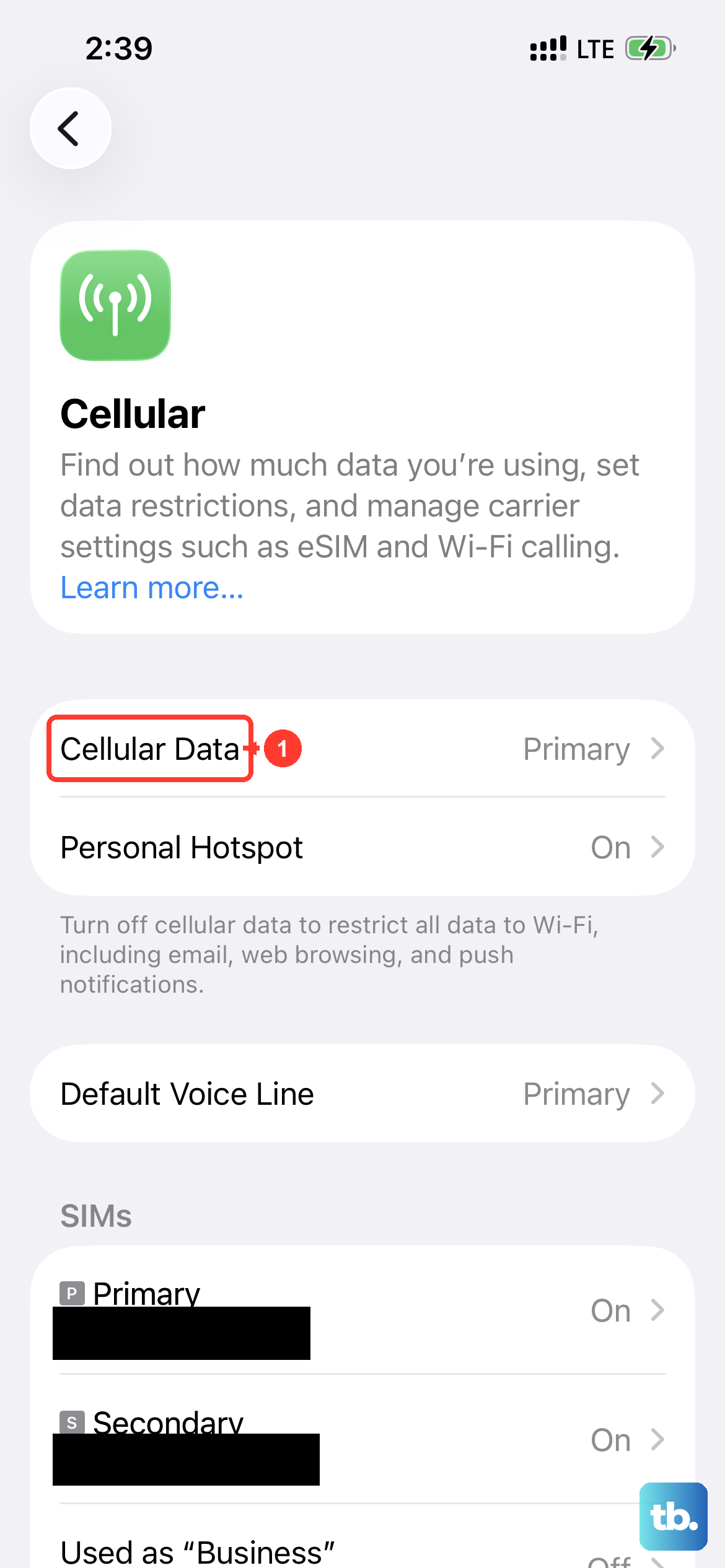
It sounds simple, but sometimes settings get changed. Open Settings and tap Cellular. Make sure the switch at the top for "Cellular Data" is turned on (green).
If your iPhone has multiple SIMs, tap Cellular Data to choose the line used for data. To review that line's options, choose it under SIMs, then open Cellular Data Options. The available network options depend on your carrier and device.
Reset Your Network Settings
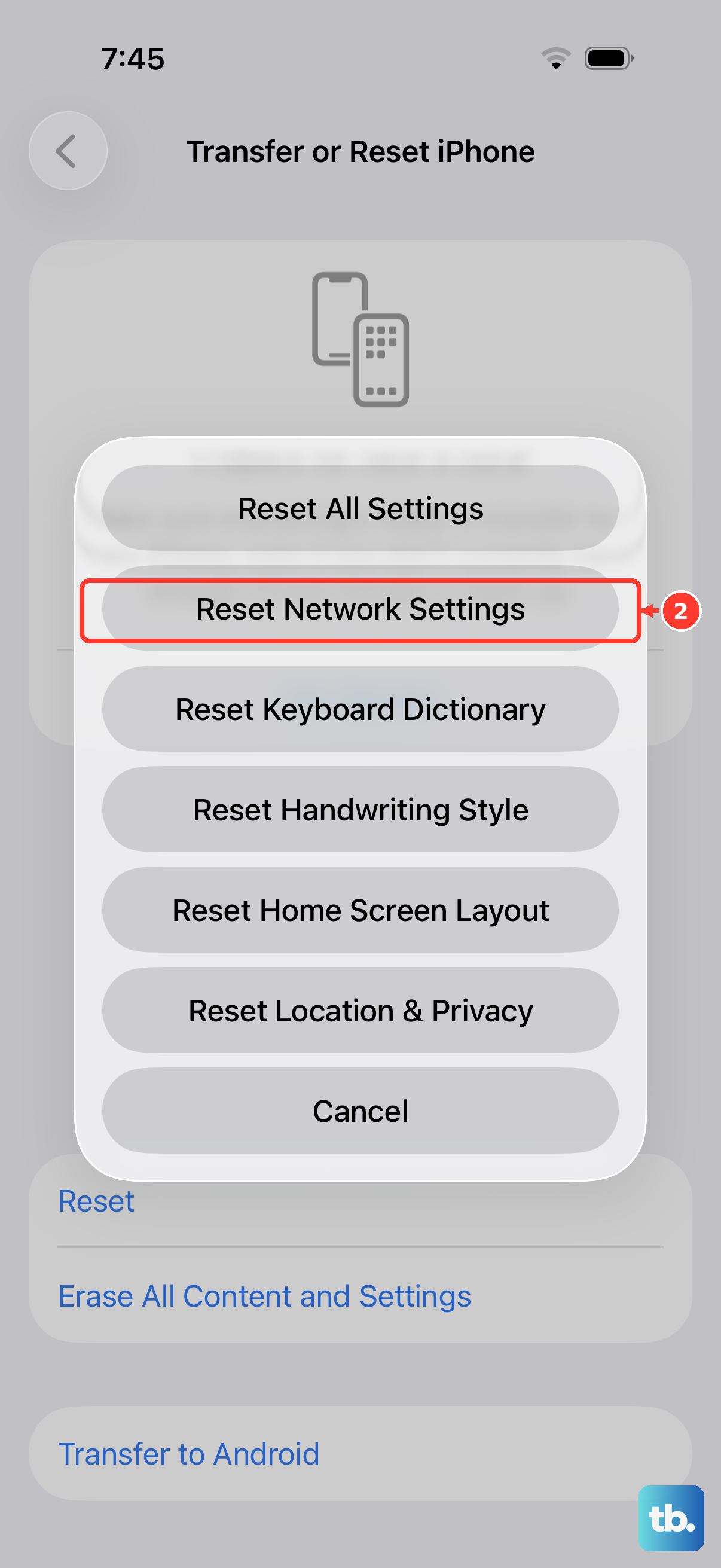
This is a disruptive step, so use it after simpler fixes fail. Reset Network Settings removes saved Wi-Fi networks and passwords, cellular settings, and VPN and APN settings. It does not erase personal content like photos or messages.
To do it, go to Settings > General > Transfer or Reset iPhone. Tap Reset, then choose Reset Network Settings. Enter your passcode when prompted and confirm. Your iPhone will restart, and you will need to rejoin Wi-Fi networks afterward.
Check for an iOS Software Update
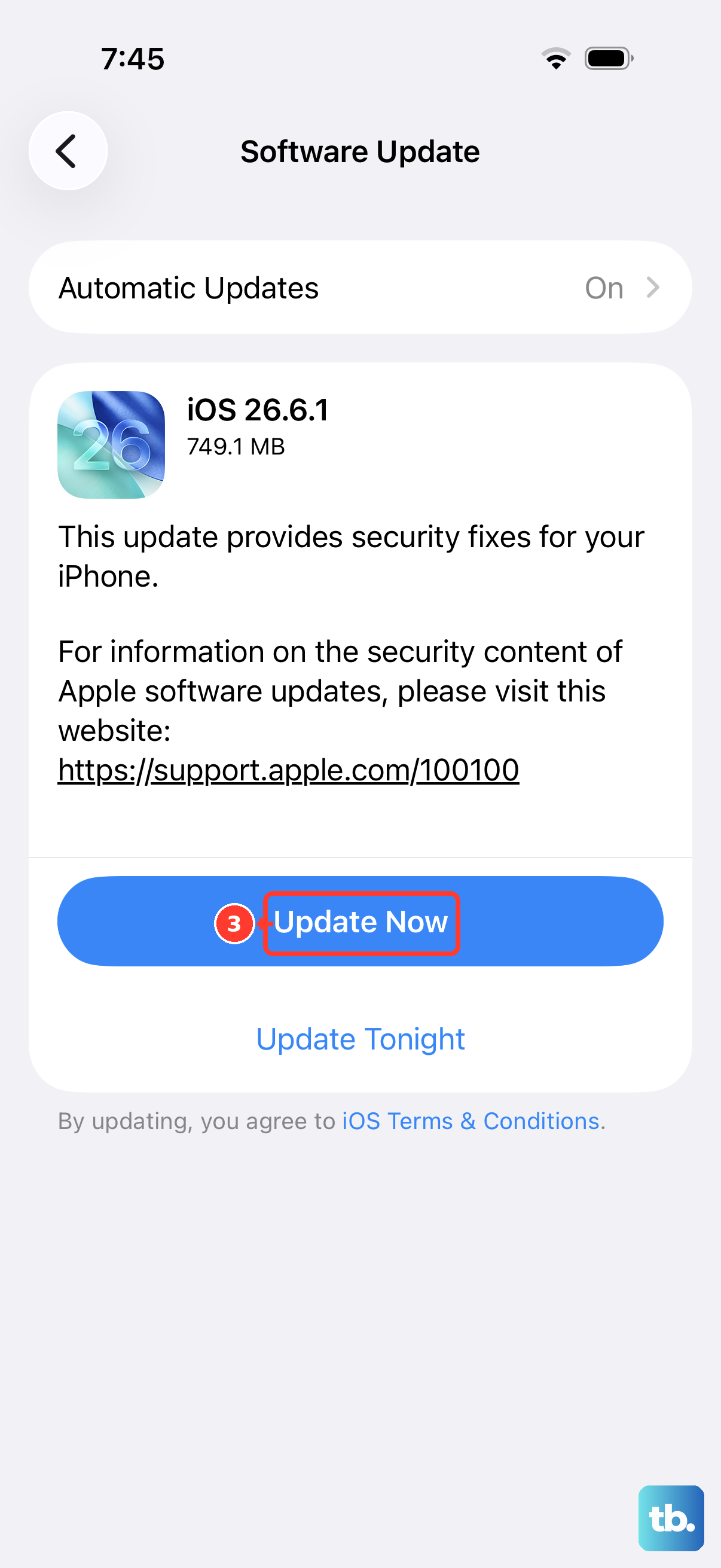
Keep your iPhone updated before you spend more time on cellular troubleshooting. Go to Settings > General > Software Update. The screen shows the currently installed iOS version and whether an update is available.
If an update is available, tap Download and Install, then follow the onscreen instructions.
Check Data Roaming When Traveling Internationally
If you're traveling internationally, check that your iPhone is set up for data roaming. Open Settings > Cellular and turn on Cellular Data. For a single SIM or eSIM, tap Cellular Data Options; for Dual SIM or Dual eSIM, tap the number you want to change, then Cellular Data Options.
Turn on Data Roaming if your plan supports it. Roaming can incur additional charges, so check your carrier's international data plan and roaming policy before using it.
Run Additional Cellular Diagnostics
Download the latest version of the Apple Support app over Wi-Fi and use it to run additional diagnostics. These checks may help identify the source of your iPhone's cellular connection problem.
If your carrier confirms that your account and network are working, and a hardware problem is suspected, your iPhone may need service. If that happens, contact Apple Support to get service.
Contact Your Carrier for Support
If you've tried everything here and still have no service, the issue might be on your carrier's end. There could be a local tower outage, maintenance work, or a problem with your account.
Give them a call from another phone or use Wi-Fi Calling if it's set up. Ask them to check coverage and outages, confirm your account is active and in good standing, and verify that your device is not blocked and has the right data plan. If you bought your iPhone abroad, ask whether local rules require IMEI registration.