When your iPhone 17's keyboard just won't pop up, it stops you from texting, searching, or typing anything at all. This is usually a quick software hiccup, and there are a few reliable ways to get it back.
Force Restart Your iPhone 17
This is almost always the first thing I'd try. A force restart clears out temporary glitches in iOS 26 without affecting your data. It's different from a normal restart and often solves keyboard issues instantly.
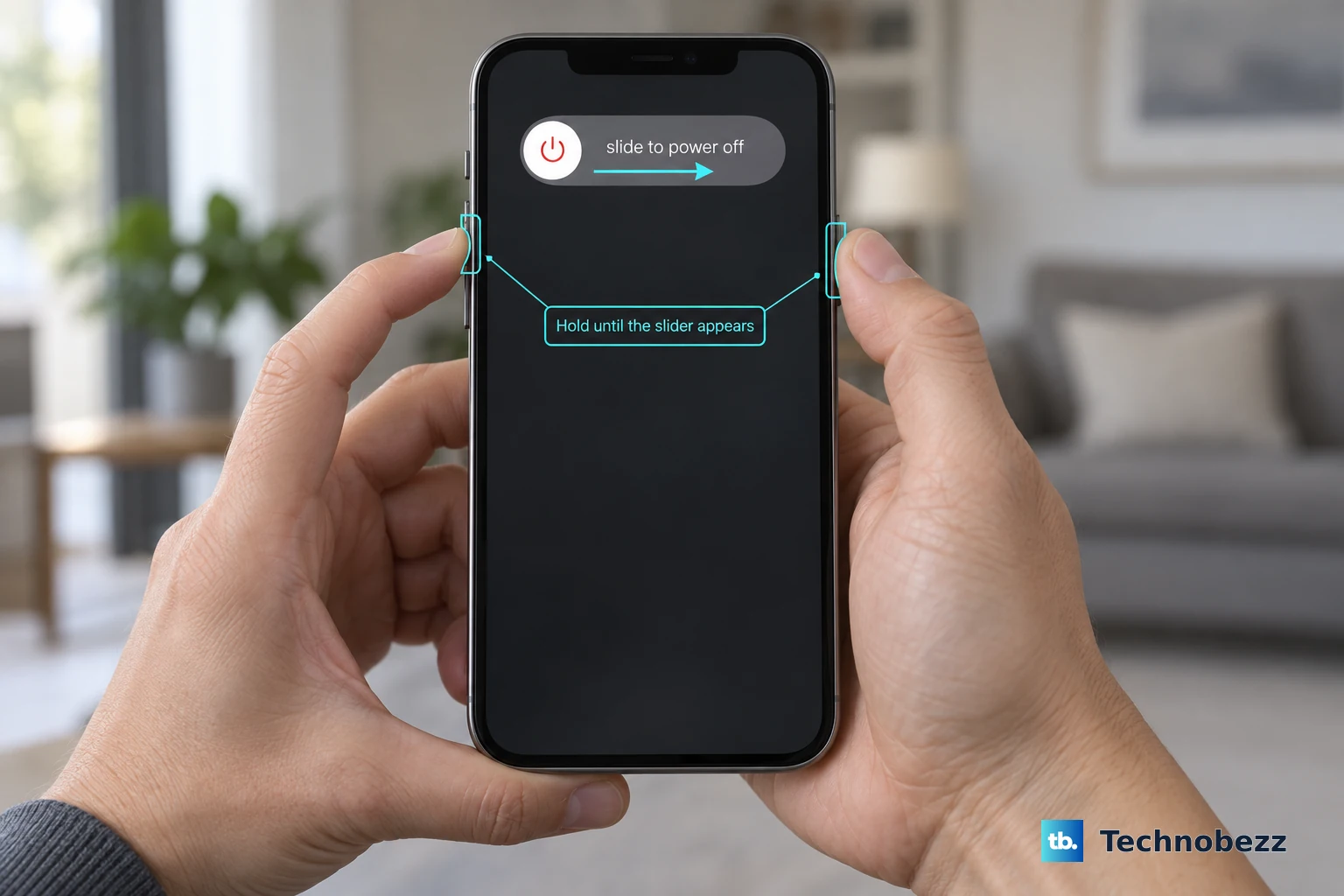
On the iPhone 17, you press and quickly release the Volume Up button, then press and quickly release the Volume Down button. Immediately after, press and hold the Side button. Keep holding it until you see the Apple logo appear, then let go.
Check for a Stuck App
Sometimes, the keyboard is tied to a specific app that's frozen. If it's missing in Messages but works in Notes, the app itself might be the problem. Try force quitting the app where the keyboard won't show.
On your iPhone 17, swipe up from the bottom of the screen and pause in the middle to enter the app switcher. Find the problematic app's preview and swipe it up and off the top of the screen to close it. Then, reopen the app and see if the keyboard appears.
Switch to a Different Keyboard
If you've installed a third-party keyboard like Gboard or SwiftKey, the system might be defaulting to it, and that app could be crashing. You can quickly switch back to the standard Apple keyboard.
When the keyboard space is blank, look for a small globe or smiley icon near the bottom corner. Tap and hold it. A menu should pop up letting you select "Keyboard." From there, choose "English" or "Emoji" to switch to the built-in iOS keyboard.
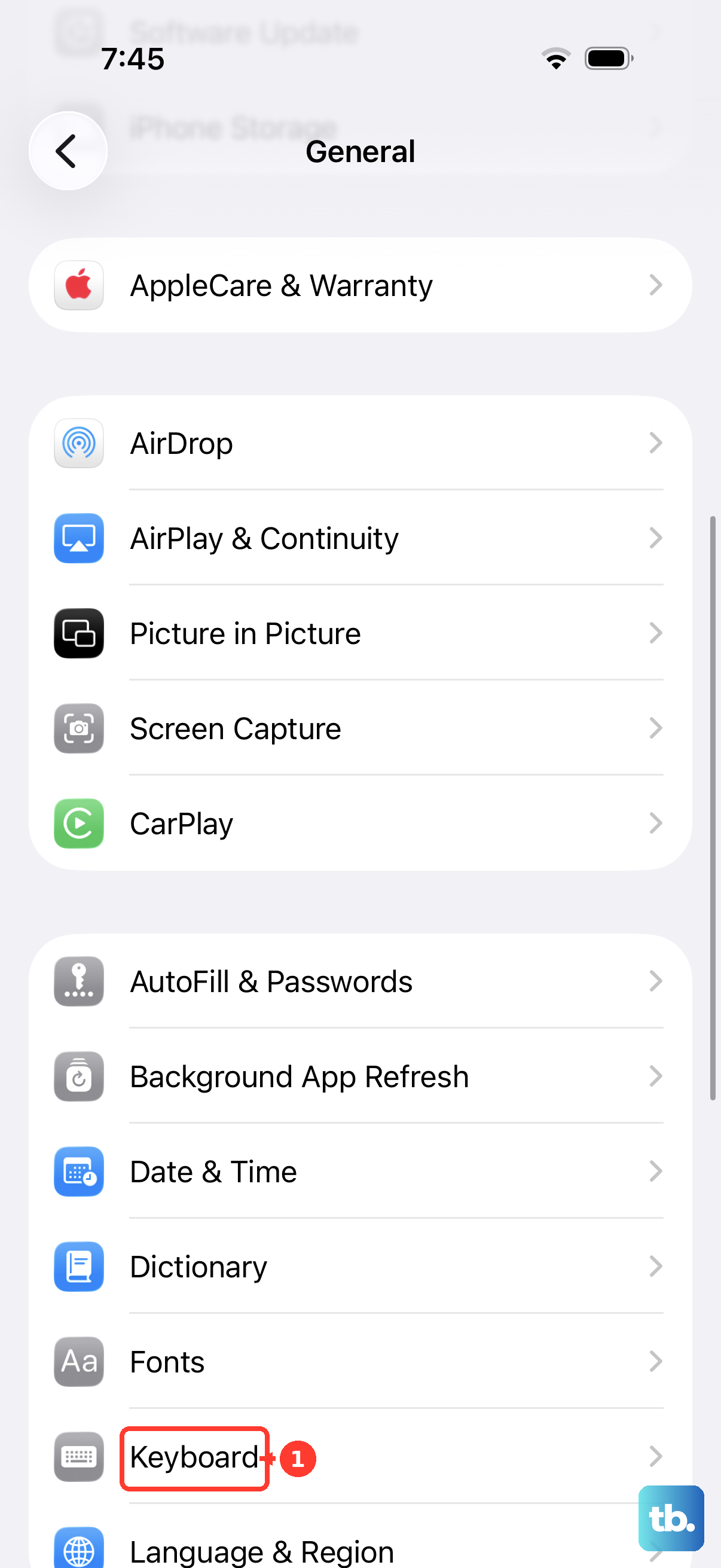
If that icon isn't there, go to Settings > General > Keyboard > Keyboards. You can remove any third-party keyboards here temporarily by tapping "Edit" and then the red minus sign. Just adding them back later is easy.
Update Your Apps and iOS
An outdated app or a bug in iOS 26 itself can cause conflicts with the keyboard. It's a good idea to make sure everything is current. First, check for any pending app updates in the App Store.
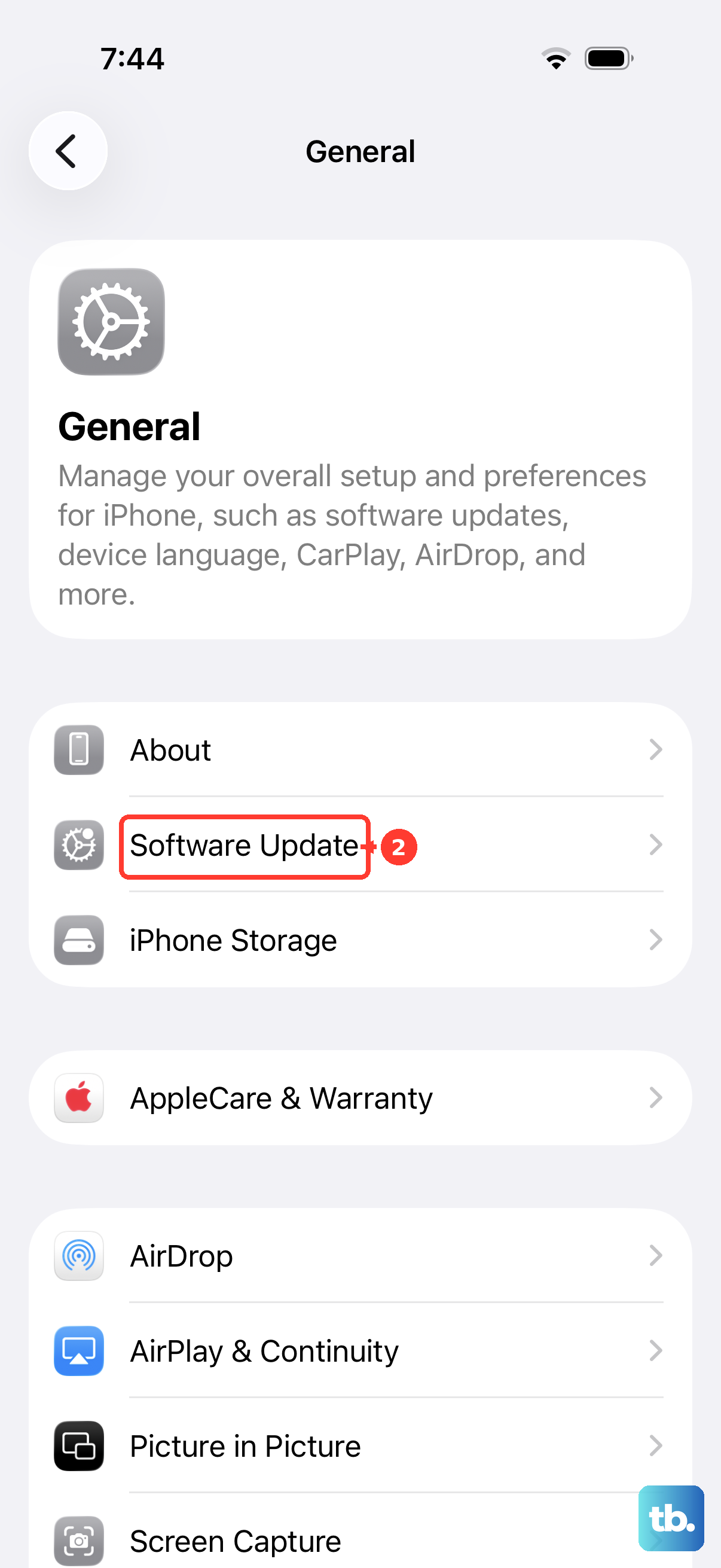
More importantly, check for a system update. Apple frequently releases iOS updates that fix bugs like this. Go to Settings > General > Software Update. If an update is available, install it. Your iPhone will restart, which often clears up the problem on its own.
Reset All Keyboard Settings
This won't delete your personal data, but it will reset all your keyboard preferences to factory defaults. It only erases the words you've added to the keyboard dictionary by rejecting iOS's suggestions as you type; your custom text replacements, keyboard shortcuts, and auto-correction setting are left untouched.
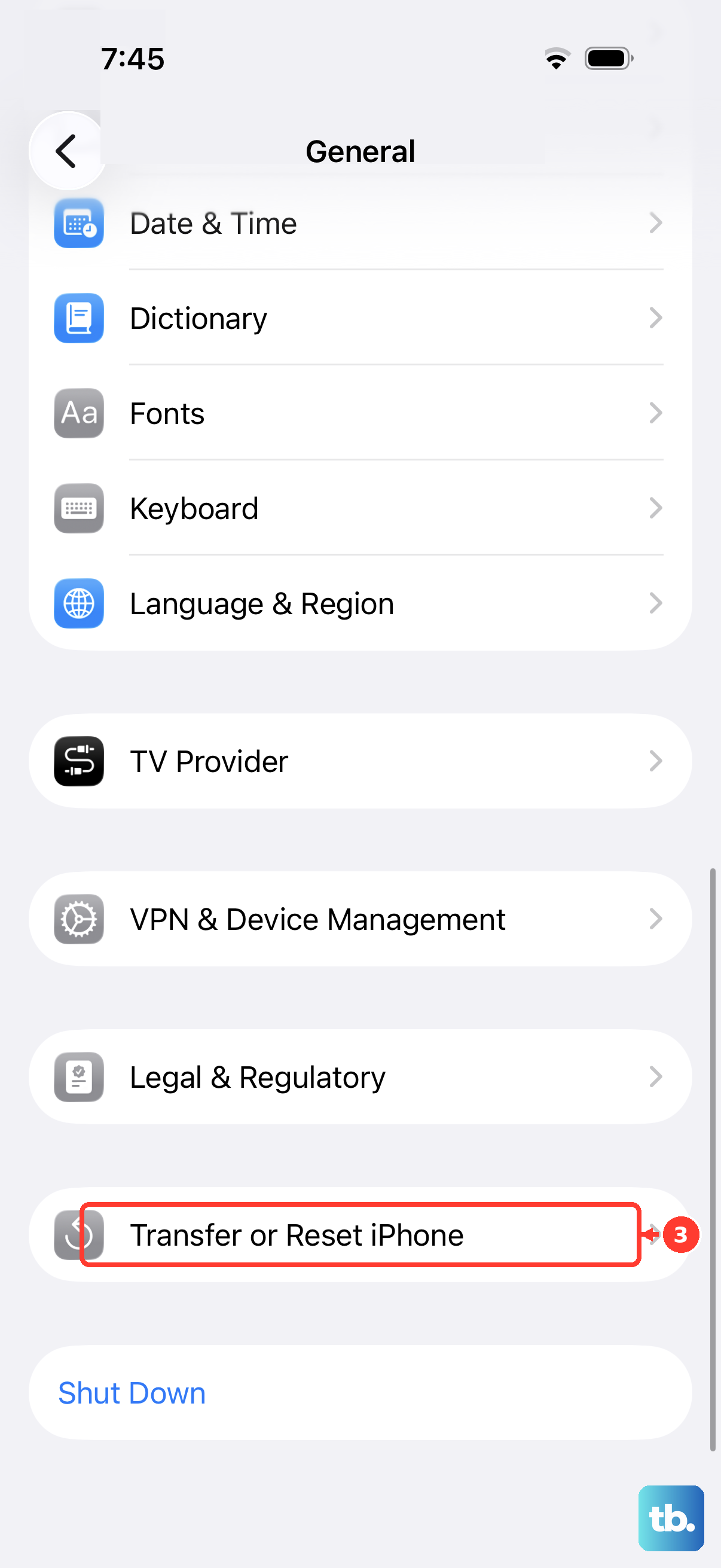
To do this, navigate to Settings > General > Transfer or Reset iPhone. Tap "Reset" at the bottom, and then choose "Reset Keyboard Dictionary." Confirm your choice. After the phone resets, test the keyboard in a simple app like Notes.
Check for Accessibility Settings Conflicts
Certain accessibility features, particularly ones that modify how you interact with the screen, can sometimes interfere with the keyboard's display. It's worth quickly checking these settings.
Head to Settings > Accessibility. Look at features like "Touch Accommodations," "Switch Control," or "Voice Control." If any of these are turned on, try turning them off temporarily to see if your keyboard returns. You can always turn them back on afterward.
Close All Apps and Restart Normally
If a force restart didn't do the trick, try a more thorough approach. First, close all your open apps from the app switcher. Then, initiate a standard shutdown.
Press and hold the Side button with either volume button until the power off slider appears. Drag the slider to turn off your iPhone 17. Wait about 30 seconds, then press and hold the Side button again until you see the Apple logo. This gives the system a clean slate to boot from.