
When your iPhone 17's GPS stops locking on or gives you a spinning blue dot, it can leave you stranded in more ways than one. This is usually a quick software hiccup, but it's worth knowing the full range of fixes for iOS 26.
I'd start with the simplest solution first. Swipe down from the top-right corner to open Control Center and tap the location arrow icon to turn Location Services off. Wait about ten seconds, then tap it again to turn it back on. This quick refresh solves a lot of momentary glitches.
Force Restart Your iPhone 17
If toggling location didn't help, a force restart is your next best move. It clears the device's memory without deleting any data. On the iPhone 17, you press and quickly release the Volume Up button, then quickly press and release the Volume Down button.
Finally, press and hold the Side button. Keep holding it even when you see the power off slider, and continue holding until the Apple logo appears on the screen. This can resolve deeper software conflicts affecting the GPS chip.
Check Your Location Services Settings
It sounds obvious, but sometimes settings get changed. Open the Settings app and go to Privacy & Security > Location Services. Make sure the main Location Services switch at the top is green and turned on.
Scroll down and find the app you're having trouble with, like Maps or Google Maps. Tap on it and ensure the permission is set to "While Using the App" or "Always," depending on what the app needs for full functionality. "Precise Location" should also be enabled for best accuracy.
Review System Services and Date & Time
Within the same Location Services menu, scroll all the way to the bottom and tap "System Services." Here, make sure switches for "Networking & Wireless," "Motion Calibration & Distance," and "Compass Calibration" are enabled. These help your iPhone determine your location more accurately.
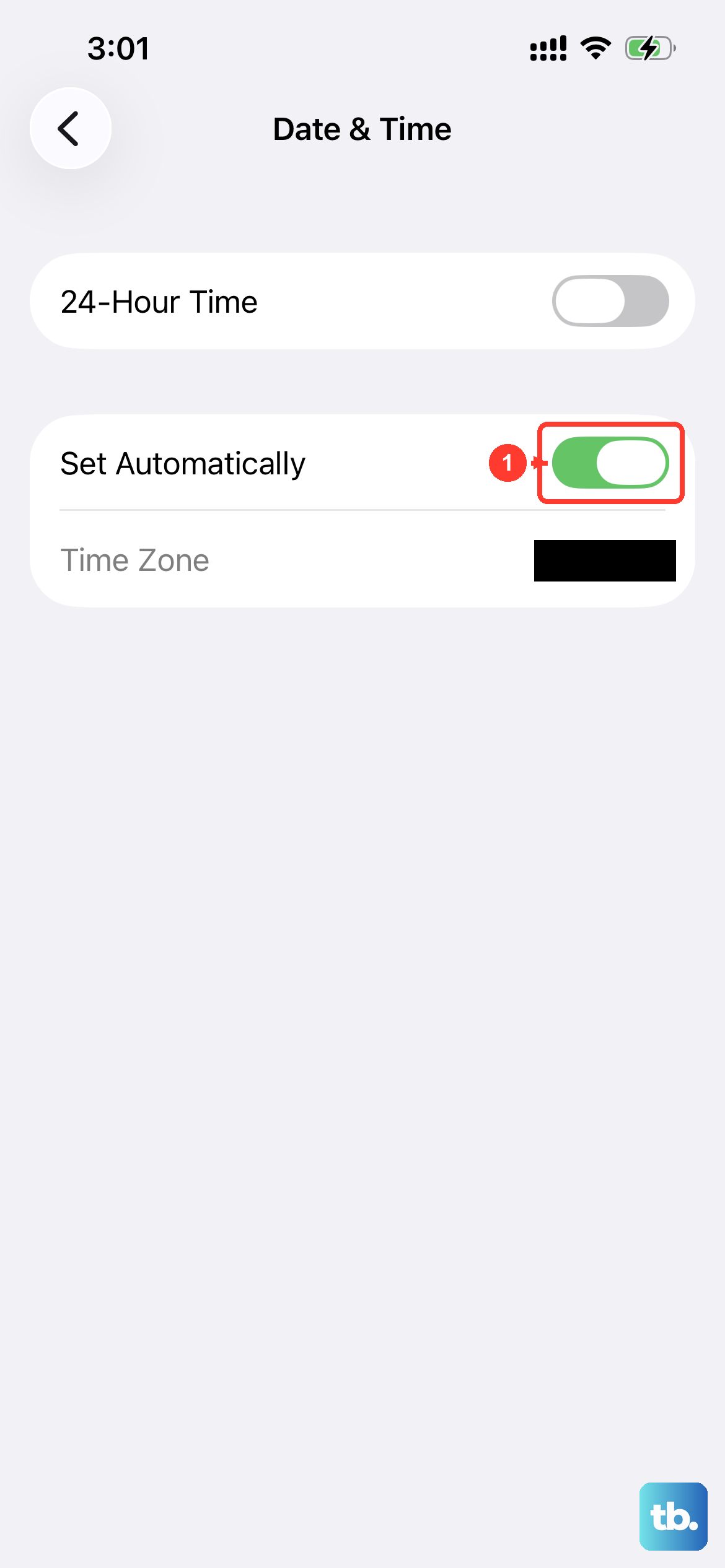
Also, go back to the main Settings and tap General > Date & Time. Make sure "Set Automatically" is turned on. An incorrect date or time can completely break secure location services and certificate validation.
Toggle Airplane Mode
This resets all your iPhone's radios at once, including those that assist with location. Open Control Center and tap the airplane icon to enable Airplane Mode. Wait for about 15 seconds to let all connections fully drop.
Then, tap the airplane icon again to turn it off. Your iPhone will reconnect to cellular, Wi-Fi, and Bluetooth. Try your navigation app again once you see your signal bars return.
Update Your Apps and iOS
An outdated version of Maps or another navigation app might have a bug causing GPS failures. Open the App Store, tap your profile icon in the top right, and scroll down to see pending updates.
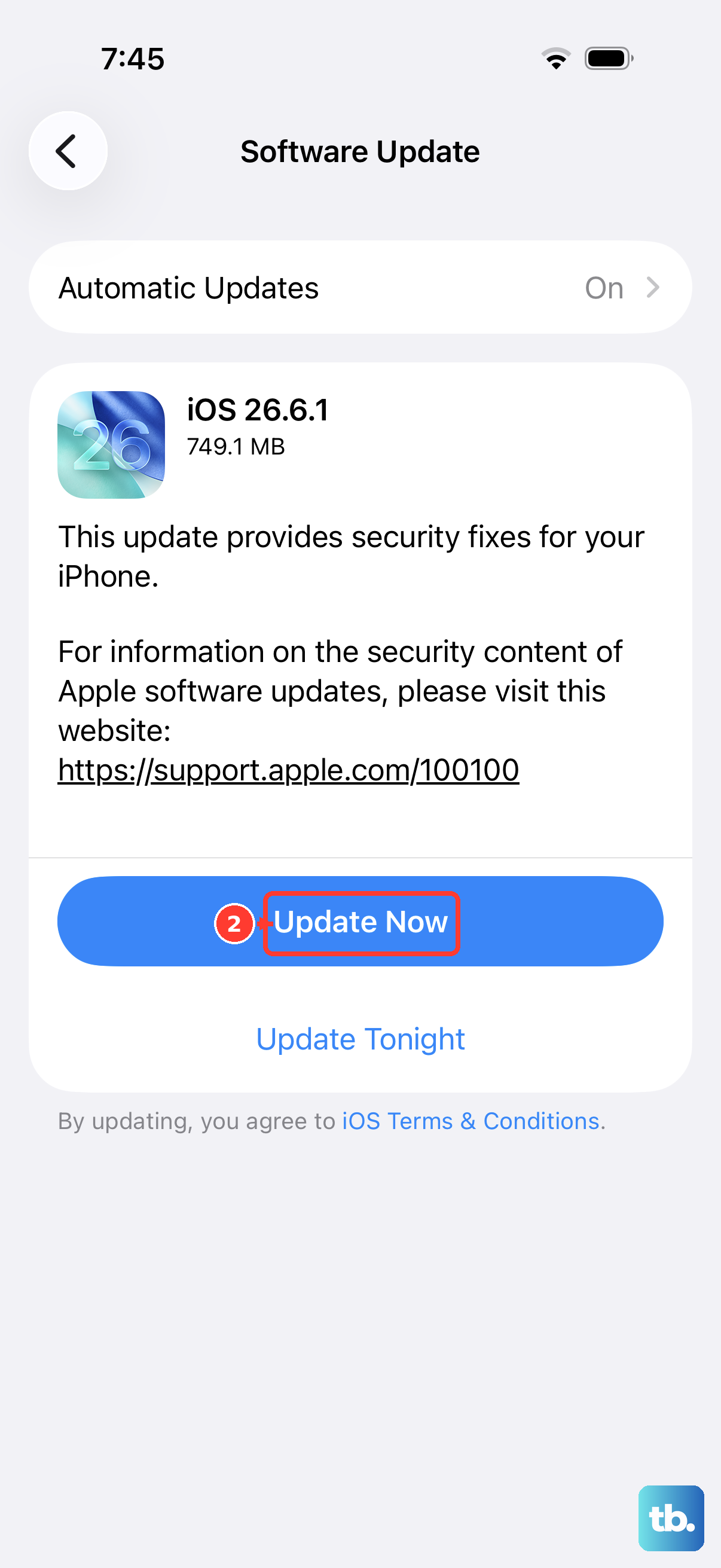
More importantly, check for an iOS update. Go to Settings > General > Software Update. If iOS 26.1 or later is available, install it. Apple often includes fixes for location and connectivity issues in these point updates.
Reset Your Location & Privacy Settings
This is a stronger reset that won't delete your personal data, but it will revert all your location permissions to factory defaults. You'll have to re-grant permission to each app that asks for your location.
To do this, go to Settings > General > Transfer or Reset iPhone. Tap "Reset" at the bottom, then choose "Reset Location & Privacy." Enter your passcode when prompted and confirm the reset. After your phone restarts, open your maps app and allow location access when it asks.
Check for Physical and Environmental Issues
GPS signals are line-of-sight and can be blocked. If you're inside a building, especially with metal framing or thick concrete, try moving near a window or stepping outside. A thick metal phone case can also interfere with the GPS antenna.
Try removing your case temporarily to see if accuracy improves. Also, dense urban areas with tall skyscrapers can cause signal reflection, leading to inaccurate positioning, which is a limitation of the technology itself.
Test with a Different App
To figure out if the problem is with one specific app or the system itself, try using a different navigation tool. If Apple Maps isn't working, download Google Maps or Waze and see if they can get a lock.
If the other app works fine, the issue is isolated to your original app. Try force-closing it and reopening it, or uninstalling and reinstalling it. If no apps can get a GPS signal, the problem is system-wide.
Consider Network and Cellular Data
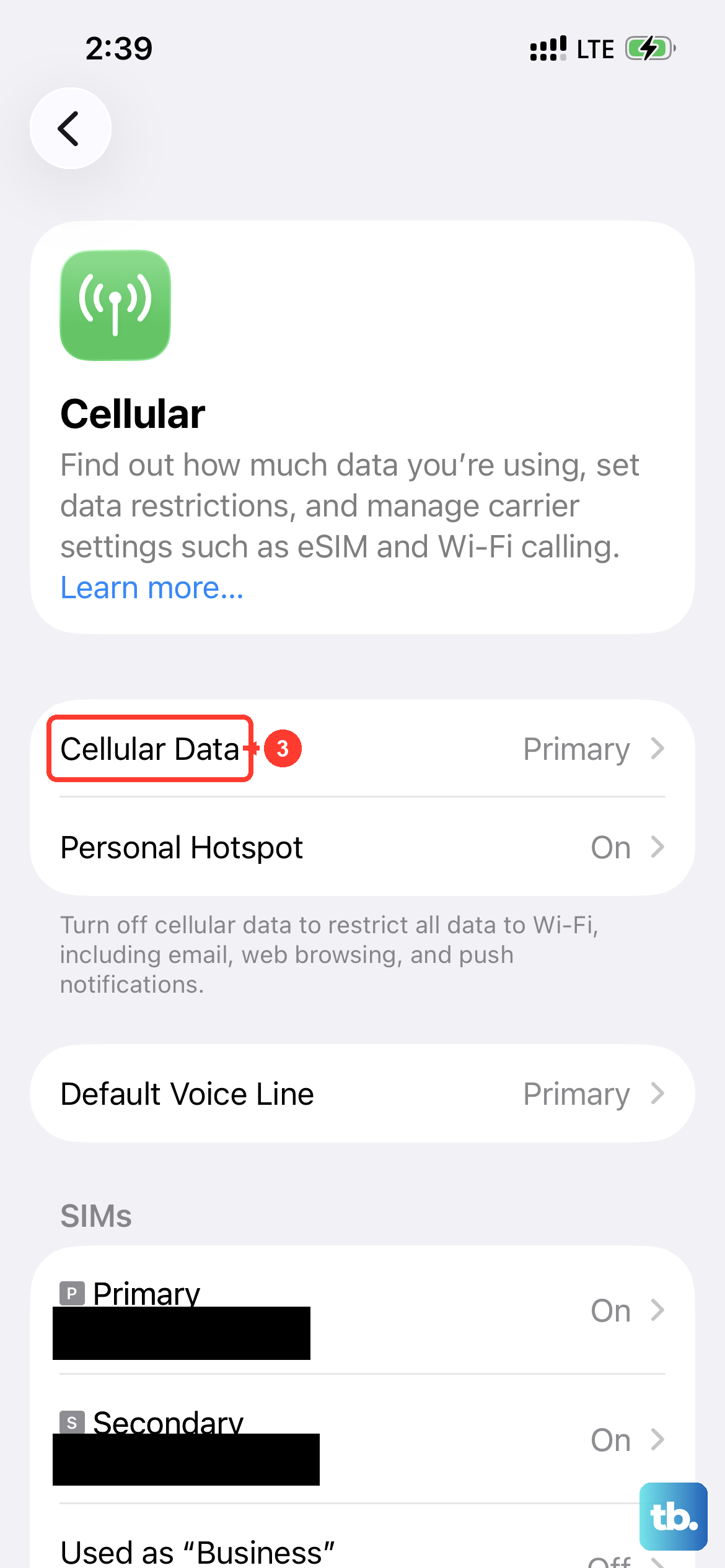
For the fastest, most accurate location, your iPhone 17 uses a combination of true GPS satellites, Wi-Fi hotspots, and cell towers. Make sure you have a cellular data connection or are connected to Wi-Fi.
You can try turning Wi-Fi on, even if you're not joining a network. Go to Settings > Wi-Fi and make sure the switch is on. This allows your phone to use nearby Wi-Fi network names to assist in pinpointing your location more quickly.
If you've tried all these steps and your GPS is still completely dead, with no app able to see satellites, it could point to a rare hardware fault. Before considering that, performing a full backup and restoring your iPhone via a computer is the definitive software fix to rule out any deep-seated corruption.