
A blurry camera on your iPhone 17 can ruin a perfect shot, making everything look soft or out of focus. This can happen with just one lens, in specific lighting, or across all your photos. Before you worry about a hardware issue, there are several software and simple fixes to try first.
Clean the Camera Lenses
Start with the simplest solution. Use a soft, lint-free microfiber cloth to gently wipe the camera lenses on the back of your iPhone 17. Fingerprints, dust, or pocket lint on the lens can cause hazy, blurry photos. Avoid using your shirt or a paper towel, as abrasive materials can damage the coating over time.
Remove Your Phone Case
Take your iPhone 17 out of its case and try taking another photo. Remove any film or accessory that might block the camera or place a magnet near it. If you see motion blur in low light, also try removing any lens converter, metallic case, or magnetic lens mount before testing again.
Tap to Focus on Your Subject
Open the Camera app and tap directly on the subject you want to be sharp. A yellow square will appear, confirming the focus point. If you're shooting something up close, the camera might be focusing on the background instead. For more control, press and hold on the screen to lock focus and exposure with AE/AF Lock.
Switch Between Camera Lenses
Try the zoom controls in the Camera app to compare 0.5x, 1x, and 2x. The iPhone 17 has two rear cameras, a Fusion Main and a Fusion Ultra Wide, and 2x is an optical-quality crop from the Main camera, not a separate lens. If 0.5x is clear but 1x and 2x stay blurry, focus on cleaning or checking the Main camera lens area. If 0.5x is the blurry view, check the Ultra Wide lens area.
Then tap the rotate button to try the front camera and see whether one or both cameras produce blurry photos. If only one is affected, that is the lens to clean and test again.
Force Close the Camera App
Swipe up from the bottom of the screen and pause in the middle to enter the app switcher. Find the Camera app and swipe it up and off the screen to close it completely. Then, reopen it and try focusing again. A temporary app issue may interfere with focusing.
Restart Your iPhone 17
Perform a standard restart. Press and hold the Side button and either Volume button until the power slider appears. Drag the slider to turn off your phone, wait 30 seconds, then press and hold the side button until the Apple logo appears. Restarting may help with a temporary camera problem.
Check for Lens Cleaning Hints
Your iPhone 17 can detect a smudged lens and suggest that you clean it for a clearer picture. Go to Settings > Camera and make sure Lens Cleaning Hints is turned on. Keep an eye out for the hint, especially if you've just pulled the phone from a pocket or bag.
Control Automatic Macro Switching
For close-up shots, Camera can automatically switch to the Ultra Wide camera for macro photos and videos. Go to Settings > Camera and turn on Macro Control if you want the manual macro control to appear. Then open Camera, get close to your subject, and tap the Auto Macro button when it appears to turn automatic macro switching off for that shot. If the image stays blurry, back up or tap 0.5x to switch to the Ultra Wide camera.
Update to the Latest iOS
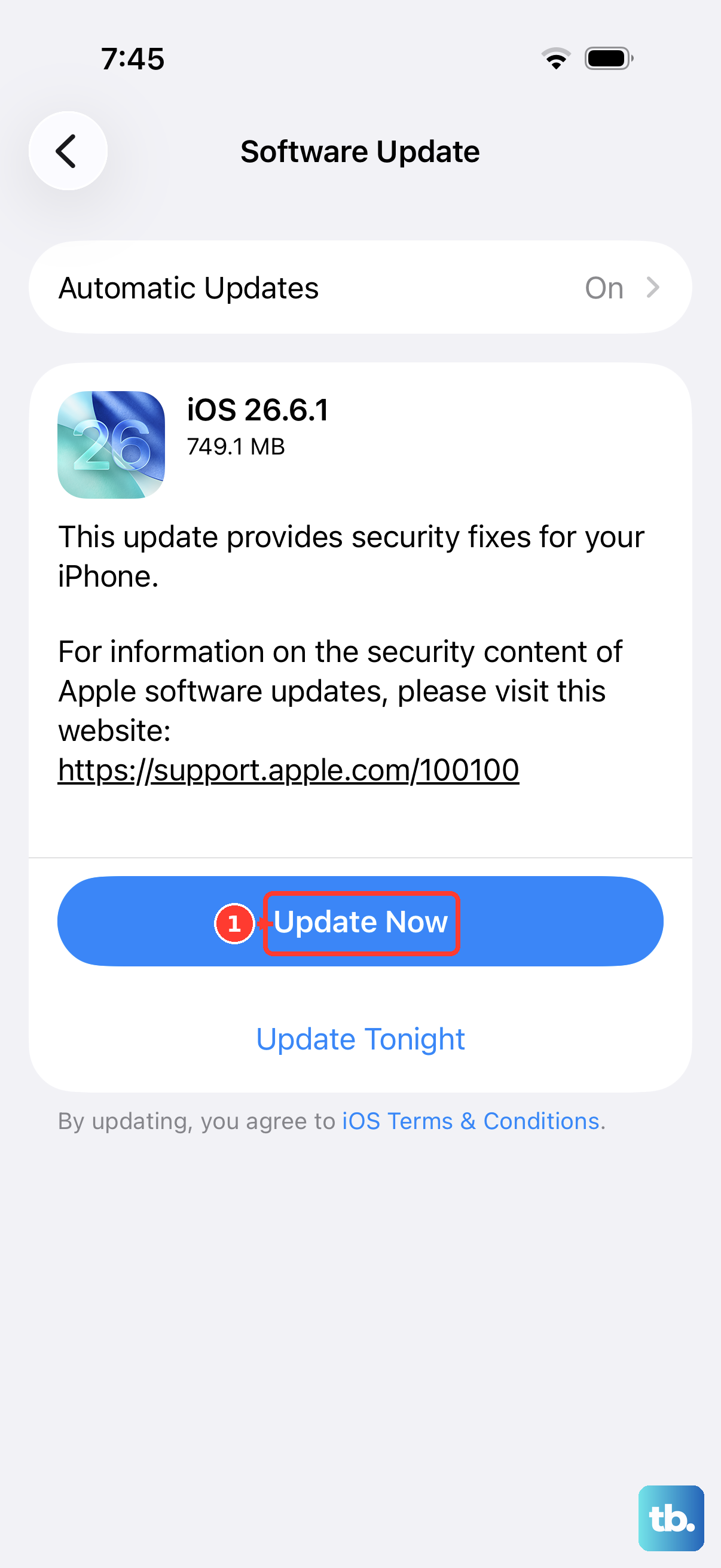
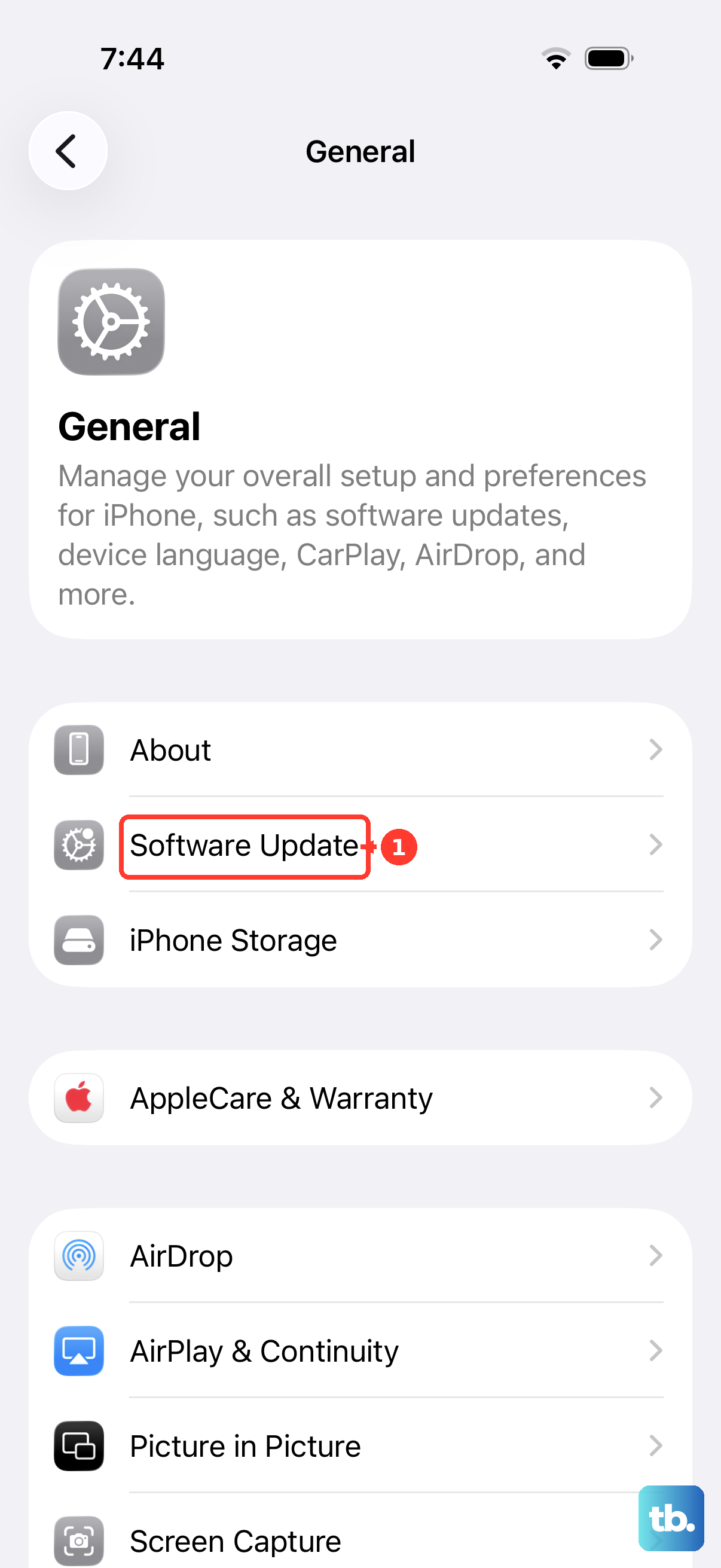
Head to Settings > General > Software Update. Updating to the latest version of iOS is worth doing when the camera isn't working properly. Back up your iPhone first, connect it to power and Wi-Fi, then tap Download and Install if an update is available. Test the camera again afterward.
Stop Preserving Camera Settings
If Camera keeps reopening with a mode or control you do not want, go to Settings > Camera > Preserve Settings and turn off the options you do not want Camera to remember. This does not reset every Camera setting; it only stops selected camera choices from carrying over the next time you open Camera.