
Slow mobile internet on your iPhone Air can make even simple tasks like loading a webpage or checking email feel painfully slow. You don't need to live with it.
Most slow data issues on an iPhone Air running iOS 26 come down to a handful of settings that are easy to fix. Here are ten ways to get your internet back up to speed.
Clear Safari's Cache and History
Safari stores cached files and website data to load pages faster on repeat visits, but that cache can get bloated over time and actually slow things down. Clearing it free up resources and can give your browsing a noticeable boost.
Head to Settings > Apps > Safari and tap Clear History and Website Data. Confirm your choice and Safari will start fresh. You'll lose saved login info on most sites, but the speed gain is usually worth it.
Check Your Cellular Data Mode
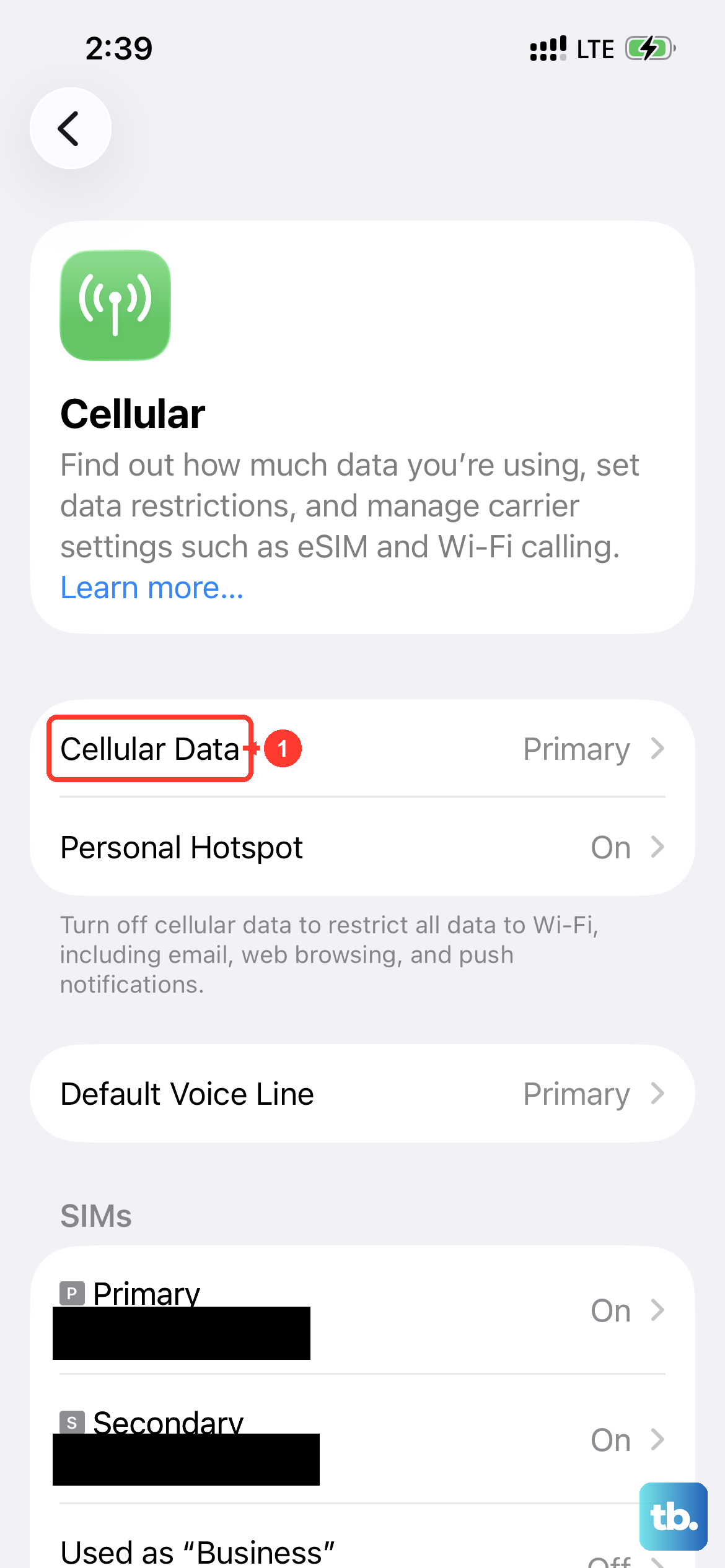
Your iPhone Air supports 5G, but it might be stuck on a slower network mode depending on your settings. Go to Settings > Cellular > Cellular Data Options > Voice & Data and make sure 5G Auto is selected. That lets the phone use 5G when it's available without draining battery unnecessarily.
If you're in an area with weak 5G, you can switch to 4G/LTE it's often more stable and still plenty fast for most tasks.
Turn On Wi‑Fi Assist
Wi‑Fi Assist is a clever iOS feature that automatically falls back to cellular data when your Wi‑Fi connection is weak or unreliable. It prevents the spinning wheel of death when a webpage gets stuck loading.
Toggle it on in Settings > Cellular scroll all the way down and flip the switch for Wi‑Fi Assist. Just keep an eye on your data usage if you have a limited plan.
Disable Any Active VPN
VPNs route your traffic through remote servers, which can seriously impact speed, especially if the server is far away or overloaded. If you're using a VPN app, try turning it off temporarily and see if your internet wakes up.
You can also check under Settings > General > VPN & Device Management and make sure no VPN configuration is active.
Reset Network Settings
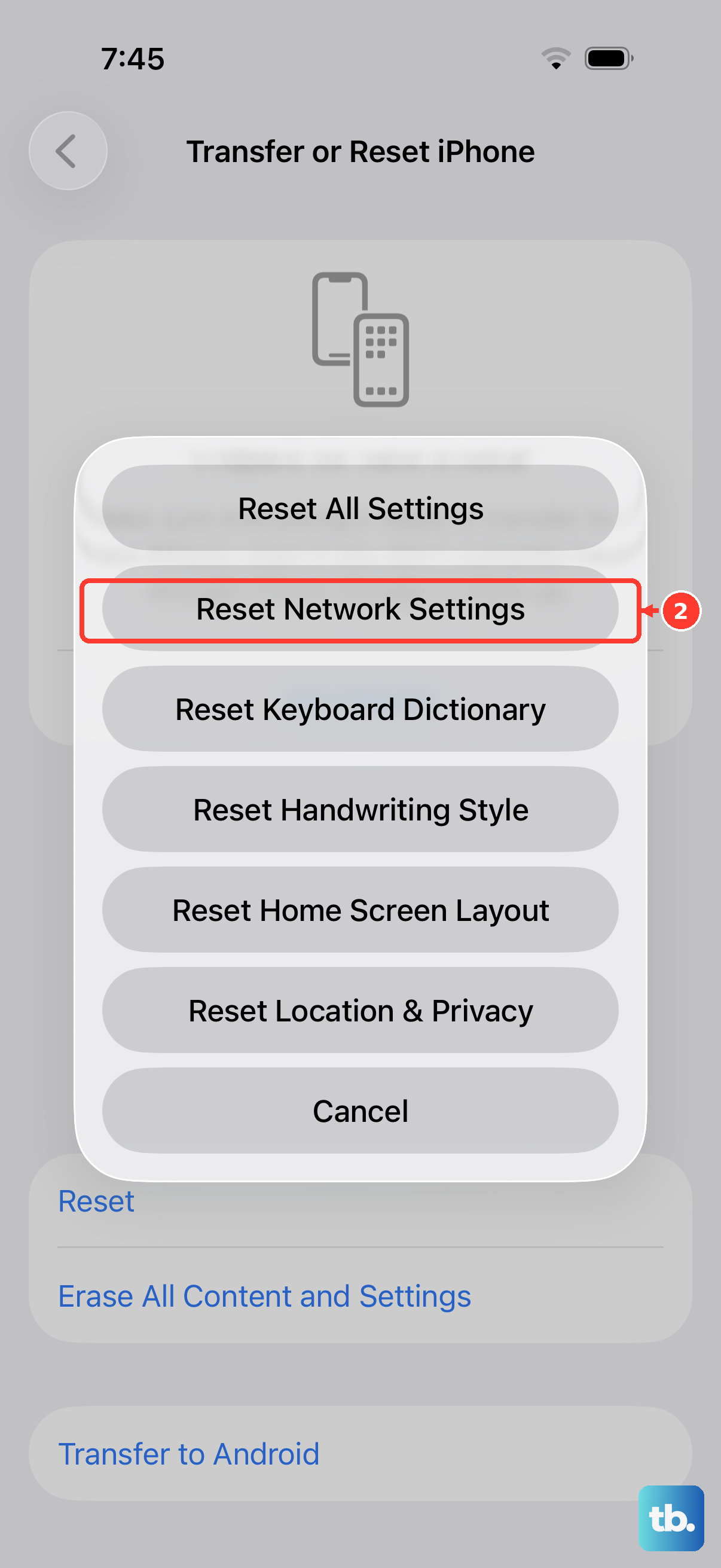
Resetting network settings wipes all saved Wi‑Fi networks, Bluetooth pairings, and cellular settings, but it can fix persistent speed issues that other tweaks can't touch. You won't lose any personal data like photos or messages.
Go to Settings > General > Transfer or Reset iPhone > Reset > Reset Network Settings. Your iPhone will restart and you'll need to rejoin Wi‑Fi networks afterward.
Limit Background App Refresh
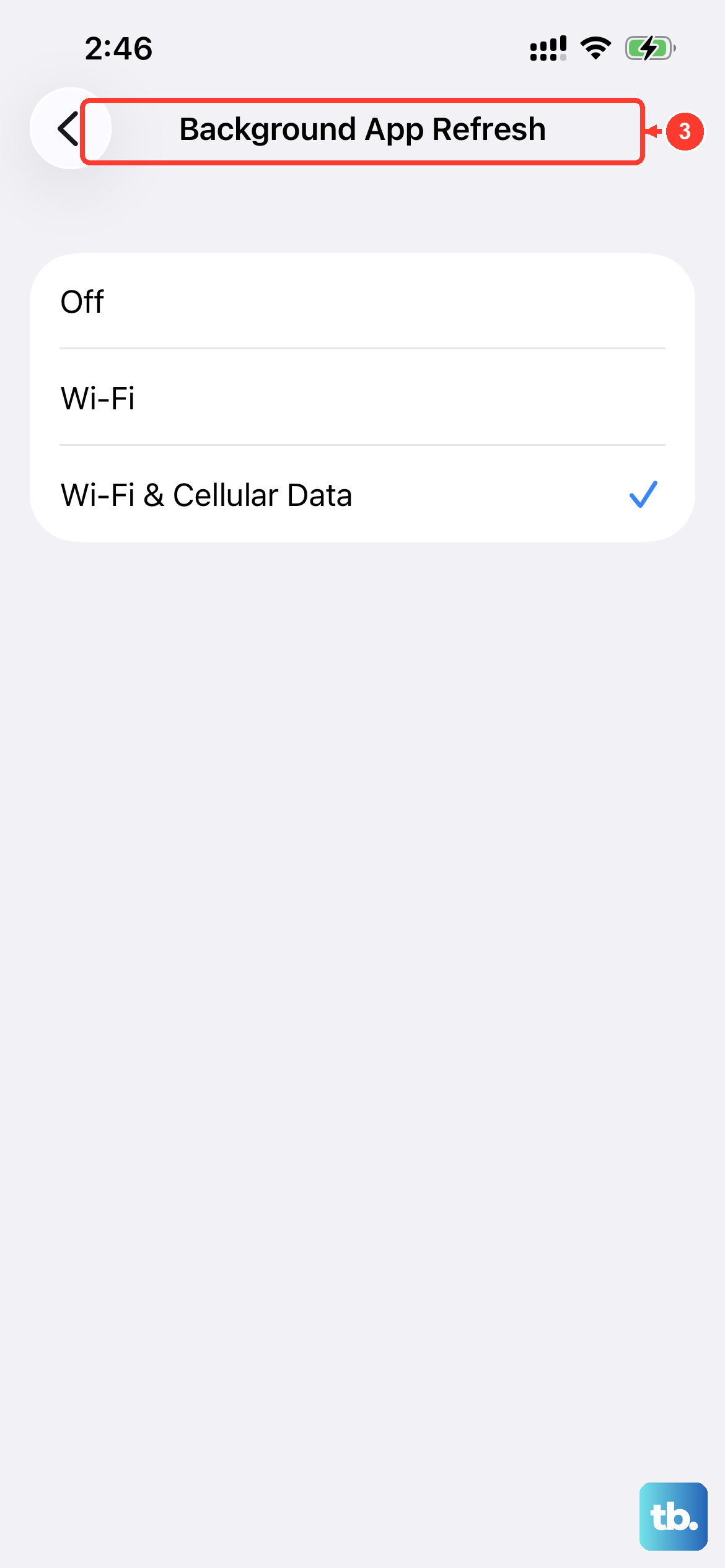
Apps constantly refreshing in the background can eat up data and slow down your connection for the app you're using right now. Background App Refresh is one of those features that sounds great on paper but often causes more trouble than it's worth.
Head to Settings > General > Background App Refresh. You can turn it off entirely or pick specific apps you don't mind refreshing in the background. Social media apps are the usual culprits.
Close Unused Apps
iOS manages memory pretty well on its own, but having dozens of apps suspended in the background can still bog down network performance. A quick cleanup can help.
Swipe up from the bottom of the screen and pause to open the App Switcher, then swipe up on the apps you're not using. You don't need to close every single one, just the ones that might be pulling data in the background.
Keep iOS Updated
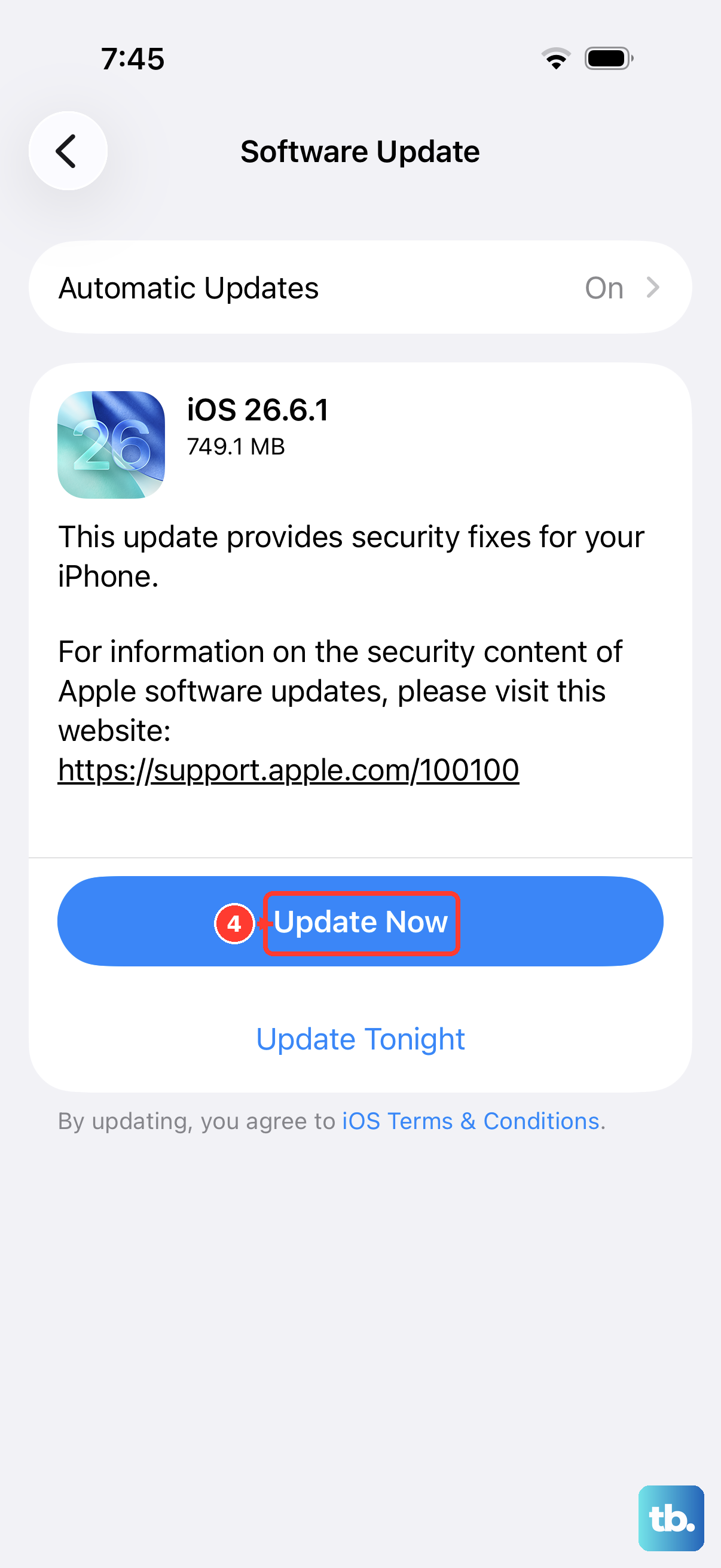
Apple regularly releases iOS updates that include fixes for cellular connectivity and network performance. If your iPhone Air is running an older version of iOS 26, you could be missing important tweaks.
Check for updates at Settings > General > Software Update. If one is available, install it while you're on Wi‑Fi. A simple update has been known to fix slow data after a carrier settings change.
Restart or Force Restart Your iPhone
A good old-fashioned restart can clear temporary network glitches that slow things down. Start with a standard restart by holding the Side button and either volume button until you see the power slider.
If that doesn't help, try a force restart. Quickly press and release the Volume Up button, then quickly press and release the Volume Down button, then press and hold the Side button until the Apple logo appears. This is safe to do whenever your connection feels sluggish.
Make Sure Date and Time Are Set Automatically
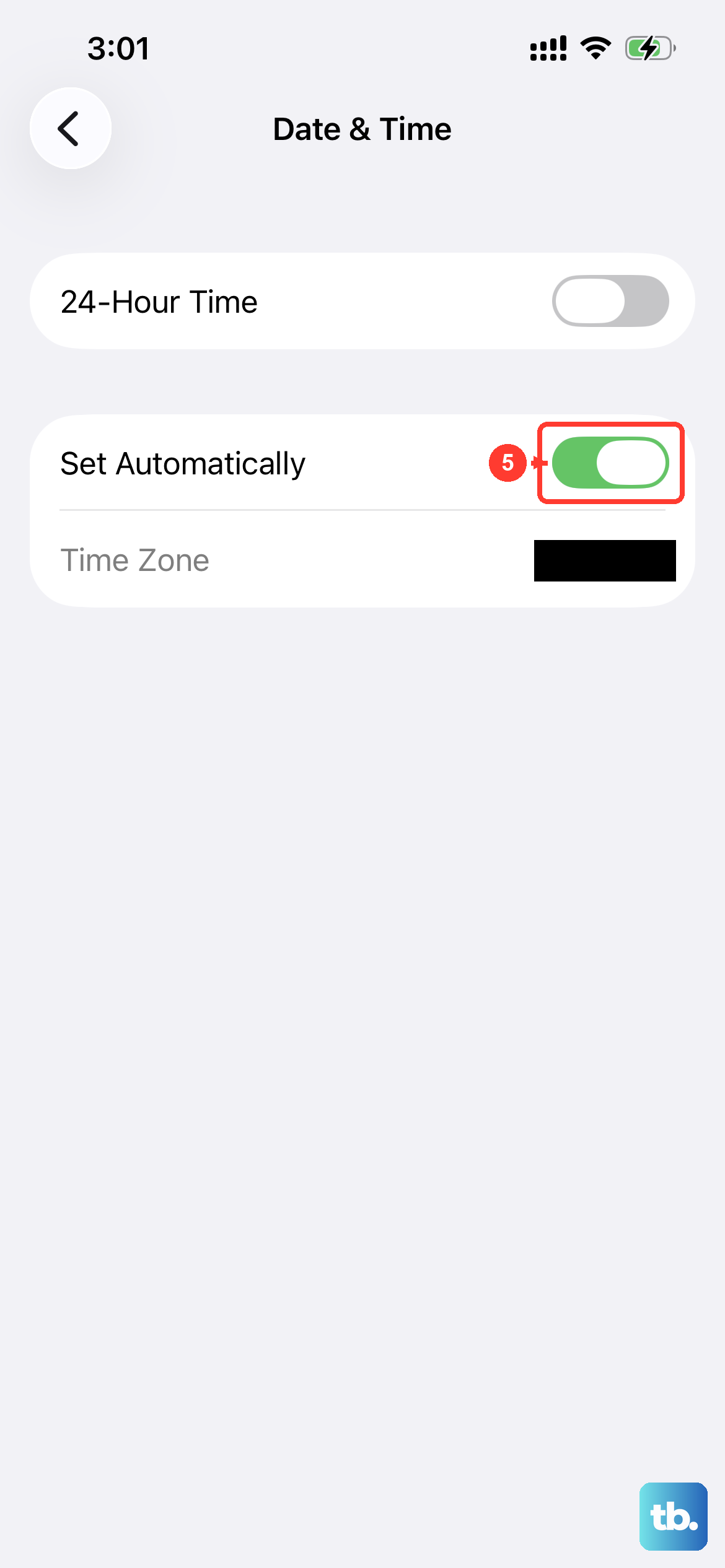
Incorrect date and time settings can interfere with how your iPhone authenticates with cellular networks and Wi‑Fi hotspots. It's a small thing, but I've seen it cause slow data on more than one device.
Go to Settings > General > Date & Time and toggle Set Automatically on. Your iPhone will sync with the network and apply the correct time zone. That's it your internet should feel snappier now.