
Force Restart Your iPhone
A quick force restart clears temporary software glitches that might disable vibration. This is the first thing to try when something feels off.
Press and quickly release the Volume Up button, then press and quickly release the Volume Down button. Then press and hold the Side button until the Apple logo appears. Let go once you see it. This takes about 10 seconds and won't erase any data.
Check Your Sound and Haptics Settings
Your iPhone might have haptics turned off without you realizing it. Open Settings > Sounds & Haptics and make sure the toggle for Play Haptics in Silent Mode and Play Haptics in Ring Mode are both on. If they're already on, toggle them off and back on to refresh the setting.
Also check the Ringtone and Alert Volume slider isn't all the way down, if the volume is zero, some haptics might not trigger.
Make Sure the Action Button Isn't Blocking Vibration
The iPhone Air uses an Action button where the mute switch used to be. If you've assigned a shortcut that silences the phone, that can suppress haptic feedback. Press the Action button once to see if it's toggling Silent mode. If the phone shows a red "Silent" badge, haptics may be reduced or off.
Go to Settings > Action Button to confirm the assigned action. If you want vibration regardless, avoid assigning a "Silent Mode" action.
Adjust Haptic Strength
Your iPhone defaults to a medium haptic strength, but it might be set too low to feel. Go to Settings > Sounds & Haptics and tap Haptic Strength. You can choose between Light, Medium, and Strong. Move it up to Strong and test by going back and sending yourself a text or raising the ringer volume.
Turn System Haptics Back On
There's a global toggle called System Haptics that controls vibration for ringtones, alarms, and system actions. In Settings > Sounds & Haptics, scroll down and make sure System Haptics is green. If it's off, turn it on and test vibration immediately.
Enable Keyboard Haptics
If you're missing the little buzz when typing, that's a separate setting. Go to Settings > Sounds & Haptics > Keyboard Feedback and turn on Haptic. This won't affect call or notification vibration but it confirms the Taptic Engine is working.
Check App-Specific Notification Settings
Sometimes vibration works system-wide but fails for a specific app. Open Settings > Notifications, tap the app that isn't vibrating, and make sure Sounds is set to a tone (not "None") and that Haptics is turned on under the notification style.
For example, if texts don't vibrate, check the Messages app. Tap Messages > Notifications > Sounds and choose a tone with haptics enabled (most built-in tones include haptics automatically).
Update to the Latest iOS Version

iOS updates often include fixes for haptic-related bugs. Go to Settings > General > Software Update. If an update is available, download and install it. Make sure your iPhone is plugged in and connected to Wi-Fi during the process.
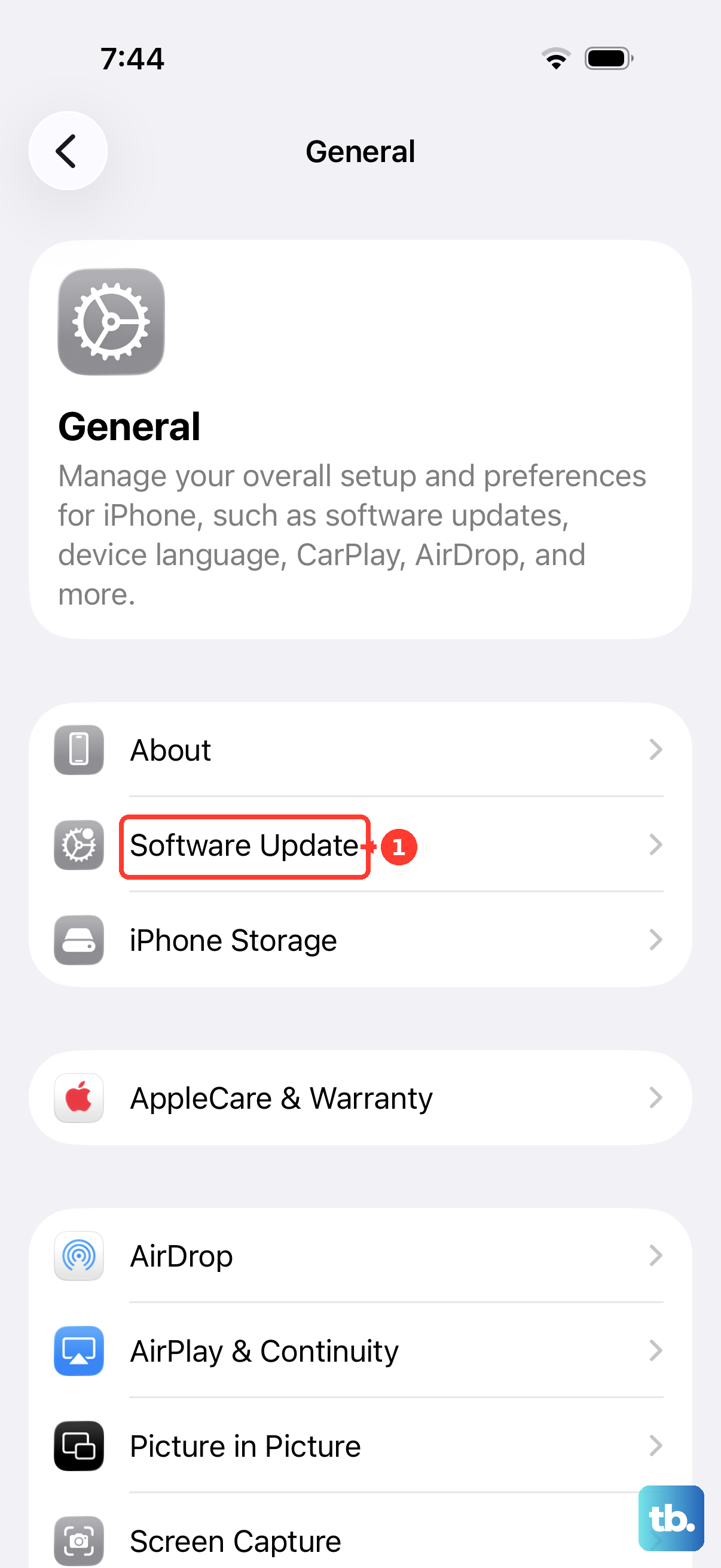
Reset All Settings
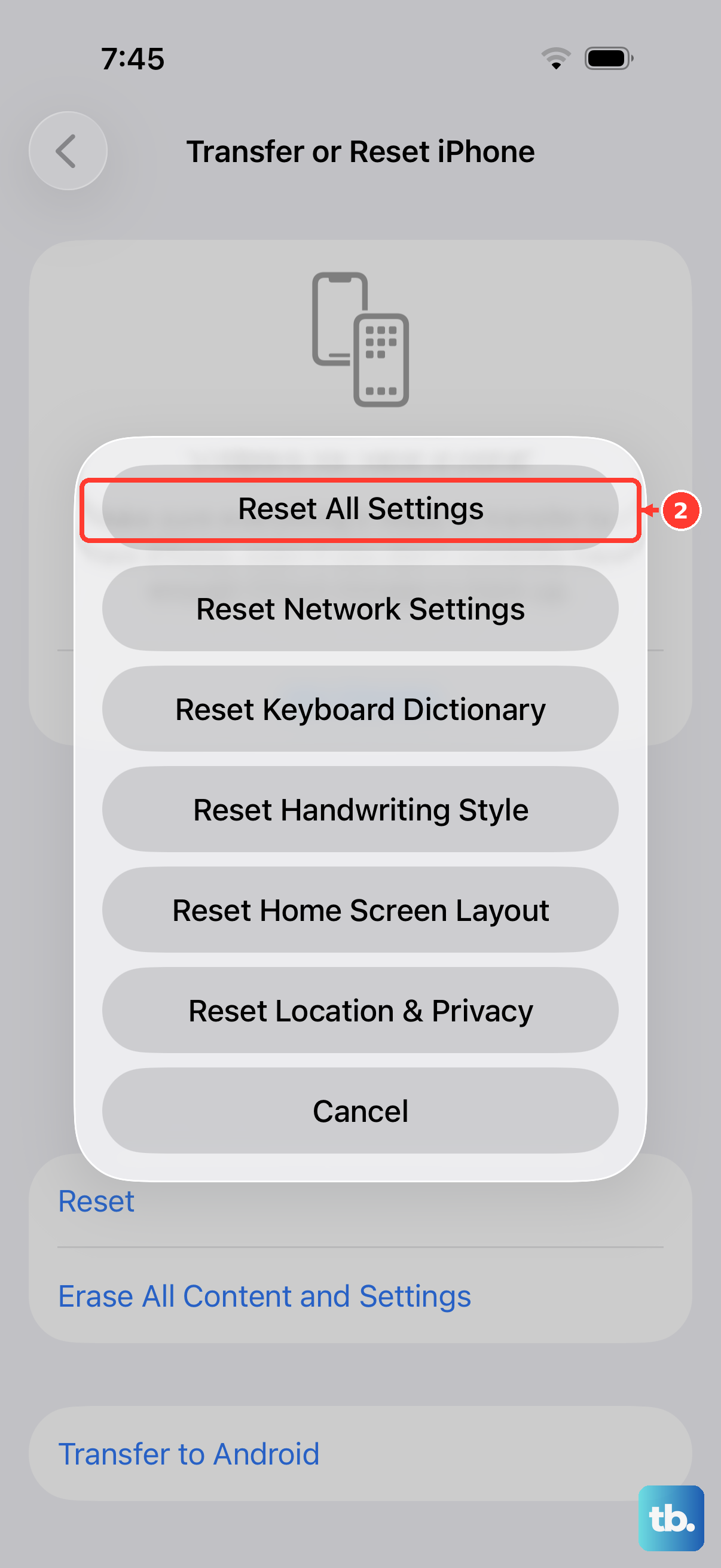
If vibration still isn't working, you can reset all settings without losing your personal data like photos or messages. This clears out any corrupted preferences that might be blocking haptics.
Go to Settings > General > Transfer or Reset iPhone > Reset > Reset All Settings. Your iPhone will restart and you'll need to re-enter Wi-Fi passwords and customize a few things, but your apps and data stay intact.
Test the Taptic Engine
You can verify whether the hardware is the problem using a built-in accessibility tool. Go to Settings > Accessibility > Touch > Haptic Touch. Adjust the speed to Fast or Slow, then press and hold an app icon. If you feel a buzz, the Taptic Engine is working fine and the issue is software-related.
For a more thorough test, open Settings > Accessibility > Vibration and toggle Vibration off, then back on. Some users report this refreshes the haptic driver.
If none of these steps restore vibration, the Taptic Engine itself may be damaged. In that case, a repair from Apple is the next step, but it's rare on a device that hasn't been dropped or exposed to liquid.