An iPhone that gets uncomfortably warm during normal use is never a good sign. With the iPhone Air's slim design, heat management works differently than on chunkier phones. Here are nine ways to cool it down and keep it that way.
Take It Out of the Case
This is the single fastest thing you can try. Many cases trap heat against the aluminum frame, especially thicker protective cases or ones made from silicone. Pop the case off and give the phone a few minutes to breathe. If the temperature drops noticeably, you've found the culprit. Look for a case with better ventilation or a heat-dissipating design when you shop for a replacement.
Close Background Apps and Stop Screen Mirroring
Apps running in the background can push the A19 chip harder than you'd expect. Swipe up from the bottom and pause mid-screen to open the app switcher, then swipe away anything you aren't actively using. Pay special attention to games, video editors, and navigation apps. Screen mirroring or AirPlay streaming also generates extra heat, so turn that off if you've got it running.
Check for a Stuck Brightness or GPS Loop
Sometimes a single misbehaving app can peg the processor at maximum clock speed. If the phone is hot and the battery is draining fast, check the battery usage screen under Settings > Battery. You'll see exactly which app is eating up power. Force close that app and see if the temperature normalizes. I've seen this happen most often with navigation apps that lose GPS signal and keep hunting for it.
Switch to Low Power Mode
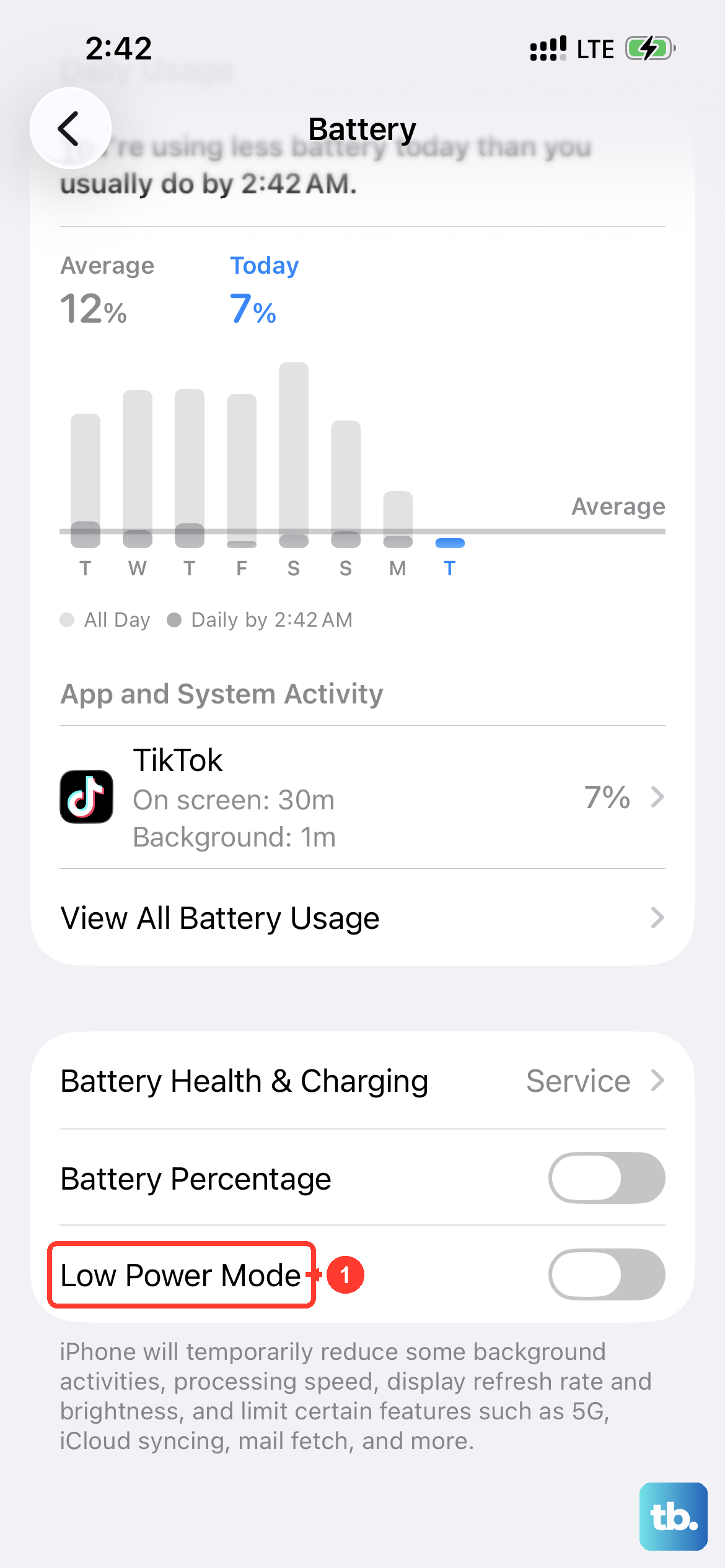
Low Power Mode isn't just for saving battery life. It also caps the CPU and GPU performance, which directly cuts down on heat generation. Swipe into Control Center and tap the battery icon, or go to Settings > Battery and toggle it on. You'll lose background refresh and some visual effects, but the phone will run noticeably cooler. Leave it on while you're doing basic tasks like texting, browsing, or listening to music.
Stop Wireless Charging and Use a Cable Instead
Wireless charging generates more heat than wired charging, period. The iPhone Air supports 20W Qi2/MagSafe charging, but that coil-to-coil energy transfer still produces waste heat. If your phone is hot while sitting on a charging pad, switch to a USB-C cable. The iPhone Air supports up to 40W wired charging, which is both faster and cooler. Just make sure you're using an Apple-certified USB-C cable and adapter. Uncertified accessories are a common cause of both overheating and charging failures.
Perform a Force Restart
When the phone is too hot to respond properly, sometimes you need to force a full hardware restart. This clears out whatever software glitch might be keeping the CPU pinned. Press and release the Volume Up button quickly, then press and release the Volume Down button quickly, then press and hold the Side button. Keep holding until the Apple logo appears, then let go. That's it. The phone will reboot and any stuck processes will be cleared.
Update to the Latest iOS Version
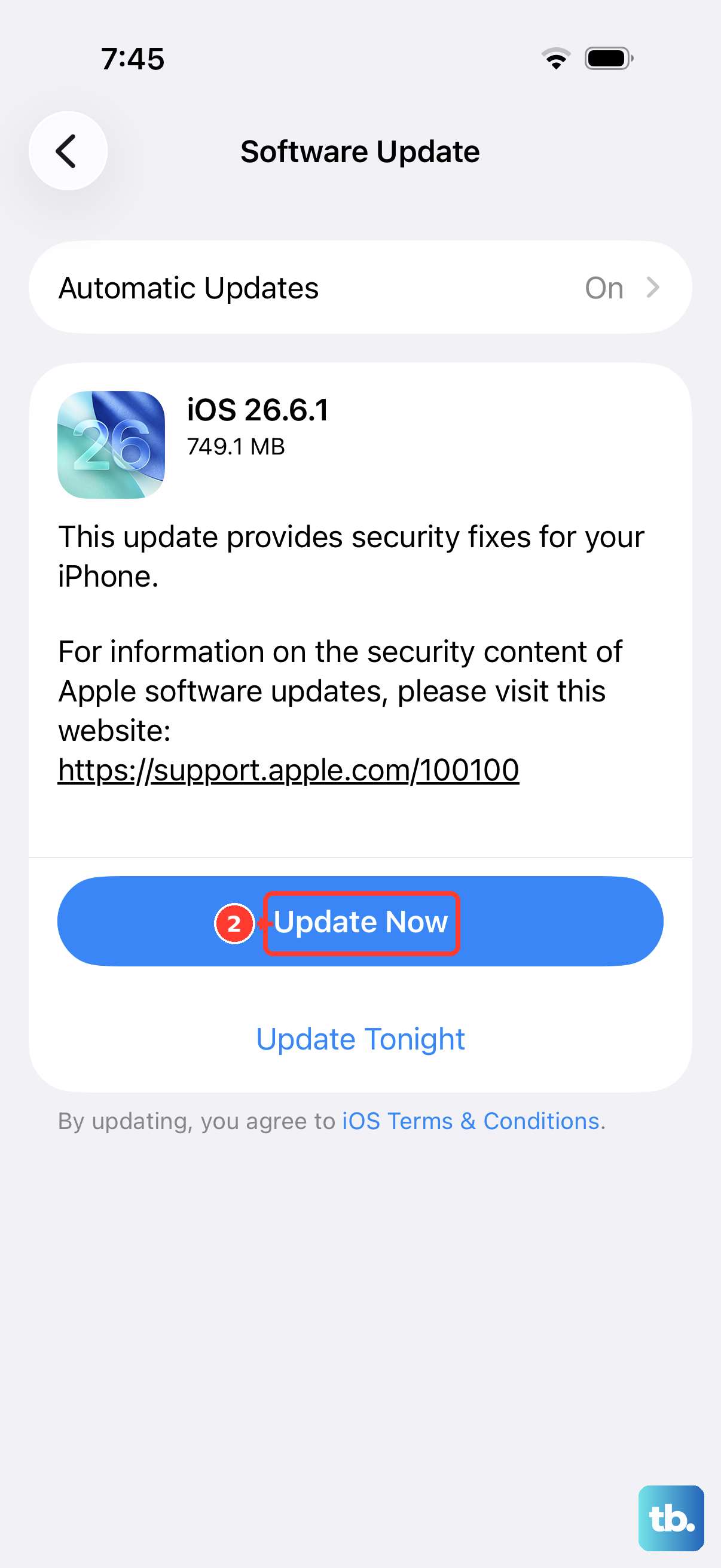
iOS 26.4.2 had a reported firmware issue that could cause intermittent charging problems and related heat issues. If you're still on that version or earlier, updating might solve the problem directly. Go to Settings > General > Software Update and install whatever is available. Apple's thermal management algorithms are adjusted in point releases, so staying current matters more than you'd think.
Use a Magnetic Battery Pack to Wake a Dead Phone
This one sounds strange, but it works with the iPhone Air. If the battery drains completely and the phone becomes unresponsive, it may not respond to cable charging right away. Attach a magnetic battery pack (like a MagSafe-compatible power bank) to the back of the phone. The magnetic field and wireless charging coil can wake the battery management system. After a few minutes, the phone should come back to life, and then you can plug in a cable to continue charging. This bypasses a known issue where the USB-C controller gets stuck after a full discharge.
Reset All Settings
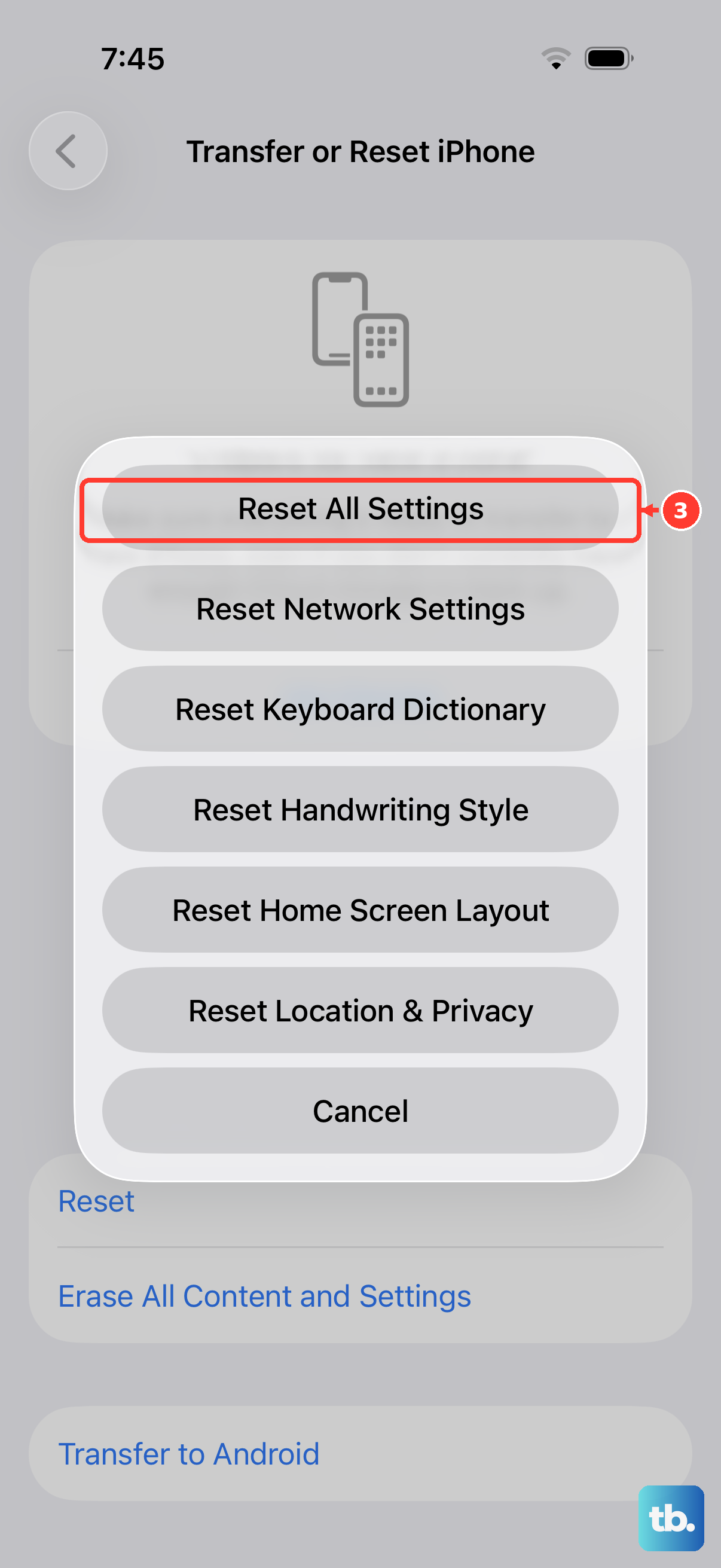
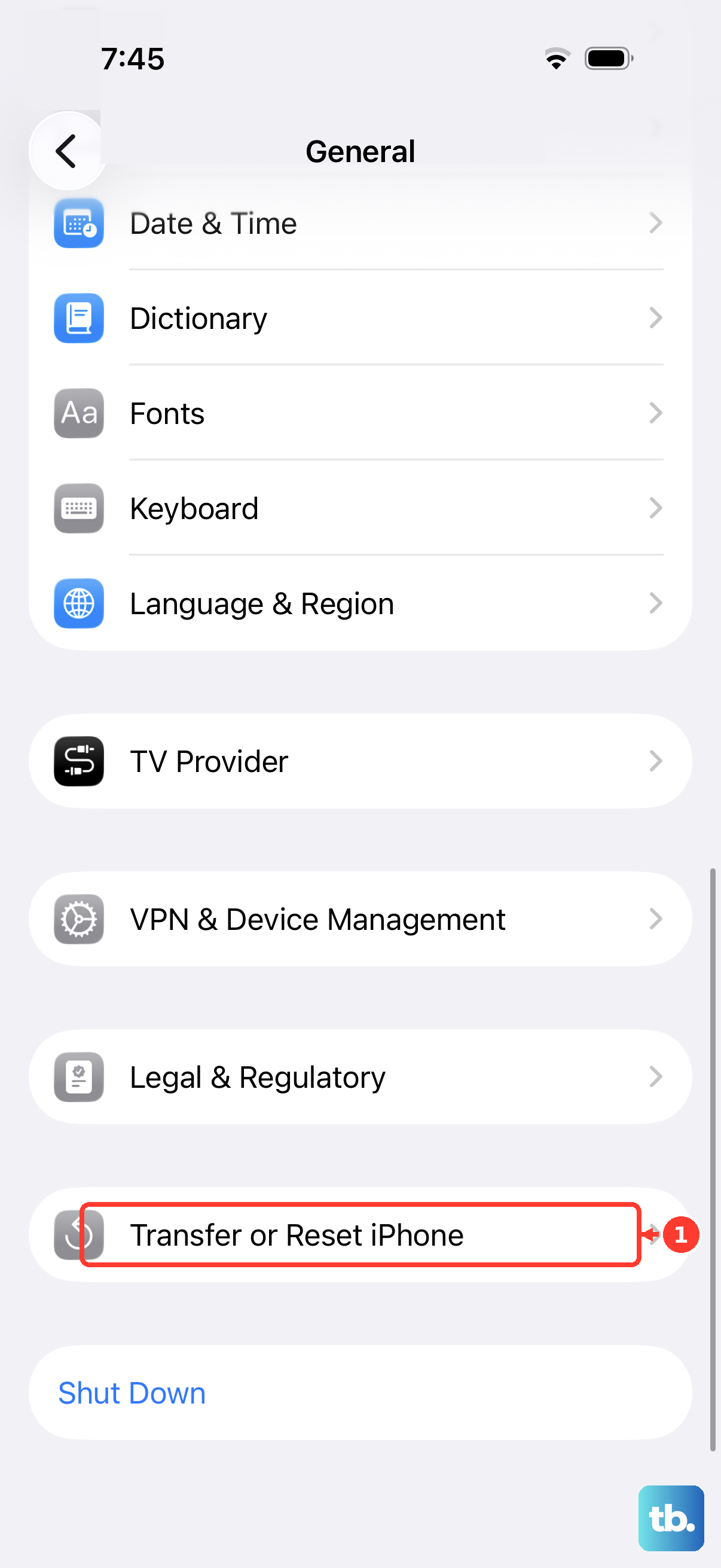
If the phone keeps running hot for no obvious reason, a settings reset can clear out any corrupted configuration data. Go to Settings > General > Transfer or Reset iPhone > Reset > Reset All Settings. This won't delete your photos, messages, or apps. It will reset things like Wi-Fi networks, wallpapers, and privacy settings back to defaults. Sometimes a background process gets stuck on a bad setting, and this is the only way to shake it loose.