
You’re expecting a notification but your iPhone Air stays silent, or maybe it’s showing a badge count that won’t go away. Both scenarios point to the same root: something in iOS 26’s notification system got out of sync. Let’s run through the fixes that actually work on this device.
Force Restart the iPhone Air
iOS can get stuck in a state where notifications stop flowing or badges freeze. A force restart clears temporary software glitches without deleting anything. On the iPhone Air, do this: quickly press and release the Volume Up button, then quickly press and release the Volume Down button, then press and hold the Side button until the Apple logo appears. Takes about 30 seconds. After it boots up, check if notifications are working again.
Check Your Focus Modes
If you’re not hearing or seeing alerts, a Focus mode might be blocking them. Swipe down from the top-right to open Control Center and tap the Focus tile. Make sure it’s set to Off. If you use a custom Focus schedule, it might have turned on automatically at a certain time. You can also go to Settings > Focus and review each mode, pay attention to which apps and people are allowed through.
Review Notification Settings Per App
Open Settings and tap Notifications. You’ll see every app listed. Tap the app that’s giving you trouble (say Messages or Mail). Make sure “Allow Notifications” is toggled on. Choose the alert style you want: Lock Screen, Notification Center, and Banners. If “Badges” is off for a messaging app, the badge count won’t update, even if messages come through. Toggle it back on, then send yourself a test message to confirm.
Turn Off Notification Summaries Temporarily
iOS 26’s Notification Summary bundles non-urgent alerts and delivers them at set times. That can make it feel like notifications are delayed or missing. Go to Settings > Notifications > Scheduled Summary and toggle it off. Give it a few minutes. If alerts start appearing normally, you can later customize which apps get summarized.
Check Background App Refresh
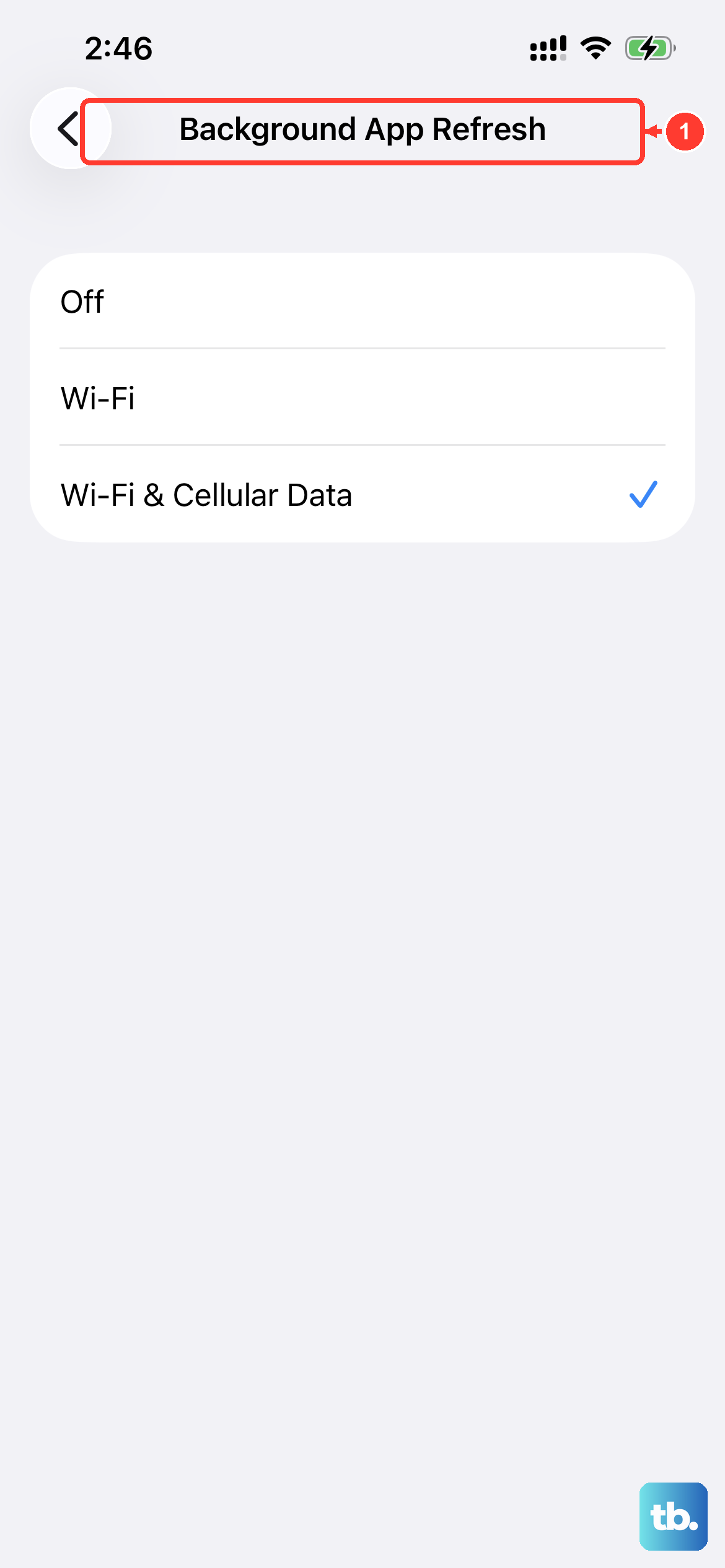
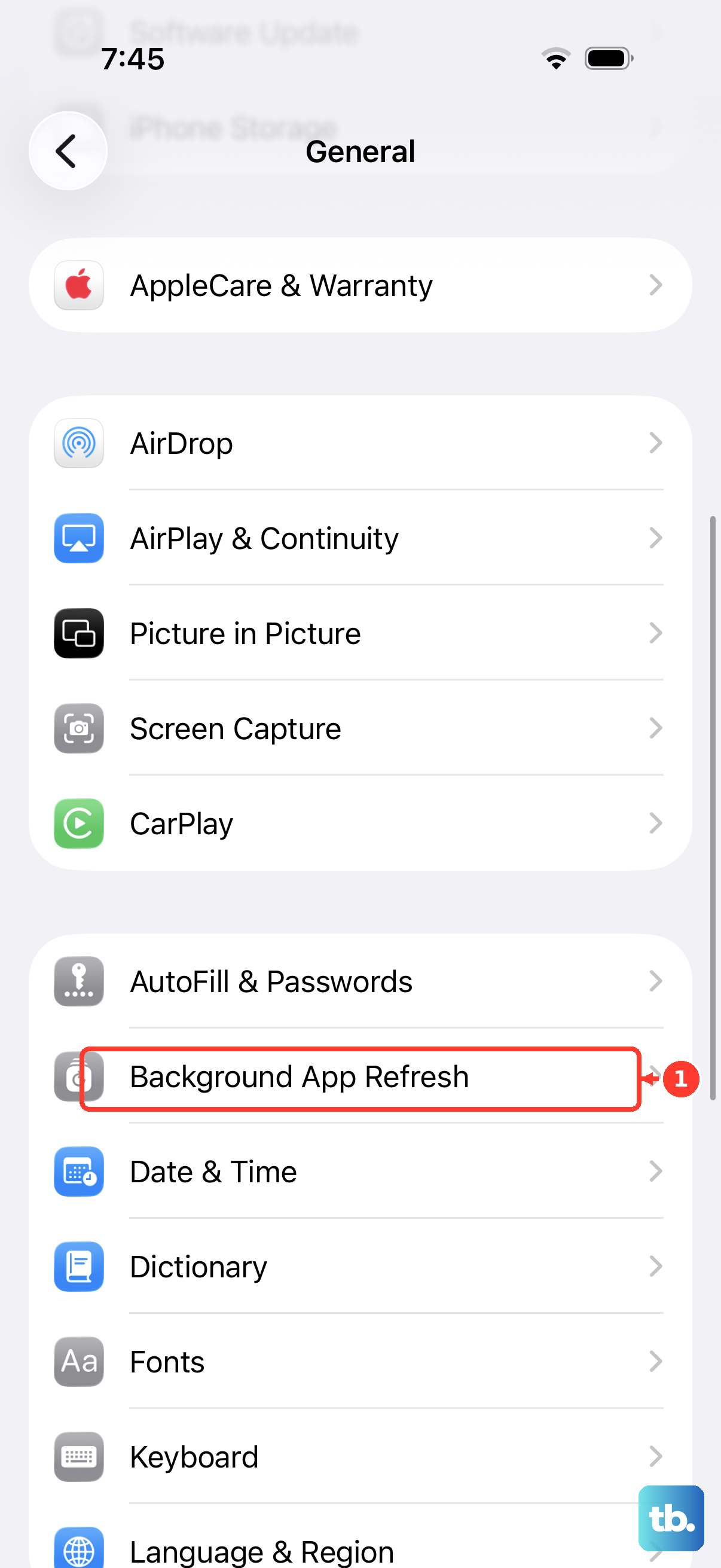
Some apps need to fetch data in the background to deliver notifications on time. Open Settings > General > Background App Refresh. Make sure it’s enabled either globally (Wi-Fi & Cellular) or per app. For messaging and email apps, keeping them set to Background Refresh helps badges and banners stay current.
Update iOS
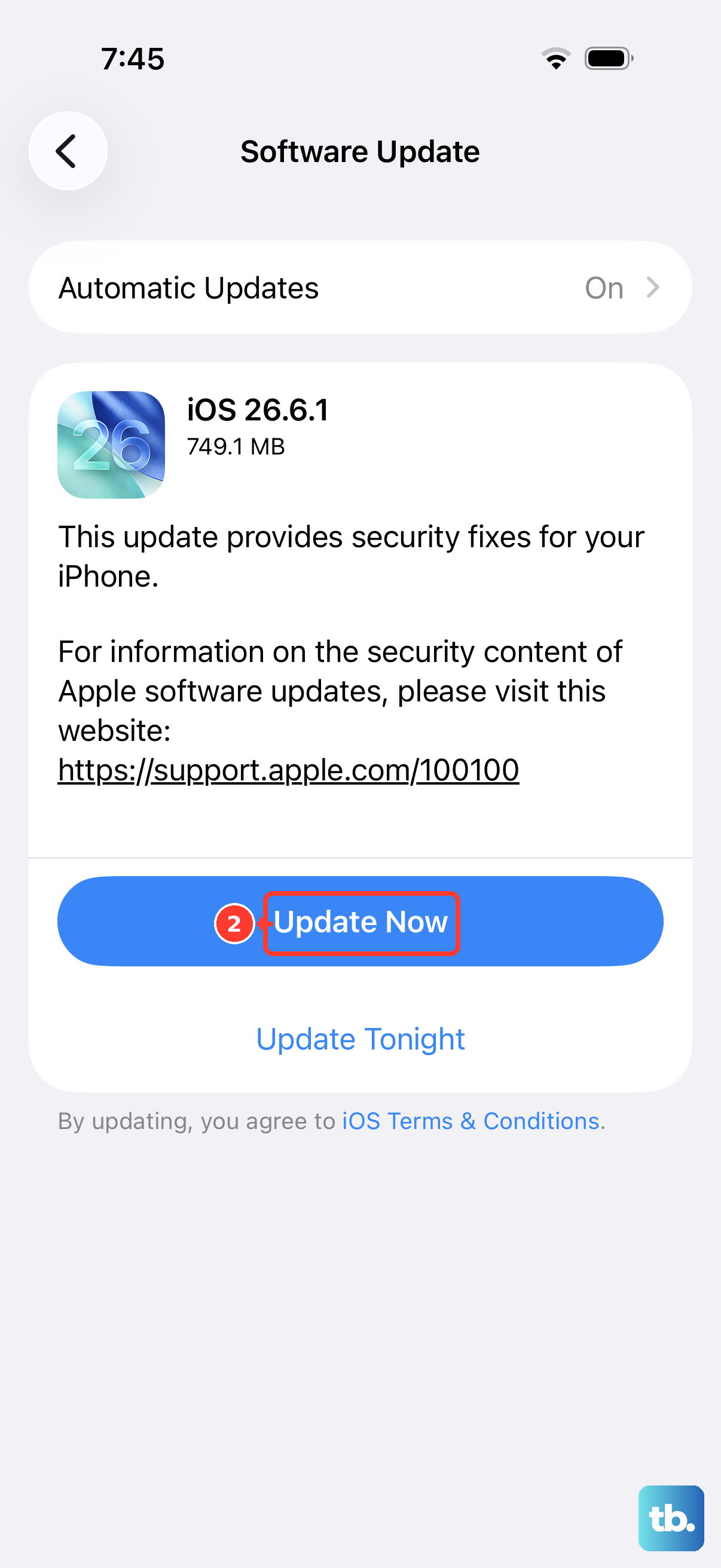
Apple regularly pushes fixes for notification bugs. Go to Settings > General > Software Update. If a version newer than iOS 26.4.2 is available, install it. Even if you’re on the latest, sometimes a minor update includes a patch for a notification glitch that only affects certain apps.
Delete and Reinstall the Problematic App
If only one app is showing wrong badges or not pushing alerts, the app itself might have corrupted data. Press and hold the app icon, tap Remove App, then Delete App. Head to the App Store, download it again, and sign back in. This resets its notification state without affecting your system settings.
Reset All Settings
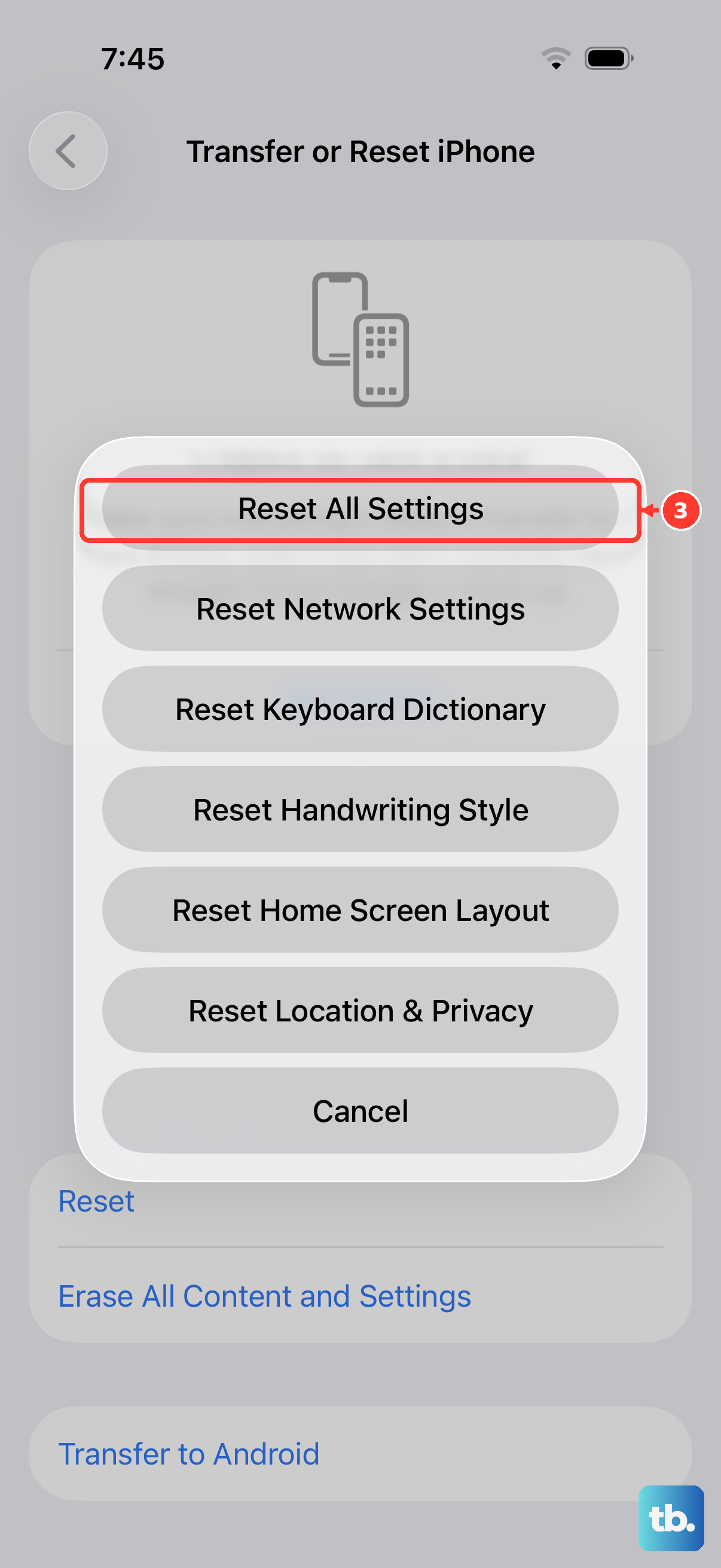
This is the nuclear option for notification issues that refuse to go away. It doesn’t erase your photos, messages, or apps, it just restores system settings like Wi-Fi passwords, wallpapers, and notification preferences to defaults. Go to Settings > General > Transfer or Reset iPhone > Reset > Reset All Settings. You’ll need to re-enter some Wi-Fi credentials afterwards, but it often clears stubborn notification bugs.
Try the force restart first, it solves a surprising number of iOS 26 notification hiccups. If that doesn’t do it, work through the app-specific settings and Focus checks. Most notification problems on the iPhone Air come down to a misconfiguration rather than a hardware issue.