
There's a certain gut-drop moment when you realize your iPhone Air didn't ring, even though a call came through. You missed something important, and the phone looks perfectly fine. This usually comes down to a setting that got changed, a focus mode that kicked in, or a simple software hiccup. Let's walk through the fixes that actually get your ringer back.
Check the Action Button
The iPhone Air uses the Action Button instead of the old physical mute switch. By default, pressing and holding the Action Button toggles between ring and silent mode. A quick animation in the Dynamic Island shows you which mode it switched to.
If your phone is in silent mode, you'll see that notification appear. Press and hold the Action Button to switch back to ring mode. You can also customize what this button does in Settings > Action Button if you prefer to use it for something else.
Turn Off Any Active Focus Mode
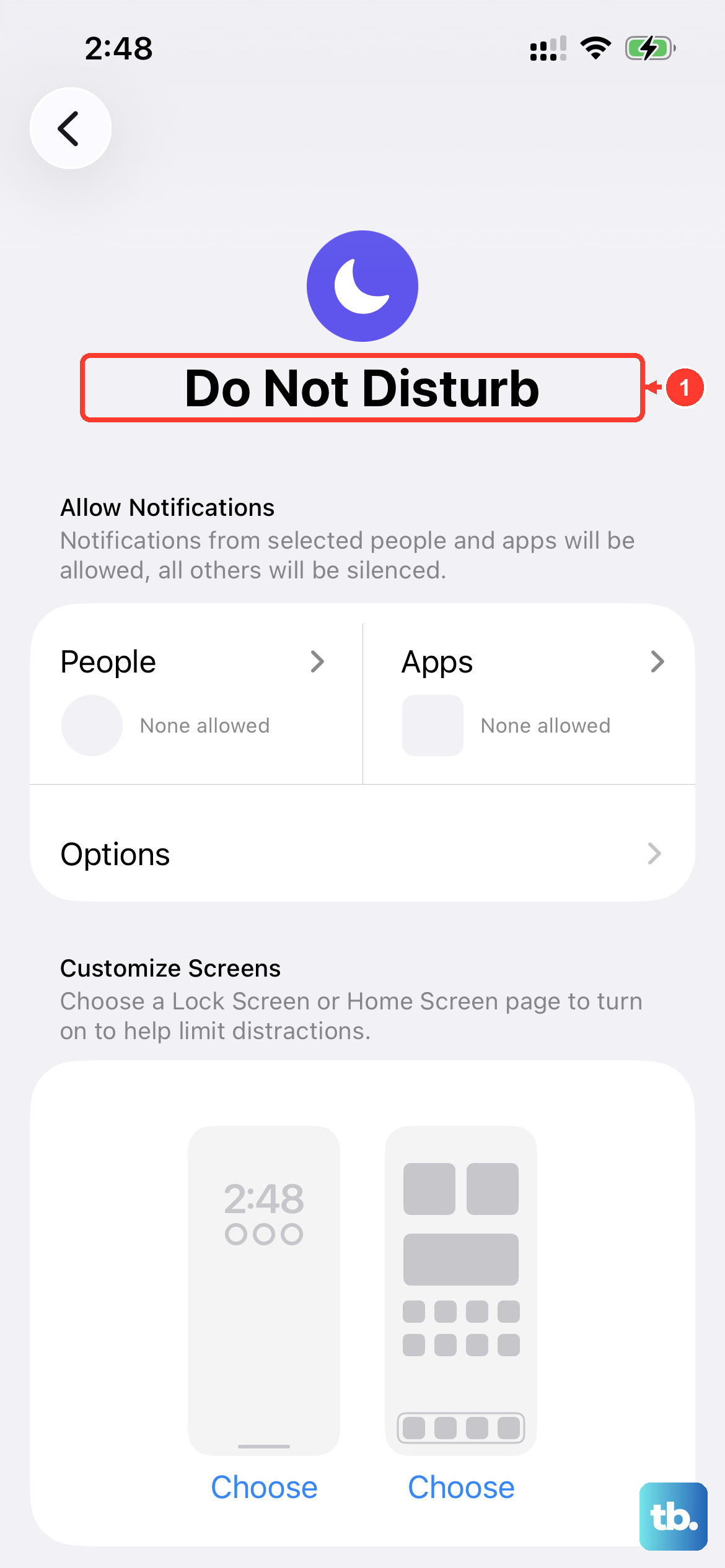
Focus modes like Do Not Disturb, Sleep, or Work can silence calls while still letting them come through. You'll see missed calls later with no ringtone at all.
Swipe down from the top-right corner to open Control Center. If you see a moon icon highlighted, Do Not Disturb is enabled. Tap it to turn it off. Also check any custom Focus profiles you've set up in Settings > Focus and make sure none are scheduled to turn on automatically.
Crank Up the Ringer Volume
Your ringer volume might be all the way down. Unlock your iPhone Air and press the volume up button on the side until you see the volume indicator max out. You can also adjust the ringer slider directly in Settings > Sounds & Haptics under Ringer and Alerts.
A simple test: ask someone to call you while the volume is set to 100%. If you hear it, great. If not, move on to the next fix.
Switch to a Different Ringtone
Sometimes the ringtone file itself can get corrupted or stuck. Go to Settings > Sounds & Haptics > Ringtone and pick a different tone. Test it with a call right away.
This is a quick thing to try and it's solved the issue for plenty of people.
Disconnect Any Bluetooth Devices
If your iPhone Air is connected to Bluetooth headphones, speakers, or a car system, calls might ring through those instead of the phone speaker. Turn off Bluetooth from Control Center or go to Settings > Bluetooth and toggle it off.
Now try a test call. If it rings from the phone speaker, your Bluetooth device was the culprit. You can re-pair it later if needed, but keep an eye on which device is handling calls.
Check for Blocked Contacts
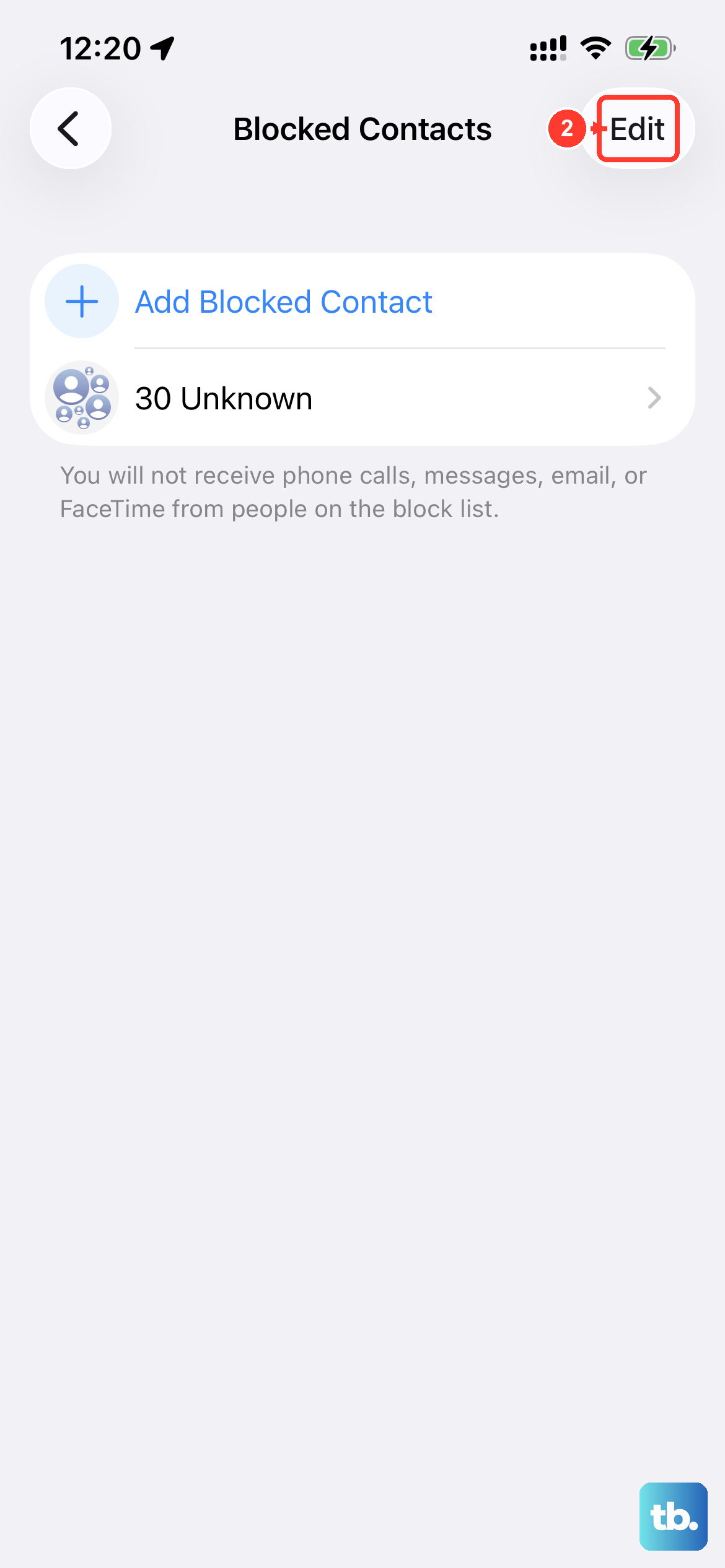
If only certain people aren't ringing through, you might have accidentally blocked them. Go to Settings > Apps > Phone > Blocked Contacts and review the list. If you see a number that shouldn't be there, swipe left and unblock it.
Turn Off Call Forwarding
Call forwarding sends incoming calls to another number, so your iPhone never even tries to ring. Check this in Settings > Apps > Phone > Call Forwarding and make sure it's set to Off.
This one is easy to overlook if you've ever used it in the past.
Disable Silence Unknown Callers
This feature, available in iOS 26, automatically mutes calls from numbers not in your contacts. It sends them straight to voicemail without ringing. Go to Settings > Apps > Phone > Silence Unknown Callers and toggle it off if you want every call to ring.
Restart Your iPhone Air
A simple restart clears out minor software glitches that can keep the ringer from working. Press and hold either volume button and the Side button together until the power off slider appears. Drag the slider, wait a few seconds, then press and hold the Side button to turn it back on.
Perform a Force Restart
If the phone is completely unresponsive or the restart didn't help, a force restart is a stronger reset. On the iPhone Air, quickly press and release the Volume Up button, then quickly press and release the Volume Down button, then press and hold the Side button until you see the Apple logo. This doesn't erase any data.
I've seen this wake up phones that looked totally dead, including after a battery drain.
Update to the Latest iOS
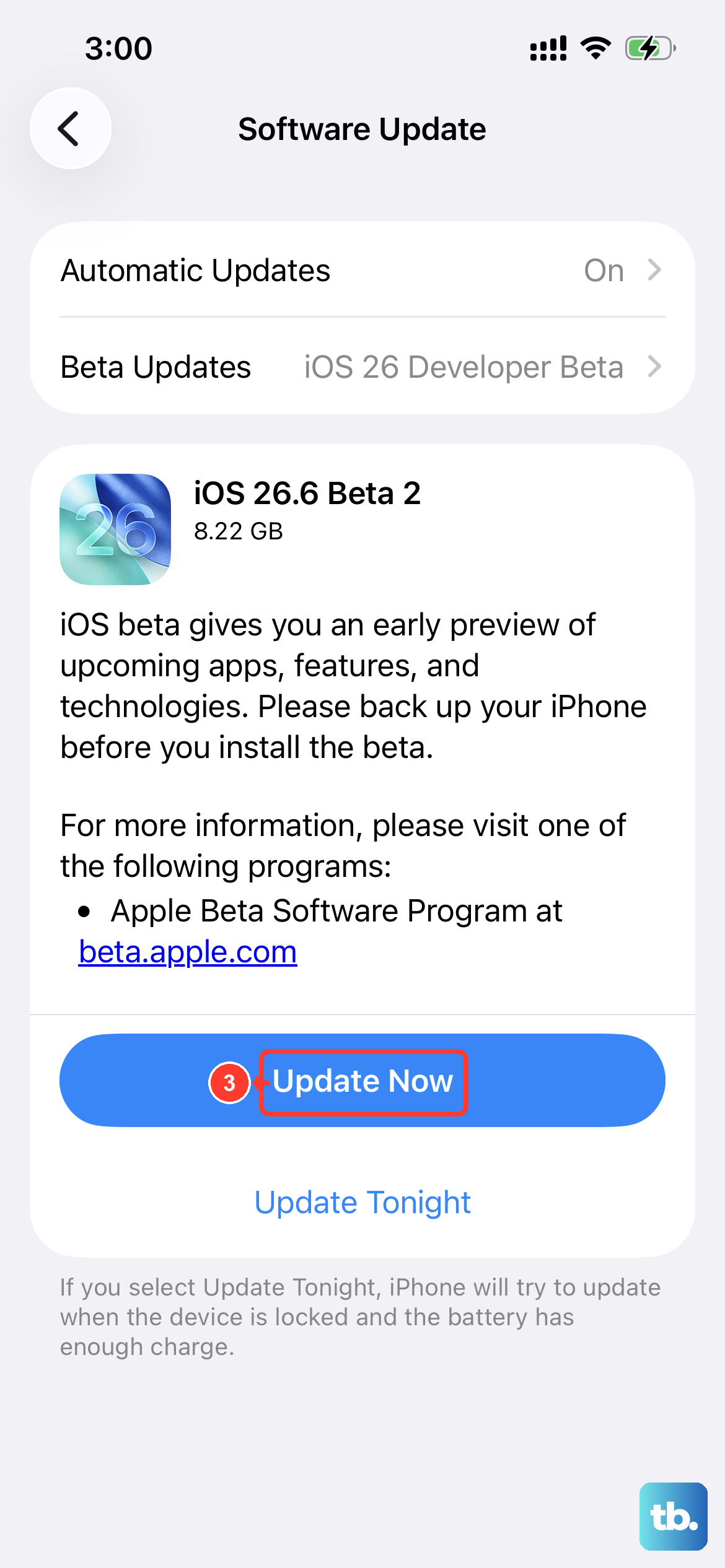
Apple regularly pushes bug fixes for audio and ringer issues. Go to Settings > General > Software Update and install any available updates. The iPhone Air runs iOS 26, and keeping it current ensures you have the latest fixes.
Reset All Settings
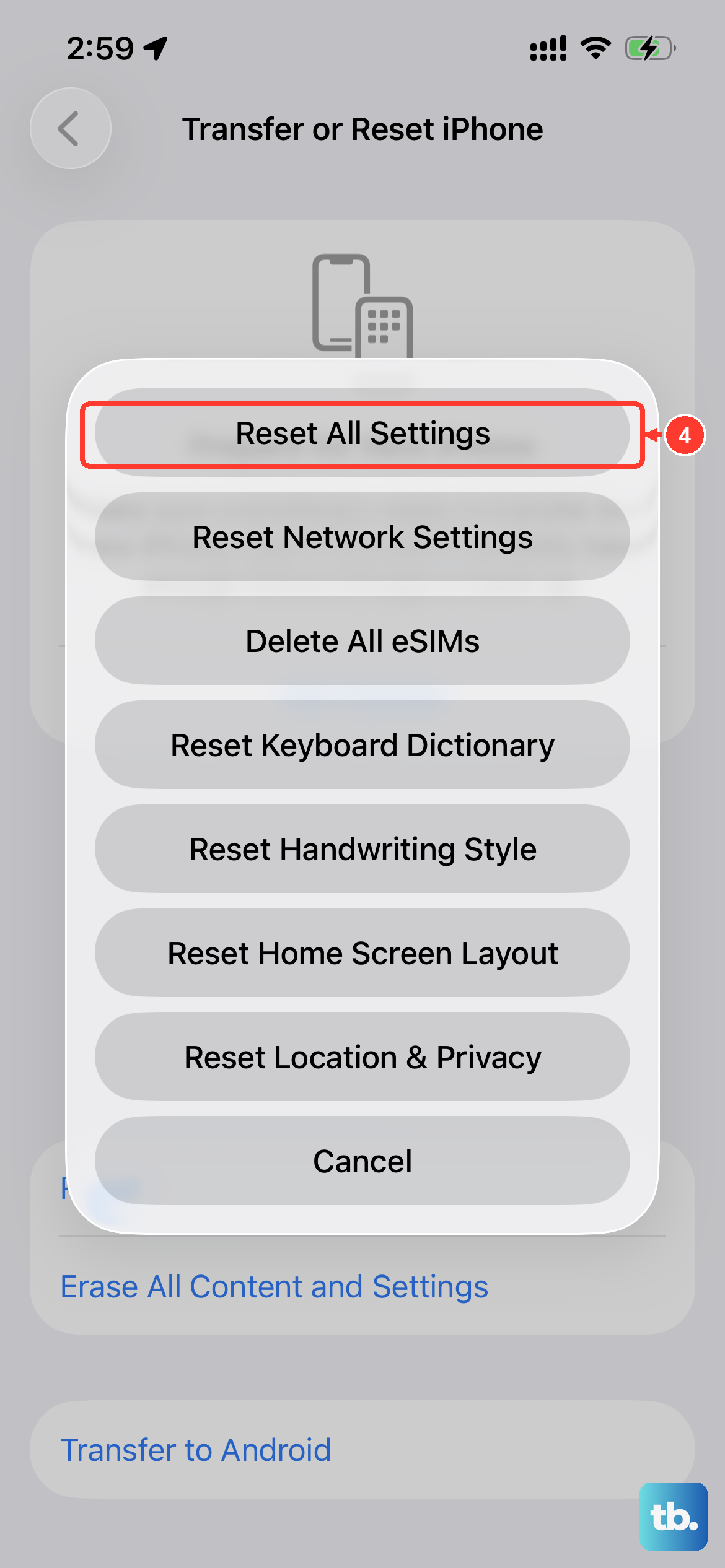
This option resets every system setting back to default without deleting your photos, apps, or data. You will lose WiFi passwords, wallpapers, and customizations. Go to Settings > General > Transfer or Reset iPhone > Reset > Reset All Settings and enter your passcode.
This often solves ringer problems that came from a corrupted settings file.
Erase All Content and Settings
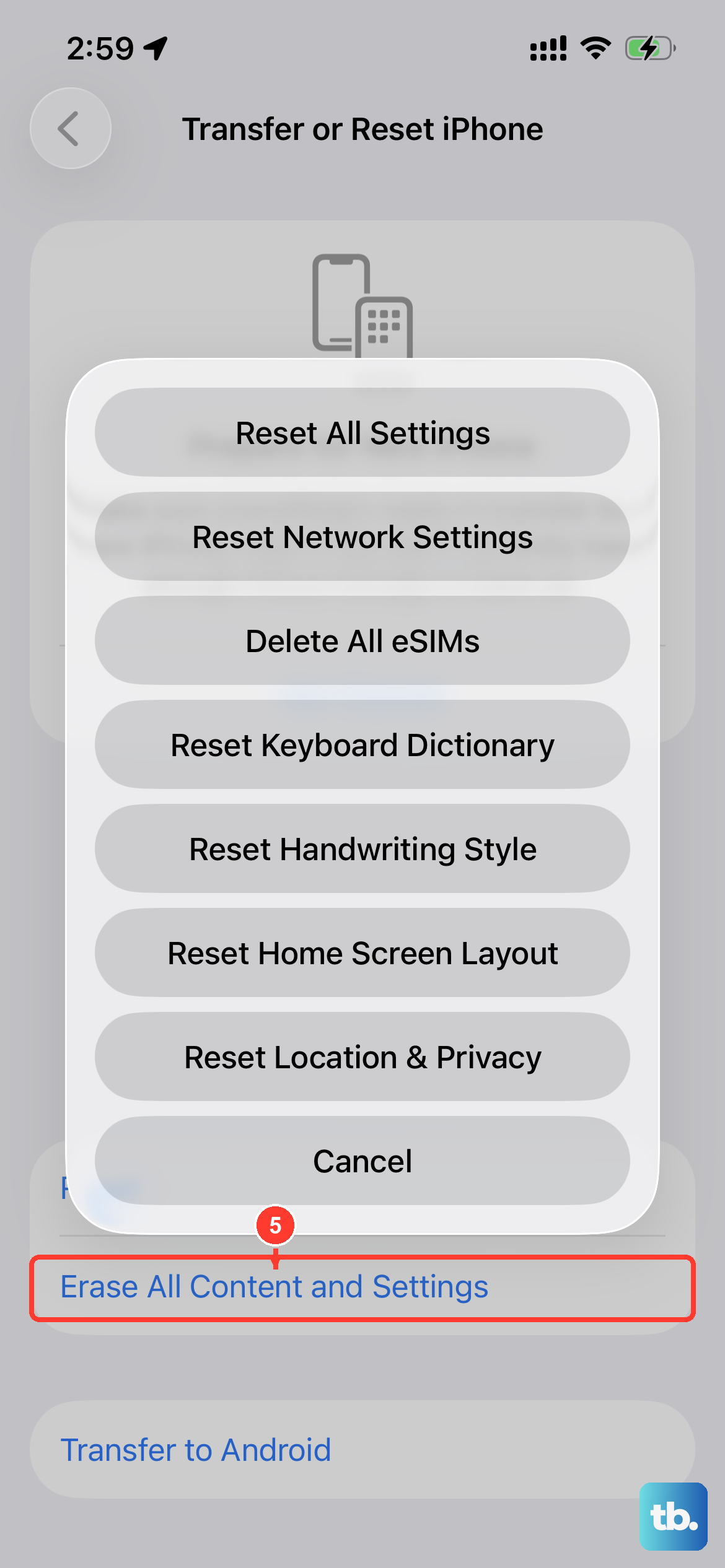
This is the nuclear option. It wipes everything and leaves you with a fresh iPhone Air. Before doing this, back up your data to iCloud or a computer. Go to Settings > General > Transfer or Reset iPhone > Erase All Content and Settings and follow the prompts.
Only do this if you've tried everything else.
Restore from a Computer
If erasing didn't fix it, a full restore through a computer is the final step. Connect your iPhone Air to a Mac or PC with the USB-C cable. Open Finder (on macOS Catalina or later) or iTunes (on Windows). Select your device and click Restore iPhone. This downloads and installs a fresh copy of iOS, which should eliminate any remaining software issue.