
It's surprisingly common for the keyboard on an iPhone Air to stop responding in the middle of typing a message or searching the web. The keys might tap without registering, or the keyboard might not appear at all when you tap a text field. Before you assume it's a hardware failure, try the fixes below. Most keyboard issues on iOS 26 are software glitches that take seconds to resolve.
Force restart the iPhone Air
A force restart clears out minor system-level bugs without erasing any data. On the iPhone Air, quickly press and release the Volume Up button, then quickly press and release the Volume Down button, then press and hold the Side button until the Apple logo appears. Wait for the phone to reboot fully and test the keyboard. This is my first move whenever the keyboard freezes completely.
Switch keyboards and switch back
If you use more than one keyboard (like Apple's default plus a third-party one), the active one can sometimes hang. Tap and hold the globe or emoji icon on the keyboard, select a different keyboard, then tap the same icon and choose your regular one again. This forces the system to reload the keyboard process and often fixes unresponsiveness immediately.
Update to the latest iOS version
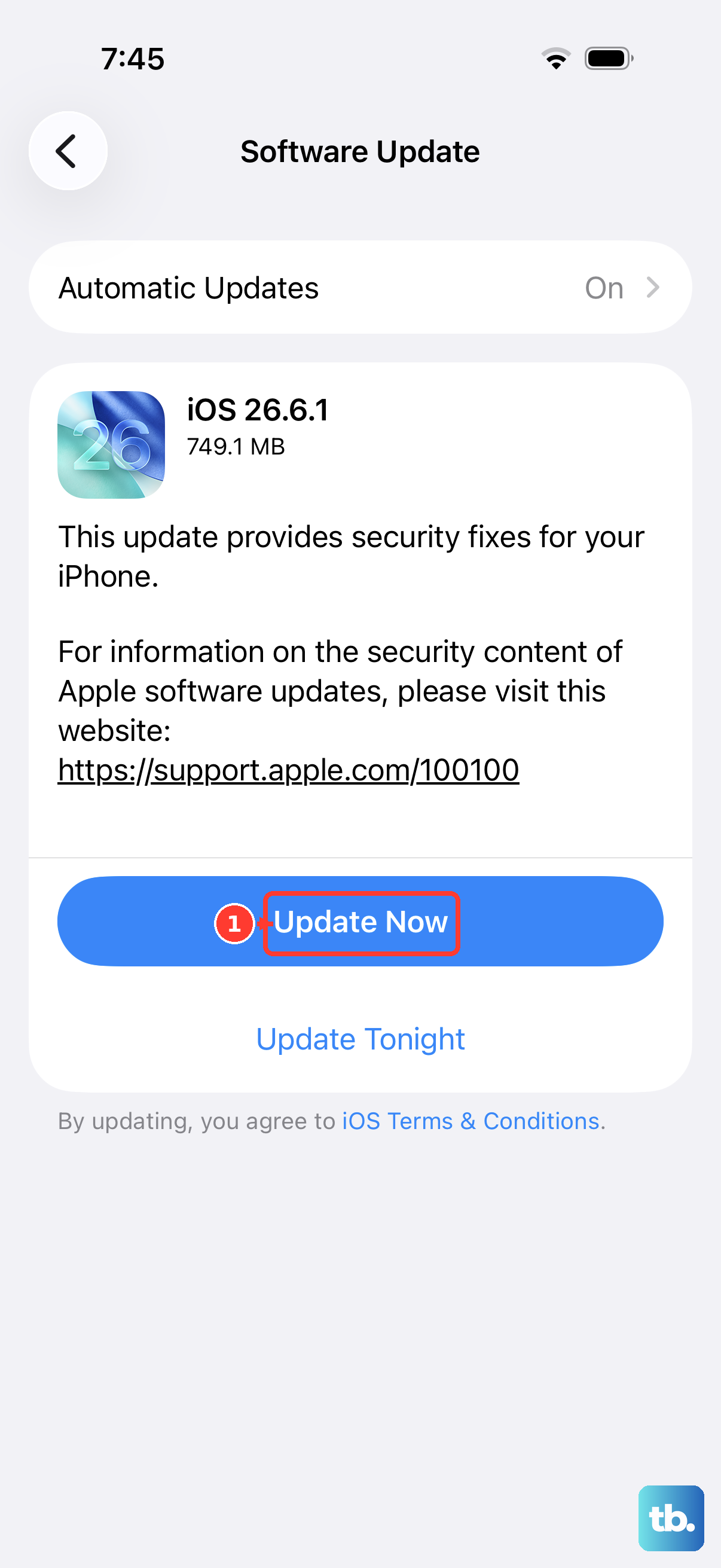
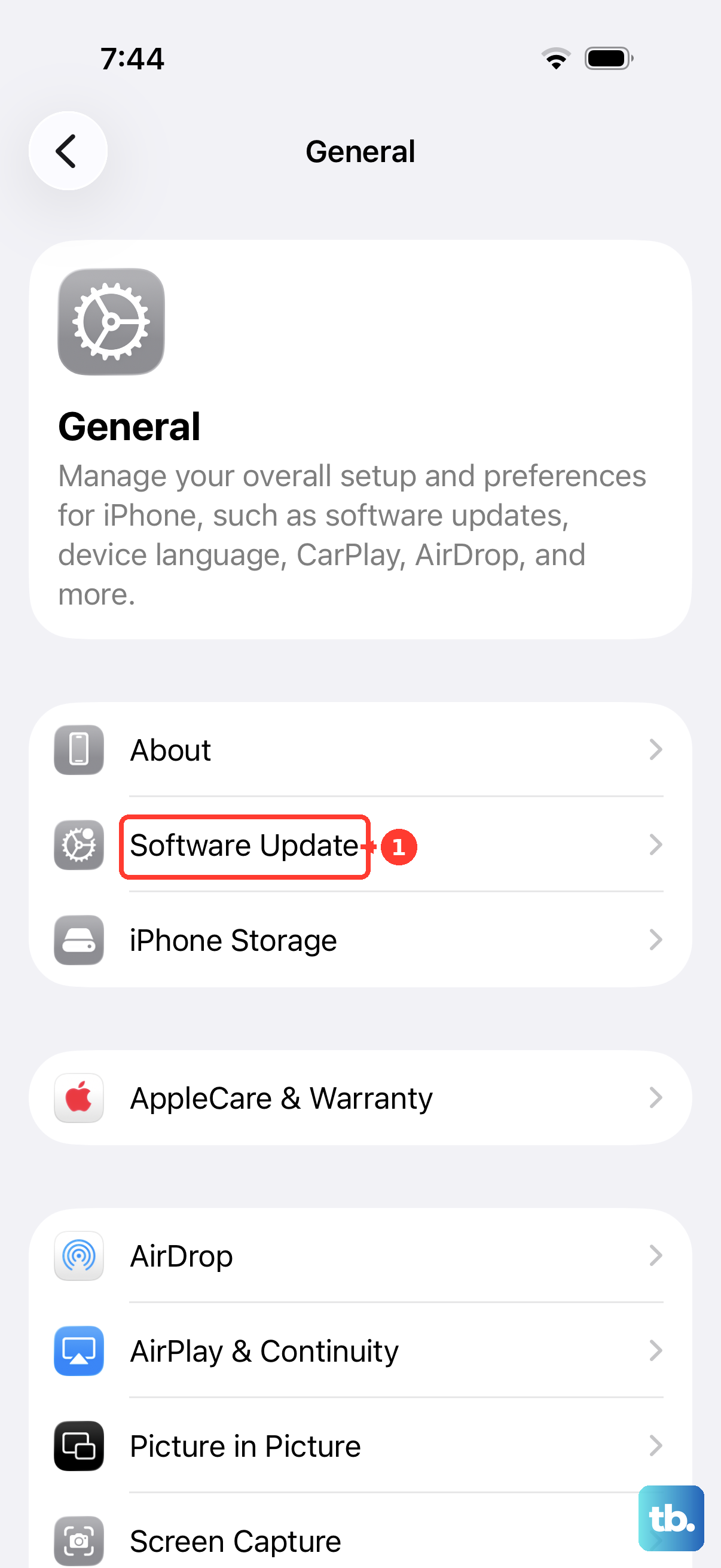
Apple releases keyboard-related bug fixes regularly, and the iPhone Air is still a fairly new device. Go to Settings > General > Software Update and install any available update. Even if your iOS is fairly recent, an interim patch might address a keyboard quirk introduced in iOS 26. In my experience, this solves the issue for quite a few people.
Reset the keyboard dictionary
A corrupted keyboard dictionary can cause the keyboard to lag, crash, or fail to appear. This dictionary stores your learned typing habits and autocorrect adjustments. Resetting it clears any corrupted entries without affecting your personal data. Go to Settings > General > Transfer or Reset iPhone > Reset > Reset Keyboard Dictionary. Your device will use the default dictionary afterward, but your contacts and messages stay untouched.
Disable and re-enable the keyboard in Settings
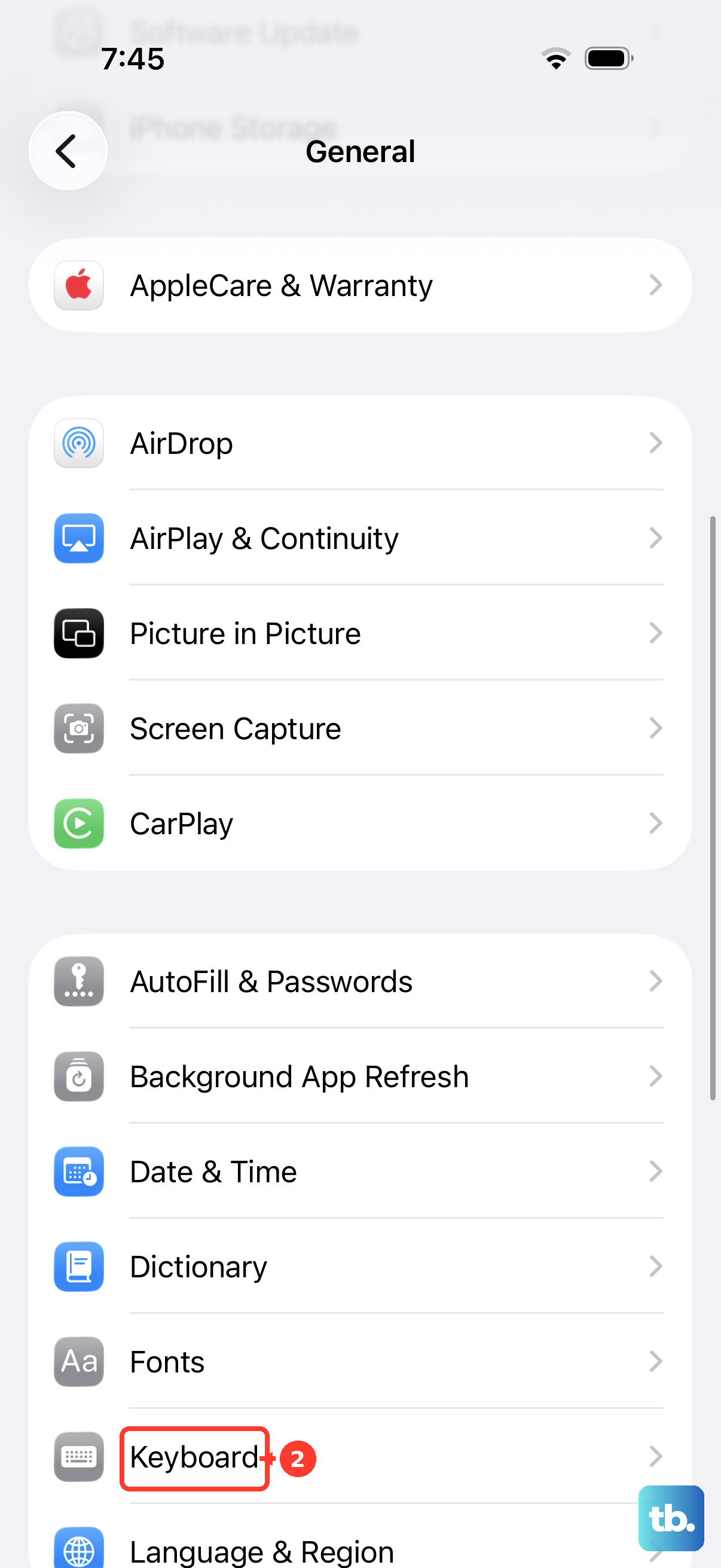
Sometimes the keyboard list itself gets confused. Head to Settings > General > Keyboard > Keyboards, tap Edit in the top right, and delete every keyboard except one. Then tap Add New Keyboard and re-add the ones you need. This refreshes the keyboard configuration and often resolves glitches where the keyboard fails to appear in certain apps.
Close problematic apps from the app switcher
If the keyboard only misbehaves inside a particular app, that app might be hogging resources or stuck in a weird state. Swipe up from the bottom of the screen and pause to open the App Switcher, then swipe up on the troubled app to force close it. Relaunch the app and test the keyboard. This is a fast fix for single-app keyboard freezes.
Check for third-party keyboard conflicts
Third-party keyboards like Gboard or SwiftKey are handy, but they rely on iOS APIs that can break after system updates. If you use one and the keyboard stops working, switch back to Apple's default keyboard temporarily. Go to Settings > General > Keyboard > Keyboards, tap Edit, and remove all non-Apple keyboards. Use the default keyboard for a while. If everything works, the third-party keyboard needs an update or is incompatible with your current iOS version.
Reset all settings
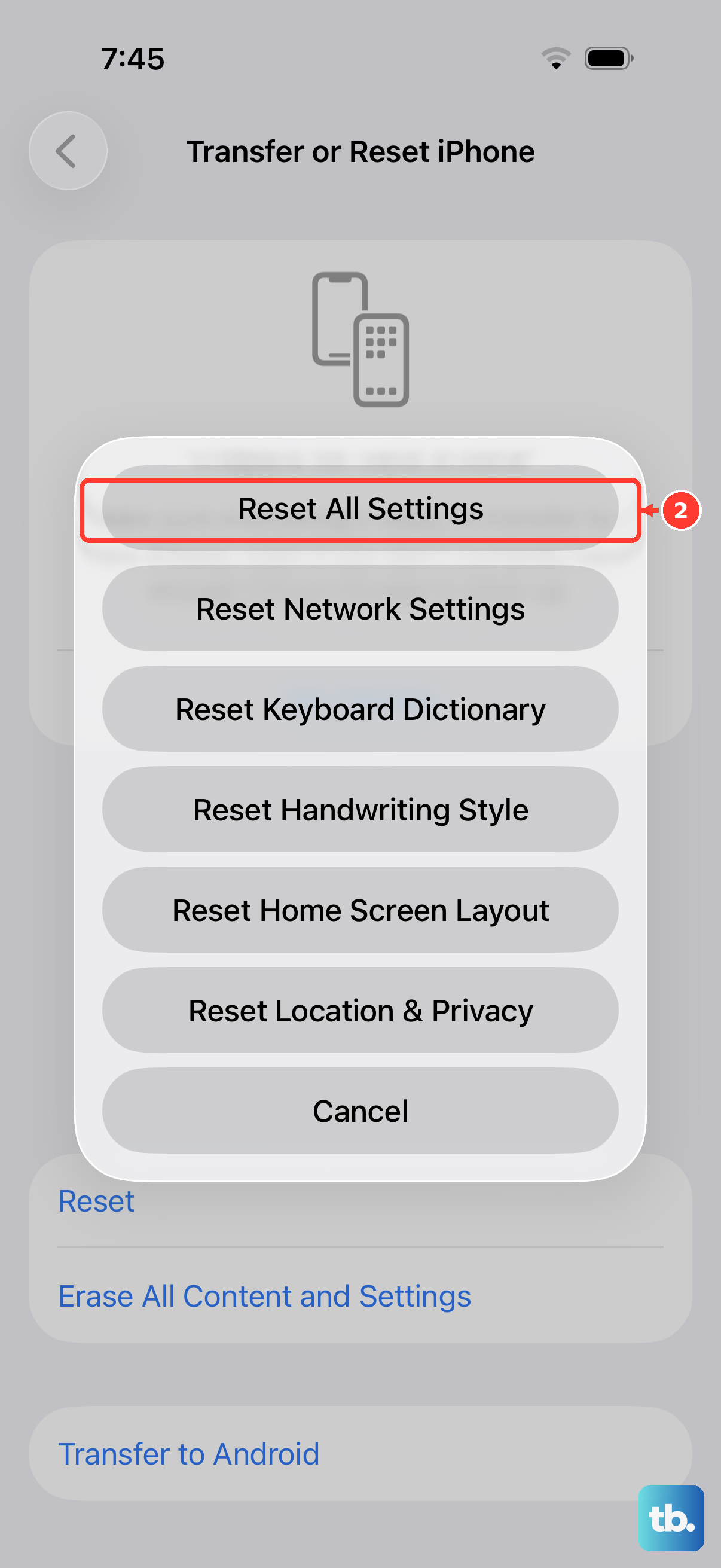
If none of the above helps, a broader settings reset can clear deeper configuration conflicts. This doesn't erase your photos, messages, or apps, it only resets system preferences like Wi-Fi networks, display brightness, and keyboard settings to factory defaults. Go to Settings > General > Transfer or Reset iPhone > Reset > Reset All Settings. After the phone reboots, you'll need to reconnect to Wi-Fi and adjust a few preferences, but the keyboard should start working again.
Charge the device if the battery is critically low
A dying battery can cause the keyboard to lag or fail to register taps. If your iPhone Air is below 10% and the keyboard seems unresponsive, plug it into a USB‑C charger or attach a Qi2/MagSafe battery pack to the back. Give it a few minutes of charging, then try the keyboard. In my experience, the keyboard wakes up once the battery gets enough power to handle the screen and touch system properly.