
When the camera on your iPhone Air goes completely black, it doesn't always mean a hardware failure. A lot of times it's a software glitch that clears up with a quick restart. Try this first: press and quickly release the Volume Up button, then press and quickly release the Volume Down button, then press and hold the Side button until the Apple logo appears. That forces a reboot without losing any data.
Key Points
- Force restart: Volume Up, Volume Down, hold Side until Apple logo.
- Update iOS: A known firmware bug in iOS 26.4.2 can cause the camera to freeze.
- Magnetic battery pack trick: If your phone died completely, attach a MagSafe battery pack to wake it before charging.
- Check charging accessories: Uncertified USB-C cables can trigger odd behavior.
- Reset camera settings: Go to Settings > Camera > Preserve Settings and toggle off everything.
Force Restart Your iPhone Air
If the camera viewfinder is just black, a force restart clears stuck software threads that control the camera hardware. It works on every iPhone model, including the iPhone Air. The exact sequence is: quickly tap Volume Up, quickly tap Volume Down, then press and hold the Side button. Keep holding until you see the Apple logo, then let go.
Wait about 30 seconds for the phone to reboot fully, then open the Camera app. This is the first thing I'd try because it's fast and harmless.
Update iOS to Fix the Camera Bug
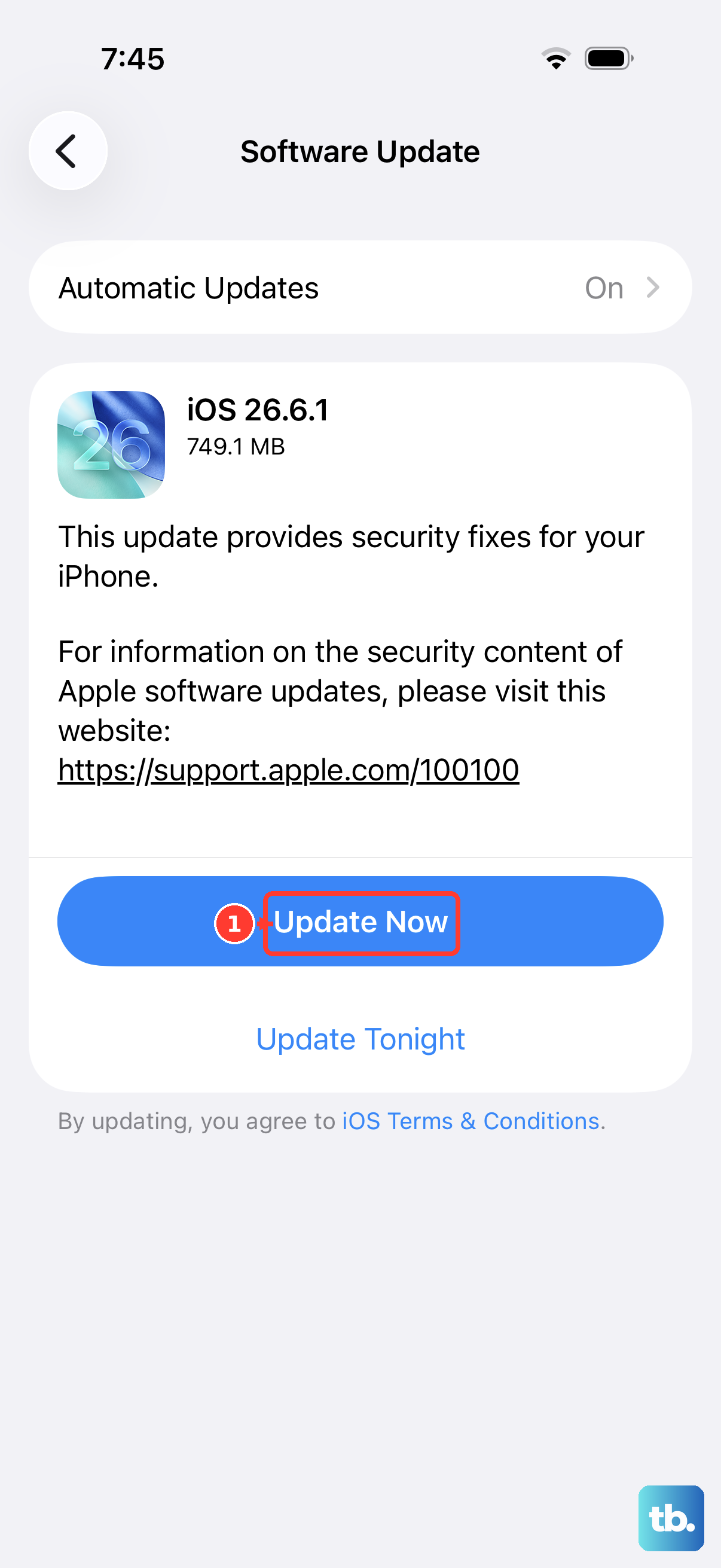
Apple has acknowledged that some iPhone Air units running iOS 26.4.2 experience random camera black screens during launch. The fix is already in progress through a future update. Open Settings > General > Software Update and check for any available patches.
If you see an update, install it and restart your phone. Make sure you're on Wi‑Fi and have at least 50% battery before starting the download.
Hold the Side Button to Wake the Camera
Sometimes the camera app thinks it's still in a sleep state. Press and hold the Side button until Siri appears, then press it again to cancel. This can jostle the software into refreshing the camera feed. It's a weird trick but it's helped a few people I know.
You can also bring down Control Center and tap the camera icon there to launch it from a different entry point.
Check for a Dead Battery Causing the Black Screen
The iPhone Air has a known issue where it becomes completely unresponsive when the battery drains to zero. The screen stays black, and plugging in a USB-C cable doesn't seem to do anything. If that happened to you, the camera black screen is actually a side effect of the phone being fully dead.
The fix is to place a magnetic battery pack (MagSafe or Qi2) on the back of your phone. Apple's own MagSafe Battery Pack works, or any third‑party one. Leave it for about five minutes, sometimes shorter if the pack is 20W or higher. After that, plug in a USB-C charger and hold the Side button to wake the phone.
Once the phone boots, the camera should work again. This technique has saved a lot of people from thinking their camera hardware died.
Use Only Apple‑Certified USB‑C Cables
Your iPhone Air charges via USB‑C, and it can be finicky about which cables it trusts. Non‑certified cables can cause power delivery errors that trick the camera subsystem into hanging. If you've been using a random cable from a gas station, swap to a genuine Apple cable or a certified third‑party one (look for MFi or USB‑IF certification).
The same goes for the wall adapter. A 40W USB‑C adapter is ideal, but any certified 20W or higher will do. Avoid cheap 5W chargers that don't provide enough juice to boot the phone properly.
Clean the Camera Lens and Check for Obstructions
A black screen can also happen if the lens is covered by a case, a screen protector that extends over the camera bump, or even a smudge that fools the phone into thinking it's in a case. Take your phone out of its case and wipe the camera lens with a soft microfiber cloth.
Also look at the flash or LiDAR sensor area. The iPhone Air uses the LiDAR scanner to help with autofocus in low light, so if something is blocking it, the camera may refuse to show anything.
Close and Reopen the Camera App
Swipe up from the bottom of the screen and pause to see all open apps. Find the Camera app card and flick it up to close it. Wait a couple seconds, then tap the Camera icon again. This reloads the app from scratch and often resolves temporary freezes.
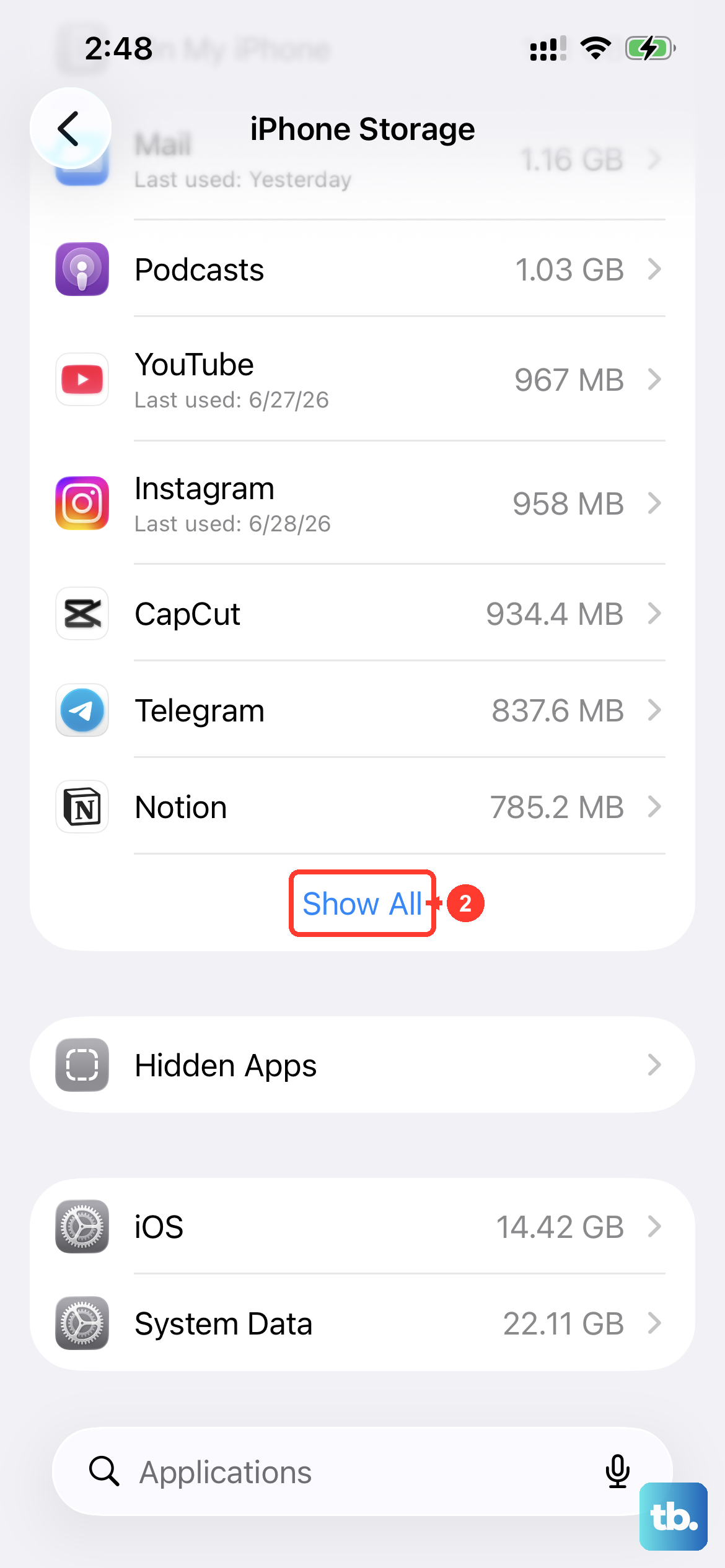
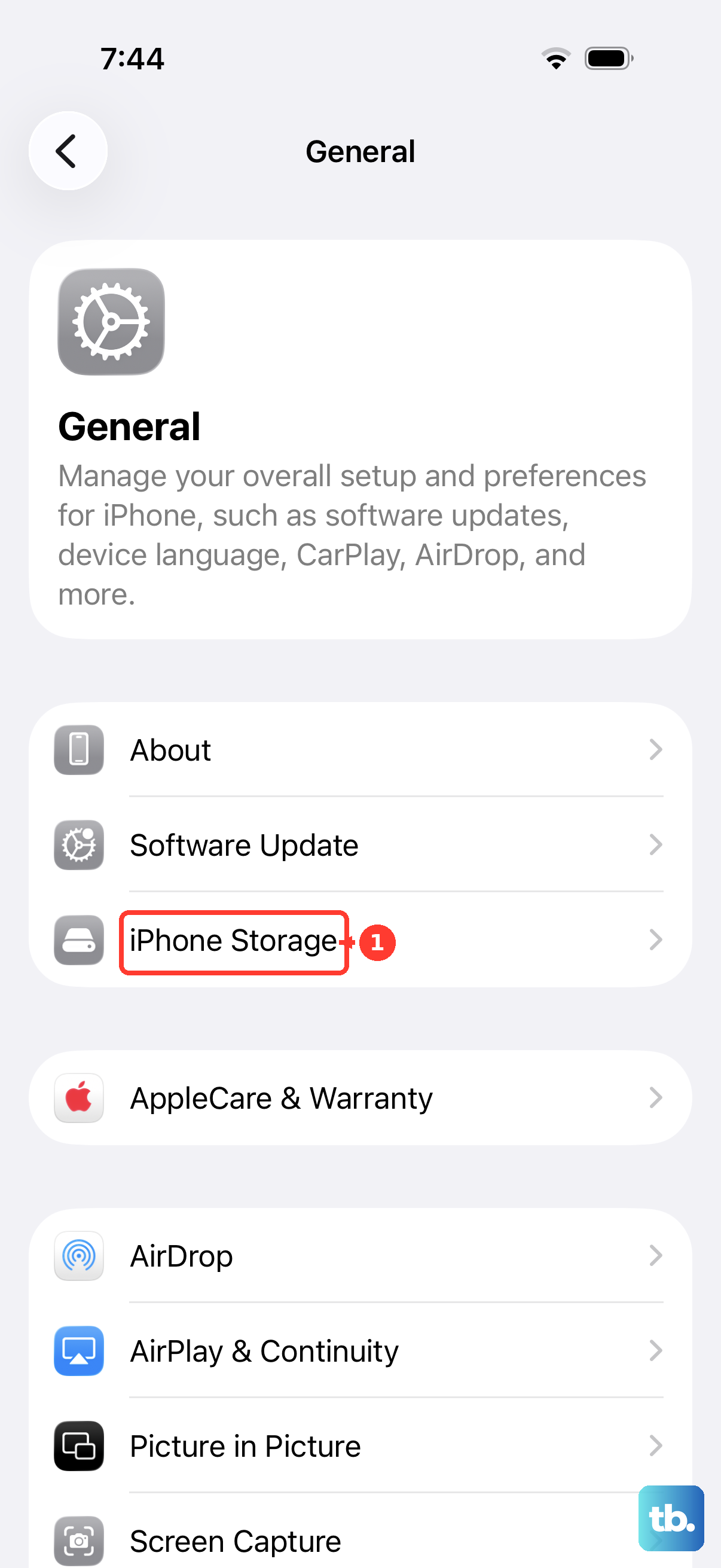
If the Camera app keeps crashing, you can also clear its cache by going to Settings > General > iPhone Storage > Camera > Offload App. That removes the app but keeps your settings and data. Then reinstall it from the App Store.
Reset All Settings (Not Data)
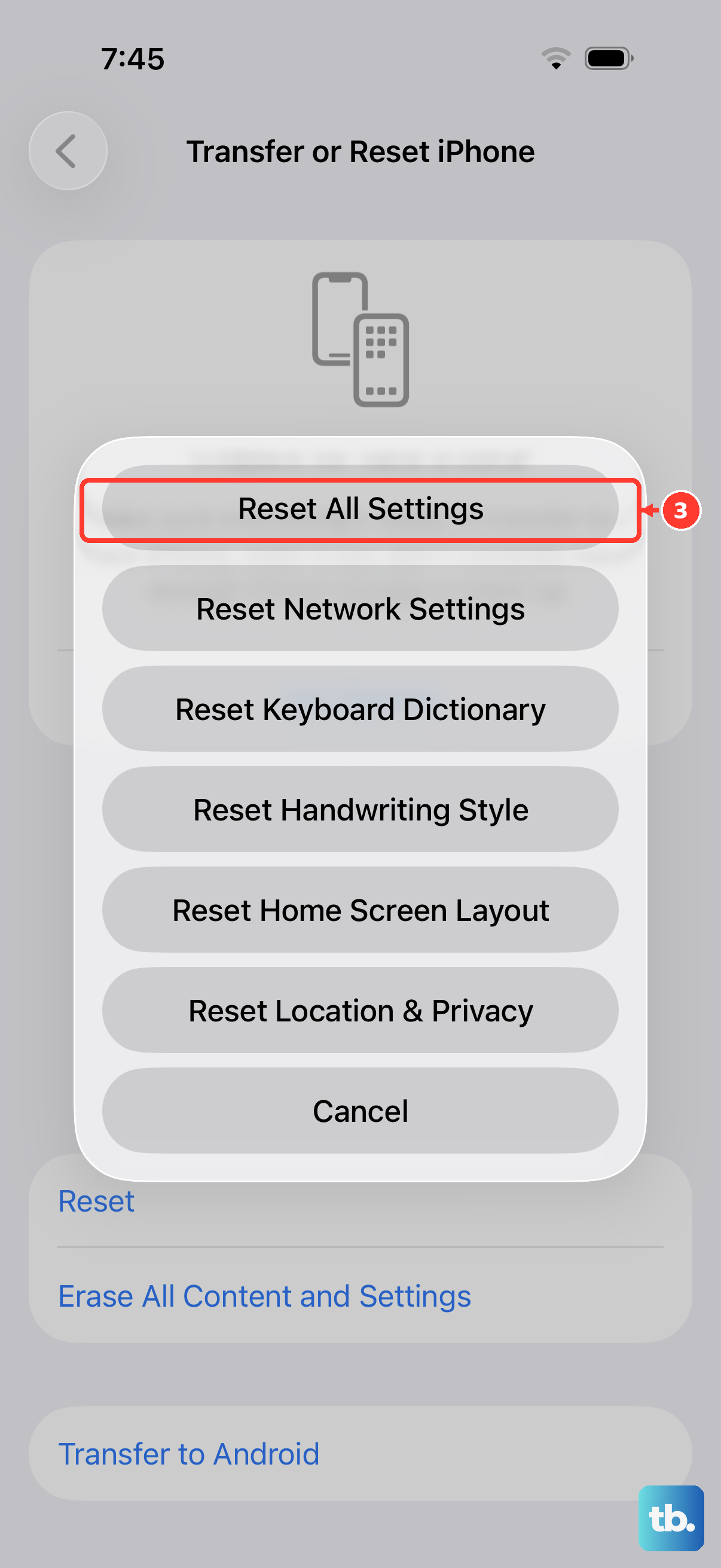
If none of the above works, try a settings reset. Go to Settings > General > Transfer or Reset iPhone > Reset > Reset All Settings. This doesn't erase your photos, messages, or apps, it only resets system preferences like Wi‑Fi passwords and display settings.
I've seen this fix a lot of odd behavior after software updates. Your camera may start working again right after the phone restarts.
Restore iPhone Using a Computer
This is your last software‑based option. Connect your iPhone Air to a computer with the latest version of macOS or iTunes. Put the phone into recovery mode: quickly press Volume Up, quickly press Volume Down, then hold the Side button while plugging it into the computer. Keep holding the Side button until you see the recovery mode screen (a computer icon and a cable).
Then click Update to reinstall iOS without erasing your data. If that doesn't help, you can click Restore to wipe the phone completely. Only do that if you have a recent backup, because it erases everything.