
If your iPhone Air is dropping calls or refusing to connect to the cellular network, it's usually a signal hiccup or a software glitch. The good news is that most of these issues are quick to fix. Here are 10 solutions to try, starting with the fastest ones.
Toggle Airplane Mode
This forces your iPhone Air to re-register with the nearest cell tower. Swipe down from the top-right corner to open Control Center and tap the airplane icon. Wait about 15 seconds, then tap it again to turn it off.
Check Your Signal Strength
Weak cellular coverage is the most common reason for call failures. Look at the status bar in the top-left corner of your screen. If you see "No Service" or just one bar, try moving to a different spot or near a window.
Force Restart the iPhone Air
A force restart clears up minor software glitches that can interfere with calling. If your screen is unresponsive or calls keep failing, try this specific sequence: quickly press and release the Volume Up button, then quickly press and release the Volume Down button. Then press and hold the Side button until the Apple logo appears.
Disable Focus or Do Not Disturb
It's easy to accidentally leave a Focus mode on, which can block incoming calls. Swipe down into Control Center and check if Focus is active. If it is, tap it to turn it off immediately.
Update Date & Time Automatically
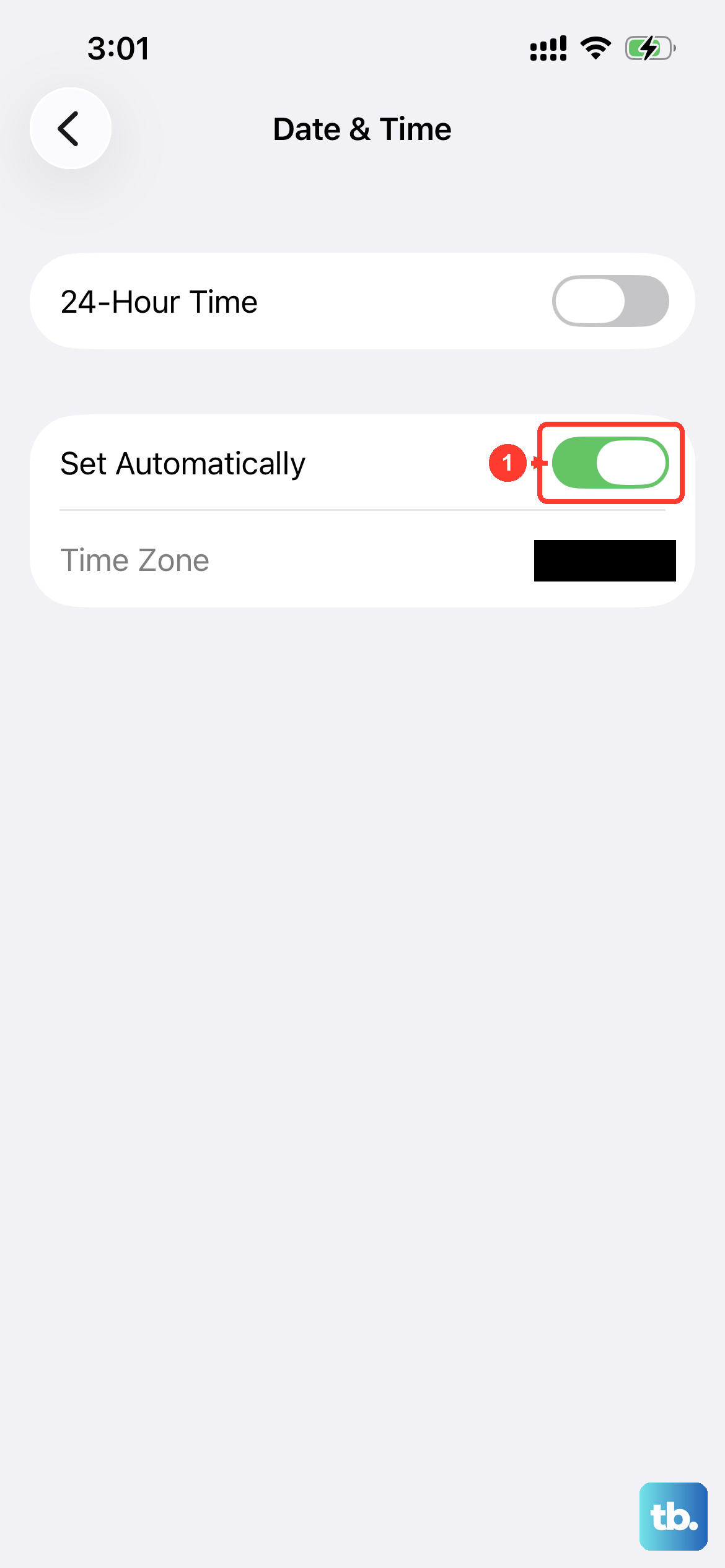
Your network provider authenticates your connection based on the correct time. If that's off, calls might not go through at all. Go to Settings > General > Date & Time and make sure "Set Automatically" is toggled on.
Check Blocked Contacts
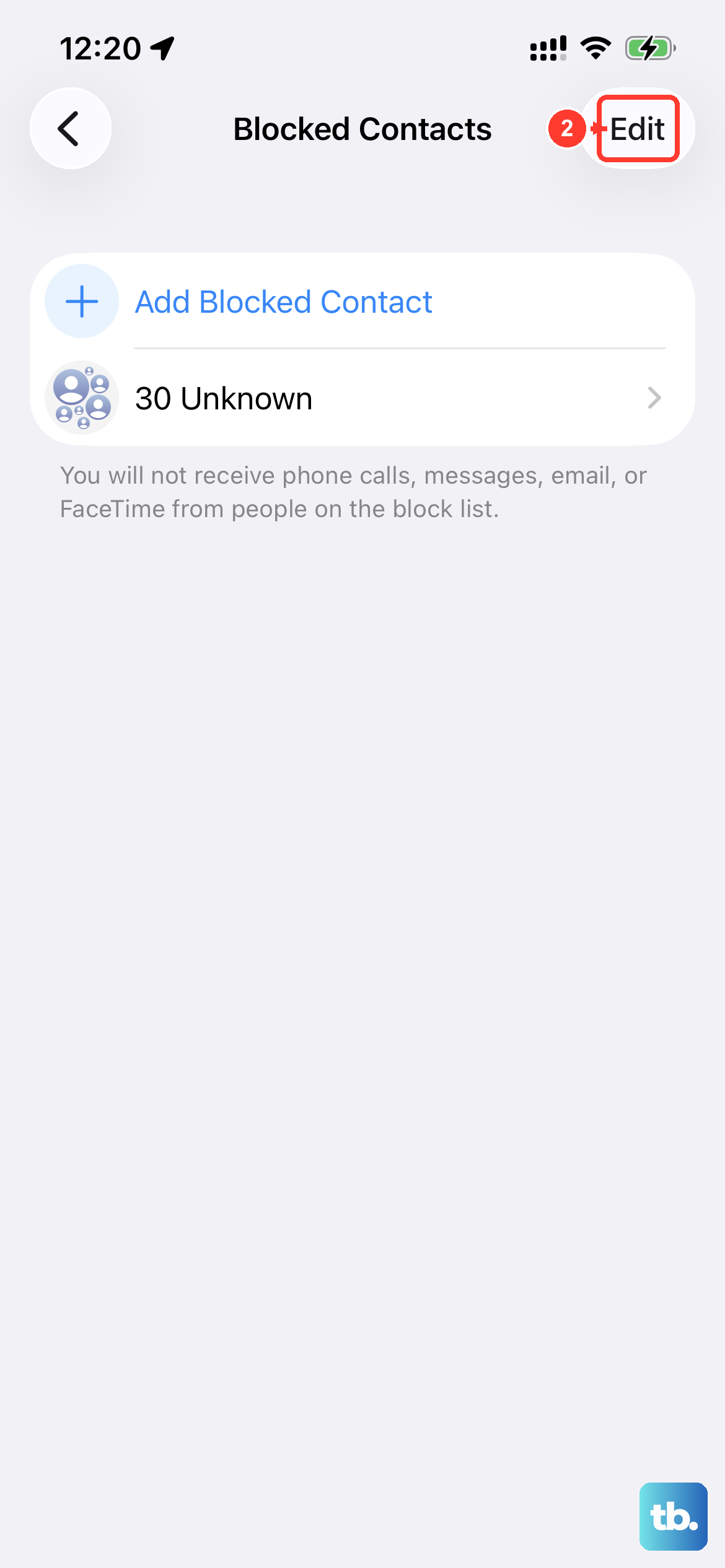
You might have accidentally blocked the person you're trying to reach. Go to Settings > Apps > Phone > Blocked Contacts to review the list. You can swipe left on any entry to unblock them.
Update Carrier Settings
Carriers release small updates to improve network stability on newer devices like the iPhone Air. Connect to Wi-Fi, then go to Settings > General > About. If an update is available, a prompt will appear for you to install it.
Switch Between Network Modes
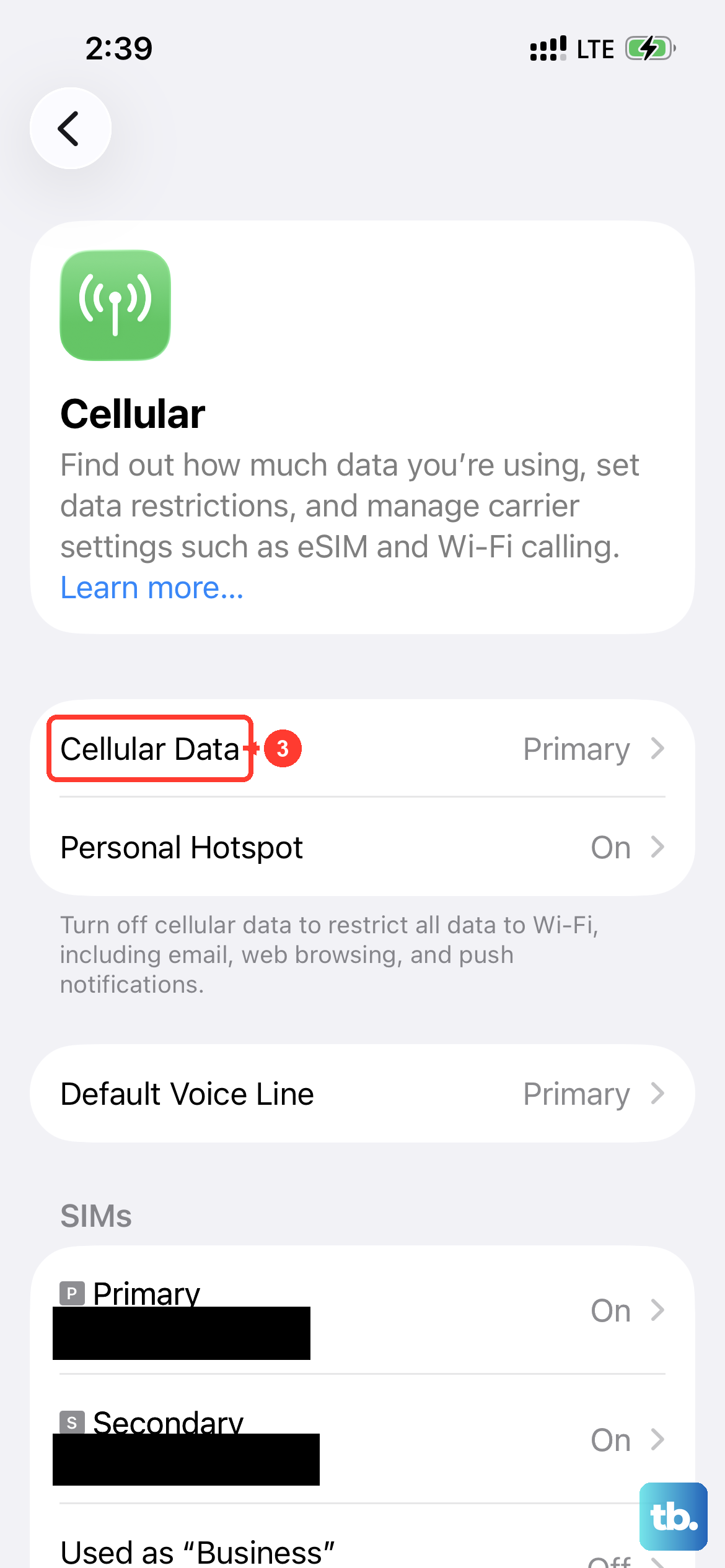
While the iPhone Air is optimized for 5G, sometimes the 5G connection or VoLTE can cause issues with specific carriers. Try switching to LTE or 3G in Settings > Cellular > Cellular Data Options > Voice & Data.
Reseat Your SIM Card
A loose or damaged SIM card will prevent your phone from registering on the network. Eject the SIM tray using a paperclip, check the card for visible damage or dirt, and push it back in firmly.
Reset Network Settings
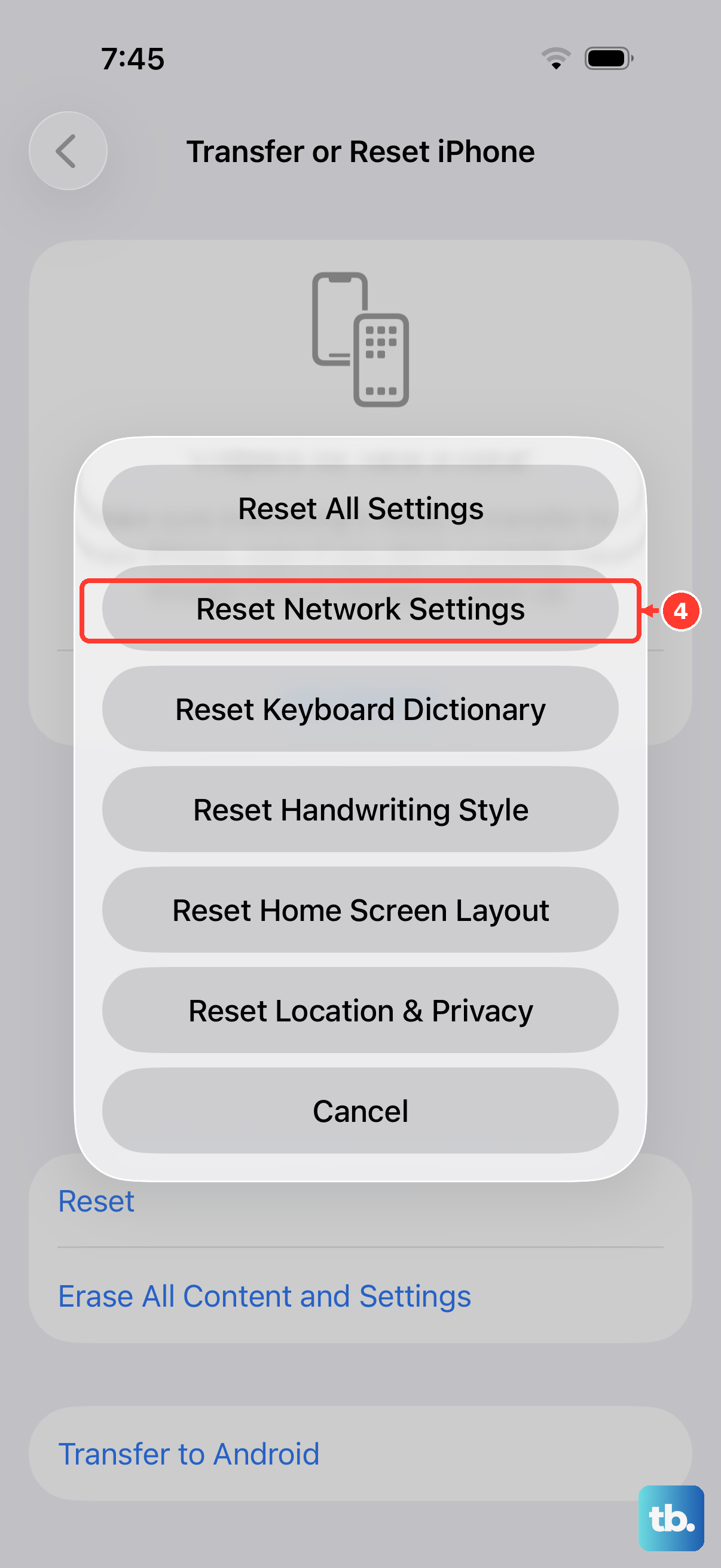
This is the most thorough software fix you can do without contacting your carrier. It clears all saved Wi-Fi passwords and Bluetooth pairings, so use it when you're ready to reconnect everything. Go to Settings > General > Transfer or Reset iPhone > Reset > Reset Network Settings.