
You're staring at your iPhone 16, seeing the Wi-Fi icon but nothing loads, or maybe it just won't connect at all. It's incredibly frustrating, especially on a brand new phone. I've seen this happen a lot with iOS updates, and the good news is there's almost always a simple software fix you can do yourself in a few minutes.
Toggle Wi-Fi and Restart Your iPhone
Start with the absolute basics. Swipe down from the top right to open Control Center and tap the Wi-Fi icon to turn it off. Wait about ten seconds, then tap it again to turn it back on. This forces your iPhone to drop the current connection and re-scan for networks, which can clear up a temporary glitch instantly.
If that doesn't work, restart your iPhone 16. Press and release the Volume Up button, press and release the Volume Down button, then press and hold the Side button until you see the Apple logo appear. This is the standard force restart for your model and it clears out minor software bugs that can affect connectivity.
Forget the Wi-Fi Network and Rejoin
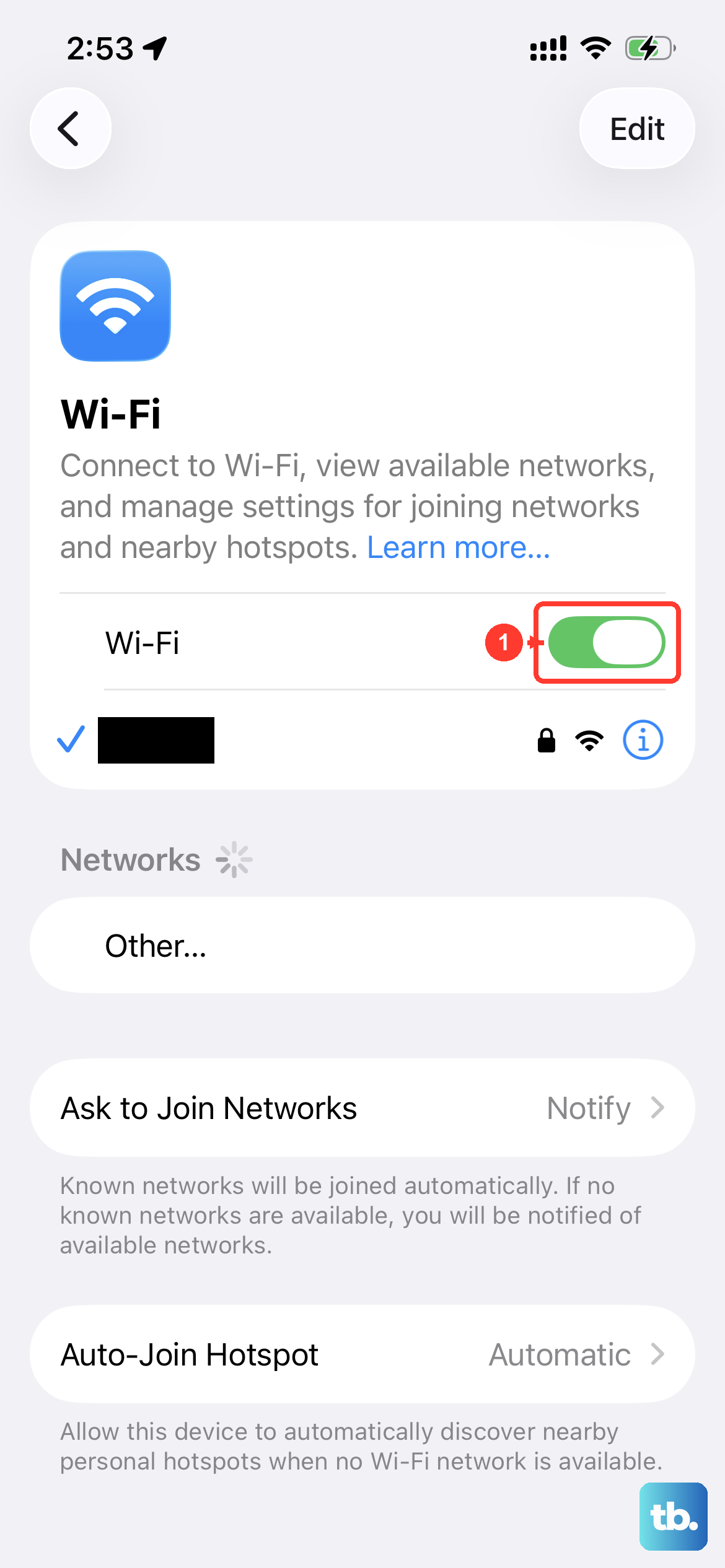
Your iPhone might be holding onto corrupted login data for your network. To clear it out, go to Settings > Wi-Fi and tap the blue "i" icon next to your network's name. At the top of the next screen, tap Forget This Network and confirm.
Now, go back to your list of available networks, tap on your network name again, and re-enter the password. This is the most effective fix if you recently changed your Wi-Fi password or got a new router, as your phone will be trying to use the old credentials.
Check for an iOS Update
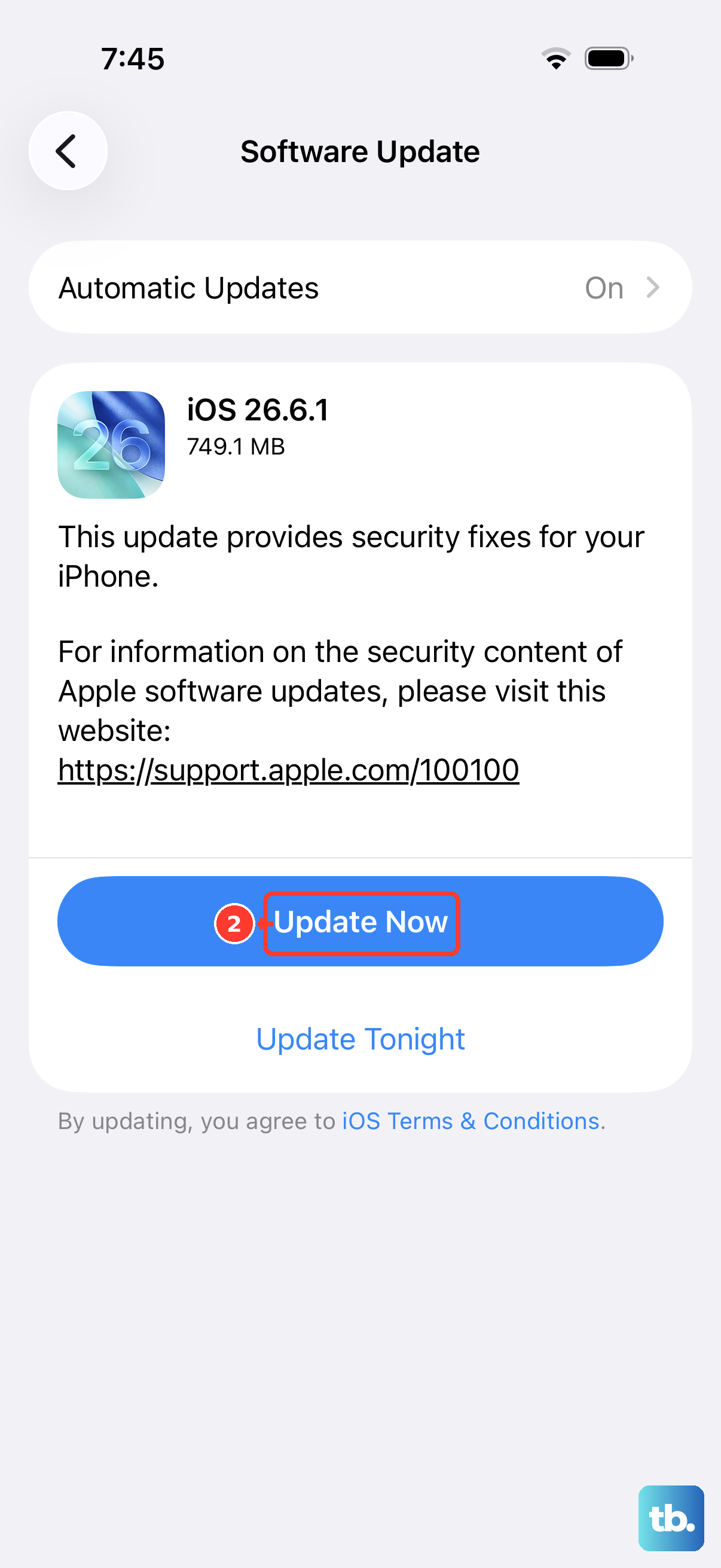
Since you're on iOS 26, Apple is constantly releasing point updates that squash bugs, including Wi-Fi connectivity issues. Go to Settings > General > Software Update and install any available update. I'd do this step early, as a software patch is a very common fix for problems that appear out of nowhere.
Toggle Airplane Mode
This is a more thorough radio reset. Open Control Center and tap the airplane icon to turn Airplane Mode on. Wait for about 15-20 seconds to let all wireless connections fully disable, then tap the icon again to turn it off. This resets not just Wi-Fi, but also cellular and Bluetooth, which can sometimes help your phone establish a cleaner connection.
Reset Your Network Settings
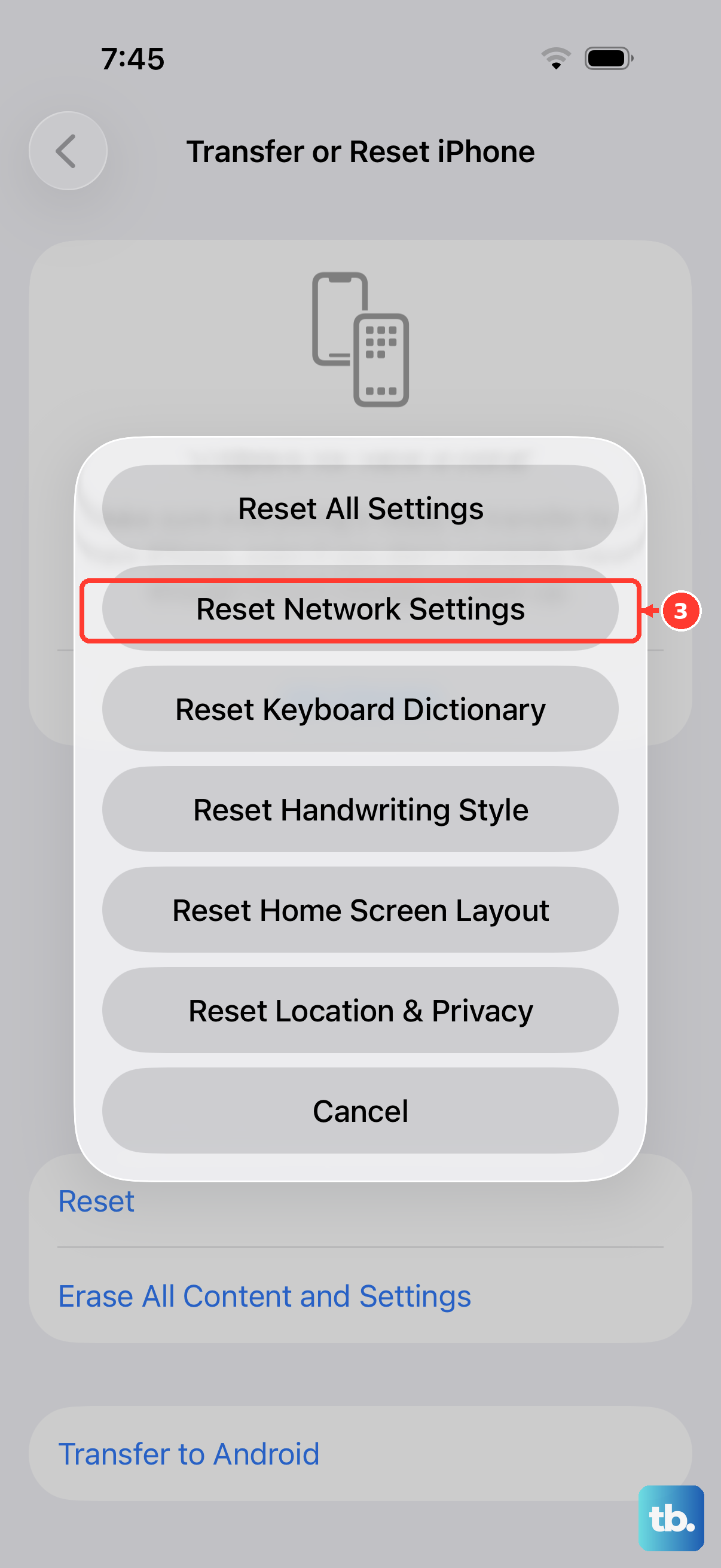
This is a stronger step that wipes all network-related data from your iPhone 16. It will delete all saved Wi-Fi passwords, Bluetooth pairings, and VPN settings, so you'll have to reconnect to everything afterward. To do it, go to Settings > General > Transfer or Reset iPhone > Reset and choose Reset Network Settings.
Your phone will restart. After it boots back up, try connecting to your Wi-Fi again. This resolves deeper configuration conflicts that the simpler toggles can't fix.
Check Your Router and Other Devices
The problem might not be your iPhone at all. First, try restarting your router and modem. Unplug them from power, wait a full 60 seconds, and plug them back in. This clears the router's memory and can resolve a huge number of connection problems.
While you're waiting, check if other devices in your home (like a laptop or another phone) can connect to the Wi-Fi. If they also can't connect, you've confirmed the issue is with your internet or router, not your iPhone 16.
Disable VPN or Security Apps
If you're using a VPN, ad blocker, or any network security app, try temporarily disabling it. These apps work by routing your traffic, and if their configuration is off, they can completely block your internet access. Go into the app and disconnect, or go to Settings > General > VPN & Device Management to turn a VPN profile off.
Check for Wi-Fi Assist Interference
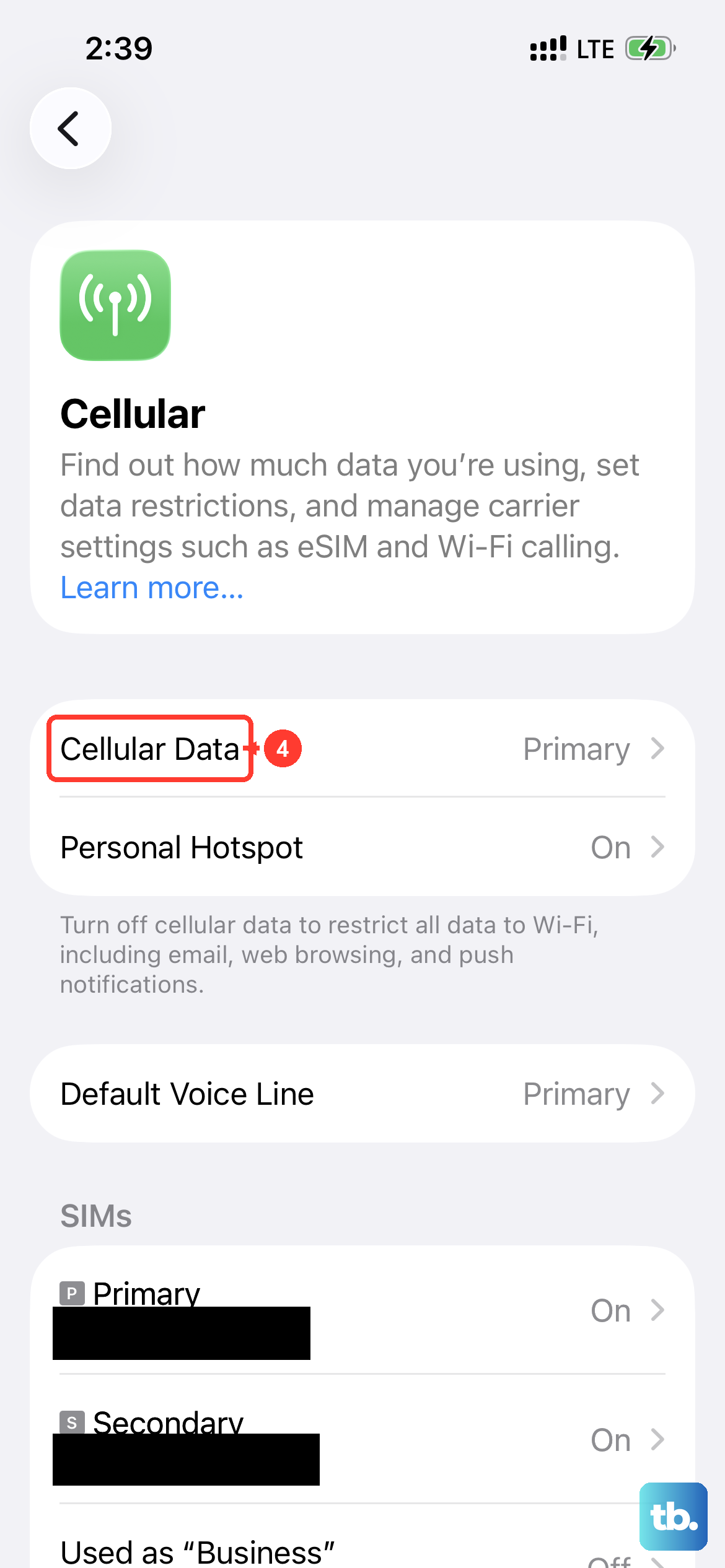
iOS has a feature called Wi-Fi Assist that automatically switches to cellular data when your Wi-Fi connection is poor. In some cases, it can be overzealous. You can check if it's enabled by going to Settings > Cellular and scrolling all the way to the bottom. Toggling Wi-Fi Assist off won't hurt anything and can sometimes stop your phone from prematurely abandoning a working Wi-Fi signal.
Review Date & Time Settings
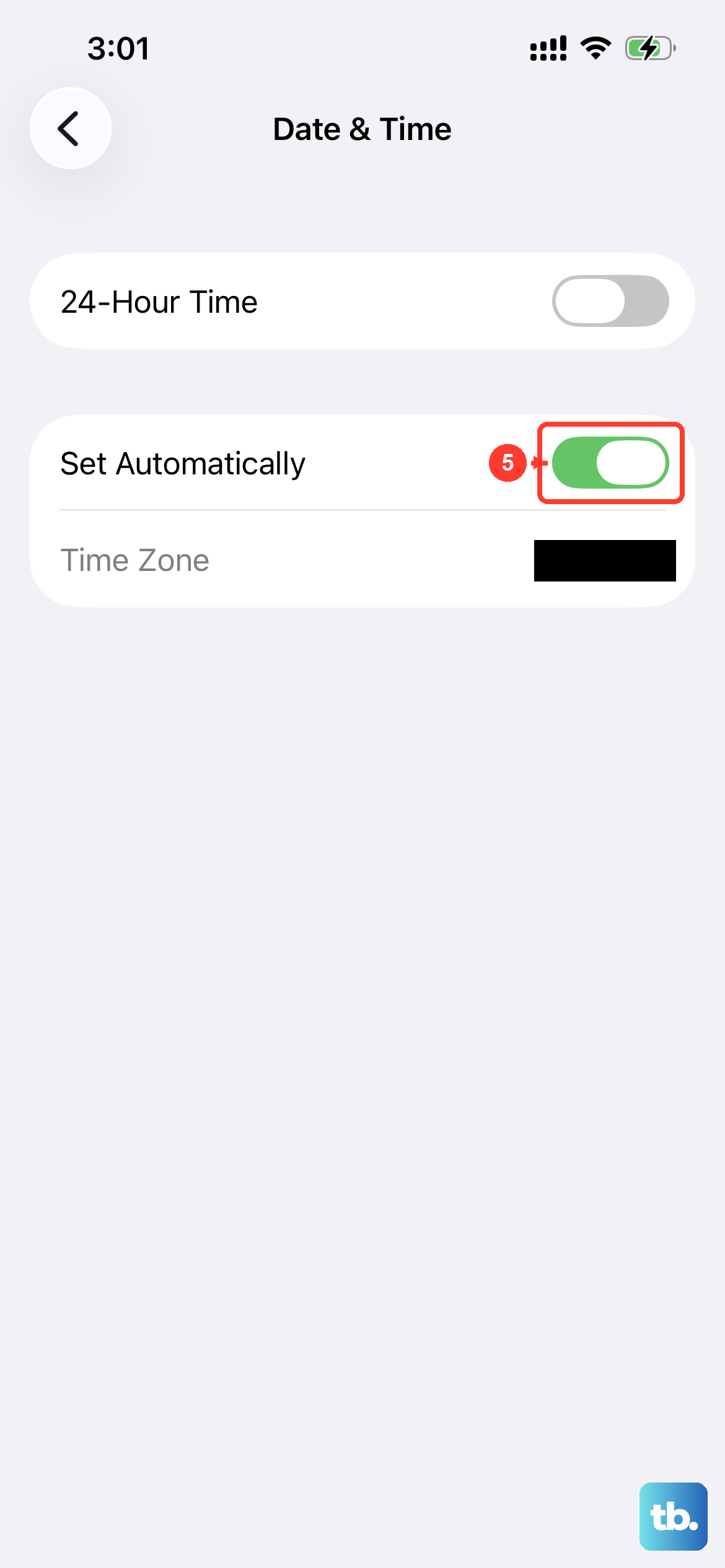
This is a less obvious one that can break secure connections. If your phone's date and time are incorrect, security certificates for websites and networks won't validate. Go to Settings > General > Date & Time and make sure Set Automatically is switched on. If it was off, turning it on can immediately fix authentication errors.
Try a Different Network or Frequency Band
To rule out a hardware issue with your iPhone's Wi-Fi antenna, try connecting to a completely different network. Use a public hotspot, a friend's Wi-Fi, or even your own phone's personal hotspot. If your iPhone 16 connects fine to other networks, the problem is specific to your home network's configuration.
Also, if your router broadcasts both a 2.4GHz and a 5GHz network, try connecting to the other one. Sometimes a device can have trouble with a specific frequency band due to interference or router settings.