
When your iPhone 16 suddenly goes silent or the volume is barely a whisper, it can stop you in your tracks. This is a common hiccup that can pop up after an iOS update or just randomly. The good news is, simple checks can help you find the cause, though some sound problems need a repair.
If you are not sure whether it is the speakers or the software, run an online speaker test first. Working test tones show that the speakers can produce sound, but intermittent or distorted audio may still need troubleshooting.
Start by checking Silent mode and the volume level.
Check the Action Button and Volume
First, look at the left side of your iPhone 16. Because the iPhone 16 has no Ring/Silent switch, press and hold the Action button (above the volume buttons on the left side) to toggle Silent mode off if the button is assigned to Silent Mode. You can also swipe down from the top-right corner to open Control Center and make sure Silent mode is off.
Next, press the volume up button on the left side a few times while playing music or a video to adjust media volume. During a call, the volume buttons adjust call volume. You should see the volume indicator appear on screen.
Disconnect Bluetooth and Audio Outputs
Your iPhone might be trying to play sound through a device you forgot was connected. Swipe down from the top-right corner to open Control Center. Look at the audio card in the top-right.
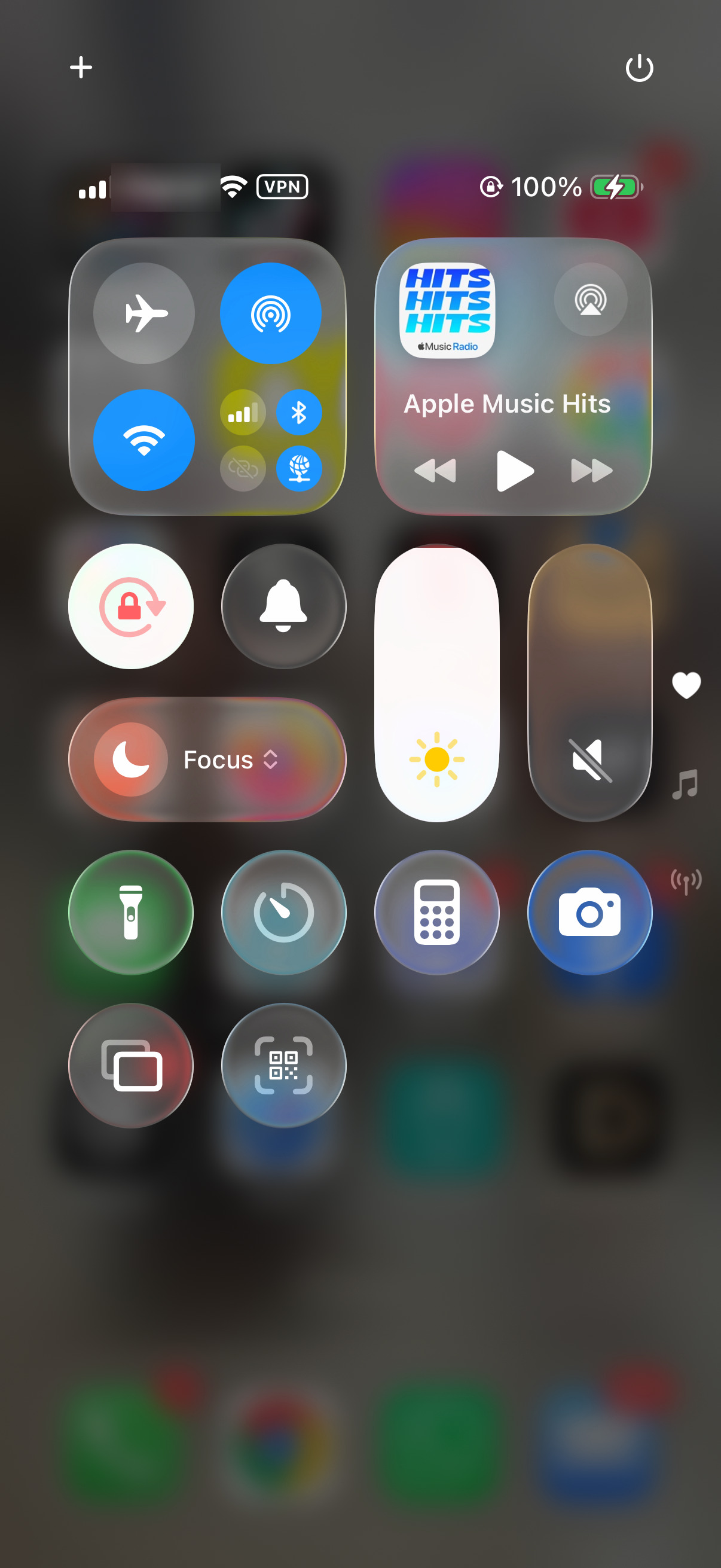
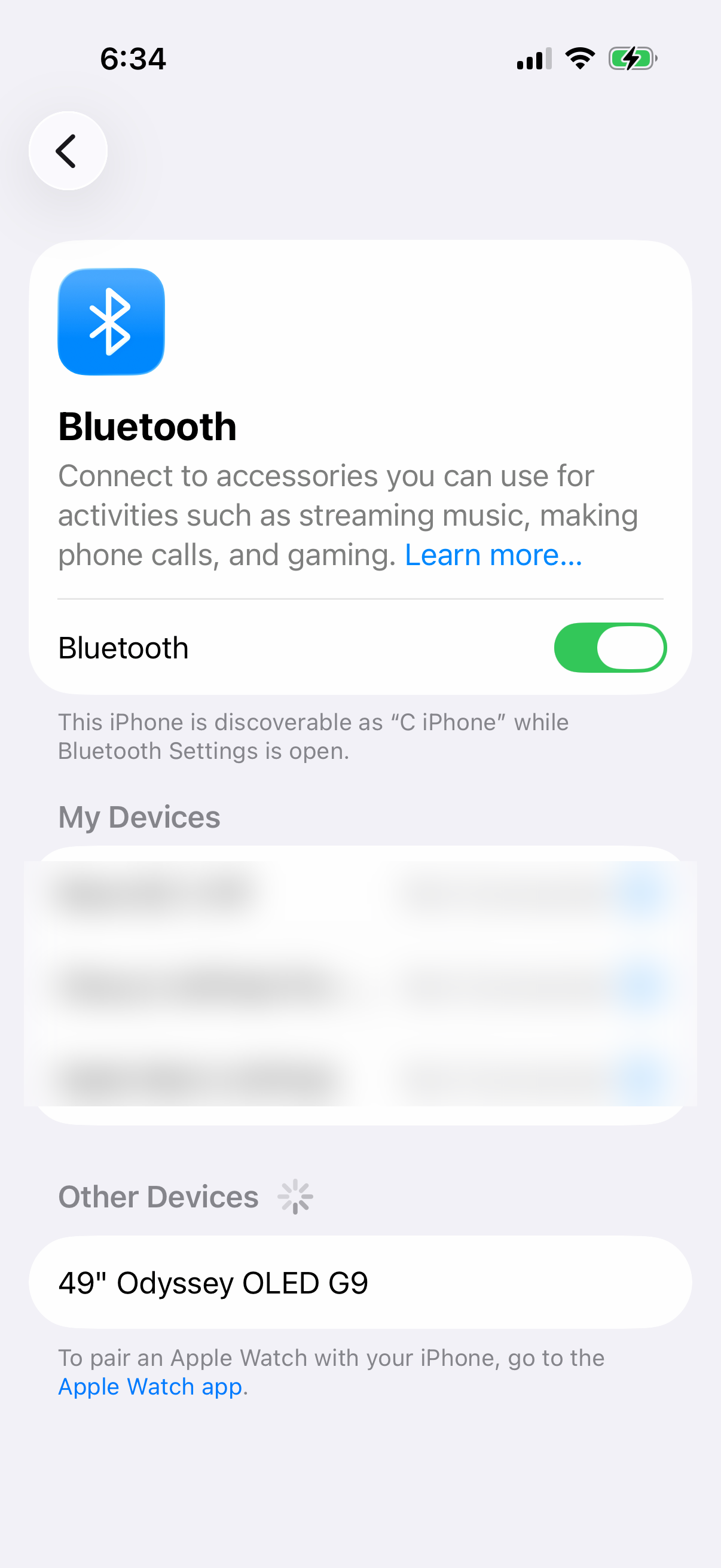
If you see anything other than your iPhone's name listed, tap it and select "iPhone" from the list. You can also go the longer route by opening Settings > Bluetooth and turning the toggle off temporarily to see if your speaker sound returns.
Clean the Speaker Grilles
The speaker grille at the bottom of the iPhone 16 and the earpiece at the top are magnets for pocket lint and dust. Take a close look with a flashlight. You'll be surprised what can get packed in there.
Gently brush the grilles with a clean, dry, soft-bristled toothbrush. Don't use anything sharp or metallic. Don't use compressed air, and avoid getting moisture in any openings.
Check Focus Modes and Accessibility Settings
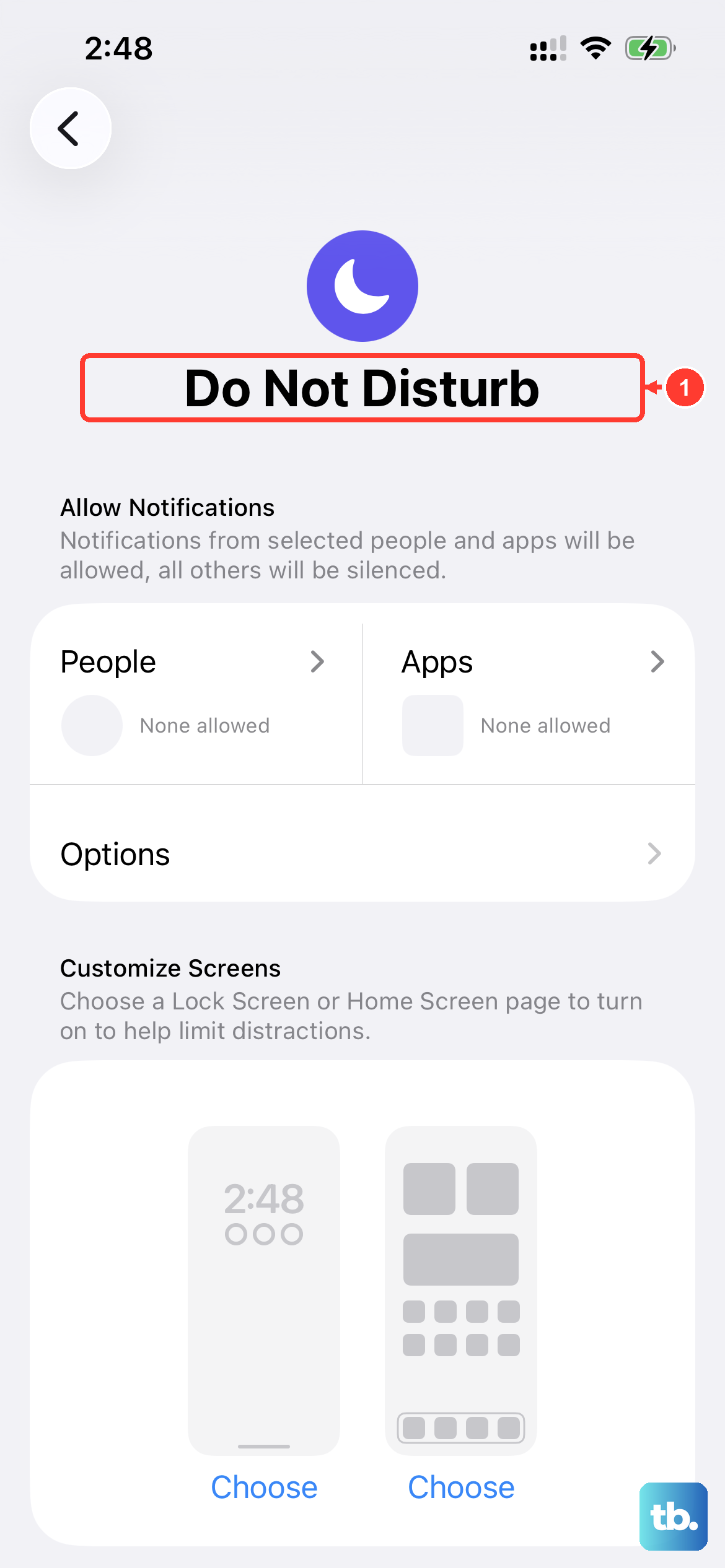
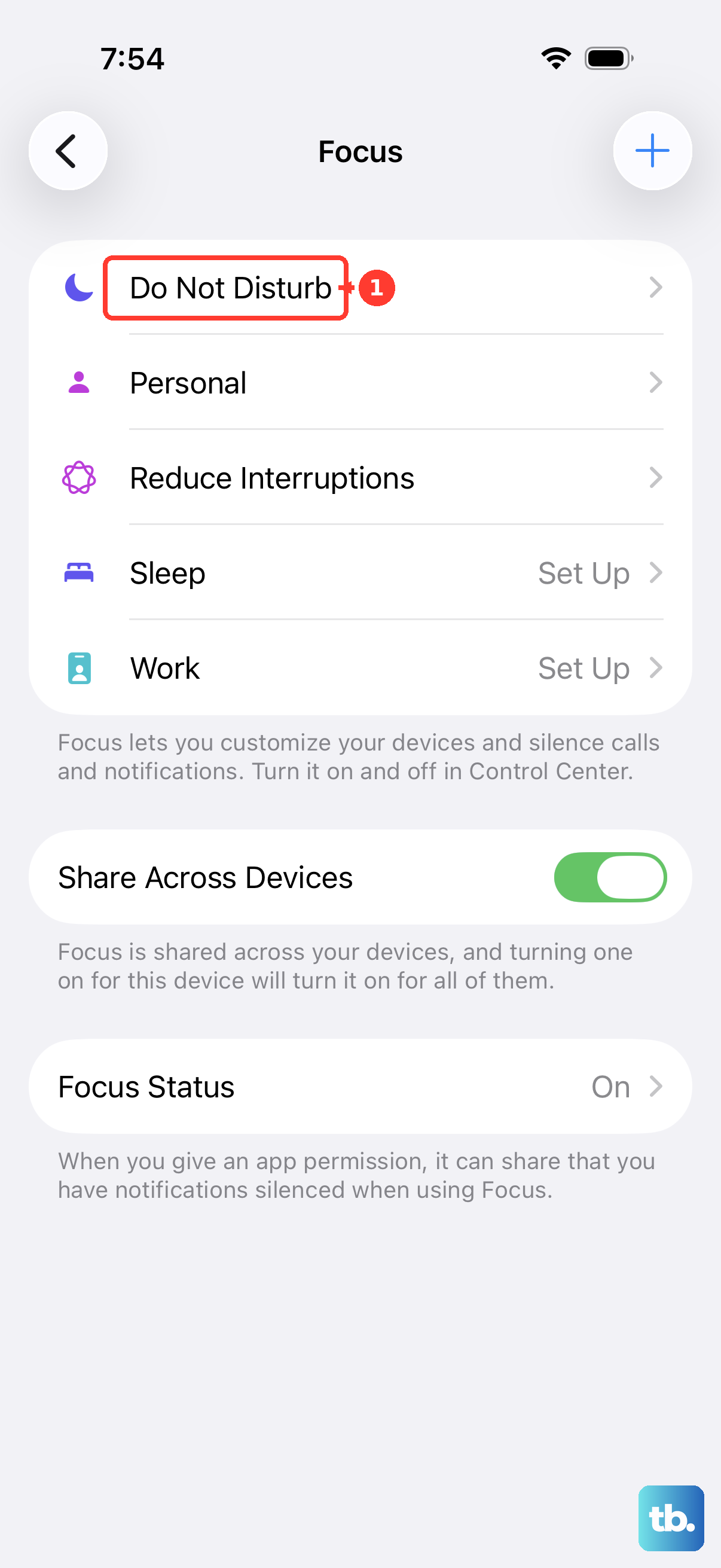
Focus modes like Do Not Disturb or Sleep can silence notifications. Swipe down to open Control Center and tap the Focus icon (it looks like a crescent moon or another symbol) to see which one is active. Tap it again to turn it off.
Some accessibility settings can also affect sound. Go to Settings > Accessibility > Audio & Visual and check that the Balance slider is centered. Then look at Settings > Accessibility > Touch and make sure "Call Audio Routing" is set to Automatic. To test the speaker, go to Settings > Sounds & Haptics and drag the Ringtone and Alerts slider back and forth a few times. If you hear no sound, or the speaker button on the slider is dimmed, your speaker might need service.
Force Restart Your iPhone 16
A force restart can help with a minor software glitch causing the audio problem. It doesn't erase any data.
Quickly press and release the Volume Up button. Quickly press and release the Volume Down button. Then, press and hold the Side button. Keep holding it until you see the Apple logo appear, then let go. This is the sequence for iPhone 8 and later, including the iPhone 16.
Check for Sound in Specific Apps
If the sound is only gone in one app, like YouTube or Spotify, the issue is likely with that app, not your phone. First, force close the app. Swipe up from the bottom and hold, then swipe the app's preview up and off the screen.
Reopen the app and test the sound. If it's still not working, check the app's own in-app volume slider. Some apps also have a setting to disable media sound, which is worth a quick look in the app's settings menu.
Update iOS to the Latest Version
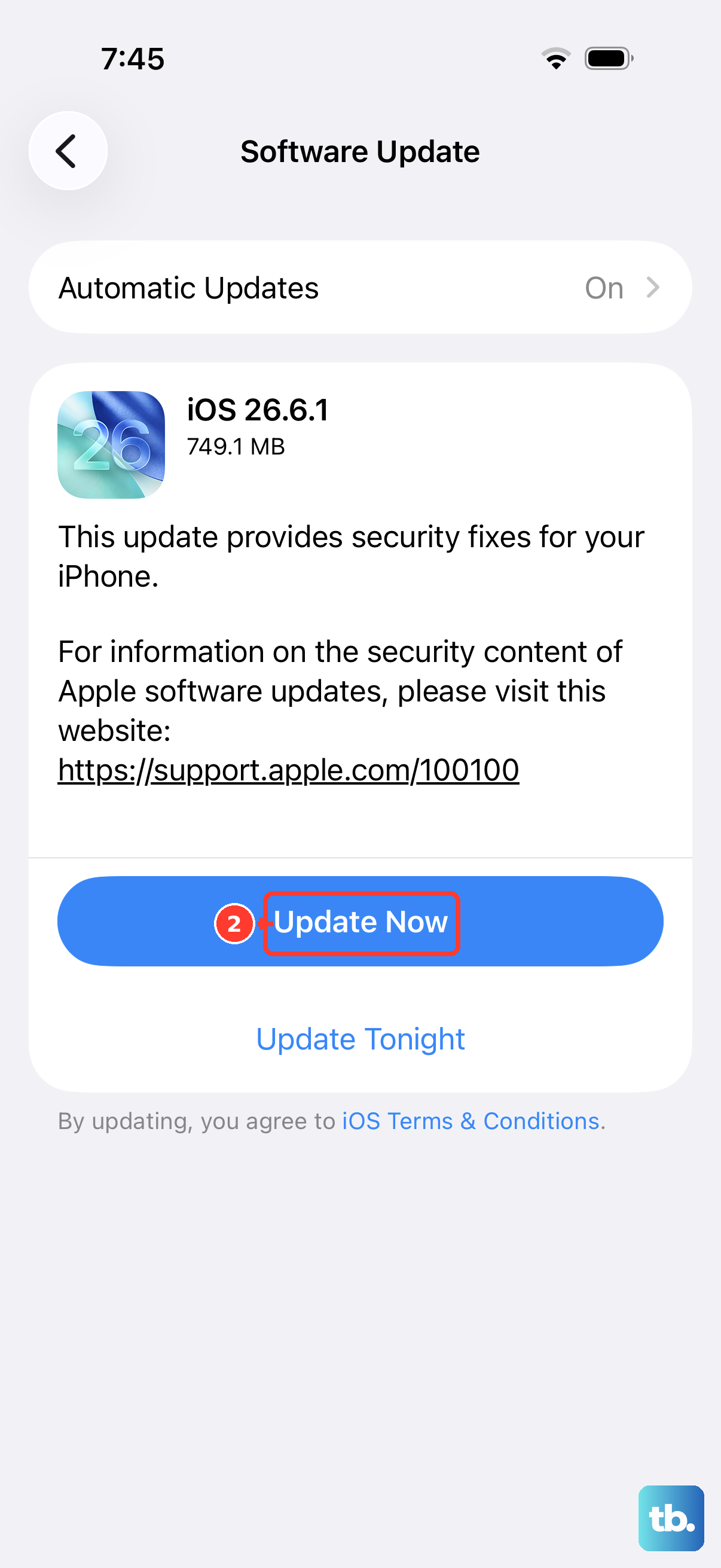
An iOS update can help with software issues affecting sound. Connect to Wi-Fi and go to Settings > General > Software Update.
If an update is available, tap "Download and Install." Back up your iPhone before updating, and keep it connected to power and Wi-Fi during the update.
Reset All Settings
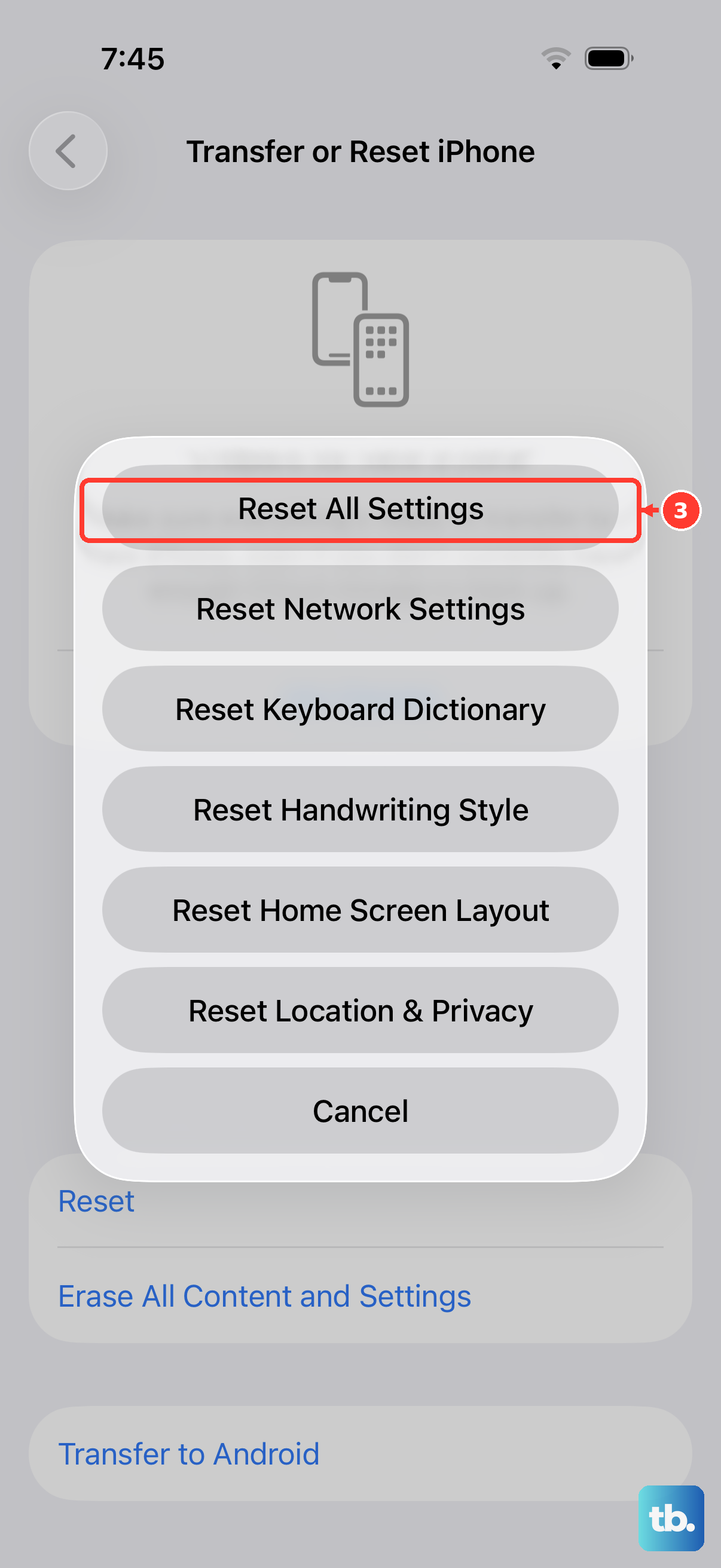
This is a bigger step, but it won't delete your photos, messages, or apps. It will reset all your preferences, like Wi-Fi passwords, wallpaper, and privacy settings, back to factory defaults.
Go to Settings > General > Transfer or Reset iPhone. Tap "Reset" at the bottom, then choose "Reset All Settings." You'll need to enter your passcode. After the phone reboots, you'll need to reconnect to Wi-Fi, re-pair Bluetooth devices and any Apple Watch, and set up Face ID again. Retest the sound after restoring your preferences.
Check for Physical Damage or Moisture
If your iPhone 16 has been dropped recently or exposed to liquid, there could be physical damage. If you connect a cable and your iPhone shows a liquid-detection alert, unplug it, gently tap the iPhone against your hand with the USB-C connector facing down, and leave it in a dry area with airflow for at least 30 minutes before you try again. Don't charge a wet iPhone. If sound problems persist after the checks above, the speaker may need service.
Look for any dents or cracks near the bottom speaker grille. If you suspect physical damage, this is where the troubleshooting path typically ends for a user, and the next step would involve a repair.