
When the volume buttons on your iPhone 16 Pro stop responding, it can feel like you're stuck at one volume level. You press the buttons, but nothing happens, no haptic feedback, no volume change on the screen. The good news is that most of the time, this is a temporary glitch you can fix yourself without a trip to the Apple Store.
I'd start with the simplest solutions first. They often do the trick and only take a minute.
Remove Your Phone Case
Take your iPhone 16 Pro out of its case. Some cases, especially thicker ones or those that aren't perfectly aligned, can press against the buttons and restrict their movement. This is a surprisingly common fix.
With the case off, press the volume up and down buttons a few times. If they click normally and work now, you've found the issue. You might need a different case or to adjust how your current one sits.
Perform a Force Restart
A force restart is my go-to for any weird software behavior, including unresponsive buttons. It clears the phone's temporary memory without touching your data or settings.
For the iPhone 16 Pro, here's the sequence: quickly press and release the Volume Up button, then quickly press and release the Volume Down button. Finally, press and hold the Side button. Keep holding it until you see the Apple logo appear on the screen, then let go.
Check the Volume Button Setting
There's a software setting that can disable the physical buttons. Go to Settings > Sounds & Haptics. Make sure the switch for "Change with Buttons" is turned on (green). If it was off, turning it back on should immediately restore function.
Clean Around the Buttons
Dust, lint, or pocket debris can easily get packed around the small gaps of the volume buttons. This physical blockage can prevent them from being pressed fully.
Gently use a can of compressed air to blow around the edges of the buttons. For any sticky residue, you can lightly dampen a cotton swab with isopropyl alcohol (90% or higher) and carefully clean around the button edges. Let it dry completely before testing.
Test the Buttons in Different Apps
Open a few different apps to see if the problem is universal. Try playing a song in Apple Music, a video on YouTube, or a podcast. If the buttons work in one app but not another, the issue is likely with that specific app.
Try force-closing the problematic app and reopening it. If that doesn't help, check the App Store for an update to that app, as bugs can sometimes cause conflicts.
Toggle the Action Button
The iPhone 16 Pro replaced the classic Ring/Silent switch with a programmable Action button. Give this a try: press and hold the Action button to bring up its menu, or simply press it to trigger its assigned function (like Silent Mode).
Sometimes, cycling this feature can help reset the phone's button response system. After testing it, try your volume buttons again.
Use AssistiveTouch for a Soft Reset
AssistiveTouch creates a floating menu on your screen with virtual buttons. Using these can sometimes "wake up" the connection to the physical ones. Go to Settings > Accessibility > Touch > AssistiveTouch and turn it on.
A gray circle will appear on your screen. Tap it, go to Device, and then tap Volume Up or Volume Down several times. After using the virtual controls, try your physical volume buttons again.
Update to the Latest iOS
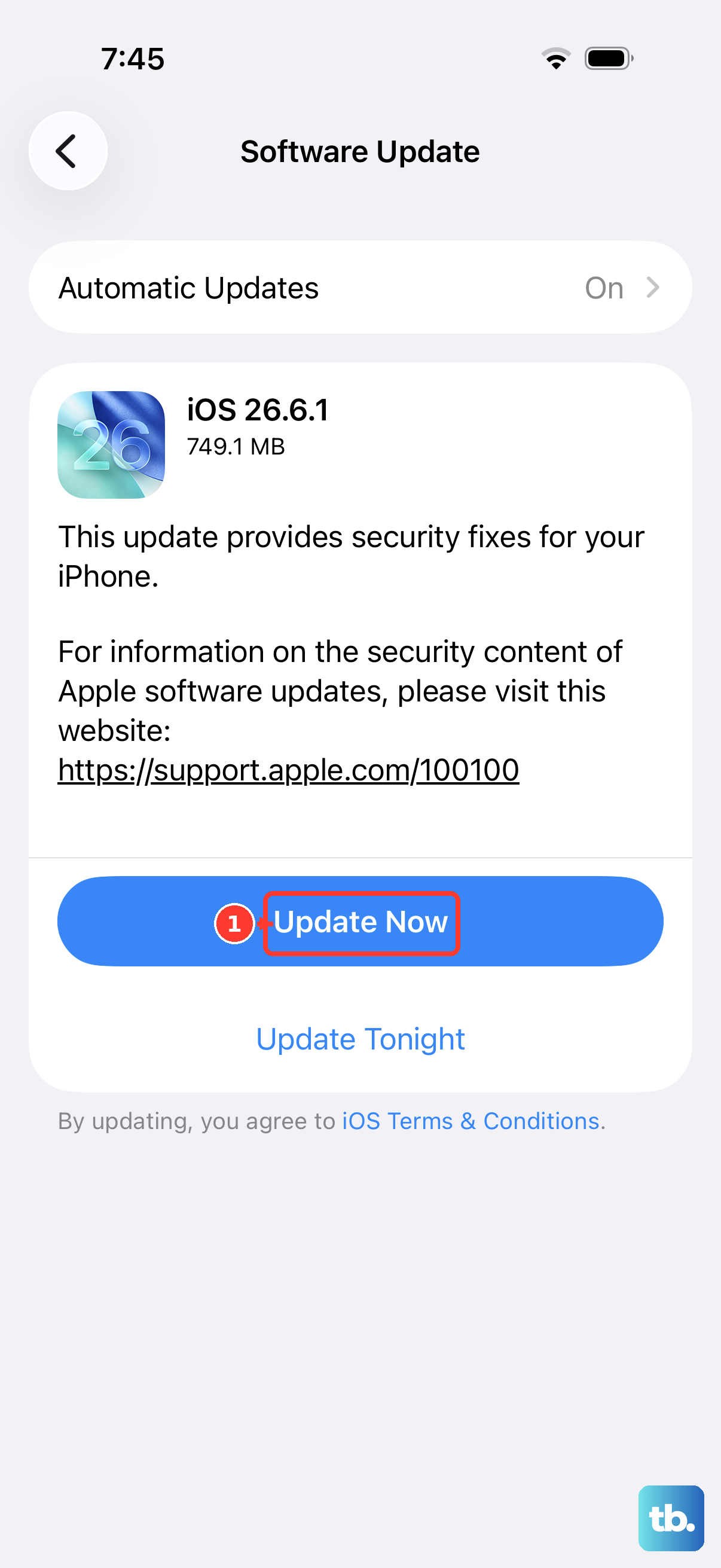
Software bugs in iOS can occasionally cause hardware components to act up. Apple often releases updates that fix these kinds of issues. Make sure your iPhone 16 Pro is running the latest version of iOS.
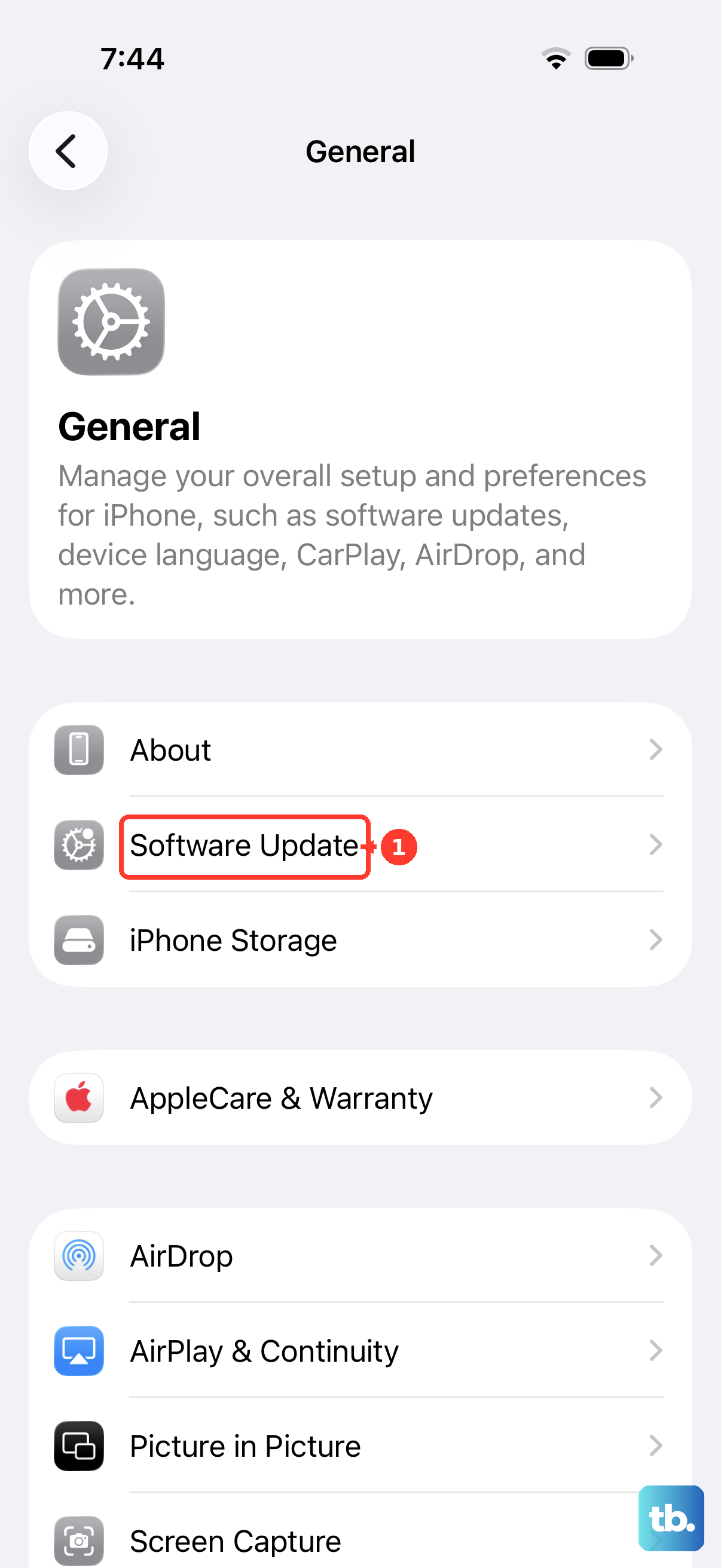
Connect to Wi-Fi and plug in your phone. Go to Settings > General > Software Update. If an update is available, download and install it. This process can take a while, so be patient.
Reset All Settings
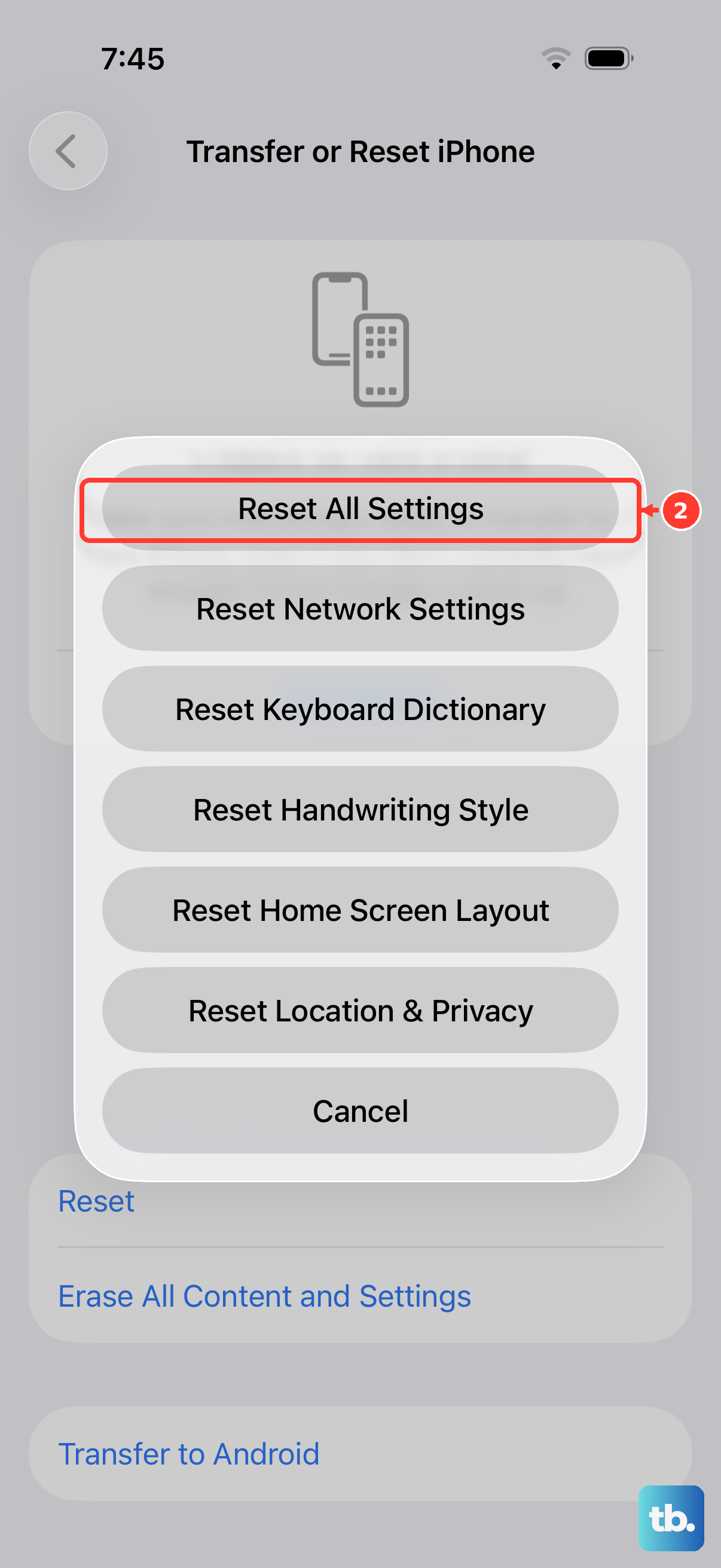
If a software glitch is deeper, resetting all settings can help. This won't delete your photos, messages, or apps, but it will reset your Wi-Fi passwords, wallpaper, and preferences back to default.
Go to Settings > General > Transfer or Reset iPhone. Tap Reset and then choose Reset All Settings. Enter your passcode and confirm. After your phone restarts, test the volume buttons.
Restore Your iPhone via Computer
This is the most thorough software fix and should be a last resort. It will completely erase your phone and install a fresh copy of iOS. You must have a recent backup in iCloud or on your computer before you start.
Connect your iPhone 16 Pro to a Mac or PC with a USB-C cable. On a Mac with macOS Catalina or later, open Finder. On a PC or older Mac, open iTunes. Select your device and choose the option to "Restore iPhone." This process will wipe the phone and reinstall iOS, which can clear any persistent software corruption affecting the buttons.