
When your iPhone 16 Pro suddenly goes quiet or the volume is way too low, it can throw you off completely. This can happen during calls, while watching videos, or when you're trying to listen to music. The good news is that most sound issues on the iPhone 16 Pro running iOS 26 are caused by simple settings or temporary glitches that you can fix yourself.
If you are not sure whether it is the speakers or the software, run an online online speaker test first. Working test tones rule out a hardware fault in seconds.
Check Your Physical Switches and Volume Buttons
Start with the basics. Make sure the Action button on the left side of your iPhone 16 Pro (which replaced the old Ring/Silent switch) hasn't put your phone in silent mode. Press and hold the Action button to switch between Ring and Silent; a banner appears at the top of the screen showing which mode is active. Also, press the volume up button on the side a few times while something is playing to make sure the volume isn't just turned all the way down.
Sometimes a case can interfere with these physical buttons. I'd try removing the case for a moment to see if that makes a difference, especially with thicker MagSafe cases.
Disconnect Bluetooth and Audio Routes
Your iPhone might be trying to send sound to a device you're not even using. Swipe down from the top-right corner to open Control Center. Look at the audio card in the top right.
If you see an icon like headphones or a speaker other than your iPhone, tap it and select your iPhone 16 Pro from the list. Also, go into Settings > Bluetooth and turn it off entirely to rule out any hidden connections.
Review Sound Settings in iOS 26
Head to Settings > Sounds & Haptics. Here, you can drag the sliders for Ringtone and Alerts and for New Mail and other sounds. Make sure they're not set to minimum.
Also, check the "Change with Buttons" option. If this is off, pressing the volume buttons will only control media volume (like music and videos), not your ringer and alert sounds. This is a common reason people miss calls because they think their volume is up.
Check Do Not Disturb and Focus Modes
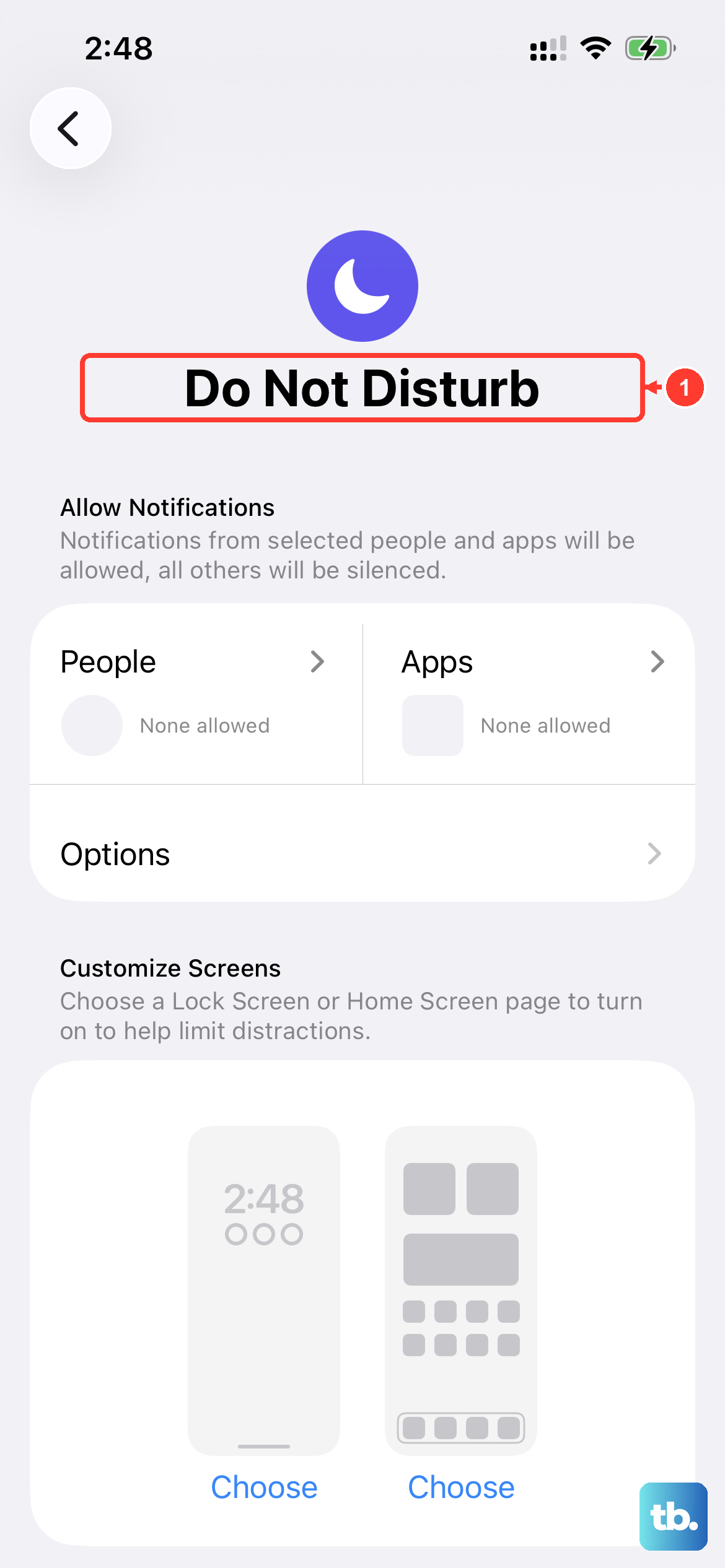
Focus modes in iOS 26, like Do Not Disturb, can silence notifications. Open Control Center by swiping down from the top right. If the Focus icon (a crescent moon or another symbol) is highlighted, tap it to turn it off.
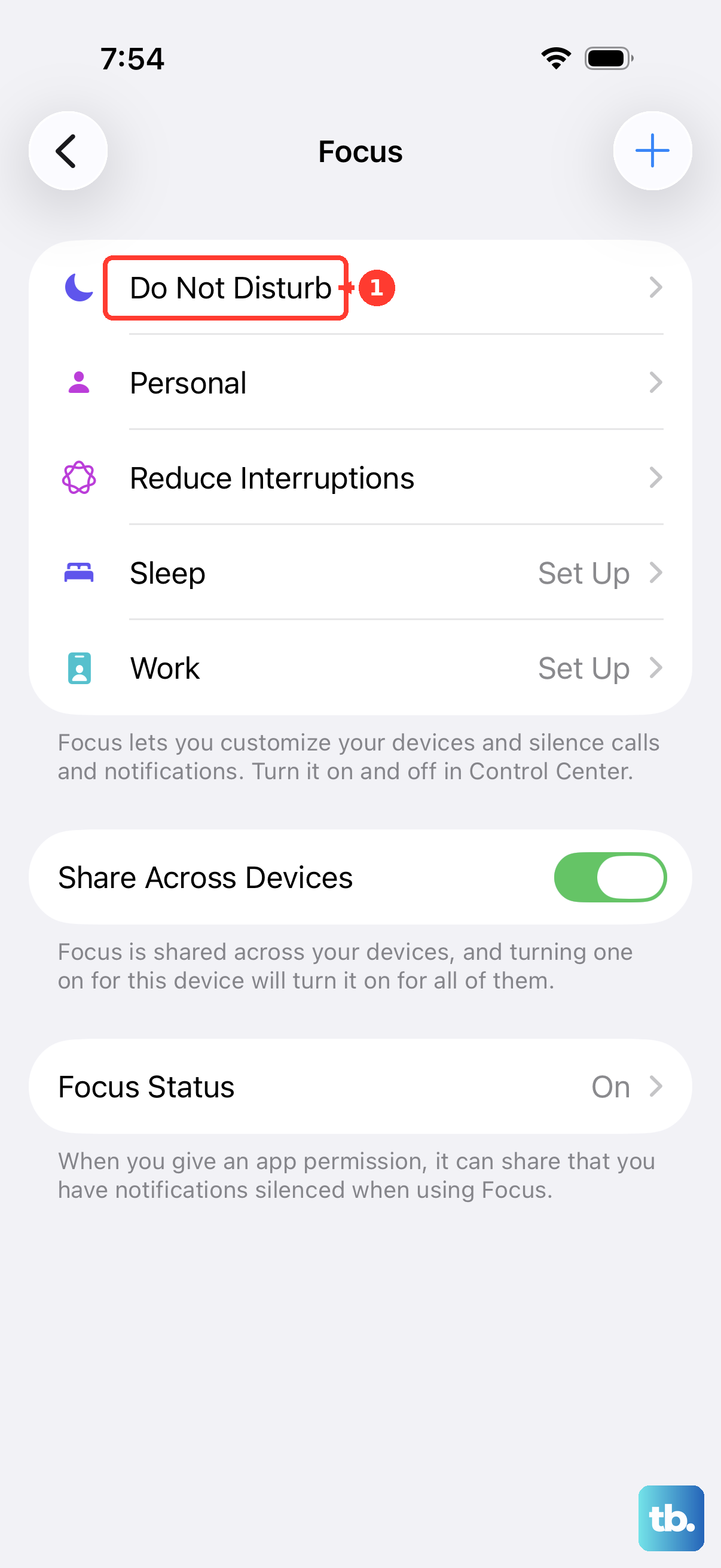
You can also go to Settings > Focus to see which mode is active and review its settings. Sometimes a custom Focus mode is set to silence all calls and alerts.
Clean the Speaker Grills
The speaker grills on your iPhone 16 Pro, especially the one at the bottom next to the USB-C port, can get clogged with lint from your pocket. This can muffle sound dramatically. Gently brush the grills with a clean, soft-bristled toothbrush or a dry cotton swab.
Be very careful not to push any debris further in. Never use sharp objects like pins or paperclips, as you can easily damage the internal speaker components.
Check for Software Updates
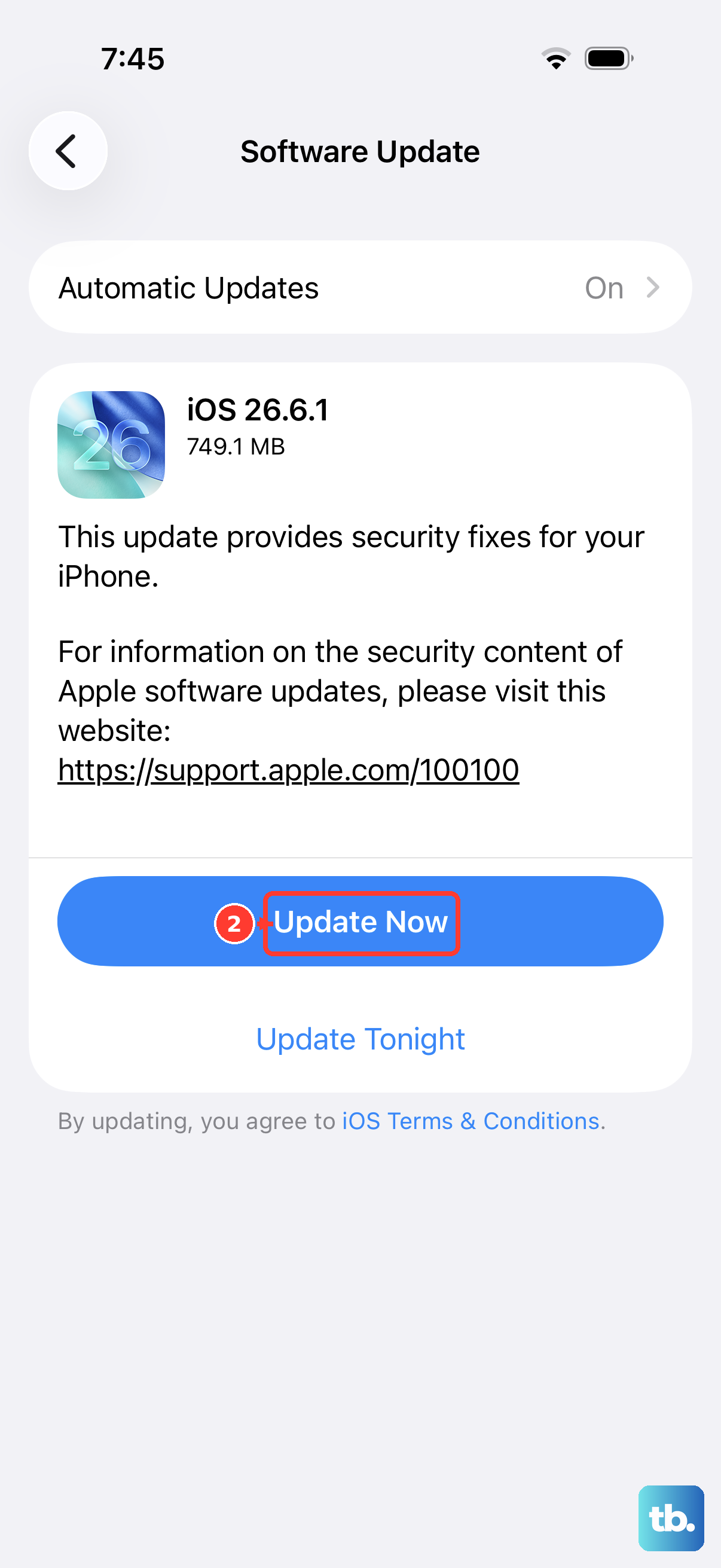
Audio bugs are often fixed in software updates. Since you're on iOS 26, make sure you have the latest version installed. Go to Settings > General > Software Update.
If an update is available, install it. It's a good idea to plug your iPhone 16 Pro into power using a certified USB-C cable and connect to Wi-Fi before starting the update.
Force Restart Your iPhone 16 Pro
A force restart can clear out a temporary software hiccup that's affecting the audio. For the iPhone 16 Pro, the sequence is expected to be the same as recent models: quickly press and release the Volume Up button, then quickly press and release the Volume Down button.
Finally, press and hold the Side button. Keep holding it until you see the Apple logo appear, then let go. This doesn't erase any data, it just gives the system a fresh start.
Reset All Settings
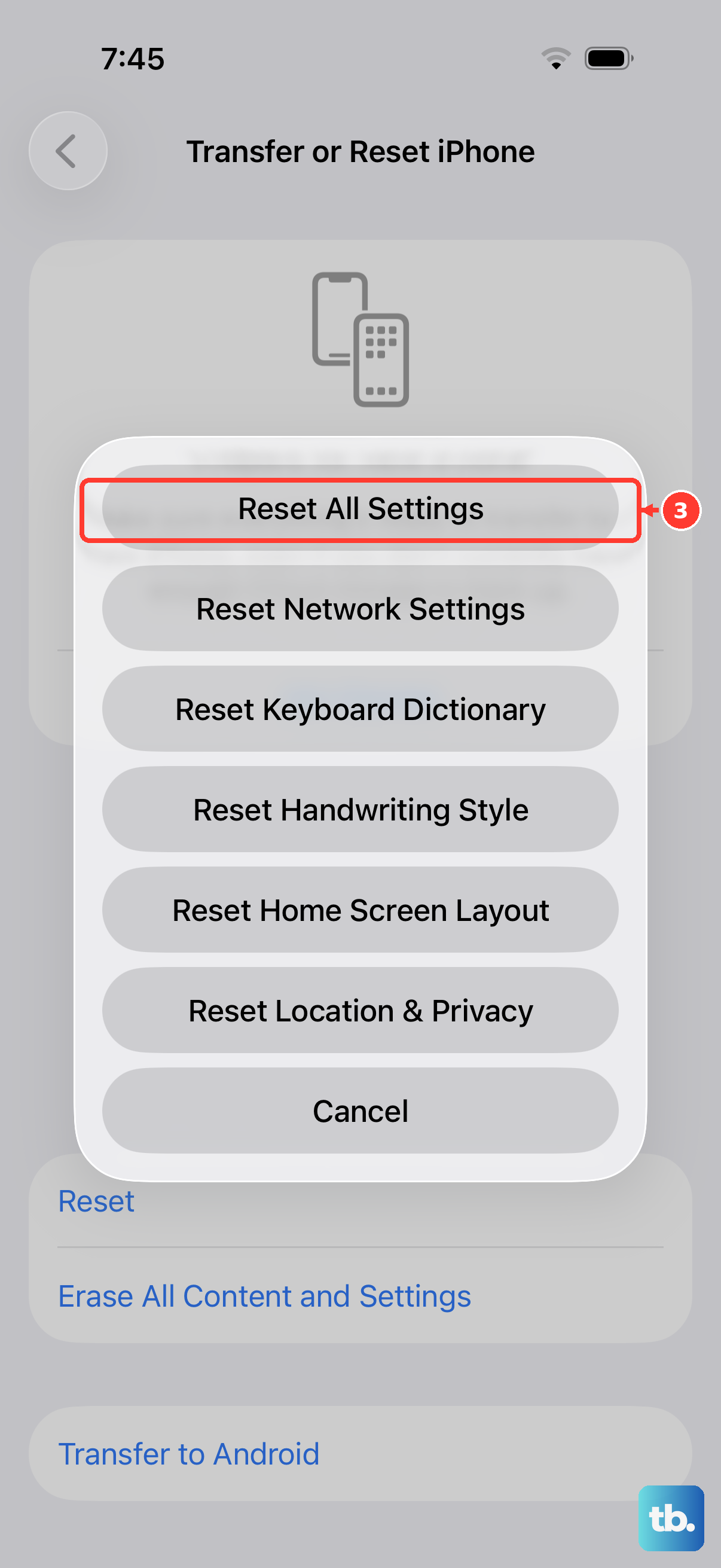
If the problem is tied to a specific setting that's gotten corrupted, this can help. Go to Settings > General > Transfer or Reset iPhone. Then, tap Reset and choose Reset All Settings.
This will reset your network settings, wallpaper, privacy permissions, and all system settings back to default. Your personal data like photos and apps will remain untouched, but you'll need to reconfigure things like Wi-Fi passwords and wallpaper afterward.
Test in Safe Mode (For App Conflicts)
If the sound issue only happens in certain apps, a third-party app might be the cause. To check, you can restart your iPhone in a diagnostic state. Press and hold the Volume Down button and the Side button simultaneously until you see the power off slider.
Then, release the buttons. Next, press and hold the Side button again until you see the Apple logo. If the sound works normally after this special restart, a recently downloaded app is likely interfering. You can try uninstalling apps one by one to find the culprit.