
When your iPhone 16 Pro stops ringing for incoming calls, it can leave you feeling disconnected. This issue can stem from a call-silencing setting, outdated software, or a network problem. The fixes are usually straightforward, and you can often get your phone working normally again in just a few minutes.
Let's jump right into the most common solution. If your iPhone 16 Pro is missing calls, the first thing I'd check is the Focus mode. Swipe down from the top-right corner to open Control Center and look at the Focus button. If Do Not Disturb or another Focus is active, tap its icon to turn it off. You can also go to Settings > Focus to see if any schedules are active that might be silencing calls.
Restart Your iPhone 16 Pro
A simple restart clears out temporary software bugs that can interfere with cellular services. Press and hold the Side button and either volume button until the power slider appears. Slide to power off, wait about 30 seconds, then press the Side button again to turn it back on.
If the phone is completely unresponsive, you'll need to force restart it. This is a bit different on the newer models. Press and quickly release the Volume Up button, then press and quickly release the Volume Down button. Finally, press and hold the Side button until you see the Apple logo appear on the screen.
Check Your Cellular Connection and Carrier Status
Look at the signal bars in the top-right corner of your screen. If you only see "SOS" or no bars at all, your phone may not be connected to your carrier's network. Try moving to a different location or going near a window.
Sometimes the issue is with your carrier, not your phone. You can quickly check for a widespread outage by visiting your carrier's website or using their app on WiFi. If you have another phone available, you can also call their customer service line to ask about service disruptions in your area or check your account status.
Review Your Focus and Screen Unknown Callers Settings
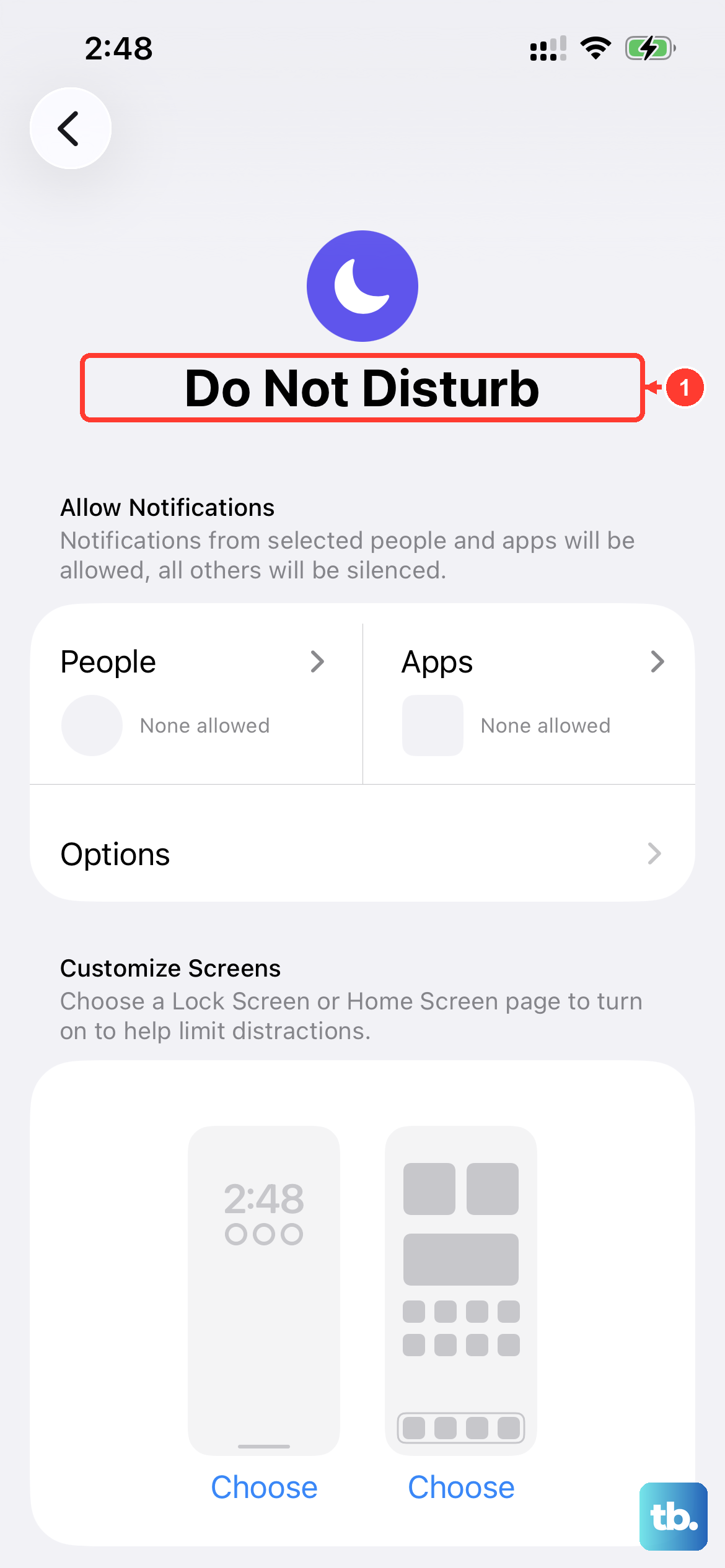
Beyond the general Focus modes, there are specific call-silencing settings. Go to Settings > Apps > Phone. Scroll down to Screen Unknown Callers and select Never so calls from unsaved numbers ring normally. Choosing Silence sends those calls to voicemail without ringing. Also check Settings > Focus to make sure Do Not Disturb is off.
Also, open the Phone app and tap on the Recents tab. Look for any missed calls. If you see numbers here that you didn't hear ring, check whether Focus or call-silencing settings were active.
Disable Call Forwarding
Call forwarding can redirect your calls to another number without you realizing it. To check this on your iPhone 16 Pro, go to Settings > Apps > Phone > Call Forwarding. Make sure the toggle is switched off. If it was on, turn it off and test whether you can receive a call.
If calls still don't come through, contact your carrier to check for service outages, billing-related blocks, or errors affecting calls on your account.
Check for a Carrier Settings Update
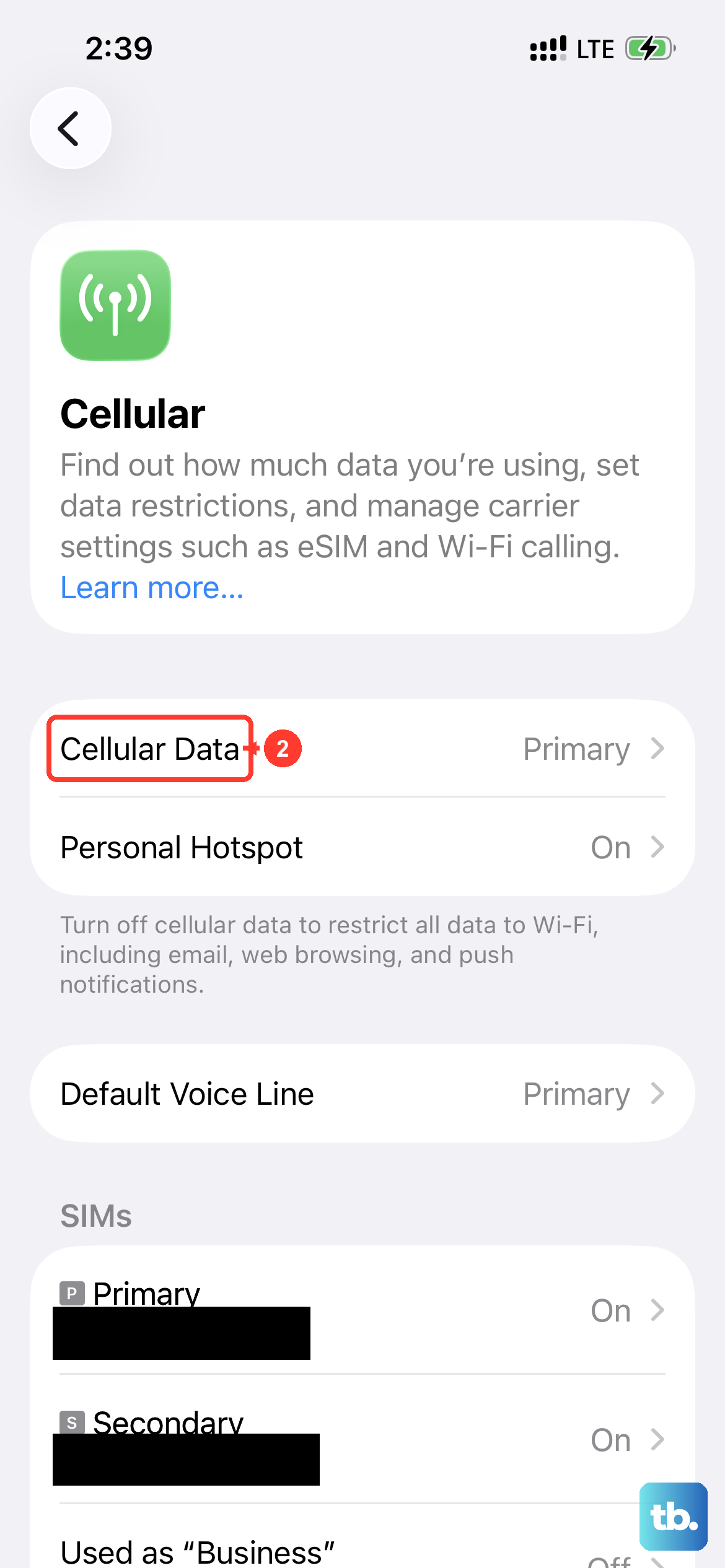
Your carrier occasionally sends small updates that improve network connectivity and calling features. To see if one is available, make sure you're connected to WiFi or cellular data, then go to Settings > General > About.
If an update is pending, a pop-up message will appear. Tap "Update" to install it. Follow any onscreen instructions to complete the update.
Reset Your Network Settings
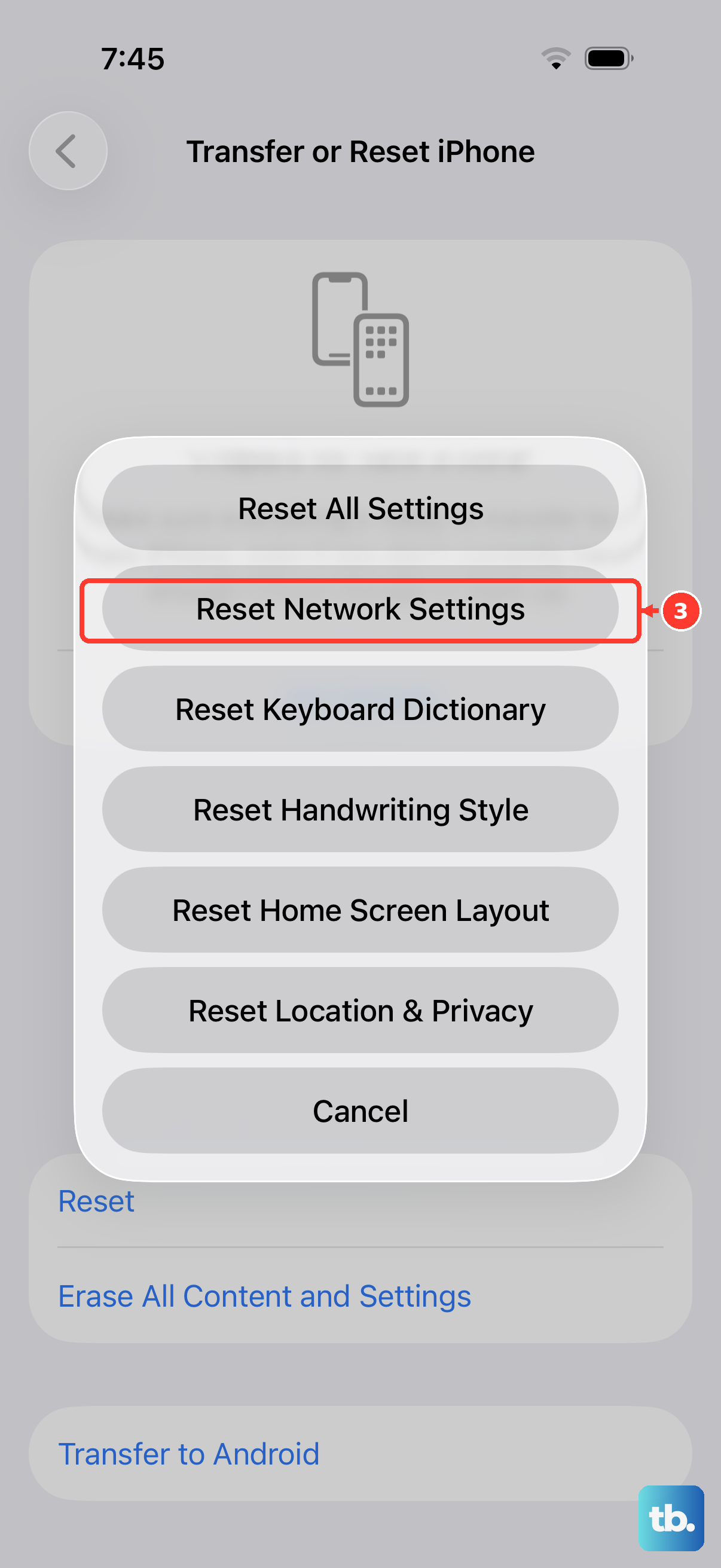
If the other checks in this article fail, resetting network settings can help resolve persistent calling issues. Go to Settings > General > Transfer or Reset iPhone. Tap Reset and then select Reset Network Settings.
You'll need to enter your passcode to confirm. Be aware that this will erase all saved WiFi passwords, so you'll have to reconnect to your WiFi networks afterward. The reset also clears cellular settings and previously used VPN and APN settings.
Examine Your Blocked Contacts List
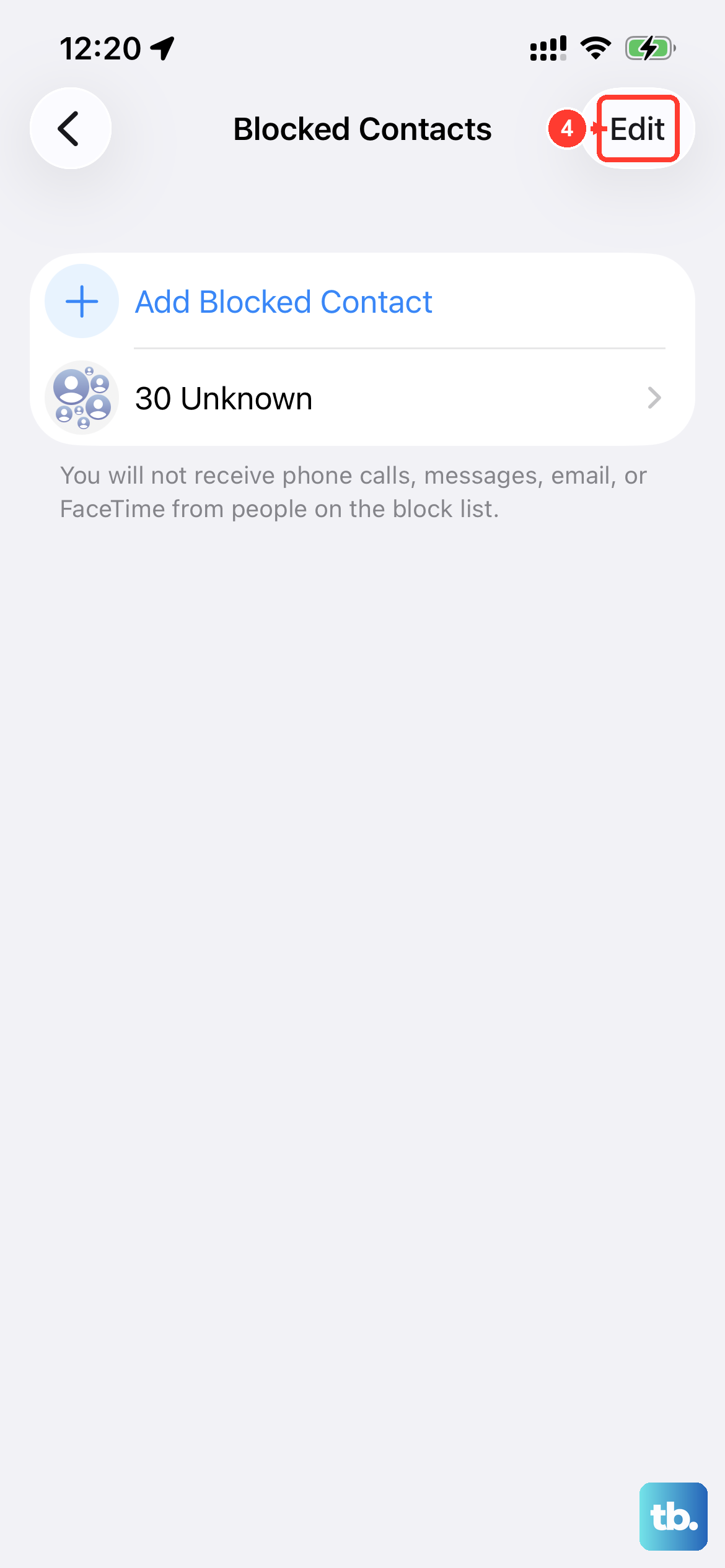
A call from a blocked number will never make your phone ring. It's worth checking to make sure a number you're expecting calls from hasn't been accidentally added to this list. Go to Settings > Privacy & Security > Blocked Contacts.
Review the list here. If you find a number that shouldn't be blocked, tap Edit, tap the delete button next to it, then tap Unblock. This change takes effect immediately.
Update iOS to the Latest Version
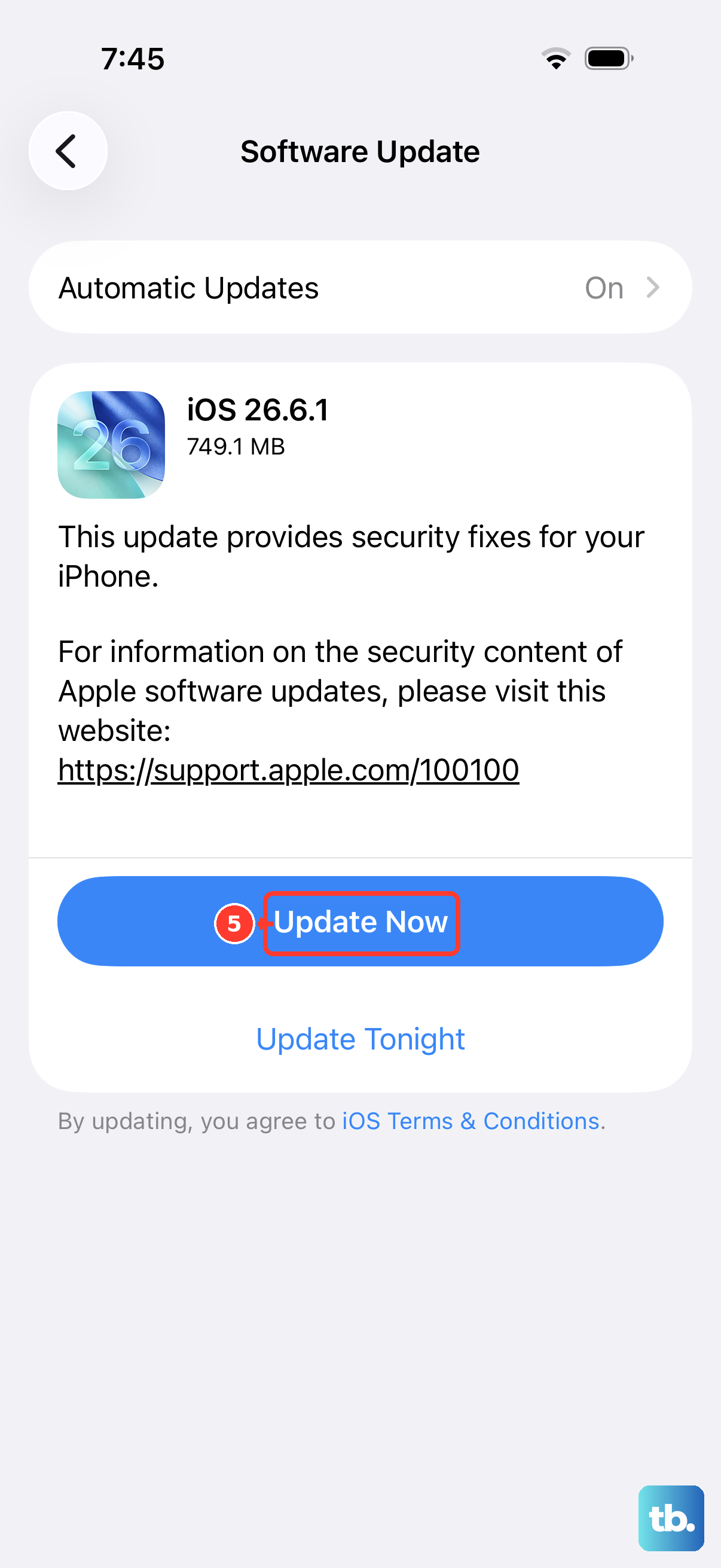
Software bugs in iOS can sometimes affect call functionality. Installing available updates can help resolve software issues. Connect your iPhone 16 Pro to WiFi and go to Settings > General > Software Update.
If an update is available, tap "Download and Install." I recommend doing this while your phone is connected to a power source using a certified USB-C cable to ensure the update completes smoothly.
Reinsert Your SIM Card or Check eSIM
If your iPhone has a physical SIM tray, check that the SIM card is seated properly. Models purchased in the U.S. use eSIM and have no SIM tray. Turn off your iPhone, then use the SIM eject tool (or a small paperclip) to open the tray. Carefully remove the SIM card and reinsert it.
If you're using an eSIM and calls still aren't coming through, contact your carrier. Ask them to check that your account is set up to use your iPhone and that there are no billing-related blocks or errors affecting calls on their system.