
So your iPhone 16 Pro won't charge. You plug it in and nothing happens, or maybe it just sits there stuck at a low percentage. It's a frustrating spot to be in, but a few simple checks may get it charging again.
Whether the USB-C port seems dead, your MagSafe charger isn't snapping to life, or the phone shows zero signs of power, start with these charging checks.
Force Restart Your iPhone 16 Pro
First, connect your phone to power and let it charge for half an hour. If it still won't turn on or only shows a battery icon, try a force restart. Keep it connected and let it charge for another half hour afterward.
For the iPhone 16 Pro, the sequence is: press and quickly release the Volume Up button, press and quickly release the Volume Down button, then press and hold the Side button until you see the Apple logo appear on screen.
Once it boots back up, try plugging it in again. If you see the charging indicator now, you've solved it.
Inspect and Clean the USB-C Port
Debris in the USB-C port can interfere with charging on your iPhone 16 Pro. Lint, dust, and pocket debris get compacted in there over time, preventing the cable from making a solid connection.
Grab a bright light and look closely into the port. If you see any dark clumps or debris, you'll need to clean it out. First, power off your phone for safety.
Use a soft, dry brush to gently remove loose lint or debris. Don't scrape inside the port with a toothpick or metal tool, and don't use compressed air. Keep moisture out of the opening, then firmly reconnect the charging cable.
Test a Different Cable and Power Source
You need to isolate the problem. Is it the cable, the wall adapter, or the phone itself? The best way is to swap each component one by one.
Try a different cable that complies with the USB-C standard first. Then, try a different compatible wall adapter or plug it into a computer's USB-C port. Don't forget to test a different wall outlet, too.
Also, take your iPhone out of its case. Some thicker cases, or ones with misaligned cutouts, can prevent the USB-C plug from seating fully.
Check Your Battery Charging Settings
If your iPhone 16 Pro is charging but seems to stop at 80%, a charging setting or a warm battery may be the cause. Apple includes settings to limit charging to preserve long-term battery health.
Go to Settings > Battery > Charging. Here, you'll find the Charge Limit option. If it's set to 80% or 85%, your phone is doing exactly what you told it to. You can adjust it to 100% for a full charge anytime.
When your charge limit is set to 100%, there's also Optimized Battery Charging, which learns your routine and delays charging past 80% until you need it. Leave it on to reduce the time your battery spends fully charged.
Let It Sit If the Battery Is Fully Drained
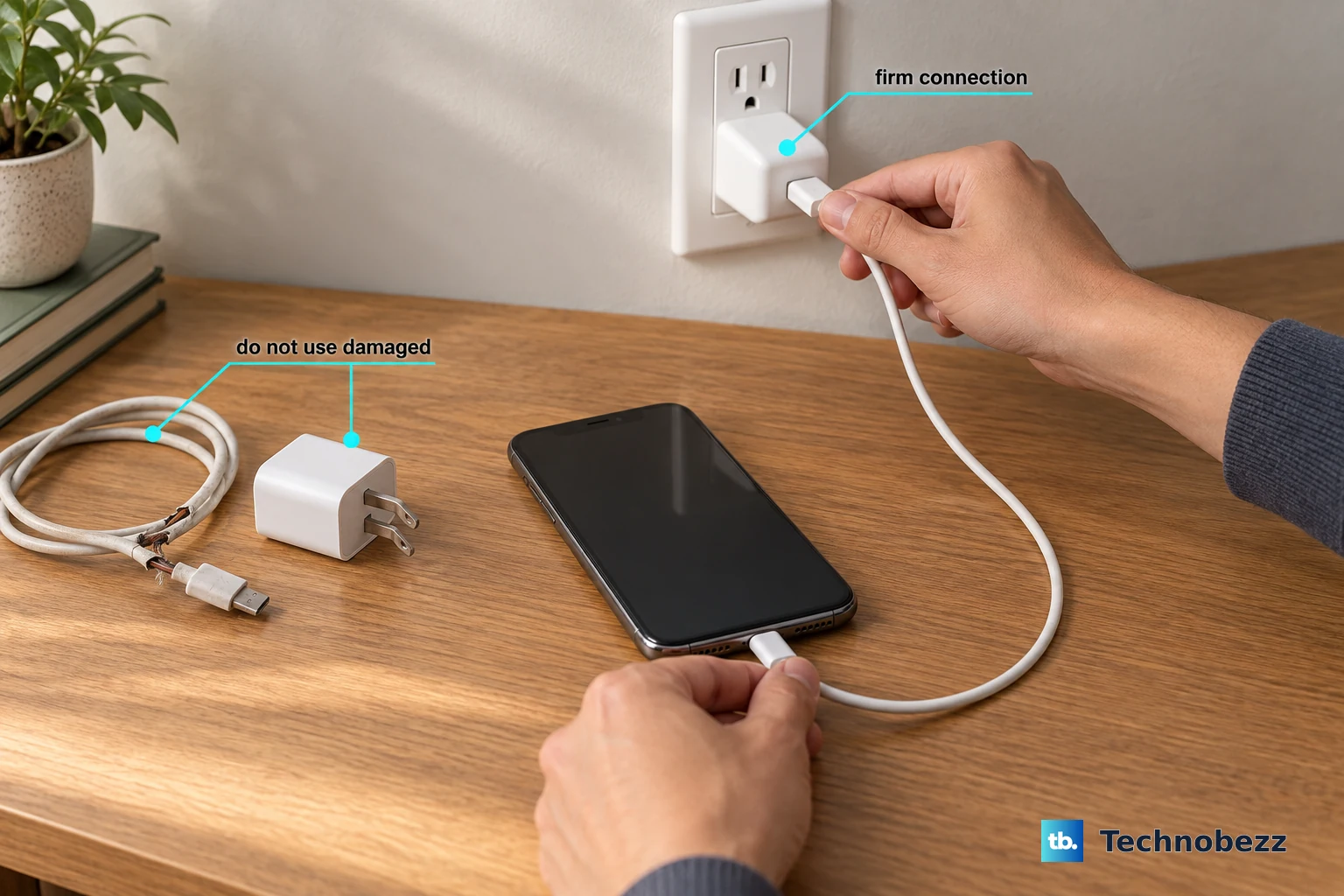
If the battery is fully drained, the phone may not turn on immediately when plugged in. Give it time to charge before trying again. Check that the cable, adapter, and outlet connections are firm, and don't use damaged accessories.
Connect it to a wall charger using a good cable and adapter, then leave it alone for half an hour. If it still won't charge, try a different cable, adapter, or outlet.
After that time, check the screen. If it still won't turn on or only shows a battery icon, try a force restart while it remains plugged into the wall, then let it charge for another half hour.
Try MagSafe or Qi2 Wireless Charging
This is a useful troubleshooting step. If your iPhone 16 Pro charges wirelessly but not via USB-C, check the cable, adapter, and port rather than assuming the port itself is damaged.
Use a MagSafe Charger for up to 25W with a 30W adapter or higher, or a Qi2-certified charger for up to 15W. Position the phone correctly on the charger, and remove any case that's overly thick or has metal plates inside.
Keep in mind that wireless charging generates more heat. If your phone gets warm, it may slow down or pause charging temporarily to protect the battery. This is normal.
Update to the Latest Version of iOS
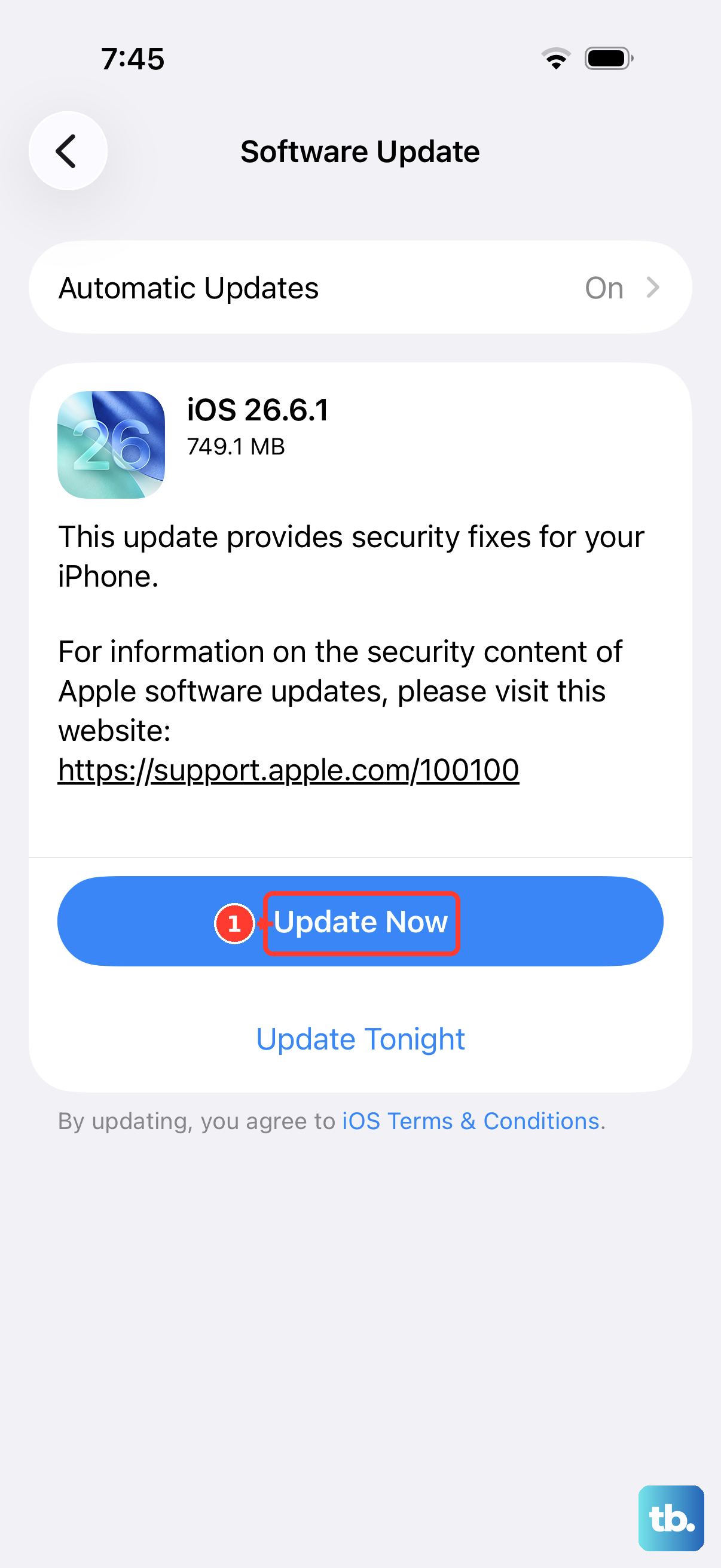
Make sure your iPhone 16 Pro has the latest version of iOS, especially if you see an alert that your charging accessory isn't supported. Check for updates once the phone has enough power to turn on.
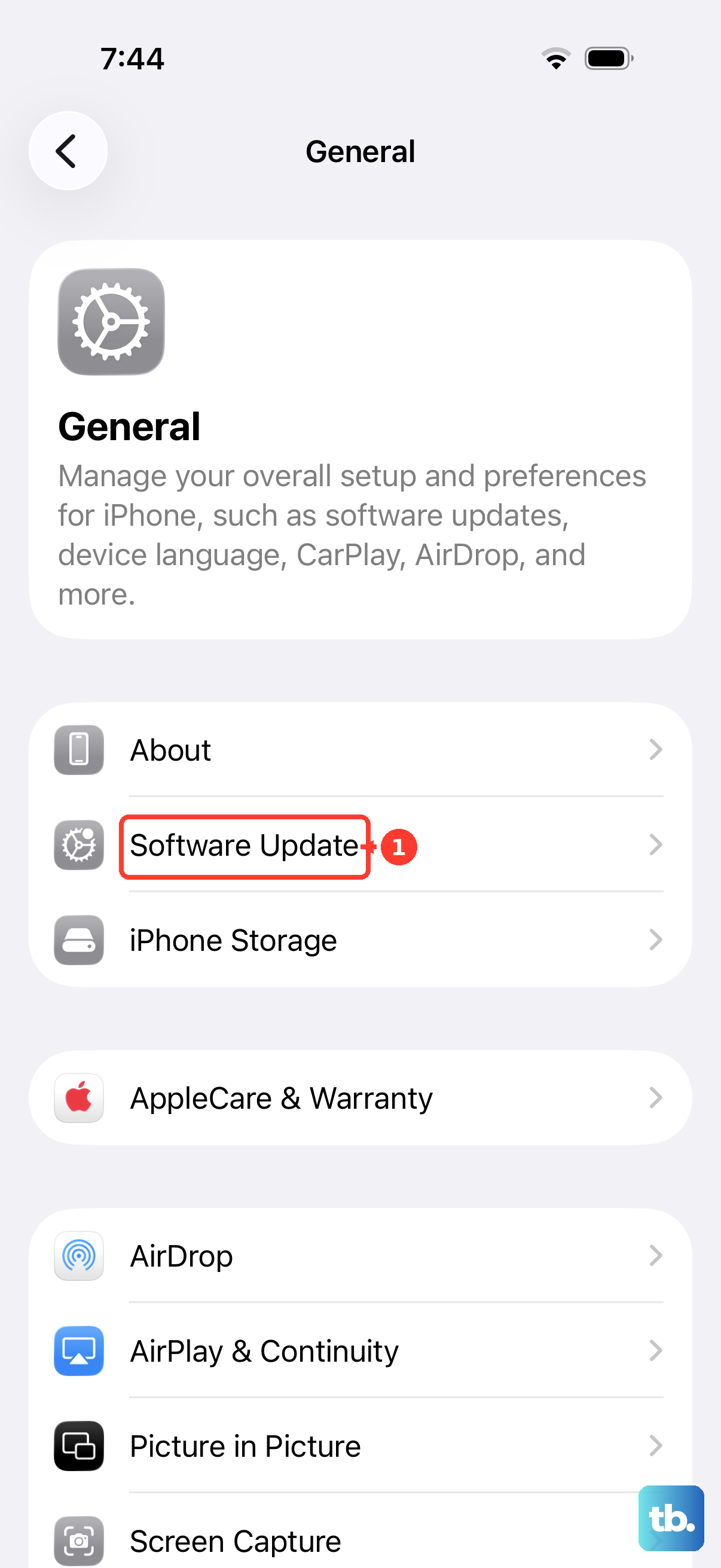
Go to Settings > General > Software Update. If an update is waiting, tap Download and Install. Back up your phone first, and keep it connected to power and Wi-Fi while updating.
If your phone turns on but the update won't install, try updating with a computer. Connect it to a Mac or PC and use Finder on a recent Mac, or the Apple Devices app or iTunes on Windows, to check for updates.
Charge with the Phone Powered Off
Sometimes a background app or process is causing enough battery drain to offset the incoming charge, making it seem like the phone isn't charging. Turning the iPhone completely off eliminates all that activity.
Power down your iPhone 16 Pro, then plug it into your charger. If it turns back on, lock the screen and leave it idle while charging. Reduced activity can help it charge faster.
For faster charging, limit games, camera use, and high-quality video streaming, especially with the display at full brightness. These activities can reduce charging speed.
Restore Your iPhone Using a Computer
If your phone still won't power on or charge after these checks, it may need service. Recovery mode is an option if it stays on the Apple logo without a progress bar or isn't recognized by your computer. Restore erases all data, so make sure you have a recent backup before choosing it.
Update your Mac or the Apple Devices app on your PC, then connect your iPhone 16 Pro with a USB-C cable. Open Finder on the Mac or Apple Devices on the PC. Press and quickly release Volume Up, press and quickly release Volume Down, then hold the Side button until the Connect to computer screen appears.
On your computer, choose Update first if you haven't tried it. Restore reinstalls iOS and erases your data. If the download takes more than 15 minutes and the phone leaves recovery mode, let it finish, then repeat the button sequence. If updating or restoring fails, the phone may need service.