
If your iPhone 16 Pro is feeling sluggish, it's a frustrating experience. Even with the A18 Pro chip, performance can dip due to software quirks or settings. Start with a force restart if the phone is unresponsive, as restarting can help with temporary performance issues.
Press and quickly release the volume up button, then quickly press and release the volume down button. Immediately after, press and hold the side button until you see the Apple logo appear on the screen. This process doesn't delete any of your data.
Update to the Latest iOS Version
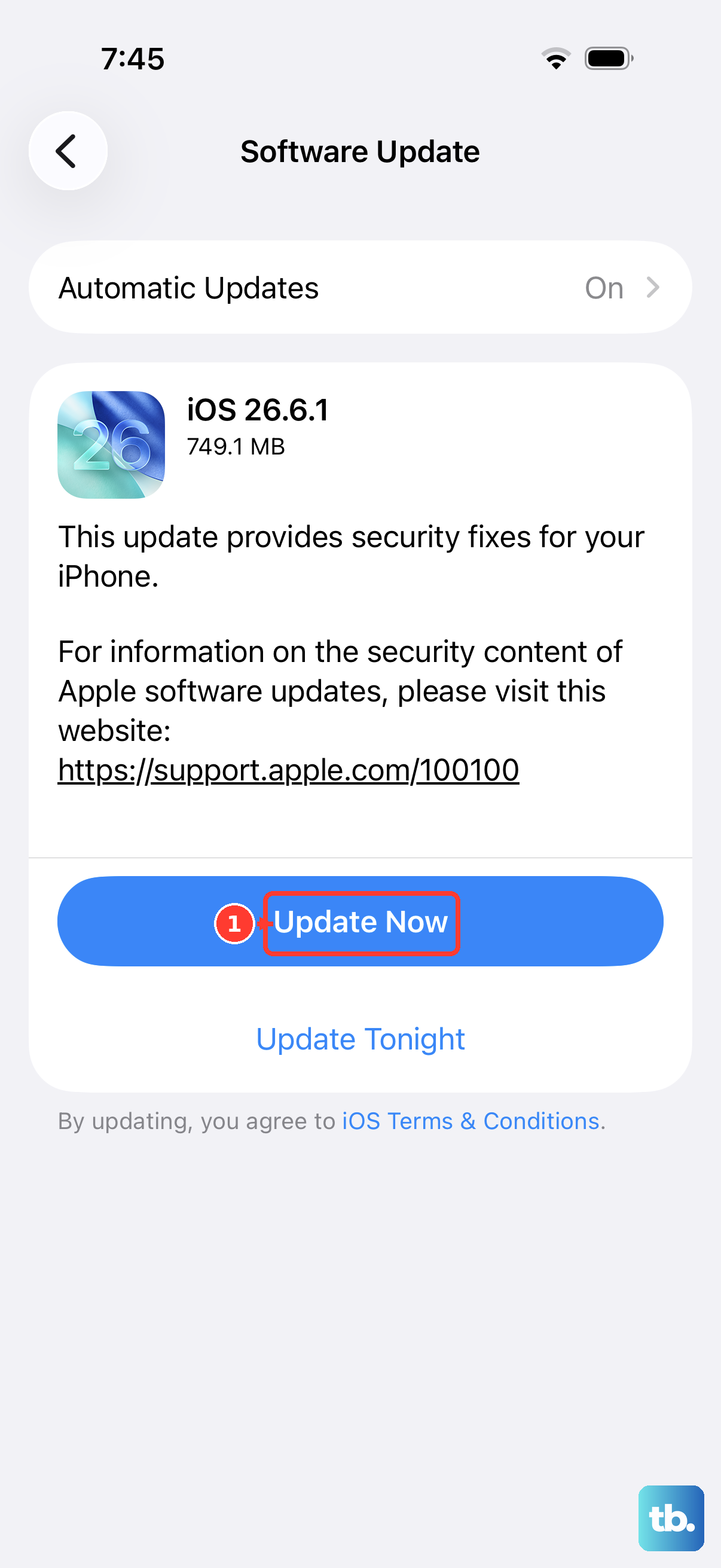
iOS updates include improvements and bug fixes. Updating an outdated version may help with software-related performance issues. Head to Settings > General > Software Update to check whether the latest version of iOS is available for your iPhone.
If an update is available, connect to Wi-Fi and plug in your charger. I've seen minor point updates resolve noticeable lag.
Check Your iPhone's Storage Space
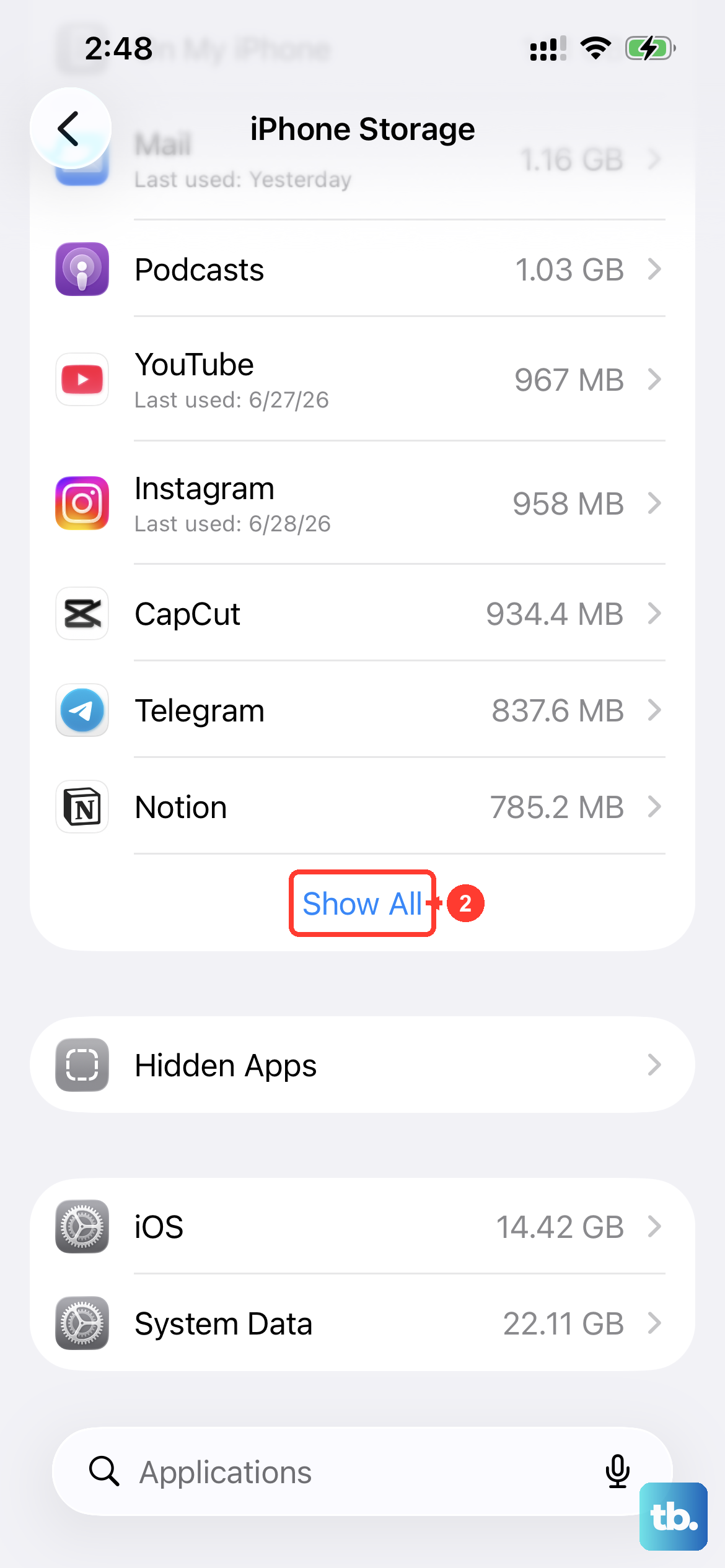
When your storage is critically full, the system has no room to work efficiently. This is a very common cause of slowdowns. Open Settings > General > iPhone Storage to see a breakdown.
Keep at least 1 GB of storage free to help avoid slowdowns. The storage menu will offer recommendations, like reviewing large attachments or offloading unused apps. Offloading removes the app but keeps its documents and data, so it's a great way to free up space temporarily.
Manage Background App Refresh
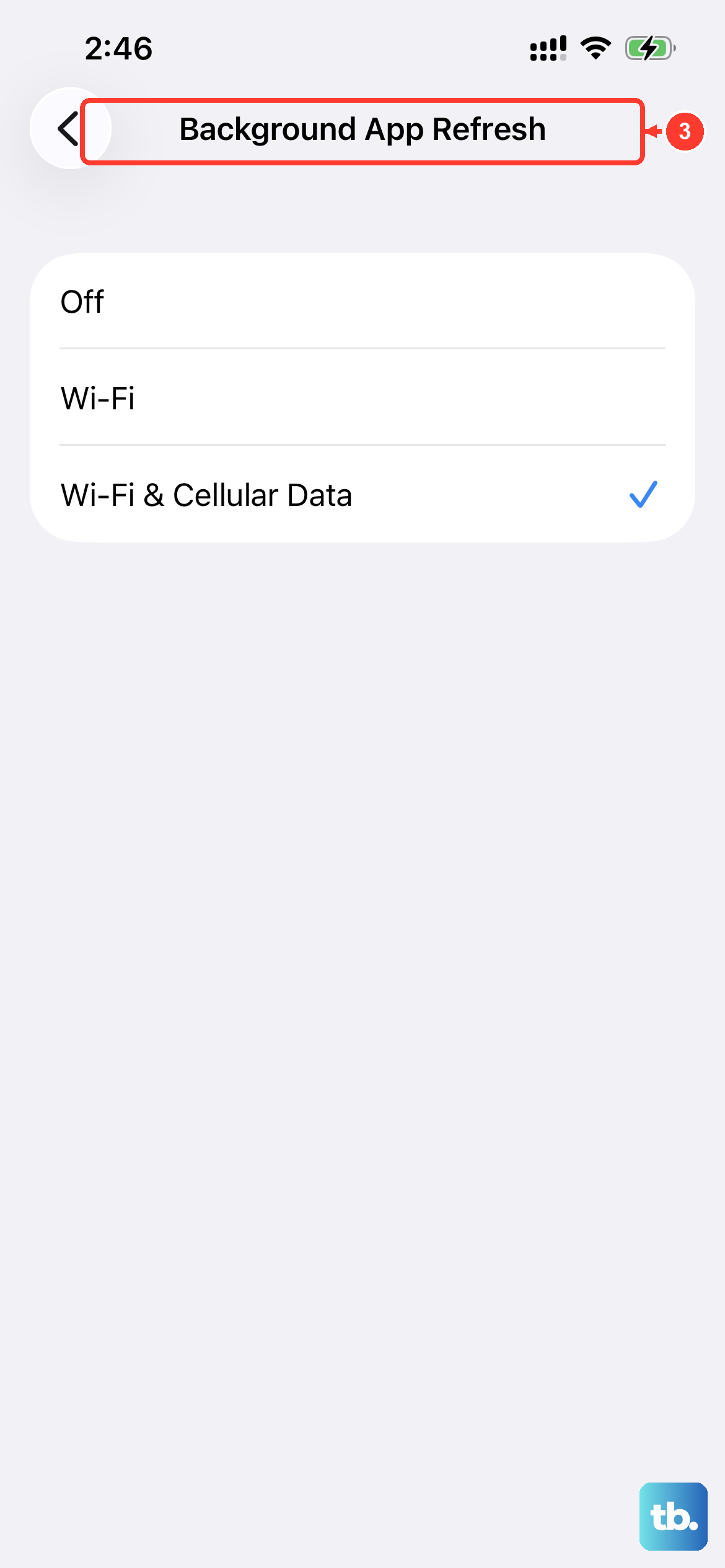
Apps refreshing content in the background use CPU and network resources, which can slow down what you're doing in the foreground. You can control this globally or per app.
Go to Settings > General > Background App Refresh. You can turn it off entirely, or limit it to Wi-Fi only. For more control, scroll down and disable it for specific apps that don't need live updates.
Review Battery Health and Usage
Battery wear can affect capacity and peak performance, so it's worth a quick check. Navigate to Settings > Battery > Battery Health. Review Maximum Capacity and the message under Peak Performance Capability, and check whether the screen recommends a battery replacement.
Return to Settings > Battery and review App and System Activity to see which apps used the most battery today. Tap View All Battery Usage to see the last eight days. Unusually high background usage may help you identify an app to investigate.
Reduce Motion and Visual Effects
The parallax and zoom animations on the home screen and within apps are smooth, but they use graphical resources. Turning them down can make the interface feel snappier.
Go to Settings > Accessibility > Motion. Turn on the switch for "Reduce Motion." This replaces many zoom effects with simpler crossfades. While you're there, you can also tap "Prefer Cross-Fade Transitions" for an even more subtle effect.
Close Apps That Aren't Responding
If an app freezes or stops responding, close that app and try opening it again. To find it, swipe up from the very bottom of the screen and pause in the middle to open the app switcher.
Swipe left or right to find the app you want to close, then swipe up on the app's preview to remove it from the recent apps list. Avoid closing apps unnecessarily, as reopening them requires their data to reload and can slow things down.
Disable Automatic Downloads
Automatic app downloads and updates can use your network connection while you're using other apps. You can control these downloads if online content feels slow. You can find these settings in Settings > Apps > App Store.
Under the "Automatic Downloads" section, turn off "App Downloads" and "App Updates." If you turn off automatic updates, keep checking for app updates manually.
Reset All Settings
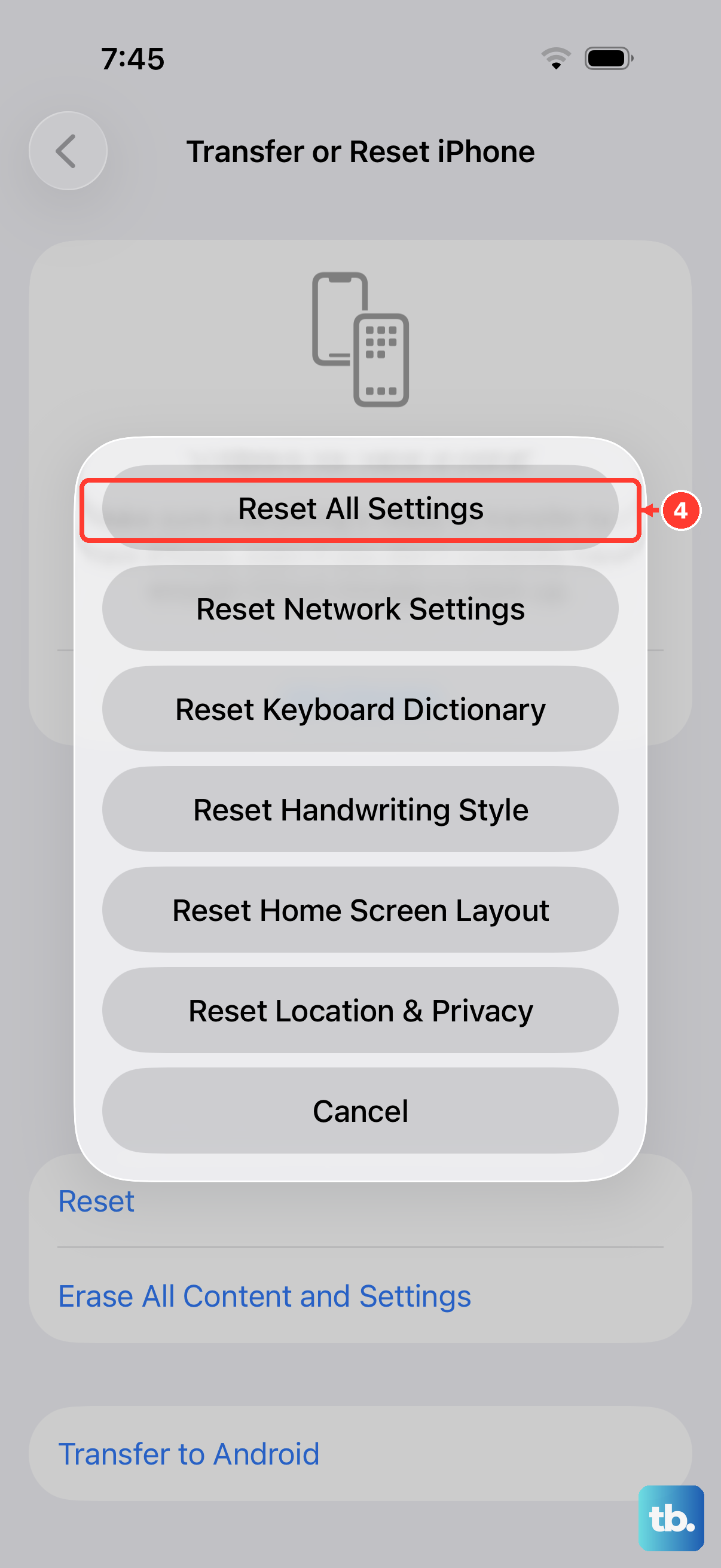
If the phone is still slow after the other checks, you can try resetting its settings. It will reset all your preferences, like Wi-Fi passwords, wallpaper, and privacy settings, back to factory defaults without erasing any of your personal data or media.
Go to Settings > General > Transfer or Reset iPhone. Tap "Reset" at the bottom, then choose "Reset All Settings." You'll need to enter your passcode to confirm. After the phone reboots, you'll have to reconfigure things like Face ID and notifications, rejoin Wi-Fi, and re-pair Bluetooth devices and your Apple Watch if you use one.
Check for Problematic Apps
Sometimes, a single third-party app is the culprit. Think about if the slowdown started after you installed a particular new app. Try uninstalling any recent or suspicious apps to see if performance improves.
You can also check the App Store page for apps you use frequently. Reviews mentioning crashes or performance issues can help you decide which app to investigate, but first check whether an update is available for that app.