
When your iPhone 16 Pro starts restarting on its own, it's incredibly disruptive. This can happen for a few reasons, often tied to a new software update or a problematic app you've recently installed. I'd start with a force restart, as it's the quickest way to clear out a temporary software hiccup.
Before you try anything more involved, it's a good idea to make sure you have a recent backup. You can do this through iCloud or by connecting to your computer. This protects your photos, messages, and app data just in case.
Perform a Force Restart
The force restart sequence for the iPhone 16 Pro is the same as recent models. Press and quickly release the Volume Up button, then quickly press and release the Volume Down button. Immediately after, press and hold the Side button. Keep holding it until you see the Apple logo appear, then you can let go.
This doesn't erase any data. It simply forces the phone to shut down and reboot, which can resolve many minor glitches causing the random restarts.
Update iOS and Your Apps
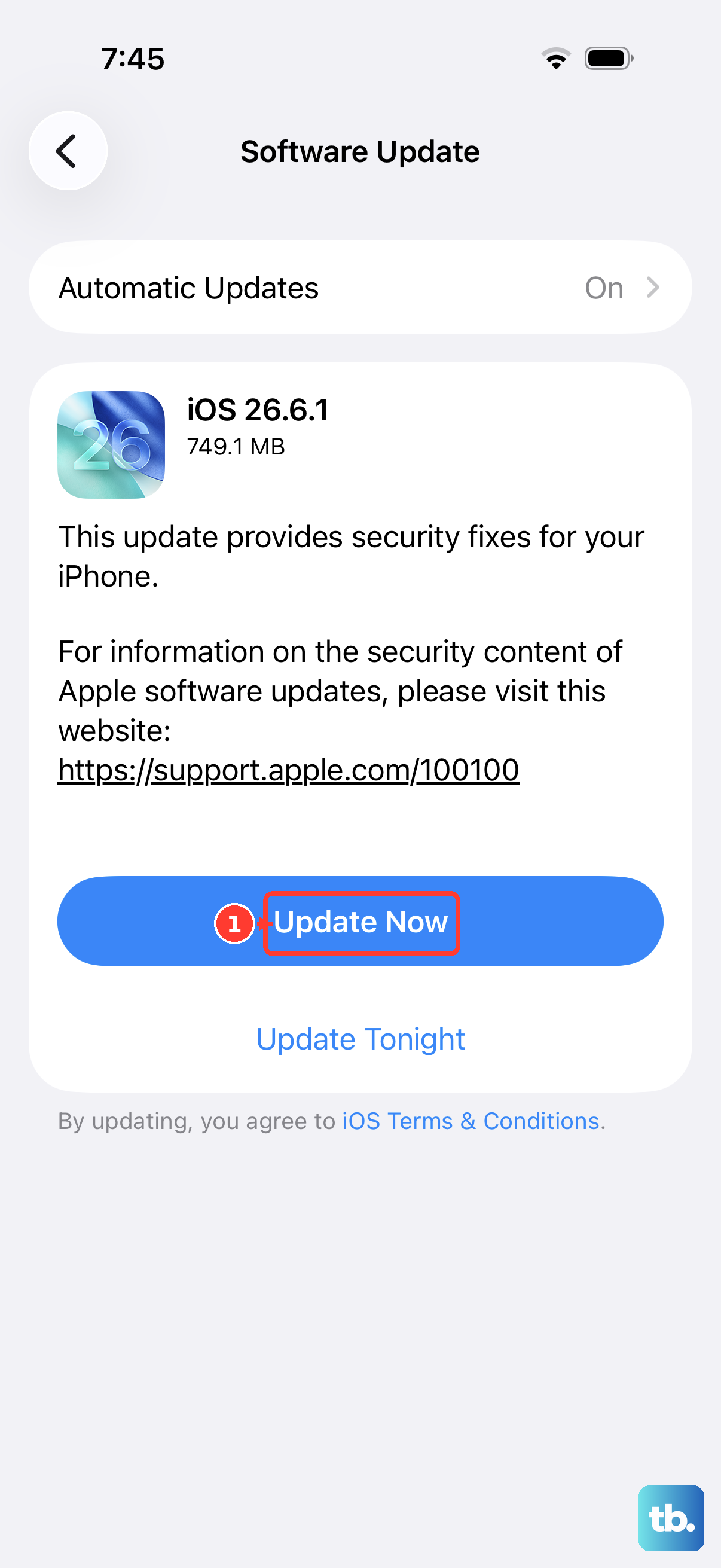
There's a chance a software issue is causing instability. Head to Settings > General > Software Update to check for any available updates. The latest iOS version can include bug fixes.
Outdated apps can also be the culprit. Open the App Store, tap your profile icon in the top corner, then tap App Updates to see pending updates. Tap "Update All" to get everything current. Updating can help with apps that aren't working properly.
Identify a Problematic App
If the restarts started after you installed a new app, that app might be the issue. Try closing and reopening that app first. On the iPhone 16 Pro, you swipe up from the very bottom of the screen and hold in the middle, then swipe up on that app's card to close it. Open it again to see whether it works properly.
If the app still isn't working properly after you've restarted the phone and checked for updates, try deleting it and downloading it again from the App Store. Deleting an app may remove data stored in it, so save anything important first. If the app still has problems, contact its developer.
If the restarts seem random, go to Settings > Privacy & Security > Analytics & Improvements > Analytics Data to see the analytics logs your iPhone has recorded. If entries naming the same app keep appearing, that app may be the cause.
Free Up Storage Space on Your iPhone
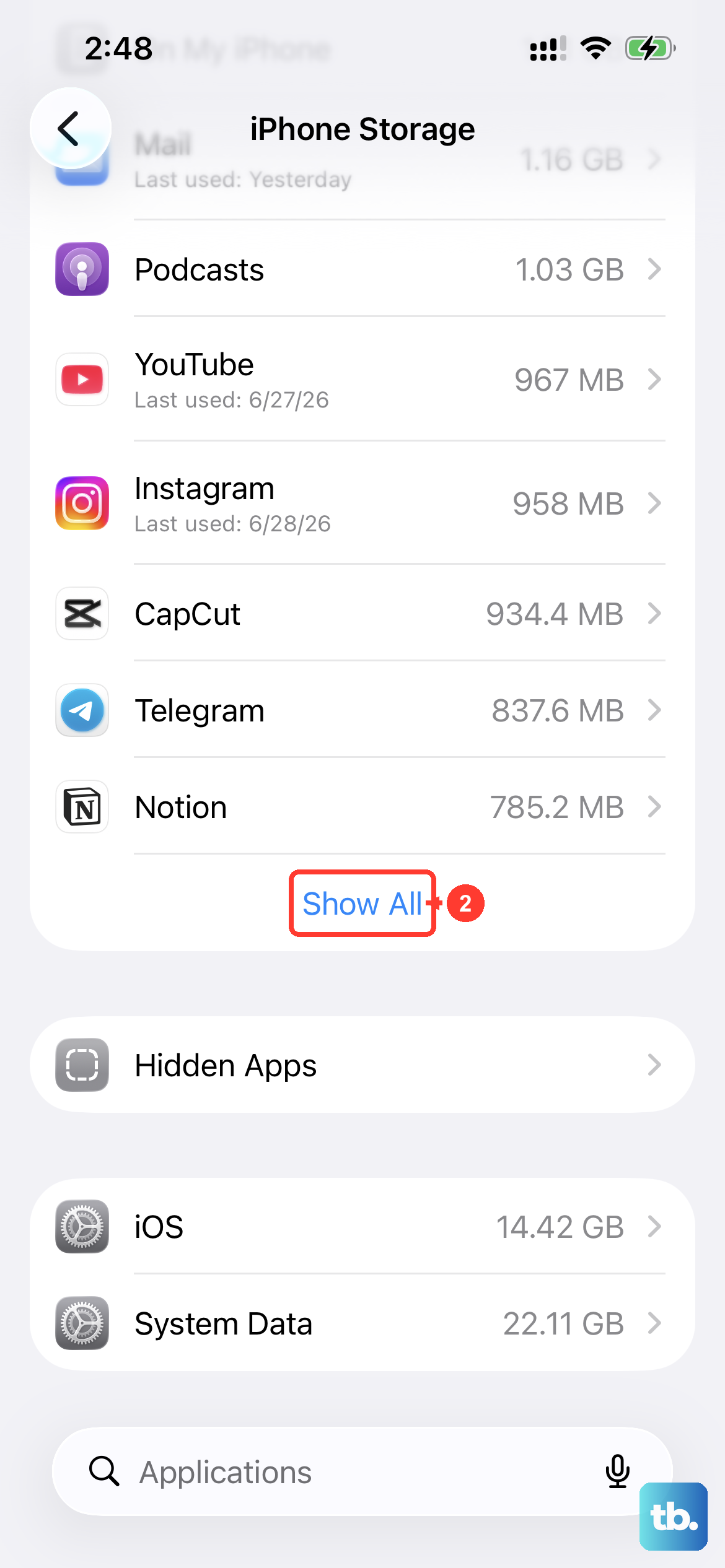
If your iPhone's storage is nearly full, you may need to free up space before installing an update. Go to Settings > General > iPhone Storage to see how much space you have left. If you're in the red, the phone itself will offer recommendations like reviewing large attachments or offloading unused apps.
Offloading an app removes the app itself but keeps its documents and data on your phone. You can always re-download it from the App Store later if you need it. This is a great way to quickly free up gigabytes without losing your information.
Reset All Settings
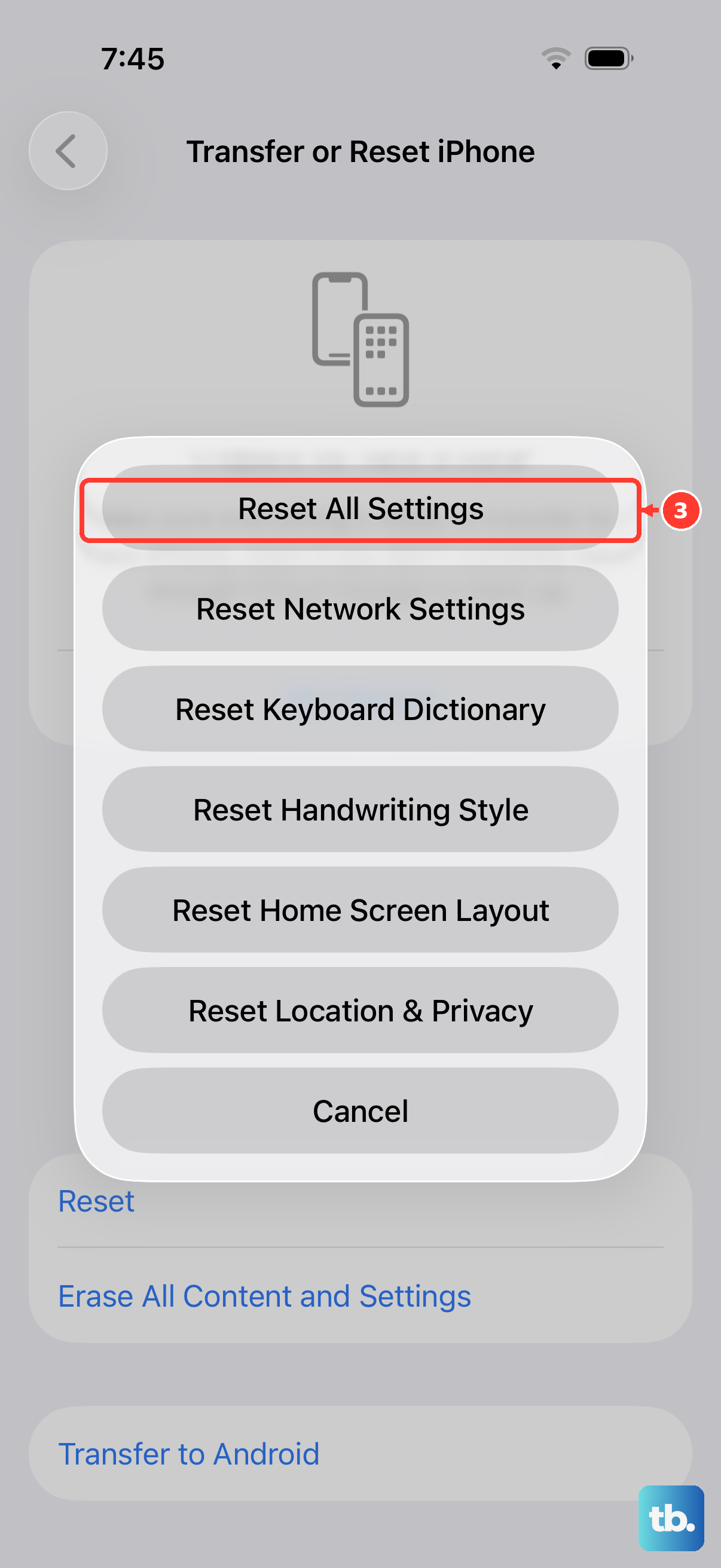
This is a more thorough step that won't delete your personal data like photos or messages. It resets all your system settings back to their defaults. Things like your Wi-Fi passwords, wallpaper, and privacy permissions will be cleared, so you'll need to set those up again.
To do this, go to Settings > General > Transfer or Reset iPhone > Reset. Then, choose "Reset All Settings." You'll need to enter your passcode to confirm. This can help if a setting is causing the problem.
Check for Overheating Issues
The iPhone 16 Pro is a powerful device, and intensive tasks can cause it to heat up. If the phone feels unusually hot, let it cool before using it again. Think about when the restarts happen. Is it during long gaming sessions, while using GPS navigation, or when charging?
If overheating is the trigger, remove any case to help with cooling and move the phone out of direct sunlight. Also, make sure you're using a certified USB-C cable and charger.
Restore via Recovery Mode
If your phone stays on the Apple logo for several minutes without a progress bar, isn't recognized by your computer, or shows the "Connect to computer" screen, try recovery mode. First, update your Mac or get the latest Apple Devices app on your PC. Connect your iPhone 16 Pro with a USB cable, then open Finder on your Mac or the Apple Devices app on your PC.
Quickly press and release the Volume Up button, then quickly press and release the Volume Down button. Immediately press and hold the Side button. Don't let go when you see the Apple logo. Keep holding until you see the "Connect to computer" screen.
Your computer will then give you the option to Update or Restore. Choose "Update" first. This will try to reinstall iOS without erasing your data. If the download takes more than 15 minutes and your phone leaves the "Connect to computer" screen, let the download finish, then repeat the button steps. If updating doesn't resolve the issue, try "Restore," which reinstalls iOS and erases your phone, so you'd need a backup to recover your data.
Check Power and Service Options
If your iPhone won't turn on after a force restart, charge it for one hour and then try again. If it shows a low-charge battery, check the charging hardware and charge it for 30 minutes or until it starts.
If the phone still won't turn on, it may need service. Service may also be needed if recovery mode cannot update or restore it.
Perform a Factory Reset
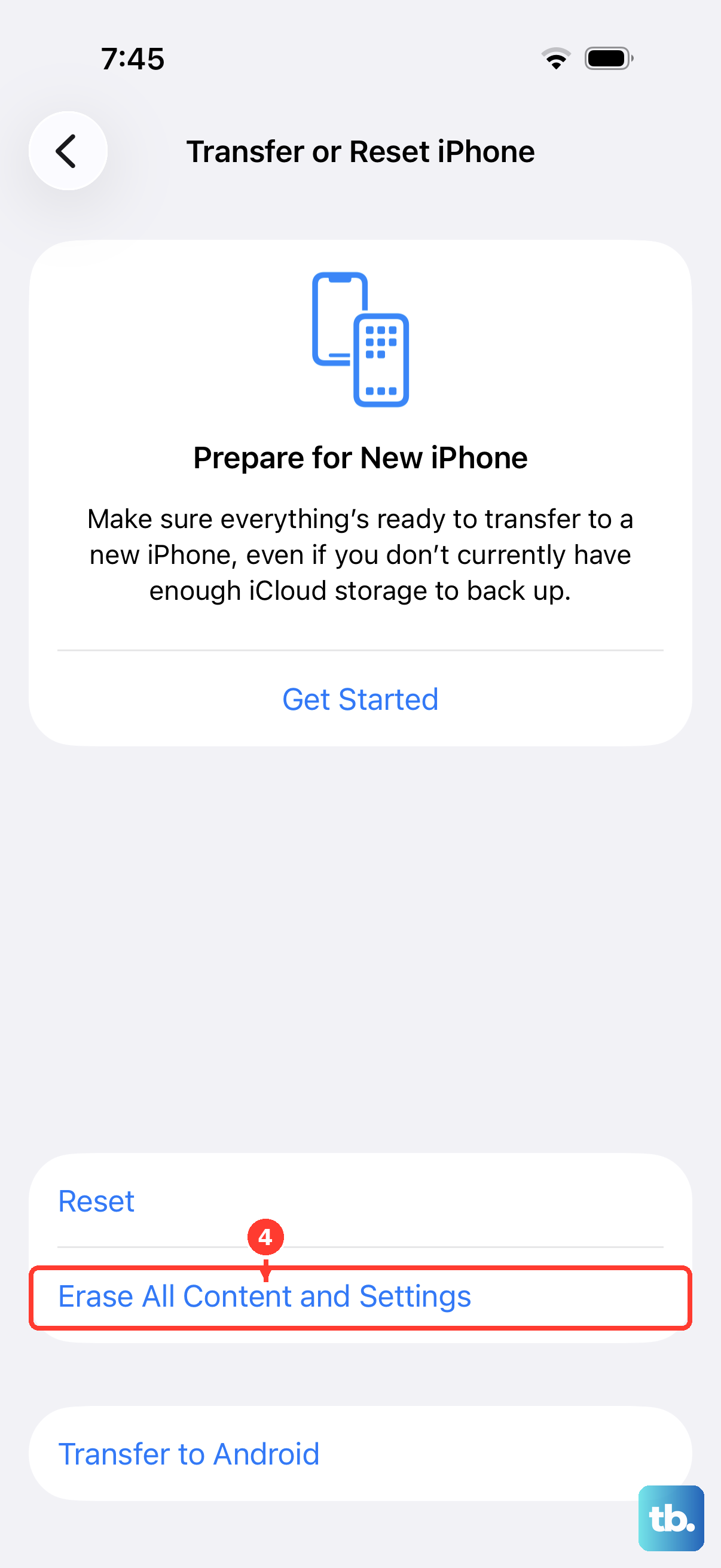
This is your last resort before considering a hardware issue. A factory reset will erase your content and settings on your iPhone 16 Pro. You must have a backup to restore from afterward.
Go to Settings > General > Transfer or Reset iPhone and tap "Erase All Content and Settings." Enter your passcode and Apple Account password to confirm. If the random restarts stop on a completely clean phone, it strongly points to a software or app problem that's now been removed.