
When your iPhone 16 Pro's Personal Hotspot keeps dropping the connection, it can leave your laptop or tablet suddenly offline. This is a common hiccup, but it's usually something you can fix yourself without much trouble.
Let's start with the quickest solution. Head to Settings > Personal Hotspot and toggle the switch off. Wait about 10 seconds, then turn it back on. Make sure Allow Others to Join is enabled. This simple reset clears out any temporary software glitch and gets things talking again.
Restart Your iPhone 16 Pro
A full restart is a powerful tool for any connectivity issue. To restart your iPhone 16 Pro, press and quickly release the Volume Up button, then quickly press and release the Volume Down button. Finally, press and hold the Side button until you see the Apple logo appear.
This process is a bit different from older models and does a deeper refresh of the system. It clears out cached network data and re-establishes a clean connection to your cellular network, which is the foundation for your hotspot.
Verify Your Cellular Data Connection
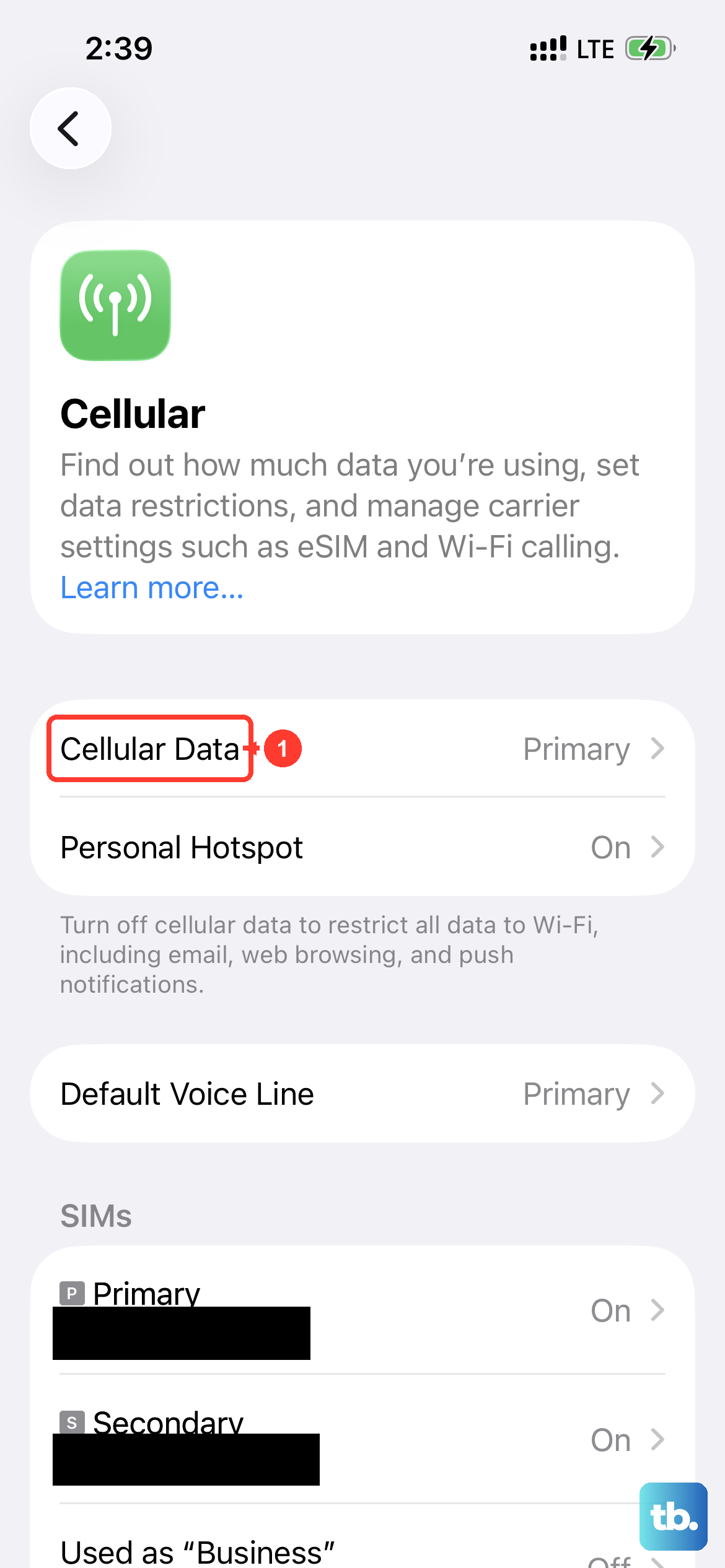
Your hotspot can't work without a solid data signal. First, check that Settings > Cellular > Cellular Data
It's also worth double-checking your mobile plan. Some older or budget plans don't include tethering, or they might have a separate data cap for hotspot use. A quick call to your carrier can confirm this.
Reset the Network Configuration
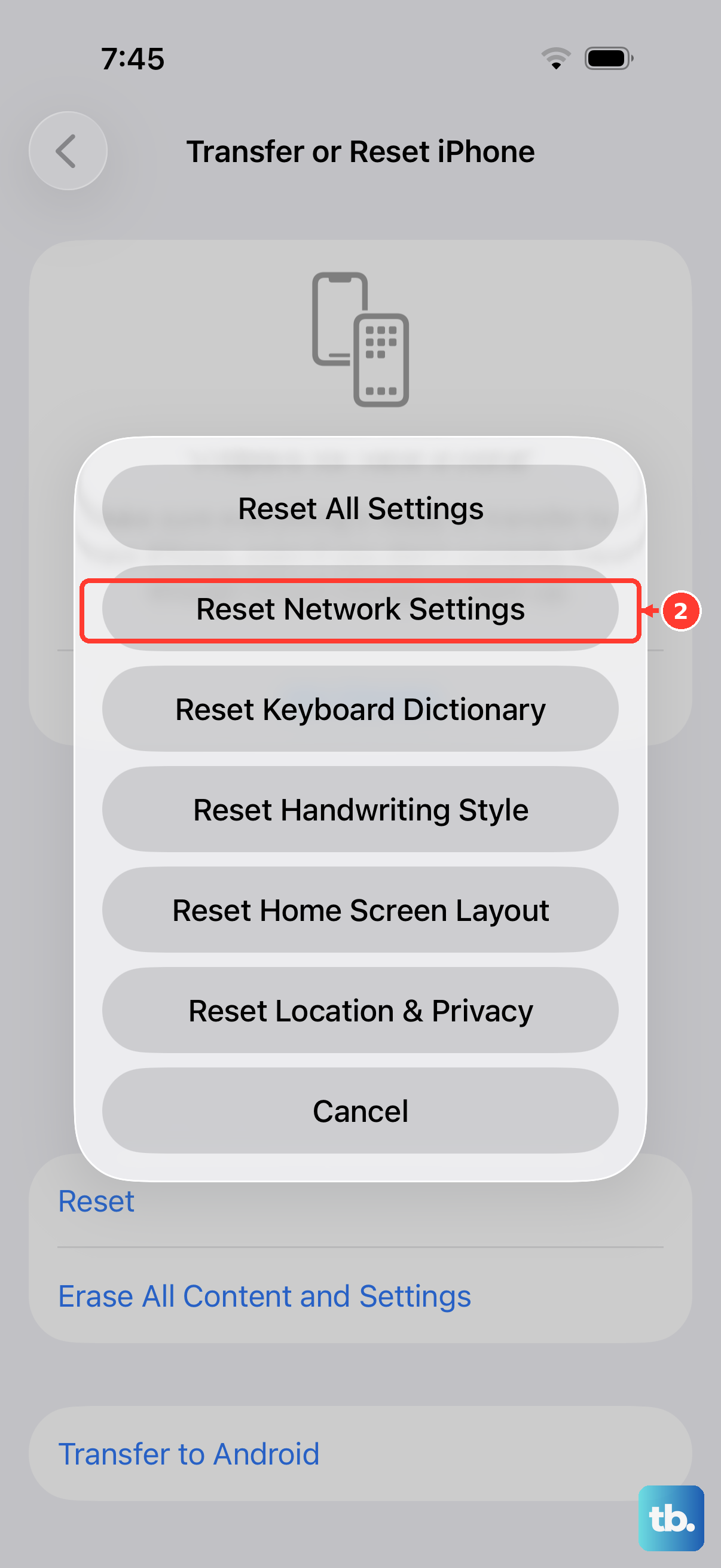
If the disconnections are persistent, resetting network settings is a very effective next step. Go to Settings > General > Transfer or Reset iPhone > Reset and tap Reset Network Settings.
This will erase all your saved Wi-Fi networks, Bluetooth pairings, and VPN configurations, then rebuild them. You'll need to re-join your Wi-Fi networks afterward, but it often resolves deep-seated connection conflicts that cause the hotspot to fail.
Install Any Carrier Updates
Carrier settings updates are small files that help your iPhone communicate better with your specific mobile network. To check for one, navigate to Settings > General > About.
If an update is available, a prompt will appear on this screen. These updates can fix bugs related to data handoffs and tethering, so it's a good thing to install.
Refresh the Connection on Your Other Device
The problem might not be with your iPhone 16 Pro, but with the device trying to connect to it. On your laptop or tablet, go into the Wi-Fi settings and find your iPhone's hotspot network. Choose to "Forget" or "Remove" this network.
Then, search for available networks again, select your iPhone, and enter the password fresh. This creates a brand new connection profile, which can fix authentication errors that cause drops.
Change Your Hotspot's Wi-Fi Password
Here's another way to force a fresh authentication handshake. On your iPhone, go to Settings > Personal Hotspot > Wi-Fi Password. Change the password to something new and tap Done.
Now, go back to your other device and connect to the hotspot using this new password. I've seen this simple step resolve stubborn disconnection loops that nothing else would fix.
Use a USB Cable or Bluetooth
If the Wi-Fi hotspot is being flaky, try tethering through a physical connection. Connect your iPhone 16 Pro to your computer using a USB-C cable. On the iPhone, ensure Personal Hotspot is on. Your computer should recognize it as a new network interface almost instantly.
You can also try Bluetooth tethering. First, pair your iPhone and computer via Bluetooth in their respective settings. Once paired, turn on the Personal Hotspot on your iPhone, and the connection should be available through Bluetooth.
Update to the Latest iOS
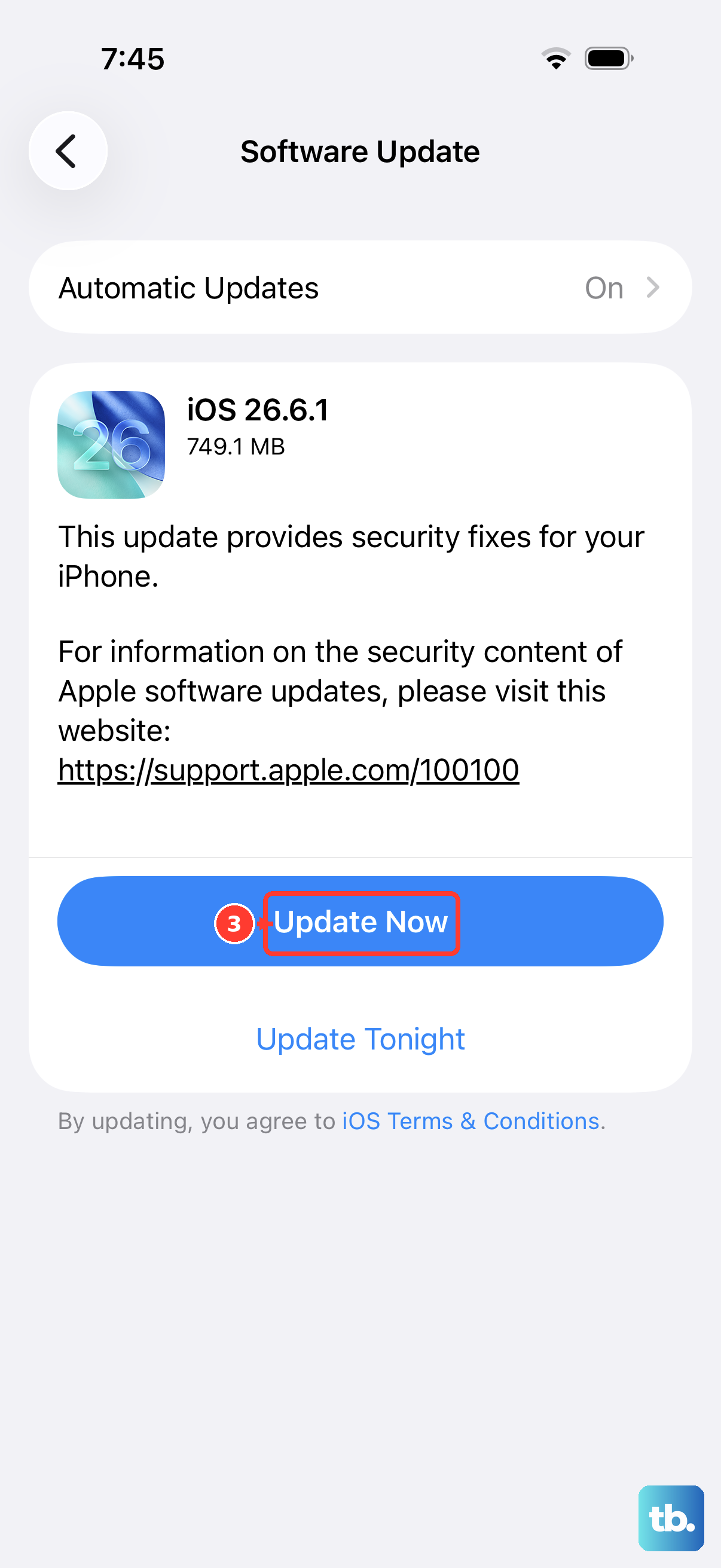
Apple frequently addresses connectivity bugs in software updates. Go to Settings > General > Software Update to see if a new version of iOS is available. If you're on iOS 26, make sure you have the latest point update installed.
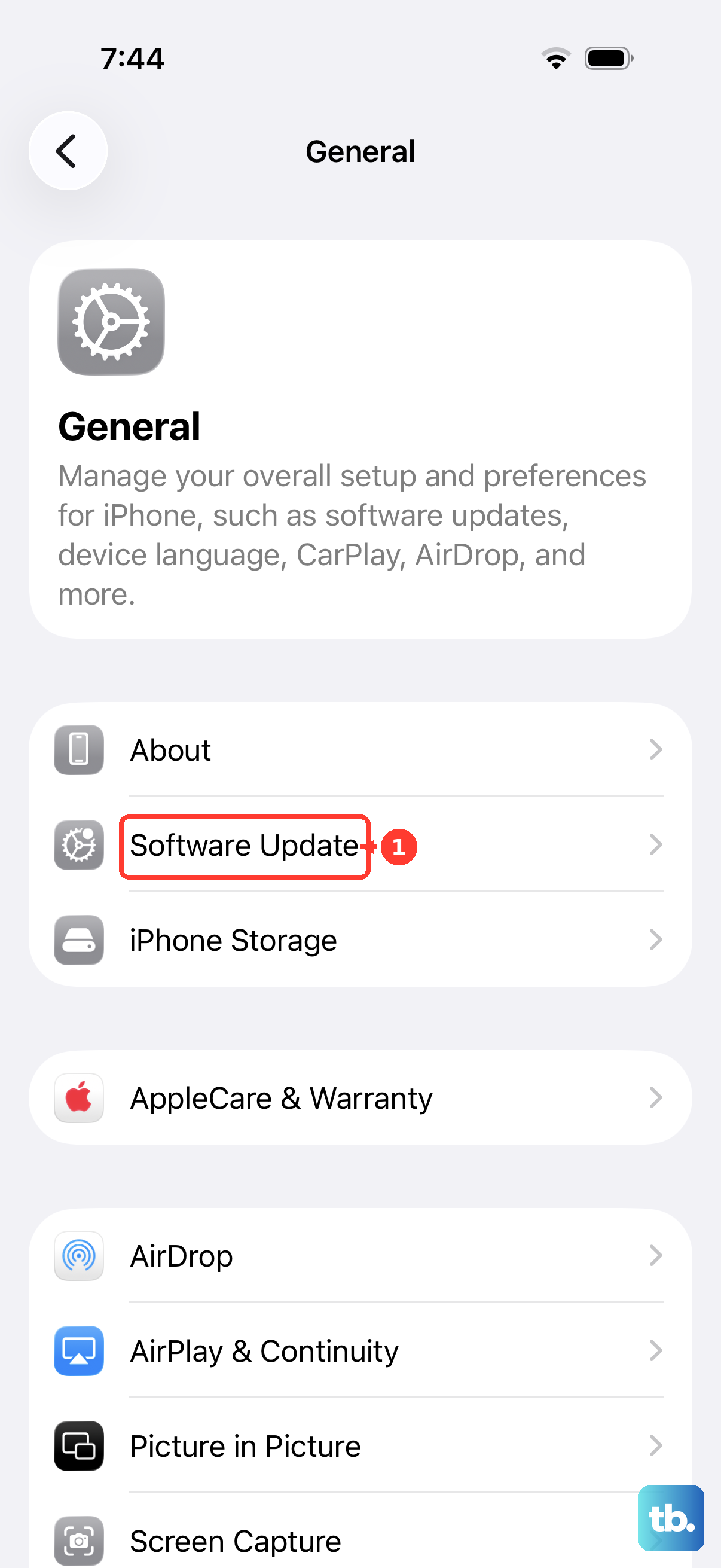
These updates contain patches for issues that might be causing your hotspot to disconnect. Keeping your iPhone 16 Pro updated is one of the best ways to ensure all its features work smoothly.
Check with Your Mobile Carrier
If you've tried everything and the hotspot still won't stay connected, the issue might be on your carrier's end. There could be a provisioning error on your account where the hotspot feature isn't fully activated.
Give your carrier's support line a call. They can check your account settings, confirm your plan includes tethering, and refresh the service on their side. Sometimes, that's all it takes.