Your iPhone 16 Pro has stopped responding, the screen will not react to your taps, and swiping does nothing no matter how many times you try. A frozen iPhone is unsettling, especially on a flagship phone, but in most cases it is a temporary software hang rather than a hardware failure. The good news is that you can almost always recover a frozen iPhone 16 Pro without losing a single photo, message, or app.
The fixes below are ordered from the gentlest and safest to the most drastic. Start at the top and stop as soon as your iPhone responds again. Only the very last steps touch your data, and those come with clear warnings. Here is exactly how to bring your iPhone 16 Pro back to life.
Confirm It Is Actually Frozen, Then Try a Normal Restart
Before you do anything drastic, make sure the screen is genuinely stuck rather than simply asleep. Press the Side button to wake the display and check whether the iPhone responds to your touch at all. Sometimes what looks like a freeze is just a dark screen waiting to be woken.
If the screen does respond, even a little, the cleanest fix is a normal restart. Press and hold either volume button and the side button until the power-off slider appears. Drag the slider, then wait 30 seconds for your device to turn off.
To turn your device back on, press and hold the side button (on the right side of your iPhone) until you see the Apple logo. A normal restart clears the temporary glitch behind most freezes and keeps every bit of your data intact.
Rule Out a Touch Problem With the Screen Itself
A frozen-feeling touchscreen is sometimes a touch problem, not a software crash. If the iPhone seems to be running but ignores your taps, the issue may be sitting right on the glass.
Make sure that your screen is clean and free of any debris or water. Moisture and grime can confuse the touch sensors and make a perfectly healthy iPhone feel locked up.
Next, remove any cases or screen protectors, since a poorly fitted protector can block touch input across part of the display. Then disconnect any USB-C accessories that are plugged in. If the screen works after removing an accessory, the accessory was likely the culprit, so try a different outlet, cable, or charger.
Force Restart the iPhone 16 Pro
This is the main fix for a frozen iPhone, and it is the one most people are looking for. A force restart works even when the screen is black or the buttons seem completely unresponsive, and it does not erase your data. Use it when the iPhone is unresponsive and you cannot turn it off normally.
The button sequence has to be done in the right order, with quick presses at the start. Follow it precisely.
- 1.Press and quickly release the volume up button.
- 2.Press and quickly release the volume down button.
- 3.Then press and hold the side button until you see the Apple logo (this might take longer than 10 seconds).
Keep holding the side button even if the screen stays dark at first; the Apple logo can take more than ten seconds to appear. When it shows up, you can let go and let the iPhone finish booting. This single step resolves the vast majority of frozen iPhone 16 Pro cases.
Charge It Up, Then Try Again
If the screen stays black or frozen even after a force restart, your iPhone may simply be out of power. A deeply drained battery can leave the screen looking dead long before it gives any sign of life.
Plug it into a known-good charger and cable. The iPhone 16 Pro uses USB-C, so use a USB-C cable and adapter you trust, or you can place it on a MagSafe or Qi2 wireless charger if you prefer.
Charge your iPhone for one hour and then try again. If a low-battery icon appears on the screen, that is a good sign; charge your iPhone for 30 minutes or until it starts. Once it has enough power, repeat the force restart from the previous step if needed.
Install Any Pending iOS Update
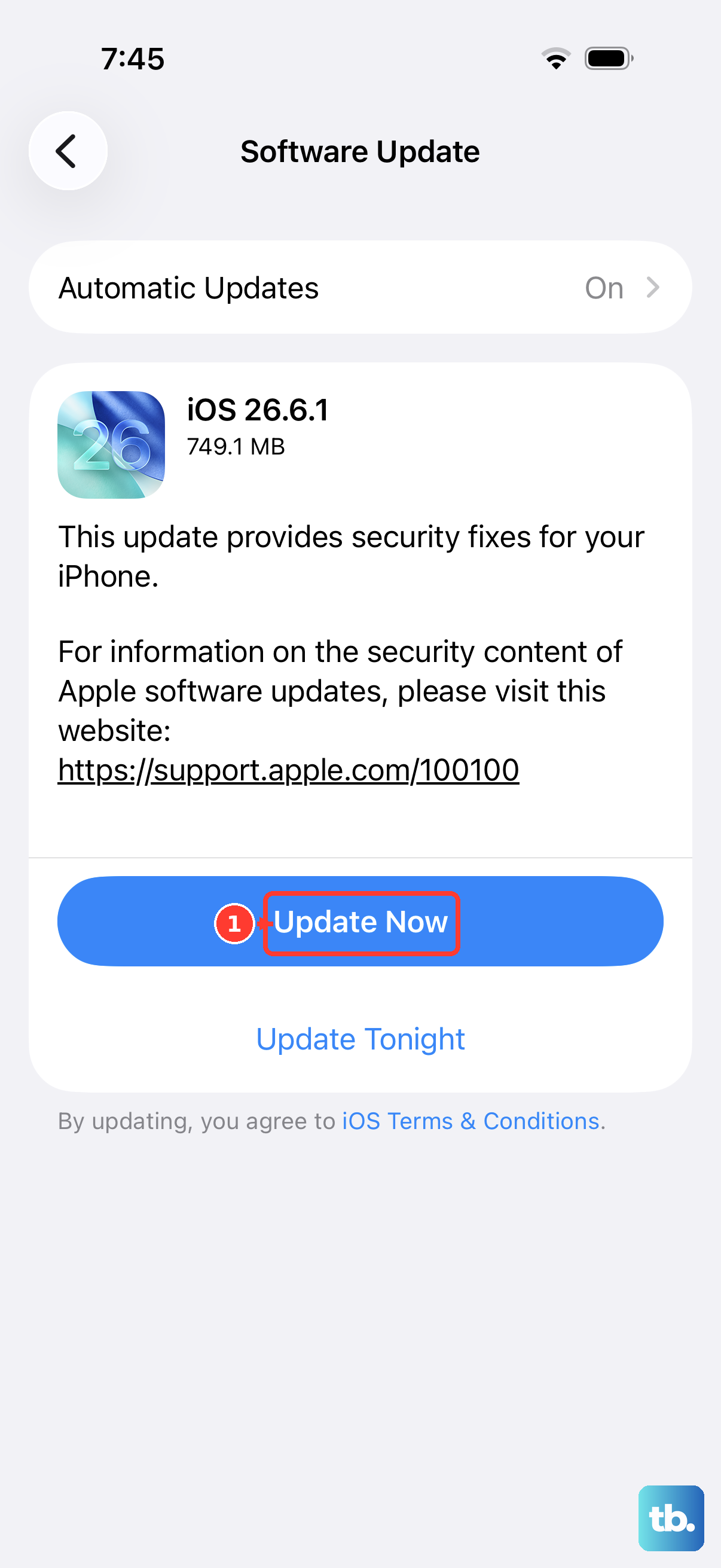
Once your iPhone is responsive again, it is worth installing any pending software update, since updates often fix the bugs that cause freezing in the first place. The iPhone 16 Pro is compatible with iOS 26, so you can stay fully current.
Before you start, plug the iPhone into power and connect it to Wi-Fi, and back up your data so nothing is at risk. Then go to Settings > General > Software Update.
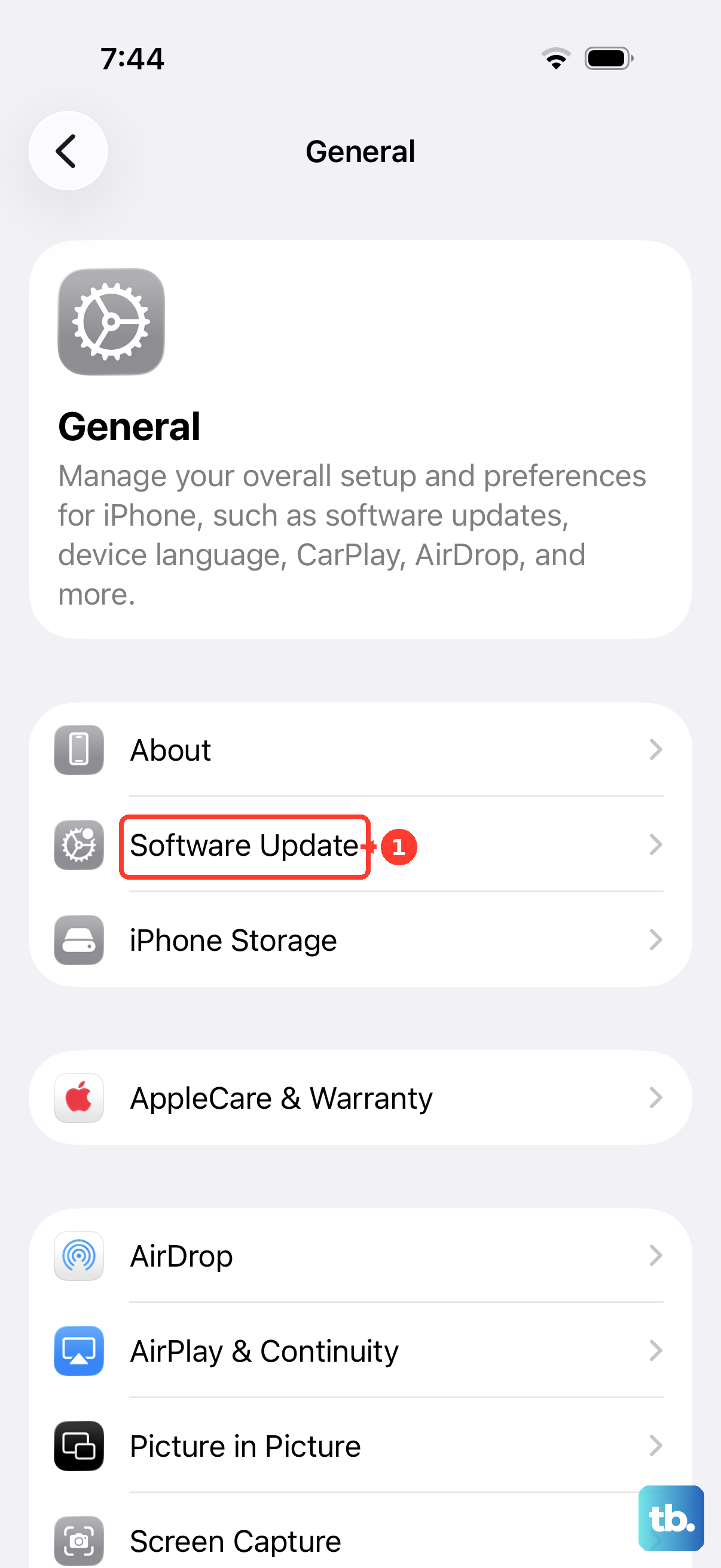
If an update is available, tap Download and Install, then follow the onscreen instructions. Let the iPhone finish the process without interruption; keeping the software current is one of the best ways to prevent freezes from coming back.
Back Up and Erase All Content and Settings
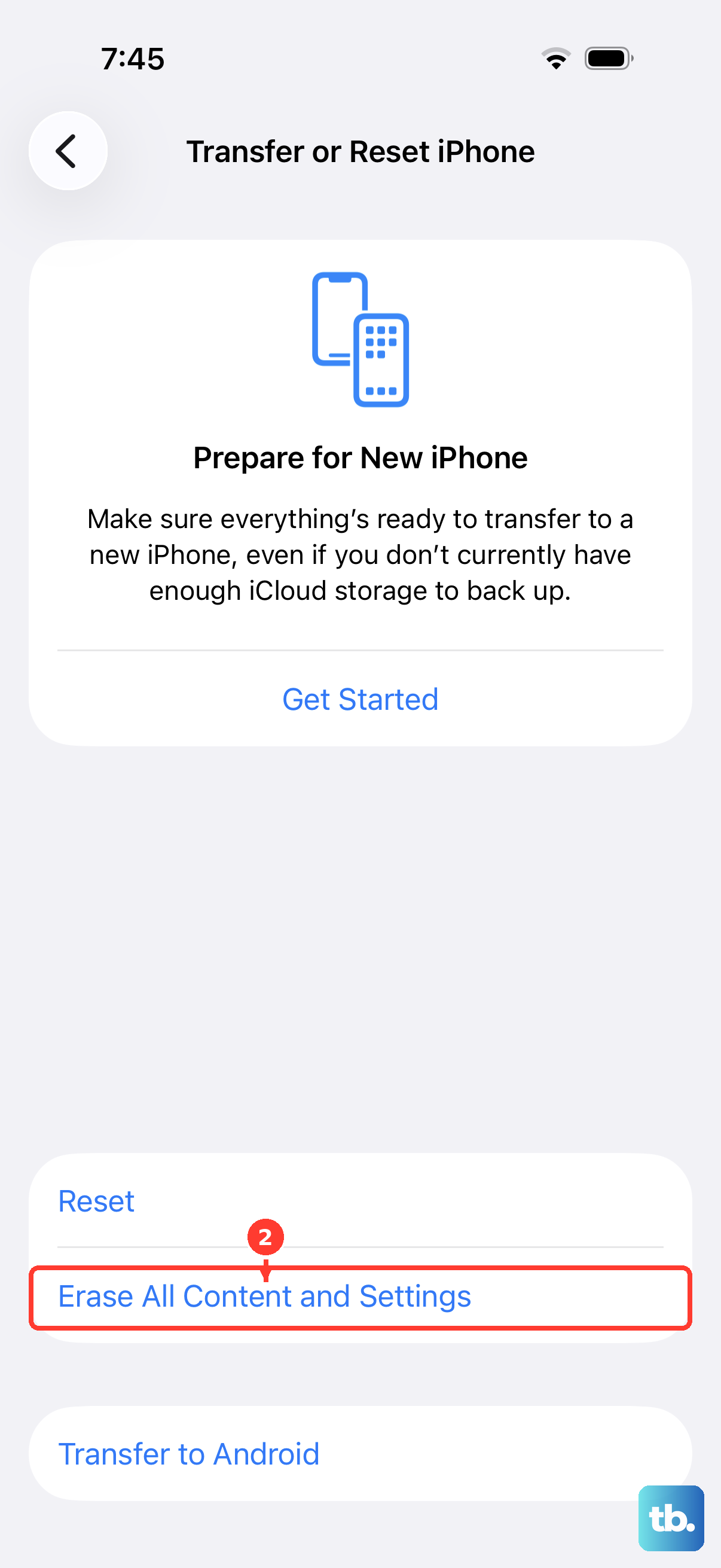
If the freezing keeps happening despite everything above, a clean reset to factory settings can clear out a stubborn software problem. This is a last resort because it permanently removes all content and settings, so a backup is essential before you begin.
First, back up the iPhone using iCloud or a computer so you can restore your photos, messages, and apps afterward. Once your backup is complete, you can proceed with the erase.
- 1.Go to Settings > General > Transfer or Reset iPhone > Erase All Content and Settings.
- 2.Tap Continue.
- 3.Choose whether to keep or erase your eSIM. Erasing the eSIM means you will need to contact your carrier to reactivate the plan, so keep it unless you have a reason not to.
- 4.Enter your iPhone passcode, then enter your Apple Account password.
The iPhone will erase itself and restart fresh. When setup begins, you can restore from the backup you just made and pick up right where you left off.
When to Set Up Service With Apple
If your iPhone 16 Pro still will not respond after force restarting, charging, checking the screen, and the steps above, it may need service. A phone that stays frozen through all of these official fixes is pointing toward a hardware issue rather than a software one.
At that point, the official guidance is to contact Apple Support to set up a repair or service appointment, where you can describe the problem and arrange the next steps.
Frequently Asked Questions
Will a force restart erase my data?
No. A force restart only reboots the iPhone to clear a hang; it does not erase your data. It is the safe, recommended fix for a frozen or unresponsive iPhone 16 Pro. Only the Erase All Content and Settings step removes your content, and that is reserved as a last resort.
What is the exact force restart sequence for the iPhone 16 Pro?
Press and quickly release the volume up button, press and quickly release the volume down button, then press and hold the side button until you see the Apple logo. The Apple logo might take longer than 10 seconds to appear, so keep holding the side button until it does.
My screen is still black after a force restart. What now?
The battery may be drained. Plug the iPhone into a known-good USB-C charger and cable, charge it for one hour, then try again. If a low-battery icon appears, charge it for 30 minutes or until it starts, then repeat the force restart if necessary.
The iPhone is on but the screen still ignores my taps. Is it the touchscreen?
It can be. Make sure the screen is clean and free of any debris or water, remove any cases or screen protectors, and disconnect any USB-C accessories. If touch returns after removing an accessory, try a different outlet, cable, or charger.
What should I do if nothing works?
If the iPhone 16 Pro stays frozen after force restarting, charging, checking the screen, updating, and even erasing, it likely needs service. Contact Apple Support to set up a repair.