
When your iPhone 16 Pro's email stops syncing, it can leave you waiting on important messages or unable to send replies. The problem can come down to a simple setting or a temporary software glitch. Start by checking the basics before moving to more involved fixes.
First, make sure you have a solid internet connection, either on Wi-Fi or cellular data. It's also worth a quick check to see if your email provider, like Gmail or iCloud, is having a widespread service outage. Finally, double-check that you're using the correct email address and password for the account.
Restart the Mail App and Your iPhone
A quick restart of the Mail app can clear out temporary software bugs. On your iPhone 16 Pro, swipe up from the very bottom of the screen and hold in the middle to bring up the app switcher. Find the Mail app preview and swipe it all the way up to close it completely. Wait a moment, then tap the Mail icon to reopen it.
If the app restart doesn't help, try a full reboot of your phone. For the iPhone 16 Pro, press and quickly release the Volume Up button, then quickly press and release the Volume Down button. Finally, press and hold the Side button until you see the Apple logo appear on the screen.
Check Your Mail Fetch and Push Settings
Your phone's fetch settings control how often it checks for new mail. If these are set to manual or a long interval, you might not see new messages right away. Go to Settings > Apps > Mail and tap Fetch New Data. If you don't see it there, look under Mail Accounts.
At the top, make sure "Push" is turned on if your email provider supports it. If Push is off or unavailable, your phone will use "Fetch" instead. Below that, choose a fetch schedule that suits how often you need new messages. With "Automatically", background fetching happens only when your phone is charging and connected to Wi-Fi.
Toggle Your Network Connections
Sometimes the issue is with your specific network. Try turning Airplane Mode on briefly, then turning it off. Swipe down from the top-right corner to open Control Center and tap the airplane icon. After waiting, tap it again to turn Airplane Mode off.
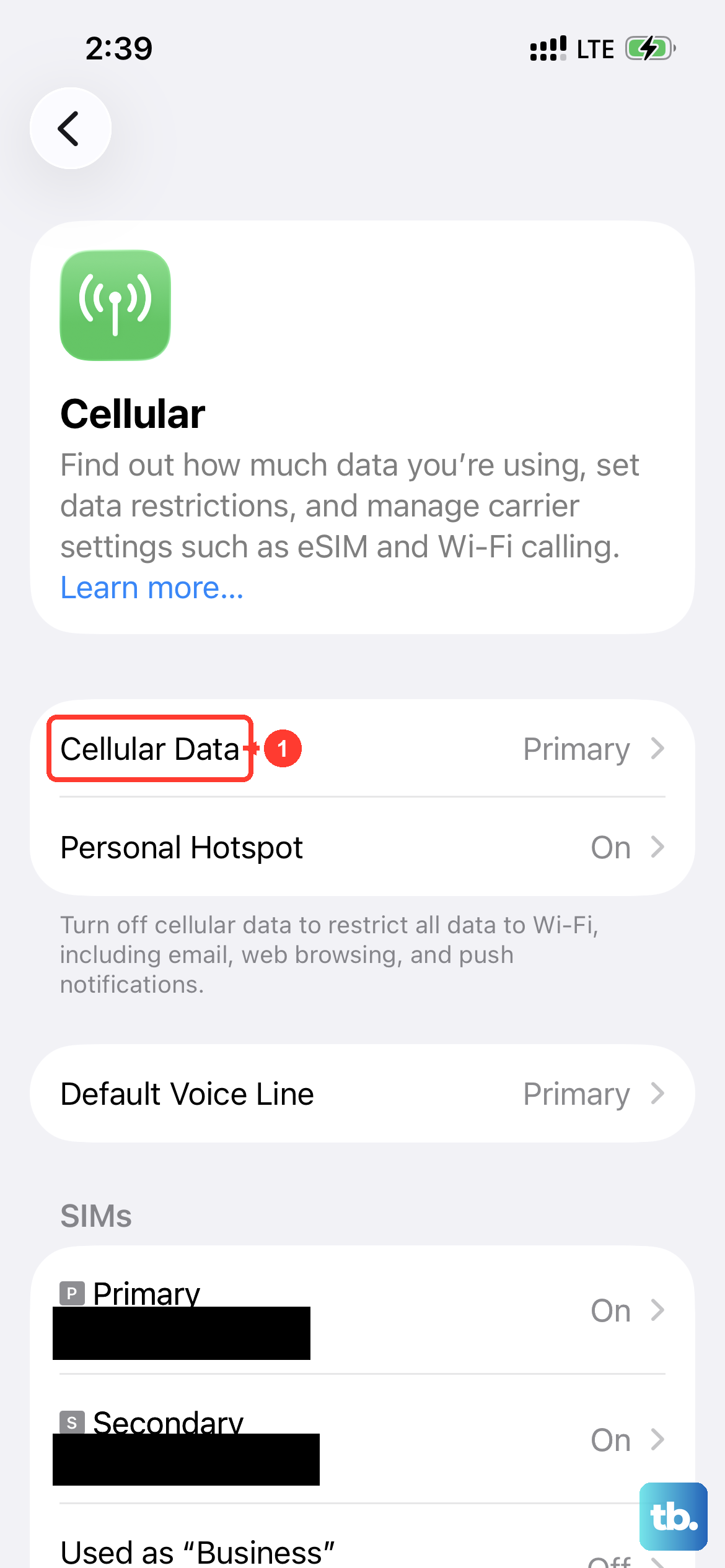
Next, try switching between Wi-Fi and cellular data. Go to Settings > Cellular and make sure the Cellular Data toggle is on. Then, scroll down and ensure the switch next to "Mail" is also enabled. If you're on Wi-Fi, try forgetting the network and reconnecting to it.
Verify Your Account Credentials and Settings
Passwords can expire or change, especially if your account uses two-factor authentication. Try logging into your email account through a web browser on a computer. If you can't sign in there, you'll need to reset your password through your email provider's website.
Once you have the correct password, you may need to update it on your iPhone. Go to Settings > Apps > Mail > Mail Accounts, tap your email account, then tap "Re-enter Password" if prompted to update your login info.
Ensure Background App Refresh is Enabled
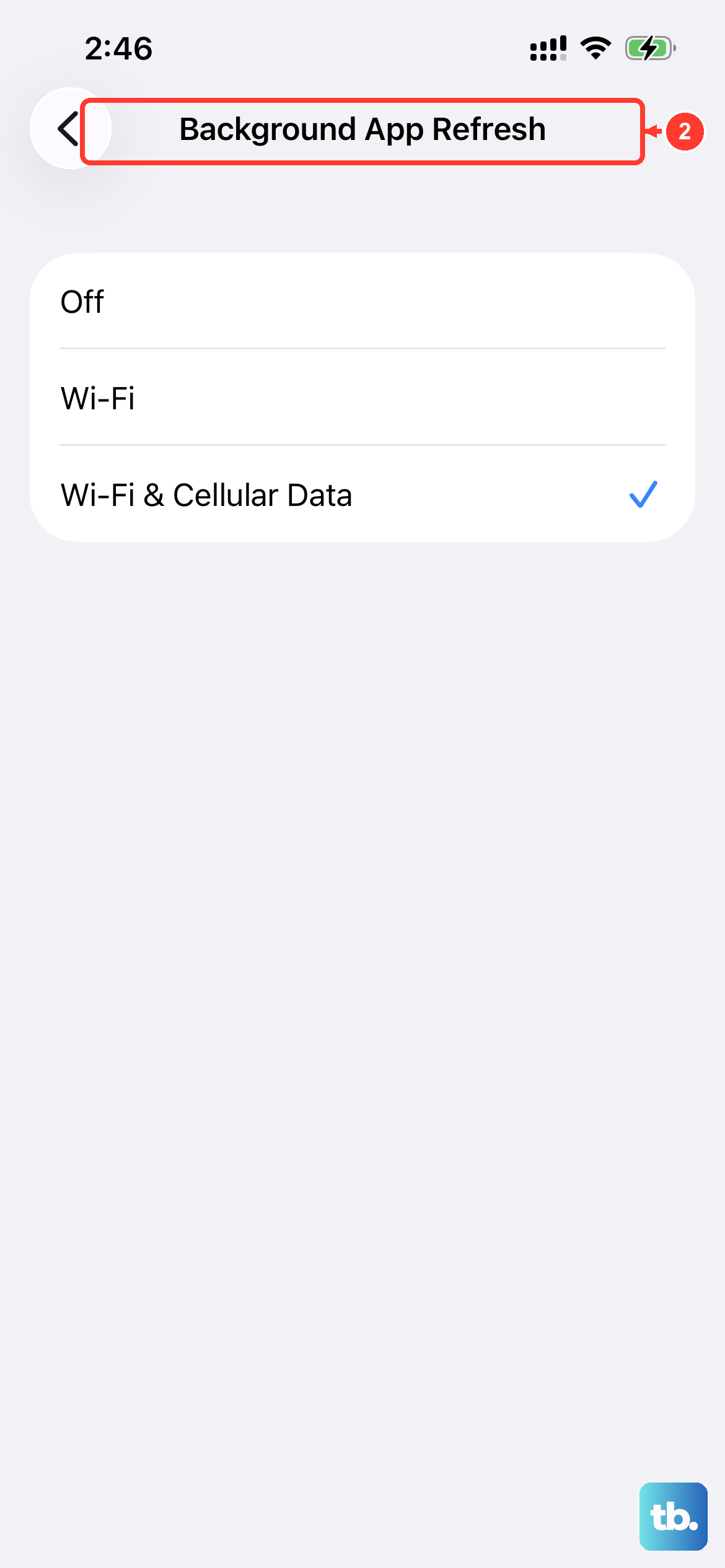
Background App Refresh allows apps to update their content even when you're not actively using them. To check this, navigate to Settings > General > Background App Refresh. For Mail, check the Fetch New Data settings described above.
At the top, tap Background App Refresh again and choose "Wi-Fi" or "Wi-Fi & Cellular Data". If your email account doesn't offer Push, choose a fetch schedule in Fetch New Data instead.
Check for Software Updates
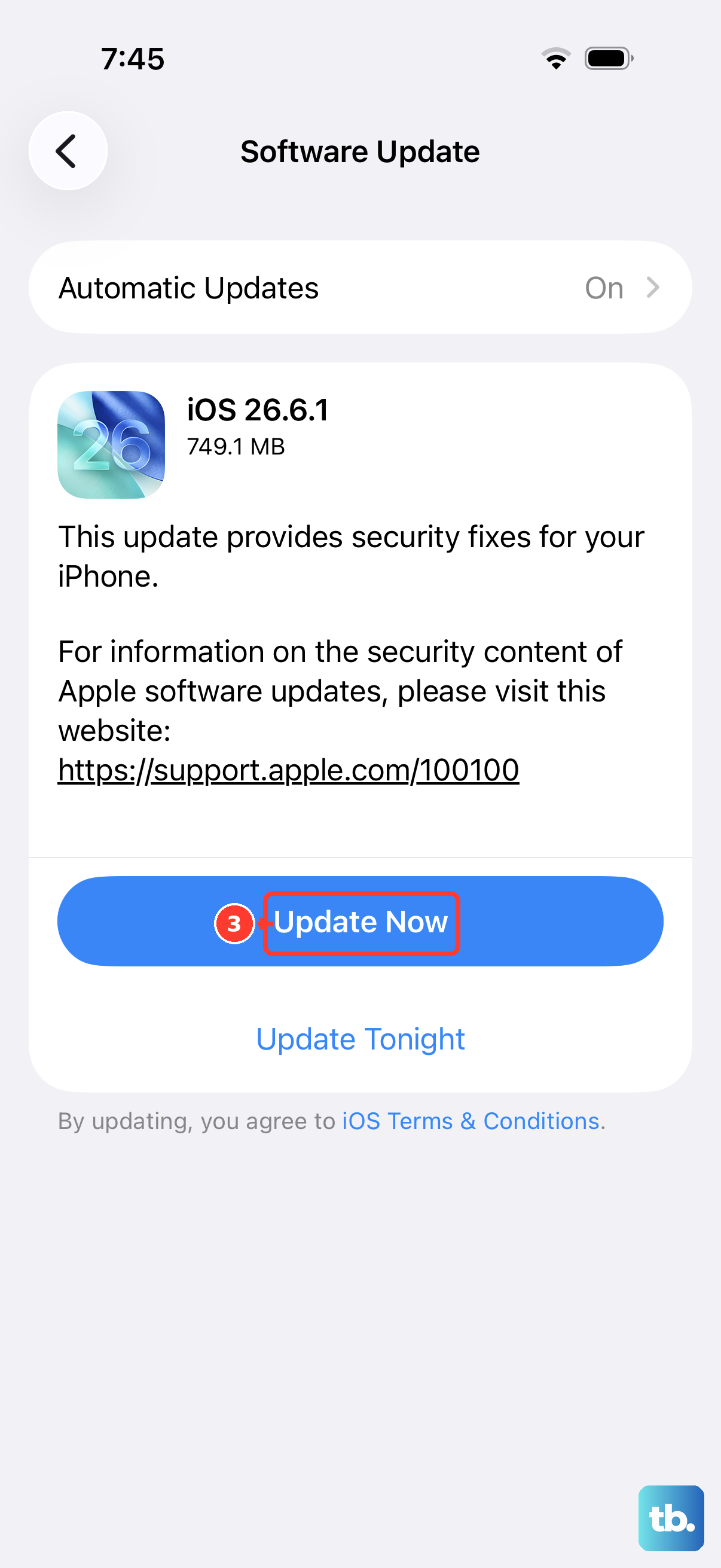
iOS updates include bug fixes. Keeping your iPhone 16 Pro on the latest version of iOS is important. Go to Settings > General > Software Update.
If an update is available, tap "Download and Install". I'd recommend doing this while your phone is connected to Wi-Fi and plugged into a charger using a certified USB-C cable to ensure it completes smoothly.
Review Your Notification Settings
If emails are arriving but you're not getting alerts, the issue could be in your notification preferences. Open Settings and go to Notifications. Scroll down and select "Mail" from the list of apps.
Make sure "Allow Notifications" is turned on at the top. You can then customize the alert style, sounds, and whether you want badges on the app icon to show unread counts.
Delete and Re-add Your Email Account
Before removing the account, sign in to your email provider's website on a computer. Make sure all your email is there or saved somewhere other than your phone. Go to Settings > Apps > Mail > Mail Accounts. Tap on the problematic email account, then tap "Delete Account". Confirm that you want to remove it.
Removing the account can remove previously downloaded emails from your phone. After removing it, go back to the Mail Accounts page, tap "Add Account", and follow the prompts to set it up again. This can help with fetching or sending errors.
Disable VPN or iCloud Private Relay
Security services like VPNs or Apple's own iCloud Private Relay can sometimes interfere with mail server connections. If you're using a VPN, go to Settings > General > VPN & Device Management and toggle it off temporarily to test.
For iCloud Private Relay, go to Settings > tap your name at the top > iCloud > Private Relay and try turning it off. See if your mail starts working, then you can decide whether to leave it off or troubleshoot the relay settings further.
Reset All Settings
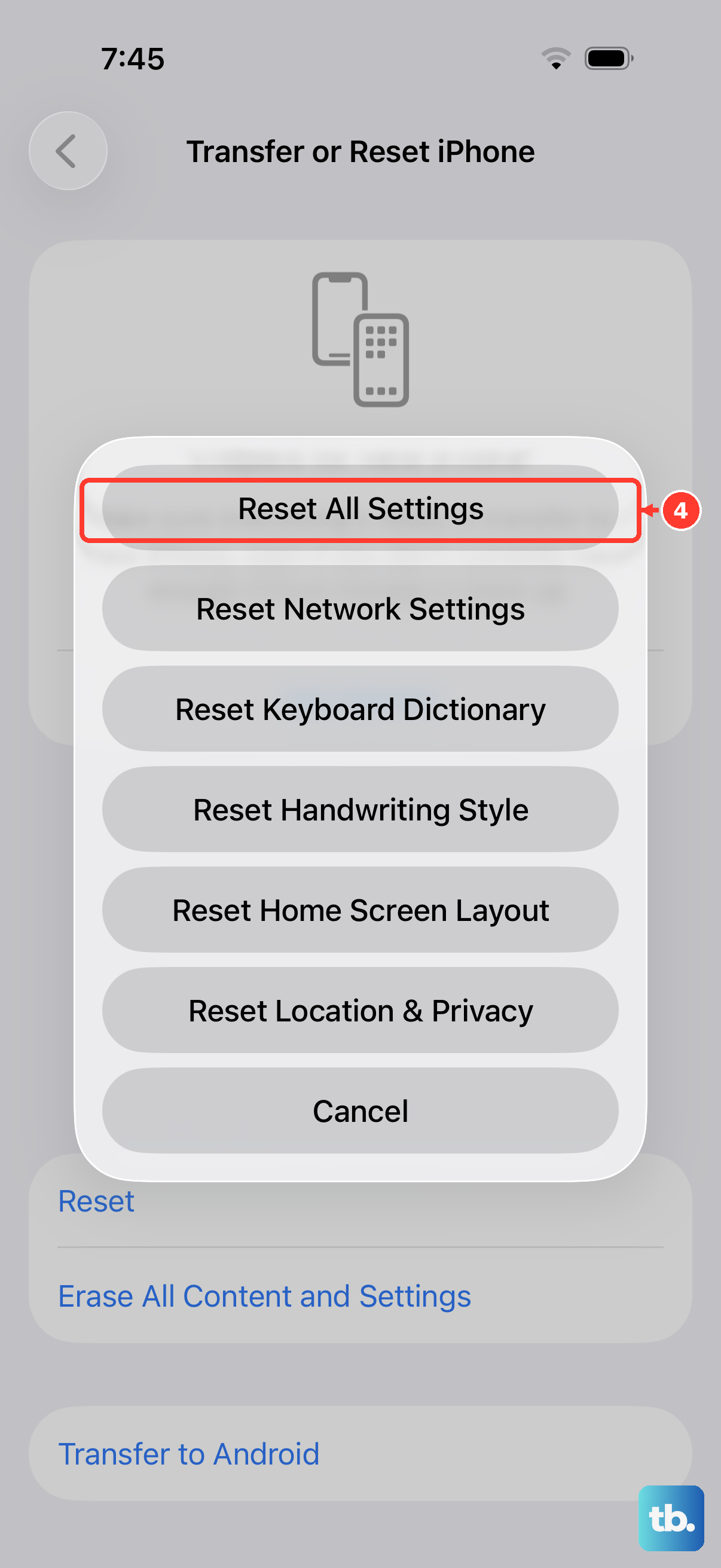
If you've tried everything else and the problem persists, resetting all settings can be a last resort before contacting support. This will reset network settings, wallpaper, privacy permissions, and keyboard dictionaries back to default, but it won't erase your apps or personal data. It also removes Apple Pay cards and Apple Watch pairings, and you'll need to set up Face ID again.
To do this, go to Settings > General > Transfer or Reset iPhone. Tap "Reset" and then choose "Reset All Settings". You'll need to enter your passcode and confirm the action. Your iPhone 16 Pro will restart and you'll need to reconnect to Wi-Fi networks and re-customize some preferences.