
Seeing your iPhone 16 Pro drop calls mid-conversation is incredibly annoying. It usually happens because the phone's connection to the cellular network gets interrupted. Weak signal, a software hiccup, or even a minor setting can be the culprit.
Let's start with the quickest fix you can try right now. Try making a call again after this step.
Toggle Airplane Mode On and Off
Turning Airplane Mode on and off may help your phone reconnect to the cellular network.
Swipe down from the top-right corner of your screen to open Control Center. Tap the airplane icon to turn Airplane Mode on. Wait about 15 seconds, then tap it again to turn it off. Your phone may reconnect to the network, and you can try your call again.
Check Your Cellular Signal Strength
A weak cellular signal can cause dropped calls. Look at the signal bars in the top-right corner of your screen. If you only have one or two bars, your connection is weak.
Try moving to a different location, preferably near a window or outside. Buildings, walls, and even weather can interfere with the signal on your iPhone 16 Pro.
Perform a Force Restart
A simple software glitch can cause call instability. Restarting your iPhone may help restore cellular service.
On the iPhone 16 Pro, quickly press and release the Volume Up button. Do the same with the Volume Down button. Then, press and hold the Side button. Keep holding it until you see the Apple logo appear, then let go. This won't delete any of your data.
Verify Your Focus Modes
Focus modes like Do Not Disturb, Sleep, or Work can sometimes be configured to silence calls. You might have set it up and forgotten.
Go to Settings > Focus > Do Not Disturb and make sure Do Not Disturb is off. You can also go to Settings > Focus to check the configuration for each mode and ensure calls are allowed.
Update Your Carrier Settings
Your mobile carrier occasionally sends out small updates that improve network connectivity and calling performance. It's good to check whether an update is available.
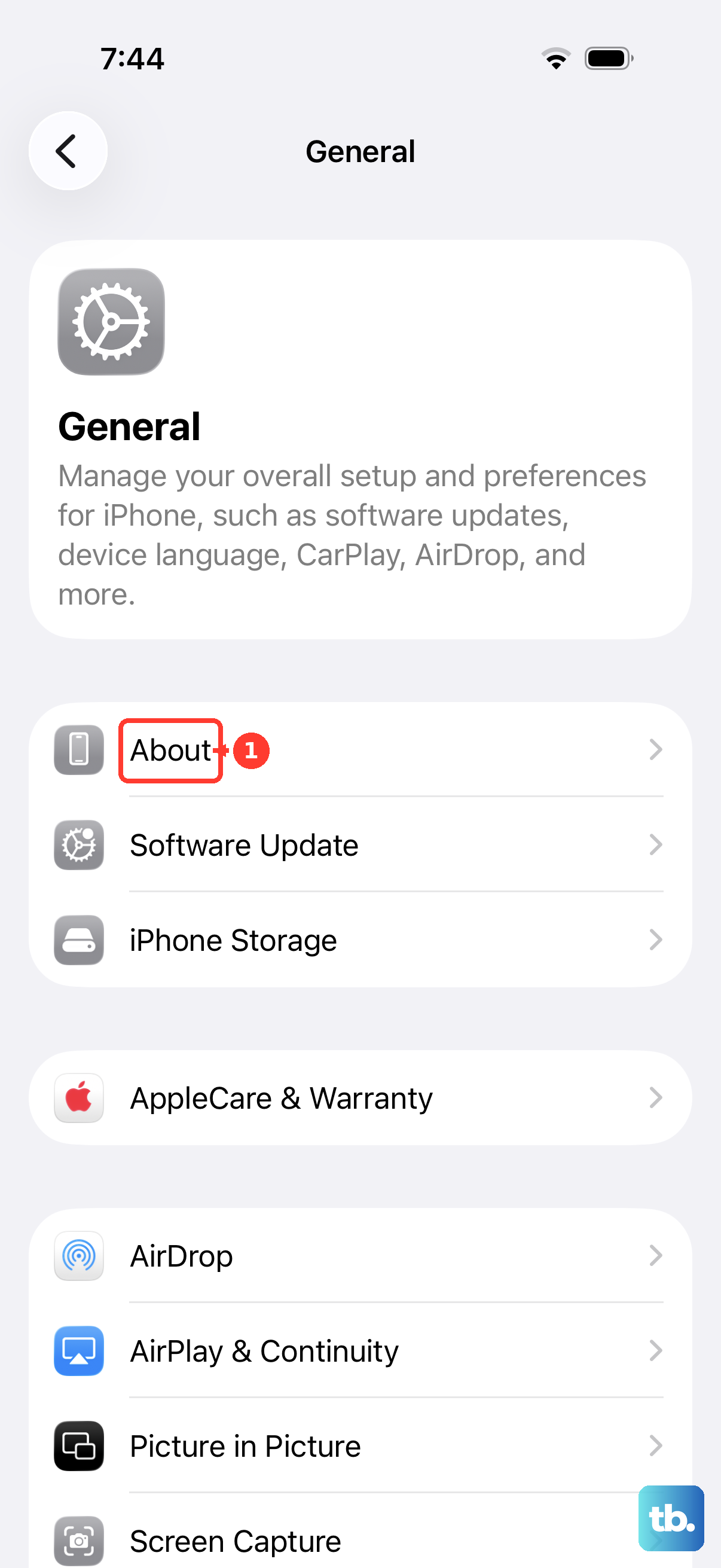
Make sure your iPhone 16 Pro is connected to Wi-Fi. Then, go to Settings > General > About. If a carrier settings update is available, a prompt will appear on this screen asking you to update. Just tap to install it.
Check for iOS Software Updates
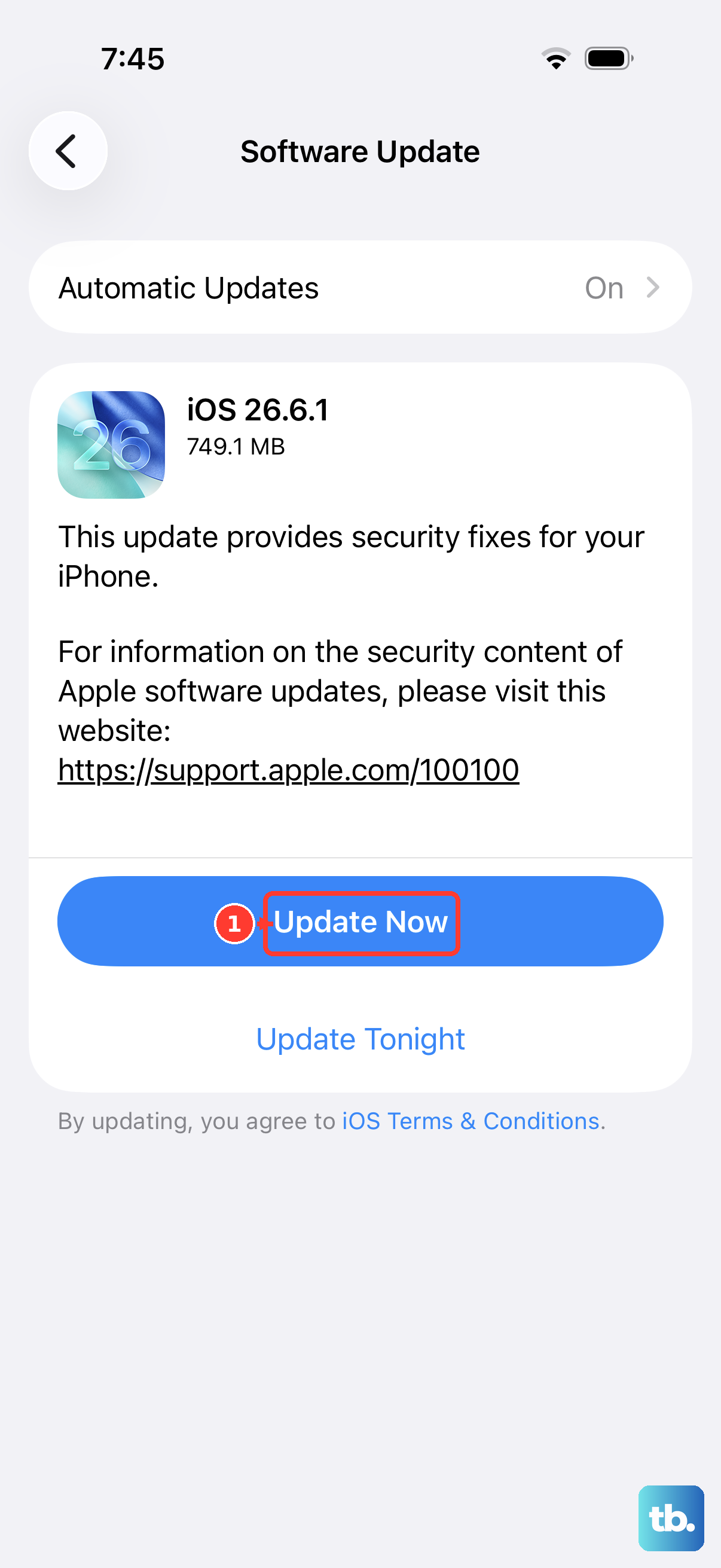
iOS updates can fix bugs. Make sure you have the latest version of iOS installed.
Connect to Wi-Fi and plug in your charger. Go to Settings > General > Software Update. If an update is available, tap "Download and Install." I've seen updates specifically resolve cellular radio problems on new iPhone models.
Reset Your Network Settings
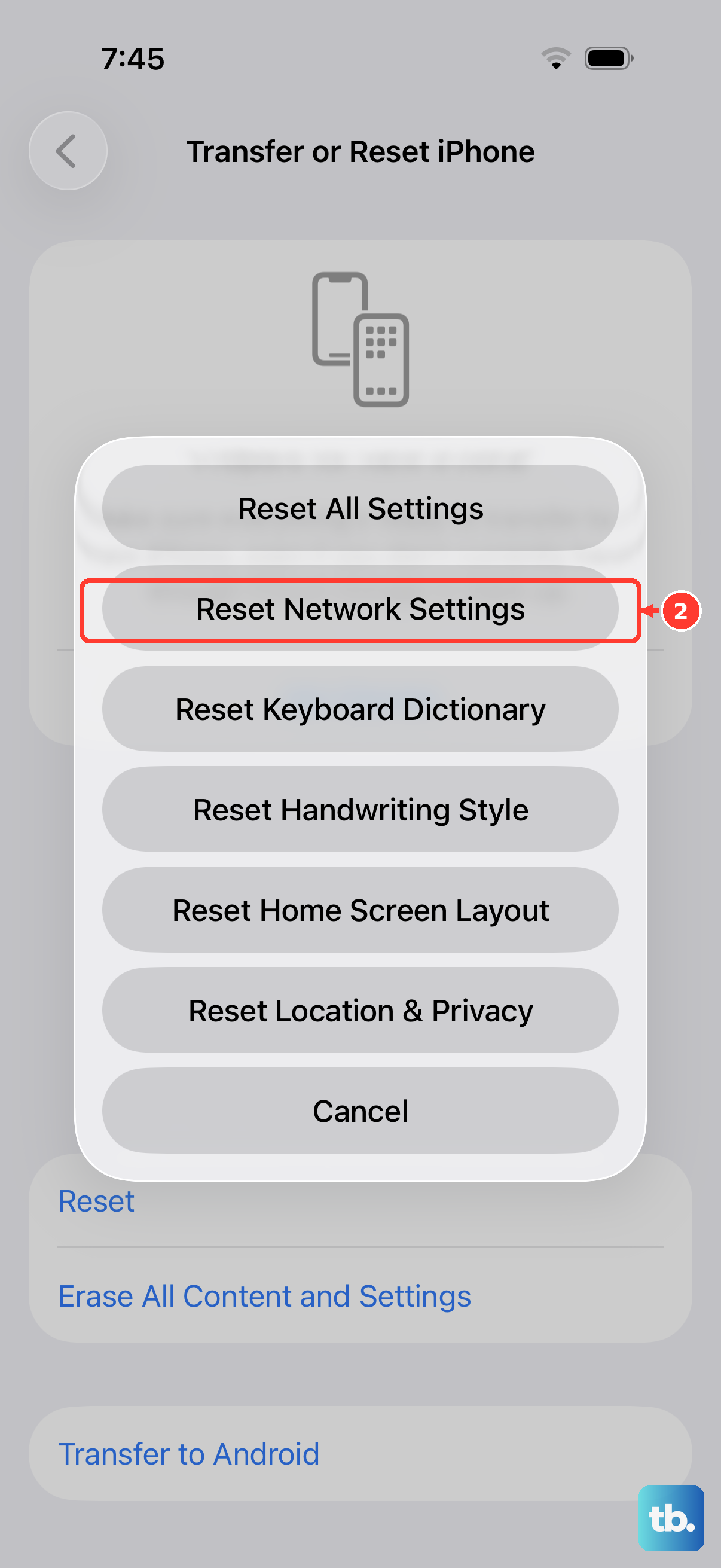
This clears all your saved Wi-Fi passwords, VPN settings, and cellular network preferences. Try this only if the other checks fail; it leaves your personal data like photos or messages intact.
Go to Settings > General > Transfer or Reset iPhone. Tap "Reset" and then choose "Reset Network Settings." You'll need to enter your passcode to confirm. After it restarts, you'll have to rejoin your Wi-Fi networks.
Inspect Your SIM Card
iPhone 16 Pro models purchased in the U.S. use eSIM and have no SIM tray; models purchased outside the U.S. may have a physical SIM. Go to Settings > Cellular, tap your line, and check that it's on. If it's off, tap "Turn On This Line."
On models with a SIM tray, the tray is on the left side of the frame. Insert a SIM-eject tool or paper clip into the hole beside the tray and push gently toward the iPhone without forcing it. Remove the SIM card, put it back in, and reinsert the tray completely in the same orientation. If the card is damaged or doesn't fit, ask your carrier for a replacement. If your cellular line is missing, contact your carrier to set it up.
Temporarily Switch Off 5G
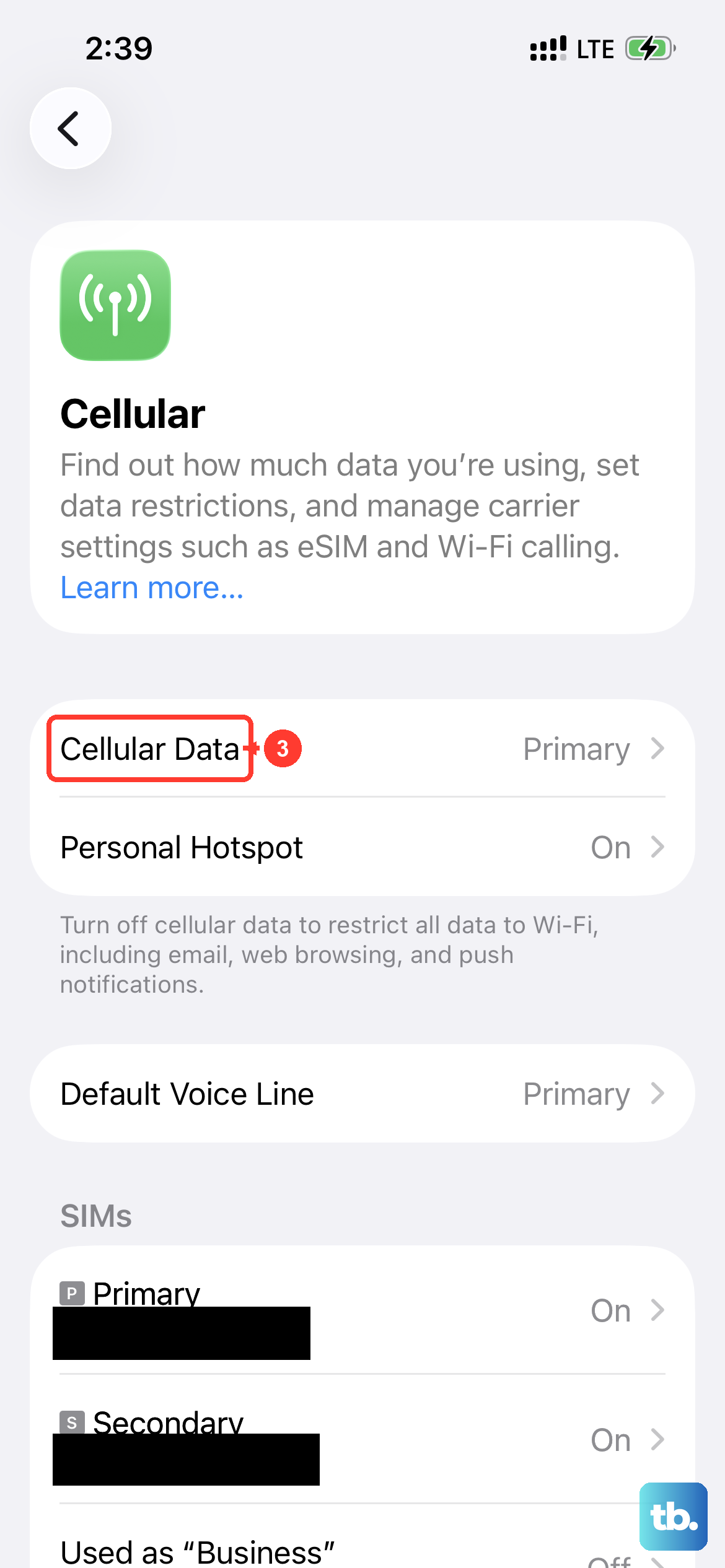
Cellular coverage can vary by location. Switching your voice calls to use LTE can sometimes provide a more reliable connection.
Open Settings > Cellular and confirm Cellular Data is turned on. Then go to Cellular Data Options > Voice & Data; if you use Dual SIM, select your line first. Instead of "5G Auto," select "LTE." Try making a call to see if it holds. You can always switch it back later.
Contact Your Mobile Carrier
If you've tried everything here and calls are still dropping, the issue might be on your carrier's end. There could be network maintenance, an outage in your area, or a problem with your account.
Give your carrier's customer service a call from a different phone if possible. Ask them to check for local outages, billing-related blocks, whether your account is set up for your iPhone, and call errors on their system.