
It's incredibly frustrating when your iPhone 16 stays silent for incoming calls. You see the missed call notification pop up, but you never heard a thing. This usually comes down to a setting that's been toggled or a minor software hiccup, and I've found most people can fix it themselves in a minute or two.
Let's start with the quickest and most common fix. On the iPhone 16, the Action Button on the left side has replaced the old physical ring/silent switch. Press and hold it for a second. You should see a notification in the Dynamic Island confirming whether you've just turned silent mode on or off. If it was on, that's likely your problem solved right there.
Check Your Focus Modes
Focus modes in iOS 26 are powerful for managing distractions, but they can also silence calls if you forget they're active. Swipe down from the top-right corner to open Control Center and look for a highlighted icon like a moon or a work badge. If you see one, tap it to turn that Focus off.
You can also check all your Focus settings by going to Settings > Focus. Look through each profile like Do Not Disturb, Sleep, or Work. Make sure they're all turned off, and also check the "Turn on Automatically" schedules to ensure your phone isn't entering a Focus mode based on your location or time of day without you realizing it.
Adjust Your Ringer Volume
Your ringer volume is separate from your media volume. Unlock your iPhone 16 first, then press the volume up button on the side a few times. You'll see the volume indicator on screen. Make sure it's turned up.
For more precise control, go to Settings > Sounds & Haptics. Under "Ringer and Alerts," drag the slider to the right to increase the volume. While you're there, make sure the "Change with Buttons" toggle is off, so your volume buttons only control the ringer and not your media playback.
Disconnect From Bluetooth Accessories
If your iPhone 16 is connected to a Bluetooth device like AirPods, a speaker, or your car, incoming calls will often route the audio there instead of playing through your phone's speaker. To test this, simply turn Bluetooth off temporarily.
Go to Control Center and tap the Bluetooth icon so it's no longer highlighted. Or, go to Settings > Bluetooth and toggle the main switch off. Try having someone call you now. If it rings, you know the issue was with the Bluetooth connection.
Review Your Call Blocking and Silencing Settings
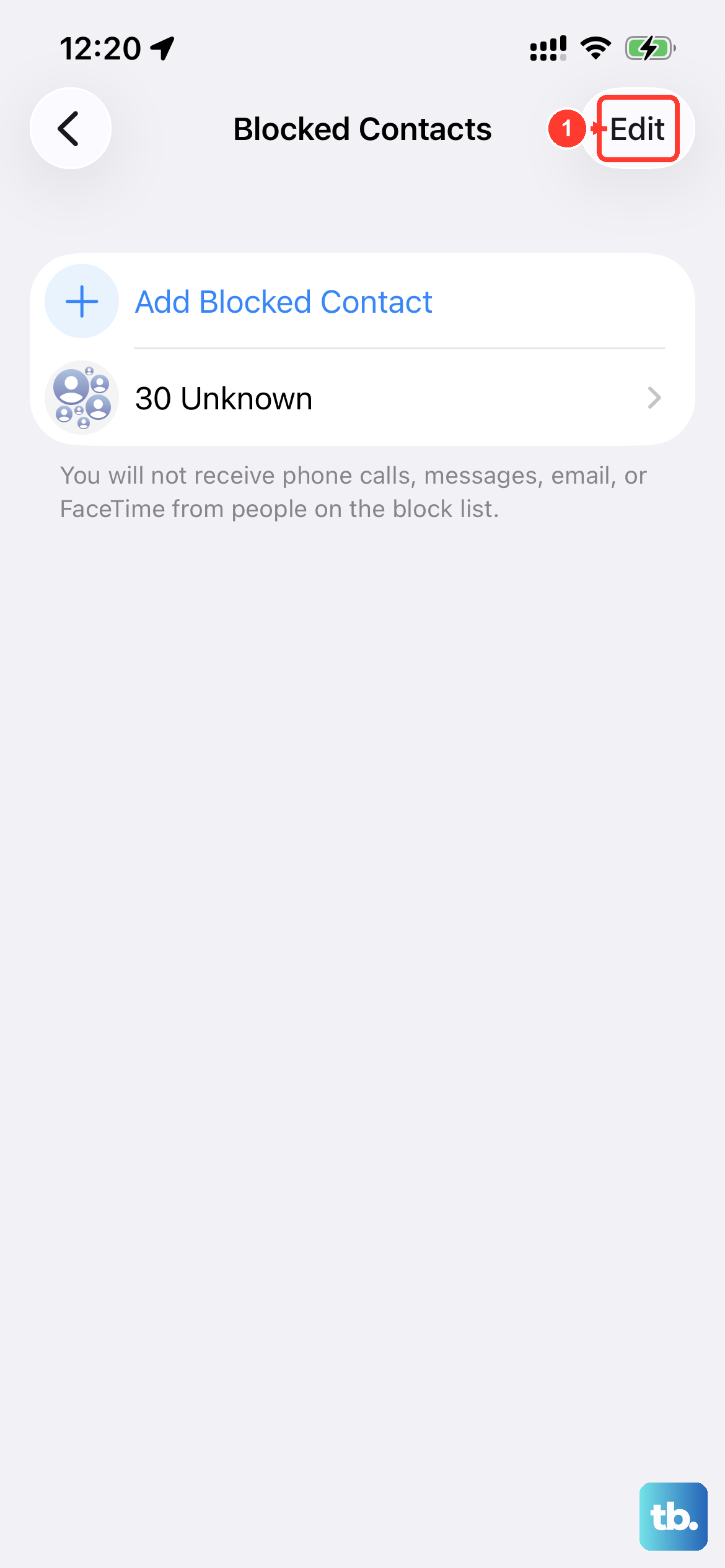
iOS has a few features designed to limit interruptions that might be working a little too well. First, check if you've accidentally blocked the person calling. Go to Settings > Apps > Phone > Blocked Contacts to see your list.
Next, look at the "Silence Unknown Callers" feature. When this is on, any number not in your contacts, your recent outgoing calls, or your Mail app goes straight to voicemail. You can find this in Settings > Apps > Phone. Turn it off to see if that resolves the silent calls.
Change Your Ringtone
Sometimes the specific ringtone file can become corrupted. Switching to a different one can kick-start the audio system. Go to Settings > Sounds & Haptics > Ringtone and pick a new tone from the list.
Tap a few different ones to preview them. After you select one, have a friend or family member give you a quick test call to see if the new sound plays.
Ensure Call Forwarding is Off
If call forwarding is accidentally enabled, your calls are being sent to another number before your iPhone 16 ever has a chance to ring. This setting is easy to miss. Go to Settings > Apps > Phone > Call Forwarding and make sure the switch is in the off position.
If it was on, turning it off should immediately fix the issue. This is a common culprit if you've recently been traveling or tinkering with your phone's settings.
Restart Your iPhone 16
A simple restart clears out temporary software glitches that can affect core functions like ringing. To restart your iPhone 16, press and hold the side button and either volume button until the power-off slider appears.
Drag the slider, wait about 30 seconds for the phone to turn off completely, then press and hold the side button again until you see the Apple logo. Once it boots back up, test with a call.
Update to the Latest iOS 26 Version
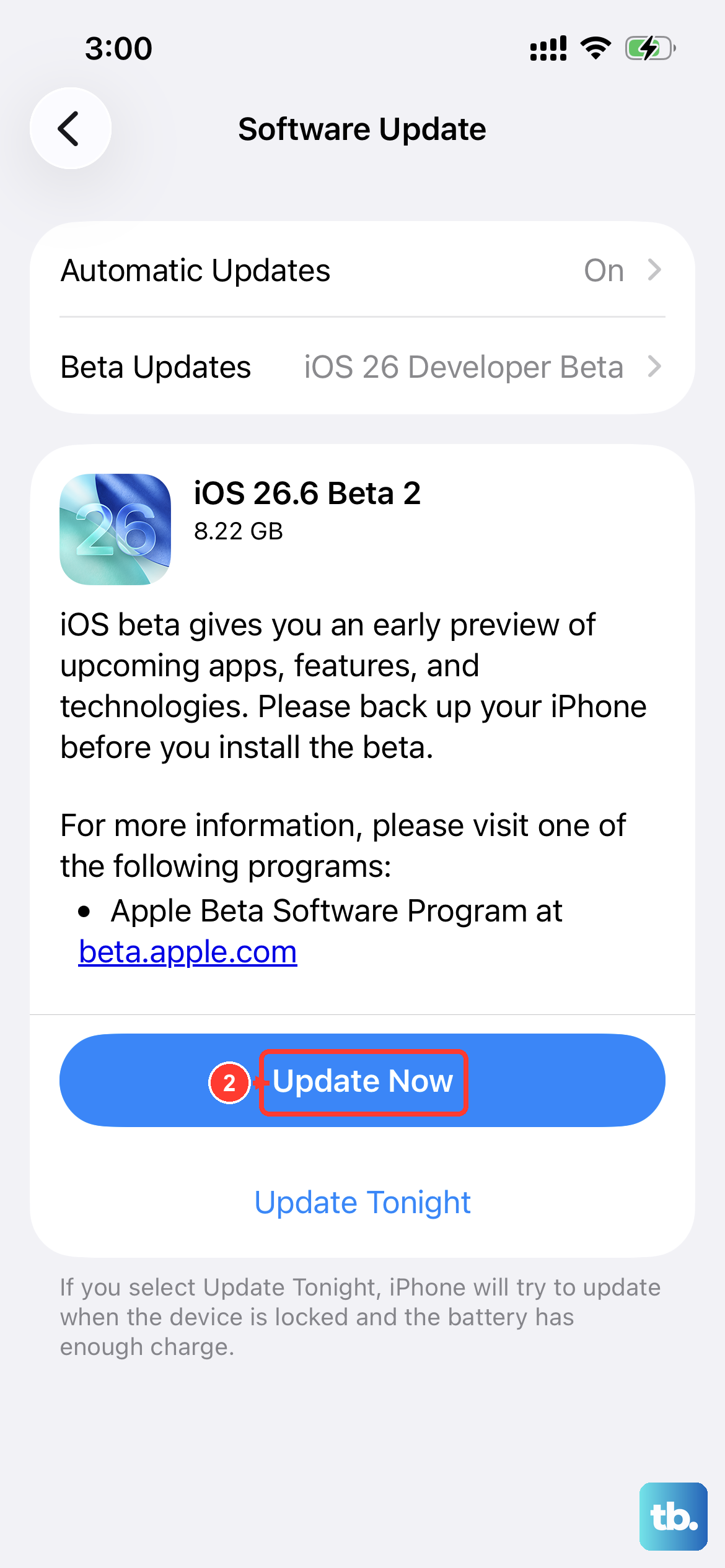
Apple regularly releases software updates that include bug fixes. An issue with call audio could have been addressed in a recent patch. Connect to Wi-Fi and plug your phone in to charge.
Then, go to Settings > General > Software Update. If an update is available, tap "Download and Install." After the update installs and your phone restarts, check if the ringing issue is resolved.
Reset All Settings
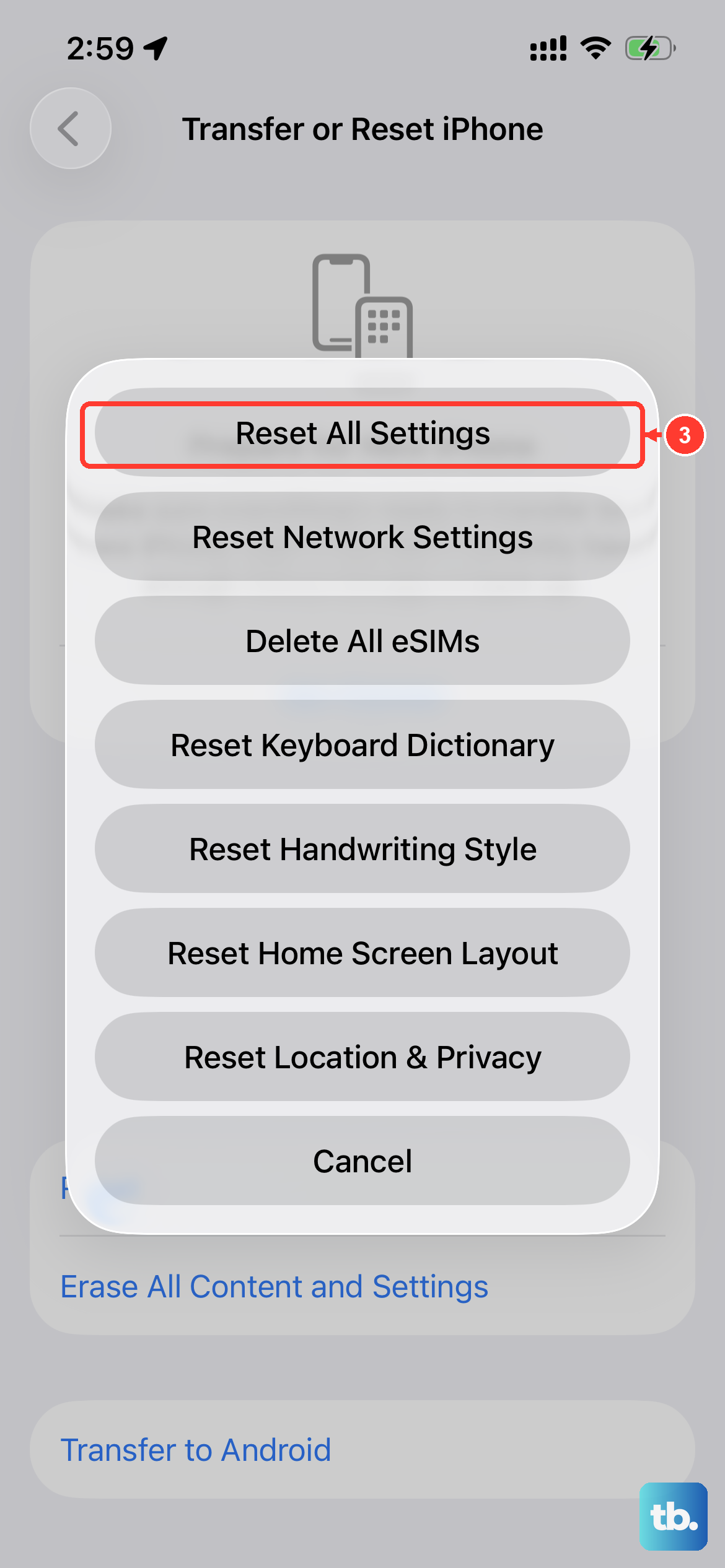
This is a more thorough step that won't delete your personal data like photos or messages, but it will reset every system setting back to its factory default. That includes your Wi-Fi passwords, wallpaper, and privacy permissions, so you'll need to set those up again.
To do this, go to Settings > General > Transfer or Reset iPhone > Reset. Then, tap "Reset All Settings" and enter your passcode. Your phone will restart. This often clears up persistent, confusing software issues.
Check for App-Specific Issues
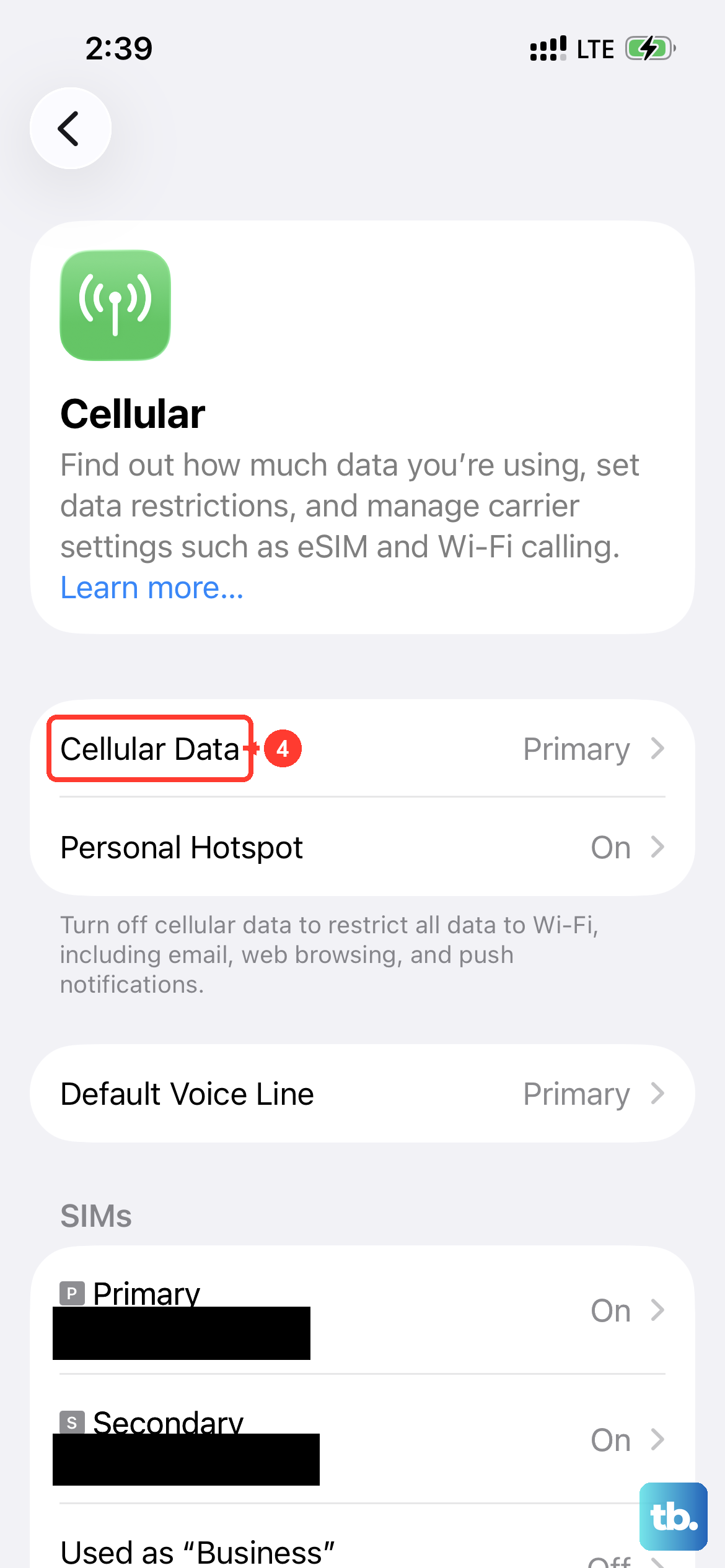
If your iPhone 16 rings for regular cellular calls but stays silent for calls from apps like WhatsApp, FaceTime, or Skype, the problem is likely with that specific app. First, head to the App Store and make sure the app is updated to its latest version.
Then, check the app's notification permissions. Go to Settings > [App Name] > Notifications. Make sure "Allow Notifications" is on and that "Sounds" is enabled. For VoIP apps, also try switching between Wi-Fi and cellular data to see if the network is causing the problem.
Reset Network Settings
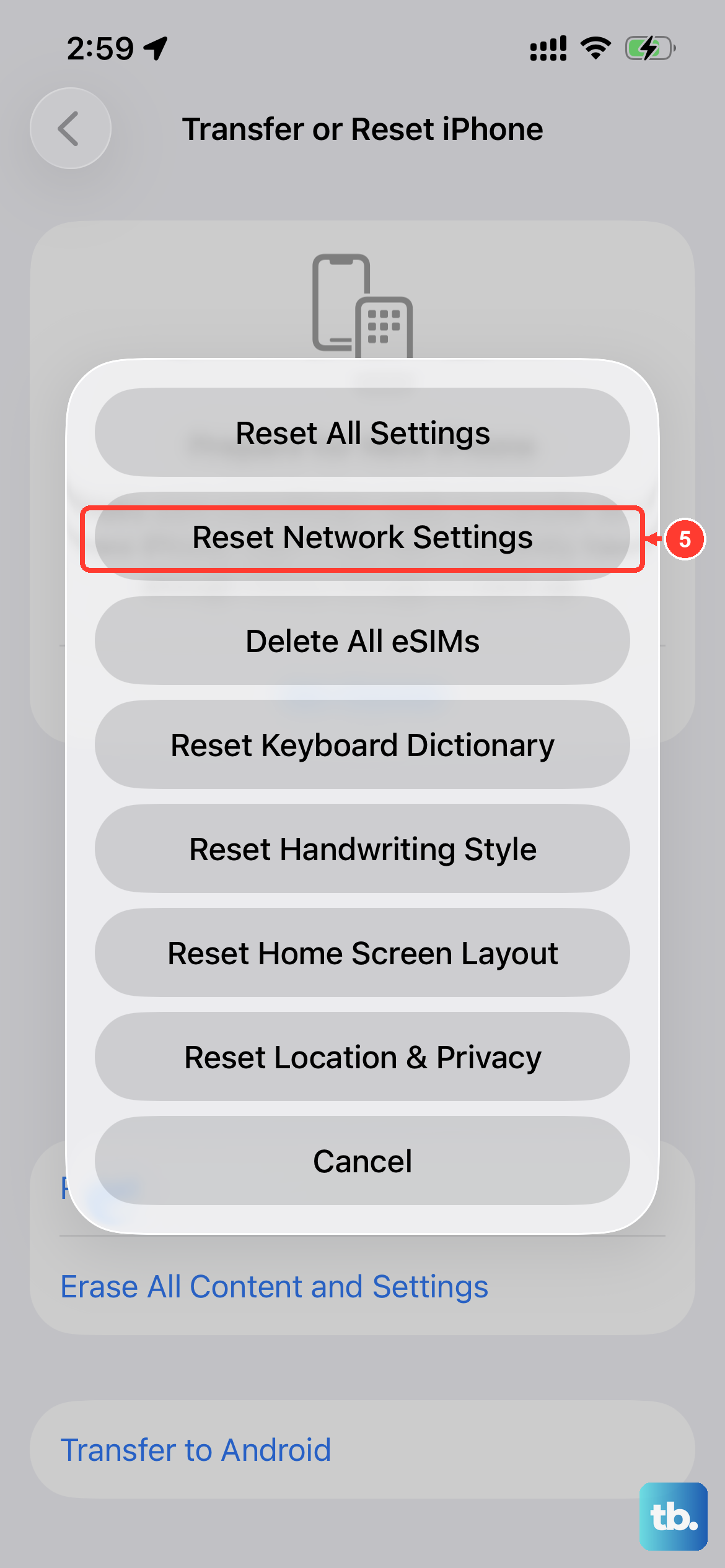
This step is particularly useful if you're having issues with internet-based calling apps. Resetting network settings will clear your Wi-Fi networks and passwords, cellular settings, and VPN configurations.
Go to Settings > General > Transfer or Reset iPhone > Reset. Tap "Reset Network Settings" and confirm. Your phone will reboot. You'll then need to rejoin your Wi-Fi networks, but it can resolve call routing problems.
Restore Your iPhone via Computer
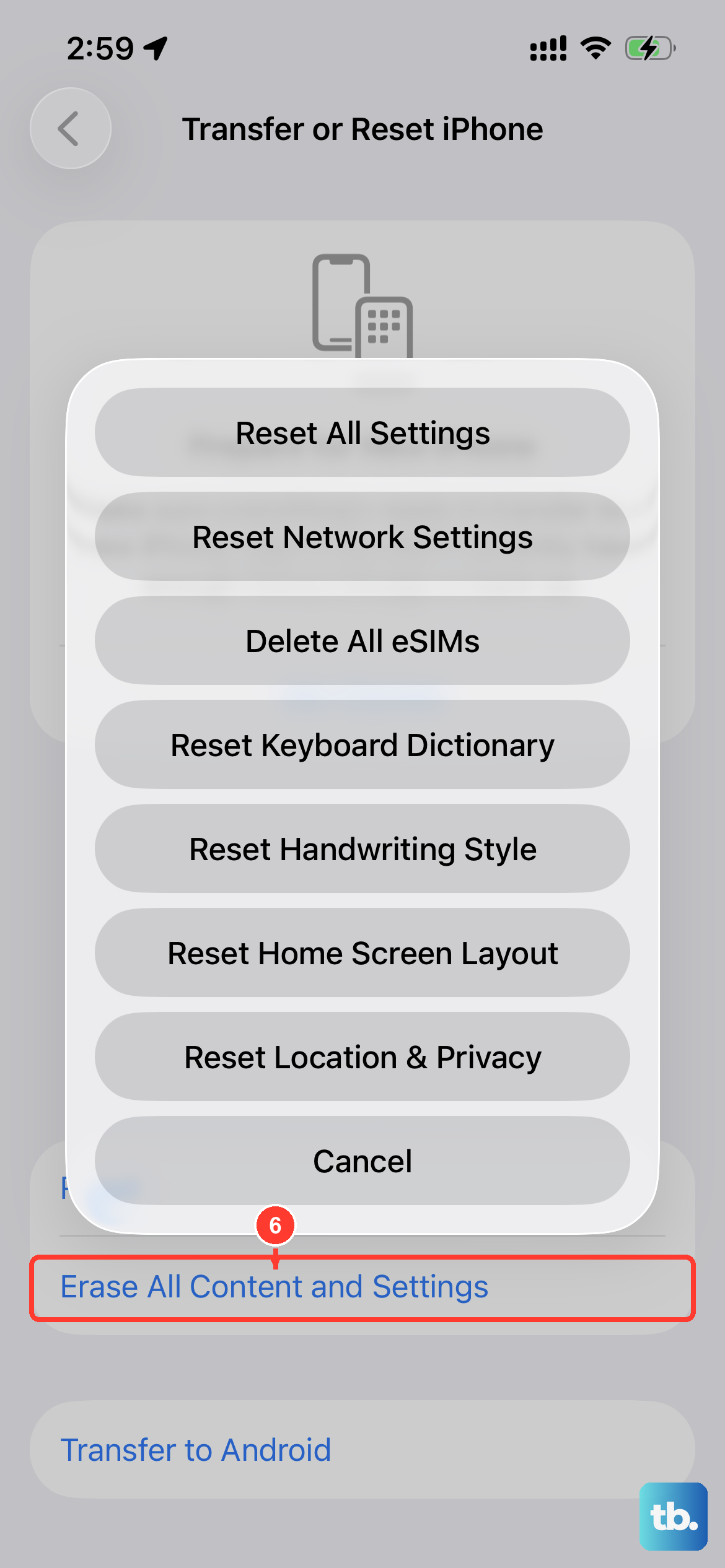
If you've tried everything else, a full restore is the final software step. This will erase your iPhone 16 completely, so it's crucial to have a recent backup in iCloud or on your computer first. Connect your iPhone to a Mac or PC.
On a Mac with macOS Catalina or later, open Finder. On a PC or older Mac, open iTunes. Select your iPhone, then choose "Restore iPhone." This will install a clean, fresh version of iOS 26. After it's done, you can set it up as new or restore from your backup to see if the problem is gone.