
Missing calls on your iPhone 16 can be a real headache, especially when you're expecting something important. This problem can pop up for a bunch of reasons, from a simple notification setting to a deeper software hiccup. I'd start with the quick fixes below, as they resolve the issue for most people.
First, give your iPhone a quick restart. Press and release the Volume Up button, then press and release the Volume Down button, and finally press and hold the Side button until you see the Apple logo. This clears out temporary glitches that might be interfering with the Phone app.
Next, check your cellular signal. If you only have one or two bars, that's likely the culprit. Try moving to a different location or, if you're inside, near a window. You can also try toggling Airplane Mode on and off from the Control Center to force a fresh connection to the cell tower.
Check Your Focus Modes
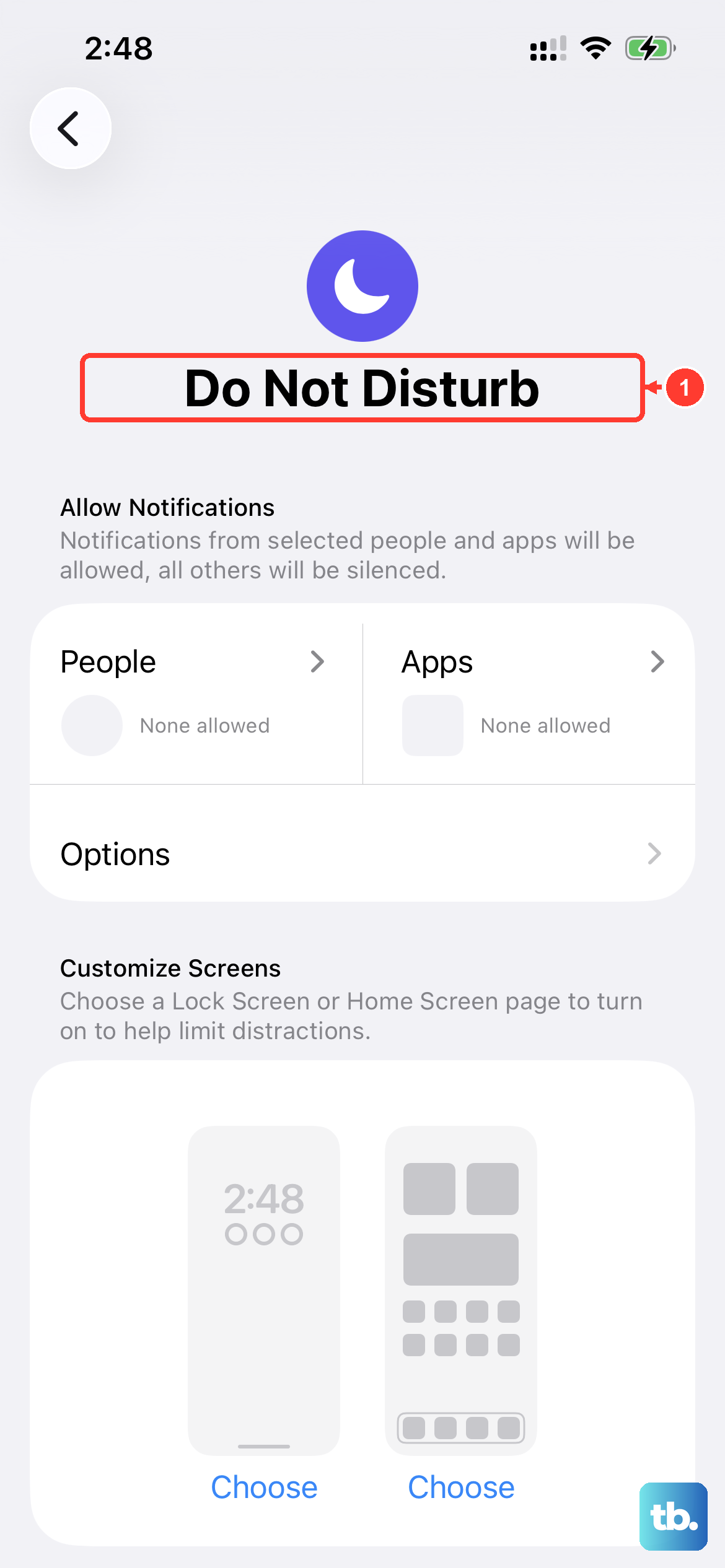
Focus modes like Do Not Disturb, Sleep, or Work can silently silence calls. Swipe down from the top-right corner to open Control Center and look at the Focus icon. If it's highlighted, tap it to turn the active Focus off. For a deeper check, go into Settings > Focus and review the settings for each mode, making sure "Silence Notifications From" isn't set to silence everyone.
Also, look at the "Allowed Notifications" section within each Focus. If you've set up a Focus to allow only specific people, calls from anyone not on that list will go straight to voicemail without ringing.
Review Call Blocking and Silence Unknown Callers
Apple has built-in features to filter out spam, but they can sometimes be too aggressive. Head to Settings > Apps > Phone. Scroll down and look for "Silence Unknown Callers." If this is on, any number not in your Contacts, Mail, or Messages will be silenced. Toggle it off if you're expecting calls from new numbers.
In the same menu, tap "Call Blocking & Identification." This shows you a list of apps that can block calls. Make sure you haven't accidentally blocked the number you're missing calls from. You can also see a list of all blocked numbers here and remove any by mistake.
Verify Your Network Settings
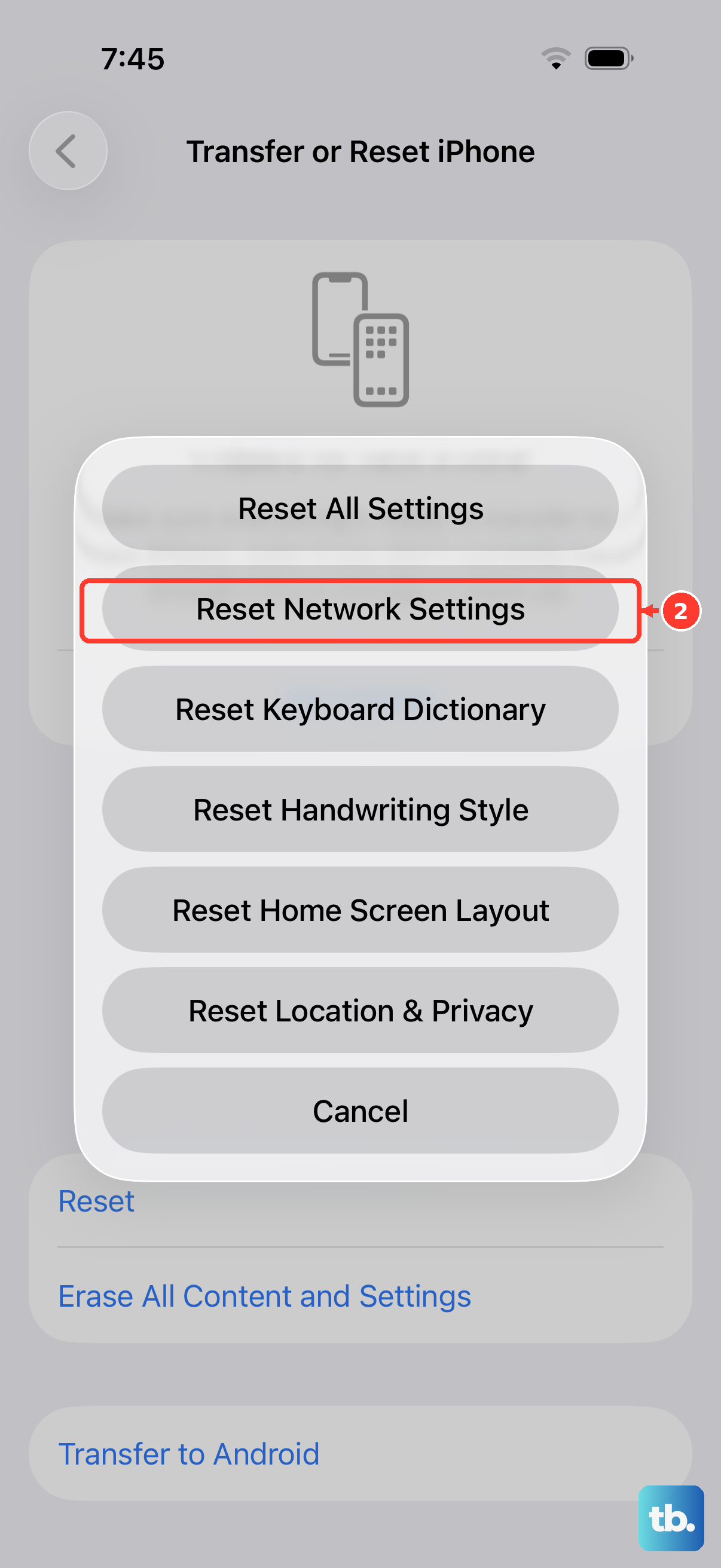
Sometimes, the settings that manage your connection to your carrier get a little scrambled. A network settings reset is a reliable way to fix this. Go to Settings > General > Transfer or Reset iPhone. Tap "Reset" and then choose "Reset Network Settings."
This will erase all saved Wi-Fi passwords, Bluetooth pairings, and VPN settings, so you'll need to reconnect to your networks afterward. It doesn't delete any personal data like photos or messages. This step often clears up weird calling issues related to the carrier connection.
Inspect Your SIM Card or eSIM
A poorly seated or faulty SIM card can cause intermittent service. If your iPhone 16 uses a physical SIM, you can try removing it. Get a SIM eject tool or a paperclip, insert it into the small hole on the SIM tray, and gently pull the tray out. Blow any dust out of the slot, reseat the SIM card, and push the tray back in.
If you're using an eSIM, the process is software-based. You can try removing and re-adding it by going to Settings > Cellular, tapping your eSIM plan, and selecting "Remove Cellular Plan." Then, you can add it back by scanning the QR code or entering the details provided by your carrier. Contacting your carrier for support with eSIM re-provisioning is also a good idea.
Update iOS to the Latest Version
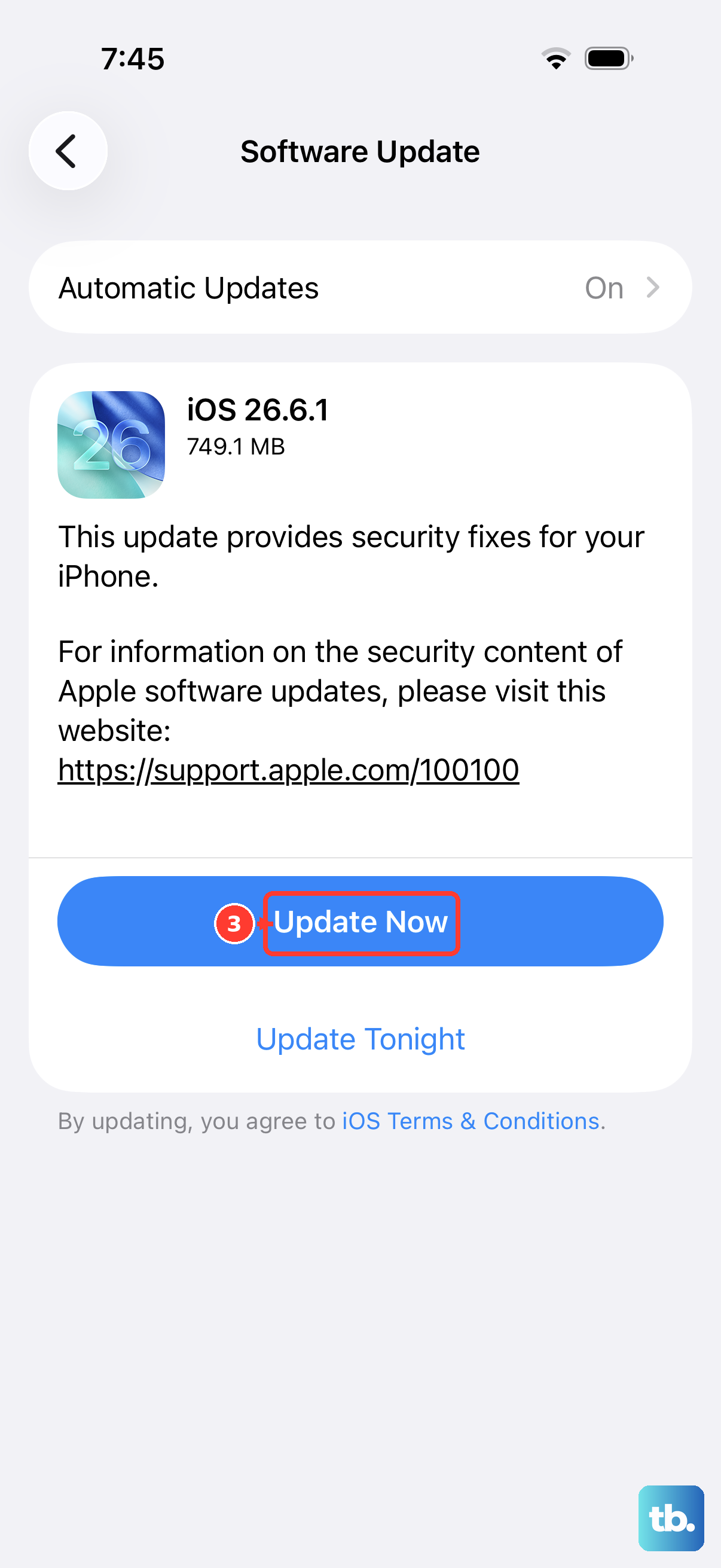
Software bugs in iOS 26 can sometimes affect call handling. Apple releases updates to patch these issues. Open Settings > General > Software Update. If an update is available, tap "Download and Install." Make sure your phone is connected to Wi-Fi and has sufficient battery life, or plug it into a charger.
Keeping your iPhone updated is one of the best ways to ensure stability. I've seen updates specifically address problems with calls being delayed or not coming through at all.
Check for Call Forwarding
Call forwarding might be enabled without you realizing it, sending all your calls directly to another number or voicemail. To check, open the Phone app and tap the "Keypad" tab. Dial #21# and then tap the call button. This will show you the status of unconditional call forwarding on your line.
If it shows a number, forwarding is active. You can usually disable all forwarding by dialing ##21# and tapping call. For more control, you can also contact your carrier directly to check and manage any call forwarding features on your account.
Disable Wi-Fi Calling Temporarily
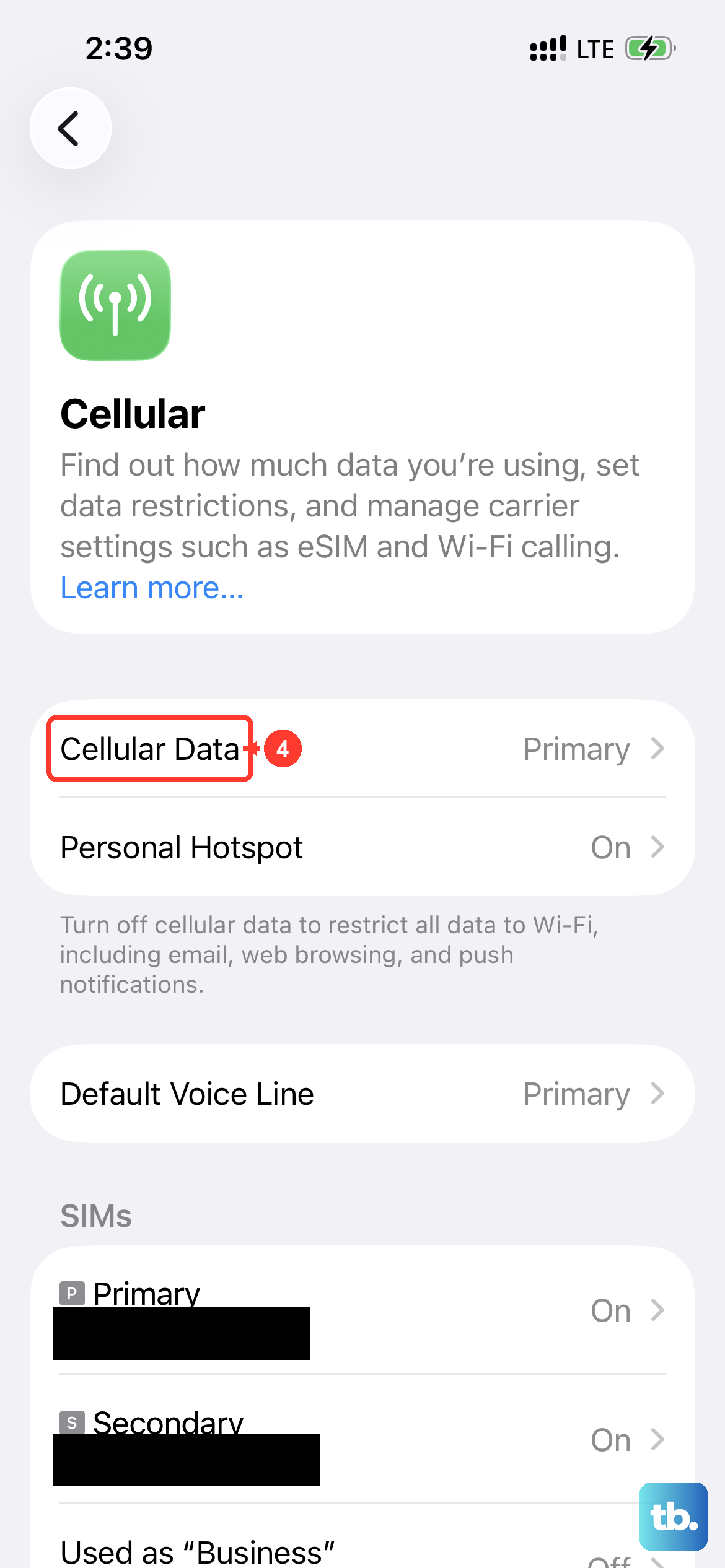
While Wi-Fi Calling is a great feature for making calls in areas with poor cellular service, it can sometimes get stuck or cause conflicts. Try turning it off to see if your regular cellular calls start working again. Go to Settings > Cellular (or Mobile Data in some regions).
Tap on your primary line, then tap "Wi-Fi Calling." Toggle "Wi-Fi Calling on This iPhone" to the off position. After a moment, try making a test call. You can always turn this feature back on later if it wasn't the issue.
Reset All Settings
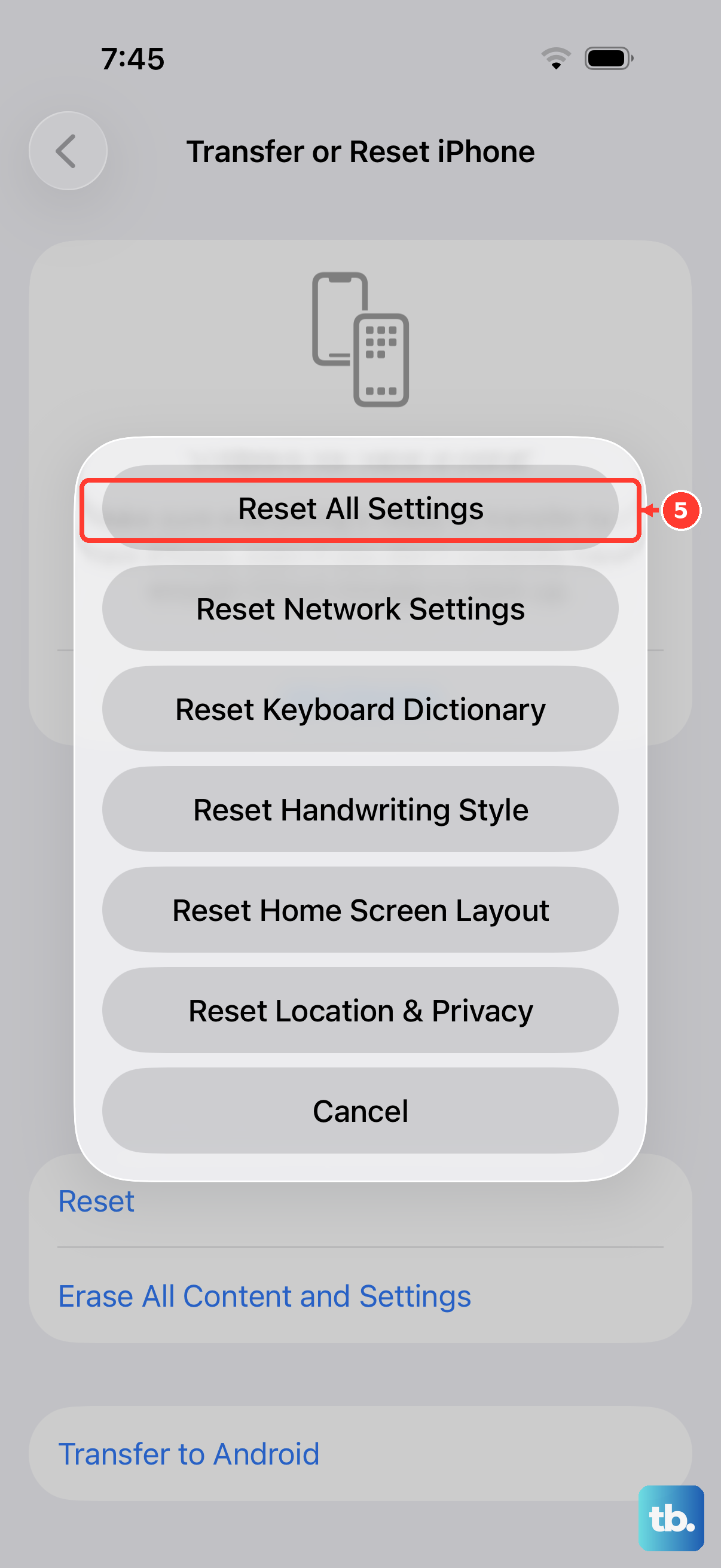
If you're still having trouble, a more comprehensive reset can help. This won't erase your photos, apps, or personal data, but it will revert all system settings to their defaults. Things like your wallpaper, privacy permissions, and keyboard dictionary will be reset. Go to Settings > General > Transfer or Reset iPhone.
Tap "Reset" and then choose "Reset All Settings." Enter your passcode when prompted and confirm. Your iPhone will restart. After it boots up, you'll need to reconfigure settings like Wi-Fi, notifications, and Face ID, but it can eliminate a misconfigured setting that's blocking calls.
Contact Your Carrier
If none of the steps on your phone work, the issue might be on your carrier's end. They can check for outages in your area, problems with your specific account, or issues with how your line is provisioned for the iPhone 16. It's worth giving them a call from another phone or using their online support chat.
You can ask them to reprovision your line or check for any call barring services that might be active on your account. They can also run diagnostics from their side to see if your phone is properly registering on their network.