
If you tap send on a photo or group text and it just sits there, stuck on "Sending," you're dealing with an MMS problem on your iPhone 16. It's usually a quick fix involving your cellular data or a settings toggle that got switched off. Let's get those messages moving.
Turn On Cellular Data for MMS
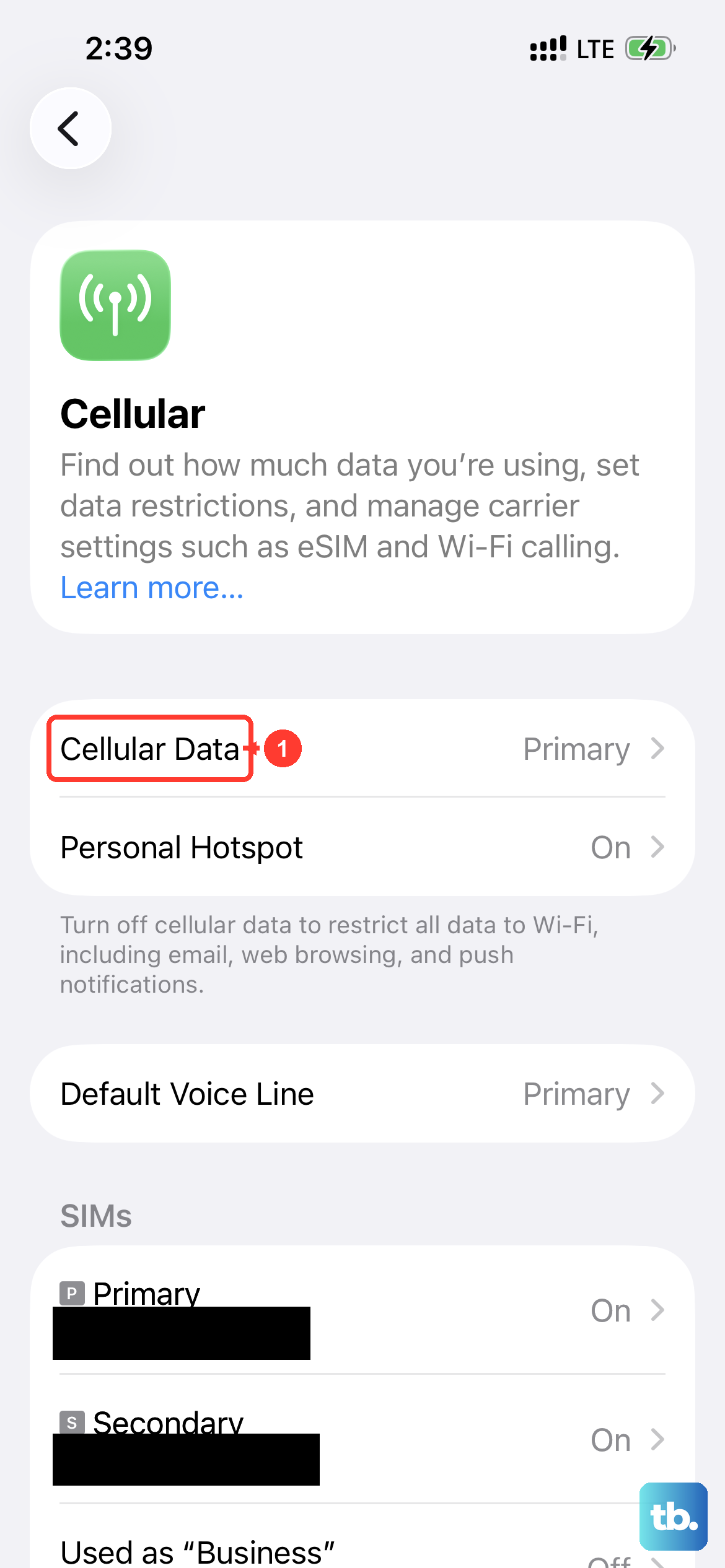
This is the most common culprit. Unlike iMessage, which can use Wi-Fi, MMS requires your cellular data to be active. Open the Settings app and tap Cellular. Make sure the Cellular Data switch at the top is green.
Scroll down in the Cellular menu and find the Messages app in the list. Ensure its toggle is also switched on, allowing it to use your mobile data plan.
Enable MMS in Your Message Settings
There's a specific setting for MMS that can sometimes be disabled. Go to Settings, then scroll down and tap Messages. In the SMS/MMS section, make sure the switch for MMS Messaging is turned on.
While you're here, also check that Send as SMS is enabled. This lets an iMessage failover to a regular text or MMS if iMessage is unavailable, which can prevent sending failures.
Check Your Cellular Connection
A weak signal can absolutely block an MMS from going through. Look at the signal bars or dots in the top-right corner of your iPhone 16's screen. If you only have one or two, try moving to a location with better reception.
If you're connected to Wi-Fi, try temporarily turning it off. Some networks, like public or corporate Wi-Fi, have firewalls that can interfere with MMS traffic. Forcing the phone to use cellular data alone can bypass this.
Restart Your iPhone 16
A simple restart clears out minor software glitches that might be hanging up the messaging process. On your iPhone 16, quickly press and release the Volume Up button, then quickly press and release the Volume Down button.
Now, press and hold the Side button. Keep holding it until you see the Apple logo appear, then let go. Wait for the phone to reboot completely and try sending the MMS again.
Update Your Carrier Settings
Your carrier occasionally pushes small updates that fine-tune network connectivity, including for MMS. These install automatically most of the time, but it's worth checking.
Go to Settings > General > About. If a carrier settings update is available, a prompt will appear on this screen. Just follow the instructions to install it. This doesn't require a full iOS update.
Update to the Latest iOS
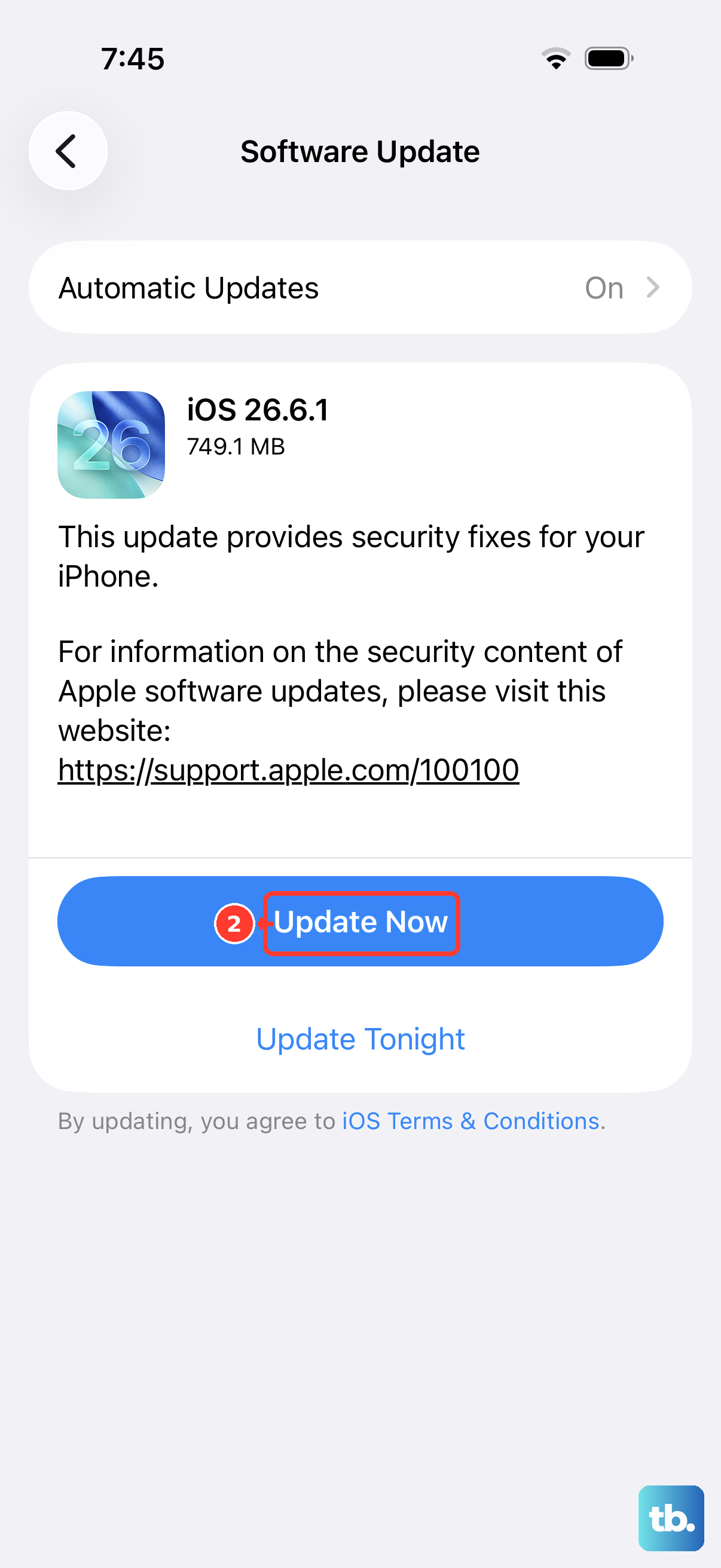
Software bugs in iOS 26 can sometimes affect messaging. Apple releases patches for these issues regularly. Open Settings, tap General, and then select Software Update.
If an update is listed, tap Download and Install. I'd recommend doing this over Wi-Fi and ensuring your iPhone 16 is plugged in or has plenty of battery life before starting.
Reset Your Network Settings
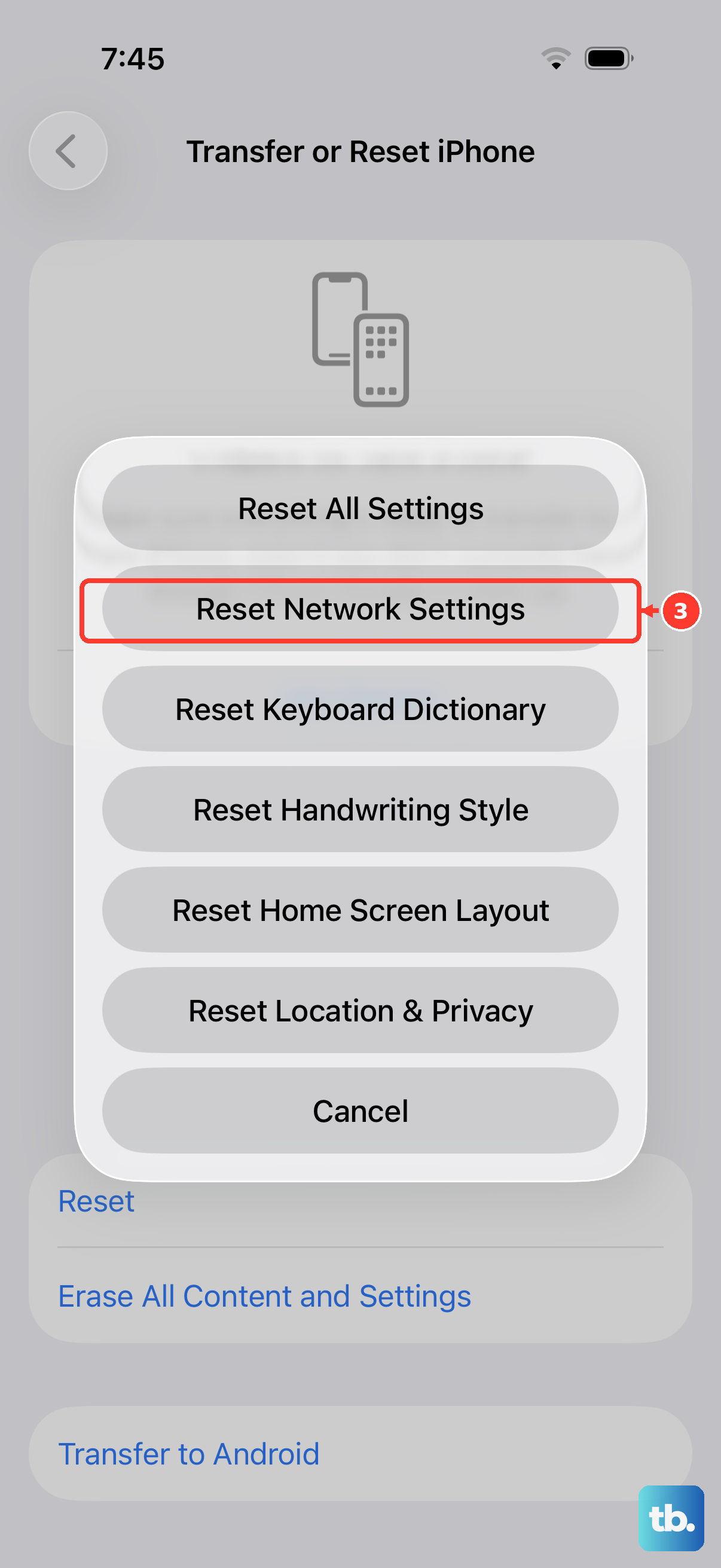
This is a more thorough step that clears all your network-related data. It will erase saved Wi-Fi passwords, Bluetooth pairings, and VPN settings, but it often resolves persistent MMS and cellular issues.
Go to Settings > General > Transfer or Reset iPhone. Tap Reset at the bottom, and then choose Reset Network Settings. Enter your passcode if prompted and confirm. Your iPhone will restart and you'll need to reconnect to Wi-Fi networks afterward.
Check for a Configuration Profile
If your iPhone is managed by an employer or school, they may have installed a configuration profile that restricts MMS. Go to Settings > General > VPN & Device Management.
If you see a profile listed here, it might be controlling your messaging options. You would need to consult your IT administrator to see if adjustments can be made, as removing it yourself might affect other work-related functions.
Verify Your Message Blocking Settings
It's possible, though unlikely, that a setting meant to block spam is interfering. Go to Settings > Apps > Messages and scroll down to the Message Filtering section. Tap Unknown & Spam.
Make sure Filter Unknown Senders is not enabled, or if it is, check the filtered messages list to ensure your contact wasn't accidentally caught there. You can access this list at the top of your Messages app main screen by tapping Filters.
Contact Your Carrier
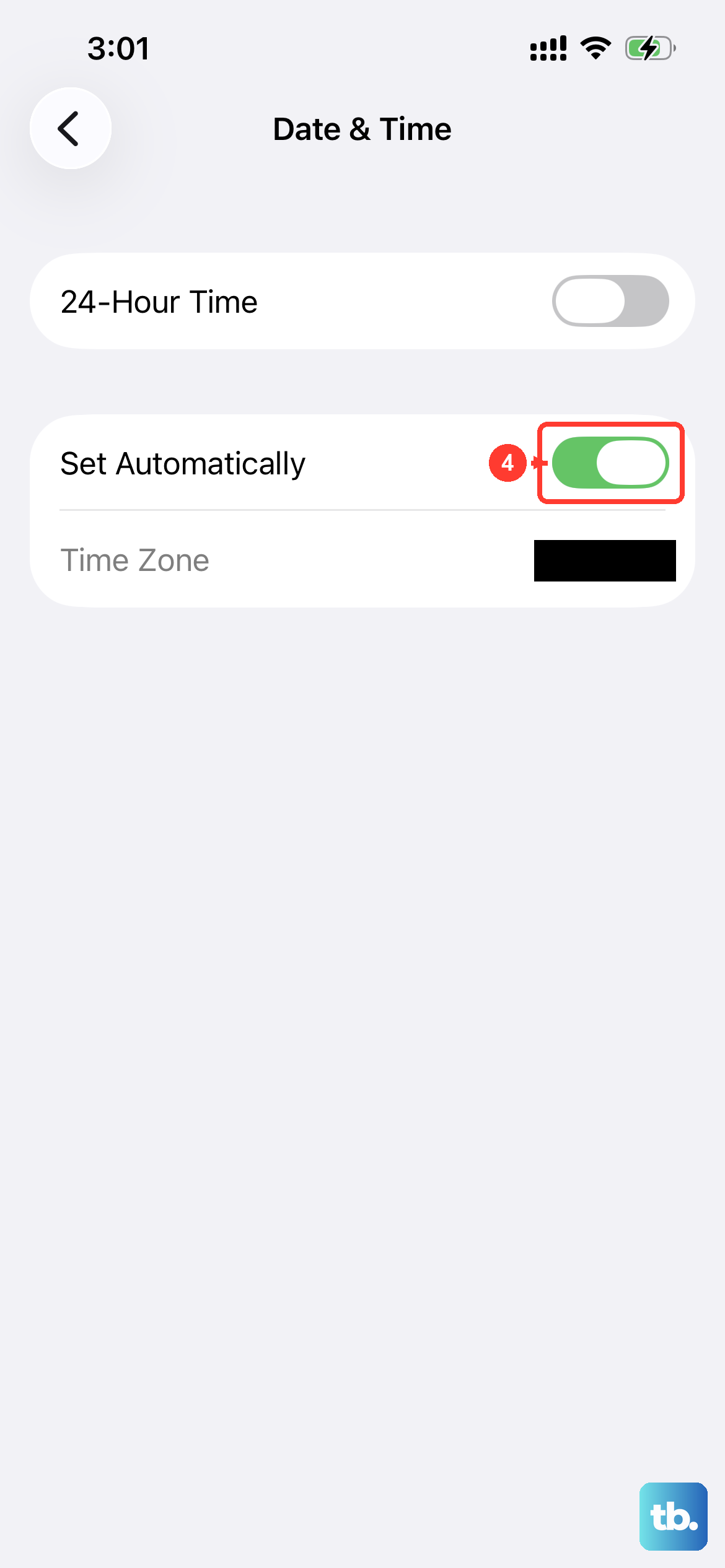
If you've tried everything here, the issue might be on your carrier's end. They can check if MMS is properly enabled on your line and if there are any network outages in your area.
Ask them specifically to reprovision your line for MMS services. This is a quick refresh they can do on their side that often clears up these kinds of sending problems. Have them confirm your APN (Access Point Name) settings are correct for the iPhone 16 on their network, though these are typically set automatically.