
When your iPhone 16's keyboard disappears or becomes unresponsive, it can stop you from sending a simple text. This is usually a temporary software hiccup, and there are several straightforward ways to get it working again.
Force Restart Your iPhone 16
This is the quickest fix for most temporary glitches, including a frozen keyboard. It clears the phone's memory without deleting any of your data.
On the iPhone 16, you force restart by quickly pressing and releasing the Volume Up button, then quickly pressing and releasing the Volume Down button. Finally, press and hold the Side button until you see the Apple logo appear on the screen.
Switch to a Different Keyboard App
If the default keyboard is stuck, switching to a different one gives you an immediate workaround. You can download popular alternatives like Gboard or SwiftKey from the App Store.
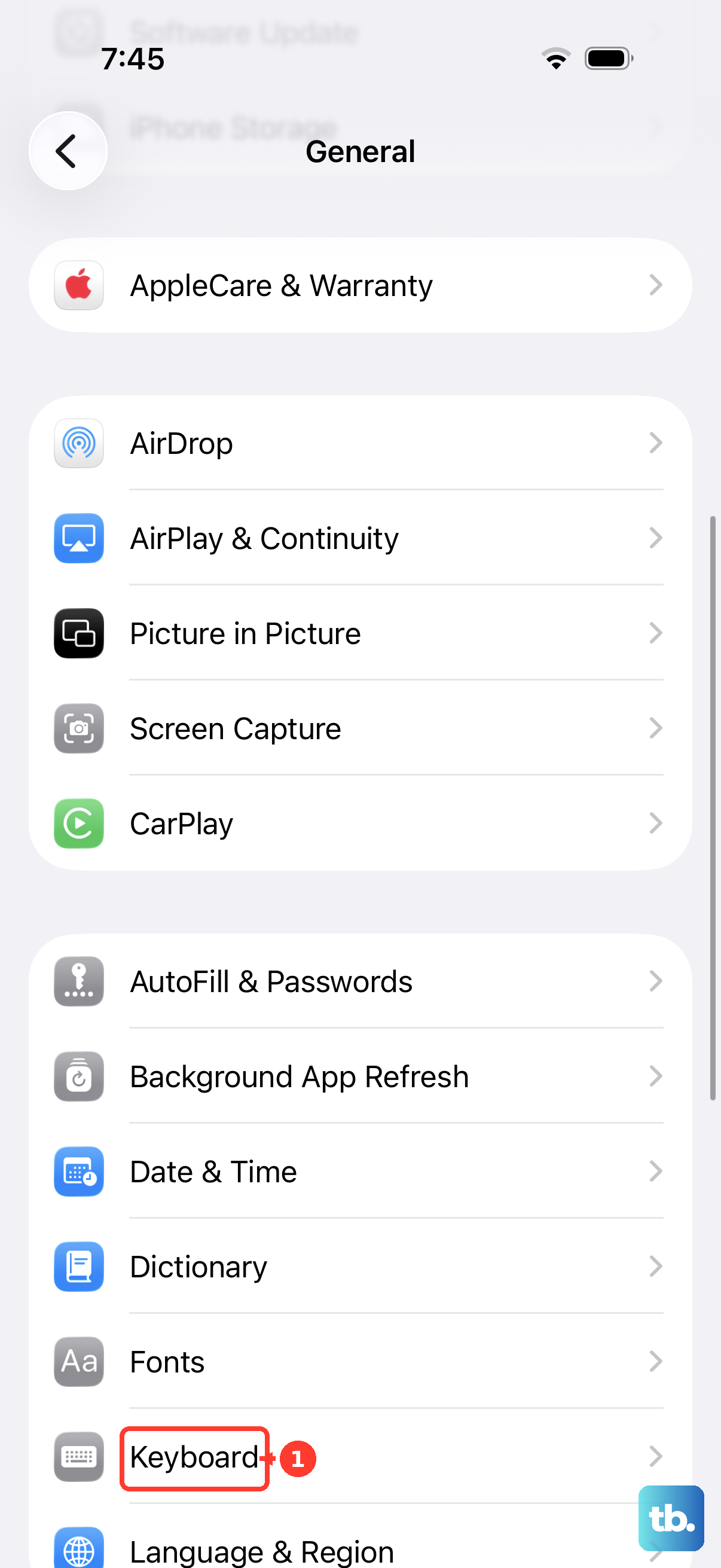
To switch, go to Settings > General > Keyboard > Keyboards. Tap "Add New Keyboard" and select the one you installed. Then, when the keyboard appears, tap the globe icon in the bottom-left corner to cycle between your enabled keyboards.
Update iOS
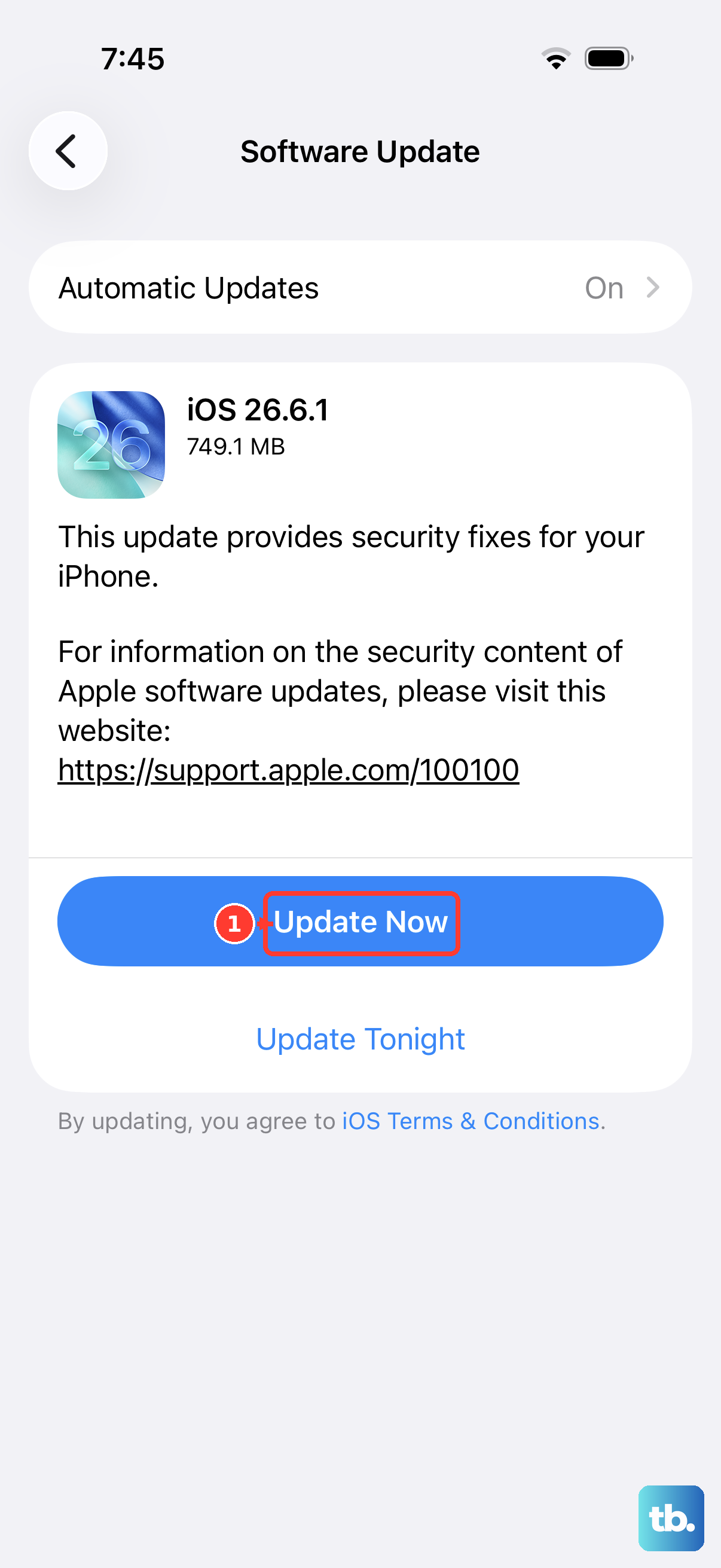
An outdated version of iOS can have bugs that affect system apps like the keyboard. Apple regularly releases updates with fixes for these kinds of issues.
Check for an update by going to Settings > General > Software Update. If an update for iOS 26 is available, I'd recommend installing it. Make sure your phone is connected to Wi-Fi and has sufficient battery life first.
Close and Reopen the App
Sometimes the problem is isolated to a single app, like Messages or Mail. Force closing the app and reopening it can refresh its connection to the keyboard.
On your iPhone 16, swipe up from the bottom of the screen and pause in the middle to enter the App Switcher. Find the app you're having trouble with and swipe it up and off the top of the screen to close it. Then, tap its icon to reopen it and see if the keyboard returns.
Reset All Keyboard Settings
This will return all your keyboard preferences to their factory defaults. You'll lose custom text replacements and any keyboard-specific settings, but your personal data and apps remain safe.
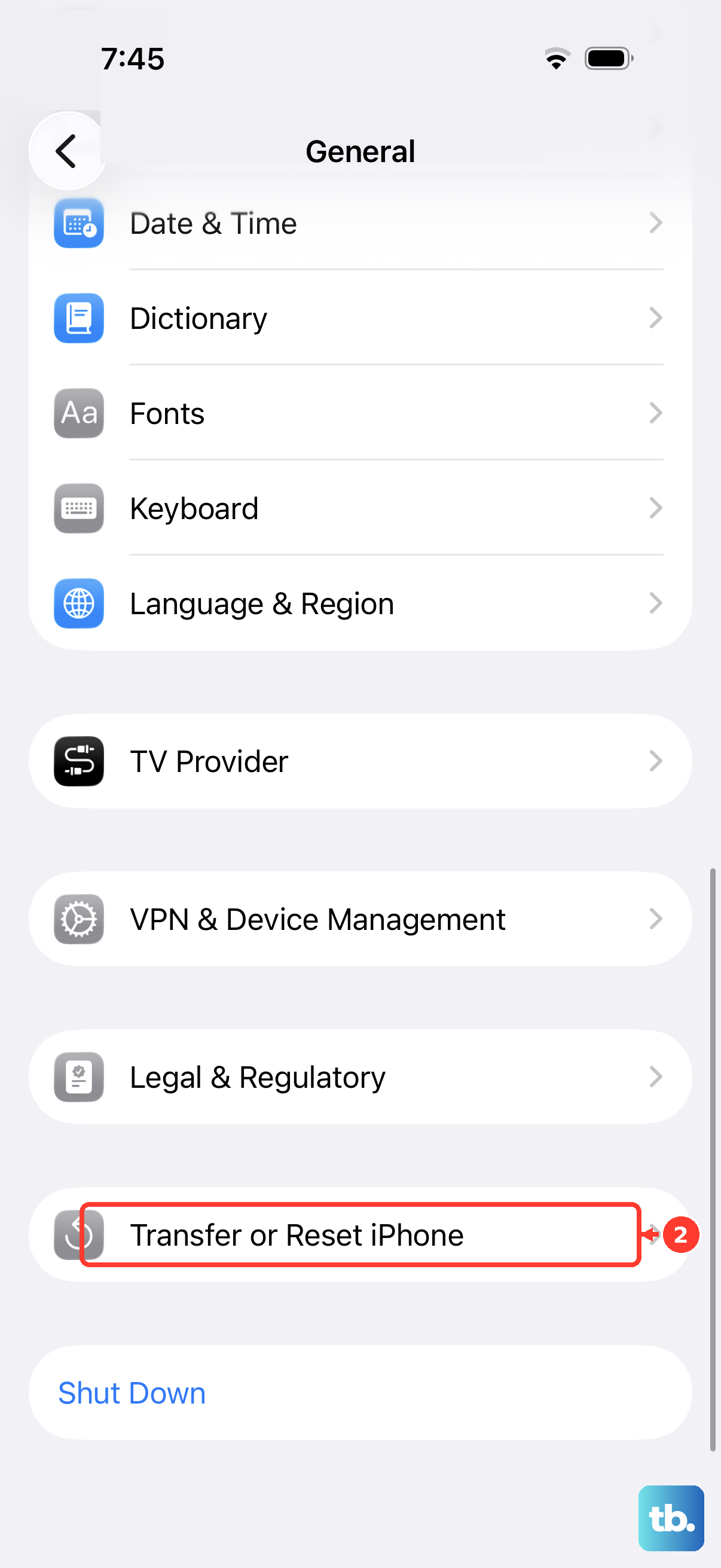
To do this, navigate to Settings > General > Transfer or Reset iPhone. Tap "Reset" and then choose "Reset Keyboard Dictionary." Confirm your choice and your phone will restart.
Check for a Software Keyboard Setting
There's a specific accessibility setting that can interfere. Go to Settings > Accessibility > Keyboards.
Make sure "Full Keyboard Access" is turned off. When this is enabled, it can sometimes prevent the standard touch keyboard from appearing in certain apps.
Disable Third-Party Keyboard Extensions
If you use a third-party keyboard like Grammarly or a password manager extension, it might be causing a conflict. You can temporarily disable these extensions to test.
Head to Settings > General > Keyboard > Keyboards. Tap "Edit" in the top-right corner. You'll see a red minus icon next to any third-party keyboards; tap it and select "Delete" to remove them. You can always add them back later.
Check Your Screen Protector or Case
This might sound odd, but a poorly fitted screen protector or a case that overlaps the screen's edge can interfere with the touch sensors. This can make it seem like the keyboard isn't responding to your taps.
Try removing your case and see if the keyboard becomes more responsive. If you have a thick screen protector, ensure it's properly aligned and isn't creating a gap that disrupts touch sensitivity along the bottom edge of the display.
Reset All Settings
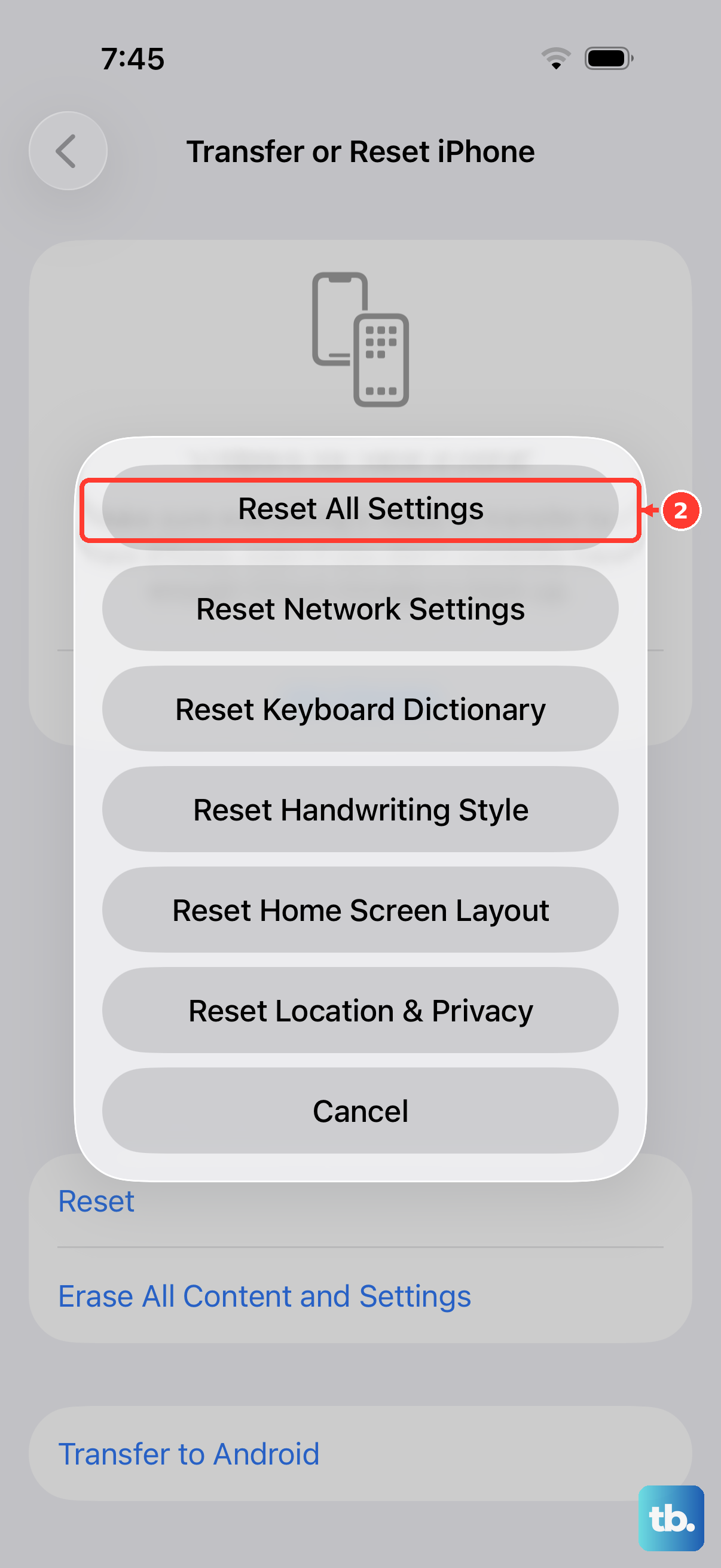
This is a more comprehensive reset if the other steps haven't worked. It will wipe all your system settings back to factory defaults, including Wi-Fi passwords, wallpaper, and privacy permissions, but it won't touch your photos, messages, or apps.
Go to Settings > General > Transfer or Reset iPhone. Tap "Reset" and then select "Reset All Settings." Enter your passcode when prompted and confirm. Your phone will restart with fresh settings, which often resolves persistent software conflicts.