
A blurry camera on your iPhone 16 can turn a great shot into a useless one. The blur might be constant, only happen in low light, or affect just one of the lenses. Before you worry about a hardware issue, there are several software and simple fixes to try first.
Clean the Camera Lenses
Start with the simplest solution. Use a soft, lint-free microfiber cloth to gently wipe the entire camera array on the back of your iPhone 16. Fingerprints, dust, or smudges on any of the lenses will cause haze and soft focus in your photos. I'd avoid using your shirt or a paper towel, as they can leave micro-scratches on the lens coating over time.
Remove Your Phone Case
Some cases, especially thicker ones designed for MagSafe, can have a raised lip that sits too close to the camera lenses. This can cause lens flare or a slight fogging effect. Take the case off and snap a test photo. Also, make sure you haven't accidentally left a plastic camera lens protector on from when you unboxed the phone.
Tap to Focus and Lock It
Open the Camera app and tap directly on your subject on the screen. You'll see a yellow square appear, confirming the focus point. If you're shooting something up close, the camera might be focusing on the background instead. For a steady shot, press and hold on the focus point until you see "AE/AF Lock" appear, which keeps the focus locked in place.
Switch Between Camera Lenses
The iPhone 16 has multiple lenses, and an issue can be isolated to just one. While in the Camera app, tap the lens options (like 0.5x, 1x, 2x, or 5x) to switch between them. If only one lens produces consistently blurry images, that points to a problem with that specific lens, either needing a more thorough cleaning or indicating a hardware fault.
Force Close and Reopen the Camera App
Swipe up from the bottom of the screen and pause in the middle to enter the app switcher. Find the Camera app and swipe it up and off the screen to close it completely. Then, reopen it from your Home Screen. This kills any temporary glitch in the camera software that could be causing the autofocus to malfunction.
Restart Your iPhone 16
A full restart clears out more significant software hiccups. To restart, press and quickly release the Volume Up button, press and quickly release the Volume Down button, then press and hold the Side button until the Apple logo appears. This resets the entire camera system and can resolve focus issues caused by a background process.
Check for Lens Condensation
Moving your phone from a cold environment to a warm, humid one can cause condensation to form on or inside the camera lenses. This creates a persistent foggy blur. Let your iPhone 16 sit at room temperature for about 20 minutes to allow the moisture to dissipate naturally. Don't try to blow on the lenses, as that adds more moisture.
Update to the Latest iOS
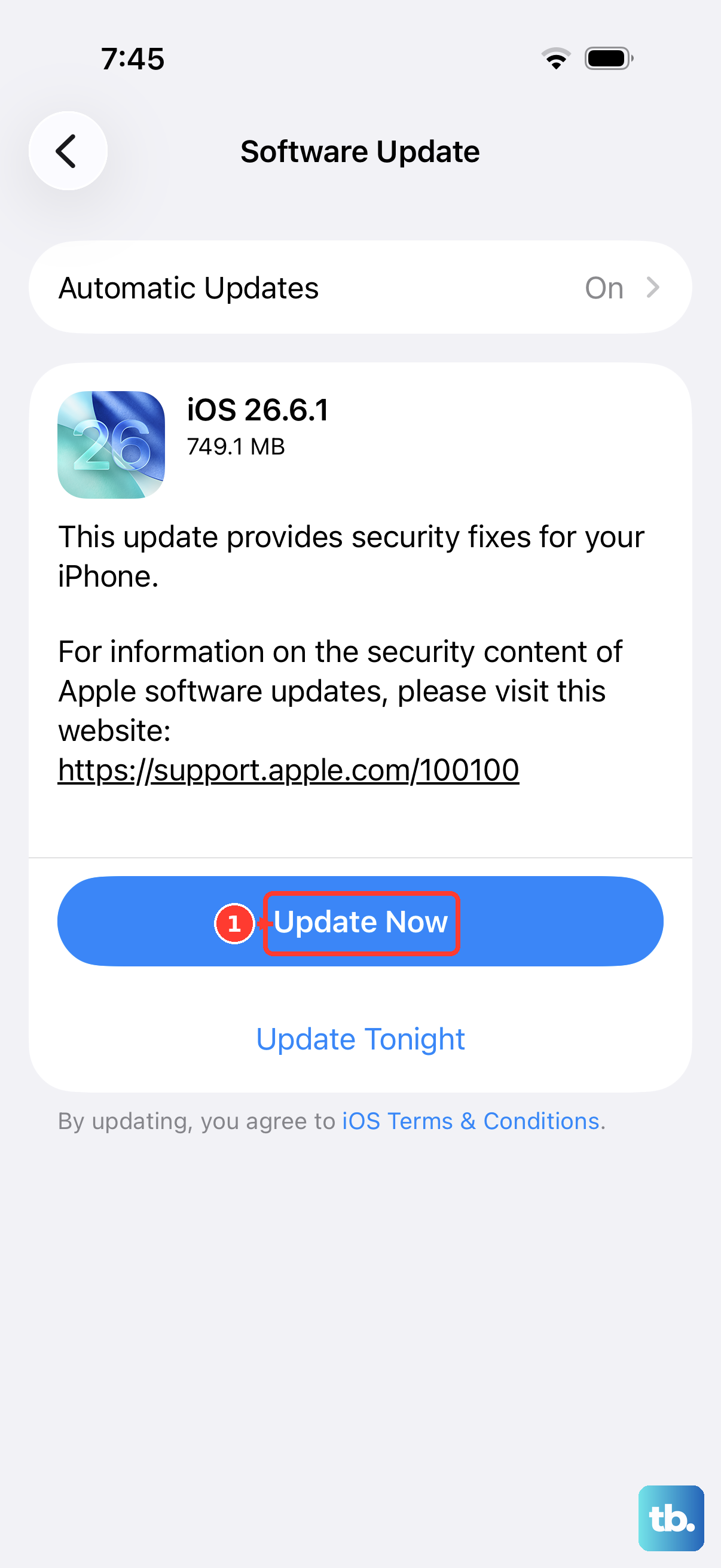
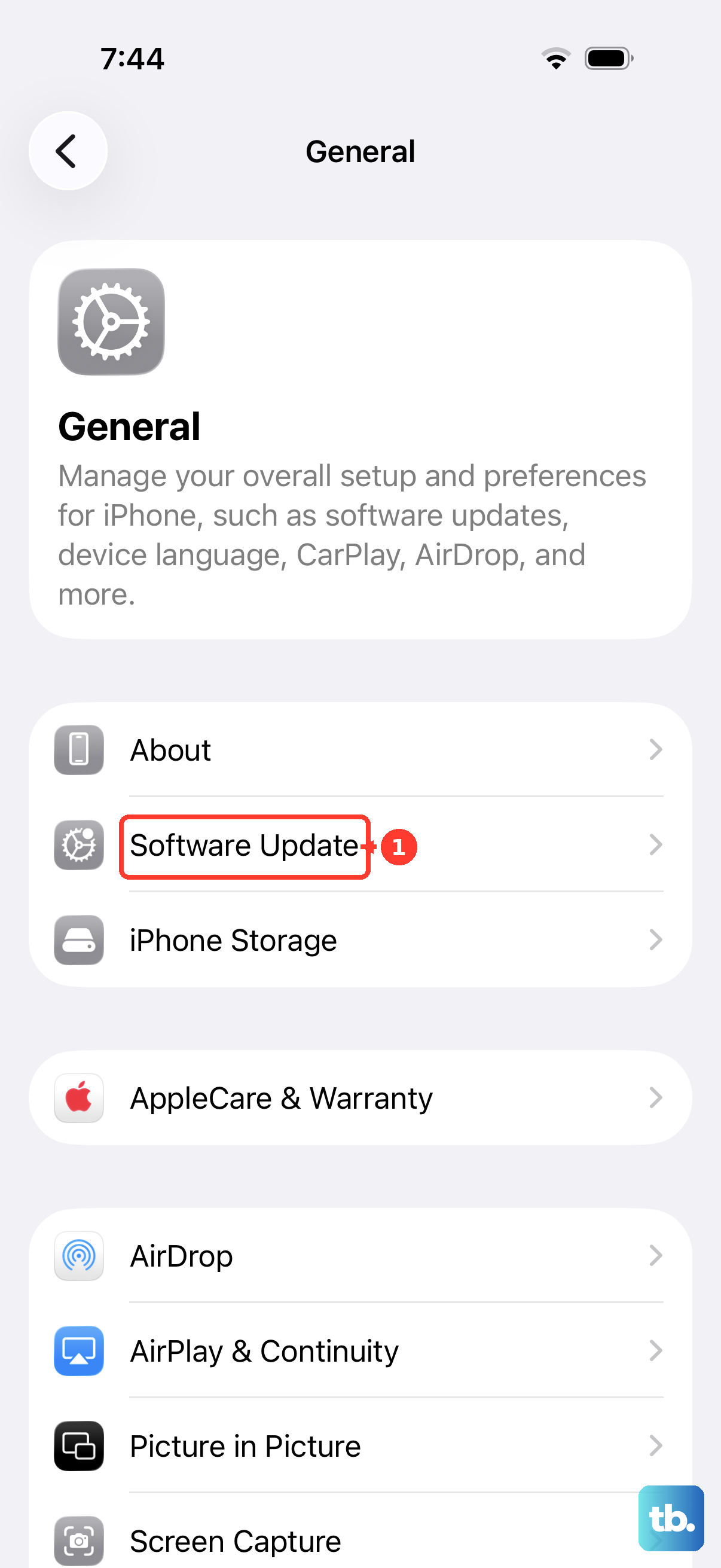
Go to Settings > General > Software Update. Apple frequently releases updates that include camera improvements and bug fixes for autofocus and image processing. If there's a known issue with the camera in your version of iOS 26, an update likely contains the patch.
Use the Lens Cleaning Hint Feature
On iOS 26, your iPhone 16 can detect when a lens is obstructed. If the system notices a smudge is degrading photo quality, it will show a small notification at the top of the Camera app screen prompting you to clean the lens. If you see this, give the lenses a good wipe with a microfiber cloth.
Reset All Camera Settings
If a custom setting is causing trouble, resetting them can help. Navigate to Settings > Camera. Scroll down and tap Reset Settings. This will revert all your camera preferences to factory defaults without deleting your photos. It's a good way to rule out a misconfigured option.