
When your iPhone 15 won't send photos, it's usually a quick fix. The most common culprit is a simple network or settings hiccup. I'd start by checking your connection and toggling iMessage off and back on, as that resolves the issue for most people.
Check Your Internet Connection First
Your iPhone 15 needs a solid data connection to send photos. If you're on Wi-Fi, look for the Wi-Fi icon in your status bar. If it's not there, swipe down from the top-right corner to open Control Center and tap the Wi-Fi icon to reconnect.
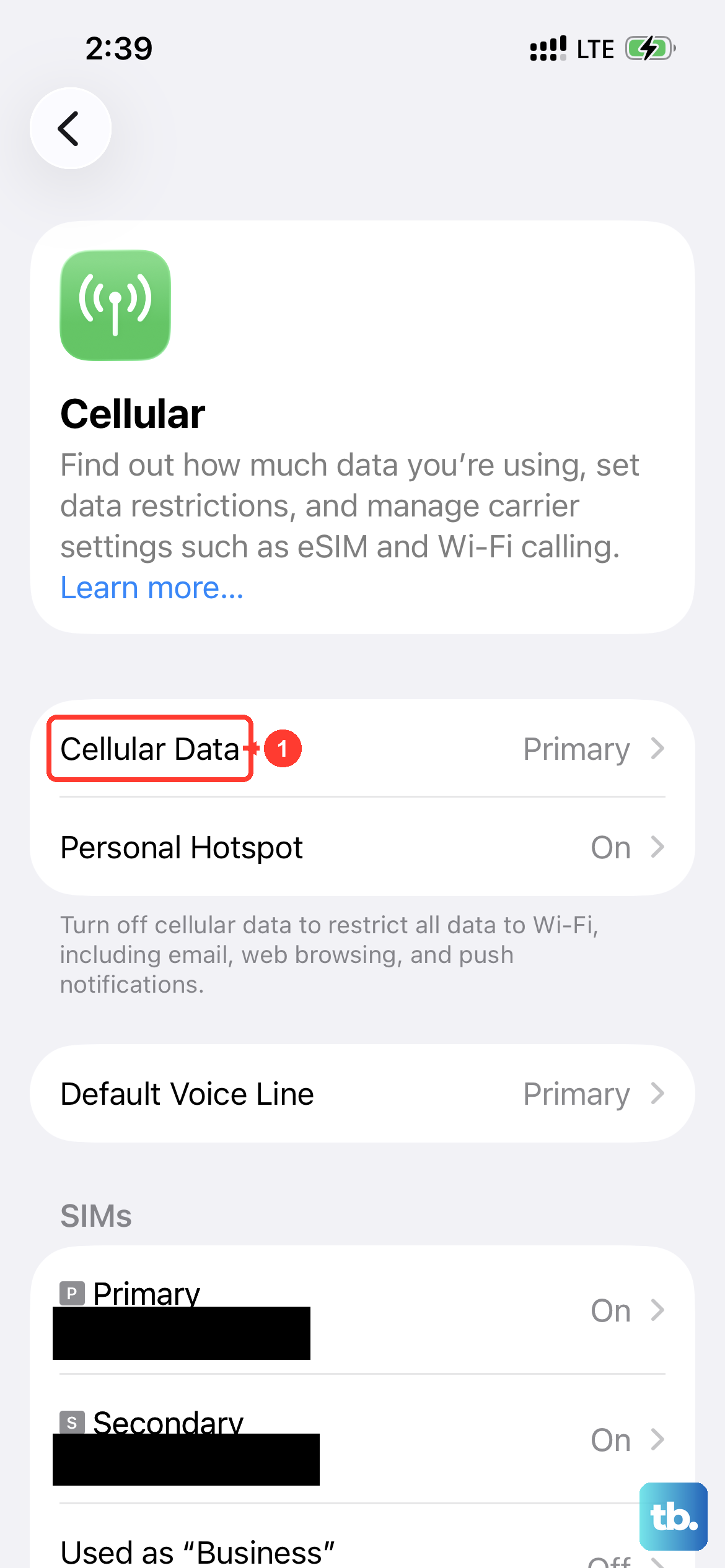
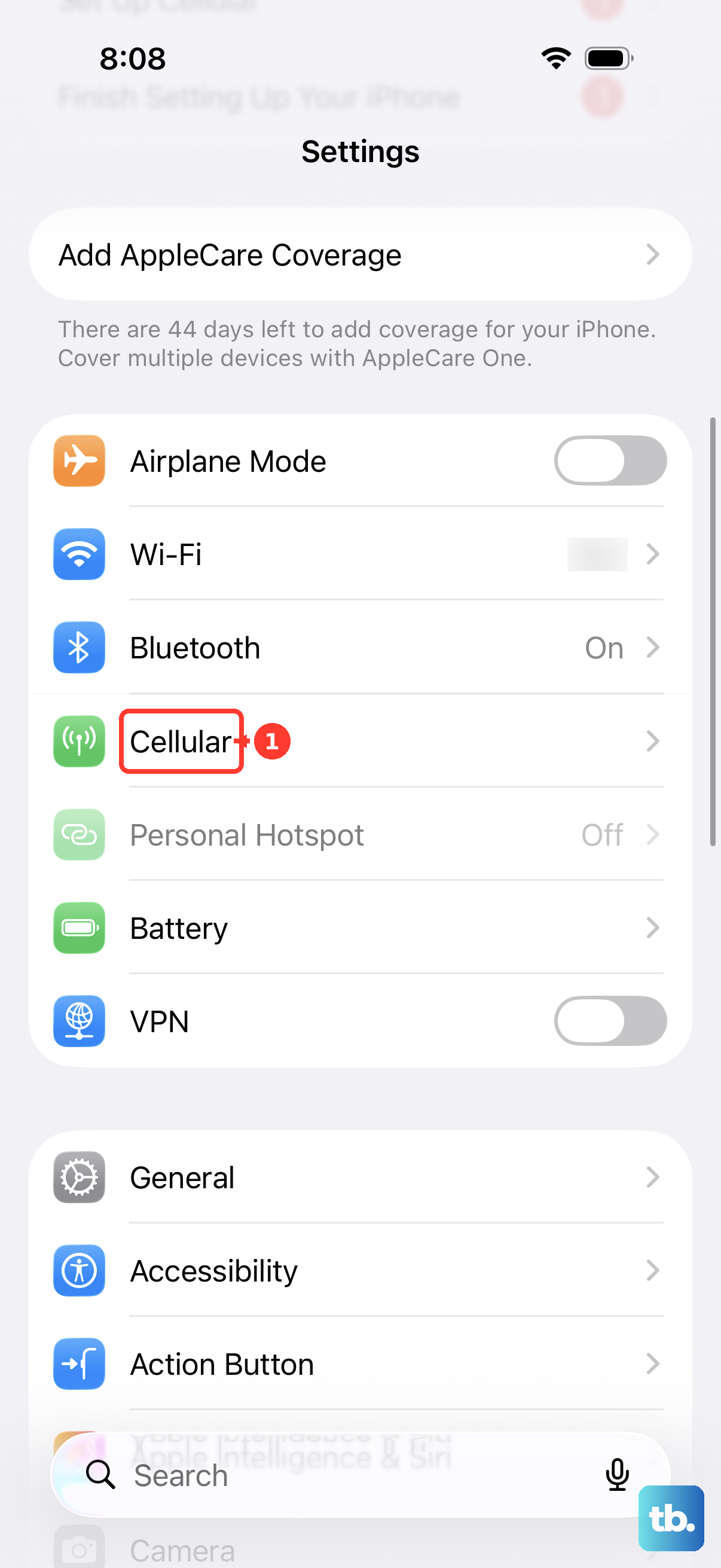
For cellular, ensure you have bars of service. Try moving to a different spot or temporarily switching between 5G and LTE in Settings > Cellular > Cellular Data Options > Voice & Data. A weak signal is often the only thing stopping a photo from going through.
Toggle iMessage Off and On
If your messages are sending as green texts instead of blue iMessages, the service might need a refresh. Head to Settings > Apps > Messages and tap the switch next to iMessage to turn it off.
Wait about ten seconds, then tap it again to turn iMessage back on. This re-establishes the connection with Apple's servers and can clear up sending problems immediately.
Verify Your Send & Receive Settings
Sometimes iMessage gets confused about which address or number to use. Go to Settings > Apps > Messages > Send & Receive. Under "You can be reached by iMessage at," make sure your phone number is checked.
Also, look at "Start new conversations from" and ensure it's set to your phone number. If an old email address is selected here, it can cause delivery failures when texting other iPhone users.
Ensure MMS Messaging is Enabled
When you're texting someone who doesn't have an iPhone, photos are sent via MMS (Multimedia Messaging Service). This setting needs to be on. Open Settings > Apps > Messages and scroll down.
Make sure the switch for MMS Messaging is green. If you don't see that option, also enable Send as SMS as a fallback. This gives your phone the best chance to deliver the picture by any means.
Disable Low Data Mode
Low Data Mode on your iPhone 15 restricts background network activity, which can include sending larger files like photos. To check, go to Settings > Cellular > Cellular Data Options.
If Low Data Mode is on, tap to turn it off. Also check your Wi-Fi settings by going to Settings > Wi-Fi, tapping the "i" next to your network, and making sure Low Data Mode is off there too.
Force Restart Your iPhone 15
A force restart clears the phone's temporary memory without deleting any data. It's different from a normal off-and-on cycle. Quickly press and release the Volume Up button, then quickly press and release the Volume Down button.
Immediately after, press and hold the Side button. Keep holding it until you see the Apple logo appear, then let go. This can fix minor software glitches that are hanging up the Messages app.
Check for a Carrier Settings Update
Your cellular carrier occasionally sends small updates that improve network connectivity. To check for one, make sure your iPhone 15 is connected to the internet, then go to Settings > General > About.
If an update is available, a prompt will appear on this screen. Just follow the instructions to install it. This takes less than a minute and can resolve message-sending issues related to the network.
Sign Out and Back Into Your Apple ID
Since iMessage is tied to your Apple ID, refreshing that connection can help. Go to the top of Settings and tap your name. Scroll all the way down and select Sign Out.
You'll need your Apple ID password to turn off Find My. After signing out, force restart your phone using the steps above, then go back to Settings to sign in again. This often clears persistent iMessage problems.
Update to the Latest Version of iOS
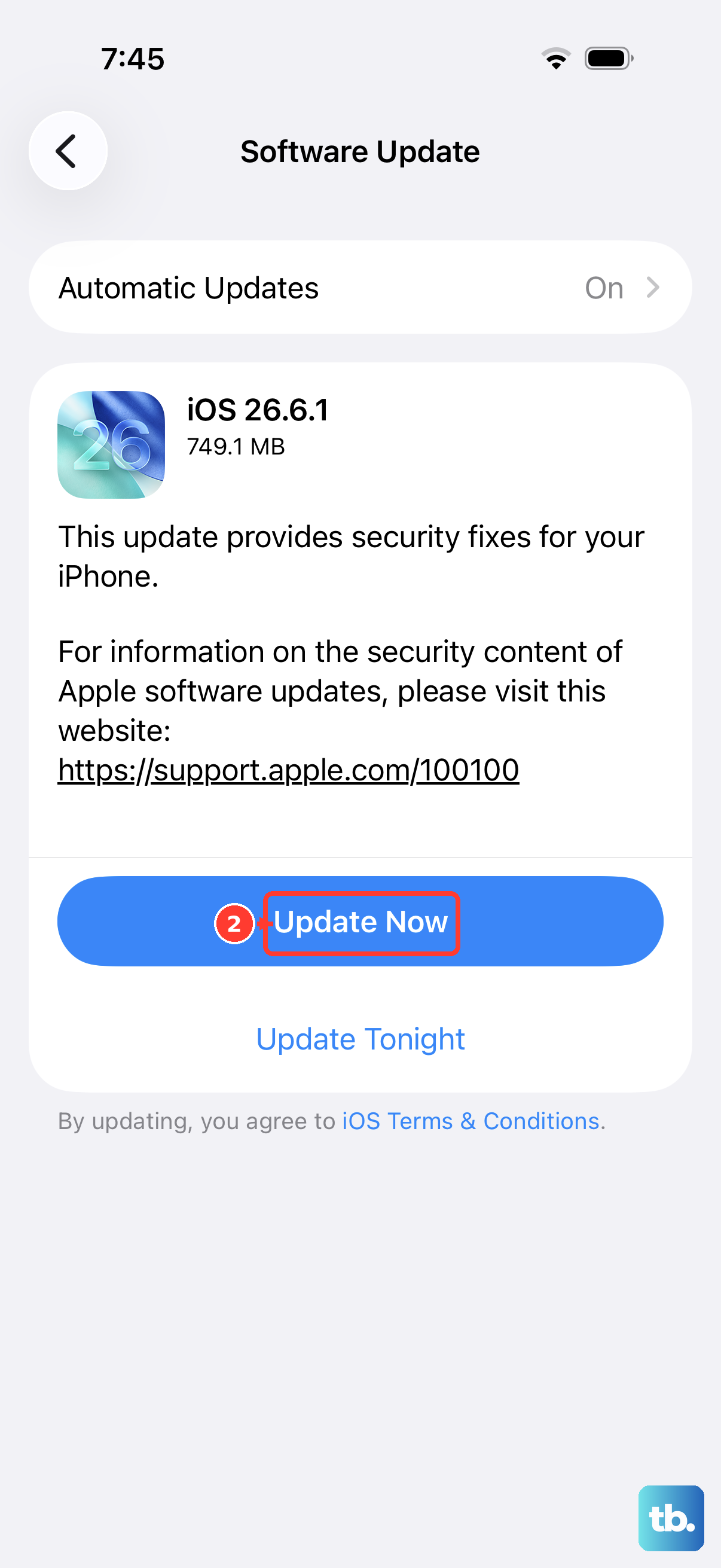
Apple fixes messaging bugs with software updates. Plug your iPhone 15 in and connect to Wi-Fi, then open Settings > General > Software Update. If an update is listed, tap Download and Install.
I've seen updates specifically address issues with photos failing to send in group chats or over cellular. Keeping your iPhone 15 on the latest iOS version is one of the best ways to prevent these glitches.
Reset Your Network Settings
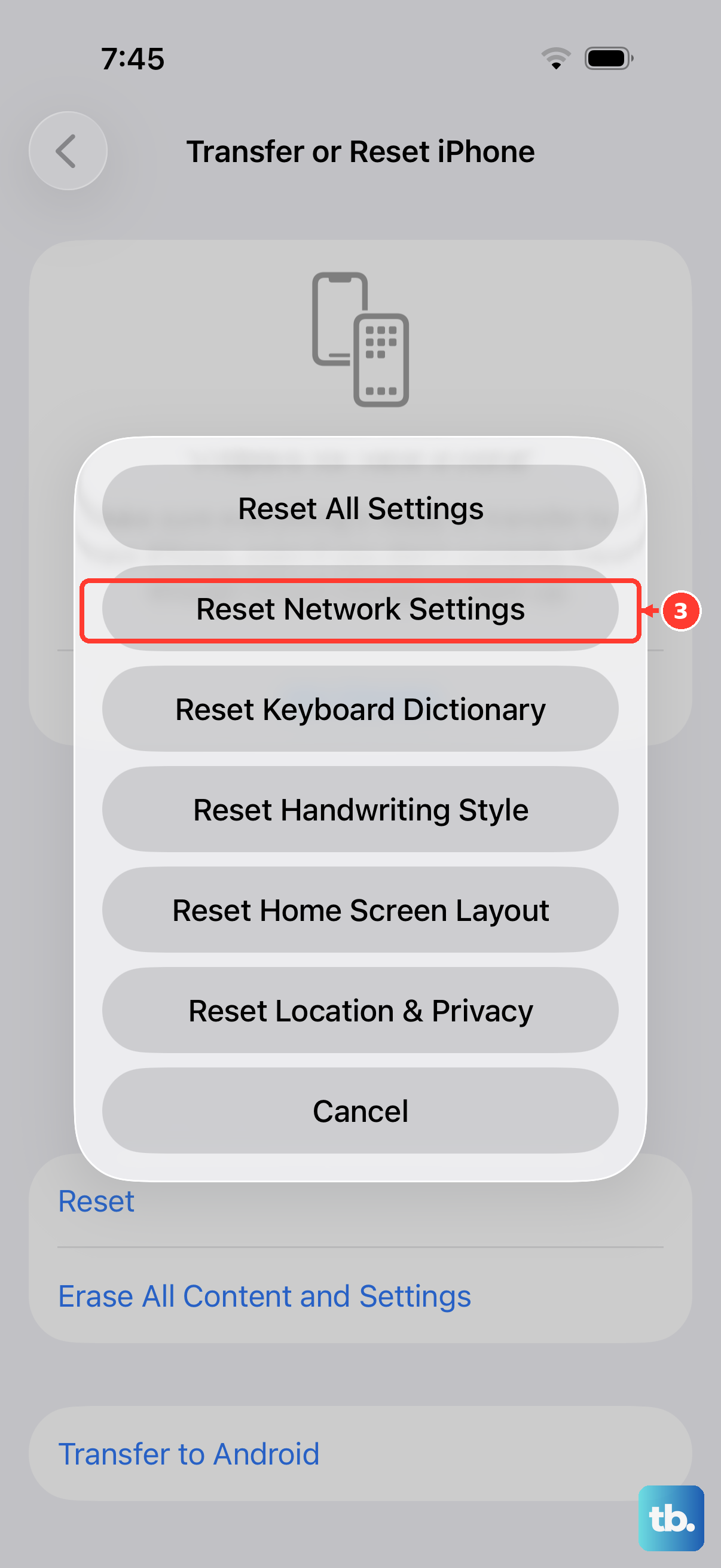
If you've tried everything else and photos still won't send, this is a reliable last step. Go to Settings > General > Transfer or Reset iPhone and tap Reset.
Choose Reset Network Settings. You'll need to enter your passcode. This will erase all saved Wi-Fi passwords, cellular settings, and VPN configurations, returning them to factory defaults. It fixes deep-seated connection issues that can block MMS and iMessage.