
That spinning wheel next to your Wi-Fi icon on the iPhone 15 is incredibly frustrating, especially when you know you're right next to the router. This is a common hiccup, and it's almost always something you can fix yourself in a few minutes. Let's get you back online.
Toggle Wi-Fi and Restart Your iPhone
Start with the simplest fix. Swipe down from the top right to open Control Center and tap the Wi-Fi icon to turn it off. Wait about ten seconds, then tap it again to turn it back on. This forces your iPhone 15 to drop the connection and re-establish it fresh, which often clears up the issue right away.
If the icon is still spinning, do a full restart. On your iPhone 15, quickly press and release the Volume Up button, then the Volume Down button. Now press and hold the Side button until you see the Apple logo appear. This reboot can clear out temporary software glitches that mess with the network hardware.
Forget the Network and Rejoin
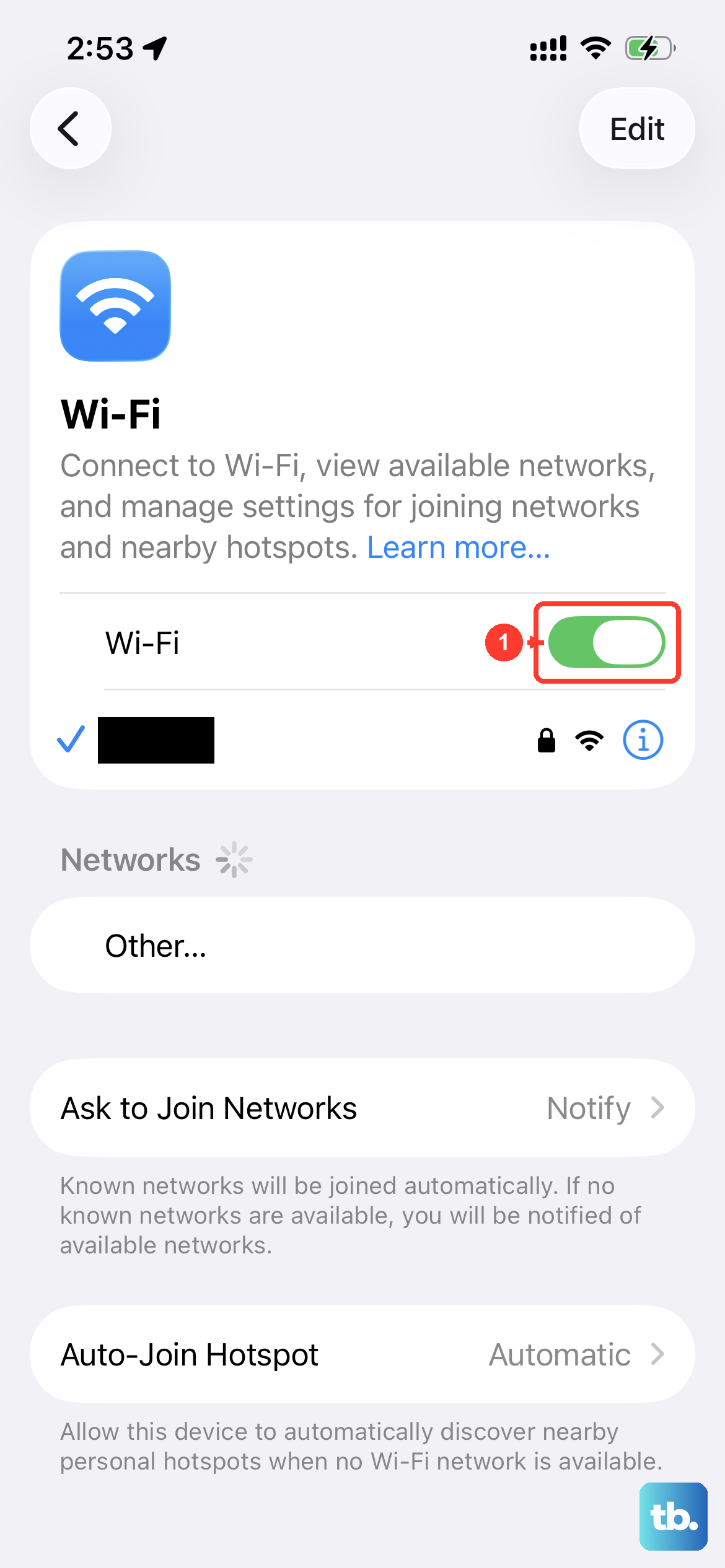
Your phone might be holding onto corrupted login information for that network. Go to Settings > Wi-Fi and tap the blue "i" icon next to your network's name. Tap Forget This Network and confirm.
Now, go back to the list of available networks, select yours again, and re-enter the password. This is particularly useful if you recently changed your Wi-Fi password or got a new router. Your iPhone could be stubbornly trying the old credentials.
Check for a Software Update
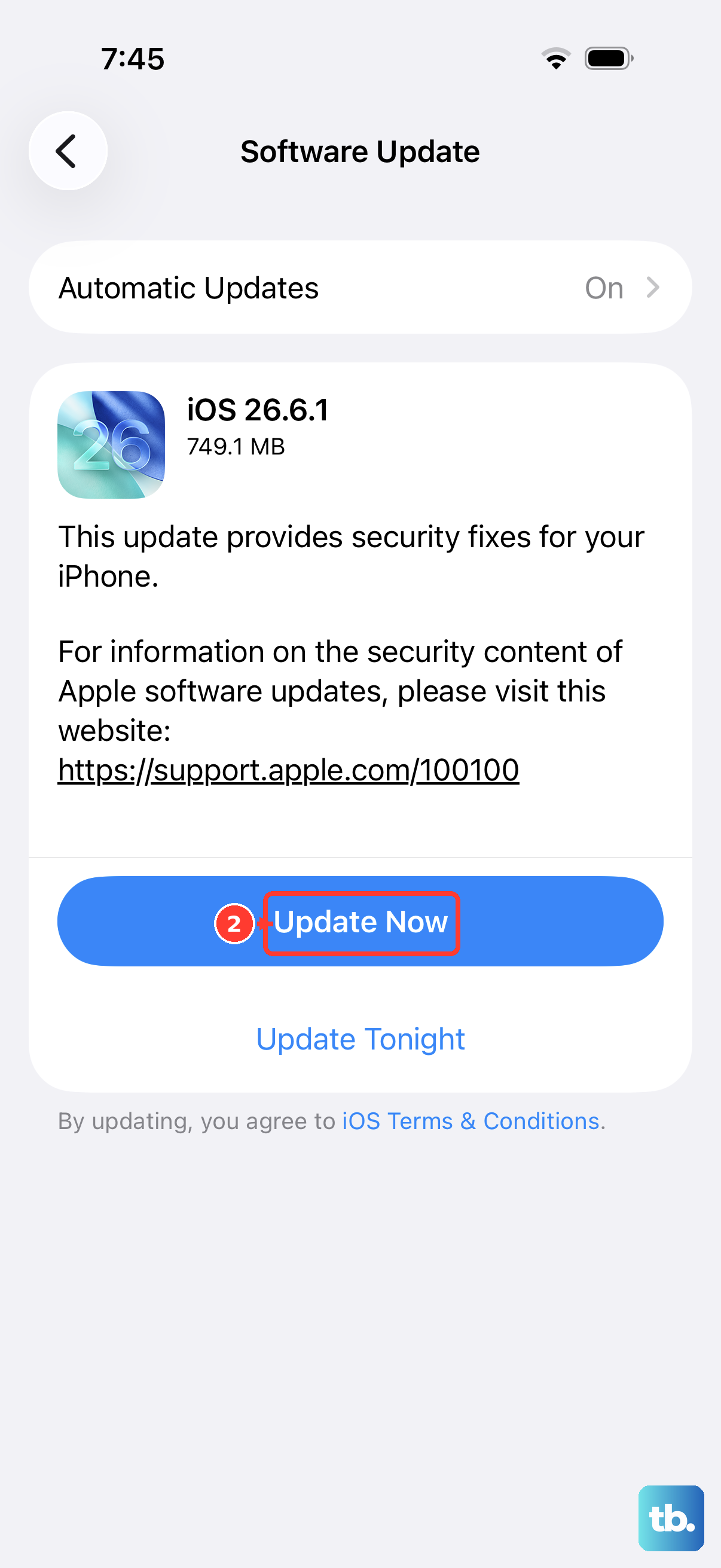
Apple regularly releases iOS updates that include fixes for connectivity bugs. Open Settings, go to General, and tap Software Update. If an update for iOS 26 is available, install it. I've seen many Wi-Fi issues resolved by a simple point update that patches the network stack.
Toggle Airplane Mode
This old trick still works perfectly. Open Control Center and tap the airplane icon to turn Airplane Mode on. This disables Wi-Fi, Bluetooth, and cellular all at once. Wait for about 15 seconds, then tap the icon again to turn it off.
Your iPhone will re-enable all radios and attempt to reconnect. It's a more comprehensive refresh than just toggling Wi-Fi alone.
Reset Your Network Settings
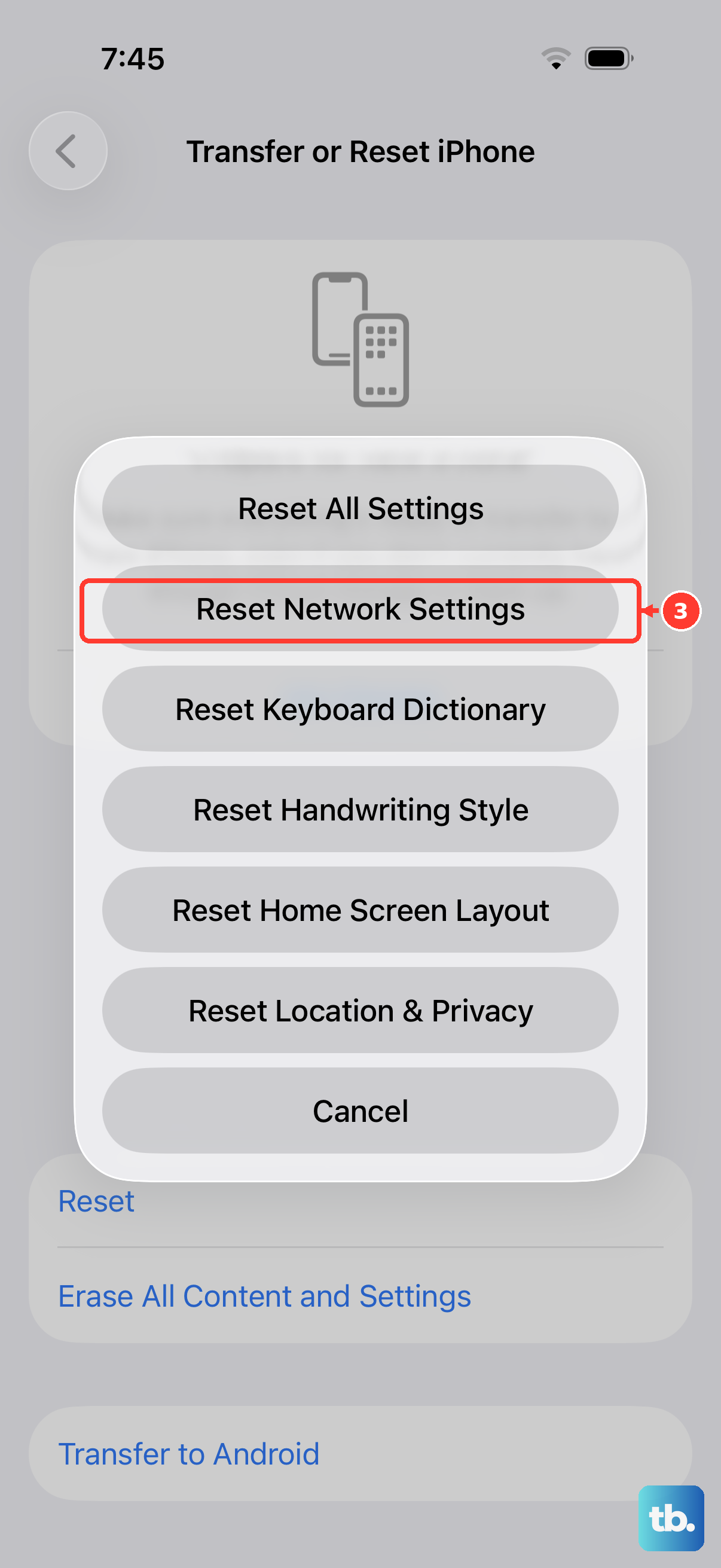
If you're still stuck, this is a powerful step that doesn't delete your personal data. It will erase all saved Wi-Fi networks, Bluetooth pairings, and cellular settings, so you'll have to reconnect to everything afterward.
Go to Settings > General > Transfer or Reset iPhone. Tap Reset and then choose Reset Network Settings. Enter your passcode if prompted and confirm. Your phone will restart, and you can try connecting to your Wi-Fi again from scratch.
Check Your Router and Modem
The problem might not be your iPhone at all. Unplug your router and modem from power. Wait a full minute, this is important to let the capacitors fully discharge. Then, plug the modem back in first, wait for all its lights to stabilize, and then plug the router back in.
If other devices in your home are also struggling to connect, the router is almost certainly the culprit. Also, check if your internet service provider is reporting an outage in your area.
Disable VPN or Security Apps
If you use a VPN, ad blocker, or any network security app, try disabling it temporarily. These apps work by routing your traffic, and sometimes that process can interfere with a basic Wi-Fi connection. Go to the app and disconnect, or go to Settings and look for the VPN configuration to turn it off.
Check for Wi-Fi Assist Interference
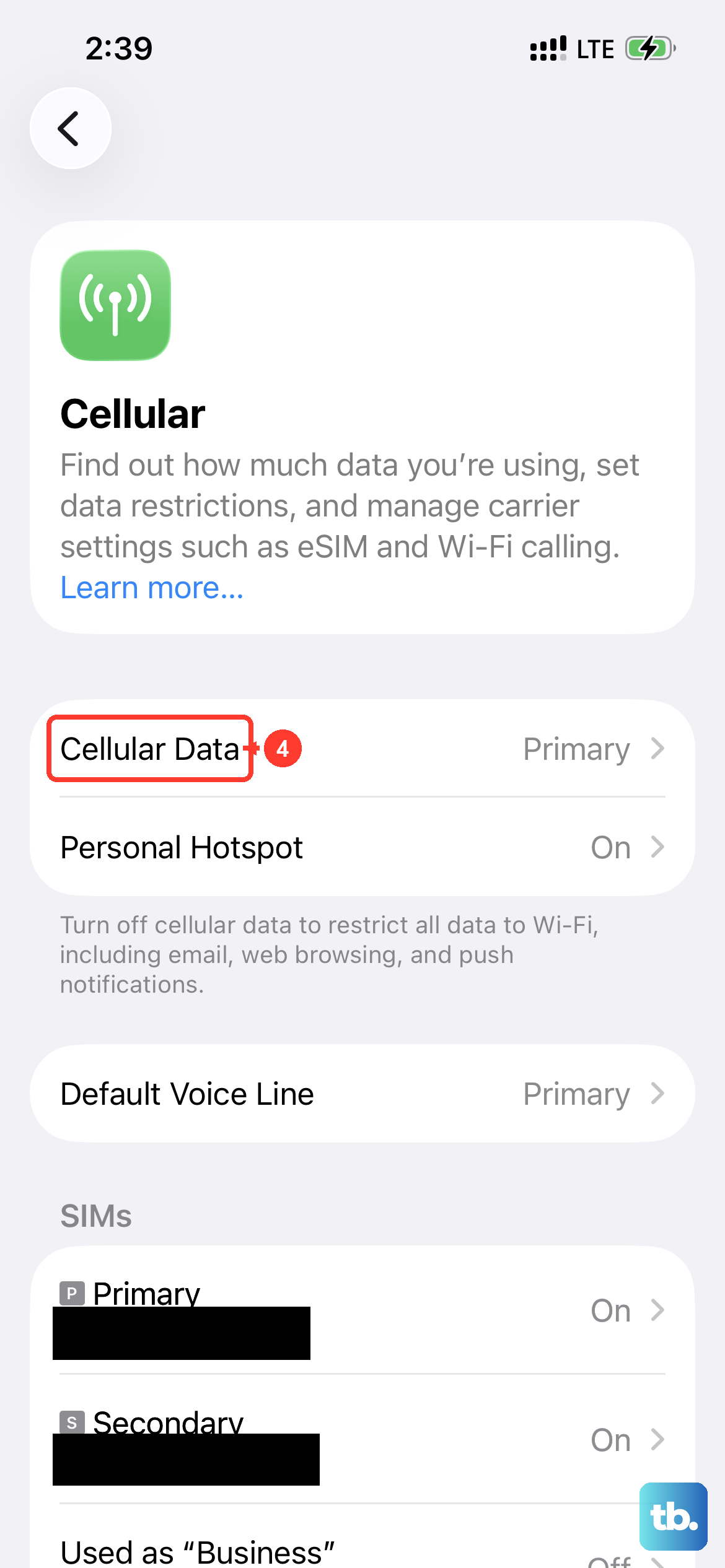
Wi-Fi Assist is an iPhone feature that automatically switches to cellular data when your Wi-Fi connection is poor. In some cases, it can be a bit too aggressive and hinder a stable connection. You can turn it off to test.
Navigate to Settings > Cellular and scroll all the way to the bottom. You'll find the Wi-Fi Assist toggle there. Try turning it off and see if your Wi-Fi connection becomes more stable.
Review Date & Time Settings
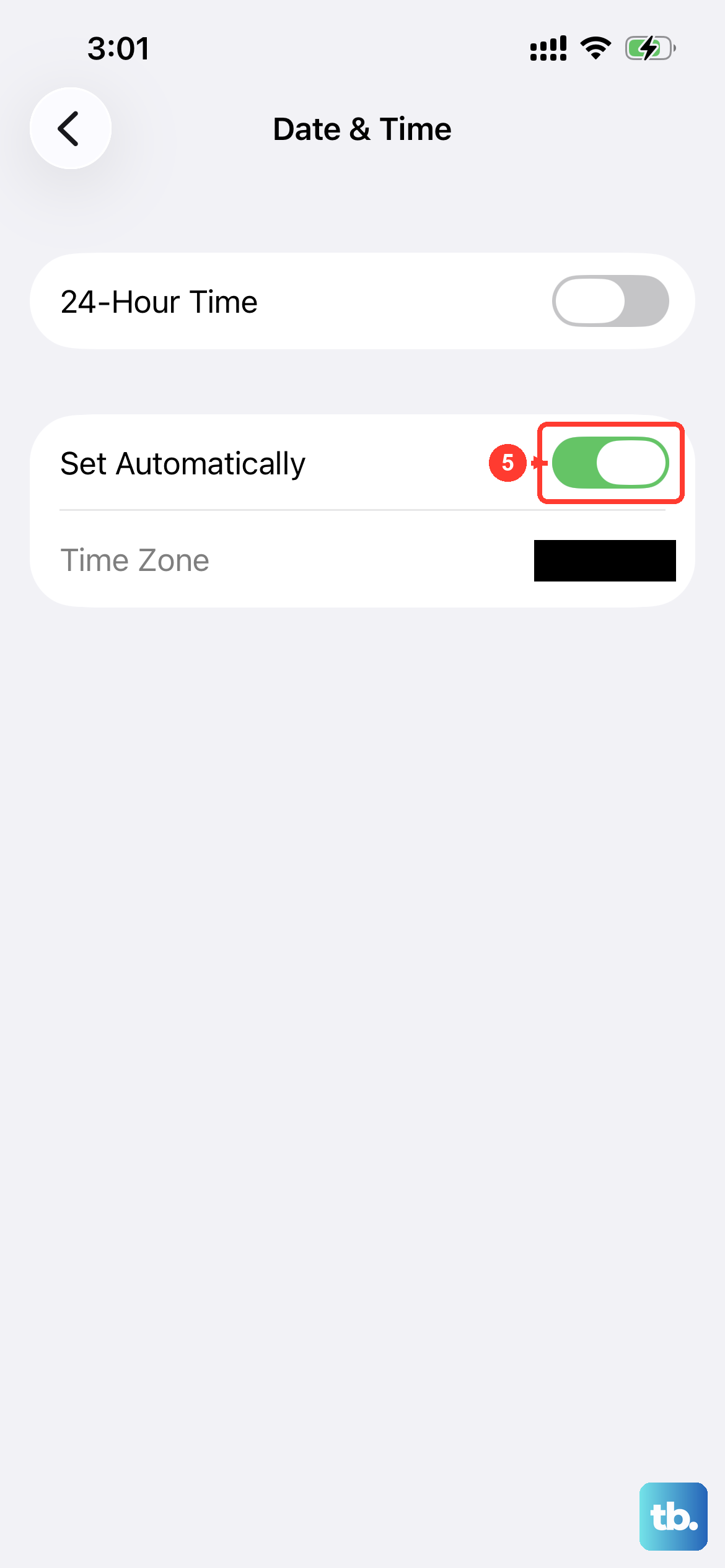
This seems unrelated, but it's critical for network security. If your phone's date and time are incorrect, it can fail to authenticate with secure Wi-Fi networks because the security certificates appear invalid.
Open Settings > General > Date & Time. Make sure the switch for Set Automatically is turned on. This allows your iPhone to get the correct time from the network.
Try a Different Network
To rule out a hardware problem with your iPhone 15, try connecting to a different Wi-Fi network. This could be a public hotspot, a friend's network, or even your phone's own personal hotspot from another device.
If your iPhone connects without issue to other networks, then the problem is isolated to your home network setup. If it fails to connect to any Wi-Fi network at all, it points more toward an issue with the phone itself.