
Seeing that "Storage Full" alert on your iPhone 15 can feel like a sudden roadblock, stopping you from taking new photos or updating apps. The good news is you can free up space by reviewing what's stored and removing content you no longer need. Follow these steps to free up storage on your iPhone 15.
Start With the Storage Breakdown
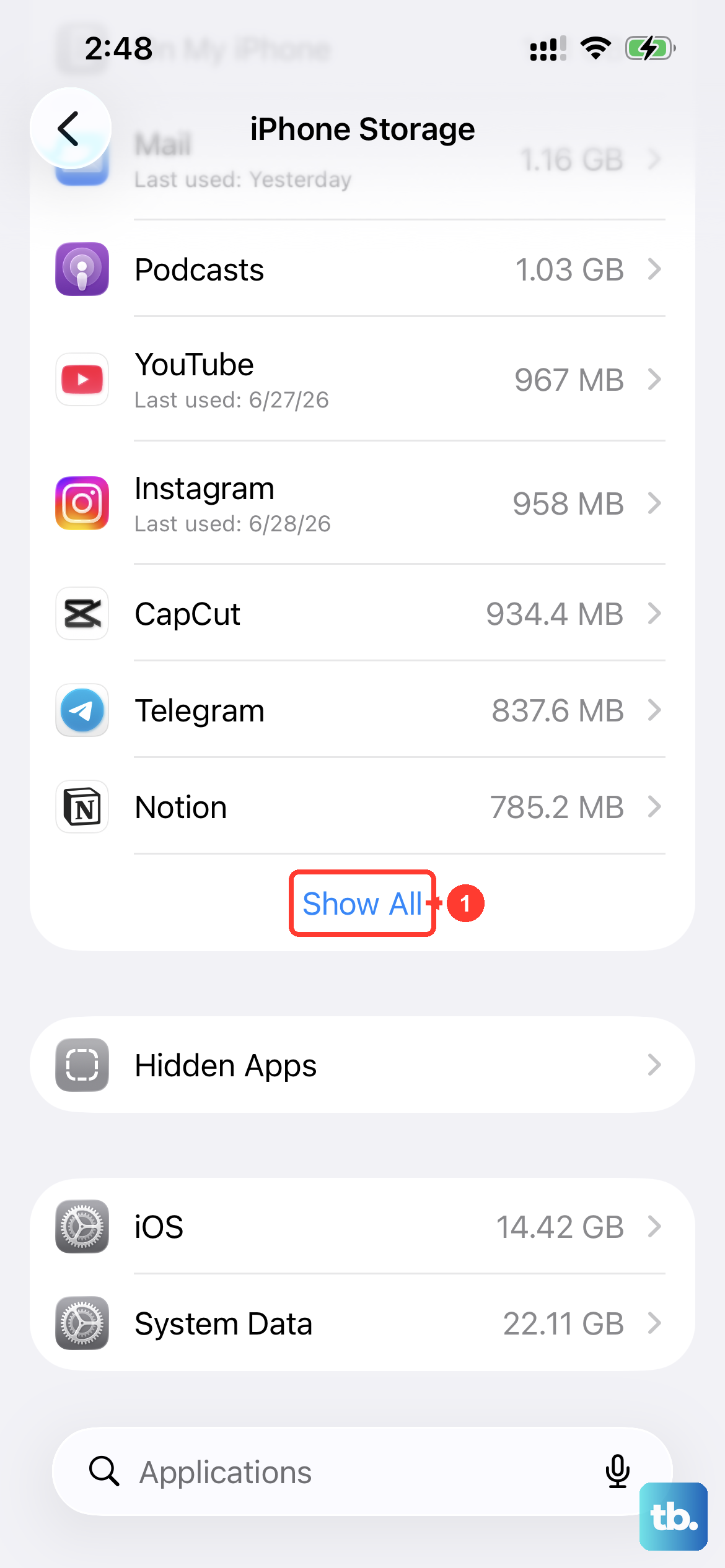
First, head to Settings > General > iPhone Storage. This screen takes a moment to load, but it gives you a complete picture of what's filling your phone. You'll see a color-coded bar and a list of apps sorted by how much space they're using. Look at the top three items first, as they're usually the main culprits.
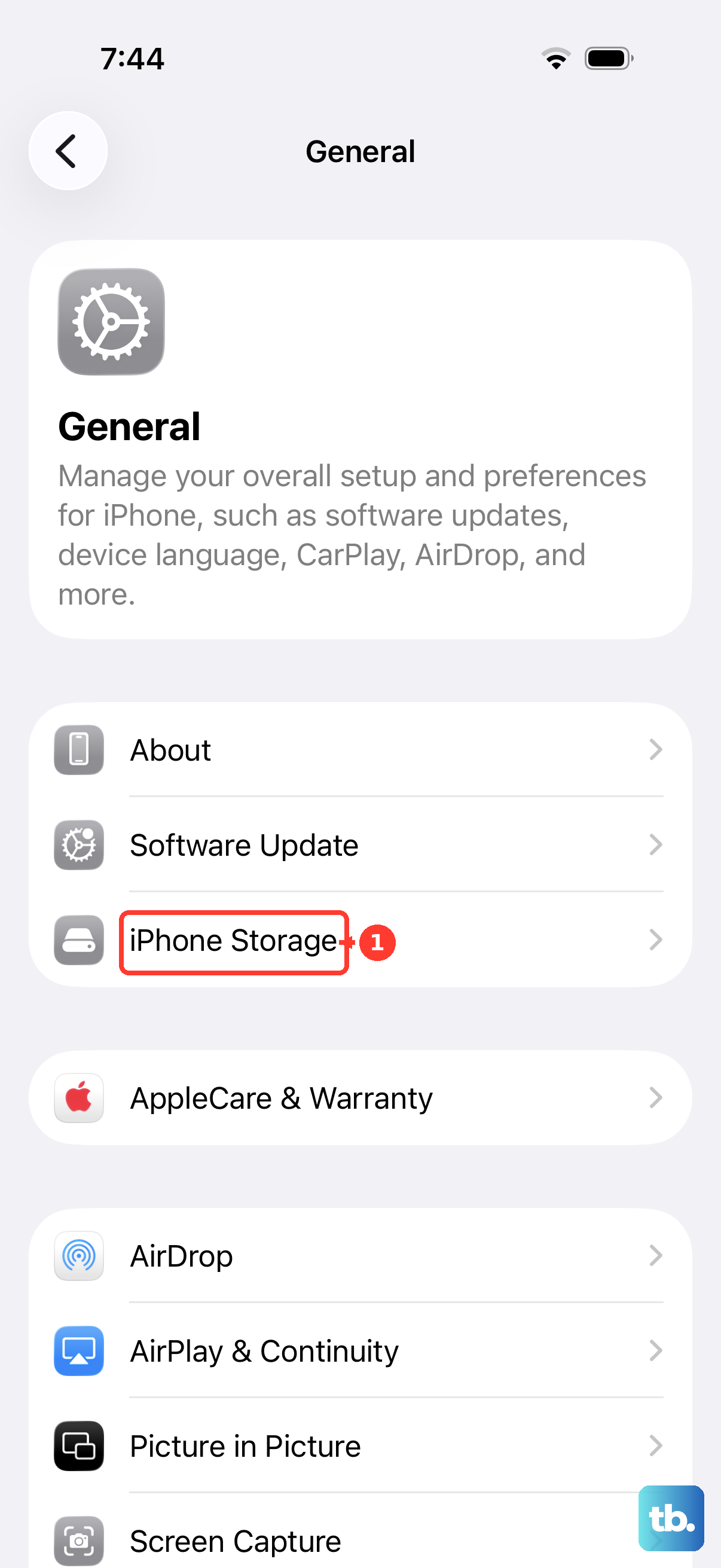
Enable Offload Unused Apps
Right at the top of that iPhone Storage screen, you might see a recommendation to enable Offload Unused Apps. Turn this on. It's a fantastic feature that automatically removes apps you haven't opened in a while, but keeps all their documents and data saved. The app icon stays on your home screen with a little cloud icon, and tapping it downloads it again if it's still available in the App Store.
You can also do this manually. Scroll down the app list, tap on any app you don't use often, and select Offload App. This is perfect for clearing space from that game you finished months ago or a specialty app you only need once a year.
Tackle Your Messages Cache
Your Messages app is a silent storage killer, hoarding every photo, video, and meme ever sent to you. Go back to Settings > General > iPhone Storage and tap on Messages. Inside, you'll see categories like Photos, Videos, and GIFs with their file sizes listed.
Tap into each category to review and delete items you don't need. For a more permanent fix, set messages to auto-delete. Go to Settings > Apps > Messages > Keep Messages and change it to 30 Days or 1 Year. This prevents your phone from keeping conversations from five years ago.
Clear App Caches by Reinstalling
Social media and streaming apps are notorious for building up huge caches of temporary data. In your iPhone Storage list, look at apps like Instagram, TikTok, Spotify, and Facebook. A large amount of "Documents & Data" can include saved files and other app content, as well as cached data.
You can delete the app entirely and then reinstall it from the App Store. Deleting an app also removes its related data, so save anything you need and check that you can sign back in first. Depending on the app, you might be able to delete some documents and data without removing the app.
Optimize Your Photo Library
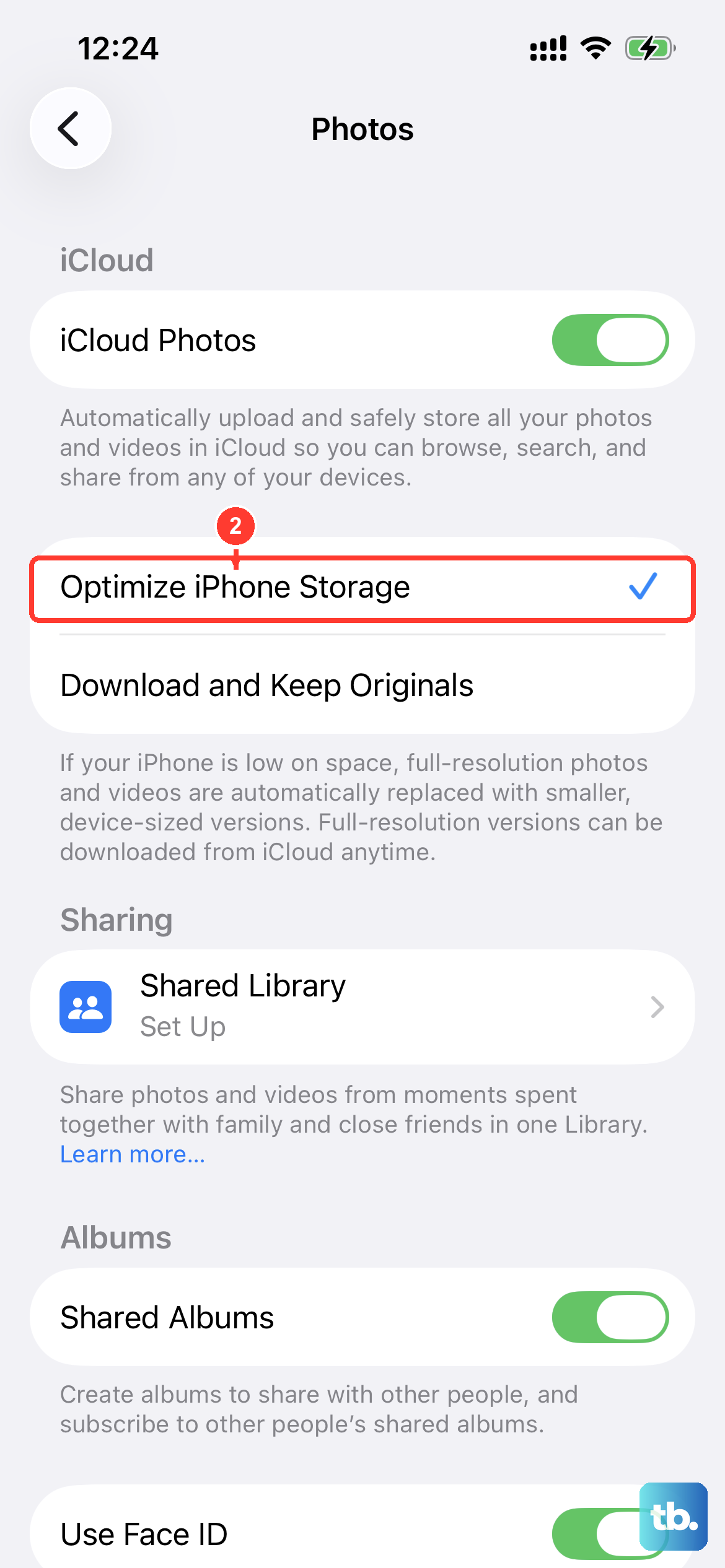
Photos and videos can take up a lot of space. Make sure you have iCloud Photos enabled with the optimization setting. Go to Settings > [your name] > iCloud > Photos and turn on Sync this iPhone. Tap iPhone Storage and make sure Optimize iPhone Storage is turned on. You need enough available iCloud storage for your photo library.
This keeps full-resolution originals safely in iCloud, while storing smaller, device-friendly versions on your iPhone 15. You can also spend a few minutes in the Photos app deleting duplicates, old screenshots, and videos you'll never watch again. Remember to then go into the Recently Deleted album and empty it to permanently free that space.
Clear Safari Website Data
Safari stores website data, caches, and browsing history to load pages faster, but this can grow over time. To clear it out, go to Settings > Apps > Safari > Clear History and Website Data, choose a timeframe, then tap Clear History. This can free up space used by browsing history and website data, though Safari downloads need to be managed separately.
Manage Downloaded Media
Check your streaming apps for offline content. In Spotify, tap your profile picture, go to Settings and privacy > Data-saving and offline, then use Remove all downloads under Storage, or remove individual downloads from Your Library. In Netflix or Apple TV, look for a Downloads section. Podcasts and Apple Music also store downloaded episodes and songs locally. Deleting content you've already listened to or watched is an easy win.
Review System Data
Go to Settings > General > iPhone Storage and scroll to the bottom to review System Data. Storage in this category can include caches, logs, fonts, Siri voices, and other system files. A large total doesn't mean it is all temporary or removable.
Your iPhone removes cached and temporary files when it needs more space. To free up space yourself, return to the storage recommendations and tap Show All. Read each recommendation, then tap Enable to turn it on or tap the recommendation to review content you can delete.
Check Your iCloud Plan
If you're constantly battling for space, a small iCloud+ upgrade might be the simplest long-term solution. With enough iCloud storage for your library, Optimize iPhone Storage can save local space, and additional iCloud capacity can also leave room for backups. You can check your current plan and upgrade options at Settings > [Your Name] > iCloud.